Disclosure: Some links in this post are affiliate links. As an Amazon Associate I earn from qualifying purchases, at no extra cost to you. Learn more
Specs are compiled from manufacturer listings and verified buyer reviews and can change over time — please confirm the key details on the product page before buying.
If your wrist aches halfway through an assembly and your middle-button orbit keeps stuttering, you do not need a fancier model — you need a mouse whose sensor and buttons survive eight-hour sessions in Blender, Fusion or SolidWorks. This guide separates the mice that hold a steady cursor through CAD and 3D work from the ones that only look the part.
This guide is built by comparing the manufacturers’ published specifications and the patterns across verified customer reviews, so you get each pick’s real strengths and trade-offs instead of marketing spin.
The trick is knowing which spec drives your day — sensor resolution, button count, or hand position — before you commit. This breakdown of the mice for 3D modeling covers each of those specs, pick by pick.
Top Picks
How To Choose The Best Mice for 3D Modeling
A modeling mouse has one job the average office mouse fails at: holding a rock-steady cursor while you drag a vertex a hair to the left in a viewport. Pick the wrong mouse and you fight the hardware all afternoon; pick the right one and your modeling software stops getting in your way.
The sensor matters, but not in the way you think
Resolution is measured in DPI (dots per inch — how far the cursor moves for each inch you slide the mouse). Huge DPI numbers sell gaming mice, but in a viewport you mostly move slowly and precisely. What you actually want is a sensor that tracks without jitter or missed steps on a desk that may be glass, wood, or a fabric mat. Look for a named optical sensor and any note about surface compatibility, because a mouse that skips on your desk destroys accuracy no matter what its DPI says.
Buttons and the middle click
Modeling software leans on the middle mouse button constantly for orbiting, panning and zooming. A stiff or fragile wheel is the first thing to fail in heavy CAD use, so check how the wheel is described and whether the middle click is light. Extra programmable buttons are your shortcut to isolate, hide, and repeat-last-command without leaving the mouse, which is why button count is worth scanning before you buy.
Hand position over everything
You will hold this mouse for hours, so the shape decides your comfort more than any spec sheet can. A flat, ambidextrous body suits quick mixed work; a tilted or vertical body keeps your wrist in a more neutral pose over a long session. Adjustable tilt and adjustable thumb support let you shift position mid-day, which is why some ergonomic models are worth their extra bulk.
Wired, wireless, and the charging question
Wireless frees your desk, but you need a plan for charging so you are not stranded mid-project. A mouse you can use while it charges, or one with a fast top-up, keeps you working. Check the stated battery life and the charging port, because a dead mouse at a deadline is the one failure no one forgives.
Side-by-Side Comparison
| Model | Best For | Sensor / DPI | Buttons | Hand Position | Amazon |
|---|---|---|---|---|---|
| Logitech MX Master 3S★ Best Overall | Everyday all-round modeling | 8000 DPI | 5 | Ambidextrous | Amazon |
| Contour Unimouse (Left Handed)Best for Lefties | Left-handed precision work | Adjustable DPI | 6 | Adjustable 35–70° tilt | Amazon |
| Evoluent VMC Classic | Upright handshake grip | 4 pointer speeds | 6 | Vertical | Amazon |
| Logitech MX Ergo S | Wrist-friendly trackball work | Adjustable tracking | 6 | 20° tilt trackball | Amazon |
| 3Dconnexion CadMouse Pro Wireless | All-day CAD sessions | 7200 DPI | 7 | Ambidextrous | Amazon |
| Razer Naga V2 Pro | Shortcut-heavy workflow | Focus Pro 30K | 20 | Right | Amazon |
| Razer DeathAdder V4 Pro | Fast, light precision sweeps | 45K DPI | 6 | Right | Amazon |
Detailed Reviews
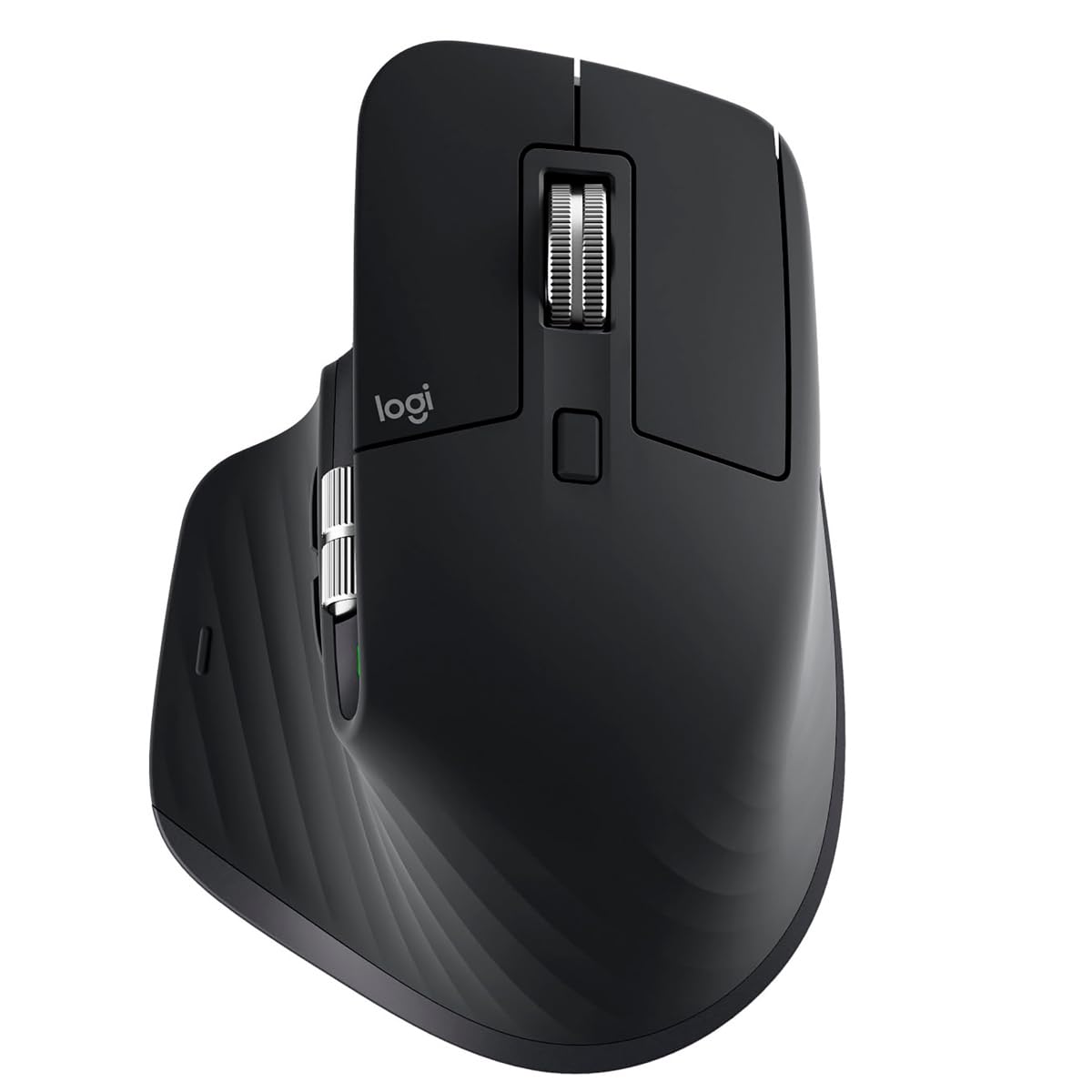
1. Logitech MX Master 3S, Black
Our pick — 4.5+★ from 950+ verified ratings; the strongest balance of quality and price.
The one that scrolls like a dream and quietly survives an eight-hour modeling day.
The MX Master 3S earns the top slot because it makes the two jobs you repeat most — navigating and orbiting — feel easy. It uses an 8000 DPI Darkfield sensor (a sensor that reads the surface optically and can even track on glass), so your cursor stays glued to the spot where you release it. That steadiness is exactly what a viewport needs when you are dragging an edge one millimeter at a time.
Its MagSpeed electromagnetic scroll wheel is the star. Logitech rates the MagSpeed wheel 90% faster and 87% more precise than a standard scroll wheel, and it spins nearly silent. For 3D work the side scroll wheel is the real productivity lever, letting you nudge through menus and timelines without lifting a hand. Owners describe the day-one layout as natural, and the button personalization is what serious modelers notice. As buyers report: “After 8 months: scroll wheel and side scroll boost navigation speed; battery lasts months with heavy use; precise, no lag or missed clicks across monitors; customizable buttons save time; solid build, no hand fatigue.”
The battery is rated up to 70 days, and you can keep working while it charges, so you are never stuck. App-specific profiles in Logi Options+ let you assign a different setup per program, and Logitech Flow moves text and files between two computers and their operating systems. The honest catch sits in the wireless corner: a small set of buyers hit lag or pairing trouble with older Logitech receivers. That is a compatibility nuisance, not a deal-breaker, and most people just run the included Logi Bolt receiver or Bluetooth and move on.
Where the Master 3S pulls ahead
- The MagSpeed wheel scrolls fast, precise, and near-silent — ideal for long menu and timeline work.
- 8000 DPI Darkfield sensor keeps a stable cursor on tricky surfaces including glass.
- Side scroll wheel plus programmable buttons let you navigate without leaving the mouse.
- Up to 70 days of battery, and you can keep working while it charges.
What to know before you buy
- Some owners mention Bluetooth lag or trouble with older Logitech receivers.
- It is a full-size desk mouse that suits stationary work, not wide sweeps.
Reach for this one: anyone who wants the smoothest scrolling and a do-it-all ergonomic shape for messy multi-app modeling days.
Walk past if: you work left-handed — this body shifts your wrist but expects a right thumb for the side controls.
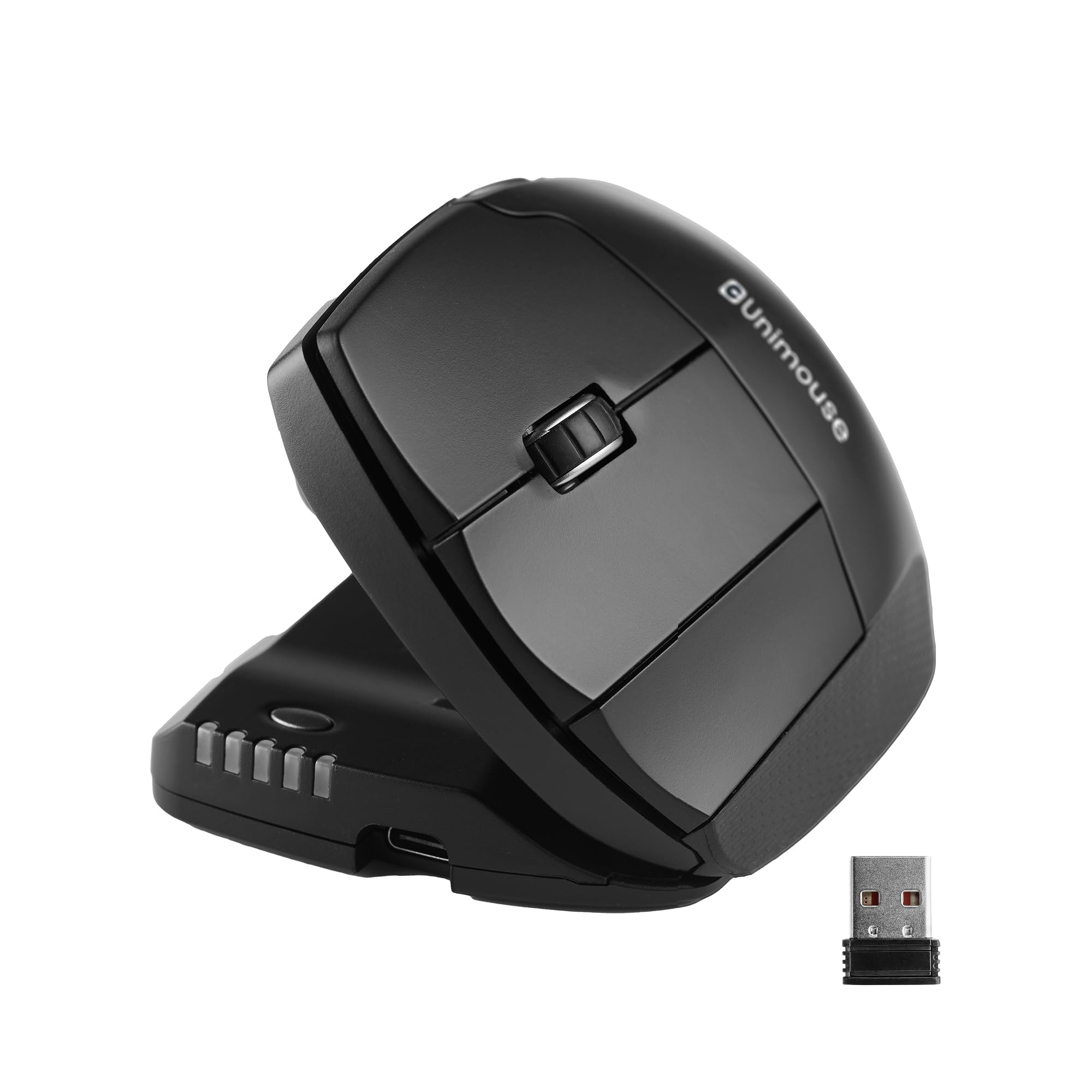
2. Contour Unimouse Left Handed Wireless
Left-handed, and the only pick here that bends to your wrist instead of the other way around.
Left-handed modelers get a small shelf of choices, and this Contour is the most flexible of them. A sturdy friction hinge sets the tilt anywhere from 35° to 70°, and the thumb support slides, pivots and rotates so you can dial in a grip that fits your hand rather than one fixed angle. That adjustable geometry is what wins the ergonomics praise here — the freedom to shift position mid-afternoon is the reason it exists.
You get six programmable buttons and a smooth scroll wheel to map shortcuts to. Tracking is described by the maker as smooth and precise enough for CAD designers and digital artists, and the whole thing weighs 144 g with a compact 4.69″L x 2.2″W footprint. Notably, its six buttons edge the five on the MX Master 3S above, giving you one extra shortcut spot for repetitive commands.
The pragmatic side is a rechargeable battery rated up to 12 weeks per charge, charged over USB-C on the current version. One buyer used theirs for 7-8 months without trouble and rated comfort and battery highly, though noted the side buttons sit a stretch from the thumb. A few find it on the spendy side, and one found the cursor jittery straight from the start — an outlier against a mostly content left-handed crowd. Think of it as a fit-first purchase: if a fixed shape has never quite worked for your left hand, this is built to solve that specific problem.
Why it earns its place: adjustable tilt plus a fully movable thumb rest is a combination almost no left-handed mouse offers, and it is the core reason to pick this over a one-angle vertical body.
Made for you if: you are left-handed and want a mouse you can physically re-shape to your hand across a long modeling session.
Think twice if: you need a rock-bottom budget pick or a plug-in wired setup — this leans on its rechargeable battery and a USB receiver for connection.
3. Evoluent VMC Classic Wireless Ergonomic Mouse
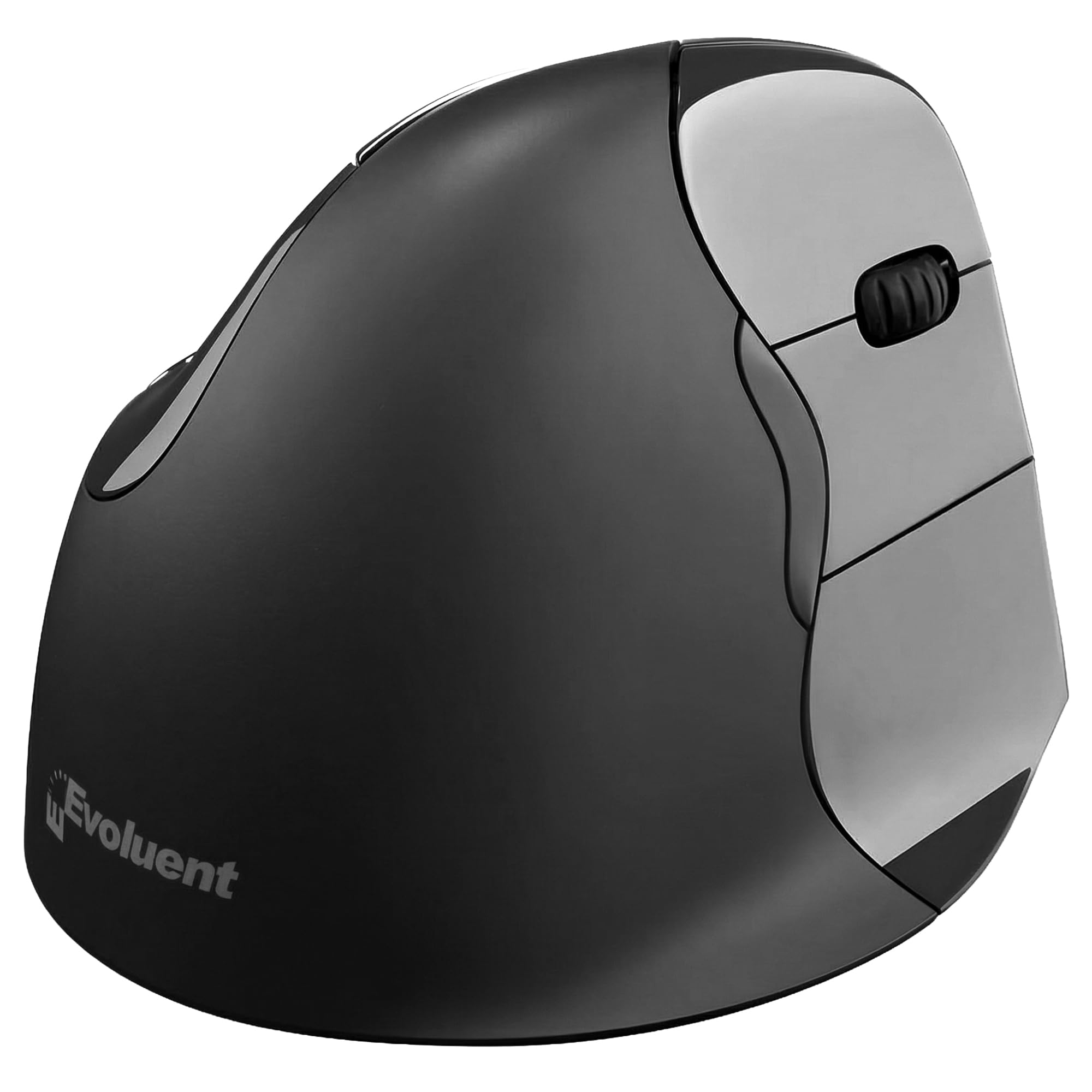
The vertical mouse that stands your hand up in a natural handshake and keeps it there.
If flat mice leave your wrist folded all day, the Evoluent’s whole argument is position. The body is sculpted so your hand sits upright, closer to a handshake posture, which is the vertical shape’s entire point. It connects by Bluetooth or the included USB wireless receiver with a toggle, so you can hop between a work PC and a home machine without re-pairing, and no drivers are needed to get moving.
Speed control lives on the underside with four pointer speeds you can switch on the fly, which helps when you want fine control for detailed edits and faster travel for big scenes. Two fixed buttons are preset for copy and paste — handy for repetitive commands, though note they are intentionally not programmable. The battery is rated for 4 months on an AA alkaline cell, so a spare battery swap is a rare event.
The fair catch is button customization: because the copy and paste keys are fixed, you cannot remap the whole cluster the way you can on the CadMouse or the Naga. A handful of owners also found the software limited on newer Windows builds — worth a thought if heavy remapping is central to your workflow. For straightforward desktop modeling and precision drafting where posture is the priority, it does the job owners keep coming back for.
The posture payoff: an upright handshake angle is the standout reason to choose this, and it is deliberately built for that single goal.
The honest limit: non-programmable copy/paste buttons mean less shortcut freedom than the multi-button picks lower down.
Pick it for: right-handed modelers who want a fixed, upright grip and long battery life without fiddling with settings.
Look elsewhere if: you depend on remapping every button to custom macros — the fixed keys here are not built for that.
4. Logitech MX Ergo S Advanced Wireless Trackball Mouse

Keep the mouse planted and let your thumb do the traveling — your forearm stays put.
The MX Ergo S flips the whole idea: instead of sliding your arm around the desk, a thumb-controlled trackball does the movement while the base stays still. That is the draw for anyone whose shoulder and forearm ache after a long assembly session. A 20-degree tilt angles your forearm into a more natural pose, and Logitech rates the 20-degree tilt at 27% less muscle strain and the clicks 80% quieter than its previous model.
Precision is easy to dial in. A single button toggles between a fast speed mode for big viewport jumps and a high-precision mode for fine edits, so you can cross the screen and then land on a tiny feature without changing grips. Six customizable buttons plus Logi Options+ let you map shortcuts and Smart Actions. Charging is quick: Logitech rates a 1-minute charge for up to 24 hours of use, and a full charge for up to 120 days — so a mid-deadline top-up is a coffee-break job.
The obvious thing to weigh is the learning curve. A trackball is not a traditional mouse, and the thumb does the steering, so give yourself a week or two to adjust before judging it. Some buyers also hit occasional Bluetooth cursor freezes that clear with a click, and one found the two-speed switching fussy for their hand. Broadly, though, this is the pick that turns a stationary desk into a comfortable workspace for wrist-strained modelers who want the cursor to move without the arm.
What makes it a wrist-saver
- Thumb trackball keeps the mouse planted, so your forearm does not travel the desk all day.
- One-tap switch between fast and high-precision tracking across a large viewport.
- 1-minute charge tops up 24 hours of use; a full charge reaches up to 120 days.
- 20-degree tilt and 80% quieter clicks for a calmer, steadier session.
The honest trade-offs
- Expect a week or two of adjustment before a trackball feels natural.
- Occasional Bluetooth cursor freezes reported, clearing with a click.
The right call for: modelers whose shoulder or forearm tires from sliding a mouse, and who want precision without lifting an arm.
Not the one if: you need fast, wide sweeping movements — this is a stationary-control tool, not a swipe machine.
5. 3Dconnexion CadMouse Pro Wireless Mouse
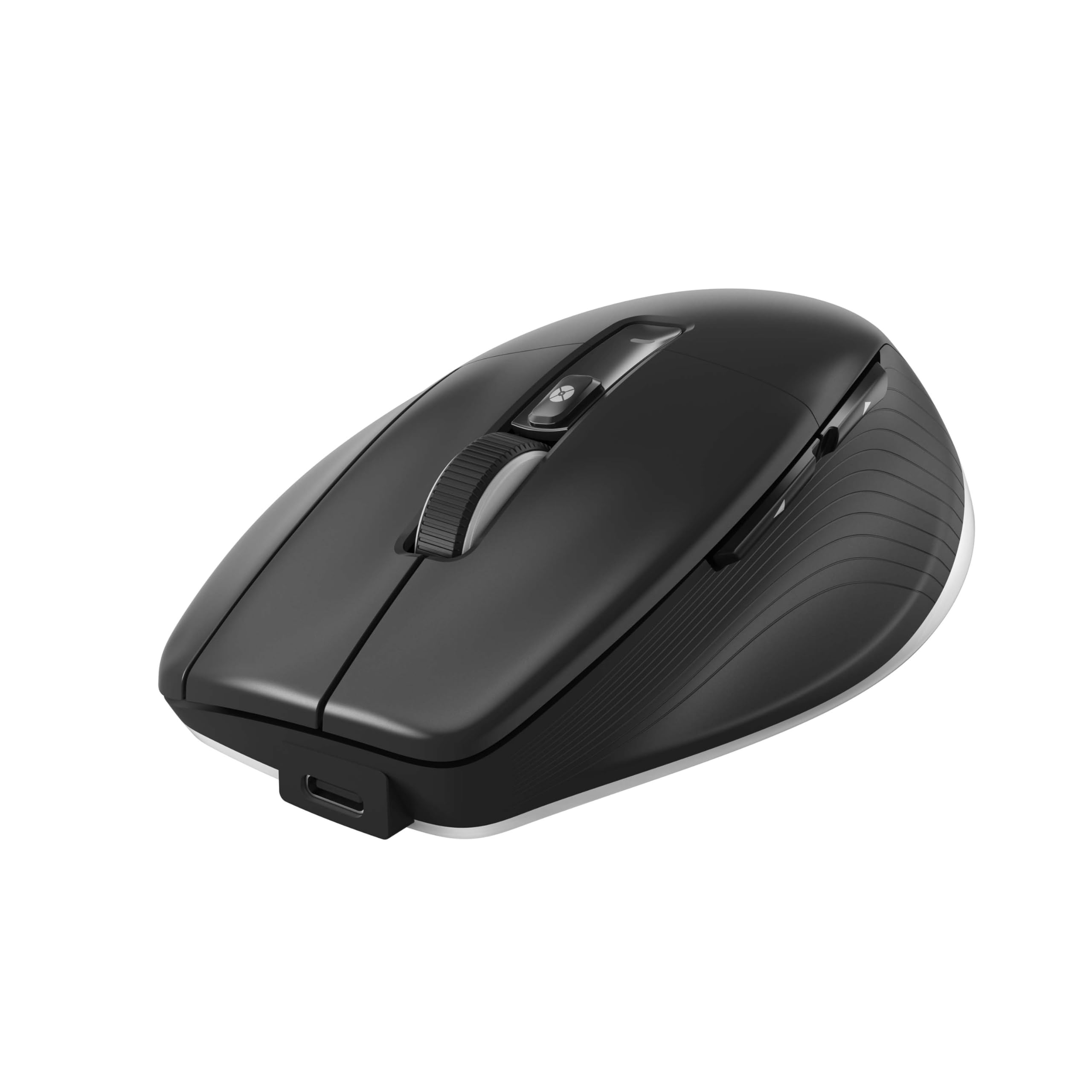
Purpose-built for CAD, with a dedicated middle button that survives years of orbiting.
This is the mouse whose name says what it is for. 3Dconnexion built the CadMouse Pro Wireless around the CAD workflow, and the headline is a dedicated, easy-to-press middle button separate from the scroll wheel — so the constant orbiting and panning in a modeling program no longer chews through a fragile wheel. A 7200 DPI optical sensor covers the precision end, and seven buttons give you room to map the tools you touch most.
Connections are flexible: 2.4 GHz RF, Bluetooth, and USB-C, so you can run it wirelessly or plug in. Battery life is rated at 2 months, and it will also work corded when you need it. The build feels solid and the button layout puts your key commands within reach, which is why CAD users keep praising how it handles an all-day session.
The caveat is one worth naming: this is an ambidextrous, fairly weighty mouse at 14.4 ounces, so it suits a planted hand rather than quick lift-and-sweep work, and a few owners find the button arrangement takes getting used to. It is not a shortcut-heavy gaming-style pad of buttons — it is a focused CAD instrument. If your day is spent in one modeling program pressing the same wheel button a thousand times, that focus is exactly the point.
Built for the wheel button: a separate, dedicated middle click is the detail CAD users notice first, because it takes the wear off the scroll wheel.
One thing to weigh: at 14.4 ounces it is a substantial mouse, best for a steady palm rather than fast, light swipes.
Suits you when: your work lives inside one CAD package and you want a durable, purpose-built middle button and room for seven mapped commands.
Less ideal if: you want an ultra-light mouse for quick sweeps or a large pile of thumb buttons — this favors steady and planted.
6. Razer Naga V2 Pro Wireless Mouse

Twenty buttons and swappable side plates — map every command you touch in one sitting.
If your modeling flow is a long list of repeated commands, the Naga V2 Pro is the shortcut machine. It ships with three magnetic side plates — 12, 6 and 2 buttons — so you can go from a dense grid to a simple cluster depending on the task. The total of up to 19 plus 1 programmable, backlit buttons is the highest here by a wide margin, and that is the whole pitch: move repetitive commands off the keyboard and onto your thumb. Paired with the Razer Synapse app, you can assign shortcuts to match your software.
The Focus Pro 30K optical sensor tracks across surfaces including glass, and the HyperScroll Pro wheel lets you adjust tactility, resistance and steps — firm clicks for deliberate switches or a smooth spin for fast travel. The battery is rated up to 300 hours over Bluetooth or up to 150 hours on HyperSpeed wireless, and it recharges over USB-C. For people who count keystrokes saved, the interchangeable plates win the crowd over.
The trade-off is real and worth hearing. Some customers note the swappable side-panel buttons occasionally miss a press — a fit issue to weigh against the flexibility — and the true battery life over the fast wireless mode runs well under the Bluetooth figure. It is the right answer if shortcut density is your goal, and overkill if you only use a handful of commands.
The button-count case: no other pick here comes close to up to 19 plus 1 programmable buttons, so if macros drive your day, this is the densest option on the list.
The catch that matters: a swap mechanism buyers mention means some presses can occasionally go unregistered in fast use — worth knowing if you rely on every thumb press.
Choose it if: your workflow is command-heavy and you want to swap between a big button grid and a simple cluster on the fly.
Pass if: you model with a light touch of shortcut keys and would rather have a simpler, lighter body than twenty buttons.
7. Razer DeathAdder V4 Pro Wireless Gaming Mouse

The lightest, fastest sensor here — built for big, quick sweeps across a scene.
The DeathAdder V4 Pro puts speed and lightness first. At 56g it is the lightest pick on this shortlist, and a 45K DPI Focus Pro Optical Sensor Gen-2 with 900 IPS and 99.8% tracking accuracy is aimed at gliding the cursor across a large scene without a hint of drag. If your modeling style is quick move-and-place rather than slow precise drags, the featherweight body and fast sensor suit that rhythm.
Its HyperSpeed Wireless Gen-2 connection pushes up to an 8000 Hz polling rate (how often the mouse reports its position per second), so every movement registers almost instantly. Optical Gen-4 switches are rated to 100 million clicks, and the battery is rated up to 150 hours at 1000 Hz. You can also run it wired over USB-C while keeping the high polling rate, so you are never stranded.
The honest trade-off is shortcut depth. Six buttons means fewer mapping slots than the Naga above, so this is not the button-heavy choice — it wins on speed, not on macros. Some reviewers point out the dongle occasionally needs a re-plug to wake, and a couple find the thumb buttons sit further back than on older models. Still, for pure rapid-viewport work where a light hand counts, it leads the pack on raw precision per dollar.
Why speed-seekers pick it
- 56g body makes big, fast sweeps feel almost weightless.
- 45K DPI sensor with 900 IPS and 99.8% accuracy tracks large scenes cleanly.
- Up to 8000 Hz polling for near-instant input, wired or wireless.
- Optical Gen-4 switches rated to 100 million clicks.
Where it holds back
- Only six buttons, so fewer shortcut slots than the button-heavy picks.
- Occasional dongle wake issues reported, fixed with a re-plug.
Go for it if: you want the fastest, lightest tracking for quick viewport sweeps and do not need a wall of buttons.
Skip the upgrade if: you already own the V3 Pro — the changes here are refinements, not a leap.
Know the Specs
Sensor and DPI
DPI (dots per inch) measures how far the cursor travels for each inch you move the mouse. A higher DPI number can make the cursor race across the screen with little hand movement, which is useful for wide scenes but less useful for fine detail work, where you want control over each pixel of travel. What matters more than the raw number is steadiness: a named optical sensor that tracks without jitter or skip keeps your cursor exactly where you release it, which is the whole game in a viewport.
Buttons and mapping
Button count measures how many commands you can keep under your fingers without reaching for the keyboard. A mouse with more programmable buttons lets you assign the tools you use most, so your flow stays unbroken. The single most important button for modeling is the middle click, used for orbiting and panning, so look for a wheel or dedicated button described as easy to press — that is the part that wears out first in heavy CAD use.
Hand position and tilt
Hand position describes how your wrist sits while you hold the mouse. A flat ambidextrous body suits mixed quick work; a tilted or vertical body keeps the wrist in a more neutral pose over long sessions. An adjustable tilt, or a movable thumb rest, lets you change position mid-day rather than locking one angle, which is why some ergonomic models trade simplicity for that flexibility.
Battery and charging
For wireless picks, battery life tells you how long between charges, and the charging port and any top-up speed tell you how quickly you recover. A mouse you can keep using while it charges, or one with a fast partial charge, means a low battery never stops a session. Check whether the battery is a rechargeable cell or a swappable AA, since that decides how you handle a dead mouse at the wrong moment.
Common Questions
Will a high-DPI mouse make my 3D modeling more accurate?
Is a trackball like the MX Ergo S good for CAD work?
Do I need programmable buttons for modeling software?
Why does the middle mouse button matter so much in 3D software?
Is a vertical mouse better than a flat one for long modeling days?
Can I use these mice on a glass desk?
How long does the battery last on a wireless modeling mouse?
Is there a good left-handed option here?
Do these mice work on Mac as well as Windows?
Are more buttons always better for a modeling mouse?
The Bottom Line
For most people working in Blender, Fusion or SolidWorks, the mice for 3d modeling winner is the Logitech MX Master 3S because its smooth MagSpeed wheel, side scroll and do-it-all ergonomic shape bring comfort and navigation speed to a full modeling day. If wrist position is your real problem, the MX Ergo S trackball keeps your arm planted while a tilt eases the forearm. And when your workflow lives on shortcuts, the Razer Naga V2 Pro puts up to 19 plus 1 programmable buttons right under your thumb.
How we choose
We do not accept paid placement. Every pick is matched to a real buyer and a real use-case; we do not hands-on test units.
Sources
Specifications: manufacturer listings and product documentation. Review insights: verified customer reviews, as of October 2026. Pricing: not shown on this page (it changes often); check the current price via the retailer link.
As an Amazon Associate, Aappliancez earns from qualifying purchases. This does not affect which products we feature.