Disclosure: Some links in this post are affiliate links. As an Amazon Associate I earn from qualifying purchases, at no extra cost to you. Learn more
Specs are compiled from manufacturer listings and verified buyer reviews and can change over time — please confirm the key details on the product page before buying.
Most laptops fight Linux. The Wi-Fi card drops every time the machine sleeps, the fingerprint reader never works, and the trackpad goes dead until you dig through a kernel forum. The fix is not a magic distro — it is buying a machine whose Wi-Fi card and power management already have in-kernel drivers, so the install finishes in twenty minutes and sleep, resume, and wireless keep working afterward. Below are the models that give you the least resistance, sorted by who they actually suit.
This guide is built by comparing the manufacturers’ published specifications and the patterns across verified customer reviews, so you get each pick’s real strengths and trade-offs instead of marketing spin.
Some of these ship with Windows and only need a dual-boot so you keep one foot in each world; others you will wipe entirely. Either way, the deciding factor is the silicon inside, not the sticker on the lid. The picks below survive a real install, not just a live-USB demo: laptops for linux chosen on the Wi-Fi card, power management, and Secure Boot behavior that decide whether drivers load on their own.
Top Picks


How To Choose The Best Laptops For Linux
Here is the uncomfortable truth about buying a Linux machine: the processor gets all the headlines, but the part that decides whether you have a working laptop by bedtime is the Wi-Fi chip and the power management. Buy a fast machine with an unsupported wireless card and you will spend your first weekend tethering a USB dongle instead of working.
Start with the wireless card, not the CPU
Intel wireless cards tend to have drivers built into the Linux kernel already, which means they usually come up during the install with no extra steps. MediaTek and some Realtek cards are the opposite — they may need a driver you compile from source, or a newer kernel than your distro ships with. Before you buy anything, check the exact Wi-Fi module in the listing against your distro’s hardware notes. A slower CPU with an Intel Wi-Fi card beats a fast chip with a Realtek card you have to compile a driver for.
You get a faster, less congested connection if you pick a newer machine with Wi-Fi 6 or Wi-Fi 6E (the two current Wi-Fi standards). Wi-Fi 6E opens the 6GHz band, which is less crowded, so your downloads and updates run smoother. But that band needs a newer kernel (the core of the Linux system) to appear at all — on an older distro release the card may fall back to 2.4GHz and 5GHz only.
Battery life and power management
Windows and Linux draw power differently, so the runtime printed on the box rarely survives the switch. Tools like TLP and the newer power-profiles-daemon help, but the hardware has to cooperate. Laptops built around Intel’s Evo platform or Apple silicon usually handle sleep, resume, and thermal throttling cleanly. Expect a dedicated gaming GPU to cut battery life hard on either operating system, because the graphics chip draws power whether or not Linux knows how to switch it off.
Secure Boot, TPM, and the install itself
Many modern laptops ship with Secure Boot switched on, which can block a Linux installer from booting. Most mainstream distros now ship a signed bootloader that works with it, but you may still need to enter the BIOS and either disable Secure Boot or trust the distro’s key. Some machines bury that setting behind an administrator password. Check your distro’s Secure Boot instructions before you start, so you are not fighting the menu with a fresh USB stick in hand.
Ports, keyboards, and the small stuff
Backlit keyboards, fingerprint readers, and webcams are the three hardware features most likely to misbehave under Linux. A backlit keyboard may simply stay dark until someone writes a driver for it. Fingerprint logins are patchy on all but a few models. The webcam is usually fine, but check the connection type. If you spend all day typing, a backlit keyboard that stays dark under Linux will annoy you more than a slower chip ever could.
Side-by-Side Comparison
| Model | Best For | Processor | Memory | Storage | Amazon |
|---|---|---|---|---|---|
| 2021 Apple MacBook Pro 16-inch★ Best Overall | Writers and video editors who want a Unix shell in a polished shell | M1 Pro, 10-core CPU | 16GB | 1TB SSD | Amazon |
| LG gram Pro 16-inch OLEDBiggest Screen Battery | All-day battery with a big color-accurate screen | Intel Core Ultra 7 155H | 32GB | 2TB SSD | Amazon |
| Lenovo IdeaPad Slim 3XQuietest Daily Driver | Quiet, fanless-feeling daily use on a Snapdragon X | Snapdragon X | 16GB | 512GB | Amazon |
| Dell Inspiron 15 (Renewed) | Cheap 15.6-inch FHD touchscreen for a second machine | Intel Core i5-1334U, 10-core | 16GB | 512GB SSD | Amazon |
| Apple MacBook Neo 13-inch | A first Mac for students and a cheap travel machine | A18 Pro chip | 8GB unified | 256GB SSD | Amazon |
| Acer Nitro V 15 | Gaming with an RTX 4050 and a 165Hz panel | Intel Core i5-13420H | 8GB DDR5 | 512GB Gen 4 SSD | Amazon |
| GEEKOM GeekBook X16 Pro | Photographers who want a 2.5K screen and a microSD slot | Intel Core Ultra 9 185H | 16GB LPDDR5 | 1TB PCIe Gen4 SSD | Amazon |
| ASUS ROG Strix G16 | Heavy gaming and multi-monitor trading desks | Intel Core i7 14650HX | 16GB DDR5 | 1TB Gen 4 SSD | Amazon |
| MSI Katana 17 | A big 17.3-inch screen for gaming and multitasking | Intel Core i7-13620H | 32GB DDR5 | 1TB NVMe SSD | Amazon |
| HP 17.3-inch Business Laptop | A big desk machine for spreadsheets and browsing | Intel Core i5, 10-core | 16GB RAM | 512GB SSD | Amazon |
| HP 14-inch Laptop | A light, cheap starter machine for school and email | Intel N150 | 4GB LPDDR5-4800 | 128GB UFS | Amazon |
Detailed Reviews
1. 2021 Apple MacBook Pro (16-inch, M1 Pro, 16GB RAM, 1TB SSD)
Our pick — 4.5+★ from 1,000+ verified ratings; the strongest balance of quality and price.
A Unix terminal behind a 16-inch Liquid Retina XDR panel, with up to 21 hours of battery.
For anyone whose real goal is a stable development environment with a first-class display, this is the machine. Its 16-inch Liquid Retina XDR panel handles extreme dynamic range and deep blacks, so code contrast and photo grading are both easy on the eyes. Battery stretches to up to 21 hours by the spec sheet, and the 16-core Neural Engine (Apple’s dedicated machine-learning processor) takes care of on-device AI work without spinning up the fans.
Heavy editing and code compilation feel immediate, thanks to 16GB of unified memory (one pool shared between CPU and GPU). Buyers report running games like Kerbal and Heroes of the Storm at 60+FPS on this machine, and storage reads at over 2000MB/s (megabytes per second) — so large files and builds load quickly. Because the GPU sits in the same chip, that speed carries across to everything you do. As one long-term owner put it: “Runs games like Kerbal and Heroes of the Storm at 60+FPS; storage >2000MB/s.”
The honest wrinkle: Apple silicon is not the same as x86 in Linux. You get an arm64 install unless you run a virtual machine, and while a lot of software runs natively on arm64 now, some older utilities are still catch-up territory. There is also the port situation — three USB-C/Thunderbolt ports and a MagSafe return, but you will likely need a hub for anything wired. A 4.62-pound chassis is portable for a 16-inch, though not a featherweight next to the LG gram.
What the spec sheet delivers
- Up to 21 hours of battery, so a full workday on one charge is realistic
- 16-core Neural Engine for on-device AI work without fan noise
- The 16-inch XDR display stays sharp for code, calibration, and video
- M1 Pro’s 10-core CPU handles heavy multitasking without slowing
Where it costs you
- arm64 architecture, not x86, so a few older tools need workarounds
- Three USB-C ports total, so budget for a hub
- 4.62 pounds in the bag next to the featherweight LG gram
- Soldered memory and storage — no upgrades after purchase
Reach for it if: you want a Unix-style terminal with a beautiful physical object around it, and your workflow already leans on arm64-native tools.
Hands off if: your stack depends on x86-only binaries or you need expandable memory later.
2. LG gram Pro 16-inch OLED
A 16-inch OLED that runs all day and weighs about as much as a hardcover book.
The battery is the deciding number: 24.5 hours, longer than the MacBook Pro 16-inch’s up-to-21-hour rating. That matters if you plan to run Linux on a chip that draws less power under load — every hour saved by the OS goes straight into your day. The display is a 16-inch OLED with a variable refresh rate of 48Hz up to 120Hz, so scrolling looks smooth while idle time drops the refresh rate to save power.
Internally you get 32GB of RAM and 2TB of storage — double the memory and double the storage of the MacBook Pro listed above. That is a lot of headroom for virtual machines, containers, or a local language model. The Intel Core Ultra 7 155H (a 14-core-class chip with a built-in NPU for on-device AI) also carries Thunderbolt 4 for external monitors. Two Thunderbolt 4, two USB 3.2, HDMI, and a microSD slot mean you can drive a 5K display without a separate dock.
The trade-off is build quality. The chassis is thin and light, which is the whole point — but the reported durability record is shakier than the rest of the class. The recurring gripe is that the unit feels less solid than a Dell XPS. One detail to plan around: it ships with Windows 11, and you will want to dual-boot rather than wipe, because the OLED’s variable refresh rate works best when the display driver is the vendor’s own.
The daily reality: the 16-inch OLED is bright, color-accurate (up to 100% DCI-P3 gamut), and easy on the eyes for all-day document work — and the 120Hz refresh rate makes a terminal feel smoother than you would expect.
What to plan for: the power brick is heavier than the laptop’s featherweight reputation suggests, so the travel experience is best when you leave it at home and top up overnight.
Built for: writers, developers, and anyone who needs a big LCD on a long train ride without hunting for a plug.
Think twice if: you expect a tank-like chassis — the OLED panel and thin frame reward gentle handling.
3. Lenovo IdeaPad Slim 3X (Snapdragon X, 16GB, 512GB)
Snapdragon silicon that sips power instead of gulping it, with a screen tall enough for two stacked windows.
You get a laptop that feels like a tablet with a keyboard. The 15.3-inch WUXGA panel (1920×1200 resolution) is 16:10, so you see more rows of code before you scroll, and the refresh rate tops out at 120Hz (120 screen updates per second) for smooth text motion. Inside, a 45 TOPS NPU (a chip dedicated to AI work; TOPS measures how many operations per second it can handle) takes the load off the main processor when you run local AI tools. And 16GB of memory keeps several browser windows and a terminal open at once without swapping.
The recurring theme in owner experience is how quiet it stays. It runs without the audible fan ramp most laptops make when you open too many tabs, and the 60Wh battery is billed for all-day use. Rapid Boost is the fast-charge path when you do need to top up. It also carries a fingerprint reader and a physical webcam shutter, which under Linux often means one fewer driver to fight — the shutter is a mechanical slide, not a software feature.
What to check before you commit: Snapdragon X is an arm64 chip, and Linux support for that architecture is newer than the x86 world. Core distros boot, but some vendor-specific hardware (the exact webcam module, the fingerprint sensor) may need a kernel from the current cycle. If your workflow depends on x86-only software, this machine’s battery advantage disappears the moment you reach for an emulator. For a quiet, mostly-cloud day machine, though, it earns its place.
The energy number that matters: the 60Wh battery paired with a power-sipping chip is the whole pitch — how far that stretches depends on your screen brightness and what you run.
A fair caveat: the 8GB memory cache spec on record is modest next to the 16GB installed total; if you plan on heavy VMs, budget for the higher-memory version instead.
Choose this one when: you want a light, near-silent daily laptop for writing, browsing, and remote work.
Look elsewhere if: your stack is x86-only or you rely on a specific fingerprint-login flow.
4. Dell Inspiron 15 Business Laptop
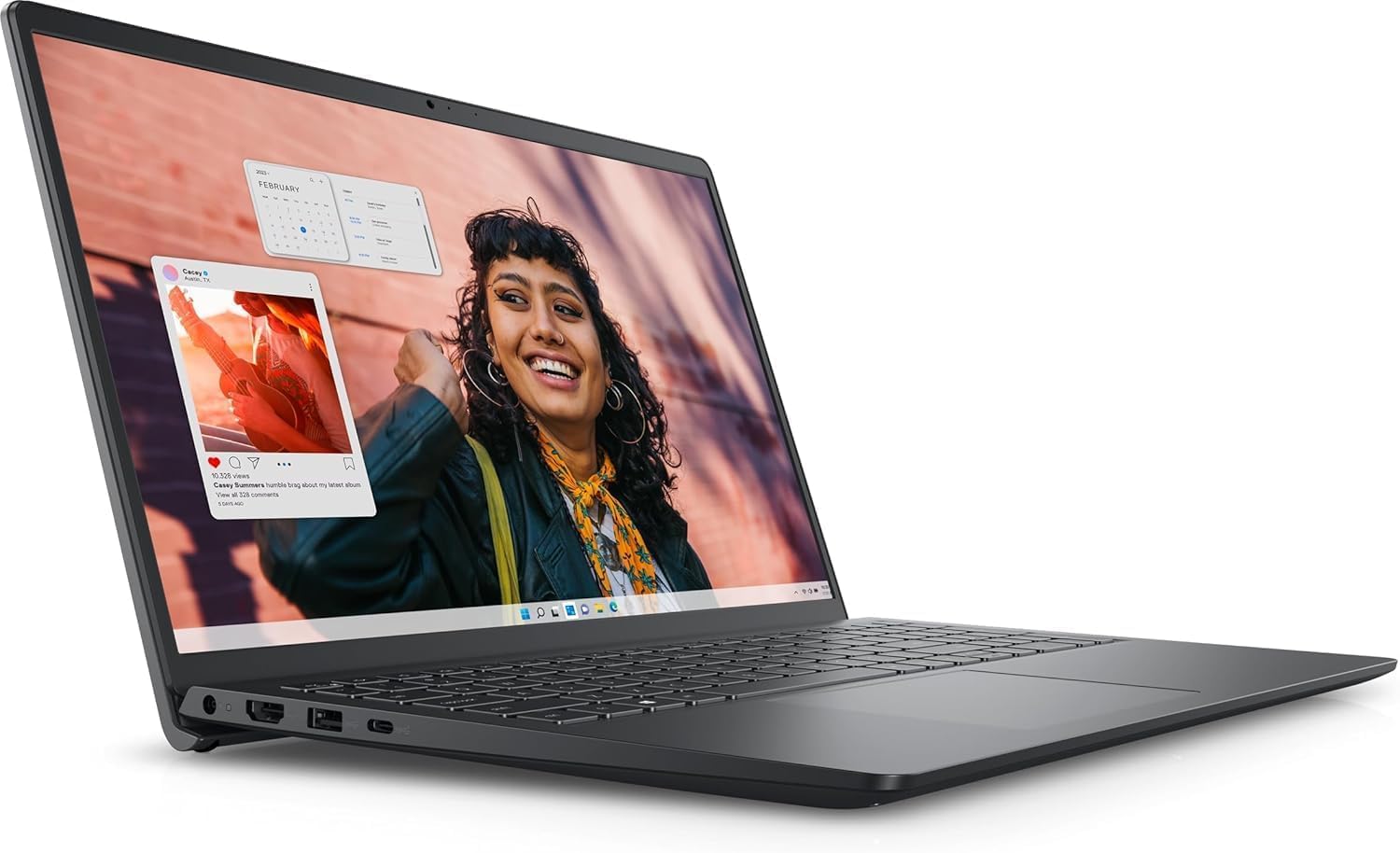
A workhorse 15.6-inch touchscreen that a Linux install can turn into a budget power desktop.
Dell’s Latitude and Inspiron lines have long been the safest ground for Linux because Dell publishes hardware support notes for its business machines. This renewed Inspiron 15 gives you a 15.6-inch FHD touchscreen, an Intel 10-core i5-1334U at up to 4.6 GHz, and 16GB of RAM paired with a 512GB PCIe SSD. Wi-Fi 6 and Windows 11 Pro come pre-installed, so you can boot to a known-good state and confirm the hardware works before you ever touch a Linux ISO.
The screen is the standout. It is anti-glare with a micro-edge bezel (a thin frame around the display), and the touch digitizer (the layer that reads your finger) is responsive enough that owners describe it as beautiful to use — a nice bonus on a machine you will probably drive with a terminal most of the day. Battery life is listed at 10 hours; expect less under a Linux distro until power management settles in. Buyers describe setup as simple and the performance as snappy for office tasks and tax software.
Two honest notes. First, the machine is on the heavy side — a normal 15.6-inch footprint in a 1-inch body. Second, the USB-C port on this model handles data but does not carry video and power together, so your monitor should go through HDMI. That is exactly the sort of silkscreen-level detail that trips people up when they try to run one cable to a dock.
The Linux-friendly read: Dell’s public hardware documentation and the mainstream Intel Wi-Fi module make this the least-risky first install in the group.
The fine print: as a renewed unit, confirm the SSD and battery health on arrival — those are the two parts most likely to have mileage behind them.
Good fit for: anyone who wants a cheap, easy-to-service 15.6-inch box for a Linux dual-boot.
Not for you if: you need single-cable USB-C docking or a machine that travels light.
5. Apple MacBook Neo 13-inch (A18 Pro, 8GB, 256GB)

The lightest way into a Mac, and the least painful way to carry one through airport security.
At 2.71 pounds with an aluminum chassis and up to 16 hours of battery, this is the machine you tuck into a small bag and forget you packed. The 13-inch Liquid Retina screen supports 1 billion colors, so photos and video are crisp, and the 1080p FaceTime HD camera with a dual-mic array keeps video calls clear on hotel Wi-Fi. The A18 Pro chip (Apple’s mobile-grade silicon, which draws far less power than a desktop chip) is the reason the battery lasts the day.
For Linux purposes, treat this as a macOS-first machine that can run a VM or a container stack. It is not the laptop you wipe — it is the one you open a terminal on. The upside is portability and a familiar shell; the downside is 8GB of unified memory and 256GB of SSD storage, which limits how many VMs you can run side by side. The screen does not fold flat, and the two USB-C ports sit close together, so a single external drive and a charger start to crowd each other.
One thing to know before you buy: the keyboard is not backlit. Buyers describe that as a genuine annoyance — the key printing has low contrast in dim rooms. If you type at night on a plane, this is the one flaw that will actually affect you, and no driver fixes it.
Why it earns a slot
- 2.71 pounds with up to 16 hours of battery — a full travel day on one charge
- Aluminum body with a color-matched keyboard in four finishes
- 1080p FaceTime HD camera and dual-mic array for clear calls
- A18 Pro chip keeps heat low and fans out of the picture
Where it stops short
- Only 8GB of unified memory, so heavy VMs have limited room
- 256GB SSD fills fast if you keep local images of your distro
- Two USB-C ports sit tight together
- No backlit keyboard — a real issue for late-night typing
The case for it: you want a light, quiet terminal-and-browser machine that fits in any bag and runs all day.
The case against: you plan to dual-boot or run several virtual machines at once — 8GB and 256GB are the ceiling.
6. Acer Nitro V 15 (i5-13420H, RTX 4050, 8GB DDR5, 512GB)

An entry gaming rig with a 165Hz panel — a second Linux box for Steam games and GPU compute.
The pitch here is simple: an NVIDIA GeForce RTX 4050 with 194 AI TOPS (a measure of how much neural-network math the card can do per second) and a 15.6-inch FHD IPS screen at a 165Hz refresh rate. For Linux users, NVIDIA means the proprietary driver route rather than open-source. That is not a problem if you are comfortable adding the driver repo; it is a problem if you expect the install to just work. Dual-booting is the low-friction option, with Steam on Windows and Linux on the second partition for coding.
Inside the machine, the Intel Core i5-13420H and 8GB of DDR5 memory are plenty for gaming and for a browser-heavy work day. Two DDR5 slots take you up to 32GB when you are ready to upgrade. Storage is a 512GB PCIe Gen 4 SSD, and the Thunderbolt 4 port carries power, data, and display in one cable. Wi-Fi 6 and the Killer Ethernet E2600 cover gaming and office networking.
Caveats worth knowing: the 8GB of memory is tight, and owners describe the RAM sitting near 80% just at the desktop on a fresh install. The fan noise under load is real, and the keyboard’s backlight does not extend to the spacebar on this model. For Linux specifically, the card and the GPU both want recent drivers, so plan to install them before your first game session.
The performance read: a 165Hz panel with minimal ghosting is the standout spec, and it matters for both games and a snappy desktop environment.
The honest counterpoint: 8GB of RAM is the hard ceiling from the start — budget for the second DIMM before you judge this machine’s speed under a multi-tab workflow.
For the buyer who: wants a gaming laptop that can also be a Linux partition on the side.
Skip the idea if: you need a pure-Linux daily driver with fanless noise levels.
7. GEEKOM GeekBook X16 Pro (Core Ultra 9 185H, 16GB, 1TB)
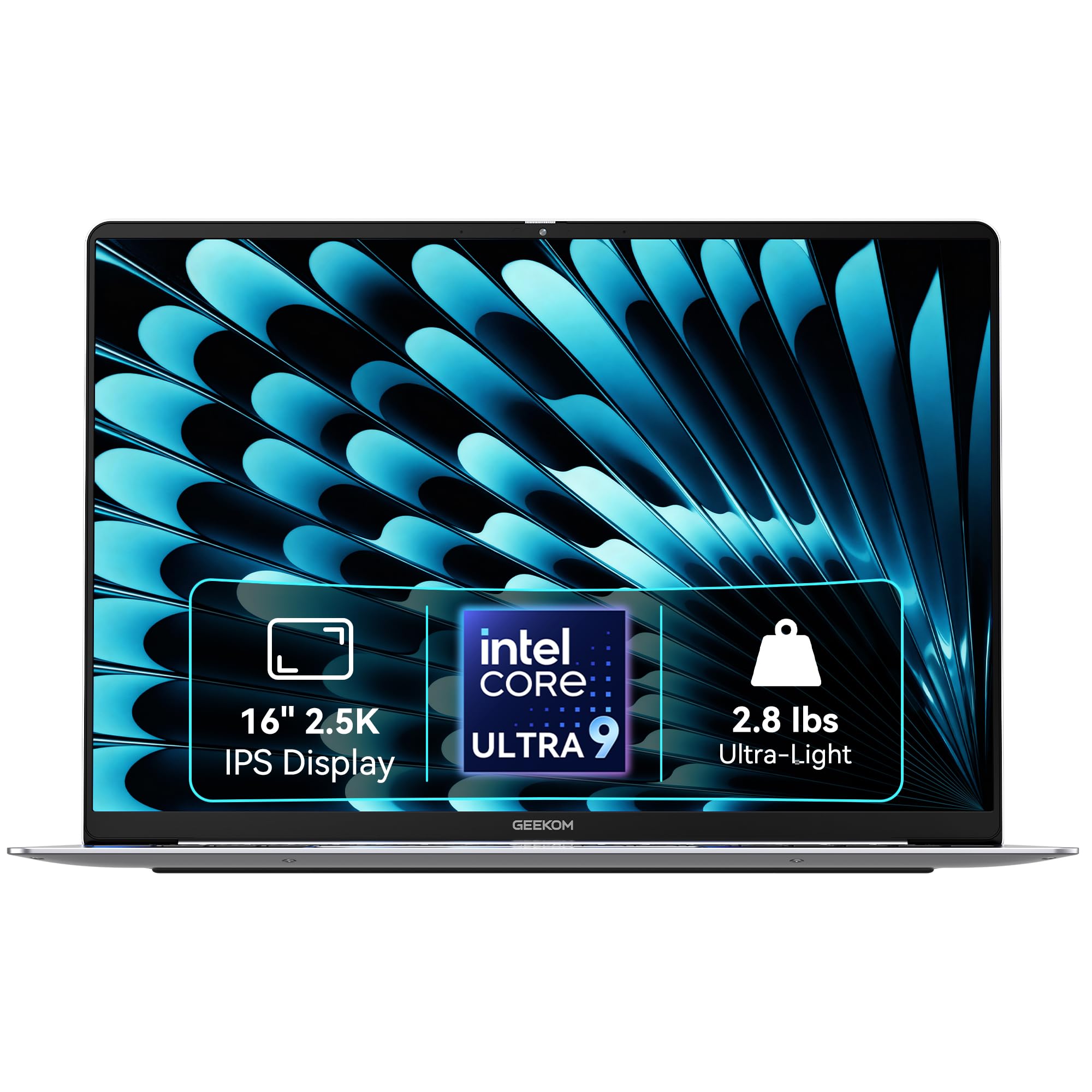
A 16-inch magnesium chassis at 2.8 pounds, charged by a 65W GaN brick that hits 80% in about an hour.
At 2.8 pounds and 0.27 inches thick, this is the lightest 16-inch machine in the group — and the numbers matter because they are unusual at this screen size. The 16-inch 2.5K IPS screen (2560 × 1600) covers 100% of the sRGB gamut at up to 400 nits, which is enough to work by a window. A 120Hz refresh rate keeps scrolling smooth and code crisp. Inside, an Intel Core Ultra 9 185H (16 cores, 22 threads, up to 5.1 GHz) with a dedicated NPU for on-device AI gives you serious compute in a body that fits a shoulder bag.
The port selection is genuinely generous for the size: a 40Gbps USB4 Type-C that supports DisplayPort 2.1 and Power Delivery, plus a second USB-C, HDMI 2.1, two USB-A, a microSD slot, and a 3.5mm audio jack. You can drive two 4K displays from this machine without a dock. The microSD slot is the detail photographers appreciate — pulling files without an adapter is one less thing to carry. The 77Wh battery is rated up to 17 hours, and the 65W GaN charger can bring it to 80% in about an hour.
One spec note for Linux users: it has Wi-Fi 6E (which opens the 6GHz band for less congestion) and Bluetooth 5.4. Both are recent enough that you want a current kernel. There is also a recorded shipping discrepancy — the manufacturer lists 0.27 inches thick, but the delivered machine measures 0.58 inches, so you may not get the form-factor advantage you expected from the photos. On a machine this thin, that difference is noticeable.
The standout spec: 2.8 pounds at 16 inches with a 2.5K 400-nit screen is a rare combination — the same screen size as the LG gram in a smaller-chassis footprint.
The follow-up question: fans are reported as audible under sustained load, so plan a headphone-or-desk setup for heavy builds.
The buyer it fits: photographers and travelers who need a big high-resolution screen and a microSD slot without a dock.
The buyer it does not: someone who needs a whisper-quiet desk machine under constant full load.
8. ASUS ROG Strix G16 (i7 14650HX, RTX 5060, 16GB, 1TB)
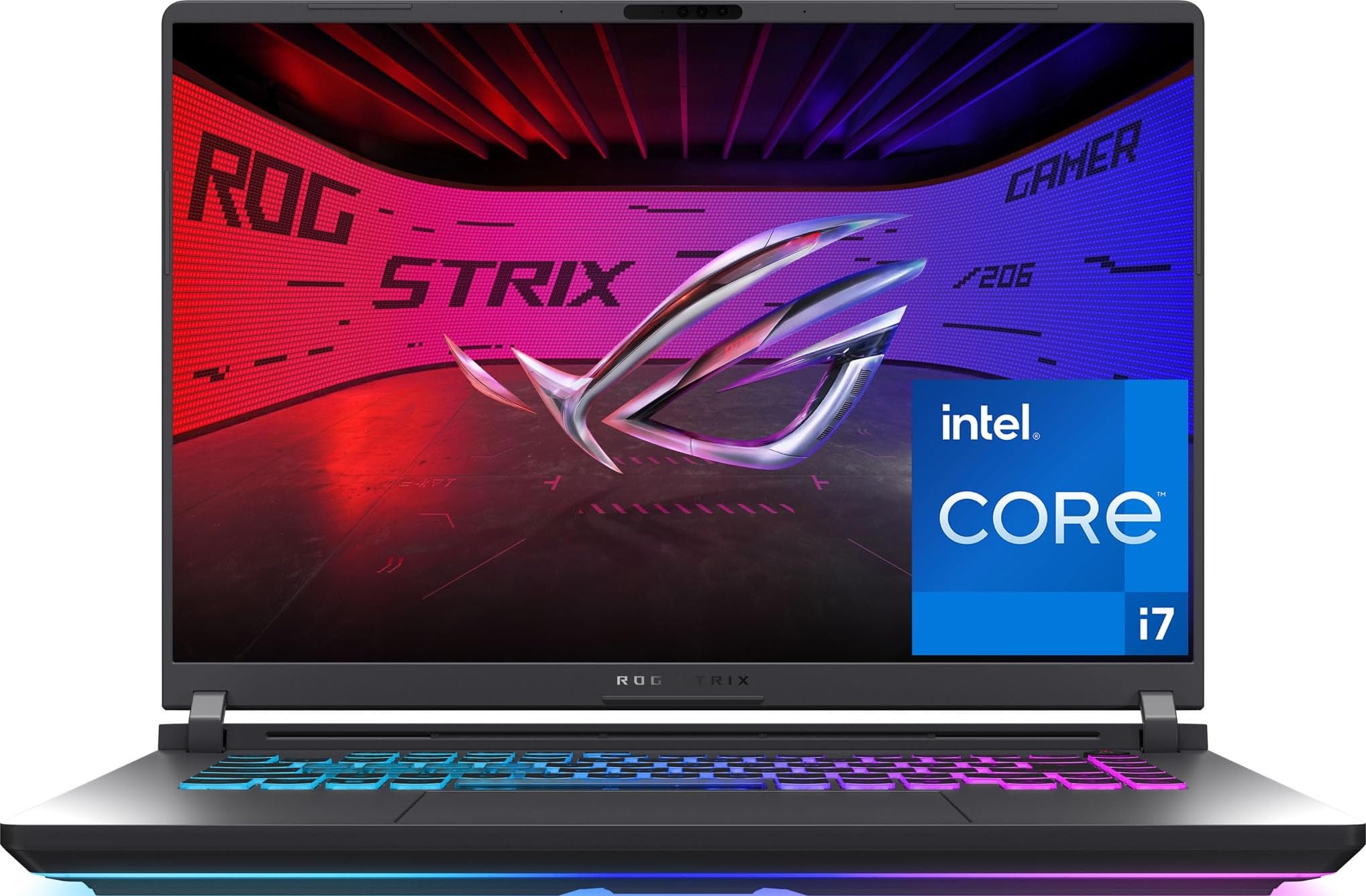
A cooling system that behaves, a 165Hz screen, and a frame that can carry a heavy game library.
Where this one separates from the Acer Nitro V is thermals. The ROG’s end-to-end vapor chamber, tri-fan setup, and liquid-metal compound are built to hold speed without dropping frames mid-session — the sort of thing you want if you split time between Linux compiles and games. The 16-inch FHD+ display runs at 165Hz with a 3ms response time, and an anti-glare film keeps reflections under control. With the RTX 5060 and Intel Core i7 14650HX, you have hardware that handles both gaming and heavy multitasking.
The Linux angle: NVIDIA’s proprietary driver is the path of least resistance here, and the 16GB of DDR5 memory and 1TB Gen 4 SSD leave room for a dual-boot with storage for both worlds. Wi-Fi 7 is onboard — newer than the Wi-Fi 6 on the Acer, so keep your kernel current. The 360° RGB light bar is fun, but Stealth Mode turns it off for an office setting, which is a genuinely useful switch for a machine that has to double as a work laptop.
Battery life is the fair criticism — the spec sheet lists 2 hours, and gaming laptops are not meant for a plane ride. Owners describe the bottom-center getting warm under load, and the Windows Hello login is reported as unreliable. For a machine that mostly lives on a desk or a power strip, neither matters much.
What keeps it running cool
- Vapor chamber plus tri-fan cooling holds performance under sustained load
- 165Hz FHD+ panel with a 3ms response time for sharp motion
- Wi-Fi 7 and a 1TB Gen 4 SSD — room for a dual-boot partition
- Stealth Mode turns off the RGB for office use
What to accept
- 2-hour battery life — desktop or wall socket only
- Warm bottom panel during long gaming sessions
- Unreliable Windows Hello in owner reports
- NVIDIA driver setup adds a step to the Linux install
Buy it for: sustained gaming, multi-monitor work, and a desktop-replacement Linux second environment.
Pass if: you need a battery-powered travel machine — 2 hours is the spec sheet on this one.
9. MSI Katana 17 (i7-13620H, RTX 4060, 32GB DDR5, 1TB)

A 17.3-inch slab with the most memory of any pick here — enough for a VM farm on the second partition.
For a Linux machine, that matters if you run containers, compile large code, or keep several browser profiles open. The 17.3-inch FHD screen runs at 144Hz, and the RTX 4060 with its Ada architecture handles ray tracing. Storage is a 1TB NVMe SSD, and the machine runs Windows 11 Home from the start.
What you will notice day to day is the airflow — Cooler Boost 5 keeps the chassis cool enough for lap use at light loads, and owners describe the fans as minimal at idle. The screen is large enough that a terminal and a browser side by side never feel cramped, and the keyboard has room for a number pad. That size, though, is exactly why this is not a travel machine.
The honest caveats: battery life is around 2 hours under casual use, and performance drops when you unplug, so this is effectively a desktop. The keyboard keycaps feel cheap next to the ROG, and the pre-installed Windows 11 bloatware takes time to strip out. Under Linux, the RTX 4060 needs the proprietary NVIDIA driver, so plan a dual-boot rather than a full wipe until you have confirmed the driver works.
The memory play: 32GB DDR5 is the number to anchor on if your Linux work involves several VMs at once.
The honest trade: it is a 17.3-inch desktop replacement, not a lap machine — battery life is around 2 hours of casual use.
Take it if: you want a big-screen Linux workstation that can double as a gaming rig on a desk.
Leave it if: you need something that travels or works unplugged for a day.
10. HP 17.3-inch Business Laptop (Core i5, 16GB, 512GB)
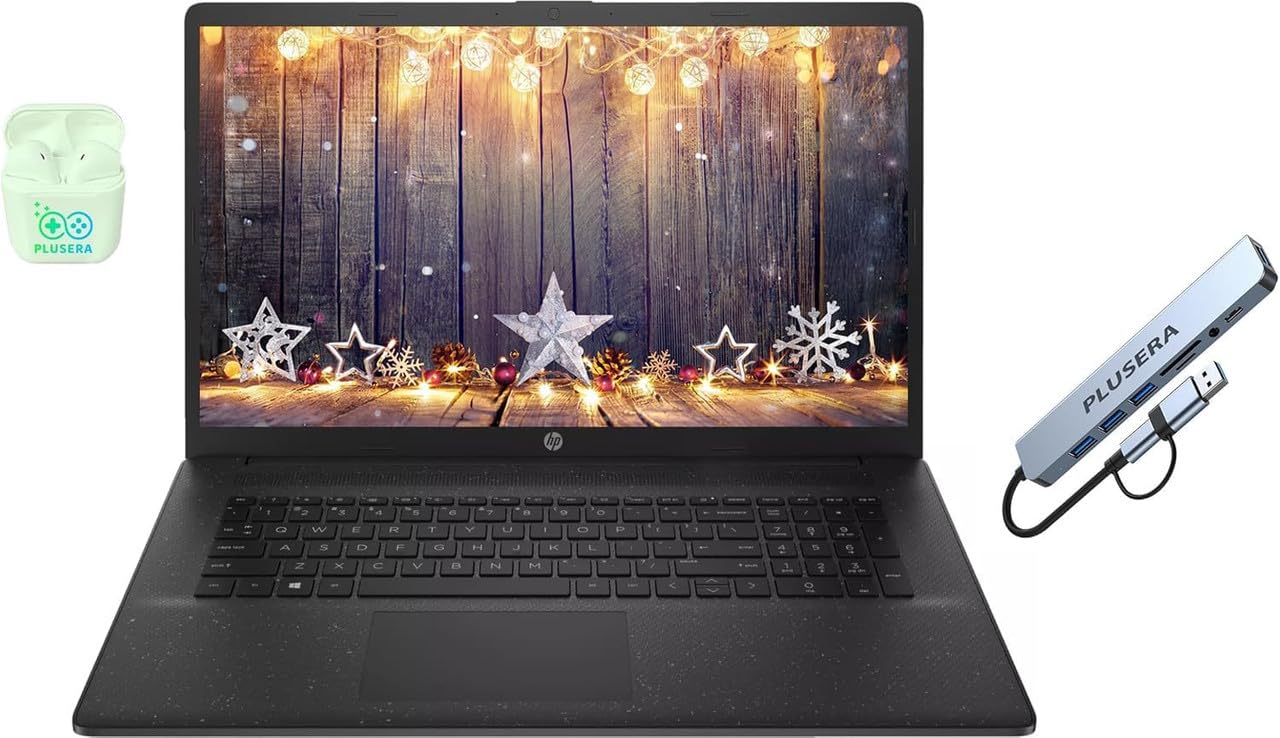
A big 17.3-inch panel for spreadsheet columns and terminal splits, with a 10-core chip and 16GB of RAM.
This one is straightforward: a 17.3-inch LED screen at 1600 × 900 with 250 nits brightness, built to show more rows and columns at once. The 10-core Intel Core i5 (12 threads, up to 4.6GHz, 12MB cache) with Intel Iris Xe graphics is plenty for office work, browsing, and a Linux terminal. The 16GB of RAM and 512GB SSD keep the machine responsive when several windows are open.
Ports are not notable but they are enough: one USB-C, two USB-A, one HDMI, and a headphone/microphone combo jack. It runs Windows 11, so dual-booting on a second partition is the standard route. Wi-Fi and Bluetooth are present, and the machine is described as ultra-thin for a 17.3-inch chassis — comfortable enough for a desk but not a bag laptop. The included pair of PLUSERA earphones is a small extra, not a reason to buy.
The real concern is consistency. Some units arrive with memory errors and crash loops from the start, and the pre-installed software has been reported as incomplete. If you buy this, plan a full diagnostic run in the first week. Also note that the resolution sits at 1600 × 900, which shows fewer vertical pixels than a 1080p panel of the same size — fine for a terminal, less fine for photo work.
The size argument: a 17.3-inch screen at this sticker is the honest reason to consider it — you get monitor-class real estate without a separate display.
The caveat to own: quality control is uneven, so run a memory test and check for missing software on arrival.
Suits: a desk-bound Linux box for writing, spreadsheets, and long documents on a big screen.
Skip if: you need a low-risk machine for critical work without a testing window.
11. HP 14-inch Laptop (Intel N150, 4GB, 128GB UFS)

The cheap first-resort machine for a student who wants a terminal and a browser, not a local AI lab.
At 3.24 pounds and a 14-inch diagonal, this is the smallest and most portable HP in the guide. The Intel N150 (up to 3.6GHz, 6MB L3 cache, 4 cores, 4 threads) handles everyday work — documents, email, and a Linux terminal — without drama. The 1366 × 768 anti-glare panel is modest at 250 nits, but it is fine for text. Wi-Fi 6 and Bluetooth 5.4 are both onboard, and the port list is genuinely useful for a budget machine: one USB-C with DisplayPort 1.2, two USB-A, HDMI 1.4b, a headphone/mic jack, and an SD card reader.
Battery is rated up to 7 hours 30 minutes of mixed use, up to 11 hours of video playback, and up to 7 hours 30 minutes of wireless streaming. That is a real workday for a light load. The 4GB of LPDDR5-4800 memory is the ceiling here — enough for a browser and a terminal, not for a VM or a dozen tabs at once. The 128GB UFS storage is fast enough to boot but small, so plan on an external drive for anything beyond documents and code.
The most practical spec for a Linux install is the Wi-Fi 6 card, which tends to come up on its own under current kernels. One thing owners do report: the battery runs warm in the lap, and one buyer had trouble keeping a connection. Both are worth checking in the first week. For a student machine that lives in a bag and a library, the trade-offs are fair.
The port argument: USB-C with DisplayPort, HDMI, and a card reader on a budget 14-inch is more than most machines at this size offer.
The honest limit: 4GB of memory and 1366 × 768 resolution mean this is a text-and-browser machine, not a multitasker.
Right for: a first Linux laptop for school, note-taking, and light coding that carries easily.
Wrong for: anyone planning VMs, local AI, or heavy photo editing.
Know the Specs
Wi-Fi chipset and kernel support
The wireless card is the single most important part for a Linux install. Intel’s cards usually have drivers in the kernel itself, so the card comes up during installation without input from you. Other brands may need a driver compiled from source or a newer kernel than your distro ships. Wi-Fi 6 and Wi-Fi 6E appear on several machines here; the 6E label means the card can also use the 6GHz band, which is quieter but requires an up-to-date kernel to appear. If you cannot confirm the card, buy the machine with a return window.
Unified versus soldered memory
On Apple silicon and on many thin laptops, the memory is soldered and cannot be changed after purchase. Unified memory means the same pool feeds the processor and the graphics chip, which is fast but fixed. On gaming laptops with DDR5 slots — the Acer Nitro V has two, taking you to 32GB — you can upgrade later. Before you buy, decide whether the memory you see is the memory you will keep for the machine’s whole life.
Battery runtime under Linux
The runtime on the spec sheet is measured under Windows, so treat it as a ceiling, not a promise. Power-management tools help close the gap, but the hardware has to support sleep, resume, and throttling cleanly. Laptops built around Intel Evo or Apple silicon tend to hold up. A dedicated gaming GPU will cut runtime sharply on either operating system, because the card draws power even when Linux has no idea how to switch it off.
Secure Boot and dual-boot
Secure Boot is a firmware check that only allows signed bootloaders to start. Most mainstream distros now ship a signed bootloader, but you may still need to disable Secure Boot or import the distro’s key in the BIOS. Some machines bury that setting behind an administrator password. If you plan to dual-boot with Windows, shrink the Windows partition from inside Windows first, install Linux second, and keep backups — Windows updates have a habit of claiming the boot entry.
Common Questions
Will Linux work on an Apple silicon MacBook?
Which Wi-Fi card is safest for a Linux install?
Can I dual-boot without losing Windows?
Does Secure Boot block Linux from installing?
Do I need a dedicated graphics card for Linux?
How long does the battery really last under Linux?
Will my fingerprint reader work under Linux?
Is a Snapdragon or Apple arm64 chip a problem for Linux?
Can I upgrade the memory later?
Do backlit keyboards and webcams work on Linux?
The Bottom Line
Your safest first install for a laptops for linux setup is the Dell Inspiron 15: a mainstream Intel Wi-Fi module, a documented business line, and enough room on the 512GB SSD for a comfortable dual-boot. If you want the best overall machine and will accept arm64 (the chip architecture Apple uses), the 2021 MacBook Pro 16-inch gives you a Unix shell, an XDR display, and up to 21 hours of battery in one package.
Need a screen you can live on all day? The LG gram Pro pairs a 16-inch OLED with 24.5 hours of battery and 32GB of memory. Want a gaming second partition instead? The ASUS ROG Strix G16 leads on cooling and a 165Hz panel. And if you just need a light, cheap first machine for a terminal and a browser, the HP 14-inch is the one to reach for.
Before you click anything, do the boring step: confirm the Wi-Fi card in the listing, check your distro’s hardware notes for that exact module, and keep the return window open until the install finishes. Confirming the exact Wi-Fi module before you buy prevents more failed installs than any CPU benchmark on this page.
How we choose
We do not accept paid placement. Every pick is matched to a real buyer and a real use-case; we do not hands-on test units.
Sources
Specifications: manufacturer listings and product documentation. Review insights: verified customer reviews, as of October 2026. Pricing: not shown on this page (it changes often); check the current price via the retailer link.
As an Amazon Associate, Aappliancez earns from qualifying purchases. This does not affect which products we feature.