Disclosure: Some links in this post are affiliate links. As an Amazon Associate I earn from qualifying purchases, at no extra cost to you. Learn more
Specs are compiled from manufacturer listings and verified buyer reviews and can change over time — please confirm the key details on the product page before buying.
If you run a work laptop and a personal desktop on the same desk, you already know the annoyance: two keyboards, two mice, and a monitor you keep unplugging. A KM switch shares your keyboard, mouse, and other USB gear between two or more computers at the press of a button. The short answer: the IOGEAR GUS432 is the pick for most people because it shares four USB devices between two computers with a physical button and no software at all, and it is the highest-rated unit here at 4.0+ stars from 500+ ratings.
This guide is built by comparing the manufacturers’ published specifications and the patterns across verified customer reviews, so you get each pick’s real strengths and trade-offs instead of marketing spin.
The list below splits the category into three jobs: pure USB sharing, single-monitor KVM work, and multi-monitor setups. Pick the job you actually have, then read the spec sheet with the right questions in hand, because a cheap switch that drops your keyboard mid-typing costs more in frustration than a good one costs up front.
Top Picks

How To Choose The Best KM Switch
The first decision is not brand, it is scope. A KM switch shares only your USB peripherals — keyboard, mouse, printer, a flash drive — and leaves your monitor on its own cable. A KVM switch adds video switching on top of that. Buy a KM switch when you need video switched and you will be pressing a button all day while your screen still shows the other computer. Before you buy, count how many USB ports each computer can spare, note if you need video switched too, and check whether your desk layout lets you reach the box.
Decide if you need video switched or just peripherals
If your monitor has two inputs and you are happy switching it from its own on-screen menu, a pure USB sharing switch is the simpler, less failure-prone path. If you want one button to move keyboard, mouse, and screen together, you need a KVM. The catch with KVM units is that every extra signal path — DisplayPort, HDMI, USB — is another cable that can introduce flicker or a dropped device.
Match the USB generation to your devices
A USB 3.0 port moves data at up to 5Gbps. USB 3.2 Gen 2 doubles that to 10Gbps. For a keyboard and mouse, either is plenty. For an external SSD or a 4K webcam running alongside your mic, the faster port keeps the pipeline clear. One note from the review data: several owners of high-speed switchers advise against parking a storage drive on a switch at all, because ejection and write-cache handling can corrupt files.
Check the cable count before you commit
Read the package list carefully. Some units ship with USB cables and the remote, but no video cables — meaning you buy two or three HDMI or DisplayPort cables yourself. Others include the full set but in short lengths, which owners regularly flag as a reason to order longer ones. Cheap cables are a common cause of flicker that gets blamed on the switch.
Confirm your computers can actually drive the displays
A dual- or triple-monitor KVM cannot create outputs your computer does not have. Each connected machine needs enough video ports of its own — two DisplayPort connections per computer for a dual-DP switch, for example — before the extra screens will light up. Check the port count on your laptop dock or graphics card first. Confirming each computer’s video port count before ordering rules out more returns than any other check.
Side-by-Side Comparison
Every row below lists shared USB ports, max video resolution, and switching method in the same columns, so you can scan the trade-offs at a glance.
| Model | Best For | Shared USB Ports | Max Video Resolution | Switching Method | Amazon |
|---|---|---|---|---|---|
| IOGEAR GUS432★ Best Overall | Sharing keyboard, mouse and printer across two PCs | 4 × USB 3.0 | — (no video) | Button + remote | Amazon |
| TJCXELE DisplayPort KVMHigh Refresh Pick | Two monitors, two computers at high refresh | 4 × USB 3.0 | 3840×2160 @ 144Hz | Panel button + wired controller | Amazon |
| GREATHTEK HDMI KVM | One monitor, two PCs, simple desk | 3 × USB 3.0 | 3840×2160 @ 60Hz | Button + wired remote | Amazon |
| Hearvo S7232H | Work-from-home desk on a budget | 4 × USB 3.0 (3 A 1 C) | 3840×2160 @ 60Hz | Button + wired remote | Amazon |
| Unitek SJW-KM202B | Two monitors, two desktops, mic and headset | 4 × USB-A | 3840×2160 @ 60Hz | Button + desktop controller | Amazon |
| UGREEN USB-C Switch | Fast peripheral sharing, no video needed | 4 × USB 3.2 Gen 2 (1 C + 3 A) | — (no video) | Button + remote | Amazon |
| UGREEN 3-Monitor KVM | Triple-screen creative or IT workstation | 4 × USB 3.0 | 8K @ 60Hz / 4K @ 240Hz | Button + desktop controller | Amazon |
Detailed Reviews
1. IOGEAR 4×2 USB 3.0 Peripheral Sharing Switch – GUS432
Our pick — 4.0+★ from 500+ verified ratings; the strongest balance of quality and price.
A tiny metal box that hands your keyboard, mouse and printer back and forth between two towers.
The number that earns this pick its place is four: four USB 3.0 ports shared across two computers, moving data at up to 5000 megabits per second. That 5Gbps of shared bandwidth keeps a printer or portable hard drive from slowing your keyboard and mouse. It weighs 4.32 ounces and runs on a micro-USB connection, which means it can hide behind a monitor without being noticed.
What wins people over is the absence of software. No drivers, no keyboard shortcuts to memorize, no app sitting in your tray. You press the button — or the included wired remote — and the four devices move to the other computer. Buyers report roughly 1.5 sec to swap devices between two towers, and in real use that is about the time it takes to move your hand. One owner ran a wired keyboard, a wireless mouse, headphones and an Xbox controller across a NUC and a Threadripper, and the unit kept the last active computer after a power cycle.
The honest catch is power. Documentation calls the micro-USB power input optional, but it really is not: running without it, the switch can drop and re-detect your peripherals, freezing the mouse for a few seconds. Plug a micro-USB cable into that front port and the behavior settles down. Connecting that micro-USB power cable is the most-mentioned fix in the review pool, and it costs you one spare cable. The other thing to know is that the LED is a bit faint from across a room, so you may look twice before deciding which computer is live.
What It Gets Right
- Four USB 3.0 ports at 5000 megabits per second shared between two computers
- Absolutely no software, drivers, or hotkey combinations to learn
- Physical button plus wired remote, so the box can sit out of sight
- Hot-plugging supported — add or remove a computer without powering anything down
- Over-current protection built in
Where It Falls Short
- The micro-USB power port is on the front and the cable is not included
- Running unpowered can cause random disconnects and a frozen cursor
- The status LED is hard to read from a distance
- No video switching at all — this is peripherals only
Reach for this if: you have two computers and one set of peripherals, and you want zero software and zero learning curve.
Look elsewhere if: your monitor also needs to switch with the keyboard — you need a KVM, not this.
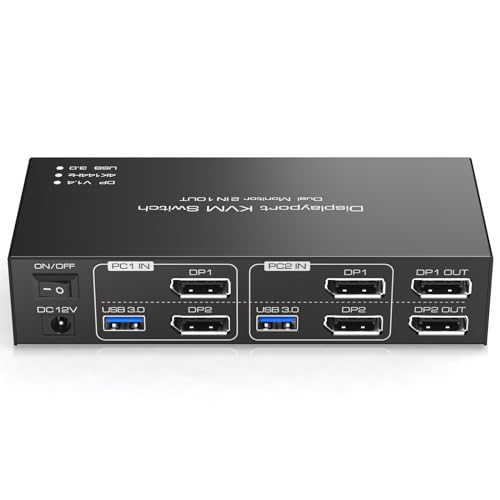
2. Displayport KVM Switch 2 Monitors 2 Computers
The one that pushes two screens at 4K 144Hz — when the cables and the ports behave.
This is the spec-heavy option for someone who has a high-refresh monitor and refuses to give up its refresh rate. The DisplayPort 1.4 side handles up to 3840×2160 at 144Hz, with video bandwidth up to 48Gbps. The USB 3.0 ports run at 5Gbps, and four of them share your keyboard, mouse, printer or webcam. It measures 7.8 by 5.7 by 2.2 inches, so it wants real shelf or floor space, not a spot tucked under the monitor.
Setup demands respect. Each computer needs two DisplayPort cables, one USB cable, and shared access to the 12V DC adapter that ships in the box. There is no hotkey switching — you use the panel button or the included wired controller, which is fine for a standing desk where the box is mounted out of the way. Take that controller. It is the difference between a tidy desk and a reach behind the monitor every twenty minutes.
Here is the part you need to hear honestly. Connectivity is the most-discussed topic around this unit, and the reports are genuinely split. Some owners run two displays at 4k60p and see flicker on one screen that only clears after a power cycle. There is also a serious outlier worth reading twice: one buyer with an IT background measured 13.3V coming through the shipped USB cable while switching, above the 12.5V tolerance of the motherboard involved, and spent hours restoring the BIOS. One report is not a pattern, but it is the sort of report that should make you test the unit thoroughly inside the return window.
The honest read: functionally, this delivers where other switches in this group cannot — real 4K 144Hz switching, one-button, no hotkeys — but the reliability record is thin, and a buyer spending premium money on a high-refresh display deserves more consistency than the review pool shows.
Who it fits: the buyer with two DisplayPort outputs per machine, a standing desk, and the patience to verify cables and voltage on day one.
Worth it when: your monitors run at high refresh and you will use the wired controller on a daily basis.
Think twice when: you need a switch that just works with no setup verification — the mixed flicker reports make this a careful-buy, not a blind-buy.
3. HDMI KVM Switch 1 Monitor 2 Computers
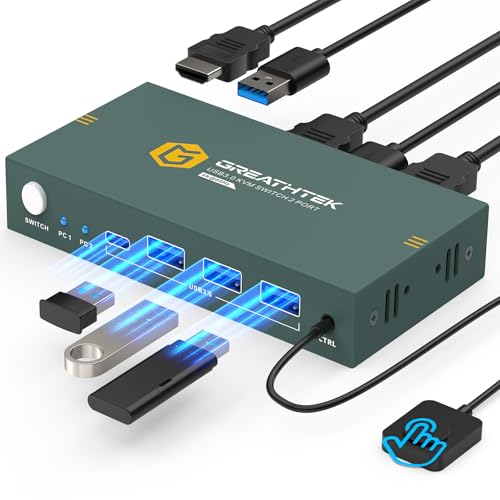
Single monitor, two machines, and a remote button that keeps the box off your desk.
If your setup is one screen and two computers, this Greathtek unit is the sensible shape of purchase: one monitor, three USB 3.0 ports for your keyboard, mouse and a scanner or flash drive, and a resolution ceiling of 3840×2160 at 60Hz. It is a plug-and-play box with no power adapter and no driver software, which is the reason it goes from box to working in minutes. Adaptive EDID, the feature that keeps your computer convinced a display is attached, is built in, so the picture comes back cleanly rather than resizing every time you switch.
The most common praise is the remote. It sits on a 3.5mm cable, so you can park the switch behind the monitor and keep a small button on your desk instead. Owners describe it as the fix for desk clutter — no more leaning around to reach the box. The included USB 3.0 cables run 1.2m and the remote cable 1m; you supply the two HDMI cables yourself. Build is a metal case with clear indicator lights, which puts it a step above the plastic shells common at this tier.
Two things to know before you order. First, there is no hotkey switching — the button and the remote are the only ways to move. Second, the failure reports that do exist are total: a small number of units simply stop working after a few weeks, with flicker and dropped devices as the warning signs. That is not the majority experience, and this remains one of the better-supported designs here, but it is the reason to buy where returns are easy and to test it hard in month one. Waking from sleep also needs some setup — one buyer had to enable Wake-on-USB and USB Power Share on their Dell before the switch would bring a sleeping machine alive.
Standout spec: three USB 3.0 ports plus adaptive EDID at 4K 60Hz, with no power brick at all — a genuinely simple wiring job for a one-monitor desk.
For the one-screen desk: this is the pick when you want a metal case, a remote button, and no power adapter.
Not for you if: your monitor needs higher than 60Hz or you want hotkey switching.
4. Hearvo USB 3.0 HDMI KVM Switch S7232H

The work-from-home standard, with a USB-C port in the mix and a remote you can actually reach.
The port mix is the reason to look here: four USB 3.0 ports running at up to 5Gbps, three of them USB-A and one USB-C. That single C port means a modern laptop with no full-size USB can still share the hub without an adapter. On the video side you get HDMI carrying 3840×2160 at 60Hz, with HDCP 2.2 support so streaming services will not black out your screen. It measures 5 by 2.4 by 0.8 inches and weighs little enough to sit on top of a desk without a mount.
What everybody talks about is how simple the thing is. Plug it in, connect the two USB cables that come in the box, and press the button. There are two switching options — the button on the unit and the included wired remote — so the box can live behind the monitor while the button stays next to your mouse. A work laptop and a personal desktop swap keyboard, mouse, webcam and speakers on one press. Setup takes minutes and the manual is not required.
Three limitations shape who this is right for. There is no audio in or out, so you are handling headset sound with a separate switch or a headset with its own dual-connection design. Wireless peripherals vary: a Microsoft Ergo set may not be picked up at all, while some Logitech keyboards work and their paired mice do not, so bring a wired or dongle-based setup if you want zero surprises. And the package ships without HDMI cables — you need two of your own. Listen for switch timing too: most describe it as quick, but a few slower setups take a few seconds to reconnect.
Why It Wins the Popularity Vote
- Three USB-A plus one USB-C port on the same hub
- HDCP 2.2 compliant, so protected video keeps playing
- Remote button lets you hide the box without hiding the control
- No power supply and no driver install required
- Anti-slip pads and a lifetime protection plan in the box
Limits to Weigh First
- No audio ports, so a headset needs its own switching solution
- Some wireless keyboard and mouse pairs are not recognized
- HDMI cables are not included
- 60Hz ceiling rules out high-refresh gaming displays
Best fit: the hybrid worker running a laptop and a desktop through one screen who wants a USB-C port and a reachable button.
Step up if: you game on a high-refresh monitor or you need audio carried through the switch.
5. Unitek KVM Switch 2 Monitors 2 Computers
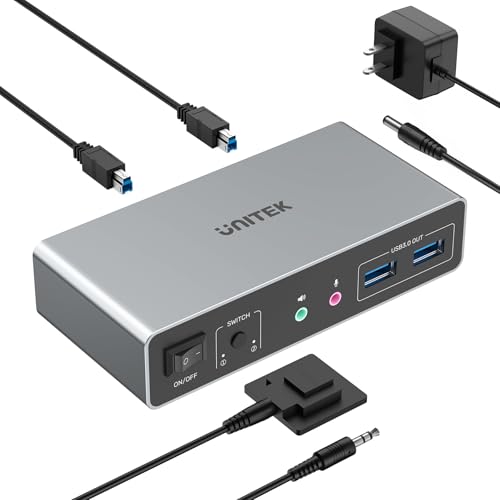
Two monitors and an audio jack, but read the laptop warning before you buy.
This is the dual-monitor choice for a pair of desktop computers. Two HDMI outputs drive two screens at up to 3840×2160 at 60Hz, with HDMI 2.0, HDCP 2.2/1.4 and HDR support. Four USB-A ports run at 5Gbps for keyboard, mouse, printer and drives, and the mic and headset jack gives you audio through the switch in a way several competing units skip. It weighs 0.52 kg and the aluminium body gives it a sturdier feel than the plastic competition. A DC 5V 2A adapter is included and worth using — the maker says to connect power when high-power devices are attached.
The catch is right at the top of the description and you should not skip it: this switch is designed for desktop computers, not laptops. The included USB A-to-B cable must be used, and for mirrored or extended picture both computers need the right video and USB connections in place. If your second machine is a laptop, this is the wrong tool. That single line disqualifies more buyers than any performance question.
Owners of near-identical dual-monitor setups describe the same pattern: switching moves the keyboard and mouse cleanly, but on less powerful machines the window layout can rearrange itself, minimizing and moving apps so they need a restart. On a strong gaming rig that does not happen. It is a quirk of display re-detection, not a fault in the switch, and it is the reason this is better for a desktop-to-desktop setup than a desktop-to-laptop one. Windows 11 users should expect at least one session of putting windows back where they belong when switching to the weaker machine.
What it really buys you: dual 4K 60Hz screens, four USB-A ports and a proper headset jack in one aluminium box with a desktop controller — a complete dual-monitor kit for two desktops.
The one-line warning: no laptops, no exceptions — the manufacturer is explicit about it.
Buy this when: you have two desktop towers and two HDMI monitors and want audio shared too.
Don’t buy it for: a laptop dock or a high-refresh gaming screen — the 60Hz cap and desktop-only design will not suit either.
6. UGREEN USBC Switch 2 Computers Share 4 USB 3.2 Ports, 10Gbps

Double the bandwidth of the usual switch, and loud about the fact that it carries no video.
The figure that separates this from every other USB-only switch here is 10,000 megabits per second — USB 3.2 Gen 2, which the maker says moves a 1GB file in 1.5 second. Compare that to the 5000 megabits per second of the IOGEAR GUS432 and you see the point: this is the unit for someone who wants a capture card, a 4K webcam, or a high-polling gaming keyboard running through the switch without a bottleneck. It has a single USB-C port and three USB-A ports, an aluminium body, and weighs 0.28 kg.
It is not a KVM, and it says so in plain language. There is no monitor output and no video path at all, so your second screen stays on its own cable. What you do get is a powered-down design that usually needs no external adapter, with a maximum output of 2.4A, and two switching methods — the button on the unit or the included remote. In a music setup, this handles iLok and eLicenser dongles and USB MIDI hardware between a Mac and a Windows machine without complaint. In a gaming setup, the same box runs a Corsair K100 and a G502 X mouse at 1,000Hz polling, which is the reason a gamer would pick this over a traditional KVM that strips out high refresh support.
There are two honest limits. Audio is not the strong suit — headphone and mic performance through the switch has been called weak, and the maker itself says the ports are primarily for data, so a headset belongs on a direct connection. And latency is not universal: most report immediate response, but a few report roughly half a second of keyboard lag in gaming after a period of use. For a keyboard and mouse on a desk job, this is the fastest switch here. For audio, wire around it.
Why the Speed Matters
- USB 3.2 Gen 2 ports at 10,000 megabits per second
- One USB-C and three USB-A ports on the same hub
- Button and remote switching, box hideable behind the desk
- No external power needed for most devices, up to 2.4A output
- Aluminium enclosure, 0.28 kg
The Trade-Offs
- No video output whatsoever — monitors stay on their own cables
- Headset and mic audio through the switch is not recommended
- A minority report lag and occasional undetected keyboards
- Storage drives are better kept off any switch, per owner advice
Pick it for: sharing fast peripherals — capture cards, 4K webcams, high-polling gaming gear — between two computers.
Skip it for: headset audio or a single-cable monitor switch, both of which need a different box.
7. UGREEN 8K@60Hz HDMI Displayport KVM Switch 3 Monitors

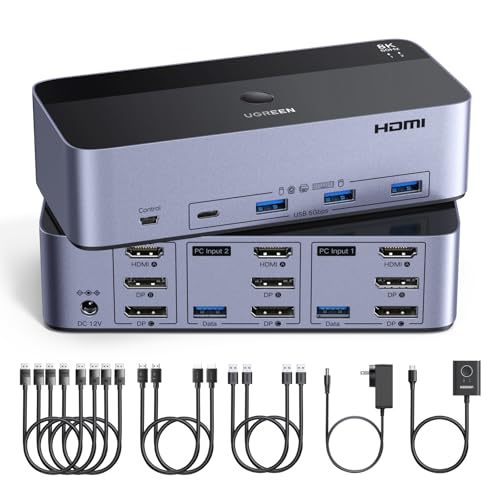
Three monitors, two computers, and the highest signal ceiling in this entire lineup.
The headline here is resolution. Two DisplayPort 1.4 outputs plus one HDMI 2.1 output each handle up to 8K at 60Hz, and the unit steps down through 4K at 240Hz, 144Hz and 120Hz, with HDR10+, HDCP 2.3/1.4, VRR, FreeSync and G-Sync support. If you run a triple-screen editing or trading setup and you hate tearing, this is the box built for it. Four USB 3.0 ports handle keyboard, mouse, printer and webcam. Switching is by button or the included desktop controller — no hotkeys.
Read the wiring disclaimer twice, because it decides whether this works for you. Each computer needs two DisplayPort outputs plus one HDMI output plus a USB connection, and both machines must genuinely support three or more displays. If either computer tops out at one or two screens, the third screen stays dark. The power adapter must be connected, and if you want the full 8K figure, the cables need to be within 2 meters at 28AWG. The package includes 4 DP cables, 2 HDMI cables, 2 USB A cables, the adapter and the controller, which is a complete kit — one less thing to buy.
Build quality is the consistent win. Alongside the fast switching and full 4K support, owners describe a sturdy aluminium shell and a clean cable bundle. The most-discussed issue is EDID: the box does not emulate it, so when you switch away, the other computer thinks its screens were unplugged. That means windows and icons rearrange themselves, and the more often you switch, the more work that becomes. For someone switching once or twice a day, it is a minor irritation. For someone bouncing between machines every half hour, it becomes tiring. A few owners also swapped the bundled cables for known-good ones to cure flicker at high refresh — worth doing if you push the 240Hz end.
Best-in-line video spec: dual DisplayPort 1.4 and HDMI 2.1 driving three displays up to 8K 60Hz, with VRR, FreeSync and G-Sync — this goes further on signal than the dual-monitor DisplayPort pick above, which caps at two screens.
The trade you accept: no EDID emulation, so every switch costs a minute of window reshuffling on the machine you left.
Built for: the triple-monitor creator or IT pro with two machines that each own two DP ports and an HDMI port.
Not worth it if: you switch constantly and cannot tolerate windows rearranging, or either computer lacks the ports to feed three screens.
Know the Specs
USB 3.0 vs USB 3.2 Gen 2 bandwidth
USB 3.0 moves up to 5Gbps, while USB 3.2 Gen 2 doubles that to 10Gbps. For a keyboard and mouse, 5Gbps is already far more headroom than you need. The faster port earns its price when a 4K webcam, a capture card or an external drive shares the hub, because the extra bandwidth keeps everything flowing without waiting. If your devices are simple, buy the cheaper generation and put the savings into cables.
DisplayPort 1.4 and HDMI 2.1 outputs
DisplayPort 1.4 and HDMI 2.1 carry enough signal for 4K at high refresh, and in the case of this lineup, up to 8K at 60Hz. That headroom is what lets a gaming monitor keep its frame rate through a switch. Check your monitor’s connection type first: HDMI and DisplayPort are not interchangeable, and a switch only outputs the connector it has. Cheap cables are the most common cause of flicker blamed on the box.
External power and the “optional” input
A micro-USB or DC power input labelled optional usually is not. When several devices pull current at once, the switch needs its own supply to keep the link stable; without it, peripherals can drop and reconnect mid-task. Unitek includes a DC 5V 2A adapter and tells you to use it with high-power devices, while UGREEN’s 2.4A output often runs unpowered happily. Match the power approach to your load.
EDID emulation and why it matters
EDID is the handshake that tells a computer what its display can do. Without emulation, switching away makes the computer believe the monitor was unplugged, which is why windows and icons move on their own the moment you switch back. Switches with adaptive EDID keep the picture stable; switches without it, like the triple-monitor unit, cost you a session of putting windows where they belong. Frequent switchers should weight this far higher than the resolution number.
Common Questions
What is the difference between a KM switch and a KVM switch?
Will my wireless keyboard and mouse work through a switch?
Do I need a power adapter with a KM switch?
Can a KM switch share a printer between two computers?
Will a KM switch work with a Mac and a Windows PC at the same time?
Why does my monitor flicker after installing a KVM switch?
Does a dual-monitor KVM switch let me use extended mode?
Can I use hotkeys instead of pressing the button?
Will a switch slow down my mouse or keyboard?
Can I connect a docking station to the switch?
The Bottom Line
For most people the winner is the IOGEAR GUS432, because it shares four USB 3.0 devices between two computers with a physical button and no software to configure or driver to install. Its four USB 3.0 ports at 5000 megabits per second and 4.32-ounce metal body make it a quiet, reliable desk companion once you connect the micro-USB power. If you want a monitor to switch with your keyboard and mouse on a single screen, the Hearvo S7232H is the popular, well-supported choice with a USB-C port in the mix. And if your work runs on three displays at high refresh, the UGREEN 8K triple-monitor KVM carries more signal than anything else here — as long as each computer owns the ports to feed it.
How we choose
We do not accept paid placement. Every pick is matched to a real buyer and a real use-case; we do not hands-on test units.
Sources
Specifications: manufacturer listings and product documentation. Review insights: verified customer reviews, as of October 2026. Pricing: not shown on this page (it changes often); check the current price via the retailer link.
As an Amazon Associate, Aappliancez earns from qualifying purchases. This does not affect which products we feature.