Disclosure: Some links in this post are affiliate links. As an Amazon Associate I earn from qualifying purchases, at no extra cost to you. Learn more
Specs are compiled from manufacturer listings and verified buyer reviews and can change over time — please confirm the key details on the product page before buying.
If you draw for a living or you are trying to, the machine you buy decides whether your strokes land where your hand meant them to. That is the whole ball game. A fast processor helps, but what actually matters for an artist is the pen: how many pressure levels it reads (how hard you press changes the line), whether the screen has a paper-like tooth (texture that makes the stylus feel like a pencil), and whether the color you pick on screen is the color that prints. This guide ranks nine real machines against exactly that standard, from a tablet that needs no computer at all to a 24-inch 4K desk display (a screen about 61 cm wide with four times the detail of basic HD) and a workstation built for animation.
This guide is built by comparing the manufacturers’ published specifications and the patterns across verified customer reviews, so you get each pick’s real strengths and trade-offs instead of marketing spin.
You will see which screens fight glare (reflections that wash out your work), which pens never need charging, and where a cheap panel quietly betrays your shadows (dark areas turn muddy or banded). The right pick depends on how you work, and this guide narrows it down without guesswork.
Top Picks

How To Choose The Best Computer for Artist Work
The mistake almost every first-time buyer makes is shopping for the fastest processor and treating the pen and screen as an afterthought. For drawing, the order is reversed. Get the pen and the display right first, then decide how much computing power your files actually demand. Here is what to weigh before you spend.
Pressure levels and how the pen feels
Pressure levels are the number of distinct steps the pen recognizes between a feather touch and a hard press. More steps means smoother line weight, which shows up as natural tapering on an inking stroke instead of a stepped, digital edge. The Huion Kamvas Pro 24 (Gen 3) reads 16,384 levels, while the Wacom MovinkPad Pro 14 reads 8,192. Both are far beyond what your hand can consciously control, so do not let this number alone decide it. What matters more is whether the pen needs charging. A battery-free pen like the one bundled with the MovinkPad is always ready, while a rechargeable stylus means watching a battery gauge mid-project.
Screen texture, glare, and parallax
Parallax is the gap between where the pen tip sits and where the cursor registers underneath the glass. On a laminated display that gap nearly disappears, so your line lands under the nib. The surface matters just as much. An etched or micro-textured glass gives the nib friction, mimicking paper, which most artists find far more controllable than slick bare glass. Glossy panels bounce window light straight into your eyes, so an anti-glare or matte finish earns its keep during long daytime sessions.
Color coverage decides whether your file prints true
Gamut coverage is the slice of the visible color range a screen can reproduce. sRGB is the safe target for web and client previews. Adobe RGB matters if you print, and DCI-P3 matters for video and motion work. The Kamvas Pro 24 covers 99% sRGB, 99% Adobe RGB, 98% DCI-P3, and 98% Display P3, and each unit ships with a calibration report. If you sell prints, that kind of coverage plus calibration is worth chasing.
Graphics power and standalone versus tethered
A standalone tablet runs its own apps, so you carry one device and nothing else. A tethered pen display is just a screen and pen, and it leans entirely on the computer you plug it into. Then there is the middle ground: a laptop with a discrete graphics card for 3D, video editing, or heavy layered files. Match the machine to your actual output. Illustration and inking rarely need a top-tier GPU, while animation, sculpting, and 4K editing do.
Side-by-Side Comparison
| Model | Best For | Display | Memory | Storage | Amazon |
|---|---|---|---|---|---|
| Wacom MovinkPad Pro 14★ Best Overall | Drawing anywhere, no PC needed | 14″ 3K OLED (2880 × 1800) | 12GB RAM | 256GB + microSD | Amazon |
| Microsoft Surface Laptop Studio (i7)Most Versatile | Laptop-to-easel versatility | 14.4″ touch, up to 120Hz | 16GB RAM | 512GB SSD | Amazon |
| HP OmniDesk Ryzen 7 8700GStudio Workhorse | Desktop power for the studio | Up to 3840×2160 output | 32GB DDR5 | 1TB NVMe SSD | Amazon |
| HUION KAMVAS Pro 24 (Gen 3) | Big 4K canvas on a desk | 23.8″ 4K UHD (3840×2160) | — | — | Amazon |
| HP 24 inch All-in-One | Simple home studio setup | 23.8″ FHD (1920×1080) | 16GB RAM | 512GB SSD | Amazon |
| GIGABYTE AERO X16 | Rendering and AI-assisted work | 16″ WQXGA (2560×1600) | 32GB DDR5 | 1TB SSD | Amazon |
| Dell 27 All-in-One ec27250 | Large touch display, tidy desk | 27″ FHD touch (1920×1080) | 32GB DDR5 | 1TB SSD | Amazon |
| MSI Creator Z16 | Heavy content-creation loads | 16″ QHD+ 120Hz touch | 32GB RAM | 1TB NVMe SSD | Amazon |
| Surface Laptop Studio 2 | Serious workstation with RTX | 14.4″ 2400 x 1600 | 32GB RAM | 1TB SSD | Amazon |
Detailed Reviews
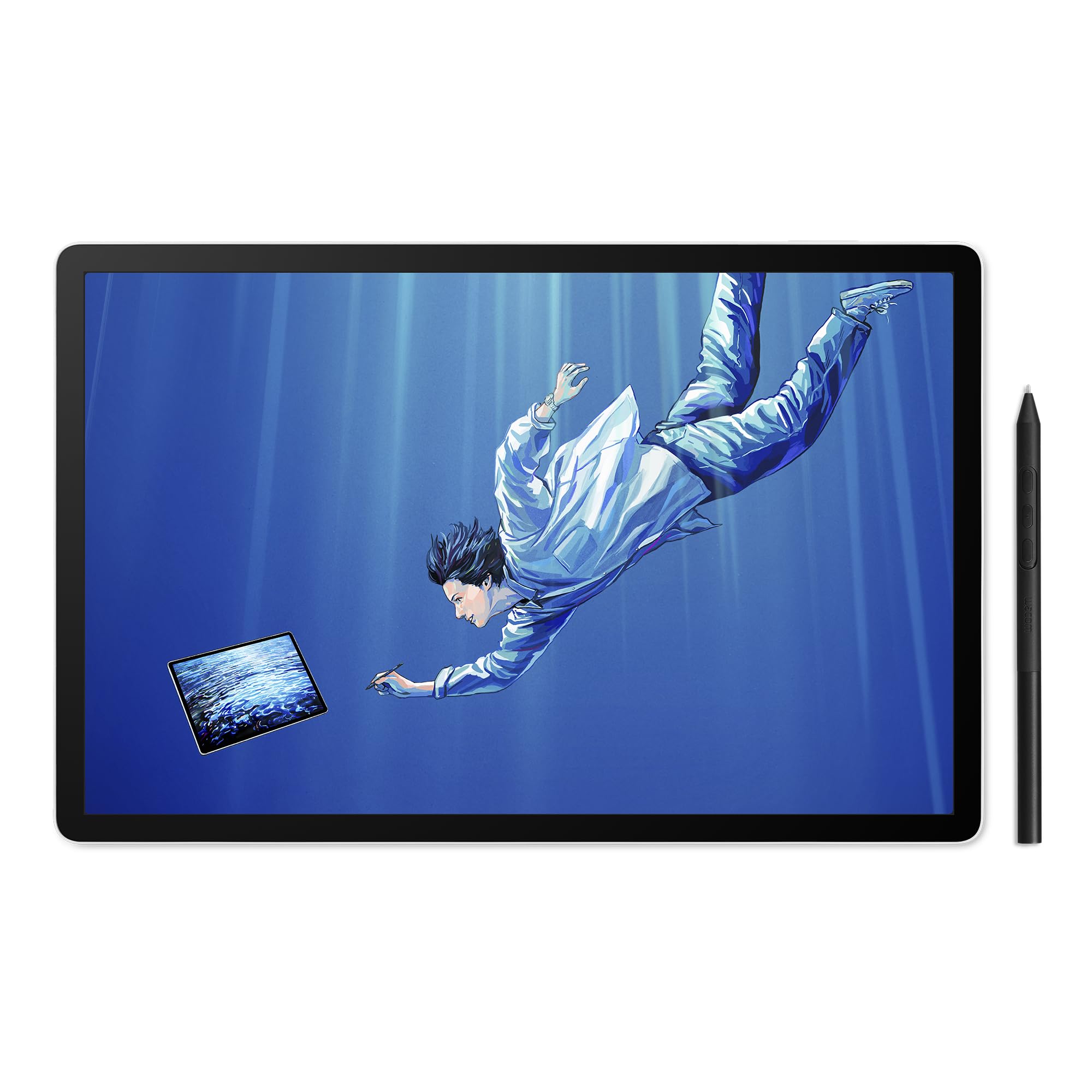
1. Wacom MovinkPad Pro 14 Android Tablet with Pro Pen 3
Our pick — 4.5+★ from 250+ verified ratings; the strongest balance of quality and price.
One device in your bag, no laptop tether, and a pen that never asks for a charger.
For the artist who draws on trains, in cafés, or at a client’s table, this is the pick that removes every extra piece of gear. It runs Android 15 with the included creative apps plus Google Play Store access, so the whole studio lives inside one thin frame. You are not tethering to a laptop, hunting for an outlet, or packing a second screen. The screen itself is a 14-inch OLED at 3K resolution (2880 × 1800), covering 100% sRGB and DCI-P3, and the Premium Texture etched glass gives the nib a paper-like bite while cutting parallax.
You get enough speed for everyday drawing without paying for excess: a Snapdragon 8s Gen 3 processor (a mobile chip that handles apps and multitasking) with 12GB RAM (short-term memory for open apps) and 256GB of storage (room for files), expandable through a microSD slot (a tiny memory card) so a growing sketch library does not force you into a new device. The bundled Pro Pen 3 reads 8,192 pressure levels (how finely it senses how hard you press), never needs charging, and stows replacement nibs (the pen tips) in its own back end.
What wins owners over is how completely it works as a drawing device. Owners call it complete and ready from the start, and the matte etched surface is a recurring favorite for the friction it gives the stylus. Owners describe the drawing feel as organic rather than glassy. One happy trade-off in its favor: it does not force AI features down your throat, and Gemini can be switched off entirely. Contrast that with the Microsoft Surface Laptop Studio 2, where you get 32GB of RAM against this tablet’s 12GB. That is a real gap if you run heavy 3D scenes, but it is also a gap in weight, tethering, and price class.
What earns its place in your bag
- Genuinely standalone: Android 15, included art apps, no computer required.
- 3K OLED panel covering 100% sRGB and DCI-P3 for accurate color work.
- Battery-free Pro Pen 3 with 8,192 pressure levels and onboard spare nibs.
- 0.73 kg light, with a flat bottom that will not slide off a café table.
- Expandable microSD storage keeps the 256GB from being a hard ceiling.
Where it pushes back
- Android app compatibility is the friction point; some desktop-class apps will not run or handle pen buttons properly.
- No headphone jack and no camera.
- The grainy texture that artists love also wears through nibs faster, so a screen protector is a smart add-on.
- Windows ARM systems and Intel Macs are not supported in pen-display mode.
Made for the sketcher on the move: buy this if you want a finished, distraction-free digital sketchbook and you mostly stay inside mainstream Android art apps.
Think twice if: your workflow depends on desktop-only plugins or you regularly push enormous 3D scenes that want more than 12GB of RAM.
2. Microsoft Surface Laptop Studio 14.4″ Touchscreen Core i7
A hinge that turns a work laptop into a drawing easel in about two seconds.
Illustrators and animators who need one machine for client email and canvas work gravitate to this. The 14.4-inch PixelSense Flow touchscreen runs up to a 120Hz refresh rate, so your cursor tracks your hand with visibly less lag than a standard panel. The display clicks forward into a stage position or lies flat into a canvas, and the Surface Slim Pen 2 magnetically docks and charges under the front of the keyboard. That 512GB SSD is double the storage on the Wacom MovinkPad Pro 14, which matters once layered files and render caches start stacking up.
Inside sits an 11th Gen Intel Core i7-11370H with 16GB of memory, and the configuration with the NVIDIA GeForce RTX 3050 Ti opens up design, animation, and render work at speed. One behavior worth understanding: the Nvidia chip only wakes under load, and the default graphics is Intel Iris Xe. If your app needs the discrete card, expect to manage that. Ports are the other adjustment: two USB-C, no USB-A, so a hub becomes part of your kit.
As a workhorse it earns warm words for build quality, a bright clear screen, and quiet fans under the notched body. The honest catch is endurance under pressure. Light use gets you a full session, but buyers report the battery drops to a few hours once heavy apps take over, and reaching for the 100W USB-C charger restores it quickly through either port. Weigh that against the responsiveness of the pen, which draws without noticeable lag.
The daily-driver case: a pen-first convertible that also runs Photoshop, After Effects, and Premiere away from your desk, with a pen that charges while it stores.
Where to plan ahead: budget for a USB-C hub and accept shorter runtime on heavy sessions; the RTX 3050 Ti configuration is the one to pick if render time matters.
Reach for this if: you split your week between illustration and ordinary office work and want a single machine for both.
Look elsewhere if: you need all-day unplugged runtime on processor-heavy apps, or you refuse to carry a dongle.
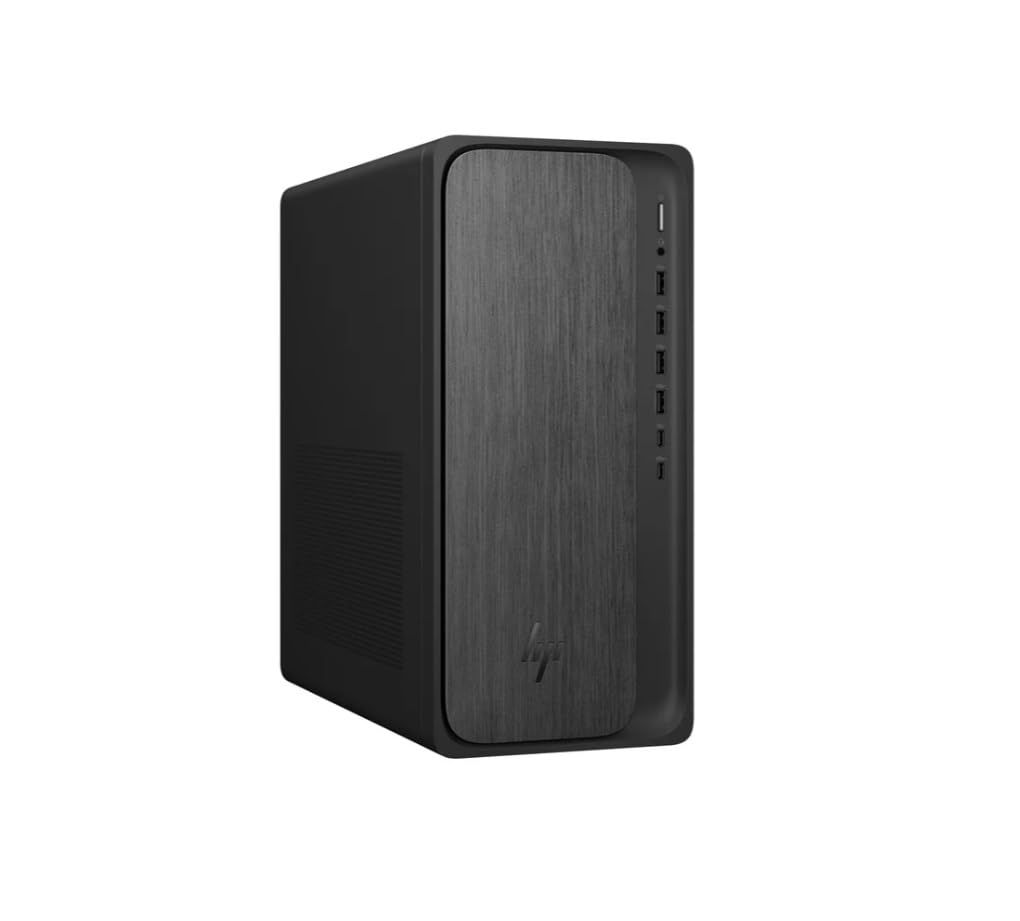
3. HP OmniDesk Desktop PC, AMD Ryzen 7 8700G, 32GB DDR5
The tower that does the heavy lifting when your canvas lives on a separate drawing display.
If you own or plan to buy a pen display like the Huion Kamvas Pro 24, this is the engine that drives it. The Ryzen 7 8700G processor runs at 4.2GHz with 30MB of cache, paired with 32GB of DDR5-5200 memory and a 1TB PCIe Gen4 NVMe drive. That combination of memory and fast storage keeps massive layered files and scratch disks from stalling. It carries Radeon 780M integrated graphics with 8GB of graphics memory, which handles illustration, design, and light 3D capably, though it is not a gaming card.
Compare the memory to the Wacom MovinkPad Pro 14’s 12GB and you can see the headroom here: this machine holds 32GB. For a painter running multiple large canvases, brushes, and reference windows at once, that headroom is the difference between smooth panning and stutter. The case is described by its own owner as a quarter the size of the machine it replaced while delivering four times the power, so it will not swallow a small studio.
Performance is where it wins buyers over. Buyers running intense music production and everyday creative work describe it as fast and smooth, and setup is quick from the start with Windows 11 Home preinstalled. The catch to know: if you intend to install Linux, deals with the drive encryption and updates first, and be aware this generation shipped with a BIOS update that can trip an OS install. A rare unit arrived needing service, and the support trail was long; the machine itself worked once resolved.
Why it earns a desk slot: 32GB DDR5 plus a 1TB Gen4 drive is genuine breathing room for large canvases, and the compact air-cooled case fits a tight studio.
The setup note: run the preinstalled Windows updates before you swap operating systems, or you can lock yourself out of a boot.
Suits you if: you are pairing a pen display with a desktop and want memory and storage that will not limit your file sizes.
Not the one for: anyone who needs a dedicated graphics card for heavy 3D rendering or a screen included in the box.
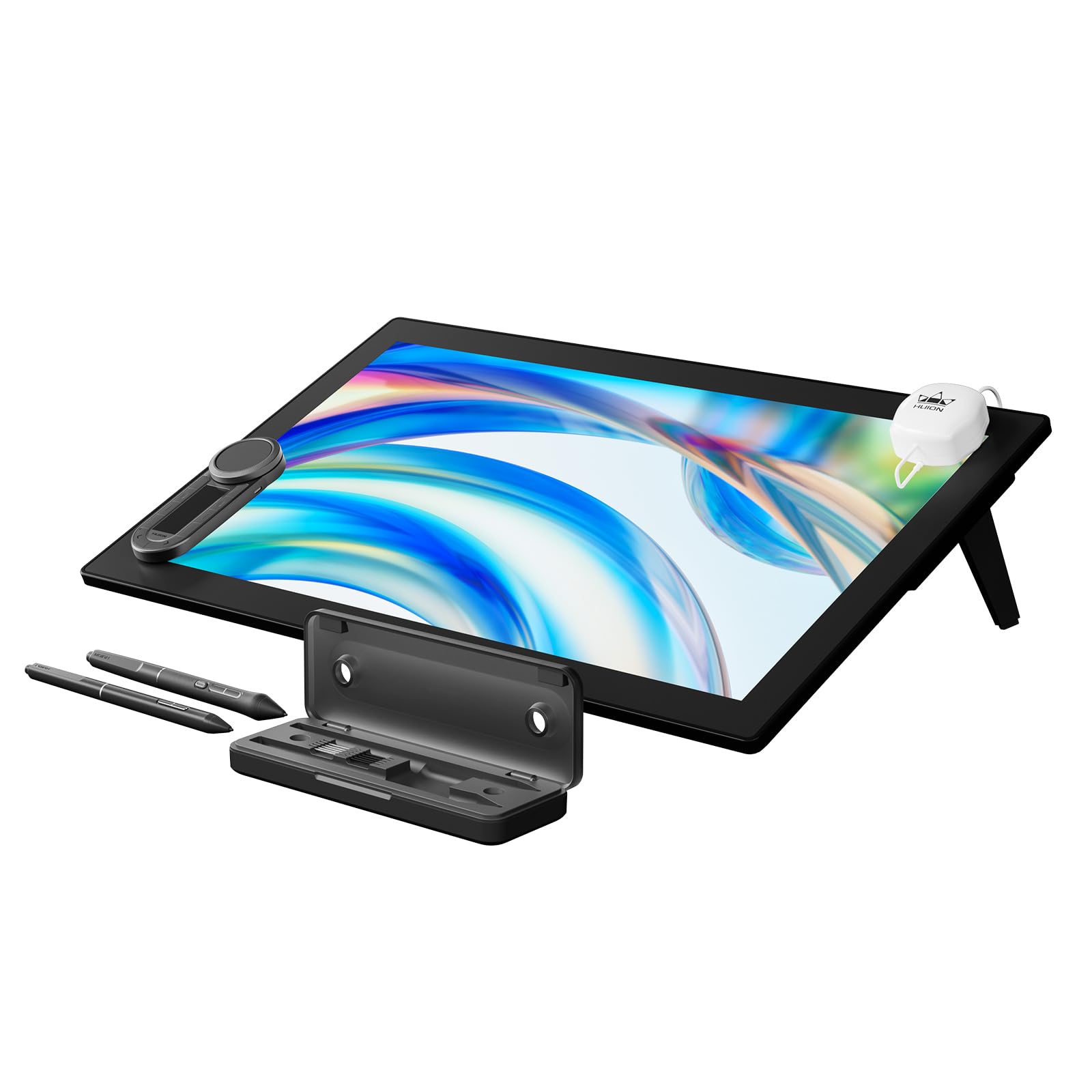
4. HUION KAMVAS Pro 24 (Gen 3) 4K Drawing Tablet with Screen
A 23.8-inch 4K canvas with the finest pen resolution in this entire lineup.
Detail-heavy work, from architectural line work to painting at full print resolution, gets a proper stage here. The 23.8-inch LCD panel runs 4K UHD at 3840×2160 native, so fine texture and tight linework stay sharp rather than mushy. The PenTech 4.0 stylus reads 16,384 pressure levels, double the 8,192 on the Wacom MovinkPad Pro 14, and both the standard and slim pens activate with just 2g of force. The retraction distance is tuned to no more than 0.35mm, which keeps the nib feeling solid and minimizes the offset between tip and cursor.
Color is the other reason to choose it. Quantum Dot technology pushes 1 billion display colors across 99% sRGB, 99% Adobe RGB, 98% DCI-P3, and 98% Display P3. Each unit gets a factory hardware calibration with a 3D LUT, held to ΔE<1 so colors do not drift, and a report ships in the box. The nano-etched Canvas Glass 3.0 cuts glare and reduces graininess on flat color backgrounds, with an anti-fingerprint coating on top. Multi-touch lets you swipe, rotate, and pinch to zoom, and a wireless keydial keeps shortcuts off the screen.
The thing owners praise most is raw performance during long shifts: the display stays smooth and the software installs without fuss. It is not standalone, so you supply the computer and connect via HDMI or USB-C. Two honest notes from the field: the default color profile benefits from calibration, and the volume and weight mean you want a sturdy arm or a dedicated desk corner. A stand wobble is a known quirk with the bundled mount.
Why artists upgrade to it
- 16,384 pressure levels with 2g activation for precise, stable stroke weight.
- 99% Adobe RGB coverage plus a per-unit calibration report, so prints match the screen.
- Canvas Glass 3.0 anti-glare finish with a claimed 14% clarity improvement over bare grainy panels.
- Multi-touch gestures plus a wireless keydial for fluid navigation.
The paperwork before you buy
- Not standalone; it needs a computer or compatible Android device with DP1.2 over USB 3.1 Gen1.
- At 14 pounds, it needs a solid desk and ideally an arm rather than the bundled stand.
- Default color benefits from a calibration tweak before print work.
Buy it when: your work lives in print resolution and you want the highest pen resolution and color coverage on a fixed desk.
Skip it when: you need to draw away from a desk or you do not already own a capable computer to drive it.
5. HP 24 inch All-in-One Desktop PC, Ryzen 7 7730U

A single-screen home studio with no tower, no cable spaghetti, and a pop-up privacy camera.
Freelance illustrators working from a kitchen table or a spare bedroom get a clean setup here. The 23.8-inch FHD display runs 1920×1080 with a three-sided micro-edge, giving a claimed 89% screen-to-body ratio so the picture fills the frame. It runs on an AMD Ryzen 7 7730U processor with 16GB of memory and a 512GB SSD, which is a 15x speed claim over a traditional hard drive from HP. The tiltable pop-up privacy camera, dual array microphones, and noise reduction make client calls a built-in feature rather than an add-on.
In daily use it feels quick: owners mention cutting routine task time roughly in half. Buyers cut routine task time down to half by their own account, and setup is a matter of minutes from the box. A working illustrator describes it as pretty, fast, and fairly priced for the hardware inside. The screen is bright and clear, and the 16GB can expand to 32GB if you later need the headroom. It is a genuinely tidy way to get a full working machine on one footprint.
The mixed part is reliability, so treat this as a fit decision rather than a flaw. A few units have arrived with a blank screen or a mouse that keeps disconnecting, and the included keyboard and mouse feel basic. There is no optical drive, and the stand does not adjust. If you want a fuss-free home station and you can handle a return if a dud shows up, the value here is strong; if you need guaranteed lightning-fast support, weigh that.
The appeal: a complete, fast-feeling all-in-one that sets up in minutes, with 16GB expandable to 32GB and a privacy camera you physically close.
The fair warning: the bundled keyboard and mouse are ordinary, and the stand is fixed, so a separate keyboard may suit long shifts better.
Best for: the home-based freelancer who wants one tidy machine for drawing apps, client video calls, and office work.
Consider another pick if: you need color-critical print accuracy or a dedicated graphics card.
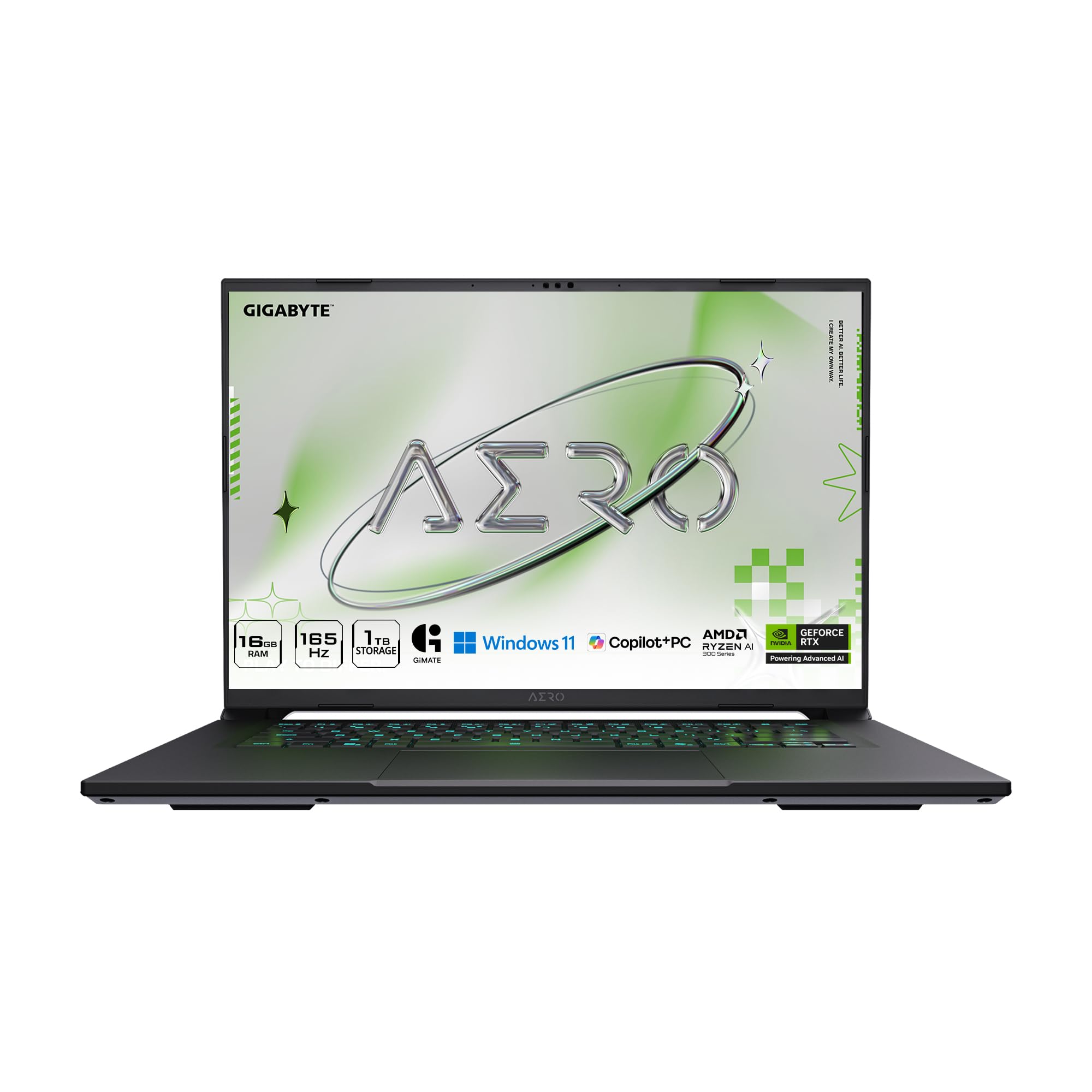
6. GIGABYTE AERO X16 Creator Laptop, Ryzen AI 7 350, RTX 5070
A portable creator deck that pairs 32GB RAM with an RTX 5070 and still slides into a backpack.
Artists moving into 3D, AI-assisted generation, or video editing want real graphics muscle they can carry. The 16-inch WQXGA panel at 2560×1600 gives you a sharp, colorful canvas, and the Ryzen AI 7 350 processor with 32GB of DDR5 memory keeps heavy multitasking smooth. The NVIDIA GeForce RTX 5070 Laptop GPU, built on the Blackwell architecture, handles render-heavy tasks and DLSS 4 upscaling, so scenes that would choke a thin notebook keep moving. A 1TB SSD holds large project files and caches.
Portability is the standout. At 16.75mm thin and 1.9kg, it is genuinely light for the power inside, and the chassis is described as durable yet easy to carry with a good port selection that skips the dongle dance. The 14-hour battery claim and the Copilot+ PC features round out the day-to-day usefulness. This is the machine for someone who renders at 9am and presents that work at 4pm in a different place.
Keep its standing in perspective: the model has limited reviews, so ratings are still settling, but the early feedback on screen quality, battery, and software is positive. The RTX 5070 is the reason to pick it over the Surface Laptop Studio, whose RTX 3050 Ti will not keep pace on modern GPU-accelerated renders. The trade-off is that this laptop is purpose-built for creator workloads rather than dedicated pen-on-paper drawing.
Why a creator would carry it
- RTX 5070 with 32GB DDR5 and a 1TB SSD for fast, lag-free rendering.
- 16.75mm thin and 1.9kg light, unusual for a laptop with this graphics tier.
- 16″ WQXGA (2560×1600) screen for sharp detail work and color.
- Copilot+ PC with Windows 11 Home for AI-assisted workflows.
What to accept
- Limited review history means long-term reliability is still unproven.
- It is a creator-performance machine, not a dedicated art tablet with a flush drawing surface.
Worth it if: your art is 3D, motion, or AI-assisted and you need real graphics power on the move.
Pass if: you do not render heavily, since this is more machine than a pure illustration workflow needs.
7. Dell 27 All-in-One Desktop ec27250, FHD Touch Display
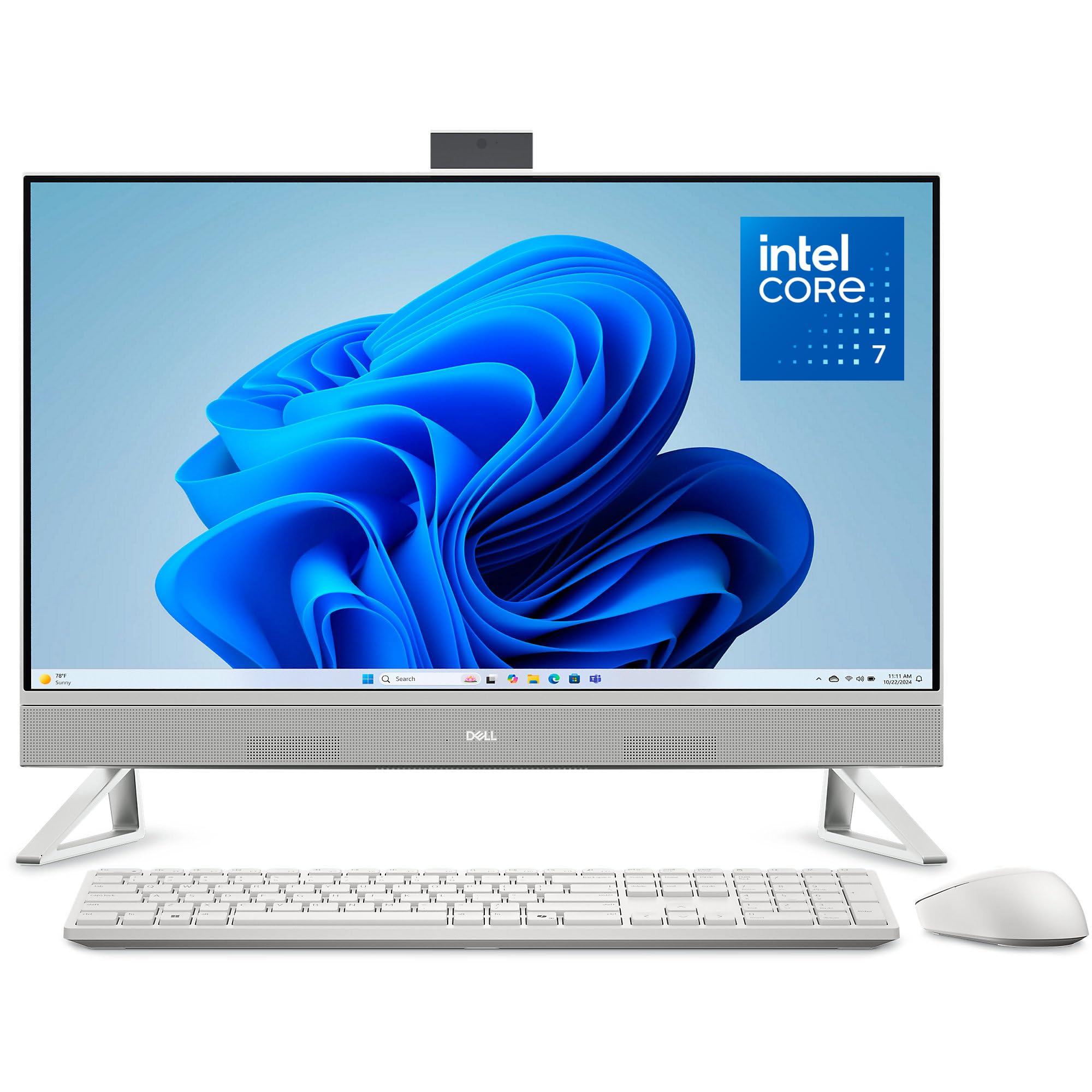
A 27-inch touchscreen that gives your canvas and your reference windows room to breathe side by side.
When you want more screen real estate without adding a second monitor, this is the largest display in the lineup. The 27-inch FHD IPS touchscreen covers 99% sRGB, with 50% higher contrast and a refresh rate 66% higher than the previous generation, all in a narrow border. An Intel Core 7 150U processor running up to 5.4GHz joins 32GB of DDR5 memory and a 1TB SSD, with an NVIDIA GeForce MX570A with 2GB of GDDR6 graphics. Dell ComfortView Plus reduces blue light, which helps long sessions feel less fatiguing.
There is a genuinely clever design touch: a stand with a built-in cubby to tuck your keyboard beneath the display, keeping your desk clear for a drawing tablet or reference book. The 5MP+IR camera has HDR and tilts from 0 to 20 degrees, and it is a pop-up camera you physically push down for privacy. Dual Bluetooth speakers with Dolby Atmos round out the media side. Twenty-seven inches plus touch is a lot of workspace.
In practice, owners describe it as smooth, fast, and built like a tank. The large screen earns its place for reading size and side-by-side work, and the touchscreen is crisp and responsive.
The standout: 27 inches of touch display plus a stand that swallows your keyboard is the tidiest large-canvas desk setup here.
One thing to plan: if you push color-critical print work, the MX570A is an entry-level graphics card rather than a rendering powerhouse.
Ideal for: an illustrator who wants a big touch display and a clean desk with storage built into the stand.
Not your pick if: you need high-end GPU acceleration for 3D or video.
8. MSI Creator Z16 16″ QHD+ 120Hz Touch Laptop

A 16-inch 120Hz touchscreen laptop that treats heavy video and content workflows as its home turf.
For an artist whose day job bleeds into video editing or design animation, the 120Hz QHD+ touch display gives smooth motion and the 16:10 aspect ratio offers more vertical room for toolbars and timelines. Inside is an 11th Gen Intel Core i7-11800H pushing up to 4.6GHz with 24MB of cache, paired with 32GB of RAM, a 1TB NVMe SSD, and an NVIDIA GeForce RTX 3060. Thunderbolt 4 lets you drive two external monitors, useful if you spread a project across screens.
Heat management is where the machine draws attention, and not always kindly. The Cooler Boost Trinity+ with three fans is the answer MSI provides, and heavy loads still run warm. A buyer running DaVinci Resolve noted the dual fans stay quiet even as the chassis heats up. A caution worth naming plainly: the two Thunderbolt 4 ports do not charge the laptop, so a large power supply travels with you. It is also relatively heavy at around 8 pounds.
Owners describe it as very fast and capable across DaVinci, emulators, and Chrome tabs. The touchscreen is smooth for a quick sketch, though the panel lacks an anti-glare coating, so mind your window placement. The 90Whr battery gives it real independence, and the keyboard is praised.
The appeal: a big, smooth 120Hz touchscreen, Thunderbolt 4 for dual monitors, and the power to chew through video and design work.
The caveat to plan for: it runs warm under load, so give it airflow, and its Thunderbolt 4 ports do not deliver charging power.
Choose it if: you need one laptop for video editing and design with real port and monitor flexibility.
Think about another pick if: you want all-day portable drawing without a power brick and a hot chassis.
9. Microsoft Surface Laptop Studio 2 (i7-13800H, RTX 4050)

The positionable touchscreen and RTX 4050 make this the workstation for the artist who needs both.
If you sketch and also run serious 3D or video, this is the top of the heap for raw capability. A 14.4-inch screen at 2400 x 1600 gives sharp detail, the Intel Core i7-13800H runs up to 5GHz, and 32GB of memory lets you keep many programs open without slowing down. A 1TB SSD handles large project files, and the NVIDIA GeForce RTX 4050 with 6GB of discrete graphics carries the heavy multimedia lifting. An 18-hour battery rating makes it a genuine day-long unplugged machine, and the positionable screen flips to a drawing angle on demand.
Here it beats the Surface Laptop Studio’s RTX 3050 Ti on graphics and matches it on memory at 32GB, while offering a higher resolution screen at 2400 x 1600 versus the 14.4-inch touch panel’s range. That is a real step up for anyone rendering or working in 3D. The touchscreen tilts to become a drawing surface, and daily creative work like SketchUp and Photoshop runs without issue.
Buyer experience is warm where it counts: it works well for art thanks to the positionable touchscreen and handles graphics-heavy tasks capably. The community also notes a workaround: a Wacom Bamboo pen can pair with it as an alternative to the Surface pen. Availability is the practical unknown, since one buyer reports the model has been out of stock for stretches, so check before you commit.
Built for the demanding artist
- 32GB RAM with an RTX 4050 (6GB) for 3D, video, and heavy layered files.
- 14.4″ 2400 x 1600 screen that positions for drawing.
- 1TB SSD and an 18-hour battery rating for all-day work.
- i7-13800H boosting to 5GHz for fast renders and app switching.
Things to weigh
- It is the most expensive tier here, so it is a true investment decision.
- Stock availability can be inconsistent, so confirm it is in stock before you plan around it.
For the power user: pick this if your art career has grown into 3D, video, or graphics-heavy scenes and you want the strongest all-rounder here.
A different route: if your work is purely 2D illustration, a lighter pen tablet or the MovinkPad will serve you without paying for graphics you will not use.
Know the Specs
Pressure levels and pen resolution
Pressure levels measure how many distinct steps the pen senses between a light touch and a hard press. More steps means finer control over line weight, which shows up as smoother tapering in your strokes. The Huion Kamvas Pro 24 reads 16,384 levels, and the Wacom MovinkPad Pro 14 reads 8,192. Both are very fine, so weigh whether the pen needs charging more heavily than this number: a battery-free pen is always ready, while a rechargeable one needs management.
Color gamut coverage
Gamut coverage is the portion of the visible color range a display can reproduce. sRGB is the standard for web and screen work. Adobe RGB is the wider space you want for print, and DCI-P3 is the target for video and motion. A machine with 99% Adobe RGB coverage will show colors that a narrower panel clips, which is why print artists chase it. Calibration matters too, since even a wide-gamut screen can drift if it is not tuned.
Parallax and screen texture
Parallax is the visible gap between the pen tip and the cursor beneath the glass. Laminated displays shrink that gap, and etched or micro-textured glass adds friction that mimics paper. A slippery, glossy surface can make lines feel uncontrolled, while a grainy matte finish gives predictable drag. The trade-off is that a rougher texture wears through nibs faster, so some artists add a screen protector and budget for replacement nibs over time.
Memory, storage, and graphics
Memory is the space a machine uses to keep open programs and large files live. More RAM means fewer stalls when you work across many applications at once. Storage speed affects how fast big files load and save, with an NVMe SSD moving data much faster than an older mechanical drive. Discrete graphics like the RTX 4050 or RTX 5070 take on rendering and 3D work, while integrated graphics like the Radeon 780M handle illustration and design comfortably.
Common Questions
Do I need a standalone drawing tablet or a computer with a pen display?
Is a 4K drawing display worth it over a 1080p one?
Does an etched or matte screen actually help you draw?
How much RAM do I need for large Photoshop files?
Can a drawing tablet work with both Windows and Mac?
Do I need a dedicated graphics card to make digital art?
Will the color on my screen match what I send to print?
Can I draw directly on a laptop screen?
Which is better for an artist, an all-in-one desktop or a laptop?
Do battery-free pens last longer than rechargeable ones?
The Bottom Line
The strongest all-round pick for most artists is the Wacom MovinkPad Pro 14. It is a complete studio in one 0.73kg frame, with a 3K OLED screen, 8,192 pressure levels, and a pen that never needs charging, so you draw anywhere without a laptop tether. Across 200+ ratings it holds 4.5+ stars, with owners praising the paper-like drawing feel and multi-day battery life.
If your work stays on a desk and wants the finest pen resolution and widest color coverage for print, reach for the HUION KAMVAS Pro 24 (Gen 3). Its 16,384 pressure levels and 99% Adobe RGB coverage make it the specialist’s choice. And for an artist whose career has grown into 3D and video, the Surface Laptop Studio 2 gives you 32GB of RAM, an RTX 4050, and a positionable screen in one premium machine.
Whatever you pick, choose the pen and the screen first, then size the processor to your files. The pen and the screen are what your hand and eye touch every day, and they decide whether the line you imagine lands on the canvas intact.
How we choose
We do not accept paid placement. Every pick is matched to a real buyer and a real use-case; we do not hands-on test units.
Sources
Specifications: manufacturer listings and product documentation. Review insights: verified customer reviews, as of October 2026. Pricing: not shown on this page (it changes often); check the current price via the retailer link.
As an Amazon Associate, Aappliancez earns from qualifying purchases. This does not affect which products we feature.