Disclosure: Some links in this post are affiliate links. As an Amazon Associate I earn from qualifying purchases, at no extra cost to you. Learn more
Specs are compiled from manufacturer listings and verified buyer reviews and can change over time — please confirm the key details on the product page before buying.
If your eyes ache after a full day of typing and scrolling, the fix is not a stronger pair of glasses — it is a screen that reflects light like paper instead of beaming a lamp straight at your face. An E-Ink display does exactly that: it uses tiny pigment particles to form text and images from the room’s own light. That reflected light is why it stays readable in bright sun and feels calm for hours. The trade-off you need to accept up front is refresh speed (how fast the screen redraws when you scroll or type) and color depth (how many shades it can show). This guide separates panels that genuinely cut eye strain from ones that only look good on paper.
This guide is built by comparing the manufacturers’ published specifications and the patterns across verified customer reviews, so you get each pick’s real strengths and trade-offs instead of marketing spin.
A lot of listings blur the line between a writing tablet and a true desktop panel, so here is the practical filter: match the display to your daily task before you chase resolution numbers or pen pressure levels. Below is a straight-talking shortlist of the best E-Ink Monitor options split by whether you write, read, or type for a living.
Top Picks


How To Choose The Best E-Ink Monitor
Most people shopping this category are trying to solve one specific problem: their eyes are tired of glowing rectangles. The decision almost always depends on if you want a writing surface you can carry to a meeting, or a large fixed panel that replaces a conventional desktop display. Pick the wrong form factor and no spec sheet will save you.
Screen size decides the job it can do
A display in the 8-inch range fits in a bag and comes out for quick notes, but it will not replace a desktop monitor. Once you reach 10.3 inches, you are at roughly standard paper size, which is where split-screen reading and annotation start to feel natural. Anything larger than that is a fixed workstation panel, and you should treat it as furniture rather than something you commute with.
PPI: the number that decides if text looks crisp
PPI stands for pixels per inch — how densely the screen packs detail into each inch of glass. A 300 PPI E Ink panel renders small print sharply, so spreadsheets and PDFs stay readable without zooming. Lower density is fine for large type but shows softness on tiny labels and fine print.
Frontlight or no frontlight
A frontlight is a thin layer that lights the display from the edges rather than shining through it, so you can read in a dim room. Some E Ink panels deliberately skip it, which keeps the display cleaner and closer to real paper but leaves you needing a lamp. If you write at night, check this before anything else.
Side-by-Side Comparison
| Model | Best For | Screen Size | Resolution | Display Type | Amazon |
|---|---|---|---|---|---|
| Samsung 49” Business Curved Ultrawide★ Best Overall | Panoramic desktop multitasking | 49″ | 5120×1440 | LCD | Amazon |
| iflytek AINOTE Air 2Travel Notetaker | Pocketable meeting notes | 8.2″ | 1440×1920 | E Ink | Amazon |
| Penstar eNote 2Paper Replacement | Paper-replacement notetaking | 10.3″ | 2480×1860 | E Ink | Amazon |
| iflytek AINOTE 2 | Transcribing sensitive meetings | 10.65″ | 1920×2560 | E Ink | Amazon |
| BenQ MA270U | Mac-matched desktop work | 27″ | 3840×2160 | IPS | Amazon |
| Penstar eNote Pro C | Color E Ink document review | 10.3″ | 2480×1860 | E Ink (Kaleido 3) | Amazon |
| Canlarriz 50″ Digital Signage | Storefront menu boards | 50″ | 3840×2160 | LCD | Amazon |
| LG 32U990A-S | 6K creative editing | 32″ | 6144×3456 | Nano IPS Black | Amazon |
| ASUS ProArt PA32QCV | Calibrated 6K on a budget | 31.5″ | 6016×3384 | IPS | Amazon |
| Eizo FlexScan EV3240X | Office and CAD accuracy | 31.5″ | 3840×2160 | LCD | Amazon |
| LG 40U990A-W | Wide creative canvas | 40″ | 5120×2160 | Nano IPS Black | Amazon |
Detailed Reviews
1. Samsung 49” Curved Ultrawide Dual QHD Monitor
Our pick — 4.5+★ from 250+ verified ratings; the strongest balance of quality and price.
Two full monitors fused into one smooth glass curve, without the middle seam.
The number that reframes your whole desk is 32:9 — the aspect ratio, meaning the screen is far wider than it is tall. Where a standard widescreen runs 16:9, this panel stretches to 5120×1440 pixels across a 49-inch curve. In practice you get three document windows side by side with nothing hidden behind an app switch. Tiling windows becomes a habit, not a chore, and a single USB-C cable carries the picture while delivering 90W of charge to your laptop.
What wins people over here is the sheer monitor quality — the most-praised trait by a wide margin, because the 1000R curve wraps the panel around your field of view so the far edges stay in focus. A 120Hz refresh rate keeps scrolling smooth, and VESA DisplayHDR 400 support lifts blacks and highlights for video and design work. The stand clicks together easily and adjusts for height, and the built-in speakers free up desk space by removing a separate set of desktop speakers.
The honest catch is durability. A repeat pattern in the feedback is panels that fail inside the first year. One buyer described a screen crack appearing at the top with the unit sitting empty — quote: “After ~2 months, a top-to-bottom crack appeared with no one home.” Keep the box, because the curved shape makes the panel awkward to move without it. Also expect to spend a little time in the on-screen menu, which sits behind small hidden controls and is not the friendliest to set up.
Where it earns its keep
- 5120×1440 across 49 inches replaces a two-monitor rig with zero bezel gap
- Single USB-C cable handles display signal plus 90W laptop charging
- 120Hz refresh keeps long scrolls and window drags fluid
- Adjustable stand and built-in speakers clear your desk of clutter
What to weigh first
- Durability is the recurring concern — a notable share of feedback reports early panel failures
- OSD menus are fiddly and tucked behind hard-to-reach buttons
- The 1000R curve means the original box matters if you ever move it
Made for: anyone running coding, trading, or editing windows who wants one rich canvas instead of two displays.
Before you commit: buy with the understanding that panel longevity is the weak point, so keep your receipt and the packaging.
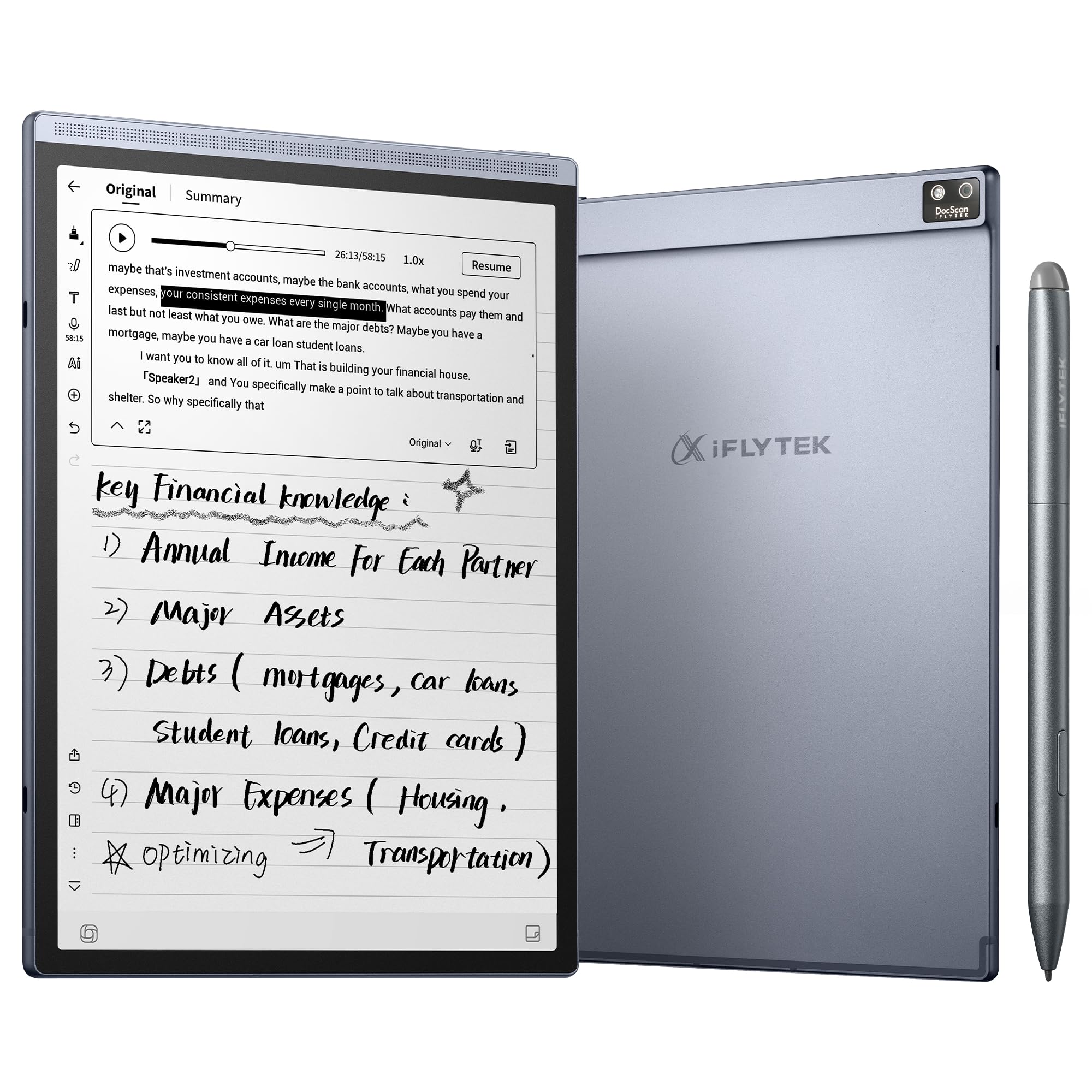
2. iflytek AINOTE Air 2, 8.2″ E Ink Tablet
A notepad that fits a handbag and quietly turns your meetings into typed summaries.
Start with the weight, because it decides whether this lives in your bag: 8.1 oz (230 g) in a body 5–6.5 mm thin. That is lighter than most paper notebooks with a hard cover. The 8.2-inch E Ink screen has a matte texture, and the stylus responds to 4,096 pressure levels across eight pen styles. Handwritten notes convert to typed text in 100+ languages, and voice transcription runs in 18 languages.
The real draw is the AI layer. After a recording, the device structures the discussion into meeting summaries and highlights, and you can ask questions of a note to pull out decisions and follow-ups. A 2600 mAh battery is rated for up to five weeks of average use. Compare the screen size to the 49-inch Samsung above and you see the split in this category clearly — 8.2 inches versus 49 inches, one for a pocket and one for a desk.
Here is the part that decides it for you: this is a companion device, not a monitor replacement. Even owners who love the tagging and the magnetic pen call the screen small — quote: “Works as described but small.” Performance earns mixed marks, with some finding transcription fast and others hitting slow response and a rough internet interface. Some also feel the value falls short of the asking tier. If you want a big writing surface, the 10.3-inch Penstar below is the better fit.
Who this clicks for: professionals who take live meeting notes and want the typing done for them, plus anyone who values portability over screen area.
Set expectations: the small canvas and uneven performance mean you should think of it as a smart voice notepad, not a desktop writing desk.
Reach for this if: you sit in back-to-back meetings and want summaries generated without touching a keyboard.
Look elsewhere if: you plan to annotate full-page PDFs — the small screen makes that cramped.
3. Penstar eNote 2 E-Ink Digital Notebook with Pen
Standard-paper size with the sharpest text this side of the color models.
The spec that matters most here is 300 PPI — pixels per inch, the density that decides whether small print stays readable. On a 10.3-inch panel at 2480×1860, that density means a textbook page or a spreadsheet reads without zooming. Penstar shaved layers off the display stack to cut the haze that usually dulls E Ink, so whites look whiter and blacks look deeper. It reads like a well-printed book, and it stays clear in direct sunlight.
Writing is where this earns its place. The stylus tracks 8,192 pressure levels — pressure sensitivity, the measurement of how finely the screen reads how hard you press — and needs no charging. Owners consistently describe the feel as writing on paper, and the non-touchscreen design avoids the stylus jumpiness that plagues touch layers. Under the hood you get an octa-core processor, 4GB RAM, 128GB storage, Android 14, and a 6500 mAh battery rated up to four weeks. The box includes two pens, a spare nib kit, and a leather folio.
The learning curve is the honest friction. The interface reads as clunky to some, text conversion occasionally misreads capitalization, and the app store is limited. One structural note worth knowing: the case cracked around the power button after a drop of a few feet, and Penstar replaced the unit with the owner paying only return shipping. Screen size also splits it from the AINOTE Air 2 above — 10.3 inches against 8.2 inches — so this is the one for a real writing desk.
What buyers keep coming back to
- 300 PPI on a 10.3-inch panel keeps fine print sharp without zooming
- 8,192 pressure levels with a pen that never needs charging
- 6500 mAh battery rated up to four weeks between charges
- Two pens, spare nibs, and a folio cover ship in the box
Where it asks patience
- The UI and app store take time to learn
- Handwriting conversion can misread capitalization
- The case is fragile around the power button if it takes a drop
Suits you when: you want to retire paper notebooks and PDF printouts and keep full-page documents at real paper scale.
Think twice if: you expect a polished, app-store-rich experience on day one.
4. iflytek AINOTE 2, 10.65″ E Ink Tablet

For people who sit in confidential meetings and need every word captured without a glowing laptop.
At roughly 4.2 mm thick, this is a tablet you forget is in the bag until you pull it out. The 10.65-inch E Ink panel runs a 60Hz refresh rate and 1920×2560 resolution, with a Wacom stylus and 8 brush styles for a pen-on-paper feel. A 4000 mAh battery is rated at up to 14 days of mixed use or up to 113 days on standby. It runs Google Play apps, which is what makes it workable inside corporate security rules.
What most recommendations circle back to is performance — the sheer reliability of note capture and transcription in the middle of a live meeting. The AI meetings and note Q&A turn a recording into structured takeaways, and 18-language transcription covers lectures and interviews. Fingerprint open up gets you into a note fast, and the aluminum body stays cool through long sessions. That is a different priority than the Penstar’s pressure feel — this one is built around capture, not artistry.
The catch is a real design quirk. There is no frontlight at all, so writing in a dark room needs outside light. Some owners also report the bottom of the screen flexes noticeably when tapping the on-screen keyboard, which is distracting at this tier. Handwriting-to-text accuracy earns mixed feedback, and connecting to a locked-down work network can turn into a fight. It transcribes well, but the missing frontlight and flexing screen rule it out for some buyers.
The standout: transcription and note organization with full Google Play access — the combination most rivals in this category skip.
Know before you buy: no frontlight and screen flex are the two things to try in person if you can.
Pick it for: professionals who need transcripts and summaries from sensitive, in-person meetings.
Pass if: you do most of your writing late at night with the lights off.
5. BenQ MA270U 27” 4K Monitor for MacBook

A 27-inch 4K panel that wakes up already speaking your MacBook’s color language.
The headliner for Apple users is Mac color match — a preset tuned to reproduce the P3 wide color gamut your MacBook Pro or Air already displays. You plug in one USB-C cable and the monitor carries the picture while pushing 90W to charge the laptop. A second USB-C port delivers 15W for an iPad or iPhone. Screen quality is what most people highlight, and it is easy to see why: 3840×2160 across 27 inches with a matte finish that shrugs off reflections.
Brightness hits 400 nits with a 2000:1 contrast ratio, so document text and design work both hold up in a bright room. The camera on your desk becomes the star. Brightness and volume adjust straight from your MacBook keyboard — no reaching behind the panel for a joystick. Height, tilt, swivel, and pivot all move, and the stand assembles in minutes.
The trade-off is a small one but worth naming: the on-screen menu covers little beyond brightness and volume, so you will want BenQ’s Display Pilot 2 app to reach the fuller settings. Also position it away from direct sun — this is an emissive LCD, not an E Ink panel, so it does not gain readability in glare the way the paper-tablet picks above do. For a MacBook owner who wants a bigger P3-matched canvas without Apple’s price tier, this closes the gap.
Why Mac owners gravitate here
- Mac color match reproduces P3 wide gamut for MacBook Pro and Air
- One USB-C cable carries display plus 90W charging
- Brightness and volume controlled from the MacBook keyboard
- Height, tilt, swivel, and pivot adjustments built in
The fine print
- On-screen menu is thin — full settings live in the desktop app
- It is an LCD panel, so there is no E Ink eye-comfort benefit here
Fits best: MacBook Pro or Air owners who want a color-matched 4K desktop display and hate cable clutter.
Not the one for: anyone shopping specifically for paper-like reading comfort.
6. Penstar eNote Pro C E-Ink Digital Notebook
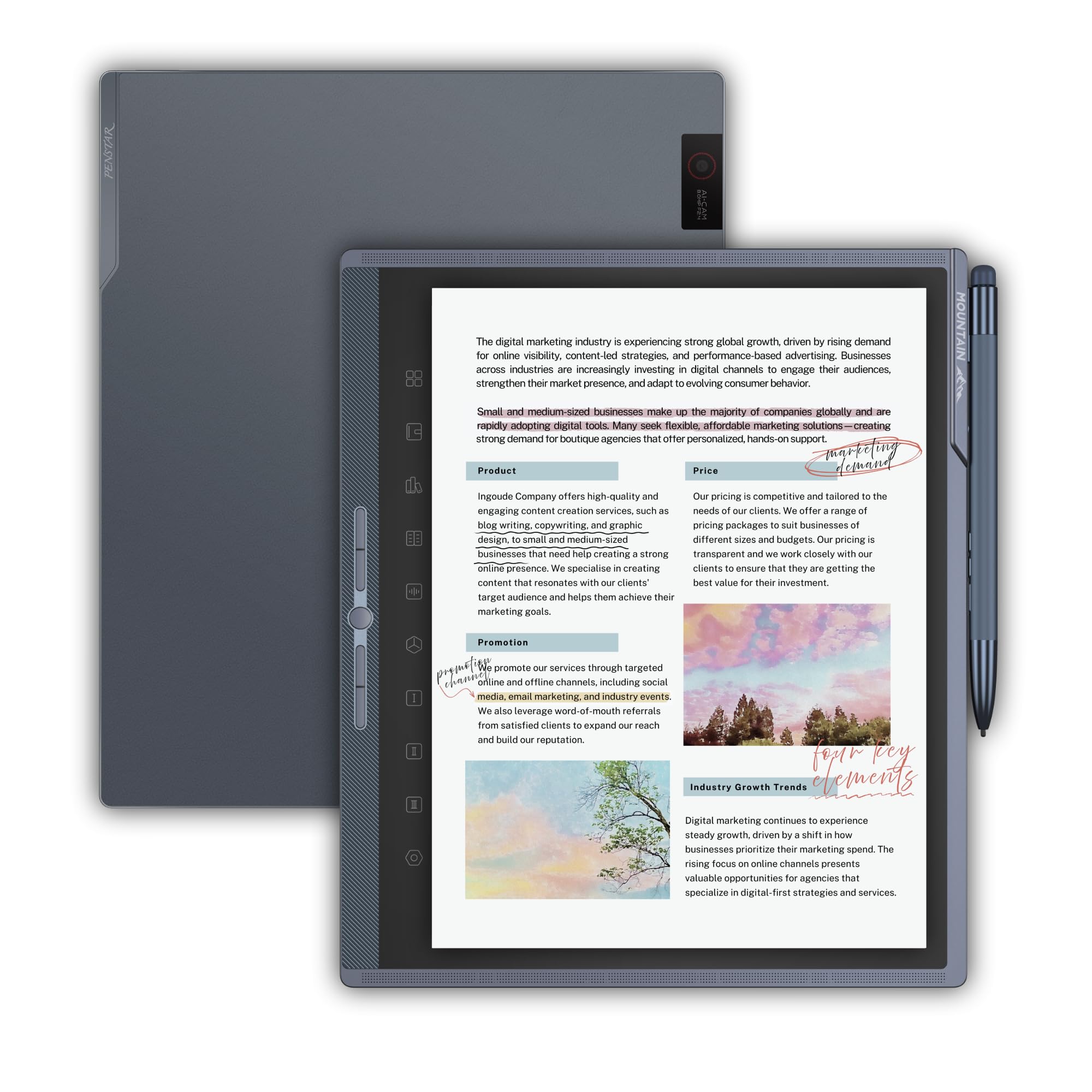
The rare E Ink tablet that shows you charts and slides in actual color.
Color is the whole point. The 10.3-inch Kaleido 3 screen runs 300 PPI for black-and-white text and 150 PPI for color — two densities on one panel, because the color layer trades resolution for hue. That means charts, highlights, and presentation slides show up in real color with no glare, which is what makes reviewing documents comfortable on the eyes. Warm and cold reading lights let you dial in the tone for the room.
Build quality is the trait people notice first. You get an octa-core chip, 4GB RAM, 128GB storage, Android 14, an 8-mic array, a speaker, and an 8MP camera in a 6500 mAh body rated up to three weeks of battery. The stylus tracks 8,192 pressure levels and never needs charging, and a magnetic folio, spare nibs, and a charging cable ship with it. Split-screen multitasking lets you read and annotate at once.
Where it stumbles is software. There is no Google Play certification, so apps are sideloaded and some simply will not run — the Kindle app is the frequent casualty of the older Android base. The AI voice-note feature runs as a 30-day trial, and some owners feel it does not justify the price tier. One buyer sums it up: the device is “fine” but the Kindle app failure stung. This is the pick for someone who mainly annotates their own PDFs.
The color payoff: Kaleido 3 at 300 PPI black-and-white and 150 PPI color turns document review into something you can actually see.
The honest limit: no Google Play and an aging Android base limit which third-party apps will work.
Go here for: color document markup, law-firm or design review where highlights and charts need to be seen.
skip it if: a working Kindle library is non-negotiable for you.
7. Canlarriz 50″ Digital Signage Display

A 50-inch commercial screen built to run menus and promos nonstop, not sit on a desk.
The headline spec is brightness — 1000 nits, which is a measure of how bright the backlight drives the panel. That is what lets this hold up in a lit restaurant or a sunlit window display. A 6.8mm ultra-narrow bezel and a 3.5cm slim profile let multiple screens tile together with the seams nearly invisible. The screen supports 4K UHD at 3840×2160 with a 2000:1 contrast ratio and a 178° viewing angle, and it runs 24/7 continuous loop playback.
It is built for content control. An Android-based menu board system lets you split the screen into 2 to 6 interactive zones showing video, countdowns, QR codes, and social feeds at once. The bundled CMS software handles breakfast, lunch, and dinner menu switching plus remote scheduling from a phone or computer. HDMI plug-and-play means no drivers, and it ships with the Google Play Store installed.
Setup is the honest friction point. Some find the initial configuration tedious, and logging into a hotspot to change a program remotely can be frustrating. A couple of units have fallen short of the brightness and clarity promised on the listing. It is also genuinely heavy — plan a solid wall mount. Note this is not an E Ink display; it is an LCD panel for retail and wayfinding, not for eye-comfort reading.
Built for business walls
- 1000 nits holds up in brightly lit rooms
- 6.8mm bezel and 3.5cm profile tile nearly smoothly
- 24/7 loop playback with 2 to 6 split zones
- CMS software handles remote menu scheduling from a phone
What to plan for
- Initial setup is tedious for some
- Remote hotspot connections can be awkward on the road
- It is heavy — mount it to a solid wall
Right for: restaurants, salons, and storefronts that want a 50-inch tiled menu board without drivers.
Wrong for: a home desk — this is commercial signage hardware and belongs on the wall.
8. LG 32U990A-S 32-Inch Ultrafine 6K Nano IPS Black
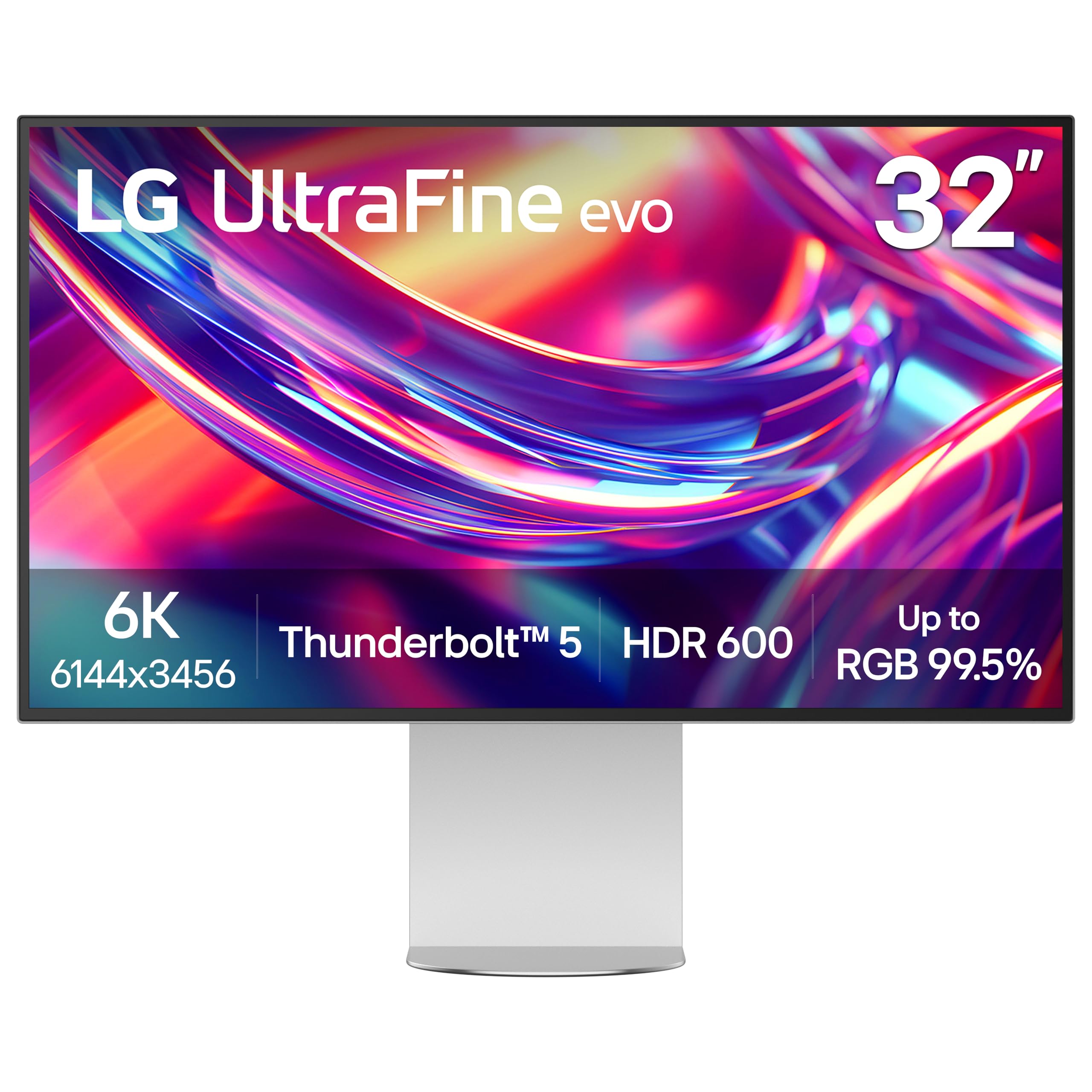
A 32-inch canvas with 21 million pixels behind it, wired over Thunderbolt 5.
The defining figure is 224 PPI — pixels per inch — on a 6144×3456 panel. That puts over 21 million pixels into 32 inches, which the maker says is 156% more than standard 4K. The practical result is that you can view full-resolution 6K footage while keeping the toolbars and timelines visible around it. Colors cover up to 99.5% Adobe RGB and 98% DCI-P3 with real 10-bit depth, and Nano IPS Black holds a 2000:1 contrast ratio for deep shadows.
Connectivity is the other half of the pitch. Thunderbolt 5 delivers up to 96W over a single cable, supports 6K daisy chaining, and pairs with HDMI and DisplayPort 2.1. DisplayHDR 600 rounds out the picture for grading and retouching. The picture quality is hugely praised, and the included cables — HDMI, Thunderbolt, DisplayPort, USB-C — mean you can connect without hunting for adapters.
Two quirks come up again and again. The power brick is huge and heavy, and the panel runs 60Hz only, so gaming is not the point. Also expect to install LG’s software to reach brightness, volume, and KVM controls, and note that it takes over your function keys. Color accuracy from the start can drift; a calibration tool fixes it, and buyers report no dead pixels. Sparkle on the matte coating bothers some buyers more than others.
Where it shines: 6144×3456 at 224 PPI with DisplayHDR 600 and Thunderbolt 5 input and daisy chaining.
The honest cost: a heavy external power brick and screen sparkle under bright light are the recurring gripes.
Pick it if: you edit 6K footage or retouch high-res photos and want pixels most monitors simply cannot give you.
Not for: high-refresh gaming or someone unwilling to calibrate a panel.
9. ASUS ProArt PA32QCV 32 Inch 6K Thunderbolt 4 Monitor

Factory-calibrated 6K color that undercuts what you would expect to pay for it.
Where the LG above goes wider, this one goes calibrated. The 31.5-inch LuxPixel AGLR panel runs 6016×3384 with an anti-glare coating, and every unit ships Calman Verified with Delta E < 2 accuracy — a color-error measure, where lower means the screen is closer to true color. You get 98% DCI-P3 and 100% sRGB coverage, so what you see on screen is what prints.
The value story is hard to ignore: this sits well below other 32-inch 6K panels, and registration extends the warranty from three years to five. The dual Thunderbolt 4 ports deliver up to 96W and daisy-chain, and a built-in auto KVM switches between two laptops with one keyboard and mouse. A Model-P3 preset matches MacBook displays. Text sharpness is outstanding — the Retina-grade crispness coders talk about — and the matte finish keeps reflections at bay.
Here is the less pleasant part: panel uniformity is a lottery. One buyer went through two units for backlight bleed and a dead-pixel cluster before landing a good panel, and another reports blue splotches after a few months of use. The built-in speakers are weak, and input switching takes a few seconds. Treat the anti-glare coating as a plus but check for defects during your return window.
The selling points
- Calman Verified with Delta E < 2 factory accuracy
- 98% DCI-P3 and 100% sRGB coverage
- Dual Thunderbolt 4 with 96W delivery and auto KVM
- 5-year warranty with online registration
What to watch
- Panel uniformity varies — inspect during the return window
- Built-in speakers are weak
- Input switching and wake-up can lag a few seconds
Choose it for: color-accurate 6K work — video edits, photo retouching, and Mac-based productivity on a budget.
Look away if: you need guaranteed out-of-box panel uniformity on the first try.
10. Eizo FlexScan EV3240X 31.5″ 4K Monitor

A no-frills 4K panel tuned for spreadsheets and CAD, not cinematic glow.
This is a monitor built around stability. The 31.5-inch 3840×2160 panel with a 16:9 aspect ratio is flicker-free, with a stand that adjusts for height and tilt and a USB-C hub that pushes 94W of charge to a laptop. An Ethernet port and a built-in KVM switch let you run wired peripherals across two machines. sRGB accuracy is excellent straight from the start.
The reviews are from people who care about precision. Office workers and CAD users describe it outperforming larger 4K panels costing half as much, with only video and film viewing being comparable. The per-input color profiles mean one monitor can hold a different color preset for each connected machine, and text renders cleanly enough that one owner moved from a smaller 1080p display and gained far more readable on-screen type. It is the kind of flicker-free, KVM-equipped panel an IT department buys in bulk.
Two things it deliberately skips: no HDR and no high refresh rate — 60Hz is the ceiling, so gaming and grading are not the mission. Unlike the LG and ASUS 6K panels above, this sits at a more conservative 4K resolution and feels aimed at all-day office use rather than creative color. Budget for the learning curve on the KVM setup if you want dual-machine switching to feel instant.
The core appeal: flicker-free, accurate, height-adjustable, with a USB-C hub and KVM for two computers.
What you give up: no HDR and no fast refresh rate, so it is an office panel first.
Best for: office and CAD workers who prize stable, accurate color over cinematic extras.
Skip if: you need HDR or gaming refresh rates.
11. LG 40U990A-W 40-Inch Ultrafine evo 5K2K Monitor
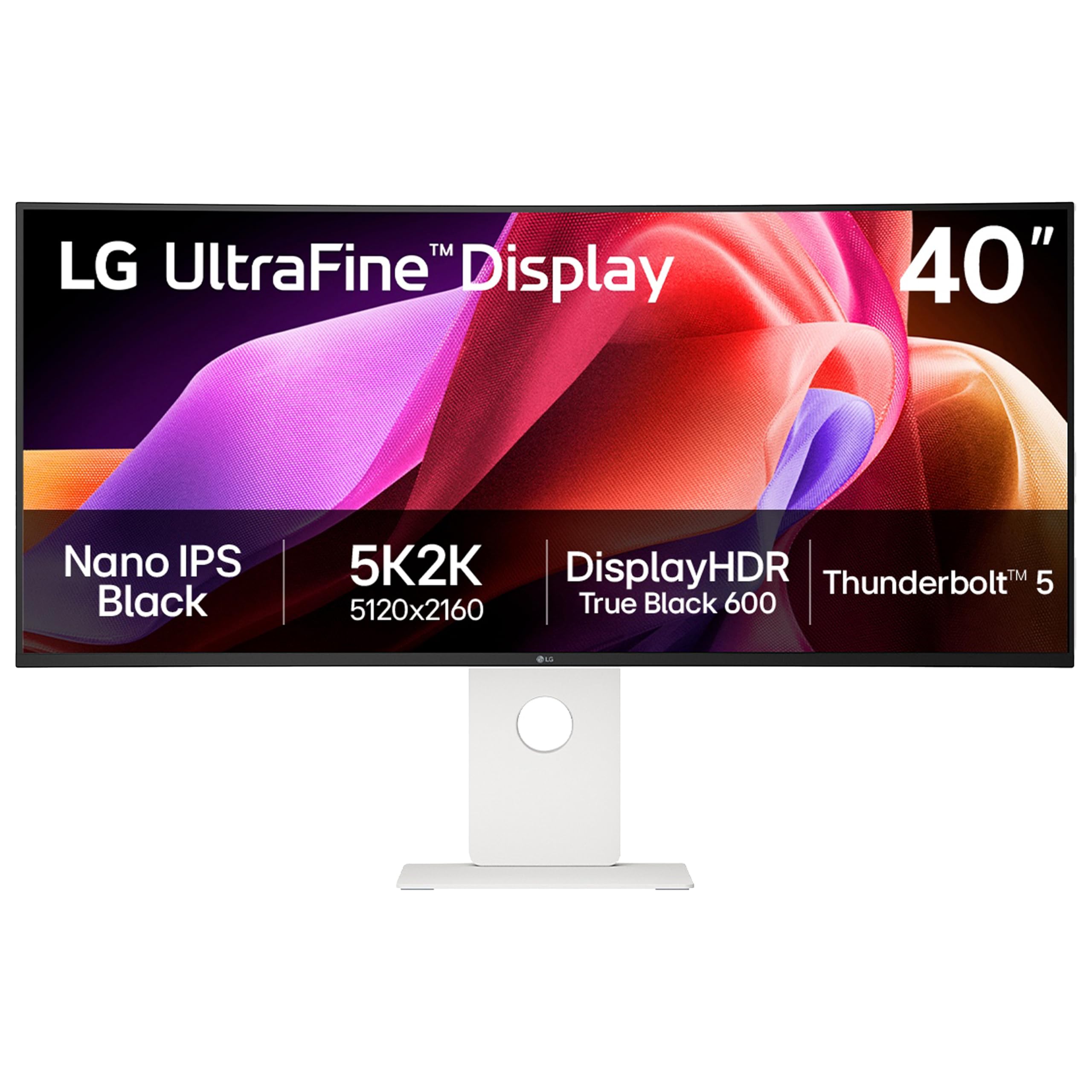
A 40-inch curved canvas where three windows fit side by side without feeling squeezed.
The 5120×2160 resolution on a 21:9 curved panel is the whole story. That is 5K2K — wider than standard 4K but shorter than the 6K panels above — and the 2500R curve is gentle enough that text at the edges stays readable. Nano IPS Black holds a 2000:1 contrast ratio, and VESA DisplayHDR 600 plus up to 99% DCI-P3 coverage make it a serious color tool. Thunderbolt 5 delivers up to 96W while it drives the display.
The screen space is what people notice. A 40-inch panel at this resolution replaces two 27-inch displays in one smooth curve, and 120Hz keeps window drags and scrolling fluid. Owners who moved from dual monitors describe it as the natural replacement, with a single USB-C cable handling power and picture. The included dual speakers help, though we will get to those.
The honest friction is the Thunderbolt side. Built-in hubs have dropped connections for some owners, KVM switching fails, and at least one unit needed repair. The 2500R curve is far gentler than the tighter curves some buyers prefer, so edges look slightly smaller. The speakers are widely described as weak, so plan on separate audio. It is a beautiful canvas, but test your dock and Thunderbolt chain during the return window.
Why it replaces two screens
- 5120×2160 at 21:9 in one curved 40-inch panel
- Thunderbolt 5 with up to 96W charging and daisy chaining
- 120Hz refresh and Nano IPS Black 2000:1 contrast
- Up to 99% DCI-P3 for photo and video work
What to test first
- Built-in hub and KVM can be unreliable for some
- Built-in speakers are weak
- The gentle 2500R curve is less wrapped than tight-curve fans expect
For you if: you want one wide color-accurate panel to replace a two-monitor desk.
Hold off if: your workflow depends on a rock-solid Thunderbolt hub.
Know the Specs
PPI (Pixels Per Inch)
PPI measures how many pixels sit in one inch of screen, and it decides whether small print looks crisp or soft. A 10.3-inch E Ink panel at 2480×1860 delivers 300 PPI, which keeps spreadsheets and textbook pages sharp without zooming. Lower density is fine for large type but shows its limits on fine labels and dense charts.
Pressure Sensitivity
Pressure sensitivity counts how many distinct levels of force the screen can read from your pen. An 8,192-level stylus captures fine line variation the way a real pen does, so a light stroke stays light. Fewer levels still writes comfortably but loses some of that nuance.
Frontlight
A frontlight lights the display from its edges rather than shining through it, so the surface stays paper-like while you read in a dim room. Some panels skip it entirely, which keeps the glass clean and glare-free but means you need a lamp at night. Check this before buying if late-night writing is your habit.
Battery Capacity (mAh)
mAh (milliamp-hours) is a measure of how much charge a battery holds, and in E Ink devices it stretches further than on a glowing LCD because the screen only draws power when the image changes. A 6500 mAh cell in the Penstar models is rated for up to four weeks, while the iflytek AINOTE 2 pairs a 4000 mAh cell with up to 14 days of mixed use or up to 113 days of standby.
Common Questions
Is an E Ink monitor easier on the eyes than a regular LCD screen?
Can I use an E Ink tablet as my main computer monitor?
Why does text look blurry or faded when I scroll on an E Ink screen?
Do I need a frontlight to write at night?
What does 300 PPI actually mean for reading PDFs?
Will a stylus with 8,192 pressure levels feel different from a 4,096-level pen?
How long does an E Ink tablet battery really last between charges?
Can E Ink devices run the Kindle app and other Android apps?
Is a color E Ink screen worth it over black and white?
How do I move my notes and files off an E Ink tablet?
The Bottom Line
For most buyers, the e-ink monitor decision depends on whether you are fixing tired eyes or building a bigger desktop. If it is eye comfort and paper-like writing you want, the Penstar eNote 2 is the strongest all-rounder — a 10.3-inch 300 PPI panel (300 pixels per inch, so text looks sharp like print) with an 8,192-level pen that never needs charging, and a battery rated up to four weeks. The crowd favorite at 4.5+ stars across 200+ owners, the Samsung 49-Inch Ultrawide, takes the same top-pick slot for desk work: it turns two monitors into one smooth 32:9 grid (a screen twice as wide as it is tall), so long as you accept its durability risk.
If your priority is color document markup, the Penstar eNote Pro C adds a Kaleido 3 screen with 300 PPI black-and-white and 150 PPI color. And for anyone who needs transcription and meeting summaries on the go, the iflytek AINOTE 2 with its 18-language support and full Google Play access is the one to reach for.
How we choose
We do not accept paid placement. Every pick is matched to a real buyer and a real use-case; we do not hands-on test units.
Sources
Specifications: manufacturer listings and product documentation. Review insights: verified customer reviews, as of October 2026. Pricing: not shown on this page (it changes often); check the current price via the retailer link.
As an Amazon Associate, Aappliancez earns from qualifying purchases. This does not affect which products we feature.