Disclosure: Some links in this post are affiliate links. As an Amazon Associate I earn from qualifying purchases, at no extra cost to you. Learn more
Specs are compiled from manufacturer listings and verified buyer reviews and can change over time — please confirm the key details on the product page before buying.
If your Mac recordings come out stuttery, washed out, or silent, the culprit is usually the capture device feeding your Mac or its handshake with QuickTime and OBS. The picks below cover both jobs. Some are plug-in boxes that turn a game console or camcorder into a clean video feed your Mac can see instantly. One is pure software. The Logitech HD Pro Webcam C920 leads the list because it’s the crowd favorite — 4.5+ stars across 32,000+ owners — and it’s the least fussy way to get 1080p video into a Mac. If your real problem is grabbing footage from a PS5, a Switch, or a stack of old VHS tapes, read on: the capture hardware picks further down are where your answer lives.
This guide is built by comparing the manufacturers’ published specifications and the patterns across verified customer reviews, so you get each pick’s real strengths and trade-offs instead of marketing spin.
You’ll learn which port type your Mac needs, why a cheap HDMI box can bottleneck your frame rate, and how to avoid buying hardware your software can’t talk to. Read on for capture hardware and software that actually works on macOS.
Top Picks

How To Choose The Best Video Capture Software for Mac
Most Mac recording headaches come from one mismatched part, not from macOS itself. A capture box that tops out at 30 frames per second (fps — how many still images your Mac sees each second) will look choppy no matter how good your editing app is. A device without a Mac driver or a clean USB handshake will simply never appear in QuickTime. Match the box to your source — console, camcorder, or screen — before you compare resolution numbers.
Know which port your Mac actually has
Newer MacBooks use USB-C (the small reversible oval), while older desktops use USB-A (the wide rectangular slot). Any capture device you buy needs to connect to what you own. Look for an included USB-C to USB-A adapter or a device with a USB-C port, so you aren’t hunting for a dongle mid-session. A device that plugs in without drivers is called plug-and-play, and it’s the fastest route to a working recording.
Playback delay and the passthrough output
When you record a game, you also want to see it live. A passthrough port is the HDMI out on the capture box that feeds your monitor directly, so your eyes don’t wait on the recording software. Latency — the gap between an action and what you see — is what makes a slow setup feel laggy. Check that the box offers an HDMI output if you plan to play while recording.
Match the format to the source
Modern consoles push HDMI; a 1990s camcorder pushes composite RCA cables or S-Video. They need different capture hardware. Buying an HDMI-only card for VHS tapes won’t work, and buying an analog converter for a PS5 wastes money. Decide your main source first, then pick the device built for it.
Side-by-Side Comparison
| Model | Best For | Top Capture | Mac Connection | Passthrough | Amazon |
|---|---|---|---|---|---|
| Logitech HD Pro Webcam C920★ Best Overall | Desktop calls and simple Mac recording | 1080p | USB | — | Amazon |
| XIXITPY Digital Voice RecorderAudio Specialist | Audio-only lectures and interviews | 3072kbps audio | USB-C | — | Amazon |
| Guermok 4K@60FPS Capture Card | High-frame-rate game streaming | 4K@60FPS | USB 3.0 | 4K@60Hz | Amazon |
| Snagit 2024 | Screen capture and markup | Screen video | Mac software | — | Amazon |
| Fifine AmpliGame V3 | Budget gameplay capture | 1080P/60FPS | USB 3.0 | 4K/30FPS | Amazon |
| NearStream CCD10 | High-refresh console passthrough | 1080P60 | USB-C 3.0 | 4K60Hz / 1440P@120Hz / 1080P@240Hz | Amazon |
| ClearClick Video to USB | Tape and camcorder digitizing | 1080P | USB-C | — | Amazon |
Detailed Reviews
1. Logitech HD Pro Webcam C920
Our pick — 4.5+★ from 32,500+ verified ratings; the strongest balance of quality and price.
The simplest route to clean 1080p on a Mac, no capture box required.
If your goal is recording a talking-head video or joining a call, a webcam beats a capture card every time — there’s nothing to wire up and nothing to configure. This one records Full HD 1080p, which means 1920 by 1080 pixels of detail, so your face stays sharp on a large monitor or a shared call. Set it on top of the display, plug the USB cable in, and QuickTime or FaceTime sees it. Owners confirm it works reliably across a Mac Mini and a MacBook Air with easy switching between them.
There’s more flexibility than the basic job needs. The 3x digital zoom (a software crop that magnifies the frame) lets you tighten the shot without moving the camera, and the 15 MP effective still resolution means a captured photo has enough pixels to print or crop. Automatic exposure handles the lighting without you touching a slider. Owners describe the picture as clear and high resolution, and Apple’s free apps plus Zoom, Skype, and browser plugins all pick it up without extra setup.
The trade-off is mostly about placement. The mount tilts up and down but doesn’t swivel side to side, so you angle the whole camera rather than the lens. It also needs a Mac with a standard USB-A port or an adapter, since the cable is fixed USB-A. For getting a dependable 1080p face into your Mac’s recording app — desktop calls, screen-share narration, simple tutorials — nothing here is more straightforward.
Why it earns the top slot
- Full HD 1080p capture with automatic exposure for hands-off lighting
- Works from the start with QuickTime, FaceTime, Zoom, and Skype on Mac
- 3x digital zoom and 15 MP still photos add flexibility beyond calls
- Fixed USB cable proved durable over roughly two years of use
What to plan around
- Mount tilts up and down only, no side-to-side swivel
- Fixed USB-A cable needs an adapter on USB-C-only Macs
- 15 MP stills rely on Logitech’s own software, not the camera alone
Reach for this if: you want a Mac-friendly 1080p camera that records and calls without any capture hardware.
Look elsewhere if: your source is a game console or a tape deck — this webcam has no HDMI or analog input.
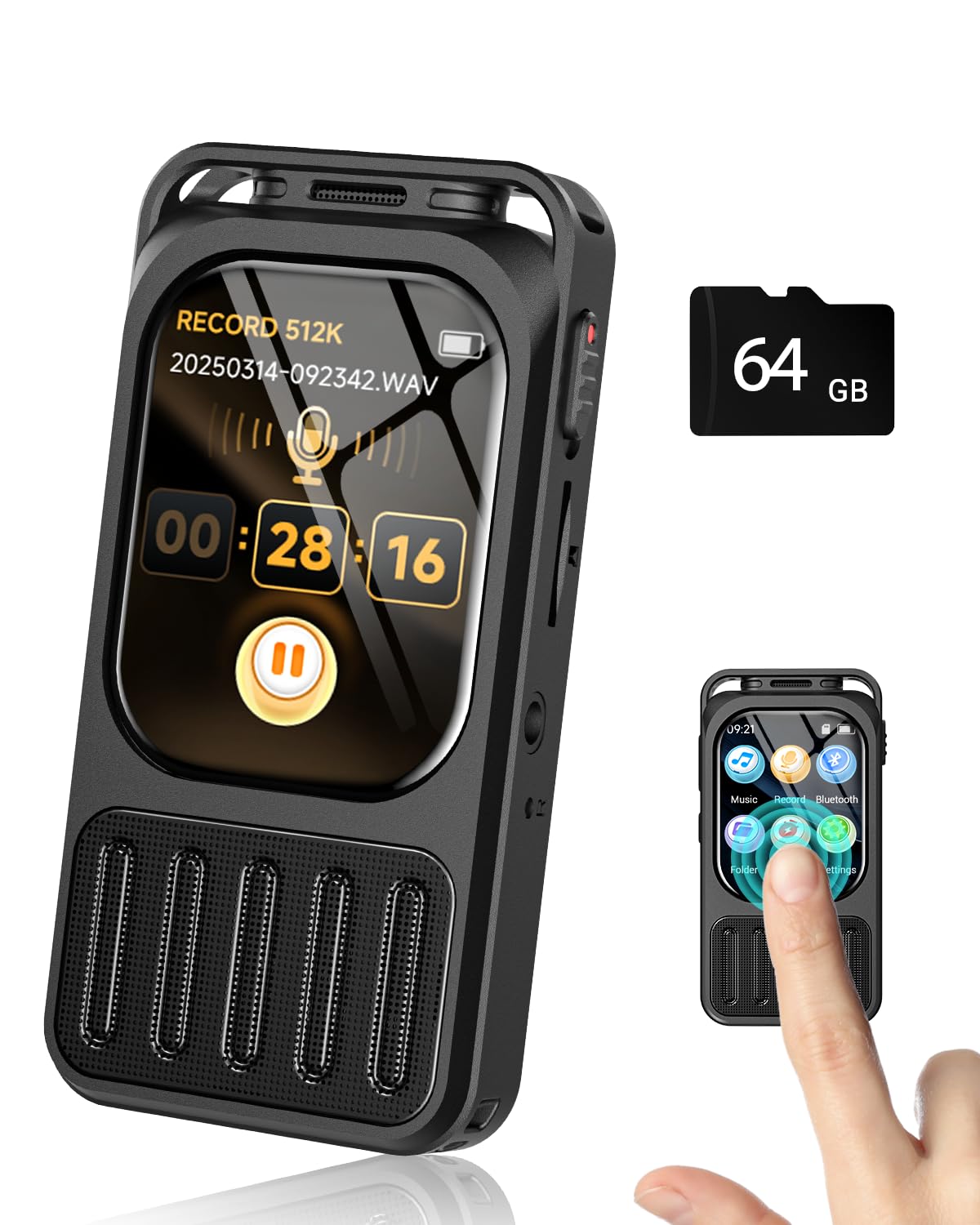
2. XIXITPY Digital Voice Recorder with 2″ Touchscreen
When the picture doesn’t matter and the words do, this pocket recorder does the job.
Not every recording needs a camera. Lectures, interviews, and voice memos are audio-only, and this recorder is built for exactly that. It captures 3072kbps stereo audio — a high bitrate, meaning lots of data per second, so voices stay detailed instead of thin. A dynamic noise-canceling microphone with DSP (digital signal processing — software that filters background hiss) pulls in sound from all directions, and a 7-level adjustable gain lets you boost a quiet speaker across a room.
Storage and battery are the two specs that decide whether a recorder survives a long day. The 64GB memory holds up to 4500 hours of audio at 32kbps, and continuous recording runs up to 100 hours at 512kbps. Owners describe the battery lasting for days without a charge, and one notes it’s “great for recording lectures, classes, interviews.” A 2-inch IPS color touchscreen handles navigation with swipes and taps, and the built-in speaker plays back loudly enough to hear without headphones. Bluetooth lets you pair earbuds and use it as an MP3 player.
Be realistic about size and the odd mislabeled feature. The body is 82 g and notably small, which some find fiddly — a few note the on-screen text is tiny and needs reading glasses. There’s also no direct delete button, so clearing a file means a jump into the menu. One reviewer noted a unit arriving without Bluetooth working. If you need pocketable, days-long audio capture, this delivers; for a bigger screen and one-touch deletes, look at a larger deck.
Where it shines: the battery and storage combo means you leave the charger at home — days of recordings on a single charge, with 64GB to hold them all.
Who it beats: any phone’s built-in recorder when you need hours of clear, separate audio with a real mic and 7-level gain.
The honest catch: the 2-inch screen keeps the body pocketable, but its tiny text is the recurring trade-off.
3. Guermok 4K@60FPS Capture Card for Streaming
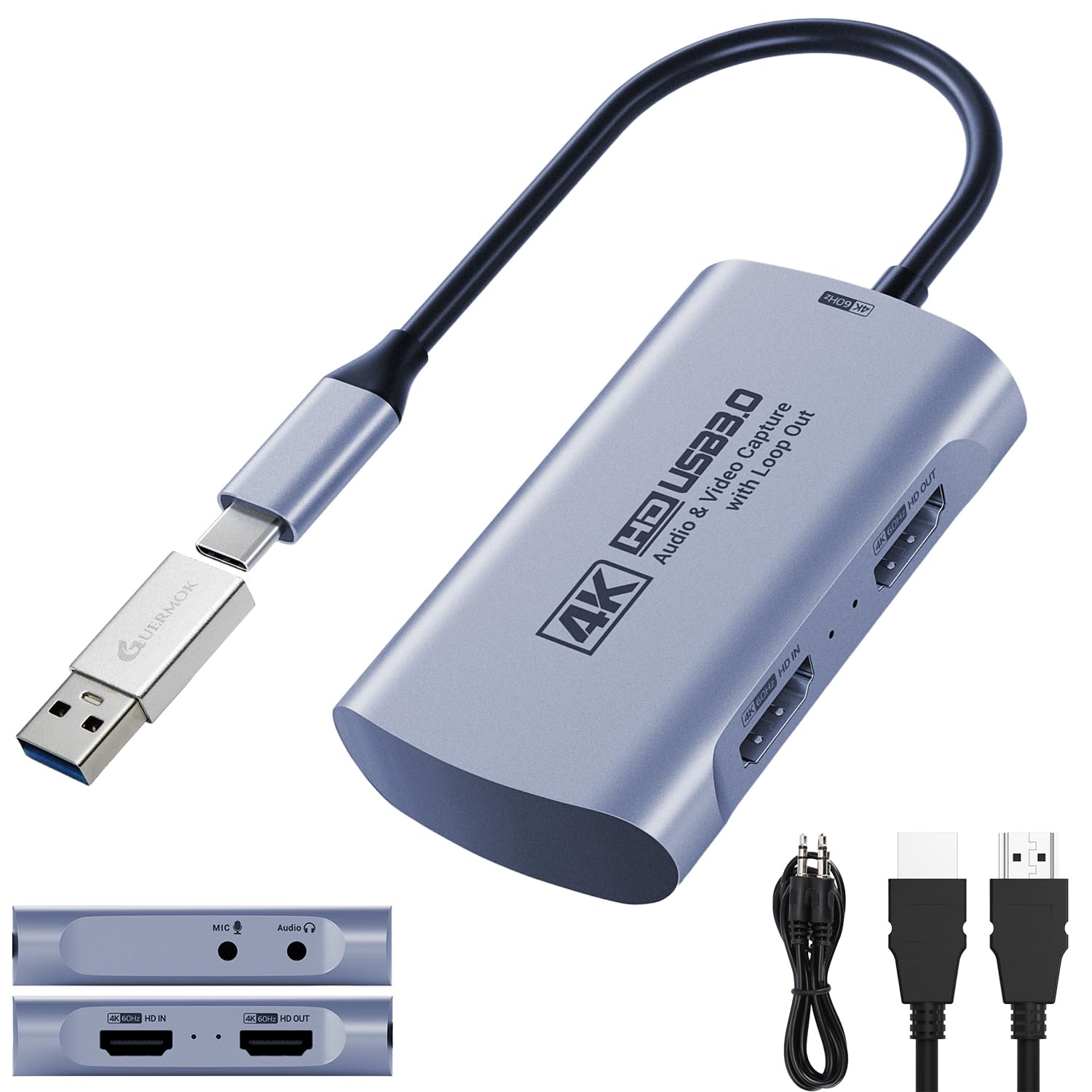
High-frame-rate capture and a real passthrough port, on a card lighter than a candy bar.
The spec that sets this apart is the 4K@60FPS capture and 4K@60Hz passthrough — meaning it can record at 4K resolution while feeding your monitor a full 4K image at the same time, with no driver install needed. That’s how you watch your game in real time while OBS records a clean copy. It also handles high-refresh input up to 2560×1440@120FPS and 1920×1080@120FPS, so a fast shooter stays smooth. Owners praise the core job most — the functionality earns the bulk of the positive feedback. A dead capture card gets replaced fast: buyers report “my software recognized it immediately” when swapping it into an existing setup.
A 3.5mm audio input and a mic output let you plug a headset in and embed commentary or room sound directly into the stream, no extra mixer. It works with OBS Studio, Streamlabs, QuickTime, and Zoom, and comes with a USB-A male to USB-C female adapter so the port fits either style of Mac. And it is genuinely small: 1.6 ounces, so it hangs off a cable rather than taking desk space.
The catch is the frame-rate ceiling on some setups. The card lists 4K@60FPS, yet one buyer reports never achieving 60fps in OBS across multiple settings — getting 30fps instead — and questions the claim. Treat the 120fps and full 60fps as settings you’ll need to dial in and test, and remember USB 2.0 ports cap out at 1080p, so a USB 3.0 port is required. At this price, 4K@60FPS capture plus a 4K@60Hz passthrough port is a lot of card for the money.
Choose this for: OBS-driven game streaming where you want 1440p@120FPS input and a clean passthrough monitor feed.
skip it if: you own a USB 2.0-only Mac — the card needs a USB 3.0 port to hit its higher resolutions.
4. Snagit 2024 – Screen Capture & Image Editor

The only pick here that captures your Mac’s own screen instead of an external feed.
Everything else on this list grabs video coming into your Mac from a console or camcorder. Snagit captures what’s already on the Mac screen and lets you draw on it as you record. Arrows, squares, and numbered steps can be laid over the live recording to point at the exact button you mean — a useful thing for tutorials and walkthroughs. It runs on Mac as a downloadable code, and a designer on a 2021 MacBook Pro reported zero issues with it.
The feature people come for is the auto-import: any screenshot or video you take on the system lands in the app for editing, sharing, sorting, and tagging. Markup tools and templates make complicated explanations visual without needing a separate image editor. Share a link and viewers can leave comments right on the capture. The screen-capture job is the second-most praise-winning thing about it, right behind the overall quality of the output.
One caveat is specific to this version. TechSmith has scheduled technical support and software updates for Snagit 2024 to conclude on December 31, 2026, so long-term support has a known end date. And a paid license is a real commitment compared to the free built-in tools macOS already offers for basic clips. For recording your own Mac screen — demos, bug reports, tutorials — this is the polished route.
The case for it: auto-importing every system screenshot into one editable library, then annotating with arrows and step numbers, turns a raw screen grab into a clear explainer.
Built for: anyone recording their own Mac screen who wants markups baked into the video.
The asterisk: support and updates run through the end of 2026, so plan for that horizon.
5. Fifine AmpliGame Video Capture Card V3

An entry-level capture card that throws in RGB lighting and a headset port.
Here’s a 1080P/60FPS capture card over USB 3.0 for a modest outlay — 60 frames per second means gameplay looks smooth instead of stepped. It also offers a 4K/30FPS HDMI loop-out for watching on your monitor while you record, at zero latency. It’s plug-and-play on Windows and Mac, so it slots into a Mac setup without driver hunting. Owners who love it describe near 1:1 visual quality with crisp audio.
The extras help the budget case. Nine RGB light modes let you match the card to your desk or content, and the RGB bar is on the bright side. A line-in and headset port let you mic up commentary without a separate audio interface. A 3.3ft USB cable comes included, and it works with OBS, Streamlabs, YouTube, Discord, and Twitch. Set up in StreamLabs and it’s capturing in minutes.
The reliability is the mixed part, and it’s worth sizing honestly. Most owners get smooth 1080p60 with no stutter, but a minority report frequent black screens and connection issues that need a restart. Visual clarity under OBS also falls below the passthrough feed on some setups. As a low-cost first capture card for a PS5, PS4, Switch, or Xbox, it earns its place; for a stream you depend on, spend up to the NearStream or Guermok.
Where the budget goes to work
- Smooth 1080P/60FPS capture with a 4K/30FPS passthrough loop
- Onboard line-in and headset ports for commentary audio
- Nine RGB modes add a little desk personality
The part to weigh
- Mostly reliable, but a minority hit connection or black-screen hiccups
- Bright RGB bar is hard to ignore
- USB cable must be the original for best performance
Best for: a first-time streamer wiring a console into a Mac without spending much.
Think twice if: you need zero-drop reliability for a paid gig — step up to the NearStream or Guermok.
6. NearStream CCD10 HDMI Capture Card

The high-refresh passthrough is the headline: 1440P@120Hz and 1080P@240Hz out to your monitor.
Where this card differentiates itself is on the output side. It feeds your monitor or TV at 4K60Hz, 1440P@120Hz, or 1080p@240Hz while it records at the same time — 240Hz being a very high refresh rate that keeps fast gameplay fluid. The capture itself tops out at 1080P60 through USB-C 3.0, which covers live streaming and gameplay recording comfortably. What wins people over is how reliably it just works: the functionality earns the most praise, with quality close behind.
The audio is more flexible than most. Dual 3.5mm ports give you a 3-pole TRS mic input for an external mic and a 4-pole TRRS headset jack for headset mic plus headphone output. Plug a camera, console, or PC in and it’s ready to capture — plug-and-play on Windows, macOS, and Linux. One note on that headset jack: when a mic is also plugged into the TRS port, the headset jack switches to headphone output only. Do a quick test of your routing before a broadcast.
Be straight about what video quality you get. Several buyers feel the recorded picture sits below what the advertising implies, and latency draws mixed reactions. Owners also note that HDR gets disabled and the monitor resolution can’t be reset until OBS is configured. At 76 g it stays out of the way, and it ran a 4-hour stream without heat trouble in one long test. For a Mac user chasing smooth monitor passthrough plus a working capture, it’s a solid fit.
The standout: 1080p@240Hz passthrough is the frame rate that keeps competitive gameplay feeling instant on your own screen.
Set-up note: the recorded file lands at 1080P60, so don’t expect the captured video to match the refresh rate you see in the monitor.
Pick it for: console play where the monitor feed must stay high-refresh while OBS records alongside.
One honest catch: a minority find the recorded image softer than promised — worth checking before a long stream.
7. ClearClick Video to USB 1080P Capture Device

For the box of old VHS and Hi8 tapes sitting in the closet, not the game console.
This is the one on the list built for analog sources. It accepts HDMI, RCA composite (the old red, white, and yellow plugs), and S-Video — capturing from a VCR, VHS deck, camcorder, Video8, Hi8, DVD, or an older gaming system, and auto-upscaling the signal to HD resolution. It streams and records at up to 1080P. For a Mac, it plugs in over USB-C with a full-size USB-A adapter included, and works on OS X 11.0 or higher.
The big advantage is the software freedom. Unlike costlier converters that lock you into a mediocre proprietary app, this one plays nice with OBS, so you can pick your own sample rates and codecs. Owners mention digitizing 1990s VHS with OBS and getting “very good and accurate colors.” Prior gear clicked or drifted out of audio-video sync; this one held steady. Video Capture and Live Streaming software comes in the box, plus step-by-step instructions. A mild learning curve exists if you’re new to OBS — copying a few settings from a tutorial smooths it out.
One hard limit to know up front: it won’t capture HDMI sources that are copyrighted or content-protected. And analog audio has been imperfect for a few — one buyer using S-Video for video and analog wires for sound hit a persistent buzz that a single cable change fixed. For rescue work on family tapes, this does the job a modern capture card simply can’t.
The match made for: digitizing old VHS, Hi8, and camcorder tapes through OBS on a modern Mac.
Not the tool for: copy-protected HDMI, which this device will refuse.
Know the Specs
Resolution and frame rate
Resolution is the pixel count of a video — 1080p is 1920 by 1080 pixels, which is Full HD. Frame rate (fps) is how many still pictures play each second; 60fps looks smooth, 30fps looks stepwise during fast motion. A capture card that records 4K but only at 30fps may look choppier than one recording 1080p at 60fps. Match the capture setting to what your monitor and software can handle, and test in OBS before a live session.
USB speed and connection type
USB 3.0 is the fast version of the port, delivering more data per second than the older USB 2.0. Most capture cards require USB 3.0 to reach 1080p at 60fps or higher — a USB 2.0 port often caps output at 1080p or lower. On a Mac, check whether you have USB-A (wide rectangular) or USB-C (small oval), and confirm the device ships with the matching cable or an adapter. Plug-and-play means no driver install is needed.
Passthrough and latency
Passthrough is the HDMI output port that sends video straight to your monitor while the card also records. Latency is the delay between an action and what you see on screen — low latency means the passthrough feed runs essentially live. If you play while recording, a passthrough port keeps the game playable. Without one, you’re watching the recording software’s preview, which can lag behind the action.
Analog vs digital inputs
Digital HDMI comes from consoles, DSLRs, and webcams. Analog inputs like RCA composite and S-Video come from older camcorders, VCRs, and tape decks. A card designed for one may not accept the other. If your recordings are of old family tapes, you need a device with analog ports; if they’re of a console, an HDMI-only card is enough. Buying an HDMI-only card for a VCR, or an analog converter for a PS5, is the most common wasted purchase here.
Common Questions
Do capture cards work on a Mac without extra drivers?
Why is my capture card capped at 30fps instead of 60fps?
What does passthrough mean and do I need it?
Can I use these devices to digitize old VHS tapes on a Mac?
Is a webcam or a capture card better for recording on a Mac?
Will the NearStream headset jack still output audio if I plug in an external mic?
Does the Guermok card support 1440p or 120fps input?
Is Snagit a video capture tool or just for screenshots?
The Bottom Line
For a Mac user who wants the smoothest path to a working 1080p recording, the Logitech C920 is the one to start with — no capture box, no wiring, just plug it in and QuickTime or Zoom sees it. If your source is a game console and you want high-refresh passthrough on your monitor, the NearStream CCD10 is built for exactly that, with 1080p60 capture recording alongside a 1440P@120Hz or 1080P@240Hz passthrough. For budget streaming hardware, the Fifine AmpliGame V3 earns its place, and the Guermok gives you 4K@60FPS capture and 1440p@120fps input when you’re ready to step up. And if the closet is full of family tapes, the ClearClick handles the analog job the others can’t.
How we choose
We do not accept paid placement. Every pick is matched to a real buyer and a real use-case; we do not hands-on test units.
Sources
Specifications: manufacturer listings and product documentation. Review insights: verified customer reviews, as of October 2026. Pricing: not shown on this page (it changes often); check the current price via the retailer link.
As an Amazon Associate, Aappliancez earns from qualifying purchases. This does not affect which products we feature.