Disclosure: Some links in this post are affiliate links. As an Amazon Associate I earn from qualifying purchases, at no extra cost to you. Learn more
Specs are compiled from manufacturer listings and verified buyer reviews and can change over time — please confirm the key details on the product page before buying.
Most scanners sold today still behave like Windows machines that tolerate Macs. The ones worth owning install without a driver hunt, save PDFs straight to Finder, and keep OCR text searchable in Preview. Below are eight that do, ranked by what each one is actually good at.
This guide is built by comparing the manufacturers’ published specifications and the patterns across verified customer reviews, so you get each pick’s real strengths and trade-offs instead of marketing spin.
Every pick was checked against its spec sheet and owner feedback for the two things that burn Mac buyers: driver support and file output. Here is what separates the Mac-ready models from the rest.
Top Picks


How To Choose The Best Scanners for Mac
Beginners assume resolution settles everything; on a Mac, driver support decides whether you scan at all. It does not. A 600 dpi (dots per inch, the density of the scan grid) file from a scanner with clean Mac software is more useful than a higher number from one that fights macOS. Here is what decides whether you will actually use the thing.
Driver support is the first filter, not a footnote
Look for a manufacturer that publishes a current Mac driver and bundled Mac software. Without that, you are relying on whatever third-party app finds the hardware. Some models ship a TWAIN driver (an older, widely supported scanning standard) so apps like VueScan or NAPS2 can grab control. Others go the other way and only work inside their own app. Know which one you are buying.
Feeder or flatbed changes your whole workflow
An ADF pulls a stack of pages through automatically, which is what makes digitizing a filing cabinet realistic. A flatbed holds one page at a time but can take a book spine, a magazine spread, or something thicker than paper. Many home setups want an ADF for paperwork and a flatbed for the odd photo or bound document.
Check what comes out the other end
Searchable PDF is the output that matters. That requires OCR, and OCR quality varies enough that it is worth reading owner feedback before you commit. Ask also whether scans land as one multi-page file or one image per page — this differs by model and it is a real workflow difference when you are filing invoices.
Side-by-Side Comparison
| Model | Best For | Resolution | Duplex | Feeder | Amazon |
|---|---|---|---|---|---|
| Doxie Pro★ Best Overall | Everyday home-office paperwork | 600 dpi | Automatic | Collapsible feeder, direct feed slot | Amazon |
| Epson RapidReceipt RR-60Best for Receipts | Receipts and expense filing on the move | 600 dpi | — | Automatic Feeding Mode | Amazon |
| PenPower WorldCard ProCard Specialist | Business card digitizing | 300 dpi | — | Single card slot | Amazon |
| Canon imageFORMULA P-215II | Mixed paper on a small desk | 600 dpi | Yes, single pass | 20 sheets | Amazon |
| ScanSnap iX1300 | Cramped desks with a lot to scan | 600 dpi | Up to 30 ppm duplex | 10 sheets or manual feed | Amazon |
| Plustek OS1180 | A3 and tabloid flatbed work | Up to 1200 dpi | Automatic | Flatbed, one sheet at a time | Amazon |
| ScanSnap iX2400 | High-volume one-touch scanning | 600 dpi | Yes, double-sided | 100 sheets | Amazon |
| Epson WorkForce ES-580W | Wireless scanning without a computer | 300 dpi | Single-Step Technology | 100 sheets | Amazon |
Detailed Reviews
1. Doxie Pro Duplex Document and Receipt Scanner
Our pick — 4.5+★ from 650+ verified ratings; the strongest balance of quality and price.
The paper-shredder-shaped scanner that quietly replaces your printer’s flatbed.
The Doxie Pro earns the top spot because it solves the Mac problem first and worries about scanning second. There are no complicated drivers to install — Doxie’s software imports, organizes, and pushes scans out to Dropbox, Evernote, OneNote, and iCloud. You plug in USB, open the app, feed paper, done. It scans both sides of a sheet in one pass at 600 dpi in color, stored at 24-bit color depth (roughly 16.7 million possible colors per pixel), so photos and tinted letterhead come out looking like the original rather than a grey approximation. That 24-bit figure is what separates it from the PenPower WorldCard Pro below, which captures at 1 bit — black and white only.
What wins people over is the speed-to-size ratio. It measures 11.75 by 4 by 3 inches and weighs just over 3 pounds, so it lives on a shelf and comes out when the mail pile gets out of hand. The collapsible feeder snaps down flat, and there is a direct feed slot for thick or delicate paper that will not survive a normal ADF path. Buyers report the OCR works well enough that documents become searchable, and one reviewer summed up the whole appeal neatly: “Fast, efficient ADF with duplex one-pass scanning; crisp up to 600 dpi; compact; OCR makes documents searchable; simple plug-and-play setup.”
The catch is scale. The feeder handles about 20 pages, and the connection is wired USB only — there is no wireless option, so you will be plugging and unplugging if you share the desk. Overfilling the feeder or mixing paper sizes invites a jam, though the top-opening path clears without damage. It is a brilliant home-office scanner, not a production one.
Where it pulls ahead
- Two-sided scanning in a single pass, with automatic cropping, rotation, and contrast boost
- No driver install and no subscription — the software is part of the deal
- 24-bit color depth against the 1-bit PenPower card scanner
- 3 pounds and 11.75 x 4 x 3 inches, so it stores flat
What to plan around
- USB only — no wireless, so you plug it in each session
- The feeder holds around 20 pages, not a full filing cabinet
- No official Linux software, which matters if you keep a second machine
Reach for this if: you want Mac scanning to be a two-minute task with no setup archaeology.
Look elsewhere if: your scanning runs to hundreds of pages at a time — the 20-page feeder will slow you down.
2. Epson RapidReceipt RR-60 Compact Mobile Document Scanner
A pocketable receipt machine that reads the totals so you do not have to.
The RR-60 is built around one job: turning a shoebox of receipts into data. Its ScanSmart AI software pulls dates, amounts, tips, and tax fields out of the scan and hands them over as editable text — the kind of thing that integrates with QuickBooks and TurboTax. It scans at up to 10 pages per minute in Automatic Feeding Mode and handles long pages up to 8.5 x 72 inches, so a till roll does not need folding. At under 10 oz it slips into a laptop bag and runs off USB power, no adapter required.
Quality is what carries this one — it is the trait buyers bring up more than anything else, with scan speed right behind it. The receipts feed smoothly and straight and save as clean PDFs, and one owner ran “over 80 receipts scanned successfully” without a hiccup. It beats the all-in-one printer on the shelf because an A4 flatbed caps out at letter size, while this handles a 72-inch receipt in one go.
Be clear-eyed about the mixed parts. It feeds one sheet at a time with no true auto-feeder, so a hundred receipts means a hundred passes. Faded thermal print and handwriting need editing before export, and each scan saves to its own CSV, which means manual consolidation later. If your Mac is your only machine and your receipts are crisp, that is a trade worth making.
Who it clicks with: freelancers and small-business owners who need expense data, not pretty archives.
Honest limit: the one-at-a-time feed and per-scan CSV files make high volume a chore.
Buy it when: receipts are your bottleneck and you want the numbers extracted, not just the image saved.
Pass when: you are scanning full document sets and need a real feeder to run them through.
3. PenPower WorldCard Pro Business Card Scanner (Win/Mac)
One trick, done in 24 languages — a card scanner and nothing else.
This does not scan documents and it does not pretend to. The WorldCard Pro reads business cards in 24 languages and pushes the contact straight into Address Book, then out to iPhone, vCard, or CSV. Card information links out to maps and websites from inside the record, and the software lets you assign categories, add photos, and search by keyword or advanced filters. Resolution sits at 300 dpi, which is right for a card and wrong for a page of small print.
Owners who use it for that single job get real mileage. One card hoarder worked through 300 cards in roughly two hours and preferred it to phone-based card capture, while another reported it scanning both sides of a card. The recurring cleanup is the alphabet problem — lowercase l and capital I get swapped, extra digits sneak in, and creative fonts throw it. Formal, printed cards land best.
The Mac side is where you should slow down. The 1-bit color depth means pure black and white, no shading. Several owners found the Mac software clumsy — copy and paste misbehaving outside pop-ups and no batch editing — and the feeder can take a card in crooked or refuse to eject it fully. If your contact pile is a shoebox of cards and you can afford to proof each one, it still saves hours over typing.
The one job it does: converting a stack of business cards into searchable, exportable contacts.
The friction: 1-bit black-and-white capture plus per-card proofreading on the Mac side.
Worth it for: sales and networking roles sitting on a drawer of unread cards.
Not for: anyone who wants one machine to handle documents too — this only eats cards.
4. Canon imageFORMULA P-215II Mobile Document Scanner

Fifteen pages a minute, both sides, straight into Dropbox or Google Drive.
Canon’s mobile unit scans both sides of a page at once in color at up to 15 pages per minute, with a 20-sheet automatic feeder doing the loading. Output goes to searchable PDF or JPG, and it can fire straight at Dropbox, Google Drive, OneDrive, Box, QuickBooks Online, Evernote, or SharePoint. It handles receipts, photos, business cards, plastic and embossed cards, reports, and long documents — the widest paper menu here outside the Plustek flatbed. Canon lists Mac support for OS 10.13, 10.14, and 10.15 with the current driver and CaptureOnTouch, plus a TWAIN driver for third-party apps.
The auto-correction is the quiet win. It straightens crooked scans and can auto-rotate upside-down images, so a badly fed page still ends up readable. Owners who feed pages in gently report fast duplex scanning and excellent image quality. Standard TWAIN support is a big deal on a Mac — it means NAPS2 and similar apps can take over when you want better deskew or OCR than the bundled software gives.
Two recurring complaints deserve airtime. Long receipts over 11 inches trigger a false jam error, worked around by folding them. And misfeeds happen with stacked paper; removing the separation pad fixes single-page feeding but is a hack, not a feature. The bundled extras beyond CaptureOnTouch are largely unnecessary, and no power adapter is included, so USB-only scanning runs slower.
What it delivers
- Duplex color at up to 15 pages per minute
- Direct cloud export to Dropbox, Google Drive, OneDrive, and more
- TWAIN driver means third-party Mac apps can drive it
- Auto-straighten and optional auto-rotate
Where it snags
- Receipts over 11 inches throw a false jam
- Stacked paper misfeeds without a workaround
- No power adapter in the box, so USB alone is slower
Good fit for: a desk that sees envelopes, cards, and photos in the same week.
Think twice if: your workflow is long till receipts — the 11-inch cutoff will annoy you.
5. ScanSnap iX1300 Wireless or USB Double-Sided Color Scanner

A scanner that folds itself out of the way and still does 30 pages a minute.
Space is the iX1300’s opening argument. It frees up desk space even while it is running, thanks to an auto-extending feed arm and a return tray that retracts itself. Inside that shell you get up to 30 ppm duplex scanning with automatic de-skew, color optimization, and blank page removal — no driver setup required. It counts macOS Monterey 12 or later among its supported systems, and it connects by USB or Wi-Fi to Mac, PC, mobile, and cloud services, and it can run without a computer at all.
Color depth is 48 bits here, the highest on this list, which is what makes the photo scans behave. Owners mention roughly two seconds for a standard duplex page and about five seconds for a duplex 600 dpi photo, and one veteran tech user put a thousand photos through it in roughly four hours. The QUICK MENU scan-drag-drop into your favourite Mac apps is the other thing that gets used daily.
The wireless is genuinely mixed. Some setups are called rock-solid; others report it being impossible to connect over Wi-Fi, so budget for USB if your network is fussy. It is also not TWAIN-compliant, which rules out NAPS2, and the resolution tops out at 600 dpi. Photos are the weak spot — fine for documents, marginal for serious photo work.
Why the desk stays clear: self-retracting tray plus a 10-sheet feeder or manual front feed for thick items.
What you give up: no TWAIN, no 1200 dpi, and Wi-Fi that some owners never got working.
Pick this one if: your desk is small and your paper pile is not.
Choose differently if: you rely on third-party scanning apps — the lack of TWAIN support locks you to ScanSnap Home.
6. Plustek OS1180 A3 Flatbed Scanner

Tabloid pages, magazine spreads, and 12×12 scrapbooks without stitching a thing.
This is the only flatbed on the list, and the only one built for paper bigger than letter size. It scans a maximum of 11.7 x 17 inches — A3 and tabloid — in around nine seconds, using an LED light source that needs no warm-up. Color depth is 48 bits, with 16-bit grey-scale for black-and-white art, and the bundled ABBYY OCR plus DocAction software handles file sharing and text conversion. A one-touch preset button starts a scan without you touching the Mac.
Software and value are the two things it wins on, and owners are not subtle about the second. For anyone scanning oversize material — comic pages, sheet music, art boards, scrapbook spreads — it is far cheaper than the alternatives that handle the same size. The interface takes maybe 20-30 minutes to learn, and then you can set resolution, color mode, format, destination, and file naming once and repeat it.
Size and colour are the honest trade-offs. It weighs little but needs a lot of desk plus an outlet and a computer, and it is noisy in the way a fax machine is. The bundled software feels dated, sometimes offering only 300 or 600 dpi steps, and colour quality is the one area owners push back on — adjust gamma if tones look off. There is also a durability question: one unit was undetected by every computer after roughly a year and a half, and the flat-rate repair cost approached the price of a new machine.
Why large-format users pick it
- 11.7 x 17 inch platen takes a full A3 spread in one pass
- 48-bit color and 16-bit grey-scale for art and documents
- ABBYY OCR and DocAction in the box
- LED light source with no warm-up wait
The real costs
- Needs serious desk real estate plus an outlet
- Software feels old and limits dpi choice in places
- Colour output needs manual gamma tweaking
- One-touch but one page at a time — no feeder
Made for: comic collectors, scrapbookers, and anyone scanning bound or oversize material.
Skip the idea if: your work is ordinary letter paper in bulk — a feeder model will serve you faster.
7. ScanSnap iX2400 High-Speed One-Touch Document Scanner
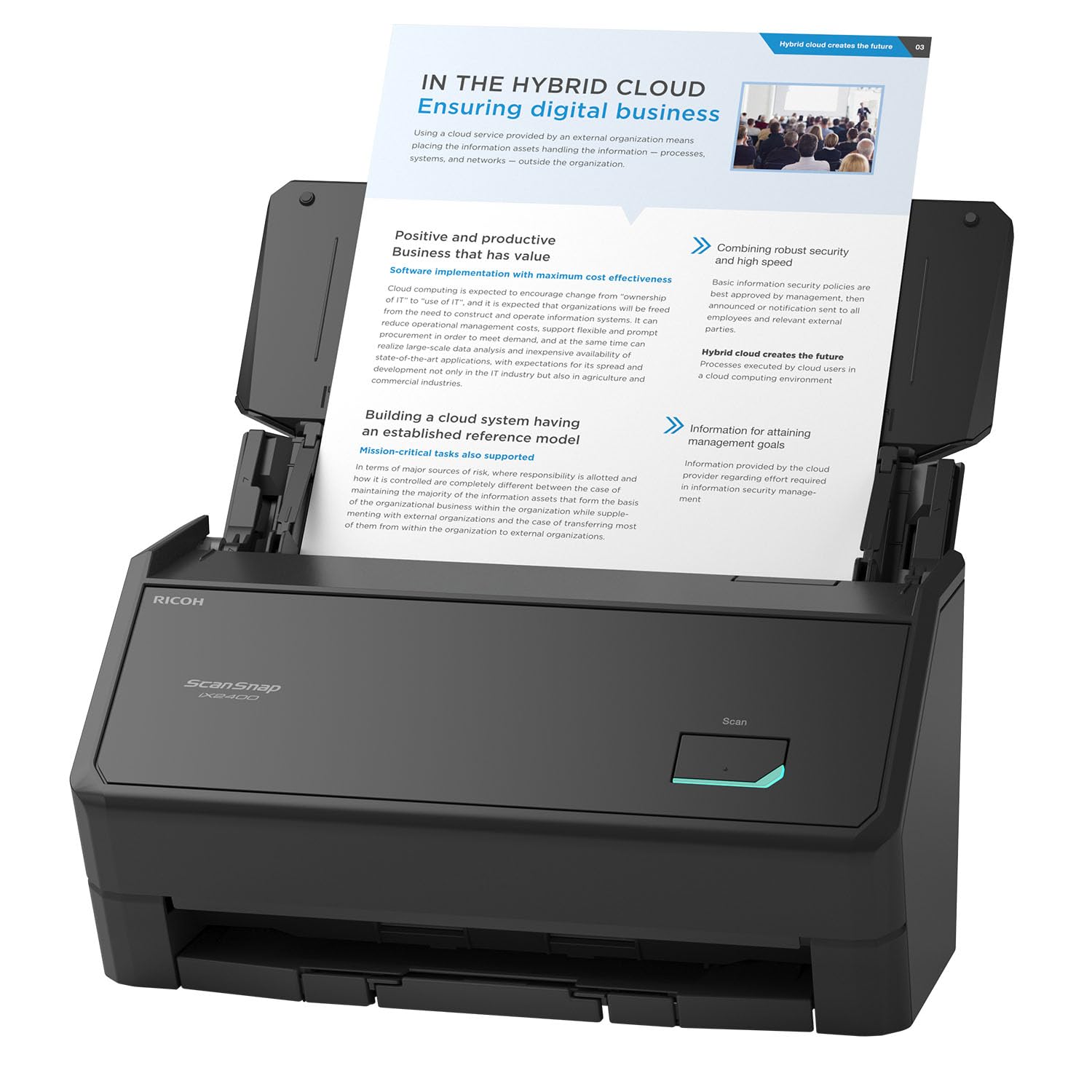
One button, 45 pages a minute, and a hundred sheets queued up behind it.
The iX2400 is a desk scanner that behaves like office equipment. Press one button and it scans, cleans up, and organizes at up to 45 pages per minute, pulling from a 100-sheet feeder. It takes business cards, receipts, photos, envelopes, ID cards, and insurance cards without changing trays. Setup is a stable wired USB connection — this generation deliberately keeps the cable the iX1400 had rather than chasing wireless. Supported systems list macOS Monterey 12 or later.
Scan quality is the trait owners praise most, and the throughput backs it up. Forty photos clear in less than half a minute, with automatic document-size and colour-depth detection, streak and blank-page removal, de-skew, and rotation doing the tidying. A long-time ScanSnap owner with nine drawers of paper reduced the lot to under one. For a Mac desk that collects everything, it is the highest-volume option here by a wide margin over the Doxie’s roughly 20 sheets.
Read the software caveats before you buy. Setup documentation has been called wrong, and the bundled firmware has tripped over security updates for some owners, disabling the machine until fixed. Customer support is not always useful when that happens. Use the supplied USB cord — longer cables slow or stall the connection — and expect a small learning curve on the interface.
The headline: 45 ppm duplex with a 100-sheet feeder is a different class of machine from the portable options.
The caveat: firmware and update conflicts can sideline it, and help is thin when they do.
Choose it for: a home office clearing years of filing in an afternoon.
Hold off if: you want zero-maintenance simplicity — this one expects you to keep the software in line.
8. Epson WorkForce ES-580W Scanner
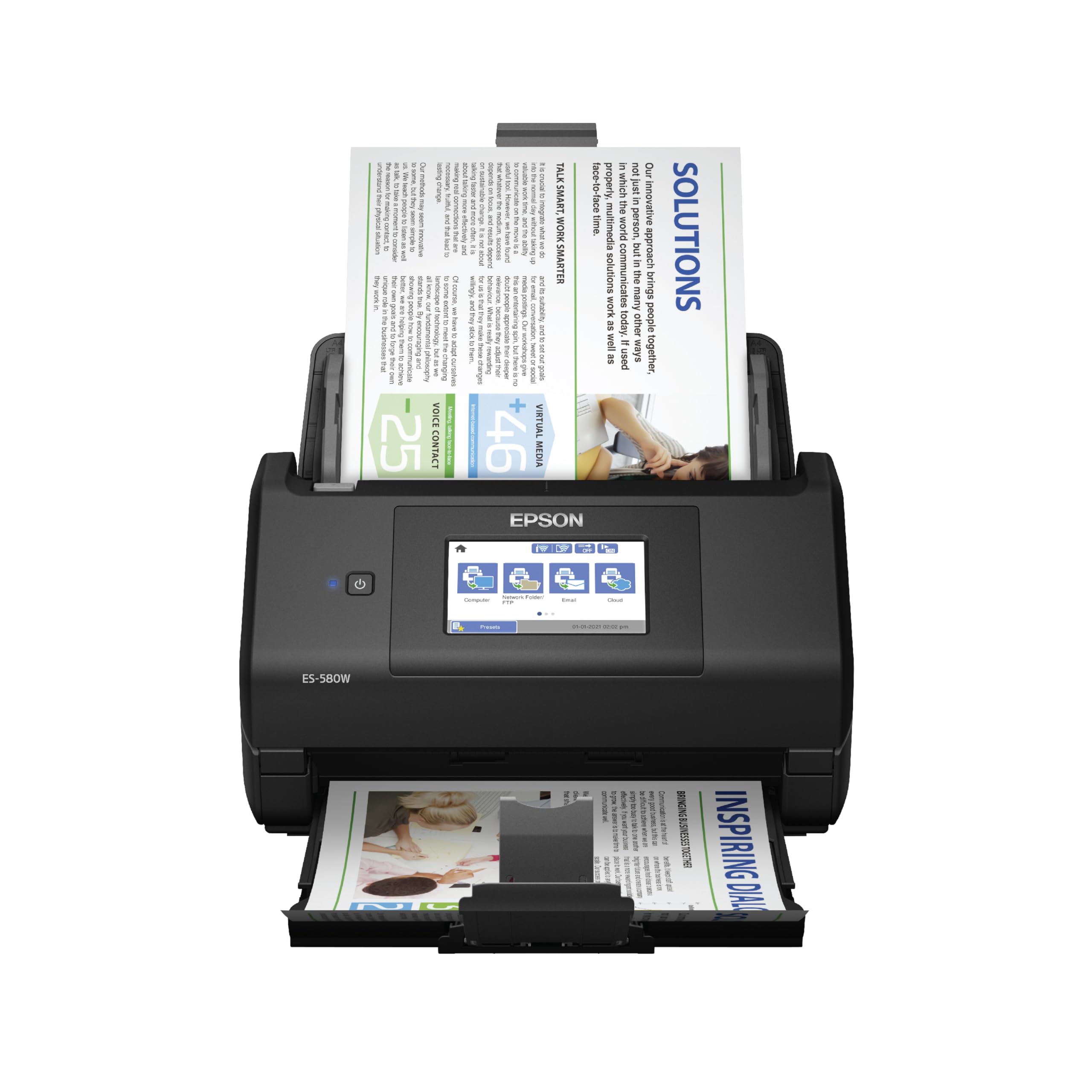
The one that scans with no Mac in the room at all.
Here is the spec that matters more than resolution: this scanner can save straight to USB, email, or Dropbox, Evernote, Google Drive, and OneDrive without a computer attached. Its 4.3-inch touchscreen drives the whole thing. When a Mac is connected, it sends scans to smartphone, tablet, computer, or cloud, and it runs at up to 35 pages per minute with Single-Step Technology capturing both sides in one pass. The 100-sheet ADF takes mixed paper types and sizes in one go, and it produces searchable PDFs with OCR, plus editable Word and Excel files.
In daily use it is a workhorse. A notary runs a whole practice off it — wireless setup, duplex scanning, sharp output, and cloud and phone delivery on demand. A non-profit used it to PDF 60 years of double-sided legal newsletters, handling fragile photos in sleeves and handwritten notes on the back. Ease of use is the second thing owners bring up, and the auto crop, blank page deletion, background removal, dirt detection, and skew correction do most of the work for you.
The trade-offs are real but narrow. There is no Ethernet or LAN connection, which is a gap if your office runs wired. Wireless connectivity draws mixed reactions, so test your network early. And the resolution figure listed is 300 dpi — if you need fine-detail archival work, a higher-resolution model serves you better. The removable top feeder makes it compact to store, and it takes legal-sized forms.
Why it earns its place
- Scans to USB, email, or cloud with no computer involved
- 35 ppm duplex with Single-Step Technology
- 100-sheet ADF and a 4.3-inch touchscreen
- OCR to searchable PDF, Word, or Excel
Know before you buy
- No Ethernet or LAN option
- Resolution listed at 300 dpi limits fine-detail work
- Wireless setup gets mixed results, so plan for a wired fallback
Best matched to: shared offices where several people scan and nobody wants a laptop plugged in.
Not the one if: you need archival-resolution detail or a wired network connection.
Know the Specs
Resolution in dpi
Dots per inch describes how finely the scanner samples a page. Higher numbers capture more detail, which matters for photographs and small print. For ordinary documents and receipts, 600 dpi is comfortable and file sizes stay manageable. Going much higher produces large files that need somewhere sensible to live.
Duplex and ppm
Duplex means both sides get captured in one pass instead of you flipping the sheet. Pages per minute tells you throughput, and it usually assumes duplex at standard quality. A 20-sheet feeder at 15 ppm is a different job from a 100-sheet feeder at 45 ppm — pick the throughput that matches your paper pile, not the marketing number.
Colour depth in bits
Colour depth is how many shades the scanner records per pixel. One bit gives pure black and white, fine for plain cards. 24-bit is full colour and handles photos and tinted letterhead. 48-bit captures extra data that gives you more room to correct tones afterwards, though the file grows.
ADF versus flatbed
An ADF pulls a stack through automatically, which is what makes bulk paperwork realistic. A flatbed holds one item on glass and can take a book spine or a magazine spread that no feeder would survive. The two solve different problems, which is why the large-format pick here is the flatbed.
What a TWAIN driver buys you
TWAIN is an older scanning standard that lets third-party apps control the hardware. On a Mac that means NAPS2, VueScan, or an archiving tool can take over when the bundled software is limited. If a model is not TWAIN-compliant, you are locked into the manufacturer’s own app for every scan.
OCR and searchable PDF
OCR reads the text in a scanned image and turns it into selectable, indexable characters. That is what lets Spotlight or Preview find a phrase inside a scan. Quality varies with the source — crisp printed pages come through clean, faded thermal receipts and handwriting usually need a manual edit.
Common Questions
Will these scanners work with the latest macOS?
Do I need a driver to use a scanner on a Mac?
What is the difference between a document scanner and a flatbed?
Can these scanners produce searchable PDFs?
How many pages can the feeder hold?
Is wireless scanning reliable on a Mac?
Can a scanner handle business cards as well as documents?
Do I need to plug the scanner into power separately?
What scan resolution do ordinary documents actually need?
Can I scan without having a computer running at all?
The Bottom Line
For most people hunting the right scanners for mac, the answer is the Doxie Pro — it skips the driver fight entirely and puts two-sided scans in iCloud, Dropbox, or OneNote without a subscription. If receipts and expense data are your pile, the Epson RapidReceipt RR-60 extracts the numbers and folds into a laptop bag. Want raw throughput and a 100-sheet feeder? The ScanSnap iX2400 is the one that keeps up. And if you can leave the Mac switched off, the Epson ES-580W scans straight to the cloud on its own. Each pick wins on a different paper type — match it to the pile on your desk.
How we choose
We do not accept paid placement. Every pick is matched to a real buyer and a real use-case; we do not hands-on test units.
Sources
Specifications: manufacturer listings and product documentation. Review insights: verified customer reviews, as of October 2026. Pricing: not shown on this page (it changes often); check the current price via the retailer link.
As an Amazon Associate, Aappliancez earns from qualifying purchases. This does not affect which products we feature.