Disclosure: Some links in this post are affiliate links. As an Amazon Associate I earn from qualifying purchases, at no extra cost to you. Learn more
Specs are compiled from manufacturer listings and verified buyer reviews and can change over time — please confirm the key details on the product page before buying.
Most routers you buy at a store fight you the moment you try to install OpenWrt — wrong chipset, too little flash, or a locked bootloader. The routers below are the ones that actually run it, either preinstalled from the factory or on hardware the OpenWrt community has supported for years. If you want the shortest path, the MikroTik RB5009UG+S+in is the pick that wins on raw performance and routed throughput. If you want it preinstalled and ready on day one, the Banana Pi OpenWrt One ships that way.
This guide is built by comparing the manufacturers’ published specifications and the patterns across verified customer reviews, so you get each pick’s real strengths and trade-offs instead of marketing spin.
A router that runs OpenWrt keeps getting security updates and new packages long after the manufacturer stops shipping firmware. This guide breaks down which hardware actually earns a place in your rack, cabinet, or shelf with the best router for OpenWrt.
Top Picks

How To Choose The Best Router for OpenWrt
OpenWrt is a free, open-source operating system for routers — it replaces the factory software with something you control. It can run a VPN, block ads network-wide, split your network into separate VLANs (virtual separate networks), and keep getting security updates long after the manufacturer stopped caring. Not every router will take it.
Before you buy, the question is not which router has the fastest advertised wireless speed. It is whether the hardware inside can run OpenWrt smoothly and whether the community is still writing updates for it. That is what separates a router still getting community updates in ten years from one abandoned on a stale firmware build.
Start with the chipset, then the storage
The CPU (the processor that does the actual routing math) has to be on OpenWrt’s supported list. ARM-based processors are the modern standard, and they handle hardware-accelerated routing and switching well. Older MIPS chips cap out much earlier — one owner of an older MikroTik RB2011 reported being limited to roughly 300Mbps of NAT, the translation that lets your devices share one internet address. A newer ARM chip is what lets you hit near full Gigabit on the same line.
Flash storage matters as much as the CPU. OpenWrt plus a few packages fills up a small flash chip fast. The GL.iNet Flint 2 ships with 8GB of eMMC storage, which is why it can support the AdGuard Home ad-blocker and extra plugins without running out of room. A model with 256 MiB of NAND leaves room for a clean install and little else — fine if you keep it lean, tight if you want to load it up.
Decide if you want it preinstalled
Some routers here arrive with OpenWrt already flashed from the factory, which saves you the most stressful part of the whole process. The Banana Pi OpenWrt One is designed with the OpenWrt team and arrives ready. The two GL.iNet models come with OpenWrt installed too, though the factory puts its own interface on top — you still get full package access underneath.
Routers like the MikroTik run RouterOS, which is not OpenWrt. It is a different Linux-based system with its own command line and its own learning curve. People flash OpenWrt onto them for a reason, but the honest read is that if you buy a MikroTik expecting OpenWrt from the start, you are buying the wrong thing. Buy it if you want the hardware and plan to install OpenWrt or commit to RouterOS.
Check your port speeds and your internet plan
A 2.5G port (2.5 Gigabit Ethernet) handles a multi-gig internet plan that a plain Gigabit port leaves half-idle. A 10G SFP+ cage, a slot that takes a fiber or copper module, gives you a much faster uplink for a server, a switch, or a future plan. The MikroTik RB5009 has both a 10G SFP+ cage and a 2.5G Ethernet port. The GL.iNet Flint 2 carries two 2.5G ports. The Flint 3 steps up to five 2.5G ports.
Match those ports to what your modem actually delivers. A multi-gig WAN port on a Gigabit cable plan is wasted hardware, and a Gigabit port on a fiber plan running faster is a bottleneck you will feel.
Know your own comfort level
OpenWrt is not plug-and-play for a complex network. A simple setup with default settings is genuinely easy. VLANs, WireGuard VPN servers, firewall rules, and package installation are a different matter — that is where the time goes. If you want to learn this, you will. If you want a router that configures itself and never asks another question, none of these are for you, and that is worth knowing before you spend the money.
Side-by-Side Comparison
| Model | Best For | Routing CPU | Max Transfer Rate | OpenWrt Out Of Box | Amazon |
|---|---|---|---|---|---|
| MikroTik RB5009UG+S+in★ Best Overall | Raw routed throughput and 10G uplinks | 1.4 GHz | 10 Gbps | No — runs RouterOS | Amazon |
| MSI Radix AXE6600Best Coverage Value | Wireless coverage and gaming on a budget mid-range | 1.8 GHz quad-core | 6.6 Gbps | No — runs MSI firmware | Amazon |
| NETGEAR Nighthawk RS200 | Set-and-forget home Wi-Fi on a WiFi 7 standard | — | 6.5 Gbps | No — runs Nighthawk firmware | Amazon |
| ASUS RT-BE58U | Hands-off administration with no account required | Quad-core, 1GB RAM | 2,882 Mbps | No — runs ASUSWRT | Amazon |
| Banana Pi OpenWrt One | Getting OpenWrt preinstalled with no flashing | MediaTek Filogic 810 | 2.5G WAN, 1G LAN | Yes — preinstalled | Amazon |
| GL.iNet Flint 2 (GL-MT6000) | Plugins and ad-blocking with real storage room | — | 6,000 Mbps | Yes — preinstalled OpenWrt | Amazon |
| GL.iNet Flint 3 (GL-BE9300) | Tri-band WiFi 7 with five 2.5G ports | — | 12.5 Gbps | Yes — OpenWrt firmware by default | Amazon |
Detailed Reviews
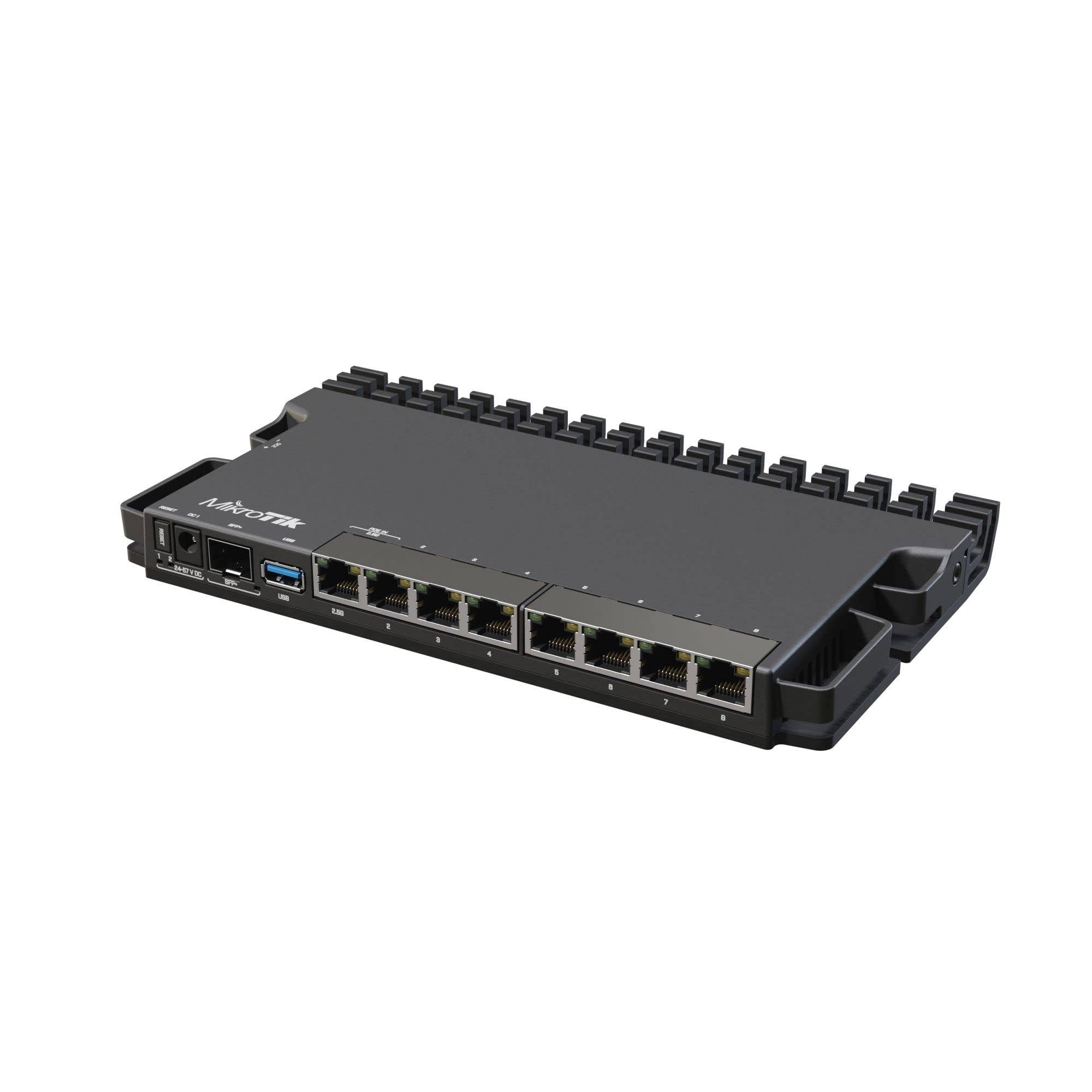
1. MikroTik RB5009UG+S+in Router
Our pick — 4.5+★ from 300+ verified ratings; the strongest balance of quality and price.
The wired workhorse that stops a fast fiber line from being throttled by a slow CPU.
The 10 Gbps SFP+ cage is what earns this router the top slot — a faster uplink than any standard Ethernet jack here. A 10G SFP+ cage is a slot that accepts a fiber or copper module for a much faster uplink than any standard Ethernet jack. That matters if you run a home server, a managed switch, or a plan that climbs past Gigabit. It leads the MSI Radix on transfer rate by a wide margin — 10 Gbps versus 6.6 Gbps — and it does it on 1.4 GHz of routing hardware built to push traffic, not wireless coverage.
The ARM CPU (the router’s main processor) is what lets a fiber line run at the speed you pay for. The RB5009 swaps an older MIPS chip for an ARM processor, more RAM, and updated switching, and the effect is dramatic. A buyer moving up from an older RB2011 put it plainly: “RB2011’s MIPS CPU capped ~300Mbps NAT; RB5009’s ARM CPU, more RAM, updated switching hits near full 1Gbps FIOS.” If your line felt slower than you paid for, the MIPS NAT cap was the reason — the ARM chip is the fix.
The catch is not the hardware, it is the software life. This runs RouterOS, MikroTik’s own system — not OpenWrt. If you are here specifically for OpenWrt, you are buying a capable box and planning the flash yourself. The RouterOS interface is also commercial grade. Simple defaults are fine. VLANs, firewall rules, and the deeper settings cost hours on forums for even experienced network technicians, and the interface asks you to build everything from scratch. Add the heat a 10G module throws off, and you will want airflow around it.
What earns it first place
- 10 Gbps SFP+ cage and a 2.5 Gbps Ethernet port give you room for multi-gig plans and fast wired backhauls.
- ARM CPU and added RAM push near full Gigabit on fiber where older MIPS hardware stalled at roughly a third of the line.
- Hardware-accelerated switching, VLANs, WireGuard, OpenVPN, and IPv6 support are all present on the platform.
- Fanless, no moving parts — one long-term owner expects the passive cooling to hold up for a decade or more.
Where it makes you work
- It runs RouterOS, not OpenWrt, so you flash it yourself if OpenWrt is the goal.
- There is no built-in Wi-Fi — you add an access point for wireless.
- The 2.5G and SFP ports are where flexibility starts, and the deeper settings ask for real network expertise.
Worth it if: you run fast wired internet and want a router with headroom to spare and the discipline of a proper networking platform.
skip it if: you want Wi-Fi built in and a menu that walks you through every setting — this one expects you to know where to go.
2. MSI Radix AXE6600 WiFi 6E Tri-Band Gaming Router
Three bands, one box, and an extender-free living room if you have the house for it.
This router built its reputation on coverage. In a 2,400-square-foot 1920s house it replaced a router plus two extenders, lifting the far corners from 40-50Mbps to 150+Mbps — including the driveway. A single-story ranch of 1,600 square feet holds up fine with three PCs, five phones, and a smart TV running at once, and a 4K stream plays while kids game without stutter. That is the profile: a full house with no dead spots and no second piece of hardware to manage.
The tri-band part means 2.4GHz, 5GHz, and 6GHz radios working together. The 6GHz band is the quiet one — less traffic, so it stays clean. One owner runs a Meta Quest 3 over it for Virtual Desktop streaming and calls it the cheapest real 6GHz router they found. The 1.8 GHz quad-core processor and AI QoS (a feature that automatically sorts your data so important traffic goes first) keep the whole thing steady under load.
The software is where it falls short. The MSI Router app walks you through setup by scanning a QR code, but reviewers describe it as tedious for anything past the basics, and the MSI Center desktop software was reported as nonfunctional — ignore it and use the app. The 5GHz band is limited to 2 streams (two data lanes), so if you are buying this purely as a 6GHz access point for a wired network, the 5GHz performance will not impress. If you tried to set a static IP (a fixed address) in access-point mode, that is not available directly and needs a workaround on the main router. Treat it as a strong wireless hub, not a networking project.
The bandwidth math: the 1.8 GHz quad-core chip outpaces the MikroTik’s 1.4 GHz routing clock, and the tri-band radio setup covers a whole house without extenders. The AI QoS automatically prioritizes data packets, which is the part that keeps a 4K stream smooth while three PCs game.
Where it falls short: the 5GHz band runs only 2 streams, which is thin for anyone building around a wired backhaul. The setup app is best described as functional rather than friendly.
The buy: a house full of wireless devices where the goal is one box and no extenders.
The hold-off: you plan to run it as a pure access point with a static IP — that setup path is awkward here.
3. NETGEAR Nighthawk WiFi 7 Router RS200

The one you hand to a family member who will never open a command line.
Setup is what wins people over here, and it wins big. The guided Nighthawk app walks you through setup on iOS or Android, the manual is clear enough to read once, and people upgrading from an older router report reusing their old network name and password so every device reconnects on its own. It replaced a cable company router that needed weekly reboots and simply stayed up. One owner says it outright: “Nighthawk is AMAZING” — the intuitive interface is the whole story.
Reach is the other half. This delivers up to 2,500 square feet of coverage for up to 80 devices, and a two-story 2,900-square-foot house came out with strong signal from top to bottom and buffering gone. The WiFi 7 standard here runs dual-band at up to 6.5 Gbps across 2.4GHz and 5GHz. Wired, you get a 2.5 Gig WAN port for multi-gig plans, a second 2.5 Gig LAN port, and three 1 Gig LAN ports for a gaming rig, a NAS drive, or a smart TV.
The wrinkle is the one that catches most people: this is not an OpenWrt router. It runs NETGEAR’s own firmware, with the Nighthawk app and an optional NETGEAR Armor subscription for security features. If you are here to install OpenWrt on purpose, this is not the box for that job — it is the box for someone who wants WiFi 7 speed, an easy app, and no maintenance. There is also a mild note in the reviews about reconnecting older smart-home kit like thermostats and Ring cameras, which can require a reset during the switchover.
OpenWrt reality check: NETGEAR’s firmware is closed and locked, so treat this as the answer to “I want fast WiFi 7 with almost no setup” rather than “I want to run OpenWrt.”
The port haul: you get plenty of wired room for a router at this tier — a 2.5 Gig WAN (the internet input) plus a second 2.5 Gig LAN and three 1 Gig LAN ports (wired outputs) — more physical Ethernet ports than either GL.iNet Flint model.
Reach for this if: you want the easiest possible path to a strong WiFi 7 signal across a medium-to-large home.
Look elsewhere if: OpenWrt firmware, VLANs, or advanced routing control are on your to-do list.
4. ASUS RT-BE58U WiFi 7 Router

No account, no cloud gate, a dark advanced interface, and a very fast two-minute setup.
What sets the BE58U apart from the other stock-firmware routers here is that you can administer it without creating an account at all. Config runs through the app or a browser, the interface is a dark GUI with technical detail on tap, and setup finished in under two minutes with minimal opt-outs. It also gives you a quad-core CPU and 1GB of RAM behind the panel — real hardware under the hood, not a stripped-down shell.
Dual-WAN with AI WAN detection is the practical feature that sells it. That means the router can hold two internet sources and switch between them automatically, and the USB port takes a 4G LTE or 5G mobile modem for tethering — useful as a backup when your main line drops. WiFi 7 (802.11be) with 4096-QAM raises a single band’s transmission speed, and MLO (Multi-Link Operation, which links your device to multiple bands at once) keeps the connection steady. Coverage is listed at 2,000 square feet, and Smart Home Master sets up to three separate SSIDs so your smart devices, VPN, and kids’ devices each get their own network.
The honest limitation is VLANs. If you run a segmented network with true VLAN tagging and trunking, this router only offers pseudo-VLAN settings, not the real thing — one owner sent it back for an Omada unit because of exactly that. The advanced interface also punishes you for not reading carefully: settings can revert, and some toggles require clearing a “disable” and then hitting Apply. That is the price of a powerful interface with a steep edge.
What makes it click
- Admin without an account — app or browser, no cloud sign-in required.
- Dual-WAN with AI detection and USB 4G/5G tethering for a backup internet path.
- Quad-core CPU and 1GB RAM behind a dark, information-rich interface.
- WiFi 7 with MLO keeps devices stable when the network gets crowded.
What it asks of you
- No true VLAN tagging or trunking — only pseudo-VLAN settings.
- Settings can revert and some “disable” toggles take two clicks to stick.
- It is not OpenWrt; this is ASUS’s own firmware.
Pick this one when: privacy around your admin account matters and you want a backup WAN path for the occasional outage.
Not the right fit if: you build segmented home networks and need real VLAN tagging.
5. Banana Pi OpenWrt One

The only router here built by the OpenWrt team itself, and it arrives already running OpenWrt.
This is the purest expression of the category. The OpenWrt One was designed by the people behind OpenWrt, working with Banana Pi, and it ships with the firmware already installed. No pin-switching, no NAND flashing, no browser tabs full of forum threads before you can log in. You plug in an Ethernet cable, open the browser, and you are on a router running the operating system you bought it for.
The hardware is a MediaTek Filogic 810 SoC (system on chip, the combined processor) with WiFi 6 dual-band and a 3×3/2×2 antenna arrangement, plus 1GB of DDR4 RAM and 256 MiB of NAND. Wired, you get one 2.5Gbit WAN port and one 1Gbit LAN port. There is also an M.2 slot for an SSD, a USB 2.0 port, RTC support (a battery-backed clock), PoE support (Power over Ethernet, which feeds it power through the network cable), and a MikroBUS socket for expansion modules. That is a lot of tinkering room for one small blue box.
What wins people over is how it holds up. Buyers report it holding 20-plus wireless connections without the drops their previous routers had, and reaching through two walls to a garage about 30 feet away. One owner called it an enterprise-grade router running full Linux with package management, a dual-core 1.4GHz CPU (the processor speed), and A/B partitions (two copies of the firmware so a failed update can’t brick it) — the kind of thing they expect to last.
The friction is ports and learning. Two Ethernet ports total means you will likely add a switch the moment you want to wire more than one device. The PoE port defaults to WAN, which is workable but takes a swap in settings. And OpenWrt is still OpenWrt — simple setups are manageable, but anything past that is real homework, and the interface is genuinely unfriendly to a first-timer.
The setup shortcut: buying it preinstalled removes the riskiest step of the whole OpenWrt journey — the flash itself — and the A/B partitions mean a bad update rolls back instead of turning the router into a brick.
The expansion tax: two Ethernet ports and a 1GB LAN cap out fast; budget for a switch if you have more than a couple of wired devices.
Best for: the buyer who wants OpenWrt with zero flashing and a hardware design blessed by the project itself.
Think twice if: you need four or more wired ports on the router itself, or you want a setup wizard that explains every setting.
6. GL.iNet Flint 2 (GL-MT6000)

OpenWrt that arrives ready to use, with enough storage that plugins stop being a pipe dream.
Start with the storage because it changes what you can do. The Flint 2 carries DDR4 1GB of RAM and eMMC 8GB — that is real room for installed packages, not the cramped few megabytes most routers leave you. It means AdGuard Home, the network-wide ad-blocker, can live on the router with a web interface for filtering, and you still have space for extra plugins. The same applies to your VPN: WireGuard runs up to 900Mbps and OpenVPN up to 880Mbps, so a VPN does not turn your Gigabit line into a crawl.
Wired speed is the other headline. Two 2.5G ports mean your modem and a fast device both get multi-gig Ethernet, and owners mention hitting 1.6Gbps over WiFi with a 160MHz channel (a wider channel that carries more data). WiFi 6 runs 8 streams at up to 6 Gbps — enough for 4K streaming, gaming, and video calls at the same time. There is SQM (Smart Queue Management, which tames buffer bloat so latency stays low under load) for smoother game streams, and Multi-WAN for failover. Owner verdicts tend toward lines like this being the best networking purchase in years, and the four retractable antennas keep signal strong across a whole home.
The trade-off is size and a bit of firmware housekeeping. The unit is chunky — owners note it takes up real shelf space. And the maker explicitly asks you to update the firmware on first setup, because the launch firmware does not show the hardware’s best. A handful of owners run into unreliable connections, which a firmware update usually addresses. Do not skip that first update.
Why power users rate it
- 1GB DDR4 RAM and 8GB eMMC storage leave real room for AdGuard Home and extra packages.
- Dual 2.5G ports open up multi-gig wired speeds, and 8-stream WiFi 6 climbs toward 6 Gbps.
- WireGuard up to 900Mbps and OpenVPN up to 880Mbps keep VPN overhead modest.
- SQM, Multi-WAN, and full LuCI/opkg access — a real OpenWrt platform, preinstalled.
The honest costs
- The chassis is bulky and needs shelf or cabinet room.
- The launch firmware wants updating on day one before it performs at its best.
- A minority report unreliable connections until that firmware is applied.
The right buy for: anyone who wants OpenWrt ready to run, plus the storage to install plugins without deleting something else.
The catch to accept: it is a physically large router, and it performs best after a first-boot firmware update.
7. GL.iNet Flint 3 (GL-BE9300) Tri-Band Wi-Fi 7 Router

Five 2.5G ports, three bands, and a firmware you can actually get your hands on.
The port count is the first thing to notice: five 2.5G ports on one router is a genuinely generous amount of fast wired Ethernet. Add tri-band WiFi 7 across 2.4GHz, 5GHz, and 6GHz and a 12.5 Gbps transfer rate, and you have a router built for a desk with a lot of fast gear plugged into it. The maker lists speeds up to 9 Gbps, and MLO (Multi-Link Operation) plus 4K QAM and preamble puncturing keep crowded networks responsive.
Software is where this one earns its keep. OpenWrt runs by default, the web interface is a genuinely pleasant place to work, and features like a dedicated IoT network, AdGuard Home, and flexible IP reservations are a few tabs away. One owner sums up the buying decision better than any spec sheet: “2.4/5/6ghz WiFi 7, open-wrt (Linux) firmware by default, easy to use and configure, feature packed, dedicated IoT network, fast as hell, great range.This is the one.”
Two honest limits sit underneath the enthusiasm. Wireless reach is the recurring gripe — one owner measured it at roughly half the range of a competing router, despite the 2,000-square-foot coverage figure, so plan for placement or a second access point in a large home. The USB 3 port also drops to about 30MB/s for NAS transfers, which is fine for a quick copy and slow for a real NAS. Value is a mild sticking point at this tier too. It is a serious router, and it is priced like one.
Why it leads on wired: five 2.5G ports is more fast Ethernet than any other router in this lineup, and that is before tri-band WiFi 7 even enters the conversation.
Where it gives ground: wireless range trails what you might expect at this tier, and the USB 3 port is not a fast NAS link.
Choose it for: a fast wired desk with multiple 2.5G devices and a household that wants current WiFi 7 across three bands.
Look elsewhere if: you need maximum wireless reach from a single unit, or you depend on fast USB storage transfers.
Know the Specs
Chipset and CPU clock
The CPU is what does the actual routing math — moving data between your devices and the internet. Older MIPS-class chips top out around 300Mbps of NAT, the translation that shares one internet address. ARM-based chips push near full Gigabit and beyond. A higher clock in GHz generally helps, but the chip family matters more than the number, so check that your model is on the OpenWrt supported-hardware list before buying.
RAM and flash storage
RAM is the working memory for running services, and flash is the permanent storage for the operating system and packages. A router with 1GB of RAM and 8GB of eMMC, like the Flint 2, can host AdGuard Home and extra plugins. A router with 256 MiB of flash runs OpenWrt fine but leaves little room for additions. Match the storage to what you plan to install, not to what the box advertises.
Ethernet and SFP+ port speeds
Gigabit Ethernet tops out at 1Gbps. A 2.5G port carries two-and-a-half times that, and a 10G SFP+ cage carries far more for a fiber or copper module uplink. If your internet plan or your wired devices can exceed Gigabit, a matching port on the router keeps them from being the bottleneck. If your line is plain Gigabit, those ports are headroom you may never touch.
VPN throughput
A VPN adds overhead, and a weak CPU drops your whole connection to a crawl when it is on. Advertised VPN speeds tell you how fast the router can encrypt and decrypt — for example, WireGuard up to 900Mbps on the Flint 2, or up to 680Mbps on the Flint 3. Actual results vary with your internet service provider, network environment, VPN server location, and VPN service provider. If you run a VPN constantly, prioritize this spec over wireless bandwidth.
Common Questions
Can I install OpenWrt on a router that does not ship with it?
Do I need a router with 2.5G ports if I just have a Gigabit internet plan?
How much storage do I need on the router for OpenWrt plugins?
Will OpenWrt work with my existing modem and internet provider?
Is a preinstalled OpenWrt router more reliable than flashing it myself?
Why does my OpenWrt router run slower than its advertised speed?
Does OpenWrt support VPN and ad-blocking at the same time?
How many wired Ethernet ports should an OpenWrt router have?
Can a router beam OpenWrt from inside a cabinet?
Is OpenWrt better than the firmware that comes on the router?
The Bottom Line
For most buyers chasing the best router for OpenWrt, the MikroTik RB5009UG+S+in is the pick to beat. It leads on raw routed throughput — 10 Gbps on the SFP+ cage, 2.5G Ethernet, and a 1.4 GHz ARM CPU that pushes near full Gigabit fiber where older hardware stalled. If you want OpenWrt preinstalled and ready, the Banana Pi OpenWrt One removes the flash step entirely. And if your priority is a whole home covered in fast WiFi plus a big body of software features, the GL.iNet Flint 2 pairs dual 2.5G ports with 8GB of storage for plugins. Whichever way you go, the deciding factor is your own comfort with the firmware — pick the router whose software you are willing to learn.
How we choose
We do not accept paid placement. Every pick is matched to a real buyer and a real use-case; we do not hands-on test units.
Sources
Specifications: manufacturer listings and product documentation. Review insights: verified customer reviews, as of October 2026. Pricing: not shown on this page (it changes often); check the current price via the retailer link.
As an Amazon Associate, Aappliancez earns from qualifying purchases. This does not affect which products we feature.