Disclosure: Some links in this post are affiliate links. As an Amazon Associate I earn from qualifying purchases, at no extra cost to you. Learn more
Specs are compiled from manufacturer listings and verified buyer reviews and can change over time — please confirm the key details on the product page before buying.
You want one thing from a RAID setup on your Mac: your files exist twice, and the Mac sees the drive the moment you plug it in. That is the whole job. Everything else — speed, capacity, noise, encryption — comes second. The picks below are the enclosures and drives that actually behave on macOS, from a single bus-powered box that takes one reformat to an eight-bay tower that swallows 160TB.
This guide is built by comparing the manufacturers’ published specifications and the patterns across verified customer reviews, so you get each pick’s real strengths and trade-offs instead of marketing spin.
Two things trip up most Mac buyers: the difference between RAID 0 and RAID 1, and whether a drive arrives formatted the way macOS wants. That is exactly what this guide to the best RAID drives for Mac walks you through, pick by pick.
Top Picks


How To Choose The Best RAID Drives for Mac
A RAID drive for a Mac is really two decisions stacked on top of each other. First, you pick the enclosure — the box with the controller inside. Then you pick what goes inside it, or you buy a box that ships with drives already installed. Get the box right and the drives become the easy part.
Figure out if you need speed or a safety copy
RAID 0 spreads your data across every drive in the box at once, so a two-drive unit shows up as one large volume and reads and writes faster. The trade-off is real: if one drive fails under RAID 0, you lose everything in the array. RAID 1 writes the same data to two drives, so you keep working if one dies — but you only get the capacity of a single drive. Most Mac owners with irreplaceable client work, photo libraries, or film footage land on RAID 1 or RAID 5. Anyone using the box as a scratch disk for renders can live with RAID 0.
Check the format before you plug it in
Macs read and write APFS and HFS+ natively. A drive pre-formatted for Windows will mount read-only, or not at all. Some units ship Mac-ready, others need a quick trip through Disk Utility. That first format takes about a minute and is the single most common setup complaint across every brand here.
Hardware RAID versus software RAID
A hardware RAID controller lives inside the enclosure and handles the mirroring or striping itself. That means your Mac sees one clean disk, and you can move the box to another machine and keep the array intact. Software RAID runs on your Mac, which makes it harder to move and adds a step every time macOS updates.
How many bays you actually need
Two bays covers RAID 0 and RAID 1. Four bays open up RAID 5, which gives you the capacity of all but one drive plus a safety net. Eight bays is for people building a media library or a small studio archive. More bays means more drives to buy, more heat, and more fan noise — worth it only if you have the workload.
Side-by-Side Comparison
| Model | Best For | Capacity | Connection | Bays | Amazon |
|---|---|---|---|---|---|
| Seagate One Touch 8TB★ Best Overall | Simple Mac backups | 8 TB | USB-C | 1 | Amazon |
| WD 44TB My Book DuoMost Capacity | Massive archive capacity | 44 TB | USB 3.1 | 2 | Amazon |
| SanDisk Professional 6TB G-DRIVE PROMac Native | Mac-native connected work | 6 TB | Thunderbolt 3 / USB-C | 1 | Amazon |
| CENMATE 8 Bay RAID Enclosure | Budget multi-bay build | Up to 160 TB | USB 3.0 / eSATA | 8 | Amazon |
| QNAP TR-004 | Four-bay Mac DAS | Diskless | USB Type-C | 4 | Amazon |
| Seagate Exos 22TB | Filling an array cheaply | 22 TB | SATA | 1 | Amazon |
| OWC Mercury Elite Pro Dual 8TB | Switchable dual-bay RAID | 8 TB | USB 3.2 Gen 1 / eSATA | 2 | Amazon |
| LaCie Rugged RAID Shuttle 8TB | Shock-resistant field work | 8 TB | USB-C | 2 | Amazon |
| WD 16TB My Book Duo | Two-bay redundancy | 16 TB | USB 3.1 | 2 | Amazon |
Detailed Reviews
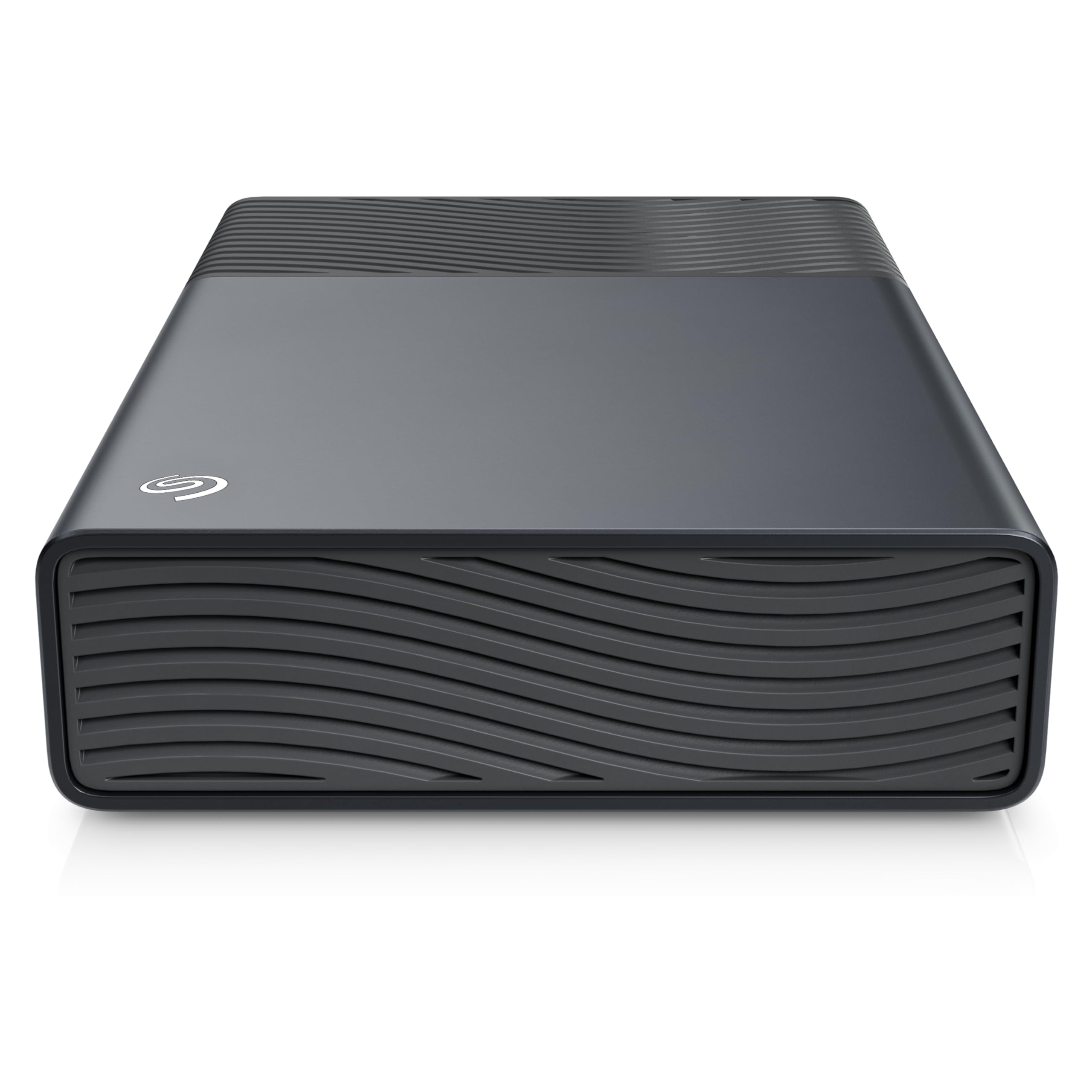
1. Seagate One Touch 8TB External Hard Drive Desktop HDD
Our pick — 4.5+★ from 273,500+ verified ratings; the strongest balance of quality and price.
One cord, one reformat, and eight terabytes your Mac will actually see.
Most people searching for a RAID drive for a Mac are really searching for a lot of storage that behaves. This Seagate is that — a single 8TB desktop drive that stores your Time Machine backups, plugin libraries, and camera cards without asking you to manage an array. It runs off bus power over USB-C, which means no wall adapter to lose and one port on your MacBook doing the whole job.
The Mac catch is small and well documented. It arrives ready for Windows, so you spend about a minute in Disk Utility reformatting to APFS or ExFAT with a GUID partition scheme. A music producer on an M4 machine with 48GB of RAM describes that workflow: one reformat, then plugins, virtual instruments, and audio-MIDI files streaming with no delay. That is the honest shape of this drive on macOS: one small step, then silence.
What it does not do is mirror. There is one drive in here, so there is no RAID 1 safety net and no second copy. Seagate softens that with a two-year limited warranty plus Rescue Data Recovery Services, and the experience across a huge base of owners is that these boxes just keep working. It holds 4.5+ stars across 270,000+ ratings, one of the largest review bases in this category.
What makes it the default pick
- 8TB on bus-powered USB-C means no power brick and no spare outlet
- Rescue Data Recovery Services bundled with a two-year limited warranty
- Reformat to APFS takes about a minute, then it is plain plug-and-play
- 3.5-inch desktop form factor that sits quietly behind a display
What you give up
- Single drive — no RAID mirror, so a failure means a recovery service, not a rebuild
- Mechanical read/write sits around 100+ MB/s, nowhere near SSD territory
- Not built for knocks and drops the way a portable SSD is
Buy this one: if you want the simplest large-volume Mac storage and you already keep a second copy elsewhere.
Hold off: if you genuinely need mirrored redundancy inside one box — this drive cannot give you that.
2. WD 44TB My Book Duo Desktop RAID External Hard Drive
Forty-four terabytes in one aluminum box — the largest volume on this list by a wide margin.
Put the number in perspective. This Duo holds 44 TB while the SanDisk G-DRIVE PRO below tops out at 6 TB — a 7.3x gap in one enclosure. If you are archiving a film project or a decade of raw photo work, that difference is the whole conversation. Inside are two 10TB WD Red drives, and one owner measured 18.1TB usable once formatted.
It ships in RAID 0 from the start, which is fast but fragile: two drives acting as one big volume, and a single failure takes the whole thing. Switching to RAID 1 requires reconfiguring through WD’s software or a walkthrough, and you land at 22TB raw with 20TB formatted. A second owner reported 44TB raw and 40TB formatted in RAID 0 — the numbers shift with how you set it up, so plan your mode before you copy anything onto it.
Reliability is the contested ground here, and it deserves a straight answer. Some owners run multiple units for years without a hiccup; others have had a drive drop out of the array after a few months. The single most common fixable problem is the cable — a 12-foot USB lead causes RAID configuration errors and disconnects, and swapping to a 2-foot cable resolves it. Treat the included cable as the suspect, not the drive, and this becomes a very large, very useful archive. Two USB 3.0 hub ports on the back and 256-bit AES hardware encryption round it out.
Where the value sits: You get 44TB of archive space in one aluminum box, plus hardware encryption (a chip in the enclosure scrambles your files, so a stolen drive stays unreadable) and two extra USB hub ports for plugging in more gear. The two 10TB WD Red drives inside are built for always-on storage, so a big photo or video library can sit there long-term.
The honest caveat: set the RAID mode before you load it, use the shortest USB cable you own, and never unplug without ejecting — that last habit is behind most of the “it vanished” stories.
Reach for this if: your problem is capacity and you want one big Mac volume with encryption built in.
Look elsewhere if: you want a small footprint — this is a 3.5-inch desktop unit that wants a permanent spot.
3. SanDisk Professional 6TB G-DRIVE PRO
Ships formatted for a Mac and plugs into Thunderbolt 3 without a single setup step.
This is the one on the list that arrives speaking macOS. It comes ready with HFS+, so your Mac mounts it on the first connection and you skip the Disk Utility ritual entirely. Behind that sits an enterprise-class 7200RPM Ultrastar drive rated for up to 250MB/s read and 250MB/s write, wrapped in an aluminum case in Space Grey.
The ports are the other headline. You get two Thunderbolt 3 ports at 20Gbps each, plus a single USB-C port at 5Gbps, and you can daisy-chain up to five additional devices off the back. For a Mac Studio with limited ports, that chain matters. Storage performance is what wins people over — it leads the conversation among owners by a clear margin. The real ceiling is the drive itself: a mechanical Ultrastar will never approach Thunderbolt’s theoretical bandwidth, and the mixed reports about speed on USB connections come from exactly that gap. Buy this for mass storage and the math works; expect SSD speed and it does not.
What you are really paying for is trust over time. Buyers report running these drives daily since March of 2022 without a failure, and filmmakers keep dozens on hand for footage storage. A five-year limited warranty backs that up. It is not bus-powered, so there is a power cable to plan for, and the read/write clicks are worth knowing about if you record audio in the same room.
Why Mac editors keep buying it
- Arrives Mac-ready in HFS+, so the first plug-in just works
- Two Thunderbolt 3 ports at 20Gbps with daisy-chaining for up to five more devices
- Up to 250MB/s read and 250MB/s write from a 7200RPM Ultrastar drive
- Five-year limited warranty and aluminum build owners describe as solid
Where it asks for patience
- 6TB is modest next to the Duo’s 44TB — this is a different tool
- Not bus-powered, so you need a cable run wherever it lives
- Mechanical drive noise and clicks can reach an open microphone
Pick it when: you want a Mac-native drive with Thunderbolt daisy-chaining and zero setup friction.
Think twice if: your workload is measured in tens of terabytes — the 6TB ceiling will arrive sooner than you think.
4. CENMATE Aluminum 8 Bay Hard Drive RAID Enclosure
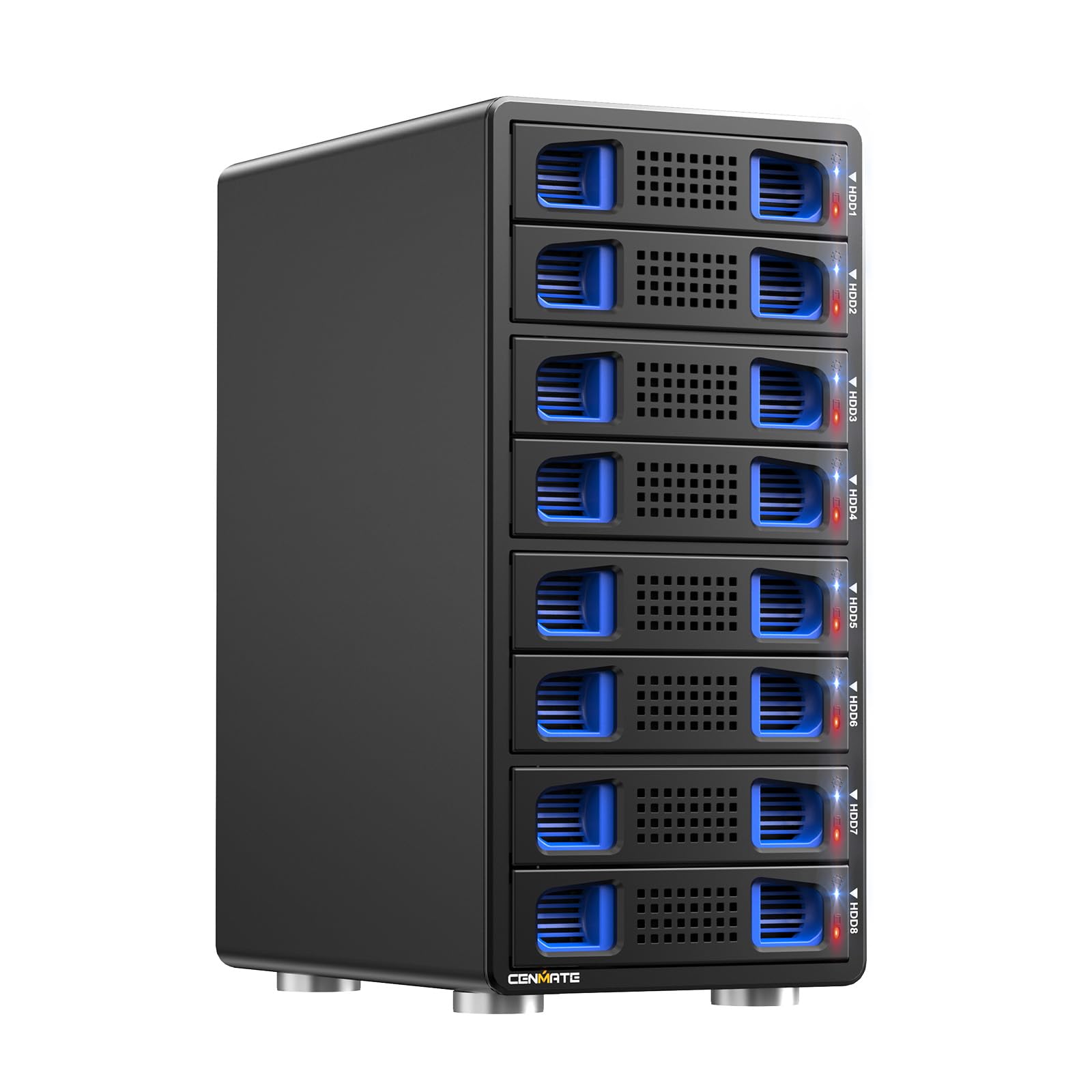
Eight bays, eight RAID modes, and a screwdriver is all the assembly you need.
If your Mac has a pile of loose drives sitting next to it, this is the box that consolidates them. It holds 2.5-inch and 3.5-inch SATA drives, up to 160TB total at 20TB per bay, and slides them in without tools. There is one compatibility note worth reading before you buy drives: it works with Seagate 20TB drives but is not compatible with WD 20TB drives. The rear panel gives you USB-A/C 3.0 and eSATA, running through a JMS567+JMB393 chipset at up to 5Gbps.
With eight modes including CLONE, RAID0, RAID5, RAID50, and RAID00, this is a genuinely flexible enclosure for the spend. Switching modes is a physical ritual — power off, move the paddle with a screwdriver, hold reset for ten seconds while powering on — and it wipes the drives. That is not a flaw, it is how hardware RAID works, but do it with the drives out. Tool-free caddies make the whole process quick.
Aluminum construction and two 2.9-inch fans keep the array cool. The fans run around 40-50 decibels, which CENMATE itself flags as not recommended for the noise-sensitive, and owners who put theirs in a living space confirm it. Set it in a basement or a closet and the complaint disappears. The reliability of the enclosure itself earns the most praise among the people who run it — one owner has had a unit going 24/7 for five months. Budget pick, yes, but not a flimsy one.
The bargain angle: eight bays with tool-free caddies and this many RAID modes does not usually come at this tier, and the aluminum body holds a fan-cooled array that people leave running around the clock.
Read the manual first: HDD1 through HDD4 and HDD5 through HDD8 each need at least one drive loaded, two drives is the minimum for the enclosure at all, and setting any RAID mode formats whatever is inside.
Fits your desk if: you are building a big Mac-attached array on a budget and you have a quiet corner for it.
Not for you if: the enclosure lives within earshot — 40-50 decibels of fan is a constant presence.
5. QNAP TR-004 4 Bay USB Type-C Direct Attached Storage

The four-bay that shows up to your Mac as one clean disk, with the RAID done inside the box.
Diskless on arrival, which means you choose the drives — and the advice from people running RAID for years is to use NAS-grade ones like WD Red or Seagate IronWolf. Four 3.5-inch SATA bays, a hardware controller handling RAID 0, 1, 5, JBOD, and individual disks, and a USB Type-C to Type-A cable in the box. Your Mac sees a single volume and never has to think about mirroring.
One Mac step is worth knowing up front. On Apple Silicon Macs, the QNAP RAID Manager needs you to boot into recovery mode to enable system extensions (Apple’s add-on permissions). The manager is optional and only adds disk health reporting, so the hardware RAID still works without it. One Mac mini home-server owner’s must-haves all checked out: a physical power switch that returns after an outage, an external power brick, support for both 2.5-inch and 3.5-inch drives, and USB-C. They moved many terabytes with hash verification (a check that every file arrived intact) and saw no disconnects.
Set expectations on the enclosure itself. The drive caddies are plastic and feel light, though they hold up in service. It runs USB 3.0 at 5 Gbit/s rather than the faster standard the two-bay TR-002 uses. And in one case, three SSDs in individual mode on an M4 Pro Mac Mini caused constant beach-balling with slow wake times. For spinning drives in a proper RAID array, that is not the pattern — a four-drive RAID 5 setup performed as expected.
The case for the TR-004
- Hardware RAID 0, 1, 5, JBOD and individual modes handled inside the enclosure
- Lockable drive bays and tool-free trays for 3.5-inch drives
- Quiet in use — the fan is quieter than the drives themselves
- Mac Mini owners mention instant recognition and hash-verified transfers
The catch is the chassis
- Plastic caddies that feel flimsy next to the metal housing
- USB 3.0 at 5 Gbit/s, not the faster tier QNAP’s own two-bay offers
- One Mac owner saw SSDs stall in individual mode on an M4 Pro
Right choice for: a four-bay Mac DAS where you supply the drives and want RAID handled in hardware.
Skip it for: an all-SSD array — individual-mode SSDs have stalled on Apple Silicon machines.
6. Seagate Exos 22TB SATA HDD
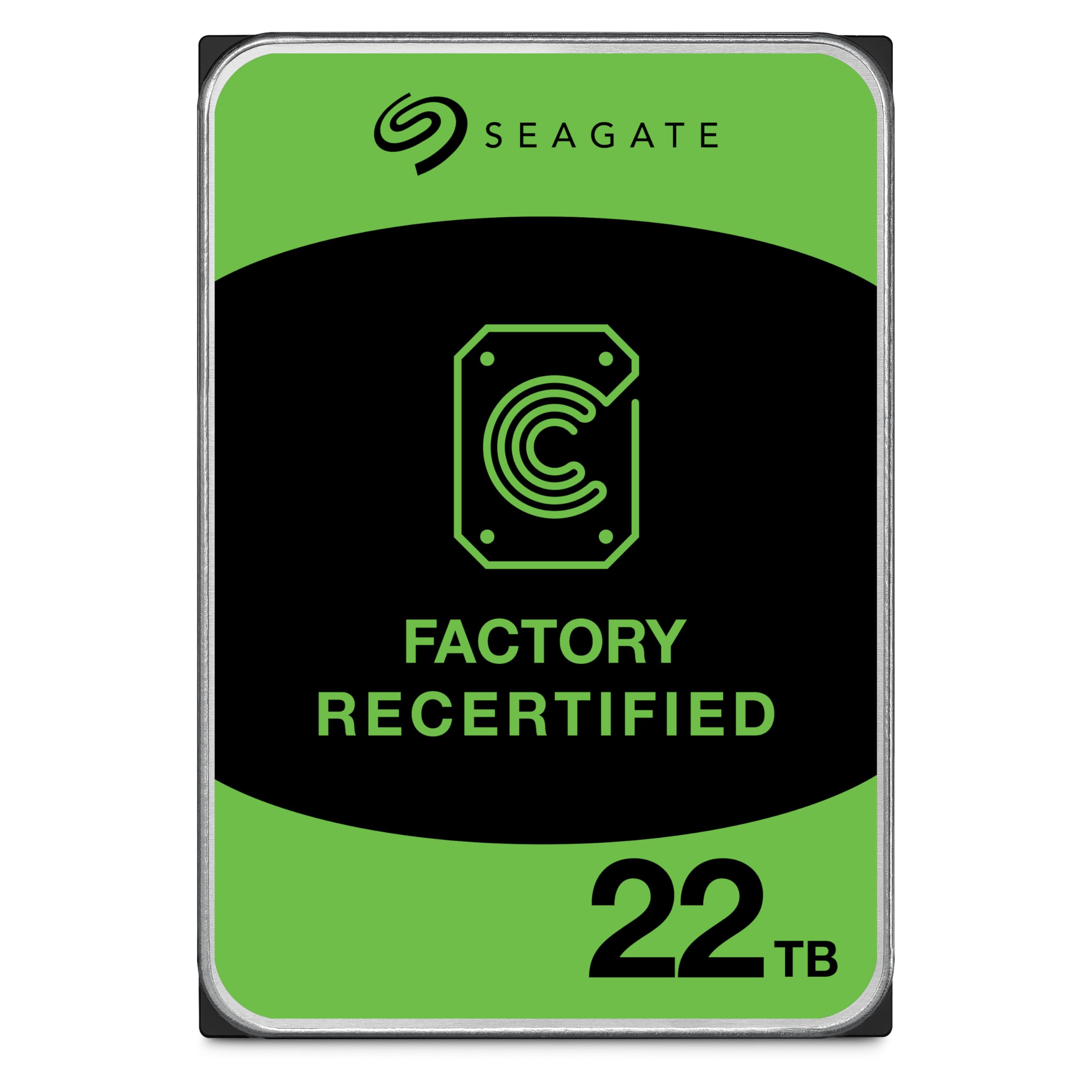
Buy four of these and your eight-bay enclosure has 88TB of enterprise drive inside it.
This listing is not an enclosure — it is the drive that goes into one. 22TB in a 3.5-inch SATA 6Gb/s form factor at 7200RPM, with a 512MB cache and a helium-sealed design that Seagate says lowers power draw and weight while adding durability. Enterprise drives like this are built for the kind of constant duty a RAID array puts on them.
It is sold renewed, and that is where the math gets interesting. Owners of renewed Exos units report no failures across 12+ drives, roughly 200MB/s transfers, and cooler running than air-filled drives. NAS units sometimes flag them as unverified, which you clear with a “Proceed Anyway” and move on. Large RAID rebuilds take days — worth knowing before you commit an entire array.
The downside to plan around is sound. These are not quiet drives, and several owners describe a whine and grinding character. For a Mac that lives in the same room as the enclosure, that is a real daily annoyance. Reliability, though, is what owners talk about most, and it holds up.
The value play: a renewed 22TB enterprise drive is the cheapest way to fill bays in a large array, and customers note them passing the standard health checks out of the bag.
Be realistic about noise: helium and 7200RPM do not make a quiet drive, so put the enclosure where the whine will not reach your desk.
Worth it if: you are populating a multi-bay enclosure and reliability per dollar is the deciding factor.
Reconsider if: a single drive is what you need — a renewed enterprise drive is not a simple plug-and-play Mac backup.
7. OWC Mercury Elite Pro Dual 8TB RAID Storage Solution

A hardware switch on the back changes your RAID mode — no software, no Mac setup screen.
Two 3.5-inch SATA 7200RPM drives in an aluminum enclosure, pre-configured in RAID 0 for maximum throughput up to 407MB/s. The switch is the feature: RAID 0 for a fast scratch volume for HD video, RAID 1 for mirrored security, SPAN to chain the two drives into one big volume, or JBOD to use them independently. Flipping modes does not require logging into anything.
Ports cover the old and the new. USB 3.2 Gen 1 Type-B runs up to 5 Gb/s, and the eSATA 6 Gb/s port supports port multiplier functionality for connecting other storage. That eSATA option is becoming rare, and if you have a Mac or a dock that still speaks it, this is one of the few ways left to use it. You get both cables in the box — a 24-inch USB-A to USB-B and a 39-inch eSATA 6G.
The thing to weigh is track record. This model has very little public review history, so you are buying on spec and on OWC’s one-year limited warranty rather than a documented body of owner experience. Compare that to the G-DRIVE PRO’s five-year coverage, and the difference in confidence is real. It is a solidly specified dual-bay with a physical switch, sold on engineering rather than a proven fan base.
What earns its place: up to 407MB/s in RAID 0 and a hardware mode switch that works without drivers are exactly what a Mac video workflow wants.
What to weigh: one year of warranty and almost no review history, against a five-year warranty on the SanDisk above.
Best fit for: a Mac editor who wants to flip between RAID 0 speed and RAID 1 safety by hand, or still needs eSATA.
Less sure a bet if: you want a long, documented track record before you trust a drive with footage.
8. LaCie Rugged RAID Shuttle 8TB Portable HDD

Built flat enough for a gear bag, tough enough to survive the trip.
This is the RAID drive you carry rather than park. Two 2.5-inch drives in a shock-, dust-, and water-resistant orange shell, shaped flat so it slides into a shipping envelope or a gear bag alongside a camera. You configure RAID 0 or 1 with a step-by-step wizard — performance or redundancy, your call — and the self-encrypting password system keeps the contents locked if it leaves your hands.
For Mac work it has one specific strength: Time Machine. Owners describe setting it up with Time Machine easily and getting excellent transfer speed, and the 8TB capacity split across two 4TB drives in RAID 0 finally fits libraries that were overflowing. It ships with both a USB-C to USB-C and a USB-C to Type-A cable, plus a one-month Adobe Creative Cloud All Apps membership.
The honest limit concerns bootable backups. The drive works in HFS+, and APFS clones stored on it are not bootable on newer Macs — if your plan is a bootable clone, this is not the drive for it. Do not expect it to be a permanent fixture either. A few long-term reviewers point out units failing after a year or more. It is a field drive by design, and the safest pattern is a second copy at home.
Built for the road
- 8TB in a flat, shock-, dust-, and water-resistant shell
- RAID 0 or RAID 1 set through a step-by-step wizard
- Self-encrypting password system for travel
- Cables for both USB-C and USB-A included, plus one month of Adobe CC
Know before you buy
- HFS+ only — APFS clones on it will not boot a newer Mac
- Not a permanent desk fixture; a few long-term units stopped working
- USB 3.1 Gen 2 speed is wasted on a mechanical drive
Grab it for: a rugged, encrypted 8TB shuttle that backs up a MacBook on location.
Not the one for: a desktop RAID array you plan to leave running for years.
9. WD 16TB My Book Duo Desktop RAID External Hard Drive
Half the Duo’s ceiling, same two-bay frame — the sensible middle of the RAID family.
If 44TB feels like more than you will ever fill, this is the same Duo enclosure at 16TB, which means two 8TB drives doing the same work. It ships in RAID 0 so you see one big volume; switch to RAID 1 through WD’s software and you get a mirror that survives a single drive failure at half the capacity. Two USB 3.0 hub ports and 256-bit AES hardware encryption carry over unchanged.
The format question comes up first with these units. It arrives ready for Windows, and on a Mac you reformat through Disk Utility before the drive behaves the way you want. One owner filled about 6TB, used the two-port USB hub to copy files off smaller drives, and reported cool, quiet running. Spin-up from sleep takes 5-10 seconds, which is the price of a mechanical drive.
The recurring risk with any dual-bay is pulling the cable without ejecting. That single habit sits behind the “drive vanished” stories on this family, and a shorter USB cable fixes most of the connection errors. Keep the eject discipline and this is a quiet, cool box that sits behind a display and quietly mirrors your work.
The mid-range read: 16TB in a two-bay RAID enclosure with hardware encryption and extra USB hub ports is a clean balance if the biggest volumes are more than you need.
Habit to build: always eject from the Mac before unplugging — that habit alone prevents most of the failure stories on this product family.
Matches your setup if: you want a mirrored Mac RAID volume without paying for the largest capacity tier.
Outgrown fast if: your library is already past 16TB — go straight to the 44TB version.
Know the Specs
The RAID level is the real choice
RAID 0 writes across every drive at once, so a two-drive enclosure gives you the combined capacity as a single fast volume. The risk is that one failed drive takes the whole array with it. RAID 1 writes the same data to two drives, so your Mac keeps working if one dies — you just lose half the capacity. RAID 5 spreads data and parity across more drives, keeping the capacity of all but one plus a rebuild path. Most people spending money on a RAID enclosure are choosing it for the RAID 1 or RAID 5 safety, not the speed.
Connection speed versus drive speed
A Thunderbolt 3 port rated at 20Gbps or a USB port at 5 Gbps describes the door, not the car. A 7200RPM mechanical drive moving data at roughly 250MB/s is the actual bottleneck, whatever cable you use. That is why drives advertise realistic numbers — up to 250MB/s on the G-DRIVE PRO, up to 407MB/s on the OWC in RAID 0 — while Thunderbolt’s theoretical ceiling sits far higher. Buy the port for daisy-chaining and future-proofing, but expect mechanical drive speeds.
Format matters more than you think
Macs expect APFS or HFS+. A drive that arrives for Windows will either not mount or mount read-only, so you reformat it once through Disk Utility with a GUID partition scheme. Some units ship Mac-ready — the G-DRIVE PRO comes HFS+ — and that saves you the step entirely. Before you copy anything, decide your format; changing it later means erasing whatever is on the drive.
Where the drives come from
A diskless enclosure like the QNAP TR-004 needs you to supply the drives, and that is where you control cost and quality. NAS-grade drives are the usual advice for a RAID array because they run under constant duty. The Seagate Exos 22TB is one example of an enterprise drive sold bare (renewed) for filling bays. If you buy a populated unit like the My Book Duo or the G-DRIVE PRO, you skip that choice but accept whatever the maker installed.
Common Questions
Will a RAID enclosure from this list work with my Mac without extra setup?
Is RAID 1 the same as a backup on a Mac?
How much usable space do I actually get from a two-bay RAID enclosure?
Why does my new RAID enclosure show “RAID configuration error” on a Mac?
Can I use the Seagate Exos 22TB drive inside a Mac RAID enclosure?
Do I need special software for hardware RAID on a Mac?
How loud is a multi-bay RAID enclosure on a Mac desk?
What happens if I unplug a RAID drive without ejecting it from the Mac?
Is a Thunderbolt 3 RAID enclosure faster than USB on a mechanical drive?
Can I move a RAID array from one enclosure to another?
Do I need NAS-grade drives inside my Mac RAID enclosure?
The Bottom Line
For most Mac owners, the raid drives for mac answer is the Seagate One Touch 8TB, because it asks the least of you: one cable, one reformat, and a large 8TB volume your MacBook sees without a wall adapter. It is not a true RAID array (a setup that mirrors or spreads data across several drives), so keep a second copy if the data matters.
If you want capacity that dwarfs everything else here, the WD 44TB My Book Duo holds 44TB against the G-DRIVE PRO’s 6TB — a genuine 7.3x gap — and adds hardware encryption plus two USB hub ports. Just set your RAID mode and use a short cable before you fill it.
For a Mac-native drive with Thunderbolt 3 daisy-chaining and no setup friction at all, reach for the SanDisk Professional G-DRIVE PRO. And if you are building rather than buying, the CENMATE 8-bay enclosure filled with Seagate Exos 22TB drives is the cheapest route to a genuinely large Mac array.
How we choose
We do not accept paid placement. Every pick is matched to a real buyer and a real use-case; we do not hands-on test units.
Sources
Specifications: manufacturer listings and product documentation. Review insights: verified customer reviews, as of October 2026. Pricing: not shown on this page (it changes often); check the current price via the retailer link.
As an Amazon Associate, Aappliancez earns from qualifying purchases. This does not affect which products we feature.