Disclosure: Some links in this post are affiliate links. As an Amazon Associate I earn from qualifying purchases, at no extra cost to you. Learn more
Specs are compiled from manufacturer listings and verified buyer reviews and can change over time — please confirm the key details on the product page before buying.
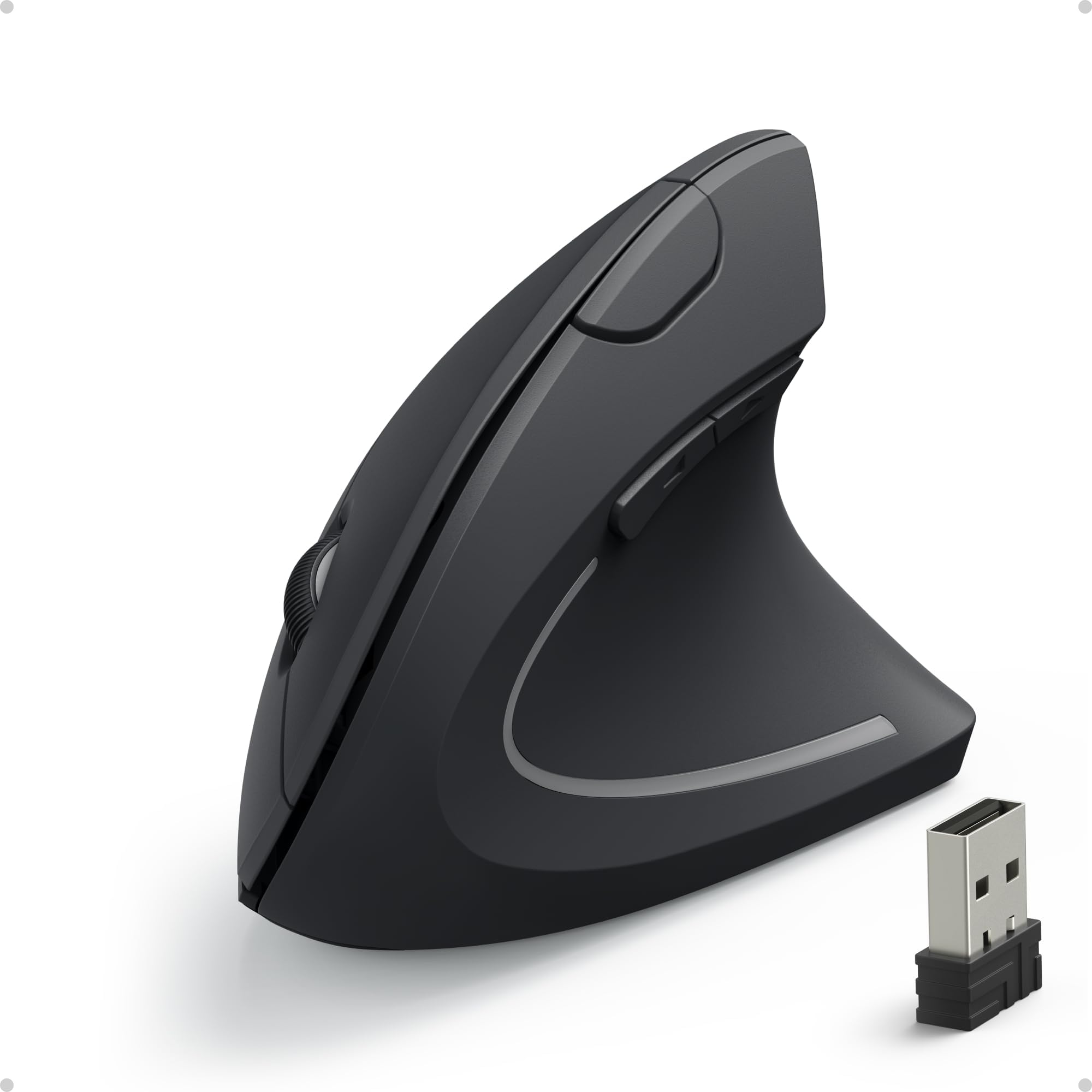
If your index finger aches every time you click, the fix is usually not more rest — it is a mouse that takes the clicking job away from that finger entirely. That is why almost every pick below is either a vertical mouse (which turns your hand into a handshake position so the finger presses down instead of sideways) or a trackball (where your thumb moves the cursor and your wrist stays put). Either way, the trigger finger stops doing the heavy lifting.
This guide is built by comparing the manufacturers’ published specifications and the patterns across verified customer reviews, so you get each pick’s real strengths and trade-offs instead of marketing spin.
You will see the DPI range, button count, battery type and hand-fit notes for each one, so you can match a mouse to your hand rather than guess. Below is the shortlist that makes the most sense when you are shopping for the best mouse for trigger finger relief.
Top Picks

How To Choose The Best Mouse for Trigger Finger
Start with the shape, not the spec sheet. A mouse that keeps your hand flat forces your index finger to press sideways and downward at the same time, which is exactly the motion that irritates a sore trigger finger. A vertical body or a trackball changes that geometry, and everything else is fine-tuning.
Vertical angle versus trackball
A vertical mouse tilts your hand so the palm faces inward like a handshake. The finger then pushes straight down, which is a shorter, calmer motion. A trackball goes further: your thumb rolls a ball to move the cursor, so your wrist and index finger barely move at all. If your finger is the main problem, the trackball removes the most work.
Match the body to your hand size
A mouse that is too tall for your palm makes you reach, and reaching is its own strain. Several picks here are explicitly sized — the Logitech Lift is built for small to medium right hands, while the Ergodriven Om draws comments about fitting smaller hands and the Nulea M514 runs small for large ones. Read the fit note before anything else.
Buttons, DPI and silent clicks
DPI (dots per inch) is how far the cursor travels for a given movement of your hand — higher DPI means less arm travel to cross the screen. Silent click switches cut the noise and usually the force needed to actuate, which your finger notices by the end of a workday. Programmable buttons let you put copy, paste or undo under a thumb instead of a repeated index click.
Side-by-Side Comparison
| Model | Best For | Type | Buttons | Connection | Amazon |
|---|---|---|---|---|---|
| Logitech Ergo M575S★ Best Overall | All-day desk work | Thumb trackball | 2 | Bluetooth or USB | Amazon |
| Anker 2.4G VerticalBest Budget Entry | First vertical mouse | Vertical, right hand | 5 | USB receiver | Amazon |
| TECKNET Vertical | Quiet shared office | Vertical, right hand | 7 | USB receiver | Amazon |
| Ergodriven Om | Button-heavy workflows | Vertical, right hand | 9 | Bluetooth or USB | Amazon |
| Nulea M501 | Three-device switching | Thumb trackball | 6 | Bluetooth or USB | Amazon |
| Nulea M514 Vertical Trackball | Tilted trackball comfort | Vertical trackball | 6 | Bluetooth or USB | Amazon |
| Logitech Lift | Smaller hands | Vertical, right hand | 6 | Bluetooth or Logi Bolt | Amazon |
Detailed Reviews
1. Logitech Ergo M575S Wireless Bluetooth Trackball Mouse
Our pick — 4.5+★ from 2,000+ verified ratings; the strongest balance of quality and price.
The trackball that lets your index finger take the day off and lets your thumb do the steering.
The single number to notice here is the battery: up to 18 months on one AA battery, which is included. That means the mouse you set up today is the same mouse doing the work, with no charging cable, for well over a year. A single AA cell you can swap in seconds is also a lot less fuss than a built-in rechargeable pack, and it is why so many owners who dislike waiting on a charger end up here.
The M575S is a thumb trackball, which means you roll a ball with your thumb to move the cursor and your hand stays planted. Your index finger only has to do the clicking, and only on the two main buttons. Logitech puts the finger workload plainly: the shape is built around thumb control so the hand stays relaxed, and Logitech’s own testing cites a 25% reduction in forearm muscle strain.. The body is a right-hand shape with a comfortable palm rest, and it is built to suit most hand sizes.
What wins people over is that the whole thing simply works across a day of spreadsheets and email. Connection is Bluetooth or the included Logi Bolt receiver, so you are not stuck on one route, and silent clicks keep meetings and shared rooms quiet. Owners also bring up the space saving: the cursor moves without your hand moving, which makes it the easy choice on a cramped desk or a laptop corner.
The honest trade-off is adjustment. A trackball asks your thumb to learn a new job, and that takes a few days. Some people also find the thumb gets tired in the first week. If you have never used a trackball, treat the first stretch as a learning curve and do not judge it on day one.
The durability question: A long-time buyer upgrading from the older model reports that unit lasted roughly a decade before the sensor and left-click switch began to degrade. The new model gets quieter, more satisfying clicks and a trackball that feels as good as the old one at its prime. Longevity on this exact model is still being proven over months rather than years.
Pick this for an office desk: a quiet, low-maintenance workhorse that takes the repeat clicks off your finger and puts them where your hand is already resting.
Try it elsewhere if: you want zero learning period or need a fast, high-precision pointer for gaming — this one is tuned for work, not twitch reactions.
2. Anker 2.4G Wireless Ergonomic Vertical Mouse
The cheap first step into vertical mice that has quietly been bought again and again for a decade.
This is a vertical mouse, which means it stands your hand up into a neutral handshake position so your wrist and forearm are not twisted flat. Your index finger then pushes down on the buttons rather than pressing sideways, and that straight-down motion is the whole point if your finger is what hurts. The 2.4G in the name refers to the wireless band it uses — it connects through a USB receiver, not Bluetooth, so make sure you have a free USB port.
The sensor offers 800, 1200 and 1600 DPI, so you can pick how far the cursor travels for a given hand movement. There are 5 buttons, two of which are next and previous for paging through web pages, which saves a lot of mousing around. It also goes into a power-saving sleep after 8 minutes of inactivity and wakes with a click.
Owners are the proof here. One buyer summed up the long game simply: one buyer’s second purchase came after the original lasted a full 5 years. That kind of repeat buying tells you more than any spec line. Plenty of people also came to this from a flat mouse with wrist trouble and report less aching after pushing through the adjustment.
What you should know before buying: this model runs on two AAA batteries, and those are not included. Expect to feed it a fresh pair every month or two depending on use. The sleep mode is deep enough that the first click after a pause is sometimes just a wake-up, not a click that registers.
Where it earns its keep
- Vertical handshake shape takes the sideways press off your trigger finger
- Three DPI settings (800, 1200, 1600) to slow or speed the cursor to your wrist
- 5 buttons including forward and back for everyday browsing
- Rubbery, non-slip finish that stays put in your palm
What to plan around
- Batteries not included — two AAA cells are on you
- USB receiver only, so no Bluetooth pairing
- Expect a learning curve measured in days, not minutes
- Deep sleep means a wake click before the real click
Worth it if: you want to find out whether a vertical shape suits your hand without committing much.
Look further if: you need Bluetooth, a rechargeable pack, or a scroll wheel you never have to think about — this one’s wheel is its most-reported wear point.
3. TECKNET Ergonomic Vertical Mouse
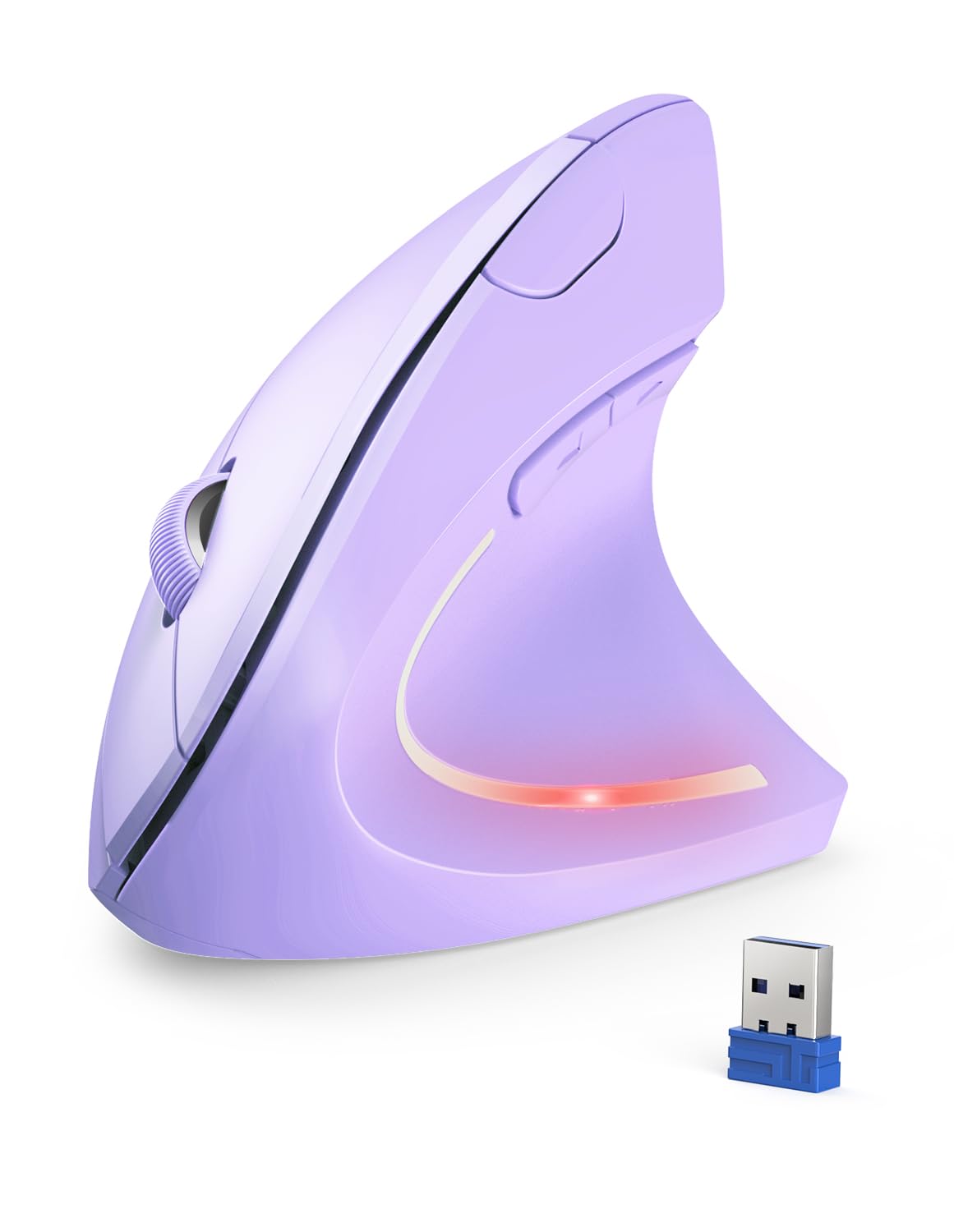
Five DPI levels and near-silent buttons for the person who clicks all day next to other people.
If you share a room, the click noise is half the problem. TECKNET rates its silent switches at more than 90% less clicking noise., and that is the difference between a mouse you can use in a quiet office or at midnight without apologizing for it. Less noise usually means less force needed too, which your finger feels by late afternoon.
The sensor gives you five DPI steps — 800, 1600, 2400, 3200 and 4800 — which is a wider range than most vertical mice in this group. That matters because higher DPI means less hand travel to cross a big screen, so your arm does less work over a shift. The body is right-handed and vertical, tilting your arm to a relaxed position rather than flat on the desk.
Quality is the thing buyers single out most, with wrist comfort close behind. There are 7 buttons, and the side buttons are the ones to note: they are made for forward and back paging, which saves a lot of index-finger clicks when you are reading or browsing. Do be aware they are not designed to work on Mac or iOS.
One thing to plan around: this is a somewhat tall body, and the top point can feel pokey if you grip high. Hand size matters, too — the wrong size makes it hard to use, and right-sizing it turns it into a comfortable fit. It takes some AAA batteries, and the low-battery LED flashes when it is time.
Fit before speed: A 4800 DPI sensor is not a reason to buy on its own. Choose your DPI step and your grip first, then enjoy the quiet, since the click reduction is where this one clearly leads the vertical mouse above it.
Reach for it if: you are in a shared space or want the widest DPI spread here — 4800 down to 800 is the largest range in this list.
Hold off if: you work on a Mac and rely on side buttons, since they are not supported there.
4. Ergodriven Om Vertical Ergonomic Mouse

A tiny screen on the mouse lets you set copy, paste and undo without ever installing software.
The feature that makes this one different is the OLED screen built into the body. It shows your DPI and battery percentage, and it is also how you change what each button does — in seconds, on the mouse itself, with no driver download. If you want one button to do copy and another to do paste so your index finger never has to click twice, that is exactly what the onboard screen is for.
You get four DPI settings (1200, 1600, 2000 and 2400) and, on the spec sheet, nine buttons to work with. The shape is vertical and right-handed, meant to hold your wrist in a natural position, and the main clicks are silent with a light press. Ergonomic comfort is the thing owners praise most, and the second most-thanked detail is where those extra buttons sit — far back enough that your thumb does not bump them by accident.
Battery is a rechargeable Li-ion pack, and it ships with at least half a charge — enough to last weeks before you need the cable. Connection is both 2.4G through a dongle and Bluetooth, so it moves between machines easily. Ergodriven backs it with a 2-year manufacturer’s warranty, which is note when most of the rivals here are not as explicit about that.
Here is the catch, and it is a real one for some users: button remapping is limited to the firmware presets. You cannot assign arbitrary keyboard keys, so a workflow that depends on a very specific binding may not fit. The cursor sensor can also be finicky about lift-off — if you lift and reposition the mouse a lot, you may notice it. Office work and everyday productivity are where it shines; low-sensitivity gaming is not its job.
The reasons it stands out
- Onboard screen shows DPI and battery, and handles button setup on the fly
- Nine buttons, which is the most programmable set in this list
- Silent main clicks with a light press
- Rechargeable battery and 2-year warranty
- Bluetooth plus 2.4G for easy device switching
Where it will not fit
- Button remapping limited to firmware presets, no custom keys
- Sensor lift-off distance can cause tracking blips
- Firmware-only customization frustrates power users
- No charging cable in the box
Best for shortcut-heavy work: if you would rather put a thumb on undo and copy than click your index finger through them, the onboard screen pays off fast.
Think twice if: you need to bind specific keyboard keys or play fast shooters, where the preset-only remap and sensor behavior get in the way.
5. Nulea M501 Wireless Trackball Mouse

One thumb-controlled trackball that hops between three computers at the press of a button.
For anyone who juggles a work laptop and a home machine, the standout here is three-device switching. It connects to up to 3 devices over Bluetooth or the USB dongle, and a button on the bottom flips between them — no re-pairing every time you change desks. The trade-off is that the switch button lives underneath, so it is a lift-and-press rather than a thumb tap.
This is a thumb trackball, meaning your thumb rolls the ball to move the cursor and your hand stays essentially still. That takes the lengthwise sweep of the arm out of the picture and puts the whole job on the thumb, which leaves your index finger doing nothing but the occasional click. The built-in rechargeable battery means no battery-hunting, and it charges over USB-C from the included cable.
The practical win owners keep coming back to is that the cursor moves without the hand moving at all. That makes it good in cramped spaces — a small desk, a couch, a bed, even a chair arm. You get six buttons, including forward and back and a scroll wheel, but note that none of the buttons on this model are programmable.
The honest part: battery life and Bluetooth draw mixed reactions, and the charge and connection can occasionally need a nudge, like disconnecting and reconnecting a channel. An occasional unit has trouble charging. The body is on the slick side, so it can slide a little in your palm. Adjustable DPI lets you slow the cursor to suit you.
What the long-term owners say: One trackball user who had replaced a mouse roughly every 1.5 years rates this as more accurate and comfortable than the big-brand names, and pairs it to two computers easily. One owner reports three years of use with no failure. Nobody is calling it fragile.
The one quirk to accept: Turn off your computer’s Bluetooth and this mouse stops working — so if you rely on Bluetooth, keep an eye on that setting.
Good match for a multi-machine desk: three channels, a rechargeable pack, and thumb control that keeps your finger free.
Not the one if: you need programmable buttons or a top-mounted device switcher — both are missing here.
6. Nulea Wireless Ergonomic Vertical Trackball Mouse
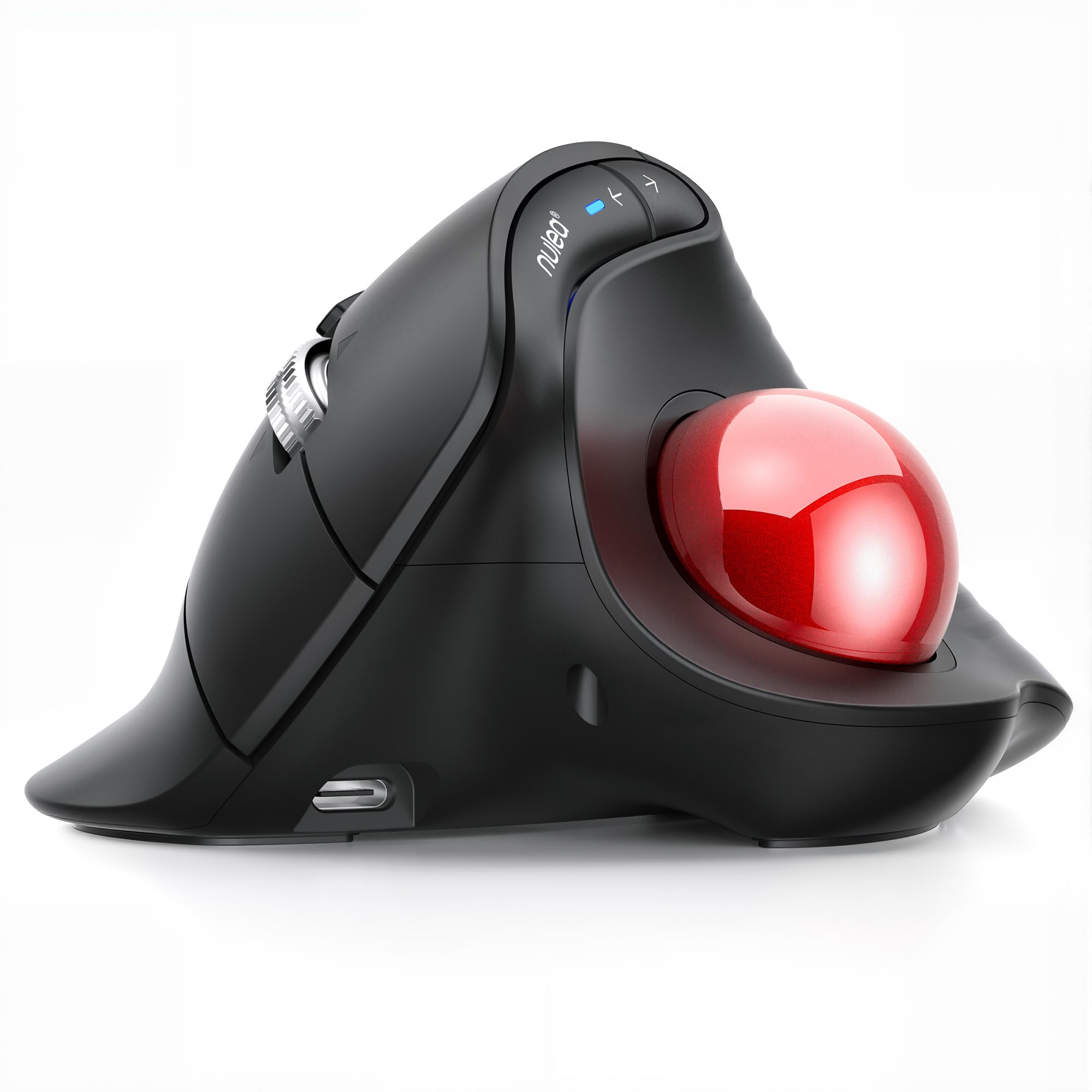
A 65-degree tilt combined with a thumb trackball — the steepest tilt in this list.
The defining number is 65 degrees. That is the tilt of the body, which stands your wrist and arm in a naturally relaxed position instead of flat on the desk. Because a trackball also removes the need to sweep your arm, the combination takes two of the biggest loads off the hand at once. Your index finger ends up doing very little.
Your thumb moves the cursor on the trackball, so your trigger finger gets a break. The scroll wheel is the feature people talk about most: it switches between precise and fast modes depending on how hard you spin it, and supports four-way scrolling including left and right. That makes long documents and wide spreadsheets far less work. There are six buttons, and three devices pair over Bluetooth or the included USB receiver.
It weighs 151.5 g, and the maximum sensitivity is 1000 DPI. Here the number is less important than the feel: the DPI is adjustable across settings so you can tune the cursor speed to your own hand. The body is right-handed with wave texturing for grip. Quality is the most-praised aspect here, with comfort right behind it.
The catch is the forward and back buttons. They sit high on the ergonomic ridge, so your thumb has to stretch to reach them, and a couple of buyers found them awkward enough to cause thumb ache at first. The body also runs small for larger hands. If either describes you, look carefully at the fit.
Why it beats the older shape: Owners coming from a Logitech MX ERGO specifically call out the 65-degree tilt versus the older unit’s much flatter angle, plus a smoother ball and easy thumb-push cleaning without tools.
Pick it if: you want a steep, upright wrist position plus full thumb control and genuinely silent buttons.
Pass if: you have large hands or your workflow runs on quick back-button taps — the reach is the weak spot here.
7. Logitech Lift Vertical Ergonomic Wireless Mouse

The vertical mouse that finally stops your hand from feeling dwarfed by the hardware.
Hands come in different sizes, and most vertical mice are built for a large average. The Lift is the opposite — it is designed for small to medium right hands, with a softly textured grip and a snug thumb rest. A 57-degree tilt stands your wrist into a more natural posture, and there is an official left-handed version so southpaws are not shut out.
One AA battery, up to two years of life, and a magnetic battery door are the low-maintenance parts. The Logi Bolt receiver actually stores inside that door, which is a quiet convenience you will appreciate the first time you carry it between rooms. You can connect by Bluetooth Low Energy or Logi Bolt, and the clicks are whisper-quiet.
Ergonomics and comfort are what people praise most here, and the numbers are large enough to trust. It handles both adult and child hands, with families reporting it suits kids as well as grown-ups. The SmartWheel gives you a notched or free-spin scroll at the flick of a finger, which cuts down on the number of small motions you make in a workday.
The common gripe is the left click. When a unit goes wrong, that is the button to fail, so check for it in the first weeks. It is also on the pricey side for what looks like a simple mouse. And the customization lives in Logitech’s software rather than onboard — a detail worth knowing if you move between computers.
An honest comparison: The Lift and the M575S are the two Logitech picks here, so the choice depends on feel. If you want your index finger to move the cursor, the Lift does that; if you want the cursor to move without your hand moving at all, the trackball is the one to take.
Reach for it if: you have small to medium hands and want a vertical mouse that actually fits them, with a battery you replace twice a decade.
Look elsewhere if: you have large hands, or you want to configure buttons on the mouse itself with no software.
Know the Specs
Vertical Angle
A vertical mouse stands your hand up so your palm faces inward, like a handshake. The tilt keeps your wrist from lying flat, which puts your index finger in a position to press straight down instead of sideways. That straight-down press is gentler on a trigger finger. Tilts here range from the Lift’s 57 degrees to the Nulea’s 65 degrees, with the M575S offering a thumb-controlled trackball as a different route to the same relief.
DPI
DPI (dots per inch) is how far the cursor travels for a given movement of your hand. Higher DPI means less hand travel to cross the screen. Some picks let you step through several settings, like the TECKNET’s 800 to 4800 range or the Om’s 1200 to 2400, so you can dial the cursor to a speed that does not force extra wrist work.
Battery Type
Two kinds show up here: a swappable AA or AAA cell, and a built-in rechargeable. A replaceable cell means a fresh battery in seconds and no cable to hunt for — the M575S claims up to 18 months, the Lift up to two years. A rechargeable means never buying batteries, but you do need to plug in a charging cable periodically, as with the Nulea M501.
Connectivity
Bluetooth lets the mouse talk to your computer with no receiver taking up a USB port, while a 2.4G USB receiver plugs in and usually pairs instantly. Some mice, like the Om and the Nulea models, offer both. If you work across several machines, look for multi-device pairing, which lets one mouse hop between them with a button press.
Common Questions
Will a vertical mouse actually help a trigger finger?
Is a trackball or a vertical mouse better for finger pain?
How long does it take to get used to a vertical mouse?
Does a wireless mouse work on a Mac?
How long do the batteries last on these mice?
Can I program the side buttons to copy and paste?
What happens if my hand is on the larger side?
Will a vertical mouse still click as quietly as a normal one?
Does DPI matter for finger pain?
Can I use a trackball on a soft surface like a couch or bed?
The Bottom Line
For most people shopping for the best mouse for trigger finger, the Logitech Ergo M575S is the pick to start with. Its thumb trackball removes almost all hand movement, it is quiet enough for an office, and its 18-month AA battery makes it a set-and-leave-it tool. If you would rather keep the finger in charge of the pointer, the Logitech Lift gives small to medium hands a 57-degree tilt that keeps the wrist natural. And for the cheapest way to test whether a vertical shape suits you, the Anker vertical mouse is the one to get first — it has been re-bought by satisfied owners for years.
How we choose
We do not accept paid placement. Every pick is matched to a real buyer and a real use-case; we do not hands-on test units.
Sources
Specifications: manufacturer listings and product documentation. Review insights: verified customer reviews, as of October 2026. Pricing: not shown on this page (it changes often); check the current price via the retailer link.
As an Amazon Associate, Aappliancez earns from qualifying purchases. This does not affect which products we feature.