Disclosure: Some links in this post are affiliate links. As an Amazon Associate I earn from qualifying purchases, at no extra cost to you. Learn more
Specs are compiled from manufacturer listings and verified buyer reviews and can change over time — please confirm the key details on the product page before buying.
If you spend your day dragging vertices and rotating models, the mouse under your hand is a tool, not an accessory. The right one keeps your aim steady through a long dimensioning session and leaves your wrist quiet at quitting time. The wrong one turns a routine drawing into a slow grind. This guide narrows the field to seven mice that CAD users actually reach for, sorted by what each one does best for precision work.
This guide is built by comparing the manufacturers’ published specifications and the patterns across verified customer reviews, so you get each pick’s real strengths and trade-offs instead of marketing spin.
You will see which sensor resolution holds a fine cursor line, which shape saves your wrist on a nine-hour drafting day, and which buttons map cleanly to your modeling shortcuts. Below is the honest shortlist of the best mouse for cad design.
Top Picks


How To Choose The Best Mouse for CAD Design
CAD work asks for something different than gaming or web browsing. You are not flicking a crosshair across a screen. You are holding the cursor on a two-pixel intersection while you set a constraint, and you are doing it for hours. Start with the shape that keeps your hand neutral, then add the sensor and buttons that fit your workflow.
Start with hand posture, not flash specs
A traditional flat mouse forces your forearm to rotate palm-down, and over a long drafting day that twist builds into fatigue. A vertical mouse, a trackball, or a tilting design lets the wrist sit closer to its natural neutral position. If your wrist aches by mid-afternoon, switching to a vertical, trackball, or tilting shape often helps more than any DPI upgrade. The Logitech MX Ergo S adds a 20-degree tilt for exactly this reason, and the Contour Unimouse lets you set the tilt anywhere from 35° to 70°.
Sensor resolution and surface tracking
DPI (dots per inch) is how far the cursor travels for each inch you move the mouse — higher numbers mean the cursor covers more ground per physical movement. For CAD, high DPI is less vital than a stable, low-jitter read on a normal desk. A sensor that tracks cleanly on glass or a worn mousepad, like the 8000 DPI unit in the Logitech MX Master 3S, keeps your picks accurate without a pad. The Keychron M3 uses a PAW3395 sensor rated to 26,000 DPI with a 1000 Hz polling rate, if you want maximum headroom for both precision and fast travel.
Buttons and how many shortcuts you need under thumb
Map your most-used CAD commands — zoom-to-fit, orbit, escape, snap toggle — to side buttons and you cut your dependence on the keyboard. More buttons means more mapping power, but it also means a more crowded grip. Count your daily shortcuts first, then match the button quantity to that list. The Corsair IRONCLAW Wireless SE carries 10 programmable buttons, while the Keychron M3 keeps it minimal at 3.
Side-by-Side Comparison
| Model | Best For | Max DPI / Sensor | Buttons | Battery / Weight | Amazon |
|---|---|---|---|---|---|
| Logitech MX Master 3S Bluetooth★ Best Overall | All-round CAD and design desk work | 8000 DPI, any-surface | 7 | 70 days / 141 g | Amazon |
| 3Dconnexion CadMouse Compact WirelessCAD Specialist | Dedicated CAD button layout | Optical, smooth tracking | 7 | 2 months | Amazon |
| Keychron M3 Wireless | Fast, light precision on a budget | 26000 DPI, PAW3395 | 3 | 1-2 weeks / 80 g | Amazon |
| Corsair IRONCLAW Wireless SE | Big hands and heavy macro use | 26K DPI, MARKSMAN | 10 | up to 285 hrs | Amazon |
| Contour Unimouse Vertical | Adjustable ergonomic fit | Smooth optical tracking | 6 | up to 12 weeks | Amazon |
| Logitech MX Ergo S Trackball | Wrist-rest trackball drafting | Thumb trackball, precision mode | 8 | up to 120 days | Amazon |
| Razer Pro Click V2 Vertical | Vertical grip with AI shortcuts | Focus Pro 30K optical | 6 | 6 months / 0.41 kg | Amazon |
Detailed Reviews
1. Logitech MX Master 3S Wireless Mouse
Our pick — 4.5+★ from 750+ verified ratings; the strongest balance of quality and price.
The desk workhorse that glides over glass and keeps your wrist quiet all day.
The spec that earns this the top spot is the tracking: an 8000 DPI sensor that reads on almost any surface, even glass. For CAD that means you can sketch on a plain desk without a pad and still land the cursor on the exact point you want. The MagSpeed scroll wheel switches between a free-spin mode and a precise click mode, so you can whip down a long part tree then dial in one parameter. Owners describe the scroll wheel as the best part of the mouse, and the auto-shift between fast and precise modes is what they keep coming back to.
The ergonomic silhouette is built for a more natural wrist posture, with the thumb controls sitting where your hand falls. What wins people over here is the overall build and hand feel — a substantial, sculpted shape with quiet clicks Logitech rates at 90% less noise than a standard click. The Logi Options+ app lets you map every button per app, so your modeling software can carry its own shortcut set. It also pairs over Bluetooth with up to 3 devices and crosses between Windows and macOS, and FLOW lets you copy text and files from one machine to the next. Just note this version is Bluetooth only; there is no USB receiver or charging cable in the box.
Two honest caveats. At 141 g it is a heavier mouse than the 80 g Keychron M3, so if you make wide, fast sweeps you will feel the difference. And the build is larger than a compact travel mouse — some buyers moving from a smaller Logitech find the size takes getting used to, and the gesture button sits less comfortably for those with smaller hands. Neither is a defect; it is a fit question. For a designer or developer running long sessions, though, the weight is exactly what keeps your hand steady.
What carries the day
- 8000 DPI sensor tracks on glass and any hard surface
- MagSpeed scroll flips from free-spin to precision clicks
- Quiet clicks rated at 90% less noise
- Per-app button mapping in Logi Options+
Where it asks you to adapt
- 141 g is noticeably heavier than light competitors
- Bluetooth only — no USB receiver or cable included
- Large shape suits bigger hands best
Reach for this if: you want one mouse that handles CAD, documents, and multi-computer switching without fuss.
Look elsewhere if: you prefer a featherweight mouse or have smaller hands.
2. 3Dconnexion CadMouse Compact Wireless
A CAD-first mouse with the compact footprint that mid-sized desks appreciate.
3Dconnexion builds this one for the drafting chair specifically, and the compact body shows it. The footprint measures 4.3″ long by 2.6″ wide — noticeably shorter and narrower than the 4.92″ by 3.32″ Logitech MX Master 3S. If your desk is tight, or if a large mouse pushes your wrist out of alignment, this smaller shape keeps your hand closer to a neutral position.
The button count sits at 7, which is enough to map the core CAD commands — snap, orbit, escape, zoom — under one hand. A reviewer-oriented pattern here is that the customizable buttons are exactly what buyers value when the layout is set right, and the functionality holds up under daily, intensive CAD work. Optical movement detection keeps the cursor smooth and dependable.
The catch to weigh is the responsiveness, which cuts both ways in buyer feedback — some find it crisp, others want more. Battery life is quoted at 2 months, which means a charge or two over a long project. If you want a dedicated CAD-shaped compact mouse, this delivers the form factor; if you demand a specific button layout you have customized before, try it before committing.
The cad-friendly shape: A short, light footprint that suits a drafting desk and long button-mapped sessions.
Weigh before buying: Responsiveness is a mixed experience in reviews, so confirm the fit and click feel.
Best fit for: drafters who want a compact, CAD-dedicated mouse with 7 mappable buttons.
Try first if: you prefer a light click or have a firm feel you must match.
3. Keychron M3 Wireless Mouse

Maximum sensor headroom with almost no weight in your hand.
If you want the most sensor for your money, this is the pick. The PAW3395 sensor is rated to 26,000 DPI, 650 IPS (inches per second of tracking speed), and a 1000 Hz polling rate (the frequency the mouse reports its position to your PC). For CAD, that combination means fine cursor control at low DPI and quick travel at high DPI, with no lag that shows up in the drawing. At 80 g it is far lighter than the 141 g MX Master 3S, which makes long panning moves easy on the arm.
Mapping happens in the Launcher web app, no download needed — remap buttons, assign macros, and adjust DPI, polling rate, and LOD (lift-off distance, how high you need to lift the mouse before tracking stops), and save up to 5 profiles. Buyers often note how light it is and how well the functionality holds up, particularly for Mac users, with the accessory set carrying over cleanly.
The trade-off is battery and wireless stability, which both land in the mixed column in buyer feedback. You are quoting weeks, not months, per charge — some report 1-2 weeks, though you can run it wired while it charges. Wireless connectivity also varies, with disconnections showing up in some reports. If you want the best sensor per dollar and can live with shorter run time, this is a strong buy.
Where it wins
- PAW3395 sensor at 26,000 DPI with 1000 Hz polling
- 80 g — lighter than most premium options
- Launcher web app for remapping without a download
- Saves up to 5 configurable profiles
Where it compromises
- Battery life runs to weeks, not months
- Wireless stability is mixed in some feedback
- Only 3 buttons — light on mapping power
Pick it for: the lightest, highest-spec sensor you can get.
Two caveats: it wants frequent charging and offers fewer buttons to map.
4. Corsair IRONCLAW Wireless SE Gaming Mouse – Black
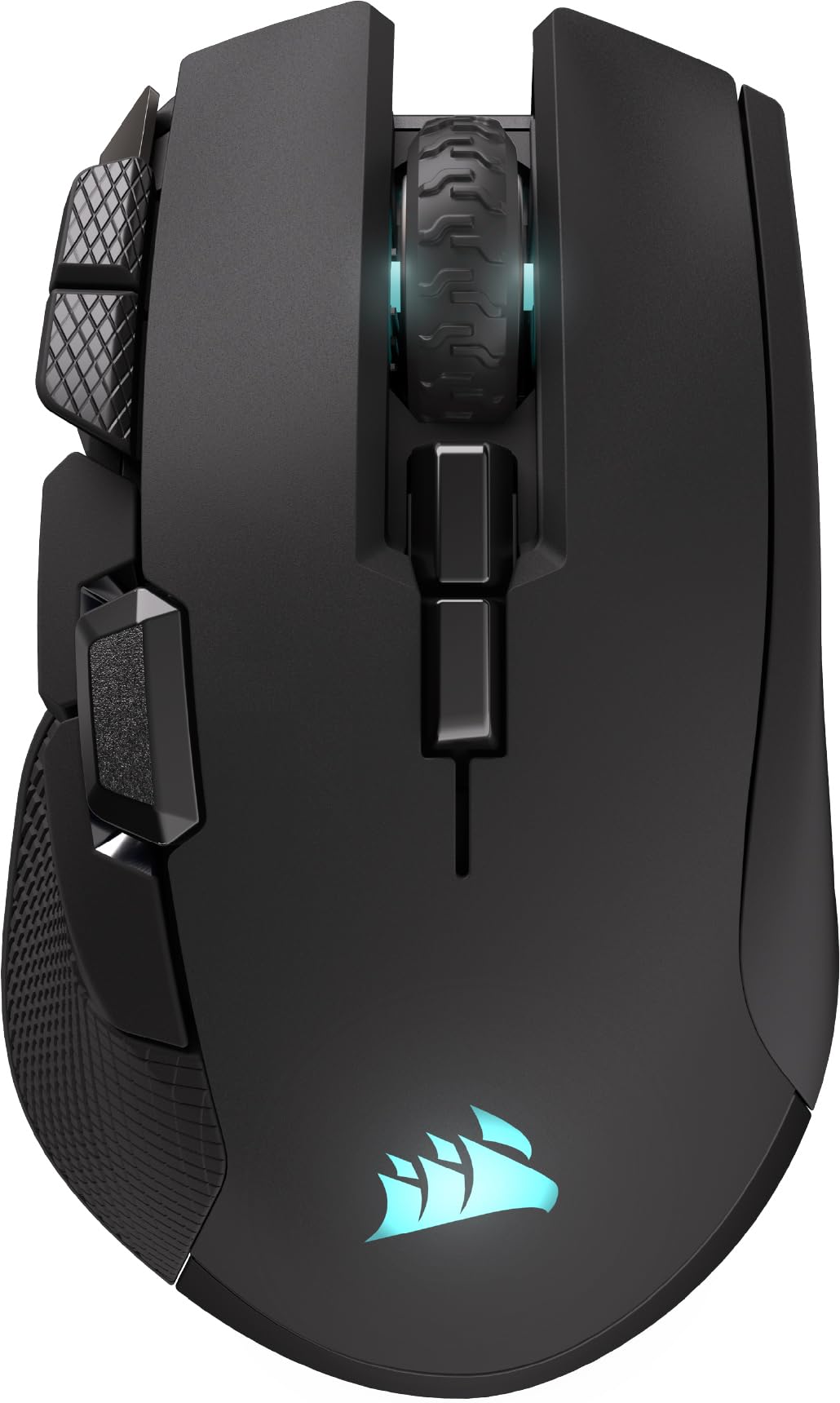
Ten buttons and a big palm rest for hands that swallow smaller mice.
Where the Keychron M3 gives you 3 buttons, this one hands you 10 programmable ones — a huge gap in mapping headroom. For CAD that means orbit, zoom, snap, escape, and your custom macros can all live under your fingers, and the iCUE software lets you set up macros and keybinds. The 26K DPI CORSAIR MARKSMAN sensor also calibrates to whatever surface you are on.
The shape is built for larger right hands and a palm grip, with an asymmetric body that gives the heel of your hand a place to rest. In buyer feedback the ergonomics and the sheer quality of the build sit at the top, with people calling out the substantial feel and how the buttons are well placed without feeling overwhelming. Battery life is the standout number: up to 285 hours over 2.4 GHz and up to 532 hours on Bluetooth, so one charge roughly covers weeks of work.
Wireless connectivity and button responsiveness are the mixed items — some report flawless connections, others hit drops. At 2.08 oz it is a light mouse, which some prefer and some find lacking in drag feel.
The button advantage: 10 programmable buttons in iCUE give you the deepest shortcut map of the group.
The wireless question: connections are praised by some and trouble others, so test your pairing early.
Suits: larger right hands that want maximum macro control and marathon battery.
Think twice if: you have small hands or a history of wireless drops with dongles.
5. Contour Unimouse Vertical Mouse

A vertical mouse you can reshape around your own hand, not the other way around.
Most vertical mice lock you into a single angle. This one sets the tilt anywhere from 35° to 70° with a friction hinge, then slides, pivots, and rotates the thumb support up-down, in-out, and forward-back. For a drafter whose wrist twinges at one fixed angle, that adjustability is the whole point — you can shift the fit partway through a long day without switching tools.
The right-hand design carries 6 programmable buttons plus a scroll wheel, and the maker positions it for CAD designers, digital artists, and heavy computer users who need precise control. It runs on a rechargeable battery rated up to 12 weeks per charge and connects through a cordless USB plug-and-play receiver for Windows and macOS. People who try it tend to note that the adjustable tilt finally solves a fit that fixed vertical mice could not, with one user saying the extra degrees of adjustability are the best they have found after trying three vertical designs.
Two things to size up before you buy. There is no multi-device switching here — one receiver for one machine — so if you hop between laptops, look to the MX Ergo S or a multi-device mouse instead. And the hinge can develop a faint squeak over time, and one user picked up a low buzzing tone when lifting the mouse. It suits larger hands best, and it is a substantial body.
Worth the stretch
- Tilt adjusts from 35° to 70° for a custom wrist angle
- Thumb rest moves in three directions and rotates
- Up to 12 weeks per charge
- 6 programmable buttons plus scroll wheel
Worth knowing
- No multi-device switching — one connection per receiver
- Hinge can squeak, and a faint buzz shows up in some reports
- Large body suits bigger hands
Go with it if: fixed vertical mice never quite fit your wrist and you want to dial in the angle yourself.
Skip the swap if: you share the mouse between computers or are sensitive to small sounds.
6. Logitech MX Ergo S Wireless Trackball Mouse

Move the ball, not the mouse — precision drafting without sliding your hand.
A trackball flips the whole idea of a CAD mouse: your hand stays planted while your thumb drives the cursor. Your hand stays planted while your thumb drives the cursor, and for fine work that is a real precision advantage: no wrist travel, no need to re-grip for the next pick. The MX Ergo S adds a 20-degree tilt, which the makers say reduces muscle strain by 27%, and its buttons are rated at 80% quieter clicks. There is a precision button you tap to slow the cursor down for detail work.
Connectivity runs over Bluetooth or the included Logi Bolt receiver, with an Easy-Switch button for hopping between machines. The Logi Options+ app maps 6 customizable buttons and Smart Actions to save repeat steps. Battery is a highlight: up to 24 hours from a 1-minute charge, or up to 120 days on a full charge, charged through USB-C. Buyers who moved across from a traditional mouse describe the transition as a short learning curve, with wrist soreness fading within days.
The honest catch is Bluetooth. Some buyers report the cursor can freeze on ThinkPads until they click, and the Bolt receiver pairs best plugged directly into a USB-A 2.0 port on a motherboard — that can be awkward on a modern laptop. It takes medium to large hands best. If Bluetooth is your only option and your laptop has been fussy with dongles, test the pairing.
Why it earns the wrist prize: Tracking with your thumb eliminates hand travel and reduces the strain that comes from sliding a mouse all day.
The Bluetooth caution: Most setups are clean, but a few buyers lose the cursor until they click and the receiver wants a direct USB-A port.
Made for: desk drafters who want to plant their hand and drive precision with the thumb.
Not the one if: you need smooth Bluetooth on a laptop that already struggles with dongles.
7. Razer Pro Click V2 Vertical Wireless Mouse

A handshake-grip vertical mouse with a sensor that reads on glass.
Razer shapes this one for a natural handshake grip, with a base support that lifts the wrist and cuts the friction of sliding across the desk. For a drafter whose wrist wants to stay near neutral, that angled posture is the draw. The Focus Pro 30K Optical Sensor tracks even on glass with 99.8% resolution accuracy, and the mechanical switches are rated to a 60 million click lifecycle. That sensor accuracy is what keeps fine sketch points honest on a hard desk.
Battery is another big number here: up to 6 months of use per charge under standard test conditions, and 5 minutes of charge via the included USB-C cable gives 3 working days of use. You can pair up to 5 devices across 2.4 GHz HyperSpeed Wireless, Bluetooth (3 hosts), or wired mode, which makes it a genuine all-in-one for a multi-machine desk. There is also an AI Prompt Master feature that runs shortcuts through Razer Synapse 4, plus 18-zone RGB lighting for notifications.
Button placement is the recurring fit question — a few owners find the thumb buttons spaced too far apart or tapped by accident, and some large hands find it a touch small. Default DPI settings can start poorly and need a quick tune. In performance and ergonomics, though, buyers rate it highly as a solid, well-built vertical option. The 0.41 kg body adds presence, which some like and some find heavy to lift.
The sensor story: Focus Pro 30K tracking with 99.8% accuracy holds a fine cursor line even on glass.
The button story: Placement is mixed, so plan a short remap and DPI tune on day one.
Built for: a multi-device desk that wants a vertical grip, long battery, and glass-safe tracking.
Weigh it up if: your hands are very large or you want perfectly spaced thumb buttons.
Know the Specs
DPI (Dots Per Inch)
DPI is how far the cursor travels for each inch you move the mouse. Higher DPI means the cursor crosses more ground per movement, which is useful for fast panning but overkill for placing a dimension point. In CAD, most work happens at moderate DPI where the cursor is predictable and easy to stop. Look for a sensor that tracks cleanly on your desk — the 8000 DPI unit in the MX Master 3S reads even on glass, so you can skip the pad.
Tilt Angle and Hand Posture
A tilt angle rolls the mouse so your forearm sits closer to its neutral position. The MX Ergo S uses a 20-degree tilt, and the Unimouse lets you set anywhere from 35° to 70°. A flatter hand position forces your forearm to rotate palm-down, which over hours builds into fatigue. If your wrist aches after a long modeling session, the tilt or a vertical grip is often the change that matters most — more than a higher DPI number.
Polling Rate and Lift-Off Distance
Polling rate is how often per second the mouse reports its position to your PC — 1000 Hz means 1000 reports each second, or about one per millisecond. Higher rates keep fast cursor movement smooth and free of lag, which matters when you are dragging a sketch line. Lift-off distance is how high you must lift the mouse before tracking stops. A low setting means the cursor does not drift when you reposition, which keeps your CAD picks from jittering.
Buttons and Programmable Mapping
Programmable buttons let you map CAD commands — snap toggle, orbit, escape, zoom — directly under your thumb. More buttons means more shortcuts accessible without your keyboard hand moving. The Corsair IRONCLAW Wireless SE carries 10 programmable buttons, while the Keychron M3 keeps it at 3. Count your daily shortcuts first, then match that number to the button count. Per-app mapping software, like Logi Options+ or iCUE, lets each program carry its own shortcut set.
Common Questions
Is a vertical mouse good for CAD precision work?
What DPI should I use for CAD drawing?
How many buttons do I need on a mouse for CAD shortcuts?
Does a trackball work for CAD edge selection?
How long does a CAD mouse battery last per charge?
Can I switch between a laptop and a desktop with the same mouse?
Is a heavier mouse better or worse for detailed modeling?
Do I need special software to remap CAD mouse buttons?
Can this kind of mouse track on a glass desk without a pad?
Why does my CAD mouse cursor freeze on Bluetooth?
The Bottom Line
For most CAD users the winner is the Logitech MX Master 3S, because its 8000 DPI glass-tracking sensor, MagSpeed precision scroll, and per-app button mapping handle fine modeling without a pad. If you want the most sensor for the money and a light hand, the Keychron M3 gives you the PAW3395 at 26,000 DPI in an 80 g body. And for wrist strain on a drafting desk, the Logitech MX Ergo S trackball lets you plant your hand and drive the cursor with your thumb — the crowd favorite of the bunch at 4.0+ stars across 800+ owners, with the tilt that fewer desk days feel.
How we choose
We do not accept paid placement. Every pick is matched to a real buyer and a real use-case; we do not hands-on test units.
Sources
Specifications: manufacturer listings and product documentation. Review insights: verified customer reviews, as of October 2026. Pricing: not shown on this page (it changes often); check the current price via the retailer link.
As an Amazon Associate, Aappliancez earns from qualifying purchases. This does not affect which products we feature.