Disclosure: Some links in this post are affiliate links. As an Amazon Associate I earn from qualifying purchases, at no extra cost to you. Learn more
Specs are compiled from manufacturer listings and verified buyer reviews and can change over time — please confirm the key details on the product page before buying.
If your wrist aches after a long session in Blender or Fusion 360, the mouse is usually the culprit, not your posture. The right pick for 3D work needs three things above all: a sensor that tracks cleanly on your desk surface, enough programmable buttons that orbit, pan, and zoom live under your fingers, and a shape that keeps your hand neutral for hours. The Logitech MX Master 3S takes the top spot here because the crowd favorite — 4.5+ stars across 100+ owners — pairs an 8000 DPI sensor and quiet clicks with the most refined scroll wheel in the group. Below, every pick is lined up by what it actually does for modeling and CAD work.
This guide is built by comparing the manufacturers’ published specifications and the patterns across verified customer reviews, so you get each pick’s real strengths and trade-offs instead of marketing spin.
Each pick below is sorted by shape, sensor, and button layout so you can match one to your hand and your software. Here is the breakdown of the best mouse for 3D modeling.
Top Picks

How To Choose The Best Mouse for 3D Modeling
Modeling software punishes a bad mouse faster than any other kind of work. You are holding a button down through long orbit moves, scrolling through infinite timelines, and hitting shortcuts half a dozen times a minute. The mouse that feels fine for browsing will wear your hand out by mid-afternoon. Start with these four decisions before you compare specs.
Shape Comes Before Sensor
A vertical mouse rolls your hand onto its side, roughly like a handshake, so your forearm stops rotating inward. A trackball keeps your whole arm still and lets your thumb do the moving. A traditional flat mouse keeps the classic palm-down position. None of these is universally better — the one that matches how you already sit at your desk is the one you will still be using in a year. If you have never tried a vertical or trackball design, the adjustment window is real, so treat it as a commitment rather than a quick swap.
The Middle Button Is Not Optional
In most 3D packages the middle mouse button is how you orbit the camera. A mouse with a dedicated, separate middle button — not one built into the scroll wheel — lets you orbit without accidentally scrolling your zoom at the same time. This single detail is why CAD-specific mice exist at all, and it is worth more than a jump in DPI.
DPI, Polling Rate, and What Actually Helps
DPI (dots per inch) sets how far the cursor travels for each inch you move your hand. A high number lets you cross a 4K screen without lifting your wrist, but past a certain point it just makes the cursor twitchy. Polling rate (how many times per second the mouse reports its position to your computer) matters more for smoothness — a higher rate means the cursor tracks your hand without visible stepping. Wireless latency is the third piece: modern 2.4 GHz and Bluetooth connections are responsive enough for modeling work, so you do not need a cable unless you want one.
Buttons and Software You Will Actually Use
Count the shortcuts you hit most — undo, isolate, switch view, snap toggle — and make sure the mouse has enough programmable buttons to cover them. Then check the software: some mice configure through a browser page, others need a desktop app, and one of those options will fit your workflow better than the other. Cross-computer file transfer and per-app profiles are nice extras if you move between a desktop and a laptop.
Side-by-Side Comparison
| Model | Best For | Sensor / DPI | Buttons | Connectivity | Amazon |
|---|---|---|---|---|---|
| Logitech MX Master 3S★ Best Overall | All-round modeling and CAD | 8000 DPI, tracks on glass | 7 | Bluetooth / USB / Wireless | Amazon |
| 3Dconnexion CadMouse Compact WirelessCAD Specialist Pick | Dedicated CAD middle button | Optical tracking | 7 | Bluetooth / Wireless | Amazon |
| Keychron M5 8K Wireless Vertical Mouse | Vertical grip with a thumb wheel | 30000 DPI, PixArt 3950 | 6 | Bluetooth / 2.4 GHz / Wired | Amazon |
| Razer Pro Click V2 Vertical | Vertical shape with long battery | Focus Pro 30K Optical | 6 | 2.4 GHz / Bluetooth / USB | Amazon |
| Logitech MX Ergo S Trackball | Zero arm movement, long sessions | Advanced thumb control | 8 | Bluetooth / USB | Amazon |
| AM Infinity 49g Ultralight | Fast precision work, hot-swap battery | 30K DPI, PAW3950 | 7 programmable | 2.4G Wireless / Bluetooth / Wired USB-C | Amazon |
| Razer Naga V2 Pro | Button-heavy modeling and MMO | Focus Pro 30K Optical | 20 | 2.4GHz Wireless / Bluetooth / USB | Amazon |
Detailed Reviews
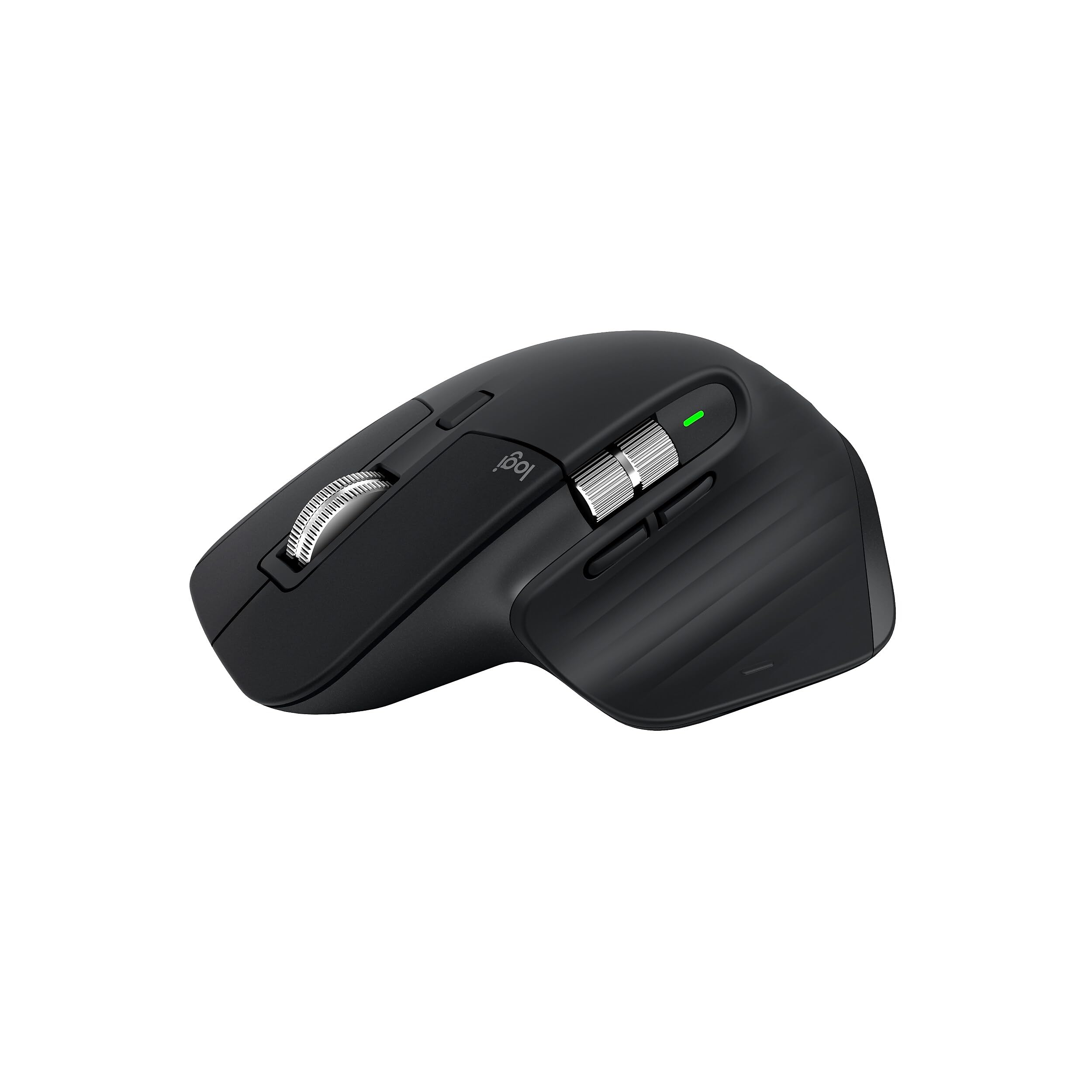
1. Logitech MX Master 3S Wireless Mouse
Our pick — 4.5+★ from 150+ verified ratings; the strongest balance of quality and price.
The desk mouse that tracks straight across glass and never makes you hear it work.
The MX Master 3S handles the least glamorous part of modeling better than anything else here: moving the cursor exactly where you want it, on whatever surface you happen to be working on. Its 8000 DPI sensor tracks on glass with a 4 mm minimum thickness, so a glass-topped desk or a hotel table does not stop you. The 7-button layout includes a dedicated thumb control zone and a gesture button, which covers orbit, pan, and undo without ever stretching your hand.
The scroll wheel is the real story for anyone who lives inside a timeline or an endless object tree. MagSpeed scrolling is rated 90% faster and 87% more precise than a standard wheel, and it switches between free-spin and click-to-click steps on its own as you speed up or slow down. Owners praise the scroll wheel and ergonomics most, with build quality close behind. The quiet clicks measure 90% less sound power level than the previous generation at one meter, which makes a genuine difference if you share a workspace.
Set your expectations honestly on two fronts. The shape is built for a palm grip and a medium-to-large hand — the 4.9-inch length and 3.3-inch width make it a big mouse, and against the 3Dconnexion CadMouse Compact Wireless at 4.3 by 2.6 inches that size gap is noticeable the moment you pick each one up. Each unit also weighs 4.96 ounces, so it is a substantial object rather than a flick-weight pointer. The other thing to know is that the Logi Bolt USB receiver is not in the box; you get Bluetooth plus the option to add the dongle. Bluetooth still connects to three devices with an Easy-Switch button, and the Logi Options+ app handles per-app profiles if you want them.
Note one detail for the long haul: the plastic parts include 27% certified post-consumer recycled plastic in Black. Combined with FLOW cross-computer control, which moves text, images, and files between a Windows and a Mac machine, this is the mouse that treats your whole desk as one workspace rather than a pile of separate machines.
Where it pulls ahead
- 8000 DPI sensor tracks on glass down to 4 mm thickness, so surface choice stops mattering
- MagSpeed wheel rated 90% faster and 87% more precise, switching between free-spin and stepped scrolling automatically
- Quiet clicks at 90% less sound power level than the prior generation, measured at 1 meter
- FLOW moves files and text between Windows and macOS machines; connects to 3 devices with Easy-Switch
Where you will need to adapt
- At 4.9″L x 3.3″W and 4.96 ounces it is a large, weighty mouse made for a palm grip, not a fingertip grip
- No Logi Bolt USB receiver in the box — Bluetooth is the out-of-box path
- Some owners find the ergonomics fit differently than expected, and connectivity reviews run mixed
Made for: the modeler who wants one mouse that handles orbit, zoom, and file juggling across two machines without thinking about it.
Think twice if: you have a small hand or you work in a fingertip grip — the size and weight here reward a full palm rest.
2. 3Dconnexion CadMouse Compact Wireless
A small mouse built around one idea: the middle button that orbits your model should never be an afterthought.
This is the pick for someone who spends the day in SolidWorks, Fusion, or Rhino and wants a mouse that was designed for that job rather than adapted to it. The 7 total buttons include a separate, dedicated middle button, which is the single most useful thing a CAD mouse can offer — you orbit with a real click instead of fighting the wheel. The Bluetooth radio keeps the desk free of cable clutter, and optical movement detection gives you dependable cursor tracking without any surface drama. Battery life is rated at 2 months, so a recharge is a rare event rather than a weekly chore.
Owners describe it as reliable through daily, intensive CAD work, and the customizable buttons are what gets called out most — functionality leads the pack, with button flexibility right behind it. One buyer’s verdict sums up the whole pitch for this category: “This is absolutely the best mouse made for using with CAD love the three buttons love the placement of the buttons fits well in my hand very responsive has large pads that make it move easy on the surface.” The large glide pads are a genuine modeling plus, because a cursor that starts moving smoothly makes long orbit sequences feel less sticky.
Here is the catch, and it is a sizing one. The Compact earns its name at 4.3 inches long and 2.6 inches wide — against the MX Master 3S at 4.9 by 3.3 inches, that is a meaningfully smaller footprint. The same buyer above finished with a wish rather than a complaint: “Just a little small, will buy the full sized one next time!” If your hands are on the larger side, plan on the full-size version instead. Responsiveness reviews also run mixed, and one owner working on a Mac ran into frustrating behavior — the middle drag sticking during file moves, Bluetooth reconnection trouble, and odd results inside Fusion and Lightburn. On a Windows CAD workstation that picture is cleaner.
What the size buys you: a compact, right-handed Bluetooth shape that fits neatly beside a keyboard and a SpaceMouse, with 2 months of rated battery so charging is a background task.
The honest trade: it is purpose-built for CAD first and everything else second, so general desktop work feels like a compromise, and the small shell is not going to suit a large hand.
Reach for this if: your day is CAD, your hand is small to medium, and you want a dedicated middle button without paying premium-tier money.
Better elsewhere if: you need a mouse that pulls double duty across games, spreadsheets, and modeling, or your grip needs a fuller-size shell.
3. Keychron M5 8K Wireless Vertical Mouse
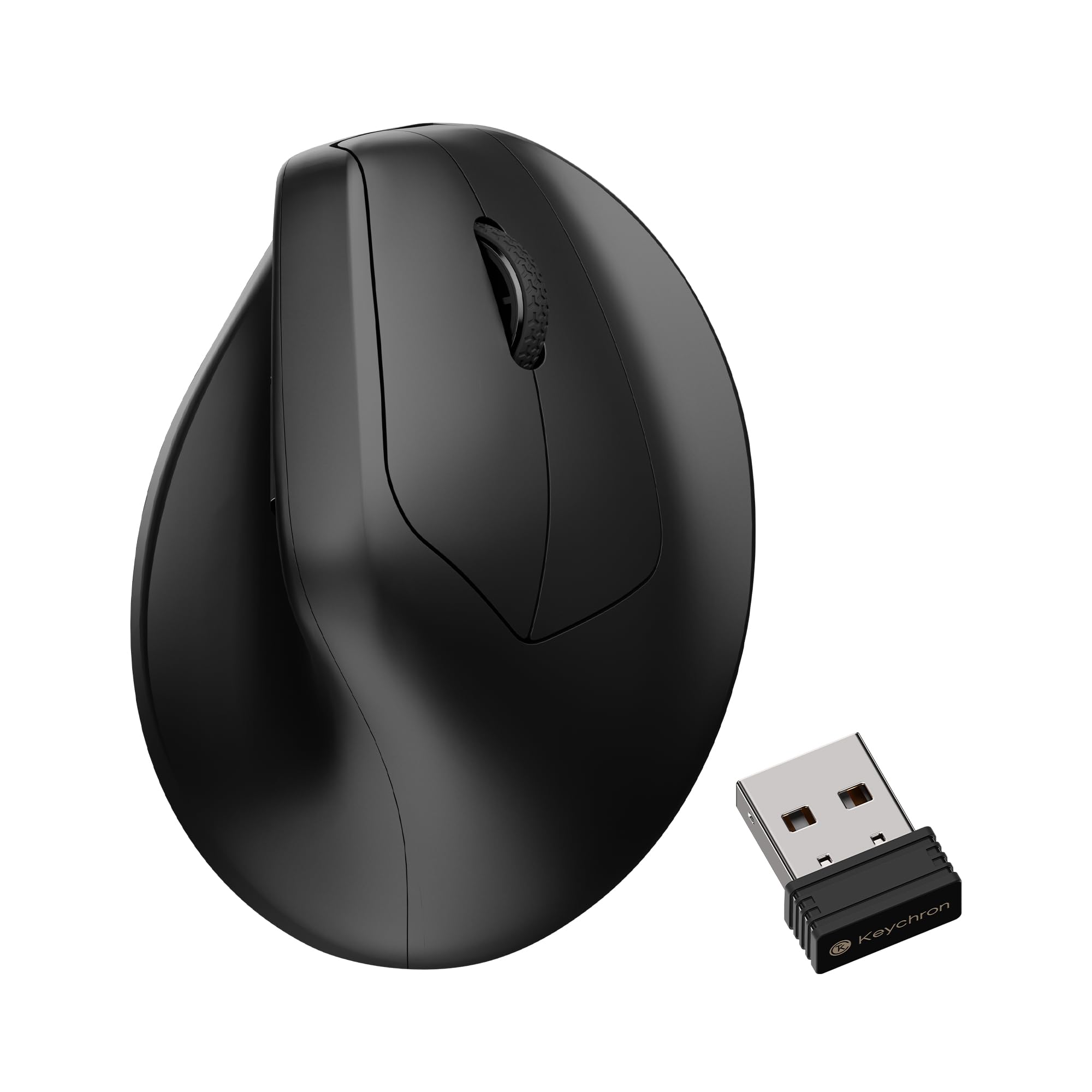
The vertical shape that gets your forearm out of the twist, with a thumb wheel for horizontal panning.
If wrist strain is the reason you started looking at mice, this is the value pick of the vertical group. The shell sits at a 47° vertical angle so your hand lands in a natural handshake position, and there is a thumb rest carved into the side. The sensor is the headline number: a PixArt 3950 with up to 30000 DPI, which is far more sensitivity than modeling work needs — the high ceiling exists for gamers, and for CAD it just means pixel-level control at low settings. You connect over 2.4 GHz for low latency or Bluetooth 5.3 for convenience, and a Type-C cable gives you a third wired option.
The thumb wheel on the side is the feature that earns its place in a modeling workflow. It works as a horizontal scroller and as forward/back navigation, so panning across a wide drawing or flipping through browser tabs happens without leaving the mouse. Button 2 counts here is 6, against the CadMouse’s 7 and the MX Master 3S’s 7, so plan your macro layout around one fewer input. Owners praise the build quality and the 0.38 kg weight, calling it light enough to move around a desk for hours.
Two things to weigh before you commit. The scroll wheel is the most common gripe — a high-pitched squeak turns up in owner reports, and one buyer found the vertical scroll stiff enough to be fatiguing while the horizontal wheel felt stubborn. The other is fit: at this size some hands find it too large, which is worth measuring against your own grip before you switch from a flat mouse. As owners put it, coming from an MX Master 3 the shell is “too light (~141g ideal), lacks premium feel,” which is fair — the ABS plastic and low weight are a deliberate trade for less fatigue, not an accident.
Standout features
- 30000 DPI PixArt 3950 sensor — vastly more sensitivity than modeling requires, useful headroom if you also game
- 47° vertical angle with a side thumb rest, putting your hand in a handshake position for long sessions
- Side thumb wheel doubles as a horizontal scroller and forward/back control
- Tri-mode: 2.4 GHz, Bluetooth 5.3, and wired Type-C, plus 5 on-board memory profiles via the Keychron Launcher web app
Real gripes to know
- Scroll wheel squeak and a stiff vertical wheel come up repeatedly in owner feedback
- At 0.38 kg it is light, and some hands find the shell too large
- 6 buttons means one fewer programmable input than the MX Master 3S or CadMouse
- ABS plastic reads as budget-tier compared with a rubberized or metal finish
Who it beats for: anyone switching off a flat mouse specifically to unload the wrist, who wants vertical shape, high-DPI tracking, and a side scroller without premium-tier spend.
Who should look on: modelers who need quiet, silky scrolling above all else, or who have smaller hands than this shell assumes.
4. Razer Pro Click V2 Vertical Wireless Mouse

A vertical workstation mouse that trades wrist-twist for a handshake grip and runs for months between charges.
Razer’s take on the vertical shape pairs a handshake grip with a base support that lifts your wrist off the desk, so the edge of your hand is not the thing dragging through every orbit. The Focus Pro 30K Optical Sensor tracks on glass and is rated at 99.8% resolution accuracy, backed by mechanical switches rated for a 60 million click lifecycle. In a modeling seat, that combination means the cursor goes where you send it and the buttons keep clicking for a very long time. Battery life is where this one separates from the field: up to 6 months of use, and a 5-minute top-up through the included USB-C cable gets you 3 working days.
Multi-device work is well served here — you can pair up to 5 devices across 2.4 GHz HyperSpeed Wireless, Bluetooth (3 hosts), and wired mode. There is also a 6-button layout and a Razer Synapse 4 shortcut layer, plus 18 lighting zones with full underglow for notifications. For 3D work, the base support is the part that actually changes your day, because it stops the friction that builds up when your wrist is pressed into a desk mat for hours. Owners praise tracking performance most, with build quality close behind — the shell feels solid rather than hollow.
The adjustment period is real and worth planning for. The vertical angle is a different hand position, and while some owners settle in fast, others never quite get used to it. Weight is the second thing: a 0.41 kg shell is not light, and combined with the shape it is awkward to lift and reposition mid-session for some people. Thumb button placement splits opinion too — functional for many, too far apart or too easy to hit by accident for others. Synapse is also Windows-focused, so if you model on macOS, plan on running it without the desktop software.
The battery math that matters: 3 working days off a 5-minute charge means a forgotten cable never ends your session, and 6 months per full charge makes this the least fussy mouse on this list to own.
Where it asks patience: the vertical angle and 0.41 kg weight both take acclimation, and the thumb buttons do not suit every hand.
Pick this one if: you want a vertical grip, glass-capable tracking, and the kind of battery life that makes charging an afterthought.
Look past it if: you regularly lift and reposition your mouse mid-orbit, or you cannot stand a heavier shell.
5. Logitech MX Ergo S Wireless Trackball Mouse

The mouse that stops your arm from moving at all — your thumb does the orbiting.
For the modeler whose shoulder and forearm are the problem, not just the wrist, this is the structural fix. A trackball keeps your hand planted on one spot while your thumb rolls the ball, so there is no arm travel across the desk and nothing to reposition between long camera orbits. This model adds a 20-degree tilt that puts your forearm at a better angle — Logitech rates the 20-degree tilt at 27% less muscle strain than a flat mouse. — and the 80% quieter clicks mean a full day in a shared studio is not a constant rattle. It is sized for medium-to-large hands and finished with a soft rubber grip.
Owners call it the best trackball they have used, praising build quality first and trackball performance and ergonomics close behind. The practical payoff shows up in long sessions: buyers report all-day use past 10 hours and note it works well across multi-monitor setups, where the usual arm sweeping gets tiring. Charging is quick — a 1-minute charge earns up to 24 hours of use, and a full charge is rated at up to 120 days. There are 6 customizable buttons through the Logi Options+ app, timed shortcuts, and Smart Actions.
Give the learning curve its due. A first-time trackball user reported needing roughly two weeks before it felt natural, which is normal for this design and worth budgeting for rather than judging in an afternoon. The other recurring theme is Bluetooth occasionally freezing the cursor until you click, and the included Logi Bolt receiver wanting a USB-A port. This is also not a gaming mouse — owners are clear that fast, wide desk sweeps are not what a trackball is for. For precision CAD work at a stationary desk, that limitation rarely comes up.
Why it fits a modeling desk
- Thumb-operated ball means zero arm travel, so long camera orbits never wear out your shoulder
- 20-degree tilt rated by Logitech at 27% less muscle strain, with clicks rated 80% quieter
- 1-minute charge delivers up to 24 hours; a full charge is rated up to 120 days
- 6 customizable buttons via Logi Options+, plus speed and high-precision tracking modes
What to plan around
- Roughly two weeks to adapt if you have never used a trackball
- Bluetooth can occasionally freeze the cursor; the Bolt receiver prefers a USB-A port
- Not built for fast wide sweeps, so it is a desktop tool rather than a hybrid gaming-and-modeling mouse
The desk it belongs on: a station where you model for hours, your arm gets tired from moving the mouse, and you want your hand to stay put.
Wrong tool if: you split your time between precision CAD and fast-paced games, or you need a small form factor for a tight keyboard setup.
6. AM Infinity Wireless Gaming Mouse
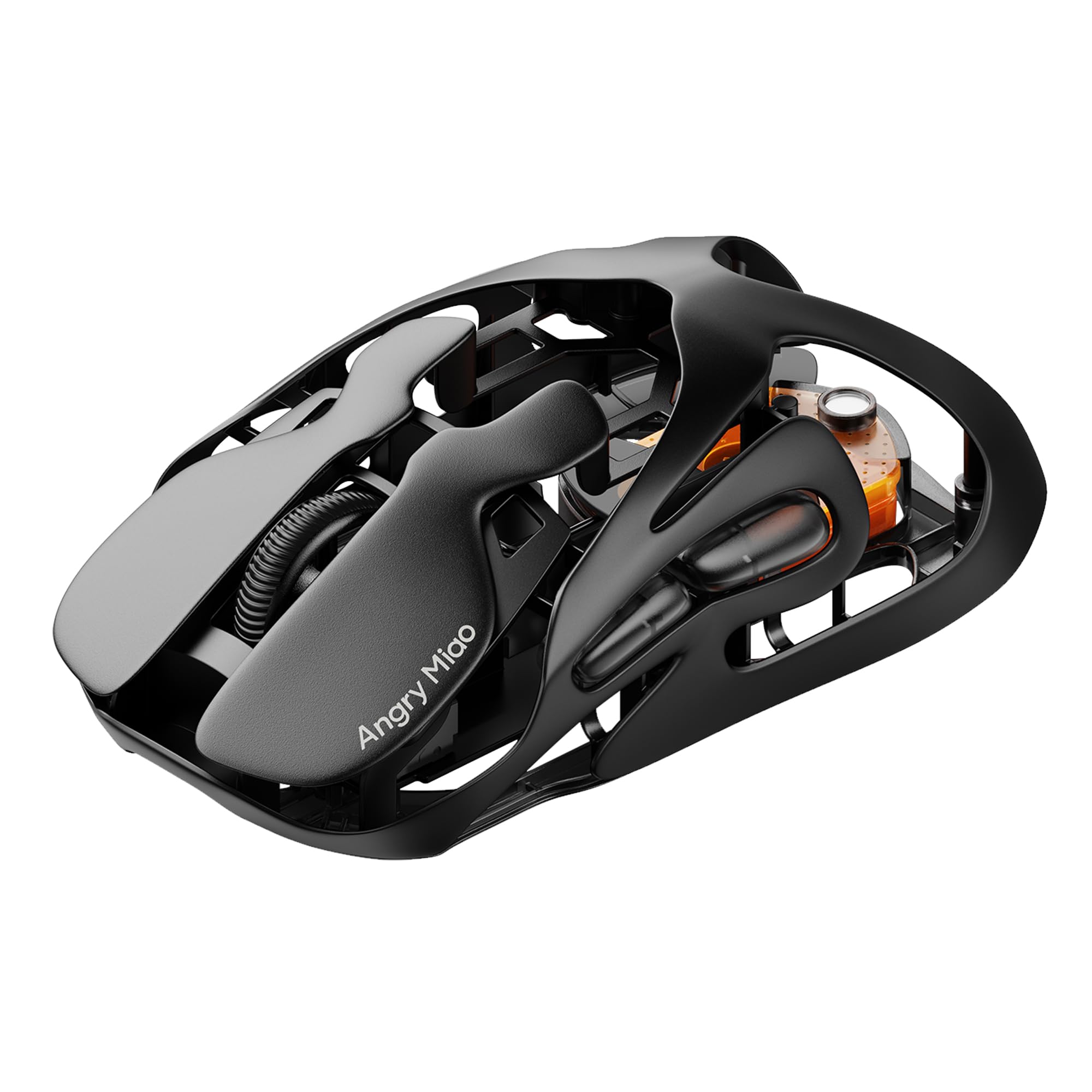
Forty-nine grams of magnesium that lets you flick a cursor across a scene without thinking about it.
Weight is the whole argument here. The 49g shell is CNC-machined from a magnesium-aluminum alloy rather than molded plastic, which is why it stays rigid despite being the lightest thing on this list, and why it sheds heat instead of warming up under your palm. For dense 3D scenes where you are nudging a vertex into place, a light frame means less inertia — the cursor goes exactly as far as your hand goes, and small corrections stay small. The sensor is a 30K DPI PAW3950 paired with a true 8K polling rate over both wired and wireless, so cursor reporting is smooth enough that you never see it step.
The feature that stands apart from every other pick is the power system. A patented magnetic hot-swap battery lets you pull one cell and drop in the next without a cable, and the 2.4G 8K receiver doubles as a charging hub. You get a rated 42.5 hours per battery. Owners rate the battery life highly — one called the hot swap a “genius idea,” and another timed the swap at under 10 seconds versus about an hour tethered to a cable. You also get 7 programmable buttons, TTC Optical-Micro V2 switches rated for 100 million clicks, PTFE skates, and customization through a plug-and-play web configurator rather than a desktop app.
Two honest notes. First, the software experience splits sharply — for many owners it works fine, for others it has been unusable, so if you depend on deep macro configuration, test that early. Second, one owner had the middle button actuator stick after four months of use, which is a reminder that a 49g hollowed-out frame and precision internals deserve the same care as any high-strung peripheral. There is also no ergonomic shaping to speak of: this is built for a fingertip or claw grip, so a palm-gripping modeler will find it less restful over a ten-hour session.
The spec that sells it: a 49g magnesium-alloy frame with a 30K DPI sensor and 8K polling, which together give you the most direct hand-to-cursor link in this group.
Read before buying: the shape favors fingertip and claw grips, and the software feedback runs genuinely mixed.
Suits you if: you want the lightest possible mouse for fast precision work and never want to stop for a charge.
Not your pick if: you rely on a sculpted ergonomic shell, or your modeling sessions are long and you palm the mouse completely.
7. Razer Naga V2 Pro Wireless MMO Gaming Mouse

Twenty buttons on one shell, in case your shortcut bar needs somewhere to live.
Nobody on this list puts more controls under your hand. The Naga V2 Pro ships with three magnetic side plates — 12, 6, and 2 buttons — so you can run a full grid for a modeling workflow, drop to 6 when you are drafting, or strip down to 2 for general desk work. The 20-button count includes up to 19 plus 1 programmable backlit buttons, which is more than enough to host view toggles, snap settings, and modifier keys on the mouse itself. Tracking comes from the Focus Pro 30K Optical Sensor with glass-surface support, and the Gen-3 optical switches are rated for a 90 million click lifecycle with 0.2 ms actuation and no debounce delay.
The scroll wheel deserves its own line. The HyperScroll Pro wheel lets you adjust tactility, resistance, and steps, so you can set firm, distinct detents for precise zoom work or a soft, multi-step spin for long lists. Battery life is rated up to 150 hours on HyperSpeed wireless and up to 300 hours over Bluetooth, recharging by Type-C. That is the longest rated runtime here, well clear of the 42.5 hours of the AM Infinity and the 6 months of the Razer Pro Click V2 (which uses a different power strategy entirely).
The trade-offs are worth knowing up front. It is the heaviest mouse in this group at roughly 0.32 pounds, and several owners find that weight tiring compared with a lighter shell. A few owners also report the battery landing closer to 50 to 100 hours than the rated 300 in real use, which is still ample. And the split side-plate design has produced intermittent button recognition problems for at least one heavy user in fast games — a reminder that more buttons means more places for one to misbehave. Razer Synapse is also Windows-only, so macOS modelers should plan accordingly.
Where the extra buttons pay off: mapping orbit, pan, zoom, and your most-used tools directly onto the mouse means your left hand stays on the keyboard modifiers and your right hand never leaves the model.
The weight you carry for it: more shell, more switches, and a heavier body than any other pick here.
Built for: the modeler who wants every tool on the mouse and does not mind a heavier shell to get it.
Skip the extra hardware if: you prefer a light, minimal mouse and only ever use three or four buttons.
Know the Specs
DPI (Dots Per Inch)
DPI sets how far the cursor travels across your screen for each inch you move the mouse. A high figure like the 30000 DPI on the Keychron M5 or the AM Infinity means you can cross a large display with a small hand movement, which helps on multi-monitor setups. For CAD work you rarely run at the top of that range, since extreme sensitivity makes pixel placement harder. What matters more is whether the sensor holds steady tracking on your actual desk — the MX Master 3S and the Razer Pro Click V2 both track on glass, which removes surface guesswork entirely.
Polling Rate and Wireless Latency
Polling rate is how many times per second the mouse reports its position to your computer. A higher rate makes every orbit and drag feel smoother, because the cursor updates more often as your hand moves. The AM Infinity runs a true 8K polling rate over both wired and wireless connections, while the Razer Naga V2 Pro and Razer Pro Click V2 use 1000 Hz polling. In practice, modern 2.4 GHz and Bluetooth links are responsive enough for modeling, so wireless is a desk-clearing choice rather than a compromise. Battery life is what you trade for a high polling rate, which is why the AM Infinity leans on hot-swappable batteries.
Buttons and Programmable Layout
Count your most-used shortcuts before you buy. A CAD-oriented mouse gives you a separate middle button so orbit and zoom never fight over the same input, which is the whole reason the 3Dconnexion CadMouse Compact Wireless exists. A side thumb wheel, like the one on the Keychron M5, covers horizontal panning without keyboard input. At the far end, the Razer Naga V2 Pro swaps between 2, 6, and 12-button side plates so a single mouse can cover several jobs. More buttons help only if you map them; otherwise they become accidental clicks.
Shape, Tilt, and Grip Style
Three shapes cover this category. A traditional flat mouse like the MX Master 3S keeps the palm-down grip and suits medium-to-large hands. A vertical design like the Keychron M5 or Razer Pro Click V2 rolls your hand toward a handshake position, with the Keychron using a 47° angle and the Razer adding a wrist-elevating base support. A trackball like the MX Ergo S keeps your hand stationary and puts the movement on your thumb, with a 20-degree tilt for forearm angle. Match the shape to how you already sit, and budget time to adapt if you change families.
Common Questions
Do I really need a dedicated middle button for 3D modeling?
Is a vertical mouse actually better for long CAD sessions than a flat one?
How long does a wireless modeling mouse battery actually last between charges?
Can I use a gaming mouse for 3D modeling software?
What is the difference between a trackball and a vertical mouse for CAD work?
Will a modeling mouse track on a glass desk or a bare wood surface?
How many programmable buttons do I need for a modeling workflow?
Does a high DPI setting make precision modeling easier?
Can I use these mice on both Windows and macOS?
How long should a modeling mouse last before it needs replacing?
The Bottom Line
For most people doing the best mouse for 3d modeling shopping, the answer is the Logitech MX Master 3S — an 8000 DPI sensor that works on glass, a MagSpeed wheel that shifts between free-spin and stepped scrolling on its own, and quiet clicks that measure 90% less sound power level than the model before it. If your day is SolidWorks or Fusion and you want orbit on a real middle button without premium-tier spend, the 3Dconnexion CadMouse Compact Wireless is the specialist answer, provided your hand suits its compact 4.3-by-2.6-inch shell. And when wrist and shoulder strain is the reason you started looking, the Logitech MX Ergo S — 800+ ratings deep and the highest-scoring pick here — is the one to reach for. Whichever way you go, buy on shape and button layout first, because that is the part you cannot change later.
How we choose
We do not accept paid placement. Every pick is matched to a real buyer and a real use-case; we do not hands-on test units.
Sources
Specifications: manufacturer listings and product documentation. Review insights: verified customer reviews, as of October 2026. Pricing: not shown on this page (it changes often); check the current price via the retailer link.
As an Amazon Associate, Aappliancez earns from qualifying purchases. This does not affect which products we feature.