Disclosure: Some links in this post are affiliate links. As an Amazon Associate I earn from qualifying purchases, at no extra cost to you. Learn more
Specs are compiled from manufacturer listings and verified buyer reviews and can change over time — please confirm the key details on the product page before buying.
If your wrist aches after a long day at the desk, the fix isn’t a better mouse pad — it’s changing how your hand moves the cursor. A trackball or trackpad keeps your arm planted and lets your fingers or thumb do the work, which is why people with wrist strain keep switching to them. Below are seven real options, sorted by what each one actually does better than a regular mouse.
This guide is built by comparing the manufacturers’ published specifications and the patterns across verified customer reviews, so you get each pick’s real strengths and trade-offs instead of marketing spin.
You’ll see where each one wins, where it stumbles, and which hand size or desk setup it suits before you commit. Here are the mouse alternatives worth considering for your desk.
Top Picks

How To Choose The Best Mouse Alternatives
The first decision isn’t brand — it’s which body part does the pointing. A thumb-controlled trackball keeps your palm still and your thumb rolls the ball. A finger-controlled trackball sits under your fingertips, often with a larger ball. A trackpad works like a laptop surface with gestures. Each one changes which muscles take the load.
Thumb control versus finger control
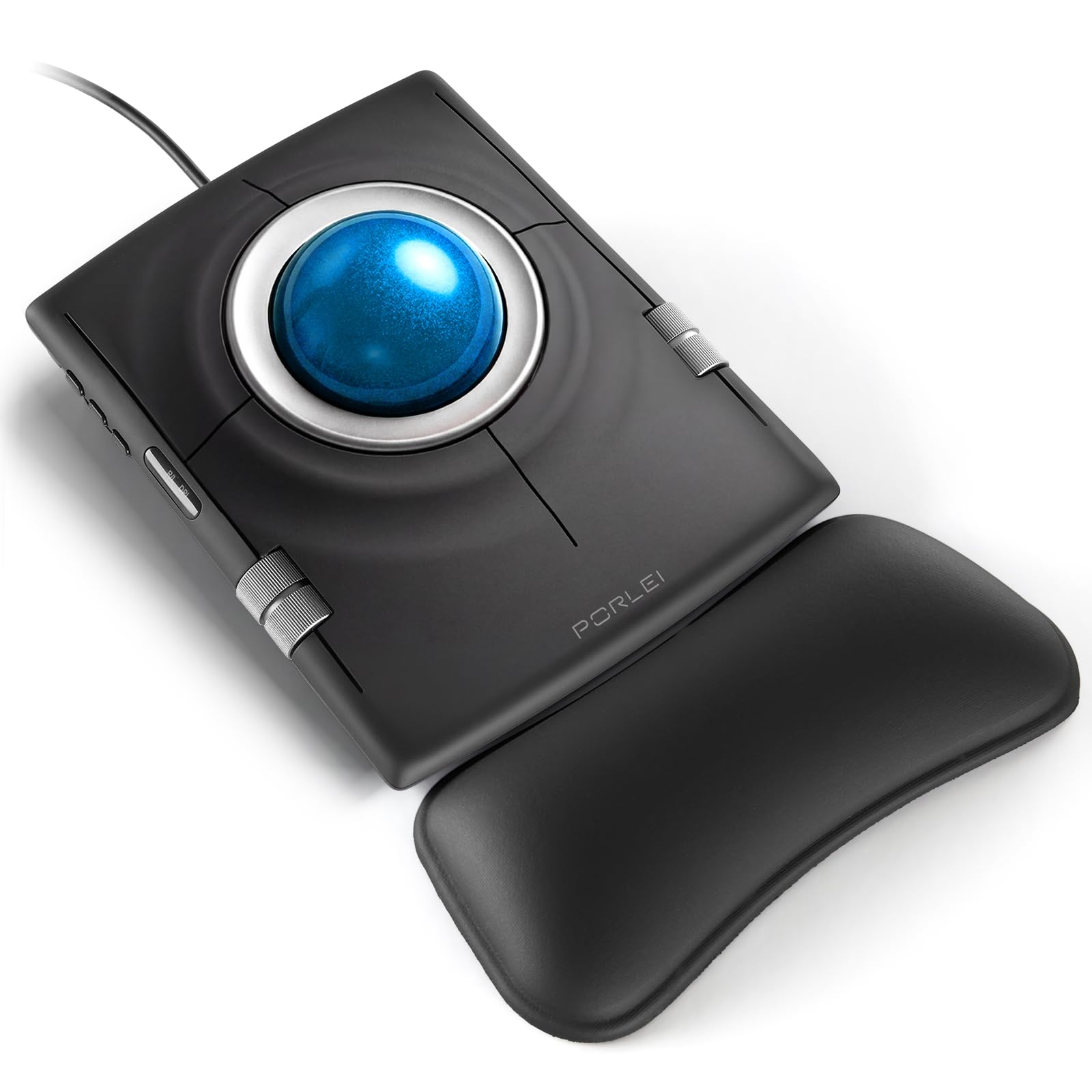
Thumb trackballs like the Nulea M501 and the Nulea M512 sit in your palm at a fixed angle, so your wrist stops moving entirely. The catch is the thumb does repetitive work instead. Finger-operated designs like the PORLEI TM553 and the Kensington Expert put a bigger ball under your fingertips, which suits detailed work like design or editing but takes up more desk space.
Hand size decides more than the spec sheet
If your fingers drag on the desk with a normal mouse, a larger-bodied trackball often fixes that. A 55mm ball (about 2.2 inches across) feels easy to a large hand and oversized to a small one. If you have smaller hands, check the body width before you buy, because several buyers find these units too big to grip comfortably.
Connectivity: dongle, Bluetooth, or cable
2.4GHz dongle connections tend to be the most stable for a fixed desk. Bluetooth saves a USB port and lets you pair multiple devices. A wired connection never needs charging and never drops. Tri-mode models let you pick, which matters if you swap between a work laptop and a home PC.
Check your operating system first
Windows trackpads and Mac trackpads are not interchangeable. Several units here are Windows-only, and some customization software is Windows-only too. Confirm compatibility before you commit, especially if you use Linux, ChromeOS, or a Mac.
Side-by-Side Comparison
| Model | Best For | Control Type | Connection | Buttons | Amazon |
|---|---|---|---|---|---|
| Nulea M501 Wireless Trackball★ Best Overall | Everyday thumb control | Thumb trackball | Bluetooth + 2.4GHz | 6 | Amazon |
| PORLEI Wired Trackball (TM553)Large-Hand Pick | Large hands, design work | Finger trackball | Wired USB-A & USB-C | 9 | Amazon |
| Homiguar Bluetooth Trackpad (T8100C) | Windows laptop gestures | Touchpad | Bluetooth + 2.4GHz + Type-C | 1 | Amazon |
| Nulea M512 Wireless Trackball | Left or right hand use | Thumb trackball | Bluetooth + 2.4GHz | 6 | Amazon |
| ProtoArc T1 Wired Trackpad | Windows Precision Touchpad gestures | Touchpad | Wired USB-C | 2 | Amazon |
| Kensington Expert (K64325) | Multi-monitor precision work | Finger trackball | Wired USB-A | 3 | Amazon |
| ELECOM Huge Plus | Customizable multi-device setup | Thumb trackball | Bluetooth + 2.4GHz + USB-C | 10 | Amazon |
Detailed Reviews
1. Nulea M501 Wireless Trackball Mouse
Our pick — 4.0+★ from 12,500+ verified ratings; the strongest balance of quality and price.
The crowd favorite: a palm-resting thumb ball that costs less than a pizza night and just keeps working.
The Nulea M501 does the single most important thing a mouse alternative can do — it stops your wrist from moving. Your palm sits at a fixed angle and your thumb rolls the ball to move the cursor. What wins people over is sheer repeatability: this is the desktop default that thousands of owners treat as their daily driver, holding 4.0+ stars across 12,000+ ratings.
Function beats flash here. There are six buttons — left, right, back, forward, and the scroll pair — plus four selectable DPI levels (400, 800, 1200, and 1600) to set cursor speed for a small laptop panel or a wide monitor. The three-channel switching is genuinely useful: pair it to your work laptop over Bluetooth, your home PC over the dongle, and flip between them with the button on the bottom. The dongle stows in the base, so it doesn’t get lost in a bag.
The honest trade-offs sit around charging and connectivity. Battery life is the most discussed weak spot — most owners say it runs for weeks per charge, but some report units that stop charging or drop the Bluetooth link. The fix owners find is a channel switch and the included cable, so treat the battery as a minor chore rather than a fault. Scroll wheel feel is mixed too: some love it, a few find it mushy. None of that changes the verdict — if you’re after the simplest, most affordable way to stop moving your wrist, this is the pick.
thumb control comfort
- Fixed palm angle and smooth thumb control mean your wrist barely moves
- Three-device switching via Bluetooth or dongle — switch with one press
- Built-in rechargeable battery beats swapping AA cells
- Included comfort wedge raises the angle for a more natural hand position
needs break-in time
- Battery life splits opinion — some units need a channel switch to recover from a charge fault
- All six buttons are fixed-function and cannot be reprogrammed
- Right-hand only body; left-handers need a different model
desk dwellers: anyone with wrist or hand strain who wants a fixed, low-effort pointing setup on a single desk.
small-hand users: you need programmable buttons — this one’s six buttons are all locked to fixed functions.
2. PORLEI Wired Ergonomic Trackball Mouse
Nine buttons, a 55mm ball, and a wrist rest in the box — for hands that drag on a normal mouse.
If you’re tall with big hands, a standard mouse makes your fingers scrape the desk. The PORLEI TM553 fixes that with an oversized 55mm blue trackball under your fingertips and nine buttons, so the body is sized to keep your hand sitting taller and more relaxed. The included wrist rest supports your arm through long editing or design sessions.
The layout is where this one earns its place. Dual scroll wheels handle vertical and horizontal scrolling without moving your hand, and a dedicated button flips the whole button layout for left- or right-hand use — handy on a shared desk. Four DPI levels (400, 800, 1200, and 1600) let you set a slow, precise cursor for detail work or a quicker one for browsing. A wired USB-A or USB-C connection means no charging and no dropped link, ever.
The catch worth knowing is tracking consistency. A few buyers report the cursor going erratic because this model uses a single optical sensor placed at the bottom edge of the ball — reproducible for some, fine for others. It’s also not a small-hand device: several buyers with smaller hands say the body is simply too big to grip comfortably. If you have large hands and want a wired finger-trackball, this is a strong pick. If not, size down.
large hand cradle: the PORLEI TM553 carries 9 programmable-style fixed buttons versus the 6 on the Nulea M501 — more shortcuts on the desk, but every one is fixed rather than remappable.
wired reliability fans: a wired fingertip trackball for large hands that wants the most buttons on the desk.
wireless seekers: your hands are small — several owners say the body is too wide to grip comfortably.
3. Homiguar Wireless Bluetooth Trackpad
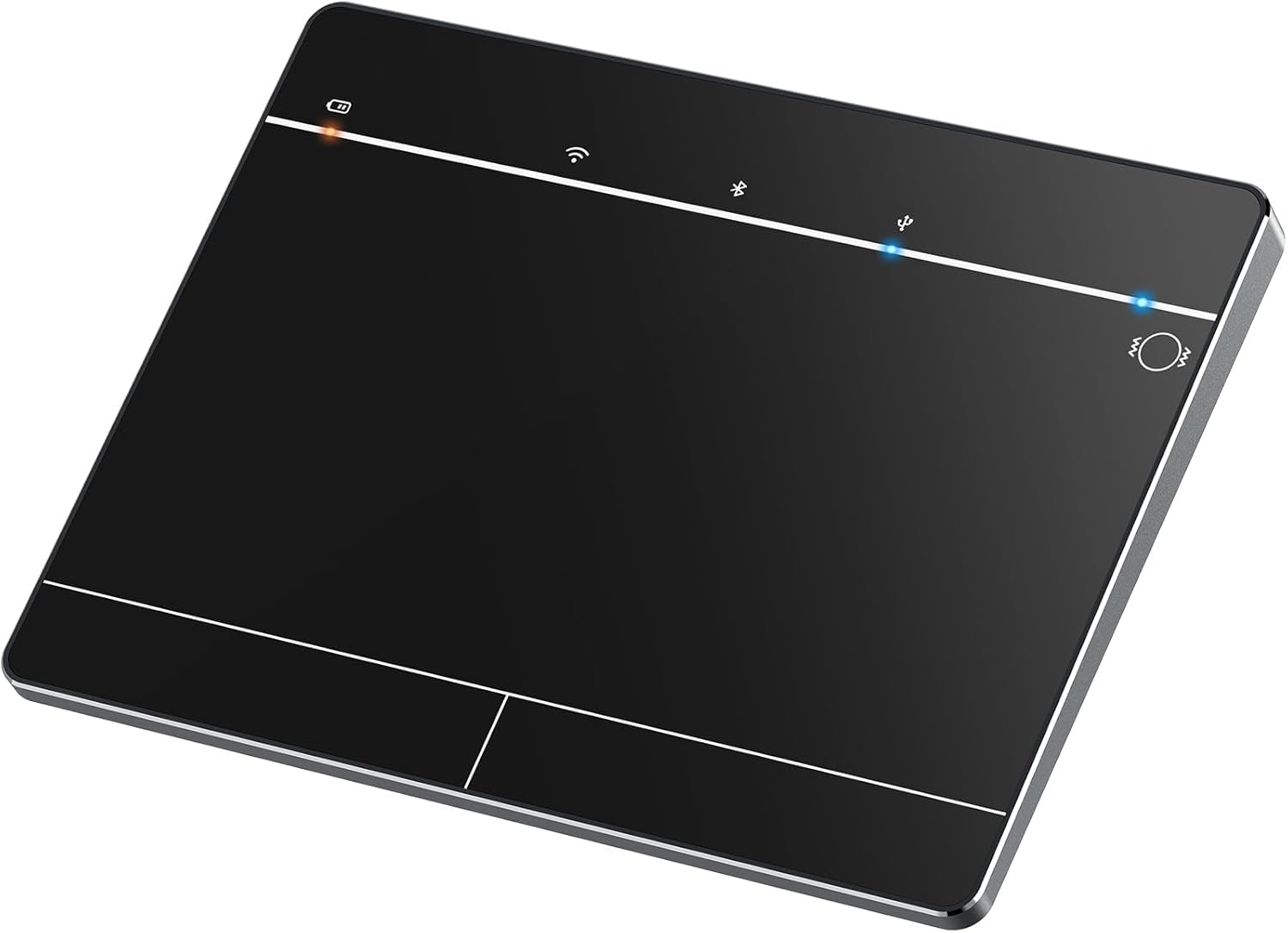
A travel-sized Windows touchpad that works like your laptop’s surface, minus the laptop.
This trackpad is for the Windows user who never got comfortable with a mouse and wants the laptop-style surface on a desktop. It supports up to four-finger gestures — scroll, zoom, and window switching — with single-finger taps and physical left/right click bars along the bottom edge. The metal-backed body stays slim in a bag and fits snugly in a computer bag pocket, which makes it the pick for anyone who works from a coffee shop now and then.
Connectivity is the standout: 2.4GHz dongle for a fixed desk, Bluetooth for a laptop, or a Type-C wired connection when the battery runs low. Pairing over Bluetooth works to one device at a time, so keep that in mind if you switch between machines all day. It’s Windows 10 and 11 only — macOS, ChromeOS, and Linux are out, full stop.
The honest weak spot is drag-and-drop. Multiple owners find that click-and-hold dragging is sketchy, and the workaround is a double-click-and-hold instead of a single press. A few report a unit that stopped responding after a couple of weeks, and one mentions a persistent fan-like noise from the housing. Size and gesture quality get real praise — the flat surface feels solid, not flimsy — so this is a good fit if your workflow is taps, scrolls, and gestures rather than drag-heavy file wrangling.
laptop travelers: Windows laptop users who want gestures and a flat surface without carrying a second machine.
precision mouse users: you drag and drop files all day — a double-click-and-hold is the workaround, and a few owners find it fiddly.
4. Nulea M512 Wireless Trackball Mouse

Hit one button and every control swaps sides — the shared-desk trackball for left and right hands.
If you’re left-handed, or share a desk with someone who is, the Nulea M512 is the practical answer. Press the mode switch and all key functions mirror to the opposite hand, so a right-hander can use it in the morning and a left-hander can take over after lunch. It runs a 55mm ball under your thumb, four DPI levels from 400 to 1600, and pairs with up to three devices over Bluetooth or the 2.4GHz dongle.
The scrolling setup is unusual and useful: dual side rollers let each side scroll without jumping, with adjustable scroll distance for small or large screens. The rechargeable battery tops up via the included cable in well under an hour, and the dongle stores in the base. It works on both Windows and Mac without fuss, which isn’t guaranteed in this category. The tall body takes some getting used to if your keyboard tray is shallow, since it won’t fit under a tray the way a flat mouse will.
The real trade-off is accuracy and size. Owners split on tracking: most say it rolls smoothly, but some report wobble on diagonal moves. The buttons that control hand-switching and DPI sit where your thumb rests, so it’s easy to bump them by accident, and the size is genuinely large — a poor fit for smaller hands. Button customizability is the most common complaint, since the top two buttons are locked. Buy it for the ambidextrous flexibility, not the programmability.
ambidextrous large ball: it’s one of the few picks that switches hands on the fly, which the right-hand-only Nulea M501 simply can’t do.
pricey for basics: the tall body and side-button placement mean accidental presses are common while your thumb finds its rest spot.
either-hand workers: a left-hander, a shared desk, or a temporary injury that swaps which hand you use.
budget shoppers: your hands are small — this is a large-bodied trackball that a few owners find too big to grip comfortably.
5. ProtoArc T1 Wired Large USB Trackpad for Windows 11/10
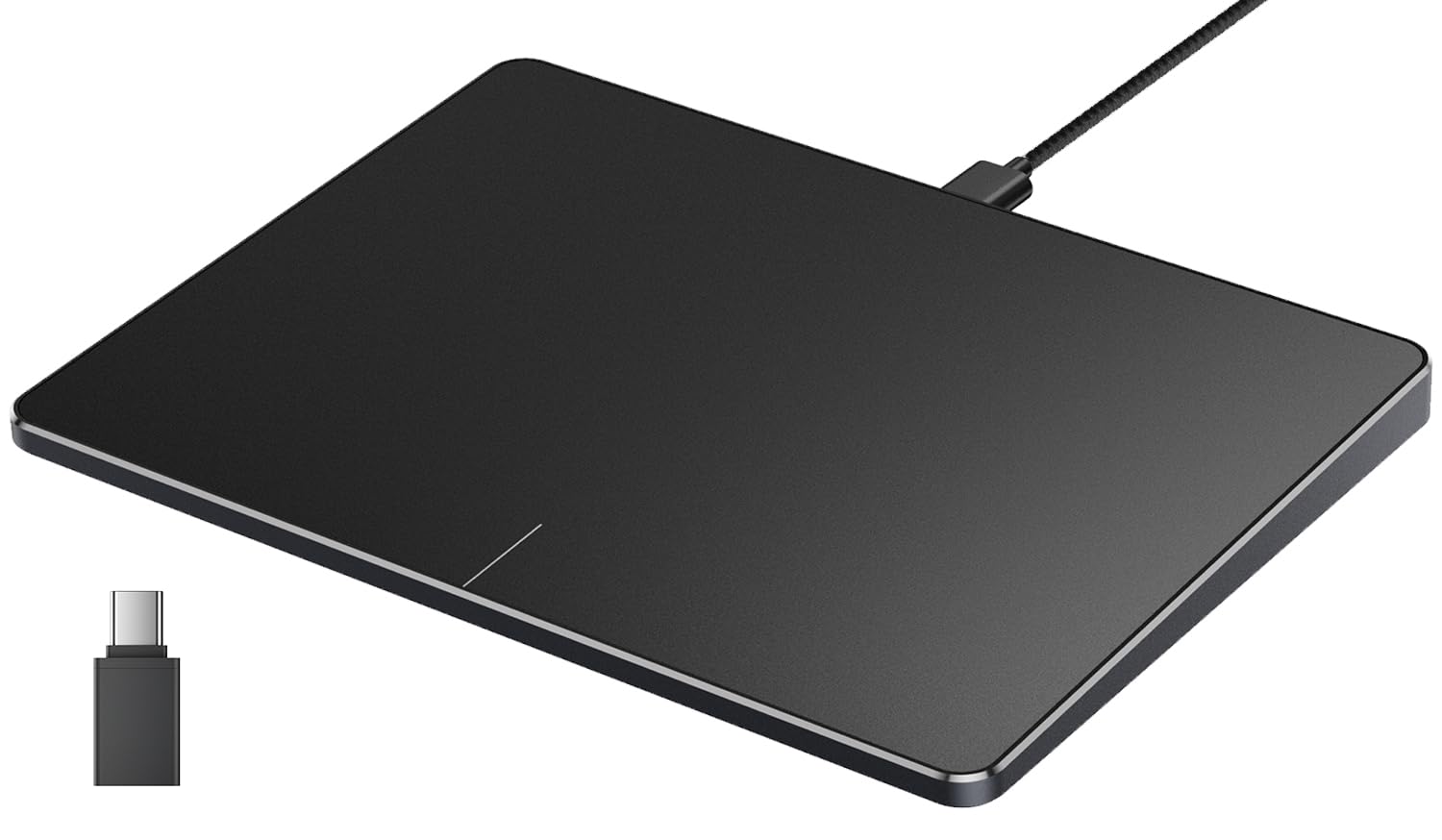
A 6.4-inch metal-backed pad that Windows itself recognizes as a real precision touchpad.
The ProtoArc T1 is the trackpad for the Windows user who wants the gestures to feel like a built-in laptop surface rather than a bolted-on accessory. Windows registers it as a genuine Precision Touchpad, which means the cursor and gesture speed controls live in your normal Windows settings. There’s no driver to hunt down and no app to install. The aluminium-backed 6.4-inch surface supports up to four-finger gestures, one-finger taps for left-click, two-finger taps for right-click, and physical left/right buttons at the bottom edge.
Setup is a single USB-C cable — no charging, no pairing, no latency from a wireless link. Owners use it to replace a fiddly scroll wheel and one even used it after losing function in their right hand, swapping a mouse entirely for the flat pad. If repetitive mouse motion has left your wrist sore, that flat-surface glide is the reason people switch.
The limitation is customization and consistency. There’s no app for remapping buttons or setting different profiles, and the bottom-edge clicks are stiff. A few owners mention ghost touches on Windows 11 unless you dial the sensitivity down, and one reports gestures acting random after a few days. Check that you haven’t disabled your laptop’s built-in trackpad — the external pad goes down with it. Buy this for a clean, lag-free, gesture-driven Windows setup.
big-screen editors: Windows users who want smooth gestures and no charging cable in the mix.
mac owners: you want macro buttons or per-app profiles — there’s no customization app at all.
6. Kensington Expert Trackball Mouse (K64325)
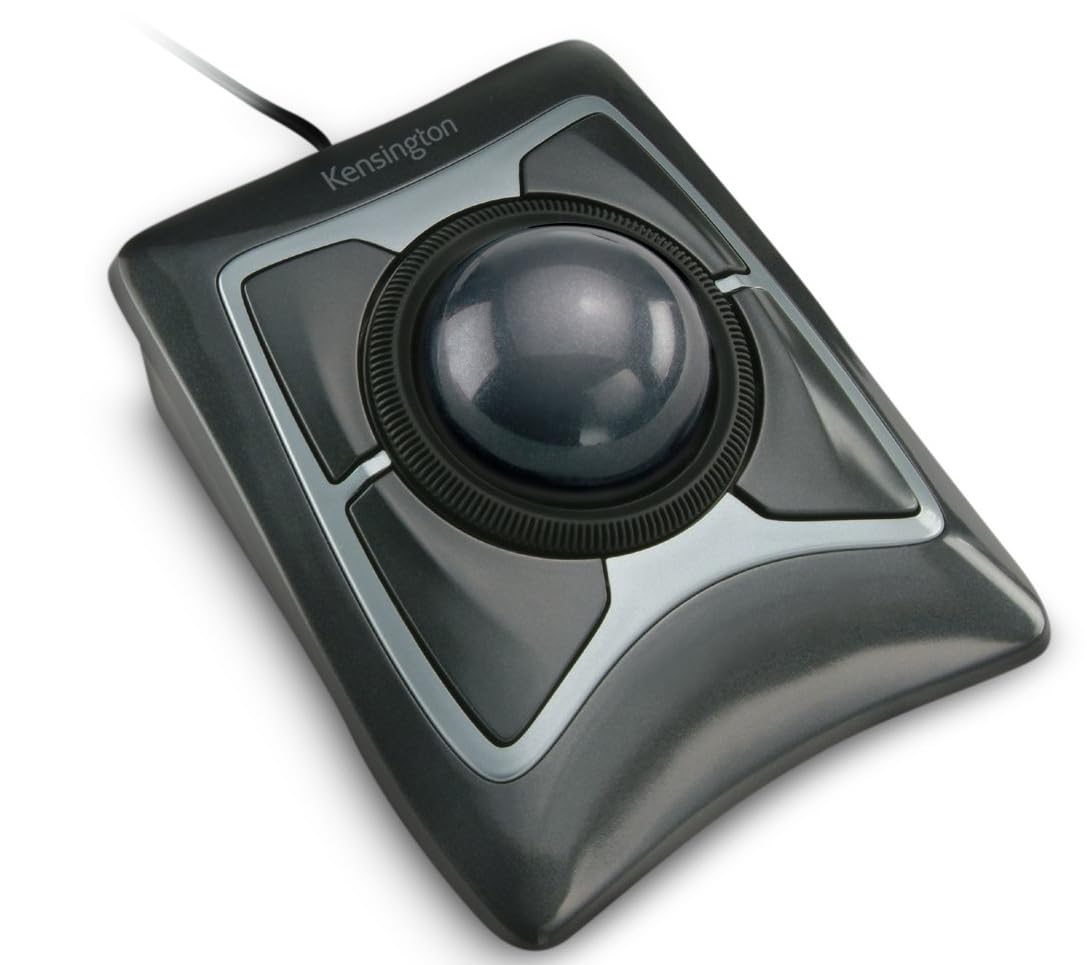
The desk-space saver that flies the cursor across three monitors with a flick of the finger.
The Kensington Expert earns its spot with a large 55mm ball (about 2.2 inches across) and Diamond Eye optical tracking (a sensor that reads the ball’s movement). That combo lets a finger flick send the cursor across a multi-monitor setup without lift-and-reposition. It sits at a positive angle, includes a detachable wrist rest, and is ambidextrous, so either hand can work it. Radiologists, designers, and long-term desk workers keep coming back to it. Buyers praise build quality most, and combined with the ball accuracy, it’s earned a reputation as a decades-long desk workhorse.
The layout includes a patented scroll ring around the ball, which is genuinely different from a thumbwheel — it lets you scan up and down a long page without moving your hand to a side wheel. Customizable four-button layout, scroll speed, and cursor speed run through the KensingtonKonnect software on Windows and macOS. The wired USB-A connection means no battery to think about.
Where this one asks for adjustment: the two upper buttons sit awkwardly for anyone who rests their palm forward, so gaming and fast clicking aren’t its strength. The scroll ring is a little scratchy on some units. A few customers note the ball requires a break-in period and periodic cleaning of the bearing contacts to keep it smooth. One owner notes occasional static-electrical shocks through the body — an edge case, worth knowing about. If you work in long sessions with a large screen or a multi-monitor setup, the precision here is class-leading.
index finger classic
- 55mm ball with Diamond Eye optical tracking for precise cursor control on wide screens
- Scroll ring scans long pages without a thumbwheel drag
- Ambidextrous body with a detachable wrist rest
- Wired USB-A — no charging, no dropped link
steep learning curve
- Upper buttons sit awkwardly for palm-forward hands; not a gaming layout
- Scroll ring feels slightly scratchy from the start; some units need break-in
- No macOS button-remapping support for the full software suite
longtime trackball fans: long sessions, large screens, and years of use — this is the workhorse trackball, and the ball precision is why.
wrist pain sufferers: fast action games or thumbwheel habits; the upper buttons are hard to hit and the scroll ring is the scroll input.
7. ELECOM Huge Plus Wireless Trackball Mouse
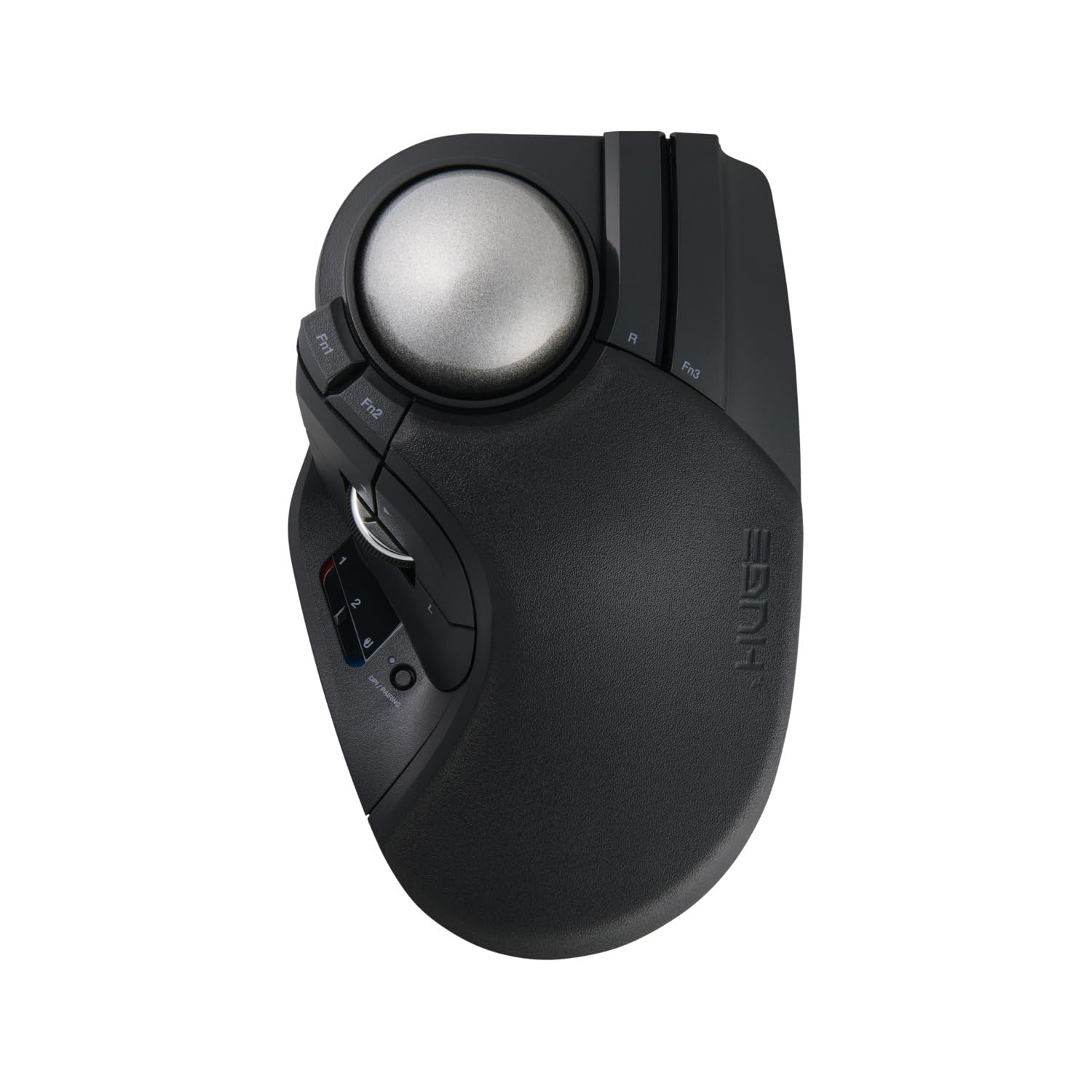
Swappable steel bearings, 10 programmable buttons, and up to 5 months of battery per charge.
At the top of the range, the ELECOM Huge Plus is for the power user who wants to customize everything. It packs 10 programmable buttons, three connection modes (Bluetooth, 2.4GHz, and wired USB-C), multi-device pairing for up to three machines, and a 52mm ball. The standout feature is the swappable bearings: this model ships with MinebeaMitsumi steel bearings that owners can swap or upgrade to ruby units, which is unusual for this category and adds real long-term value for a tinkerer.
The quiet tactile clicks and 5-month battery rating reflect what this one is built for — long, distraction-free sessions. The rechargeable lithium-ion battery keeps it going through the work week, and USB-C charging means you can keep working while it tops up. It’s right-handed, and compatibile across Windows, macOS, iPadOS, Android, and ChromeOS, so it travels between devices without stepping on anyone’s setup.
Two honest limits. The button layout is crowded — 10 buttons in a small footprint means some controls land where your thumb naturally rests, and the mechanical slider to switch between computers is clumsy to use on the fly. Battery life also splits opinion: the maker rates it at 5 months, but some owners find actual use falls well short. One more thing: there’s no Linux software, so the programmable buttons don’t fully translate to Linux. If you want the most customizable trackball here, this is it. If simplicity matters more, look elsewhere.
macro power users: 10 programmable buttons and swappable bearings make this the most customizable pick if you want to dial in every shortcut.
plug-and-play folks: the multi-device slider switch is clumsy and some owners say the real-world battery life falls short of the 5-month rating.
Know the Specs
Trackball size and DPI
Ball diameter (52mm, 55mm) decides how much movement each thumb or finger push covers. A bigger ball gives finer control and less effort per inch of cursor travel — handy if you work across multiple large displays. DPI is sensitivity: lower numbers move the cursor slowly and precisely, higher numbers move it faster. Most of these models step through 400/800/1200/1600, which covers both detail work and fast navigation.
Thumb vs finger control
A thumb trackball keeps the whole hand fixed in one palm position — good for a single desk and resting your wrist. A finger trackball puts the ball under the fingertips and tends to use a larger ball, which suits design, editing, and multi-monitor work. It’s usually a bigger footprint on the desk. Try whichever matches your hand size and existing wrist position before committing.
Connection types
2.4GHz dongle connections are stable and simple, but cost a USB port. Bluetooth frees a port and lets you pair up to three devices, though battery life and link stability vary. Wired USB never needs charging and never drops. Tri-mode designs let you choose, which matters if you carry the device between a work machine and a home PC.
Battery and charging
Rechargeable batteries mean no AA cells to buy. Charging is via USB-C or the included cable on most models here, though one warns against fast chargers and recommends the computer USB port instead. Battery life ranges from weeks per charge on the standard units to a maker-rated 5 months on the ELECOM Huge Plus. Plan on a weekly or monthly plug-in depending on use.
Common Questions
Will a trackball replace my mouse for everyday office work?
Is a trackball actually better for wrist pain than a mouse?
How long does a trackball mouse last?
Can I use a trackpad with a Mac?
What’s the difference between a trackball and a trackpad work-wise?
Do these trackballs work on a glass or uneven desk?
Which is better for large hands, thumb or finger control?
Can I switch a trackball between my work laptop and home PC?
Do I need software to use these?
How do I clean a trackball?
The Bottom Line
For wrist ache after long desk hours, start with the Nulea M501, a thumb trackball that keeps your palm fixed. It holds the top spot because it fixes the core problem — no wrist movement — with three-device switching, a rechargeable battery, and a fixed palm angle that most owners find comfortable from day one. The overall consensus of buyers lands on reliability and sheer functionality, which is what you want in a daily driver.
Want a bigger ball and more buttons for design work? Reach for the PORLEI TM553 if your hands are large. On a multi-monitor setup with long editing sessions, the Kensington Expert earns its reputation for precision and durability. For the most customizable setup with 10 programmable buttons and swappable bearings, the ELECOM Huge Plus is the one to reach for.
How we choose
We do not accept paid placement. Every pick is matched to a real buyer and a real use-case; we do not hands-on test units.
Sources
Specifications: manufacturer listings and product documentation. Review insights: verified customer reviews, as of October 2026. Pricing: not shown on this page (it changes often); check the current price via the retailer link.
As an Amazon Associate, Aappliancez earns from qualifying purchases. This does not affect which products we feature.