Disclosure: Some links in this post are affiliate links. As an Amazon Associate I earn from qualifying purchases, at no extra cost to you. Learn more
Specs are compiled from manufacturer listings and verified buyer reviews and can change over time — please confirm the key details on the product page before buying.
Your Mac mini’s internal drive fills up fast once you start keeping video projects, photo libraries, or a Steam backlog on it. The fix is an external drive that plugs into a Thunderbolt or USB-C port and works like part of the machine. The short answer: a USB-C solid state drive (SSD — a drive with no moving parts) is the pick for anyone editing or gaming on the Mac mini. A big spinning hard drive (HDD — the older mechanical kind) makes sense only for cold backups you rarely open. Below, each pick is matched to the job it actually does well on an Apple desktop.
This guide is built by comparing the manufacturers’ published specifications and the patterns across verified customer reviews, so you get each pick’s real strengths and trade-offs instead of marketing spin.
Speed, capacity, and how hot the drive runs decide most of this. Two drives rated for the same USB standard can behave very differently once the cache fills. That is why the list below splits into fast pocket SSDs and roomy mechanical drives, and why each entry names the exact job it handles best on a Mac mini.
Read on for the fastest, most reliable ways to add storage space with the right mac mini external hard drive for your desk setup and your budget.
Top Picks


How To Choose The Best Mac Mini External Hard Drive
The Mac mini ships with fixed internal storage you cannot upgrade later, so the external drive you attach is a long-term decision. Three numbers decide almost everything: the interface speed, the drive type, and the connection your specific Mac mini offers.
Match the drive to your Mac mini’s ports
Older Mac minis use USB-A. Newer Apple-silicon models lean on USB-C and Thunderbolt ports. A USB-C SSD with a bundled USB-C to USB-A adapter or a second cable covers both. A drive that lists Thunderbolt or USB4 compatibility will make the most of a high-speed port, while a plain USB 3.0 mechanical drive is limited by the slower interface no matter which Mac you plug it into.
SSD speed vs HDD capacity
A solid state drive (SSD) has no moving parts, so files open instantly and the drive takes a knock without dying. A mechanical hard drive (HDD) spins a platter and packs far more space per dollar. Video editors and gamers want SSD speed because a scratch disk has to keep up with 4K footage. People archiving photos or old project files can accept HDD slowness in exchange for raw capacity.
Formatting for macOS
Most drives arrive pre-formatted for Windows in NTFS or exFAT. macOS can read NTFS but not write to it, so a fresh drive often shows up and refuses to accept files. Reformat to APFS (Apple’s own file system) if the drive lives on the Mac permanently, or keep exFAT if you shuttle files between Windows and macOS. The format step takes a minute in Disk Utility.
Heat, build, and portability
Fast compact SSDs warm up under sustained transfers; a metal body that acts as a heatsink keeps speeds steady. Dust and water ratings such as IP55 or IP65 matter only if the drive actually leaves the desk. If it stays put next to the Mac mini, cable length and a stable powered port matter more than ruggedness.
Side-by-Side Comparison
| Model | Best For | Drive Type | Capacity | Rated Speed | Amazon |
|---|---|---|---|---|---|
| Samsung T7 Portable SSD 1TB★ Best Overall | Everyday editing and backup | SSD | 1 TB | Up to 1,050MB/s | Amazon |
| OWC Express 1M2Top Performer | Top speed for video work | NVMe SSD enclosure | — | Over 3,836MB/s | Amazon |
| Toshiba Canvio Basics 1TB | Cheap extra room | HDD | 1 TB | USB 3.0 (5Gbps) | Amazon |
| LaCie Mobile Drive 2TB | Desk-friendly, styled backup | HDD | 2 TB | USB-C 3.2 (10Gbps) | Amazon |
| Crucial X9 1TB | Rugged travel SSD | SSD | 1 TB | Up to 1,050MB/s | Amazon |
| WD Elements 5TB | Bulk cold storage | HDD | 5 TB | USB 3.2 Gen 1 (5Gbps) | Amazon |
| Amazon Basics Portable SSD 1TB | Fast, weatherproof value | SSD | 1 TB | Up to 2,000MB/s | Amazon |
Detailed Reviews
1. Samsung T7 Portable SSD 1TB Titan Gray
Our pick — 4.5+★ from 12,000+ verified ratings; the strongest balance of quality and price.
Pocket-sized, aluminum-cased, and rated at 1,050MB/s — this is the drive most Mac mini owners should start with.
The T7 is the crowd favorite for a reason: it does the two things a Mac mini owner needs. First, it moves files fast — up to 1,050MB/s reads and up to 1,000MB/s writes over USB 3.2 Gen 2, the fast USB-C standard. Second, it survives the road — a solid aluminum unibody with shock resistance and fall protection up to 6 feet. The capacity is 1TB, and it is rated to work with a Mac, a PC, and a phone. Across 12,000+ owner ratings, it averages 4.5+ stars.
On the Mac mini itself, the drive delivers roughly 850–950 MB/s of real-world reads and writes, and buyers report moving 50GB datasets in under a minute. That is fast enough to edit off the drive rather than copying footage to the internal disk first. A podcast studio recorded seven simultaneous 1080p video streams to one T7 with no dropped frames and no write errors.
The honest catch: to hit the rated speed you need a USB 3.2 Gen 2 or Thunderbolt port, not an older USB-A hub. It also ships formatted for Windows-style use, so expect to reformat it to APFS in Disk Utility before macOS will write to it cleanly. A few owners hit a “cannot be installed” prompt on first plug-in, erased the drive in Disk Utility, and it worked from then on. The bundled cable runs short at around six inches, so plan on a longer one if the Mac mini sits under a desk.
What earns the top spot
- Up to 1,050MB/s reads and 1,000MB/s writes on USB 3.2 Gen 2 — fast enough to edit straight off the drive
- Solid aluminum unibody with 6-foot fall protection, plus 256-bit AES hardware encryption
- Credit-card footprint that lives in a backpack pocket without a bulge
- Works with Mac, PC, and smartphone, so it doubles as a transfer drive
The caveats worth knowing
- Full speed needs a USB 3.2 Gen 2 or Thunderbolt port — a slow hub drags it down
- Arrives formatted for Windows; reformat to APFS for Mac-only use
- The included cable is short, around six inches
Reach for this if: you want one fast, tough drive that handles editing, backups, and file shuffling on an Apple-silicon Mac mini without fuss.
Think twice if: your Mac mini only has older USB-A ports you plan to route through an unpowered hub — that caps the speed this drive is built for.
2. OWC Express 1M2 40Gb/s Portable NVMe SSD
An empty enclosure you fill with your own NVMe stick — and it hits read and write numbers that leave the pocket SSDs in the dust.
You get the speed without buying a sealed drive: this is an aluminum shell with a PCIe x 4 slot (a fast internal connector) inside that takes your choice of NVMe M.2 2280, 2242, or 2230 solid state stick (the small gum-stick-shaped storage card). You buy the storage separately. The payoff is speed: OWC claims it is over 2x faster than Thunderbolt portable enclosures, up to 3,836MB/s. On a Mac Studio over Thunderbolt 4, owners mention around 2,581 MB/s reads and 3,141 MB/s writes — roughly 2,500 MB/s beyond what the Samsung T7 manages, so large video files copy in a fraction of the time.
The finned metal body works as a heatsink with no fan, so the drive never throttles and you never hear it. Customers note moving around 100GB of iCloud data across in about a minute. Plug-and-play on Mac with no drivers, and it matches the silver finish of an M4 Pro Mac mini closely enough that owners mention it looks like part of the setup.
Two things to plan for. First, assembly is DIY — you mount the NVMe stick yourself, and some owners note the thick thermal tape needs care to contact the chip properly. Second, the enclosure stands upright and is larger and heavier than a pocket SSD, so it belongs on a desk rather than in a pocket. Capacity depends entirely on the stick you install, which is also the reason some owners find it a better value and others find the setup annoying.
Where the speed pays off: sustained 3GB/s transfers hold steady instead of sagging, which is exactly what a Mac mini video editor needs when rendering or moving a shoot’s worth of footage to external storage.
The trade to accept: you bring your own NVMe drive and install it, and the enclosure is built to sit on a desk rather than travel in a bag.
Who it beats everything for: anyone with a Thunderbolt-equipped Mac mini doing serious video work who wants near-internal-drive speed outside the case.
Skip the DIY: if you would rather plug in a sealed, pre-built drive and never touch a screwdriver.
3. LaCie Mobile Drive 2TB USB-C 3.2, Moon Silver

The drive that looks like a desk object, not a gadget — and it packs 2TB for the price of a modest SSD.
For a Mac mini owner who wants storage that blends into the desk setup, this is the pick. The Moon Silver housing is aluminum with post-consumer recycled plastic, and the finish earns more design praise than any other drive on this list. It connects over USB-C 3.2, works with PC and Mac, and includes an Adobe All Apps Plan in the box — genuinely useful if you already pay for creative software.
It is a mechanical drive, so treat the speed as adequate rather than quick. It handles weekly backups and file archiving comfortably, and owners describe plug-and-play setup that just works. The 2TB capacity is the real draw: it holds a deep photo library or years of project archives without you sorting through files.
Two honest notes. It is physically bigger than a slim SSD — if you are used to a pocket-sized drive, manage expectations on size. And this class of mechanical drive is not built to survive a drop, so keep it on the desk. A drive failure is the exception rather than the rule, but a mechanical disk always deserves a second backup somewhere else.
The design win: the recycled aluminum-and-plastic body and Moon Silver finish make this the one external drive you will not mind leaving visible on a tidy desk.
The capacity payoff: 2TB means a full photo library and years of backups fit without you deleting anything.
Best for: the Mac mini owner who wants a large, good-looking backup drive and values design as much as raw speed.
Look elsewhere if: you need to edit 4K footage off the drive — a mechanical disk is the wrong tool for that job.
4. Crucial X9 1TB Portable SSD
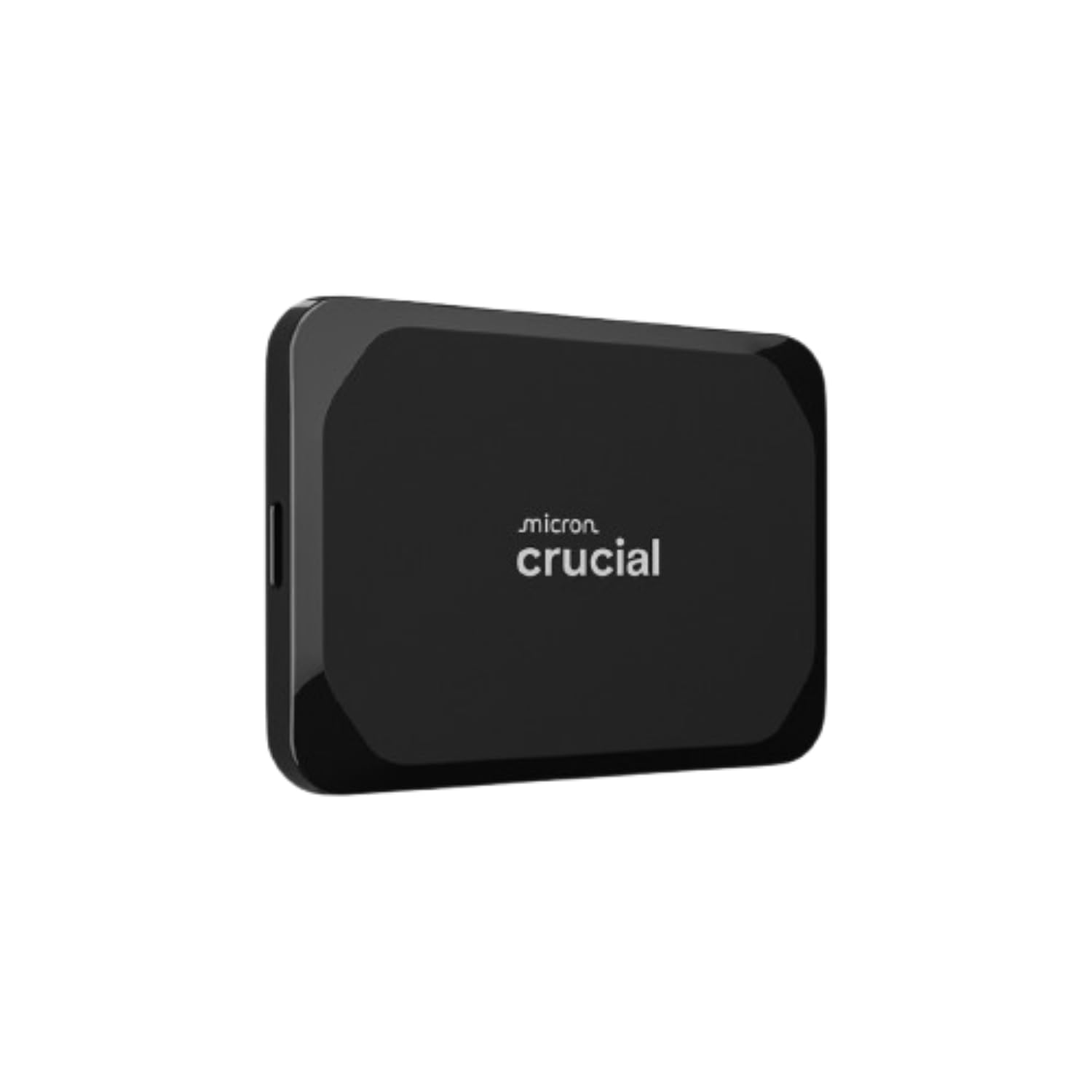
Water, dust, and drop rated to 7.5 feet — this is the drive you toss in a backpack and stop worrying about.
Most SSDs are fast. The X9 is fast and rated for abuse: IP55 water and dust resistance (a rating that means splashes and dust will not kill it), plus drop resistance up to 7.5 ft (2 meters). That rating combination is what separates it from the Samsung T7 above, which is shock resistant to 6 feet but carries no IP water rating. For a photographer or student hauling a Mac mini between locations, that difference is the whole point — a drive that survives a knocked-over tripod bag.
Speed sits at up to 1,050MB/s over USB 3.2 USB-C, and a real-world benchmark test of this drive showed 1,067 MB/s reads and 1,039 MB/s writes. It is tiny — owners describe it as smaller than expected, around 2.5 inches long and 1cm thick — and drops into a backpack pocket with room to spare. It ships preformatted exFAT, so it talks to both macOS and Windows without a reformat. Idle temps sit at 40–45C and stay under 70C under load. Three months of Mylio Photos+ and Acronis True Image are bundled.
What to know before you buy: the enclosure is polycarbonate rather than metal, so a protective sleeve is worth the small extra spend. The bundled USB-C cable is short. And sustained transfer from a fast internal NVMe drive tends to settle around 650 MB/s, which is normal for this class but worth knowing if you expect the full rated number on every large copy.
Why it handles rough duty
- IP55 water and dust resistance plus 7.5-foot drop resistance
- Up to 1,050MB/s over USB 3.2 USB-C, benchmarked near 1,067 MB/s reads
- Preformatted exFAT for Mac and Windows from the start
- Pocketable at around 2.5 inches long and 1cm thick
Where it cuts back
- Polycarbonate case, not metal — a sleeve is a sensible add-on
- Bundled USB-C cable is on the short side
- Sustained transfers settle around 650 MB/s from fast internal storage
Grab it for: travel, field shoots, or a laptop-plus-Mac-mini workflow where the drive rides in a bag and takes knocks.
Pass if: you plan to keep the drive permanently on a desk and would rather spend on metal build than rugged ratings.
5. Toshiba Canvio Basics 1TB Portable External Hard Drive

The cheapest way to add a terabyte to your Mac mini, with no software and no external power brick.
If your goal is simply more room and you are not editing video, the Canvio Basics does the job at entry-level cost. One terabyte of mechanical storage, a USB 3.0 connection that steps down to USB 2.0 for older ports, and a matte, smudge-resistant finish. There is no software to install, and the drive runs off the USB port — no AC adapter needed. Drivers and cables are in the box.
Treat it as a backup and archive drive. Backing up files takes under an hour, where an older drive might need several, and the small footprint means it can sit beside the Mac mini or slip in a pocket. Ventilation matters — the plastic case runs warm, and this class of drive prefers a steady, well-ventilated spot.
Two strong cautions for Mac buyers. First, it arrives preformatted NTFS for Windows, so macOS will see it but not write to it until you reformat to APFS or exFAT in Disk Utility. Second, mechanical drives are not shock-proof: they can take knocks and clicks as failures, so keep it still on the desk and treat the dropped one as gone. If you need raw speed, this is the wrong drive — the Samsung T7 and Crucial X9 above are the fast picks.
Where it earns its place: one terabyte, USB-powered, and plug-and-play with no setup wizard, at a price that makes it the easy first external drive.
The honest limit: it is a mechanical disk preformatted for Windows, so plan a reformat and expect slower transfers than an SSD.
Choose it when: you just need a roomy, low-cost drive for archiving files and weekly backups off a Mac mini.
Move up if: you want to edit in place or move big files quickly — a mechanical drive will feel slow for both.
6. Western Digital WD 5TB Elements Portable External Hard Drive

Five terabytes of cold-storage room for anyone who has given up on clearing the internal disk.
Nothing else here matches 5TB. That capacity is the whole argument: it holds years of photos, PDF templates, and old project files without you sorting anything. It is a mechanical drive with USB 3.2 Gen 1 (5Gbps) speed, formatted NTFS and ready to go on Windows, and it plugs and plays with no software. The casing is a wallet-sized plastic body with non-slip dots and a single port plus a status light.
Set expectations on speed honestly. Large sequential transfers run around 100–135 MB/s, and small files are slower because it is a spinning disk. That is fine for a drawer backup. It is not fine for editing off the drive, and it is not an SSD — the Crucial X9 and Samsung T7 are the fast picks. Owners use it for PS5 extended storage and for backing up a photo collection, and both jobs suit the capacity perfectly.
The real gotcha for a Mac mini: this drive needs a powered USB port. On an unpowered hub it clicks and drops, so plug it directly into the Mac or a powered hub. The bundled cable is the other recurring issue — swapping in a better one solves the dropouts. Note the real capacity shows about 4.54TB once formatted, which is normal for mechanical drives.
The capacity story: at 5TB there is enough room for a deep media library plus a second copy of everything else, which makes it a solid cold-storage drive for a Mac mini with a small internal disk.
The speed reality: a mechanical disk, so treat it as an archive, not a working drive, and never as your only copy of anything.
The power rule: plug it into the Mac or a powered hub — an unpowered hub is the most common cause of clicks and dropouts.
Best used as: a drawer archive and bulk backup for a Mac mini where capacity matters more than transfer speed.
Not for: video editing or anything you open live off the drive — a 5TB spinning disk is slow at small-file access, and it is built to travel gently.
7. Amazon Basics Portable External SSD 1TB
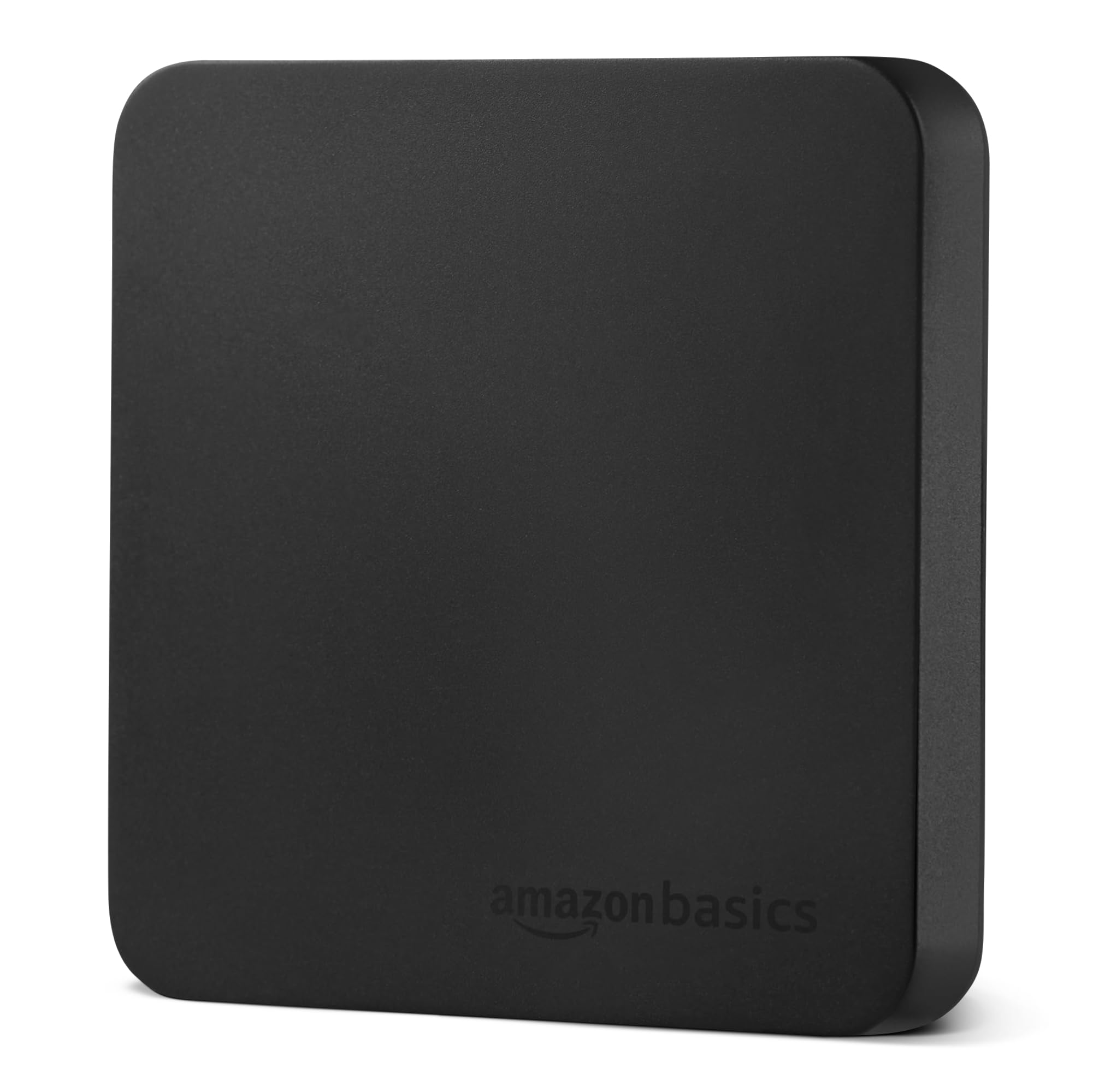
A 2,000MB/s pocket SSD with an IP65 rating and a carrying case — this is the fast drive that does not ask a premium.
Read and write speeds up to 2,000MB/s over USB 3.2 Gen 2 make this the quickest of the ready-to-use SSDs here, roughly double what the Samsung T7 and Crucial X9 are rated at. The “up to” is real: how close you get depends on your port, file size, and conditions. It ships in a metal casing with a scratch-resistant polymer bottom, and it carries an IP65 water and dust rating — the highest of the portable drives on this list.
A thermal solution keeps the drive below 50°C/122°F under heavy load, so sustained transfers stay steady. The 1TB capacity arrives preformatted exFAT for broad compatibility, including Mac. It comes with both a USB-C to C cable and a USB-C to A cable, plus a storage case. That cable pair matters: it means the same drive works whether your port is USB-C or the older USB-A.
The catch worth knowing: full 2,000MB/s speed needs a USB 3.2 Gen 2×2 port, which most Mac minis do not have — so on a Mac you will get a fast SSD but not the headline number. The Quick Setup Guide is tiny enough to need a magnifier. And a rare unit can fail to mount on some laptops; the fix is a replacement rather than a workaround. For a Mac mini, format it to APFS and it settles into daily use without complaints.
Why it wins the speed-per-dollar race
- Up to 2,000MB/s over USB 3.2 Gen 2 — the fastest ready-made SSD on this list
- IP65 water and dust rating, the highest portable rating here
- Thermal solution keeps it below 50°C/122°F under sustained load
- Ships with both USB-C to C and USB-C to A cables plus a storage case
What to weigh
- The 2,000MB/s top speed needs a USB 3.2 Gen 2×2 port, which most Mac minis lack
- Shipped exFAT — reformat to APFS for a Mac-only workflow
- Bare-bones packaging and a very small printed setup guide
The impressive pick: a fast, IP65-rated 1TB SSD with cables and a case, priced below the big-name portable SSDs.
One caveat: unless your Mac mini has a USB 3.2 Gen 2×2 port, you will not see the full 2,000MB/s — still fast, just not the headline number.
Know the Specs
USB generations and real-world speed
The USB standard sets a ceiling on how fast a drive can move files. USB 3.2 Gen 2 tops out at a theoretical 10Gbps, which is why drives like the Samsung T7 and Crucial X9 advertise around 1,050MB/s. USB 3.0, also called USB 3.2 Gen 1, caps at 5Gbps — fine for a mechanical drive but a bottleneck for a fast SSD. A high-speed SSD on a slow port runs at the port’s speed, not the drive’s.
SSD vs HDD on a Mac mini
An SSD writes with no moving parts, so it opens files near-instantly and shrugs off a bump. An HDD spins a platter, so it packs far more capacity for the money but moves large files slowly and dislikes shock. The rule of thumb for a Mac mini: use an SSD for anything you actively edit or save to, and use an HDD for cold storage — the archive of old projects and photo libraries you open rarely.
APFS vs exFAT formatting
APFS is Apple’s own file system. It is the best choice when the drive lives permanently on your Mac, offering fast performance and built-in encryption options. exFAT is the universal format that reads and writes on both macOS and Windows. If you move the drive between a Mac mini and a Windows PC, keep exFAT. If it is Mac-only, format to APFS in Disk Utility for cleaner performance.
IP ratings explained
An IP rating has two digits: the first for dust protection, the second for water. IP55 means the drive is sealed against dust and protected against water jets. IP65 adds a higher dust rating. These ratings matter for a drive that travels in a backpack or rides near a camera, and they matter far less for a drive on a desk.
Common Questions
Will an external hard drive work with my Mac mini from the start?
How do I format an external drive for the Mac mini?
Is an SSD faster than a hard drive on a Mac mini?
Do I need a special cable for a Mac mini?
Can I edit video off an external drive instead of the internal disk?
How much storage should I add to my Mac mini?
Will an external drive overheat on a Mac mini?
Does the WD Elements 5TB need external power?
Is a Thunderbolt enclosure worth it over a USB-C SSD?
Is one external drive enough for a Mac mini backup?
The Bottom Line
For most Mac mini owners, the mac mini external hard drive winner is the Samsung T7 Portable SSD. It balances 1,050MB/s speed, a tough aluminum body, and a 4.5+ star average from 12,000+ owner ratings — a combination that handles editing, backups, and file transfers without you thinking about it.
If you do serious video work and have a Thunderbolt port, the OWC Express 1M2 gives you near-internal-drive speed and a cool-running enclosure. And if you mainly need a large, low-cost archive, the WD Elements 5TB is the one to reach for — just plug it into a powered port so it stays stable.
How we choose
We do not accept paid placement. Every pick is matched to a real buyer and a real use-case; we do not hands-on test units.
Sources
Specifications: manufacturer listings and product documentation. Review insights: verified customer reviews, as of October 2026. Pricing: not shown on this page (it changes often); check the current price via the retailer link.
As an Amazon Associate, Aappliancez earns from qualifying purchases. This does not affect which products we feature.