Disclosure: Some links in this post are affiliate links. As an Amazon Associate I earn from qualifying purchases, at no extra cost to you. Learn more
Specs are compiled from manufacturer listings and verified buyer reviews and can change over time — please confirm the key details on the product page before buying.
Here is the short answer: if you want two extra screens running at full 4K smoothness from one cable, buy a dock with native HDMI and DisplayPort output — the TobenONE 18-in-2 is the one worth starting with. If your Mac is a base M1, M2, M3 or M4 chip, you need a DisplayLink dock instead, because those Macs only drive one external screen on their own. Everything below helps you match the dock to the exact MacBook sitting on your desk.
This guide is built by comparing the manufacturers’ published specifications and the patterns across verified customer reviews, so you get each pick’s real strengths and trade-offs instead of marketing spin.
You will see which docks skip driver installs, which ones power a 16-inch MacBook, and where each one falls short. My breakdown of the best Mac docking station multiple monitors setup covers every port that matters.
Top Picks

How To Choose The Best Mac Docking Station Multiple Monitors
The first thing to settle is your Mac’s chip, not the dock’s feature list. A base M1, M2 or M3 MacBook supports only one external display through a standard dock — that is a limit of the laptop, not the dock. If you own one of those, you want a DisplayLink dock, which uses a small driver to squeeze extra screens out of the same port. If you own an M-series Pro or Max machine, or an Intel MacBook, a plug-and-play dock with HDMI and DisplayPort gives you the cleanest picture with no software at all.
Native video ports versus DisplayLink drivers
A native dock passes the video signal straight from your Mac’s graphics chip through HDMI or DisplayPort. Nothing to install, nothing to update, and the screens wake the moment you plug in. A DisplayLink dock compresses the picture in software and rebuilds it on the other end, which is how it defeats the one-screen limit on base chips. The trade is a driver install and, on some units, a small amount of mouse lag that you fix by rolling back to an older driver build.
How much charging power your MacBook actually needs
A dock’s pass-through wattage tells you whether your laptop charges or merely holds steady. A 14-inch MacBook Pro charges comfortably from a dock rated around 96W or 100W. A 16-inch Pro with a Pro or Max chip wants more headroom, and the CalDigit TS5 delivers up to 140W for exactly that reason. If your dock ships with a modest power brick, expect to keep your own charger on the desk for heavy days.
Ethernet, USB speeds and card readers
Wired networking is the quiet hero of a desk dock. A 2.5Gbps Ethernet port moves files over a compatible network noticeably faster than the 1Gbps port found on many docks, and it keeps video calls steady when Wi-Fi gets crowded. Beyond that, look at USB: 10Gbps ports handle external SSDs without a bottleneck, while 480Mbps ports are fine for a mouse and keyboard. SD 4.0 card readers matter if you offload camera footage daily.
Side-by-Side Comparison
| Model | Best For | Ports | Max Charging | Ethernet | Amazon |
|---|---|---|---|---|---|
| TobenONE 18-in-2 UDS040M★ Best Overall | Dual 4K without drivers | 18 | 100W | 2.5Gbps | Amazon |
| WAVLINK 15-in-1 Triple HDMITriple Screen Pick | Triple screens on a base M-chip | 15 | 100W | 1Gbps | Amazon |
| Belkin Connect Thunderbolt 4Compact Hub | Compact Thunderbolt hub | 5 | 96W | — | Amazon |
| Baseus Spacemate 11-in-1 | Upright triple-display desk | 11 | 85W | Yes | Amazon |
| TobenONE DisplayLink UDS033 | Three or four screens on Mac | 18 | 100W | 1Gbps | Amazon |
| Plugable 12-in-1 UD-6950PDZ | Fixed triple-monitor workstations | 12 | 100W | Yes | Amazon |
| WAVLINK Quad Monitor RC-UG39PD8 | Four-screen trading desks | 19 | 100W | 2.5Gbps | Amazon |
| Anker Prime TB5 14-in-1 | Fastest Thunderbolt 5 transfers | 14 | 140W | 2.5Gbps | Amazon |
| CalDigit TS5 | Heavy-load single-cable desks | 15 | 140W | 2.5Gbps | Amazon |
Detailed Reviews
1. TobenONE 18-in-2 MacBook Docking Station Dual Monitor
Our pick — 4.5+★ from 200+ verified ratings; the strongest balance of quality and price.
Eighteen ports, a 150W brick and two crisp 4K screens — no driver install anywhere in sight.
Two monitors at 4K and 60Hz, straight from the start, is the headline here. The dock carries 2 HDMI ports and 1 DisplayPort, so you plug both screens in and they light up at full resolution without a single software download. Sixty frames per second is the smoothness that keeps a dragged window from looking jumpy — you scroll a long spreadsheet and the motion stays clean. Because the video rides on the DP1.4 standard, your Mac’s graphics chip drives the picture directly. That is the reason this one earns the top spot for anyone with an M-series Pro or Max MacBook, or an Intel-era machine.
The power side matches the video side. A bundled 150W adapter pushes up to 100W into your MacBook through the host port, which is enough to charge a 14-inch Pro without a separate charger on the desk. A front USB-C port adds up to 20W for a phone or earbuds. Beyond that you get 8 USB-A and USB-C ports combined, an SD4.0 and TF4.0 card reader, two audio jacks that can run two devices at once, and a built-in storage slot. Compared with the Belkin 5-in-1 in this list, the TobenONE carries 18 ports against 5 — one of the widest spreads here.
Big file transfers and cloud backups run faster here than on most rivals. Its 2.5Gbps Ethernet port (a network connection rated at 2.5 gigabits per second) is the fast lane next to the 1Gbps port on the WAVLINK 15-in-1 — a 2.5x gap on paper, so a large file pull finishes in a fraction of the time. One catch: the network wants a Cat6 or better cable (a higher-grade network cable), so a leftover Cat5e may not deliver the full speed. The vertical stand is the other quiet win — buyers report it “saves desk space, hides cables, improves airflow (fans run less).” The honest trade-off is reliability: a stretch of long-term owners mention units that quit around the six-month mark, even though the build and port spread draw the most praise. It is a 4.5+ star product with a wide happy majority, so treat the failing units as the exception rather than the rule — but buy from a seller with a clear return path.
Where it earns the crown
- Dual 4K@60Hz from 2x HDMI plus DisplayPort with no DisplayLink driver to install
- 150W adapter delivers up to 100W pass-through charging to the MacBook
- 2.5Gbps Ethernet — 2.5x the speed of a 1Gbps dock port
- Vertical stand tidies the desk and improves airflow under the laptop
What to weigh first
- Base M1/M2/M3 MacBooks still cap at one external monitor here
- Not compatible with Windows laptops or Mac Studio
- A minority of long-term customers note units failing around six months
Reach for this if: you own an M-series Pro or Max MacBook and want two 4K screens running with zero setup fuss.
Look elsewhere if: your Mac has a base chip and you need a second display — the DisplayLink docks further down handle that job.
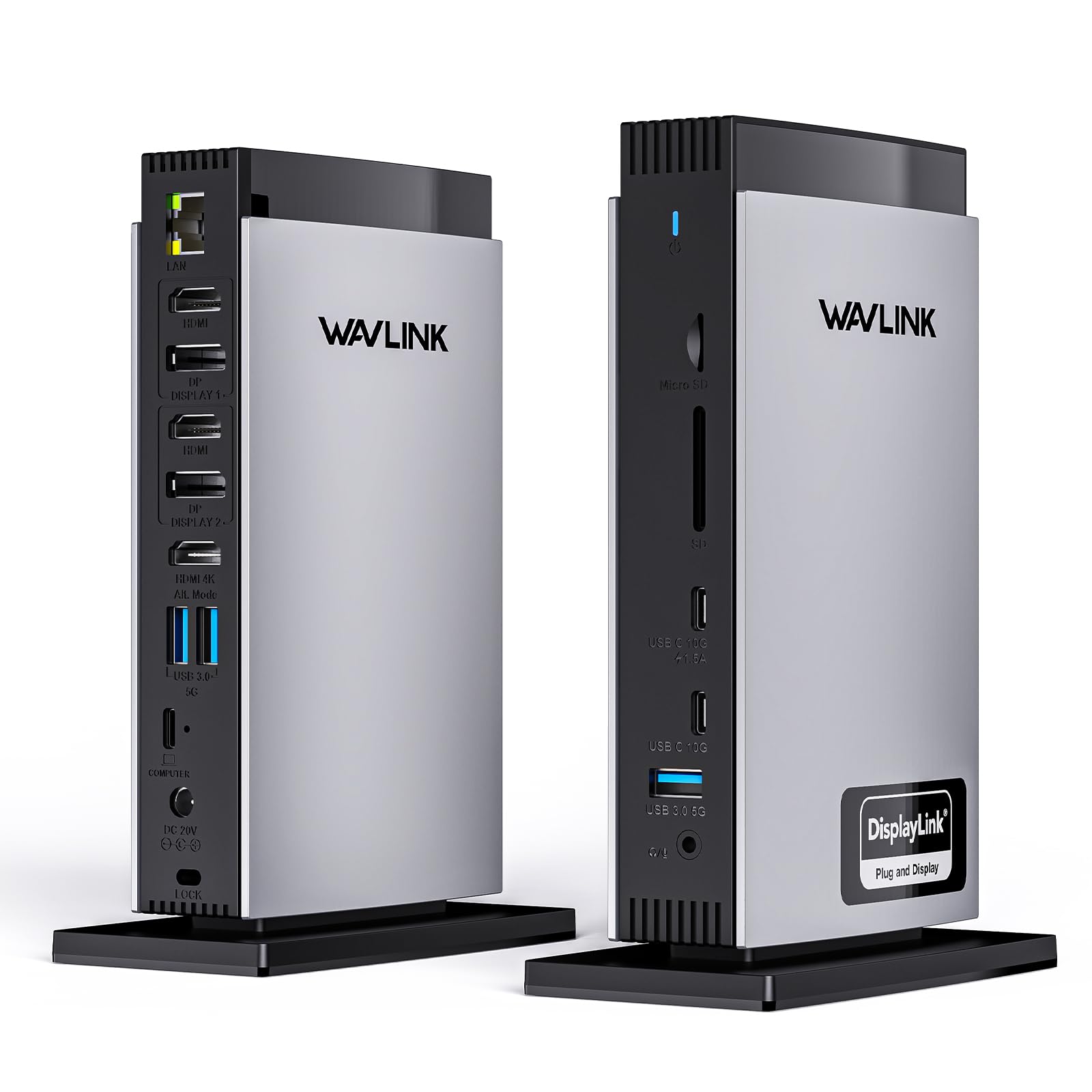
2. WAVLINK USB C Docking Station with 3 HDMI, 15 in 1
Three monitors from a base M-chip MacBook — the one thing your laptop says it cannot do.
Base-chip MacBooks normally refuse a second external display. This dock sidesteps that with DisplayLink (software that draws extra screens over USB), which turns one USB-C cable into three separate screens: 4K at 60Hz (sharp, smooth motion) on the HDMI Alt Mode port, plus 2K at 60Hz on each of the two Display 1 and Display 2 ports. The catch is the install — you download the DisplayLink driver before the screens wake up. Reviewers point out the download takes a few minutes on a 14-inch M5 MacBook Pro and setup after that is quick. The other Mac-specific quirk worth knowing is that the 4K monitor has to sit on Port 3 to hit full resolution.
Fifteen ports cover the rest of the desk: 2 DisplayPort, a host USB-C, 2 USB-C and 3 USB-A, the RJ45 network jack, SD and TF slots, and a 4-pole audio jack. The fast lane is the two 10Gbps USB-C ports, which move a big external drive quickly, while the three USB-A ports run at 5Gbps. Power comes from a 130W adapter that feeds up to 100W into the laptop. The networking is the honest limit — this is a 1Gbps port next to the 2.5Gbps jack on the TobenONE above, so a 2.5G network will not run at full speed here.
Functionality and ease of use draw the steady praise, and the compact shell handles karaoke nights and extra USB gear without complaint. The most-discussed topic is connectivity, and it is a genuinely mixed bag: some units run perfectly for months, while a share stop powering on entirely. If a unit does fail, the support line has shipped replacements within days. Think of this as the triple-screen specialist for a base-chip Mac — buy it for the extra screens, and keep your receipt handy.
Built for the impossible ask: three external monitors on a MacBook that officially supports one, at 4K on one and 2K on the other two, all through a single USB-C cable.
The honest limit: the driver install is mandatory, and the Ethernet port tops out at 1Gbps — noticeably shy of the 2.5Gbps docks here.
Best matched to: base M1, M2 or M3 owners who need two or three screens and can spare five minutes on a driver.
Not the one for: anyone who wants to skip software entirely or needs a fast wired network.
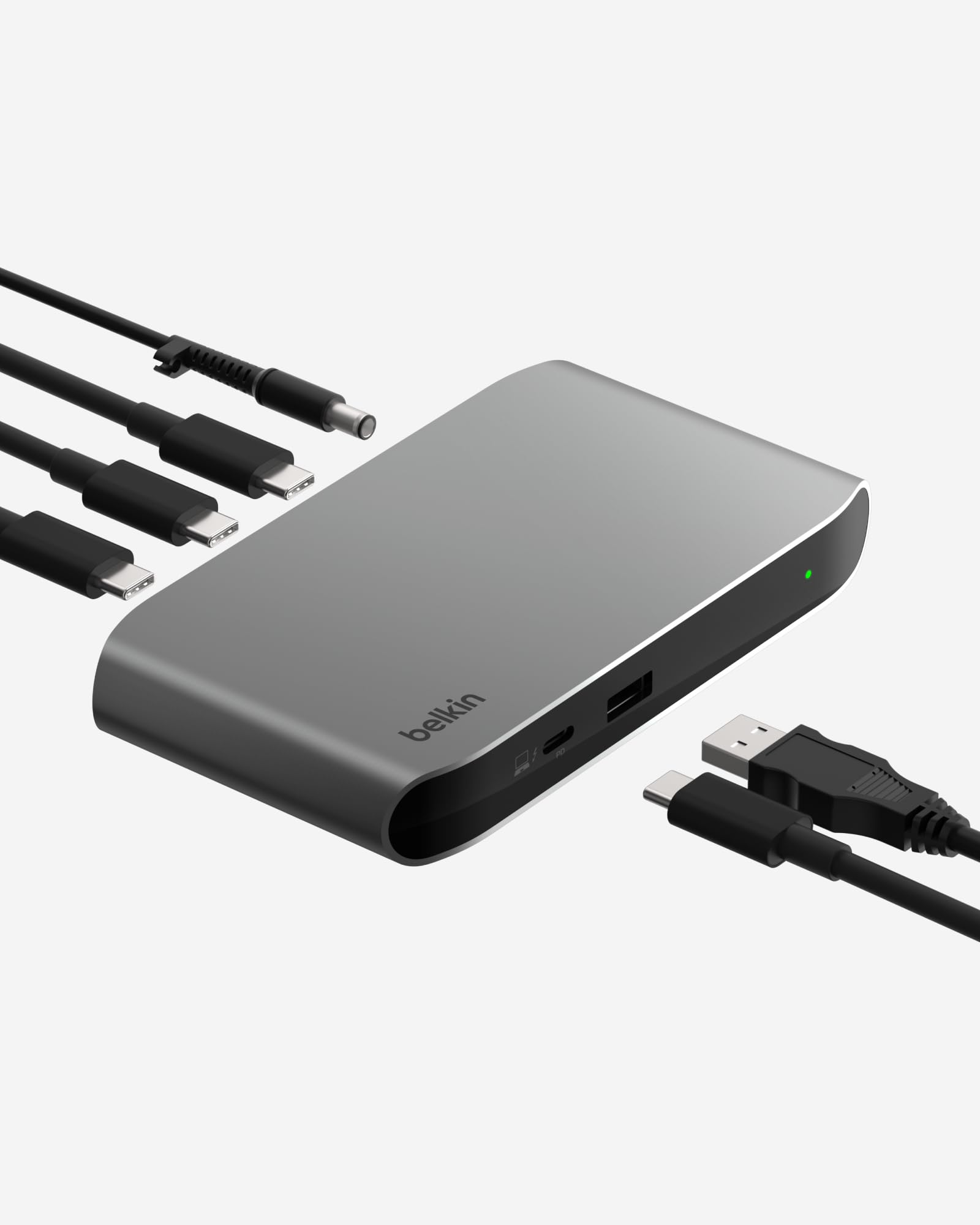
3. Belkin Connect Thunderbolt 4 Docking Station
Five ports, a 40G Thunderbolt pipeline and a chassis thin enough to vanish under a monitor riser.
This one is for the minimalist: a small 5-in-1 core hub that does the heavy lifting without a tower on your desk. Three upstream Thunderbolt 4 ports and one downstream port let you daisy-chain up to six devices, all riding a connection that transfers data up to 40G. Dual monitors run at up to 4K and 60Hz, or one screen at 8K and 30Hz if you prefer a single giant display. For a MacBook Air M-chip owner who wants one screen plus a pile of accessories on a single cable, this is the tidy answer.
Charging is the piece to read carefully. The dock pushes 96W of power delivery into the laptop, which covers most 13- and 14-inch MacBooks comfortably. A 16-inch MacBook Pro with a power-hungry chip may drain while you work, which is a laptop-to-dock mismatch rather than a fault. Thunderbolt 4 Macs handle dual displays natively here, but base M3 MacBooks need clamshell mode before the second screen joins in. That is a Mac limit the dock cannot remove.
Owners describe it as a reliable, well-designed piece of kit that solved dropped signals and inconsistent charging on an iPad Pro DJ rig. What the crowd notices most is the finish — it looks and feels like premium hardware. The friction point is a lifetime of Thunderbolt docks in one compact shell: some units arrive with a dead power brick, and a few of the 5-in-1 ports reach their limit faster than a full-size dock’s would. The torn seal sticker on some units is just protective film, not a sign of a used product — peel it and the actual finish is underneath.
The core idea: a certified Thunderbolt 4 hub that condenses a whole desk into one cable without a bulky box — the smallest footprint on this list at 5.3 inches long.
The reality check: 96W charging is fine for a 14-inch, tight for a 16-inch Pro, and the no-Ethernet design means you lean on Wi-Fi or add your own adapter.
Suits you when: desk space is tight and you want certified Thunderbolt reliability with a single 4K or 8K display.
Pick something bigger if: you need three monitors, a wired network jack, or full-speed charging on a large MacBook Pro.
4. Baseus Spacemate Docking Station 11-in-1 with Triple Display
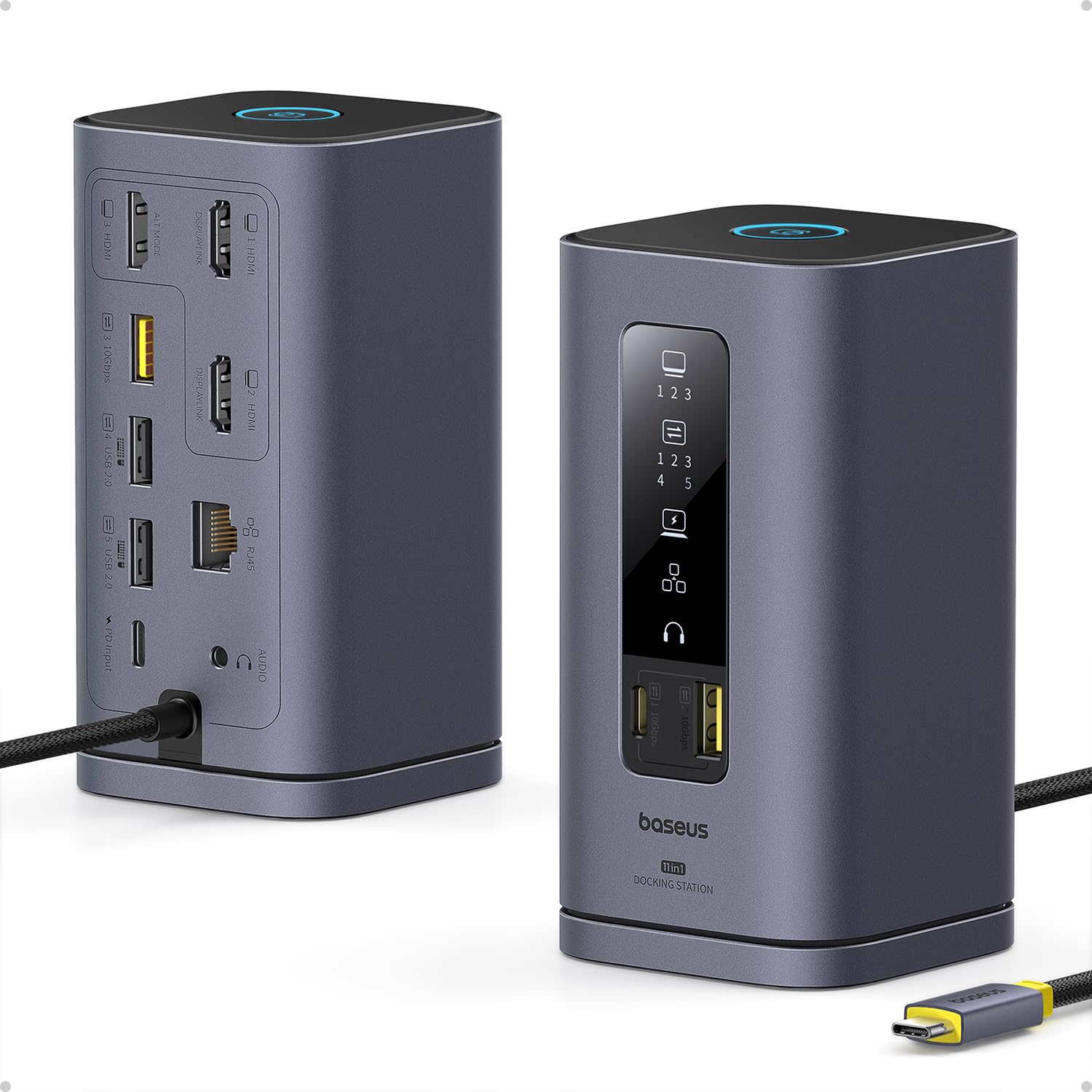
The dock that stands up, lights up its own port status, and hides the spaghetti behind its back.
Most docks lie flat and disappear. This one stands upright on a magnetic base and puts a small LED screen on the front that tells you which ports are live — so when a monitor goes dark, you glance at the dock instead of crawling under the desk. Push the screen-lock button and the status display blanks, which is handy when a client walks past your trading dashboard. Triple 4K on macOS is the headline, driven by DisplayLink (software that draws extra screens over USB), and it works across M1, M2 and M3 MacBooks plus Windows laptops. The driver install comes first — the HDMI ports stay dark until DisplayLink is on board.
Speed is where this one punches above its size. The USB 3.1 ports are rated at 10Gbps, split across one USB-C and two USB-A, and Baseus rates that lane at a 20GB file in about 20 seconds. Two extra USB-A ports step down to 480Mbps for a mouse and keyboard, which is all they need. Charging tops out at 85W out after 100W goes in — enough for most MacBooks, though the power adapter and input cable are not in the box, so you supply those. Compared with the WAVLINK 15-in-1 above, you get fewer ports but a faster USB lane and a display that reports its own health.
Buyers call it sleek and well worth the cost, and the magnetic base lets you lift the tower to plug in a cable without the whole thing sliding. One real limitation to know before you buy: on a MacBook Pro M4, the dock cannot extend a second screen without DisplayLink installed (software that draws extra screens over USB), so dual monitors only mirror until the driver is running. Ultra-wide monitors at very high refresh may also need a direct cable to the laptop to hit full resolution. It is a design-forward dock that rewards a Mac owner willing to install software once.
Why it stands out
- Upright tower with a magnetic base, LED status screen and one-tap screen lock
- 10Gbps USB 3.1 across one USB-C and two USB-A ports
- Up to 85W pass-through charging from a 100W input
- Clean look with cables routed behind the body
Before you commit
- Power adapter and input cable not included
- DisplayLink driver required or HDMI ports stay dark
- Dual Mac monitors mirror rather than extend until the driver runs
Buy it because: you want a desk showpiece that reports its own port status and hides your cables.
Think twice if: you refuse to install a driver, or you need a charger in the box.
5. TobenONE DisplayLink Docking Station 3 Monitors

Eighteen ports and up to four screens — the workstation dock for a clamshell MacBook and a wall of monitors.
Where the TobenONE up top relies on native ports, this one goes the DisplayLink route (software that draws extra screens over USB) to break the one-screen ceiling on base-chip Macs. Three HDMI and three DisplayPort outputs let a macOS machine run three 4K monitors at 60Hz (sharp, smooth motion), and Windows laptops can push to four if the USB-C port carries video. That extra screen is the whole reason this model exists: a stock trader watching three charts at once, or a video editor spreading a timeline across three panels, gets real estate a native dock cannot give a base M-chip. You install the DisplayLink driver first — on macOS it asks for Screen Recording permission purely to draw the displays.
Power comes from an included 120W adapter feeding up to 100W into the laptop, plus 18W out the front USB-C for a phone. Data moves through 4 USB 3.1 and 2 Type-C ports at up to 10Gbps, so an external SSD copies quickly. The shell is 1.1 pounds and 4.3 inches across, small enough to sit on a monitor stand. Compared with the WAVLINK triple-HDMI unit above, you trade the WAVLINK’s portability for a wider port count and the option of a fourth screen on Windows.
Owners describe it as reliable straight from the start, with enough ports to run two external monitors alongside the MacBook’s own screen. The recurring gripe is the HDMI 3 output on some units, which can lose signal intermittently after months of use — support has swapped those units fast and even refunded. One smaller quirk on a specific unit makes a closed MacBook Pro think its lid is open. Neither issue defines the product, but if a screen ever blinks, the first fix is verifying the driver and the cable. For a clamshell MacBook Pro paired with a workstation of monitors, this is a strong, honest workhorse.
The case for it: 18 ports, three 4K screens on Mac and four on Windows, with a 120W brick in the box — the most screens per dollar for a base-chip Mac owner.
The fine print: HDMI 3 has shown intermittent dropouts over time on some units, and the Ethernet is 1Gbps rather than the 2.5Gbps the native TobenONE offers.
Reach for this if: you run a clamshell MacBook against three screens and want the port count to match.
Skip if: you need a 2.5G wired network or will not install a driver.
6. Plugable 12-in-1 USB C Triple Monitor Docking Station

Six video outputs, one driver install, and three 4K screens even on a Mac that swears it supports one.
The flexibility starts at the back panel: 3 HDMI and 3 DisplayPort outputs mean you connect whatever monitors you already own, mixing cable types as you like. On a base M1, M2 or M3 Mac, this dock uses DisplayLink to drive up to three 4K screens at 60Hz — the exact scenario those Macs normally block. Six USB 3.0 ports, Ethernet and a 3.5mm TRRS audio jack round out a workstation that suits an IT help desk, a trading dashboard or a creative hot-desk. The one instruction to remember is that macOS needs the DisplayLink driver installed first.
Charging lands at 100W into the laptop, which covers most productivity MacBooks fully without their own brick. Owners who run gaming or workstation-class laptops should keep their charger within reach, since a 100W feed will not top off a machine that wants far more. The dock’s most-praised trait is compatibility — it connects to an unusually broad spread of laptops and screens with few surprises. Setup is quick too: shoppers say extended displays configured in about five minutes once the driver is in place. A couple of owners note that which video output you use matters, with Display 2 and Display 3 delivering where Display 1 sometimes does not.
Reliability shows up occasionally: a unit can lose Ethernet and one screen weeks in, and support typically ships a warranty replacement the next morning on the 2-year coverage. An occasional mouse-lag complaint is usually traced to the driver version and fixed with a rollback. This is a practical, mountable triple-monitor workhorse for a fixed desk. It is not built for high-refresh gaming, and it is not the fastest at raw numbers — but for three steady 4K screens from a Mac that should not manage them, it is a dependable pick.
Where it shines: six video outputs and the widest laptop compatibility here, with three 4K screens at 60Hz on base-chip Macs via DisplayLink.
Where it stops: high-refresh gaming is off the table, and an underpowered laptop may need its own charger for heavy days.
Fits the buyer who: wants three 4K screens on a mixed fleet of Macs and needs HDMI and DisplayPort options on the same dock.
Wrong choice if: you want zero driver setup or play competitive games on your screens.
7. WAVLINK DisplayLink Laptop Docking Station Quad Monitor

Four screens at 4K, or a single 5K ultra-wide — the dock built for a wall of charts and streams.
Four monitors is the reason people land here. With quad DisplayPort outputs, the maximum resolution reaches 5120×1440 at 60Hz on a single 5K ultra-wide, or 4096×2160 at 60Hz for Cinema 4K, and a quad HDMI or HDMI-plus-DisplayPort mix runs up to 3840×2160 at 60Hz. That variety suits a multi-monitor professional who wants the picture exactly where they want it. With 4 HDMI ports and 4 DP ports plus 3 USB ports and a total of 19, it covers a serious trading desk. A 180W adapter feeds up to 100W into the host laptop, and there is a 2.5Gbps Ethernet jack plus an SD 4.0 reader. Compatibility spans M1 through M5 Macs, the newer MacBook Neo and Thunderbolt 3, 4 or 5 hosts.
The 2.5Gbps Ethernet jack is a high point — 2.5x the speed of the 1Gbps port on most docks. One owner pushed four screens in this dock alongside a KVM switch across two MacBook Pros, a gaming PC and a Raspberry Pi, and it handled the mix. Setup is described as genuine plug-and-play by a good share, though Mac users still install DisplayLink and open the app once to enable the extra screens. A small annoyance: on the Macs, streaming video would not display across all four monitors, which is a limit you meet on copyright-protected playback.
Over months, the story turns mixed. Some units suffer flickers, random disconnects and Ethernet dropouts despite fresh drivers and cables — so a light-duty desk shows better results than a mission-critical one. The build gets warm under a four-screen load, and a couple of buyers report a wireless mouse that only works intermittently through the dock. This is not the unit to pick if your income rides on every screen staying lit. But for a home studio or a multi-panel dashboard where one cable handles four displays, it is a real option — just keep a known-good HDMI cable nearby.
Why it earns the quad title: four monitors up to 4K at 60Hz, a single 5K ultra-wide up to 5120×1440, 19 ports and a 2.5Gbps network jack — the widest screen count on this list.
The honest caution: long-term owners have met flickers, disconnects and Ethernet dropouts, so treat it as a light-to-medium-duty desk dock rather than a critical trading rig.
Made for you if: you genuinely need four screens and want a 2.5G wired network on the same dock.
Consider the CalDigit instead if: your work cannot tolerate a flicker and you want the more polished single-cable experience.
8. Anker Prime TB5 Docking Station, 14-in-1 Thunderbolt 5 Dock

Thunderbolt 5 before almost anyone else shipped it — big files and big screens on one steel block.
Thunderbolt 5 is the newest cable generation, and this Anker dock runs it first. A 120Gbps max transfer rate moves a 150GB file in roughly 25 seconds — fast enough to copy a full video project between takes. Two Thunderbolt 5 downstream ports plus an HDMI 2.1 or DisplayPort 2.1 output drive the screens: one 8K at 60Hz, or dual 8K at 60Hz on Thunderbolt 5 Windows laptops. A 2.5Gbps Ethernet port keeps the network brisk, and an active cooling system keeps the internals from cooking under a full load. For an M4 MacBook Pro with a Pro or Max chip, this is a single-cable desk with headroom to spare.
Charging is the practical draw: the upstream Thunderbolt 5 port delivers up to 140W, enough to keep a 16-inch Pro topped up under load. Two front USB-C ports share 45W between them for a phone and earbuds. Owners note one rule — the single HDMI or DisplayPort output is a choose-one, so driving two non-Thunderbolt monitors means adding a USB-C-to-DP adapter. That is a wiring adjustment, not a defect. On the software side, a 2.5Gb network port may read as 1Gb until the Realtek driver is updated on some systems.
The build earns the highest marks here — one owner calls it “built like a tank,” and the steel finish draws regular praise. It is compact for its power, with no wall wart dangling over the desk edge. The mixed notes center on value and compatibility: it is expensive, and on older Thunderbolt 3 hosts (an older high-speed port standard) it may only run one screen. It also runs warm with the fan always spinning, faint but audible up close. If you have a current Thunderbolt 5 Mac or Windows laptop and want the fastest transfers available, this delivers. If you are on older Thunderbolt, weigh if you need the speed.
What you get for the money
- Thunderbolt 5 at up to 120Gbps — a 150GB file moves in about 25 seconds
- 140W pass-through charging keeps a large MacBook Pro powered
- Active cooling and a 2.5Gbps Ethernet port
- Compact steel body with no external power brick on the desk
What needs your attention
- Only one HDMI or DisplayPort output — pick one, not both
- Older Thunderbolt 3 hosts may drive a single screen only
- Expensive, and the fan runs warm under load
Choose this when: you own a Thunderbolt 5 or 4 Mac or Windows laptop and want the fastest data path and 140W charging on one cable.
Not worth it if: your Mac is older Thunderbolt 3, or you need triple displays from native outputs.
9. CalDigit TS5 Thunderbolt 5 Dock – 15 Port 240W PSU
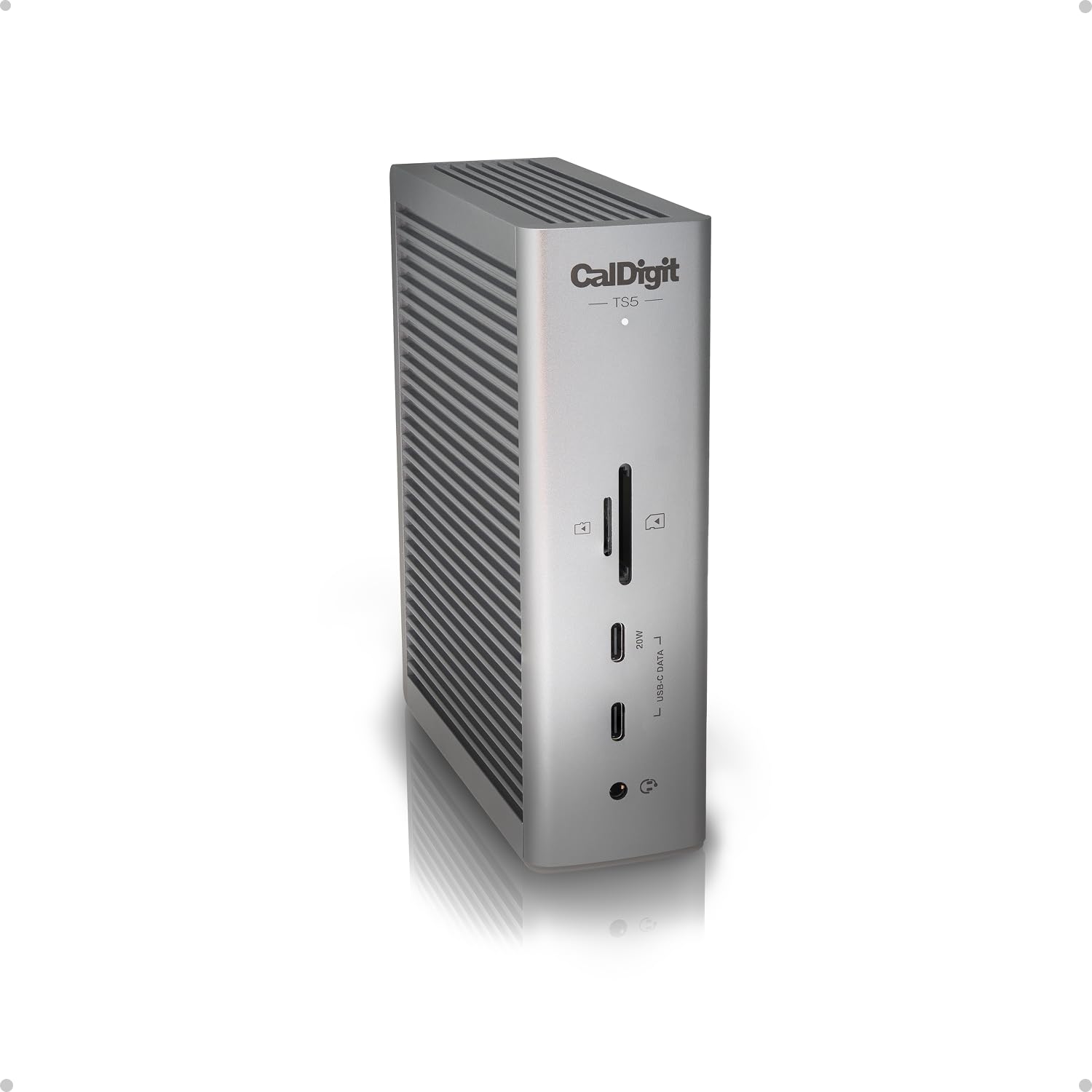
A 240W power supply behind 15 ports — the dock that keeps a 16-inch Pro at full speed all day.
The story here is sustained power. A 240W power supply lets the TS5 feed up to 140W into a 16-inch M3, M4 or M5 Pro or Max MacBook Pro continuously, while still powering every other port. Downstream Thunderbolt 5 ports each provide 15W, and a front USB-C port delivers up to 20W for accessories. That is why this dock suits a desk loaded with SSDs, a webcam, speakers and a phone charger, all hanging off one cable. Fifteen ports span three Thunderbolt 5 downstream connections, three USB-C 3.2 Gen 2 ports at 10Gbps, an SD 4.0 and microSD 4.0 UHS-II reader, DisplayPort 2.1 and three audio ports.
Displays flex with the host. On macOS, the TS5 runs dual 6K at 60Hz, or dual 8K at 60Hz on Macs that support that resolution, and up to dual 4K at 240Hz for high-refresh screens. On Windows Thunderbolt 5 hosts it can reach triple 4K at 144Hz. The 2.5GbE port is 2.5x faster than the standard 1GbE on most docks and steps down to slower networks. Thunderbolt 5’s Bandwidth Boost can channel up to 120Gb/s to the displays when you connect high-refresh monitors at high resolution. The aluminum chassis doubles as a heat sink, so leave clearance around it for airflow.
Owners call it flawless and praise how much it handles without complaint — a MacBook Pro plus a full desk of peripherals on one cable. What wins people over is the overall quality and the port capacity together. A fair caveat: with two displays connected, an external SSD’s write speed can drop noticeably through the dock versus a direct connection, so run a heavy-writing SSD straight into the Mac if speed is critical. On M4 Pro chips, a monitor can occasionally stay asleep on wake until you reseat a cable. And the space-grey shell does not perfectly match a silver MacBook. This is the premium end for a serious Mac workstation, priced accordingly.
Why it tops the premium tier: a 240W supply feeding 140W to the host, 15 ports including three Thunderbolt 5 downstream connections, and dual 6K on macOS — the most headroom on this list.
The trade you accept: an occasional wake-from-sleep monitor glitch on M4 Pro chips, a write-speed drop on SSDs routed through the dock, and a small color mismatch with a silver MacBook.
Worth it for: a 16-inch MacBook Pro owner who runs a dense desk of peripherals and wants sustained 140W charging.
Overkill if: you run a 13- or 14-inch MacBook and only one external screen.
Know the Specs
DisplayLink driver
A small piece of software that lets a dock drive more screens than your Mac officially supports. Base M1, M2 and M3 MacBooks allow one external display on native ports — DisplayLink compresses the extra picture and rebuilds it, so you can run two, three or even four. The trade is an install step before the screens wake up, and occasionally a lag that a driver version rollback fixes. If your Mac is a Pro or Max chip, you may not need it at all, and a plug-and-play dock keeps things simplest.
Pass-through power delivery
The wattage a dock pushes back into your laptop through the same USB-C cable. A 96W or 100W feed keeps most 13- and 14-inch MacBooks charged during work. A 140W feed matches the fastest-charging 16-inch Pro and Max machines. A dock that ships with a modest brick may hold the battery steady rather than charge it during heavy use, so check both the adapter included and the pass-through rating before you buy.
Ethernet: 1Gbps versus 2.5Gbps
A 2.5Gbps Ethernet port moves files over a compatible network 2.5x faster than the 1Gbps jack on many docks. For a big cloud sync or a video call on a crowded office network, the faster port keeps things steadier than Wi-Fi. If your office switch is 1Gbps, the 2.5Gbps port still works and steps down. If you want full speed, you also need a Cat6 or better cable — a Cat5e runs slower.
USB speeds and card readers
USB ports carry a speed rating that decides how fast an external drive copies. 10Gbps ports suit an SSD and move a big video file quickly. 5Gbps is fine for a flash drive. 480Mbps is slow on purpose and best for a mouse or keyboard. On the card side, SD 4.0 and UHS-II readers offload camera footage far faster than a basic reader, which matters if you shoot daily.
Common Questions
Will a docking station let my base M1 or M2 MacBook run two monitors?
Do I need to install software before my monitors will work?
How much charging power do I need for a 16-inch MacBook Pro?
Can these docks handle three or four monitors at once?
Will my dock work if my Mac has Thunderbolt 3 instead of Thunderbolt 5?
Is a 2.5Gbps Ethernet port worth it over 1Gbps?
Why does my second monitor only mirror instead of extending?
Do these docks power my MacBook without the original charger?
What is the difference between a Thunderbolt dock and a USB-C dock?
Can I connect an external SSD through the dock at full speed?
Do these docks work with a Windows laptop too?
The Bottom Line
For most people, the best mac docking station multiple monitors winner is the TobenONE 18-in-2 UDS040M because it runs two 4K monitors at 60Hz (sharp, smooth motion) with no driver to install, charges at up to 100W from its bundled 150W adapter, and adds a 2.5Gbps network port (a connection rated at 2.5 gigabits per second). If your Mac has a base M-chip and you need two or three screens, grab the WAVLINK 15-in-1, which uses DisplayLink (software that draws extra screens over USB) to break the one-screen limit. And for a dense desk of drives and a 16-inch Pro that wants constant power, the CalDigit TS5 is the one to reach for.
The crowd favorite for raw reliability is the CalDigit TS5 — 4.0+ stars across 80+ ratings, with owners calling it flawless under a full load. Buy on fit, not on price: match the dock to your chip, your screen count and your charging wattage, and every pick here earns its place.
How we choose
We do not accept paid placement. Every pick is matched to a real buyer and a real use-case; we do not hands-on test units.
Sources
Specifications: manufacturer listings and product documentation. Review insights: verified customer reviews, as of October 2026. Pricing: not shown on this page (it changes often); check the current price via the retailer link.
As an Amazon Associate, Aappliancez earns from qualifying purchases. This does not affect which products we feature.