Disclosure: Some links in this post are affiliate links. As an Amazon Associate I earn from qualifying purchases, at no extra cost to you. Learn more
Specs are compiled from manufacturer listings and verified buyer reviews and can change over time — please confirm the key details on the product page before buying.
You want a machine that runs Linux cleanly, without paying for a Windows licence you will wipe on day one. The short answer: a tower with plenty of RAM and a tool-less case beats a sealed mini PC or a laptop every time, because you can swap the drive and add memory yourself. This guide covers ten desktops that actually boot Linux, ranked by what matters on a Linux desk — driver friendliness, upgrade room, and how much hardware you get for your money.
This guide is built by comparing the manufacturers’ published specifications and the patterns across verified customer reviews, so you get each pick’s real strengths and trade-offs instead of marketing spin.
Most of these ship with Windows or Ubuntu already installed, so you spend your first hour deciding what to keep. Here is how each one holds up as a daily linux desktop computer.
Top Picks

How To Choose The Best Linux Desktop Computer
Buying a desktop for Linux is different from buying one for Windows, because the operating system you install changes which parts matter. A machine with a strong processor and lots of RAM but no discrete graphics card is fine for code, documents and databases. A machine with a big graphics card is the one you pick for gaming, rendering or local AI work. Decide which of those you are before you read anything else.
Start with the processor and how many cores it has
Cores are the parallel workers inside the chip, and more of them means a compile, a render or a batch job finishes sooner. Cache is the fast memory built into the processor, so a bigger cache keeps more of your working data close at hand. Look at both together, because two chips with the same core count can behave very differently once the cache runs out.
Decide if you need a graphics card at all
Integrated graphics live on the processor itself and handle desktop work, video playback and multiple monitors without a separate card. That covers email, browsers, spreadsheets, terminals and most coding work. A discrete card only earns its place when you game, edit video, or run machine-learning models locally — and it also decides which Linux graphics drivers you will be maintaining.
Check that the ports match your monitors
Look at the actual output ports before you buy, because Linux is fussy about display adapters. HDMI and DisplayPort run natively in almost every distribution, while some proprietary multi-monitor chipsets need extra work. A tower with three DisplayPort 1.4a outputs will drive three screens with nothing but cables, which is the simplest result you can ask for.
Leave yourself room to upgrade later
Memory and storage are the two things that age fastest. A machine with spare memory slots and an open drive bay will outlast one that is sealed shut, and it saves you replacing the whole computer when your needs grow. Tool-less cases make the swap a screwdriver-free job, so check how the panel opens before you commit.
Side-by-Side Comparison
| Model | Best For | Processor | Memory | Max Speed | Amazon |
|---|---|---|---|---|---|
| Dell Tower Desktop (Ultra 7-265)★ Best Overall | Everyday Linux workstation | Intel Core Ultra 7-265 | 32GB | 5.3 GHz | Amazon |
| HP Pro Tower 290 G9Office Stalwart | Office and study desks | Intel Core i5-12500 | 16GB | 4.6 GHz | Amazon |
| Dell Pro Tower Plus Core Ultra 7 265Multi-Screen Pick | Multi-monitor professionals | Intel Core Ultra 7 265 | 16GB DDR5 | 5.3 GHz | Amazon |
| BOSGAME AI 9 Mini PC | Local AI and gaming builds | AMD Ryzen AI 9 HX 470 | 32GB DDR5 | 5.2 GHz | Amazon |
| Lenovo ThinkCentre M70q Tiny | Desks with no room | Intel Core i5-10500T | 16GB DDR4 | 3.8 GHz | Amazon |
| DreamQuest Mini PC Ubuntu | Ubuntu from the start | Intel N95 | 32GB DDR4 | 3.4 GHz | Amazon |
| Dell Tower Desktop (Ultra 9 285) | Creative and rendering work | Intel Core Ultra 9 285 | — | 5.6 GHz | Amazon |
| HP OmniBook X 14 | Travel and remote work | Intel Core Ultra 7 356H | 24GB LPDDR5x | 4.7 GHz | Amazon |
| Thermaltake LCGS View 9580S-380XL | Heavy gaming and streaming | AMD Ryzen 9 9950X3D | 32GB DDR5 | — | Amazon |
| Dell Pro Tower (i3-14100) | Tight business budgets | Intel Core i3-14100 | 8GB DDR5 | — | Amazon |
Detailed Reviews
1. Dell Tower Desktop Intel Core Ultra 7-265
Our pick — 4.0+★ from 400+ verified ratings; the strongest balance of quality and price.
Thirty-two gigs of RAM and a 5.3 GHz chip make this the desk you stop thinking about.
The strongest pick for most people running Linux at a desk, and the reason is simple: it hands you a 20-core Intel Core Ultra 7-265 that peaks at 5.3 GHz, plus 32GB of memory already installed. Twenty cores means twenty parallel workers, so a kernel build, a Docker stack and a browser with forty tabs can all run at once without the machine crawling. The speed comparison against the DreamQuest mini PC is the clearest illustration — 5.3 GHz versus 3.4 GHz — and you feel that gap the moment you compile anything.
What wins people over is the build itself. The tool-less entry and removable side panel mean you open the case without hunting for a screwdriver, so adding a drive or swapping memory is a five-minute job rather than a project. Owners describe it as quiet in a way that surprises them after years on an older machine, and the 1TB SSD keeps boot times short. If you plan to distro-hop, this is the friendliest chassis on the list to do it in, because nothing is glued shut.
Two things to know before you commit. First, the power supply in the base configuration limits what graphics card you can add later, so treat this as a productivity machine and buy a different desktop if gaming is the point. Second, the USB layout gets mixed reviews — there are plenty of ports, but the rear panel is short on USB-C, which matters if you dock a laptop-style USB-C hub. Neither is a dealbreaker for a Linux workstation, and both are the trade-offs you accept for the price.
What earns it the top slot
- 20-core Intel Core Ultra 7-265 running up to 5.3 GHz — heavy multitasking stays smooth
- 32GB of RAM already fitted, so virtual machines and containers have room from day one
- Tool-less entry and a removable side panel — you can open it with your hands
- Runs quiet enough that owners notice it after years on a noisier desktop
Where it asks you to compromise
- The stock power supply caps how big a graphics card you can add later
- Rear USB-C ports are limited, so a USB-C dock needs planning
- No discrete graphics from the start — fine for code, not for AAA gaming
Go for it if: you want one tower that handles code, browsers, spreadsheets and several virtual machines without a second thought.
Look past it if: you need a big graphics card, because the stock power supply will hold you back.
2. HP Pro Tower 290 G9 Desktop
A six-core office tower that boots fast and stays quiet enough to forget.
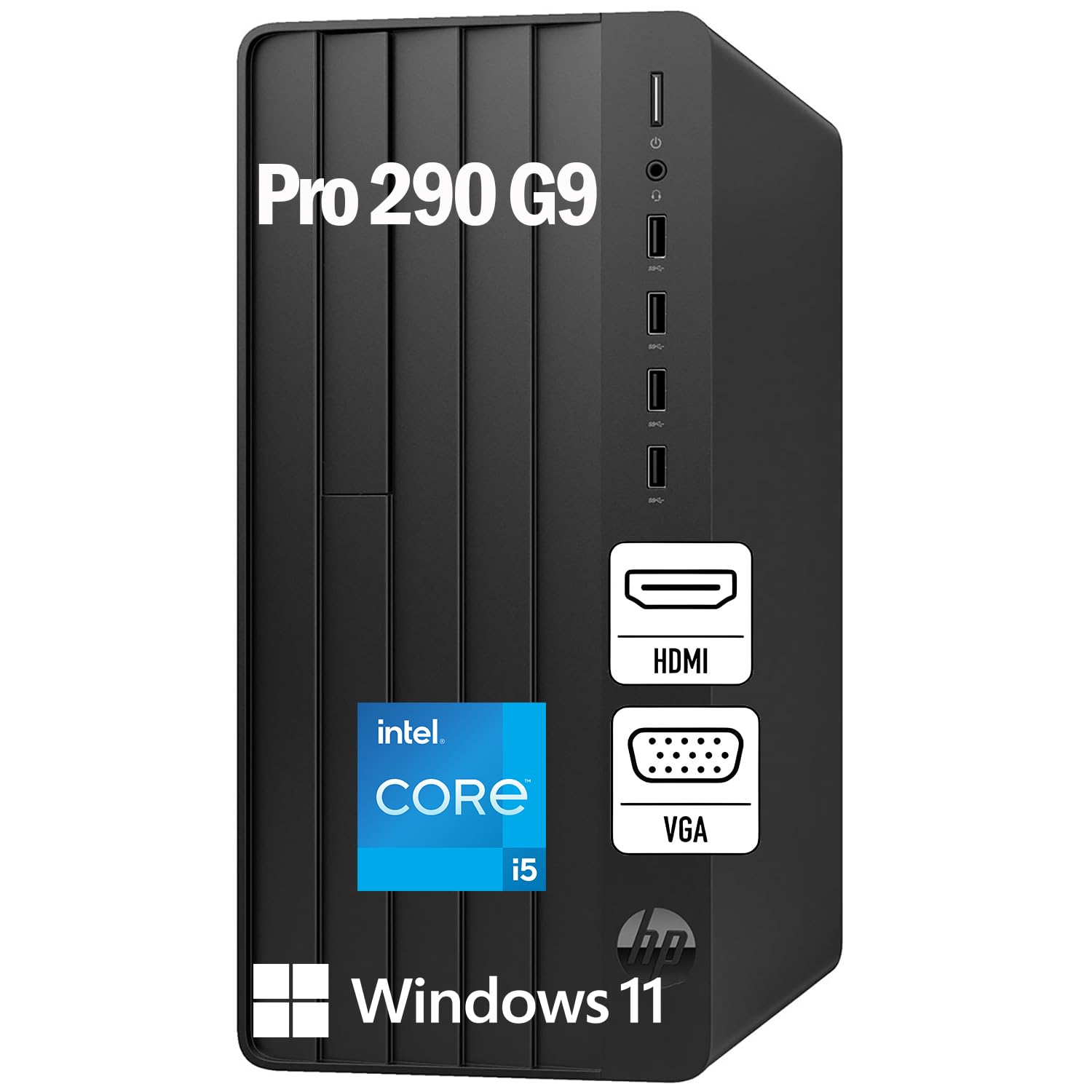
The HP Pro Tower 290 G9 pairs an Intel Core i5-12500 six-core processor with 18MB of cache and a 512GB PCIe NVMe SSD. Six cores and a 4.6GHz turbo speed are more than enough for a browser, a terminal and a document editor running side by side, and the 18MB cache keeps your working data close so switching windows feels instant. The 512GB SSD is the reason the machine is ready before you sit down — the boot and file access are the fast part, not the processor alone.
Performance is the thing buyers talk about most, and it holds up for the everyday jobs. Streaming is smooth, Windows 11 is regarded as a clear step up from older versions, and the tower stays quiet under normal load. The port layout is workable for Linux too: four USB 3.0 ports up front at 5Gbps, four USB 2.0 at the rear, plus HDMI, VGA and RJ-45 Ethernet. That Ethernet port is worth flagging, because wired networking is the one thing Linux never argues with.
Here is the honest catch: 16GB of RAM is comfortable today and tight once you start stacking virtual machines, and the 512GB drive fills quickly if you keep large datasets. The Bluetooth in particular is inconsistent — some units connect fine, others stutter — so plan on a wired keyboard and mouse or a USB Bluetooth dongle. Neither is expensive to fix, but neither is a surprise free upgrade either.
Where the value sits: a six-core processor and fast NVMe storage in a chassis that runs quiet and takes up little desk space — the everyday specification that most office workers actually need.
The honest limit: the memory and storage are sized for documents and email, not for containers and databases, and the wireless radio is the weak link.
Right for you if your day is browsers and documents: the i5-12500 and fast SSD make it feel quicker than its spec sheet suggests.
Better elsewhere if: you expect to run several virtual machines, since the 16GB ceiling arrives quickly.
3. Dell Pro Tower Plus Core Ultra 7 265
Three DisplayPort outputs, three 4K monitors, no adapter in sight.
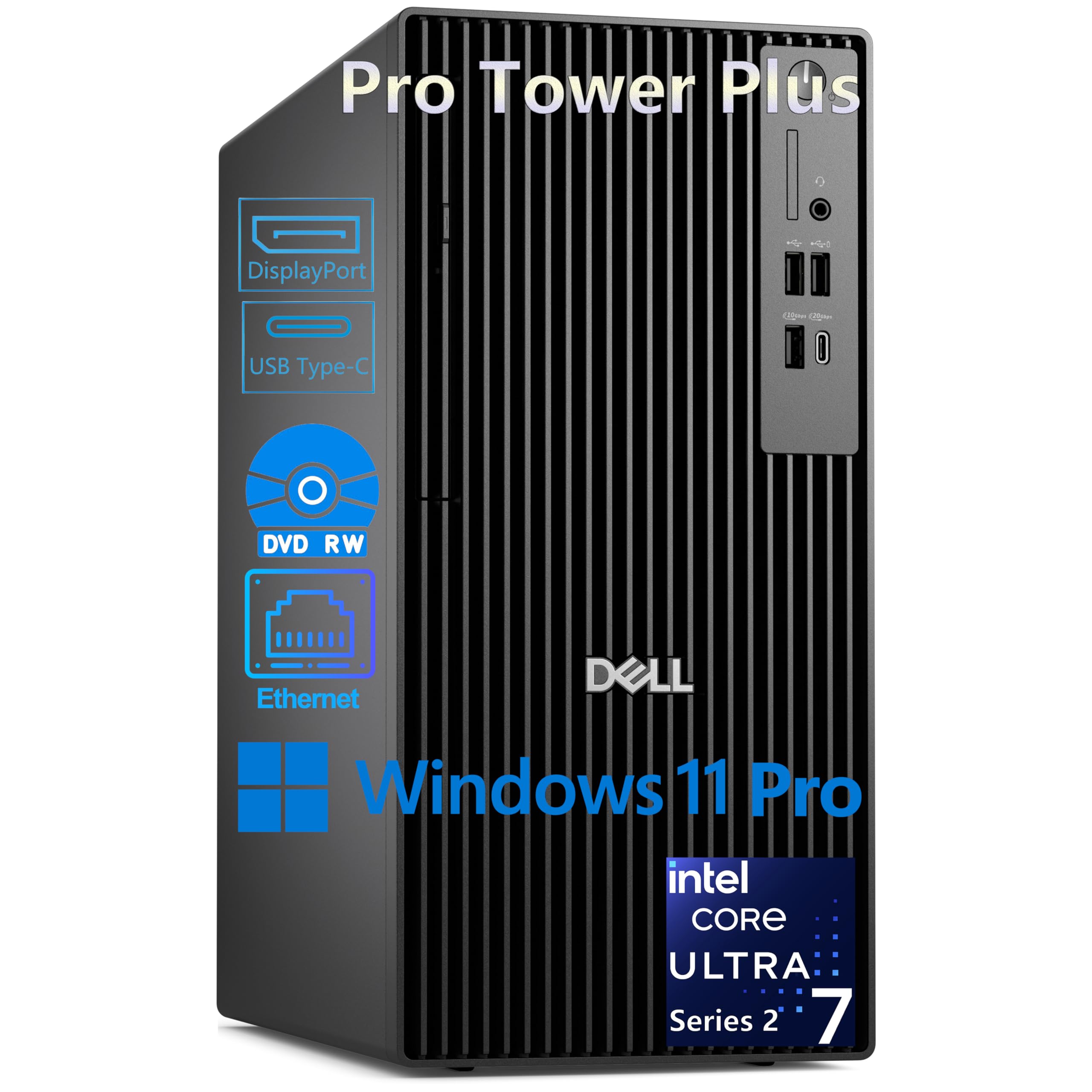
If your Linux desk is really a wall of screens, start here. This Dell Pro Tower Plus runs up to three 4K displays at once through three DisplayPort 1.4a outputs (a video connector standard), and it does that on integrated graphics — no separate card, no driver hunting. The processor is the same 20-core Intel Core Ultra 7 265 as the top pick, with a 13 TOPS NPU (a dedicated AI chip that speeds up on-device models; TOPS measures AI calculations per second) and a 5.3GHz turbo, plus 30MB of cache (fast memory the chip keeps close for repeat work). Its 30MB cache is the larger of the two Dell towers compared in this guide, well above the 12MB in the entry-level Pro Tower below — so heavy multitasking stays smoother here.
The 1TB PCIe NVMe SSD and 16GB of DDR5 memory cover a trading desk, a data-visualisation screen or a CAD session without strain. There is also an 8x DVD+/-RW drive, which sounds dated until you need to read an old install disc, and a 260W Bronze power supply. Ports are generous: a 20Gbps USB-C up front, a 10Gbps USB-C at the rear, plus USB 3.2 and USB 2.0 in both places.
Two real limitations shape who this suits. There is no built-in WiFi, only Gigabit Ethernet, so a wireless-only room needs an adapter. And the monitor connections are DisplayPort only — no HDMI at all — which means an older HDMI monitor needs a converter. Linux handles DisplayPort cleanly, so if your screens are DisplayPort you are in the best-case spot; if not, budget for adapters before you order.
The case for it: a 20-core chip with 30MB of cache and three DisplayPort 1.4a outputs makes this the cleanest triple-monitor Linux machine in the group.
The catch: wired networking only and no HDMI port, so both your network and your monitors need a plan.
Pick this one when your work lives across three screens: the triple DisplayPort layout is the whole argument.
Think twice if: your monitors are HDMI or your desk has no Ethernet drop — you will be buying adapters on day one.
4. BOSGAME AI 9 Mini PC
A palm-sized box that runs local AI models and boots Ubuntu in five minutes.
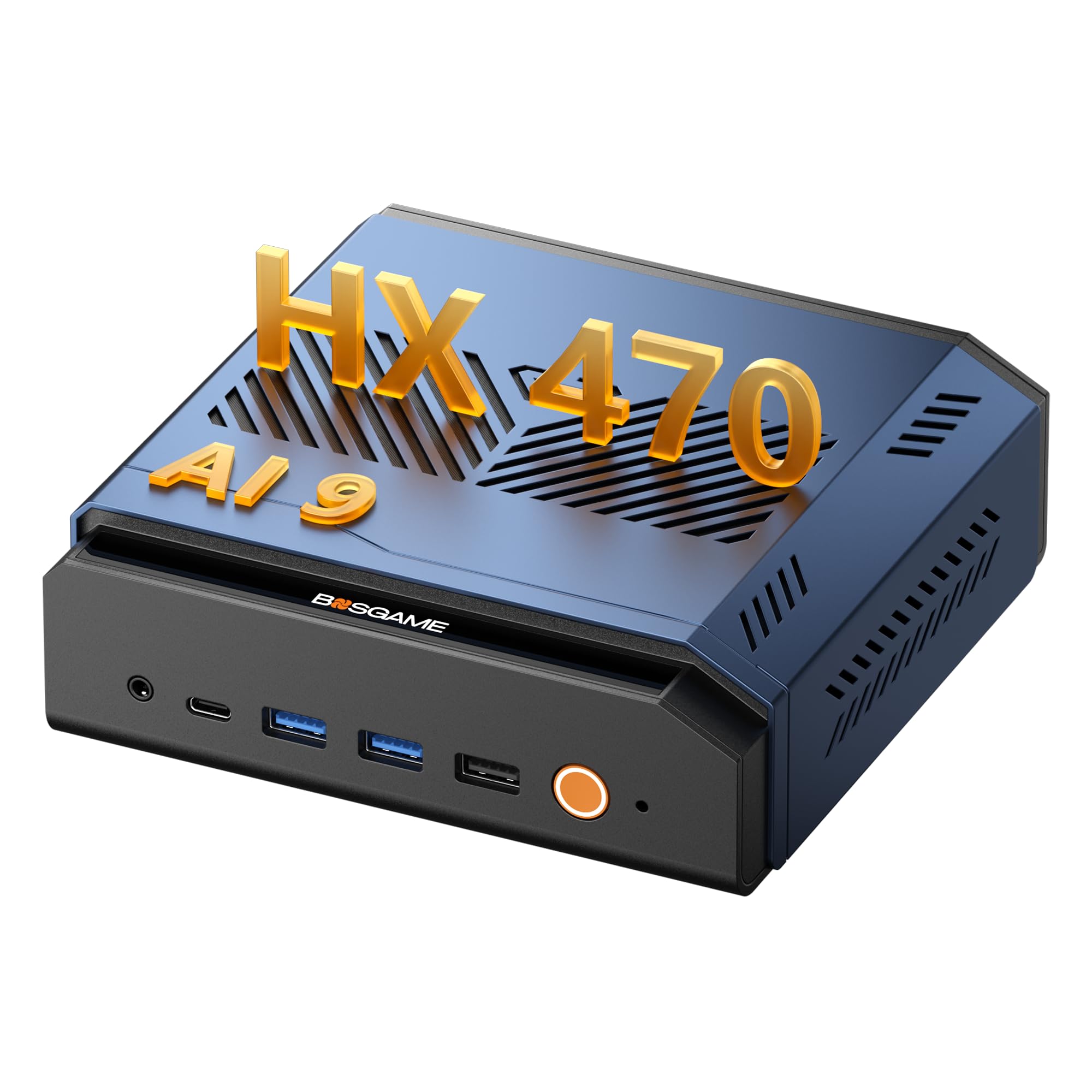
The BOSGAME VTA-439 is the machine you buy when you want to run AI models on your own desk instead of renting cloud time. Its AMD Ryzen AI 9 HX 470 has 12 cores and 24 threads, runs up to 5.2GHz, and pairs with an XDNA 2 NPU rated at 55 TOPS (TOPS is a measure of how many AI calculations a chip can do per second). That rating is what decides whether a local language model answers in a useful time or leaves you waiting. The 32GB of DDR5 memory — running at 5600MHz — and the 1TB PCIe 4.0 SSD (fast solid-state storage) are the other half of that story, because big models are memory-hungry before they are anything else.
What makes it genuinely unusual for Linux is the OCuLink port, a dedicated external-graphics connection rated at up to 64Gbps. That is a real expansion path that mini PCs normally do not offer, and it means you can start with integrated Radeon 890M graphics and add a desktop graphics card later for gaming or rendering. Linux users have reported a clean install path: one owner wiped Windows and put Ubuntu on it, and another went further with Pop!_OS and got demanding games running smoothly. The dual 2.5GbE ports and Wi-Fi 7 make it a credible small server too.
The caution here is hardware longevity, not speed. Buyers report a cooling fan failing or a drive dropping out months down the line as the recurring sore point, and reaching support afterwards can take real persistence. Speed is not the issue with this machine; the question is if you want a small box with a support path that can be slow. If you keep your own backups and treat it as a self-managed unit, the performance per inch is hard to match.
Where it stands out: a 55 TOPS NPU and 32GB of DDR5 at 5600MHz make local AI work genuinely practical, and the OCuLink port gives you a graphics upgrade route no other mini PC here offers.
The part to weigh: long-term reliability is the weak spot, and getting warranty help can be a slow process.
Made for you if: you want to run local models, containers or a small home server from a box the size of a book.
Look elsewhere if: you want the easiest support path, because this is a machine you should be comfortable maintaining.
5. Lenovo ThinkCentre M70q Tiny Desktop
Weighs 1.25 kg — light enough to carry between desks and small enough to hide.
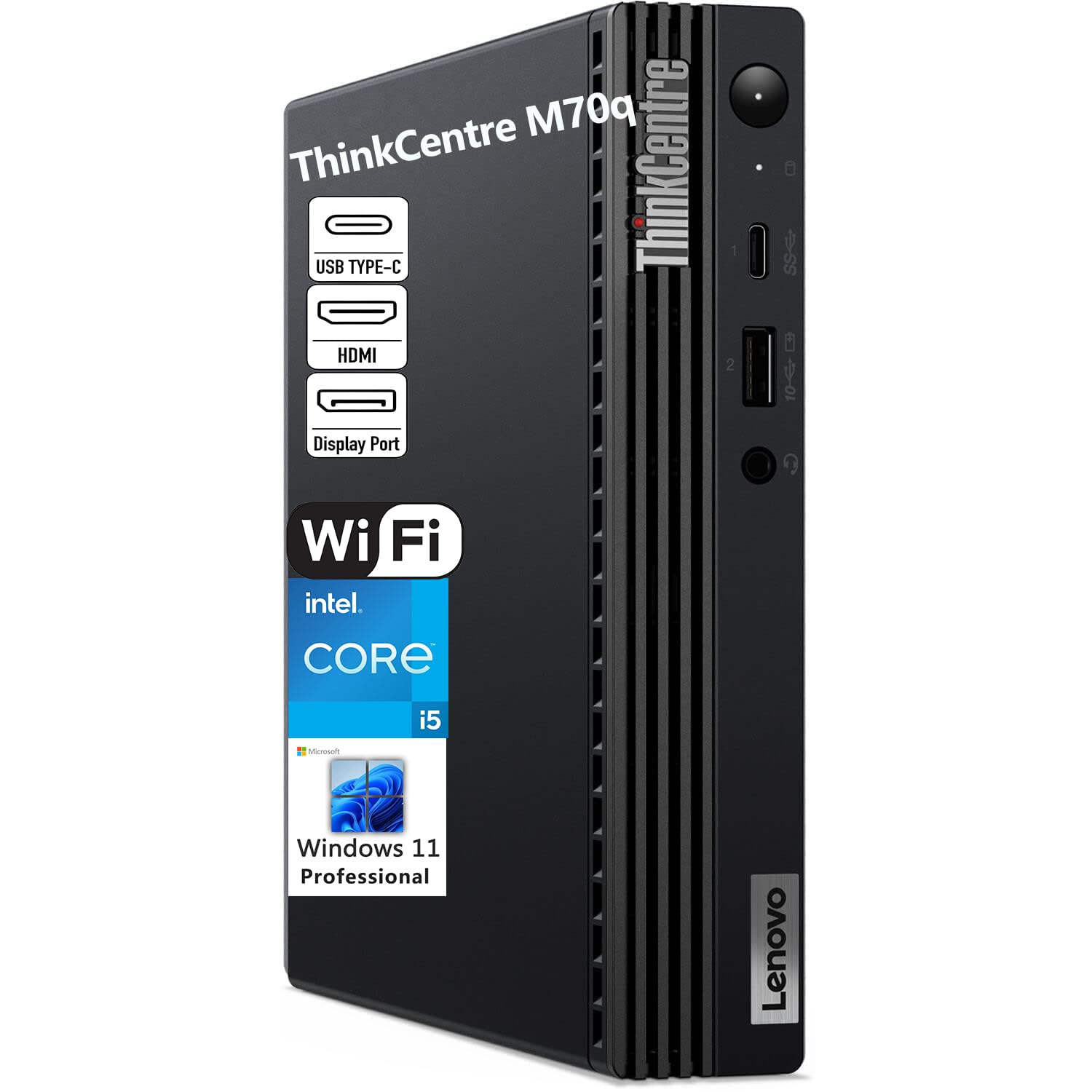
The ThinkCentre M70q Tiny is built around one number: 1.25 kg. That is light enough to move between offices without a second trip, and the compact black chassis disappears behind a monitor or beside a router. Inside sits a 10th Gen Intel Core i5-10500T with six cores and twelve threads, running at 2.30GHz base and up to 3.80GHz turbo, matched with integrated Intel UHD Graphics 630. It drives up to three independent displays when you add the right optional video port, which is a reasonable result for a machine this size.
Multitasking and file access stay snappy thanks to 16GB of DDR4 memory and a 512GB PCIe NVMe SSD (fast solid-state storage). The port list is genuinely thorough: WiFi 5, Bluetooth, Gigabit Ethernet (wired network), front USB Type-C, front USB with power-off charging, four rear USB ports, HDMI, DisplayPort 1.4 and an audio jack. For a Linux setup that means a monitor, a wired keyboard and a network cable all plug straight in. It is a portable desktop in the practical sense — one that fits a dorm, a classroom or a developer’s second workspace.
Buy knowing that refurbished stock is part of the picture here. Some units arrive incomplete, and there are reports of a missing power cord and a missing wireless card, so a quick inventory against the listing before you rely on it is worth the five minutes. Bluetooth audio has also been thin on some units until an external antenna is added. None of that makes it a bad buy at this tier — it makes it a machine to check on arrival rather than assume.
Its defining strength: at 1.25 kg with six cores and a 512GB SSD, it delivers a full desktop experience in a body you can pick up with one hand.
Worth knowing up front: refurbished units vary, so confirm the power cord and network card are present before setup.
Suits a travelling or space-starved desk: it does full desktop work from a machine you can carry between rooms.
Not for you if: you want sealed-new certainty or you plan to run a heavy graphics workload.
6. DreamQuest Mini PC Linux Ubuntu
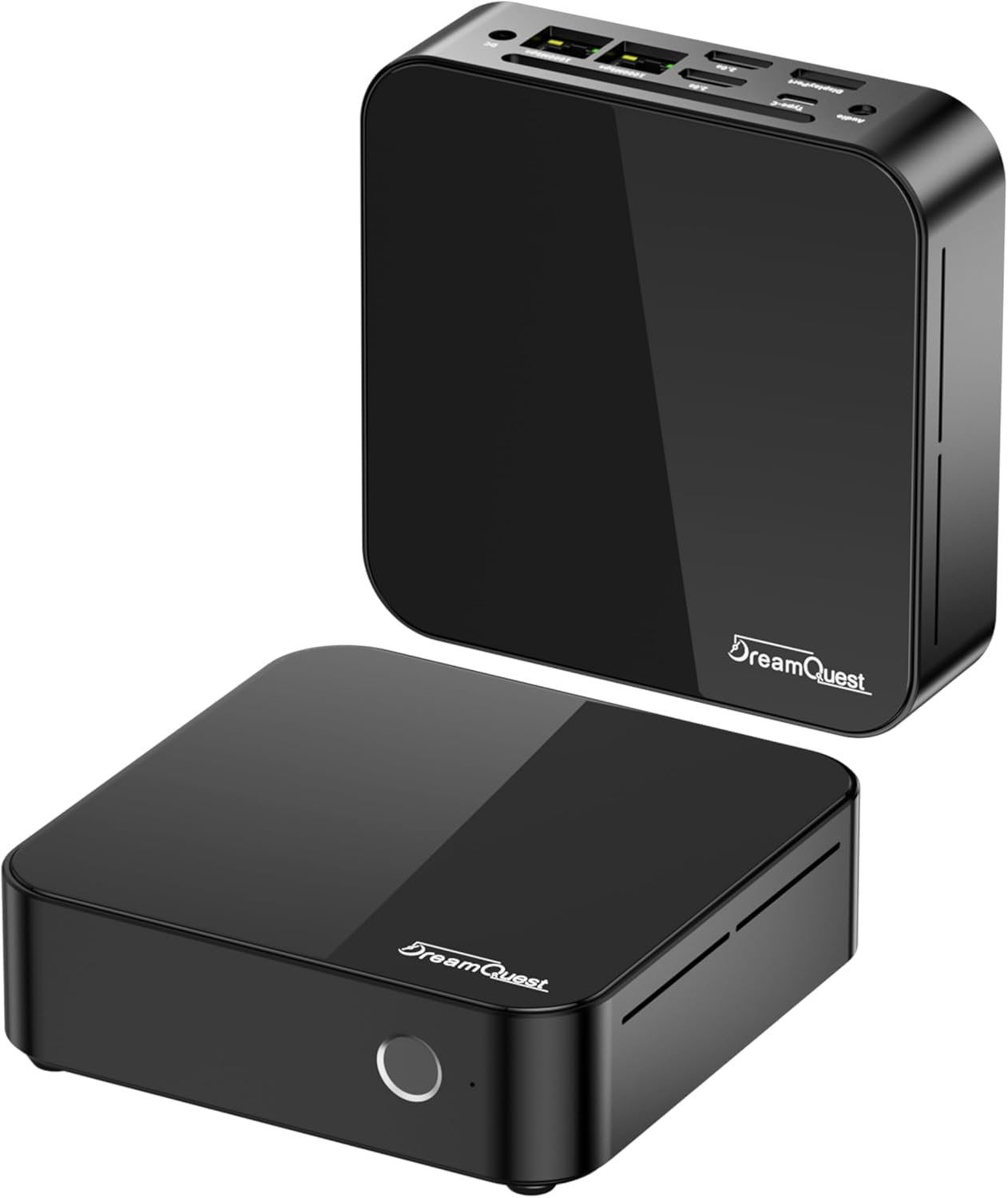
It arrives already running Linux — no licence to pay for, no drive wipe to plan.
This is the only machine on the list that treats Linux as the main event rather than something you install afterwards. DreamQuest ships it preloaded with a Linux operating system and supports Ubuntu, plus PXE network boot and BIOS configuration from inside the OS. The practical win is obvious: you unbox it, connect a monitor, and you are working in the environment you actually wanted. For anyone tired of paying for a Windows licence they immediately delete, that is a real saving in both effort and conscience.
The Intel N95 runs at 1.7GHz base and up to 3.4GHz, which is modest beside the towers here, and the 32GB of DDR4 memory and 1TB SSD do the heavy lifting instead. That memory is the standout pairing: 32GB in a mini PC means browser tabs, containers and a development environment can all coexist without swapping. It also supports triple displays through its HDMI 2.0 and DP outputs and plays 4K video. The port selection covers four USB 3.2 Gen 2 at 1000MB/s, dual Gigabit LAN and Type-C, and you can add an SSD to push storage up to 2TB.
The size is what buyers return to. It is genuinely tiny, and it runs almost silently at light load, which makes it easy to live with on a small desk. The downside is a processor that will not keep up with heavy compiles. One owner wanted a manual and spent weeks chasing one through support channels without success, so an unboxing check against the listing is smart. If your work is web apps, documents, email and a home server, the specification fits; if your work is compiling large projects all day, it will feel slow.
Why the Linux crowd likes it
- Ships with Linux preinstalled and supports Ubuntu plus PXE and BIOS configuration from the OS
- 32GB of DDR4 memory and a 1TB SSD in a body that fits behind a monitor
- Almost silent at light load, so it disappears on a small desk
- Triple-display support through HDMI 2.0 and DP outputs
The honest trade-offs
- The N95 processor is the slowest chip on this list
- Documentation can be missing from the box, and support may take persistence to reach
The obvious first choice if you want zero setup: Linux is already there and working when the box opens.
Step up if: your workload includes compiling or rendering, because the N95 will be the bottleneck.
7. Dell Tower Desktop Intel Core Ultra 9 285
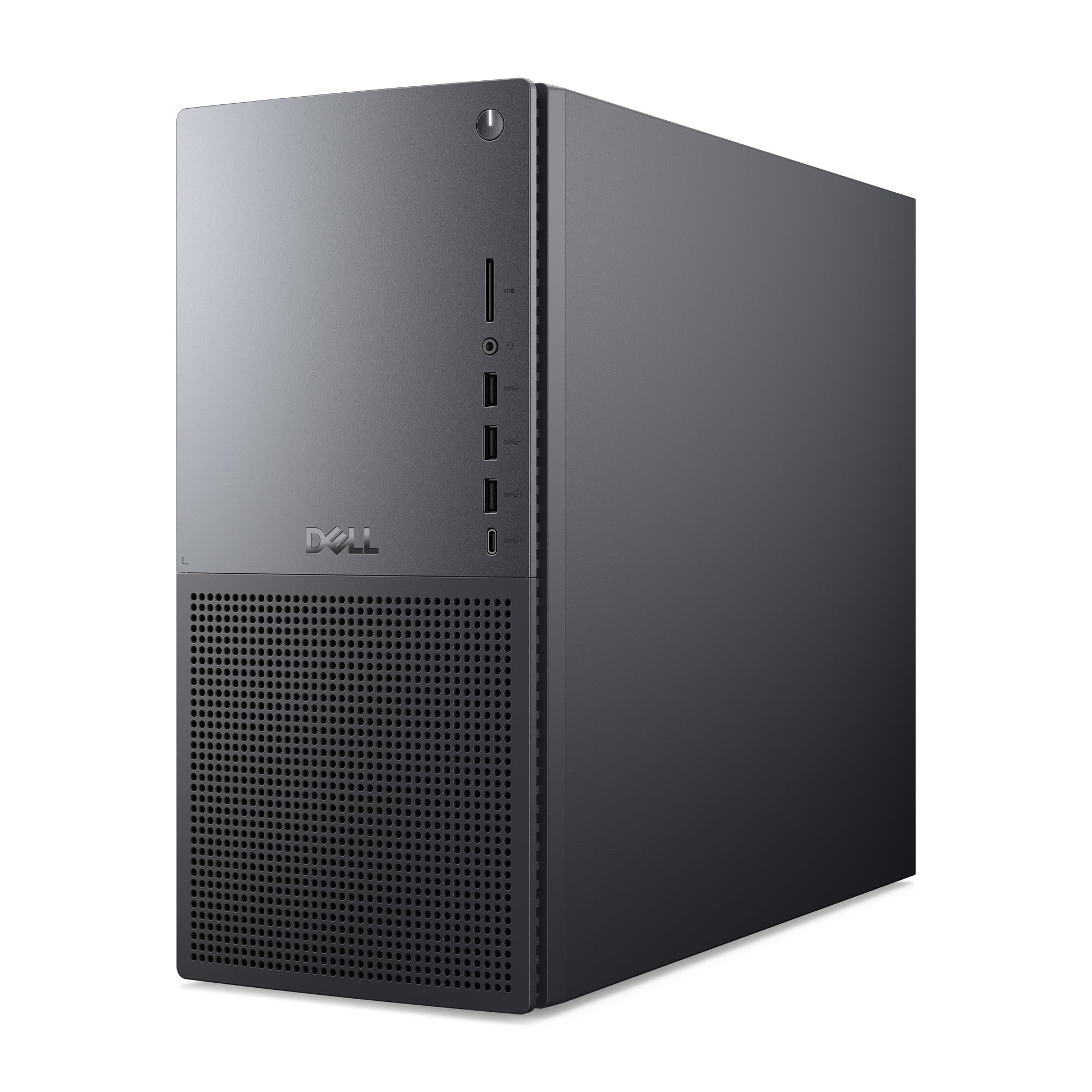
A 76MB cache and an RTX 5070 — the machine for work that renders, not just types.
The Intel Core Ultra 9 285 here is the fastest chip in the whole group at 5.6GHz, and the 76MB of cache is by far the largest on this list. Paired with an NVIDIA GeForce RTX 5070 with 12GB of its own memory, this is the desktop you pick when the render is the job rather than the thing that happens while you do the job. The triple AI engine setup — CPU, GPU and NPU working together — is aimed squarely at that kind of software.
Upgradability is where it earns a real place on a Linux desk. Memory, storage and expansion slots are all reachable, so the machine can grow past the configuration you buy. On the graphics side, the RTX 5070 has a well-trodden driver story in Linux, which removes the guesswork. The thermal design keeps airflow moving around a 65W processor with standard air cooling, so a long render does not turn the office into a sauna.
The scores on this one are lower than the rest of the Dell line-up, and it is worth understanding why. Several units arrived dead or failed shortly after setup, so a careful unboxing day and a quick stress test before the return window closes is sensible. Others report the storage is split across two 1TB drives soldered to the board rather than one 2TB drive, and that limit is permanent. If you want room for a big media library on a single volume, factor that in.
The argument for it: 76MB of cache, a 5.6GHz top speed and a 12GB RTX 5070 make it the fastest creative machine here for rendering and editing.
The caveat: reliability is inconsistent on this model, and the storage is split across two soldered drives.
For the person whose work is rendering and editing: the cache and the graphics card do the heavy lifting.
Consider a safer pick if: a single-roomy-storage setup and a trouble-free first boot matter more to you than raw speed.
8. HP OmniBook X 14 inch AI PC
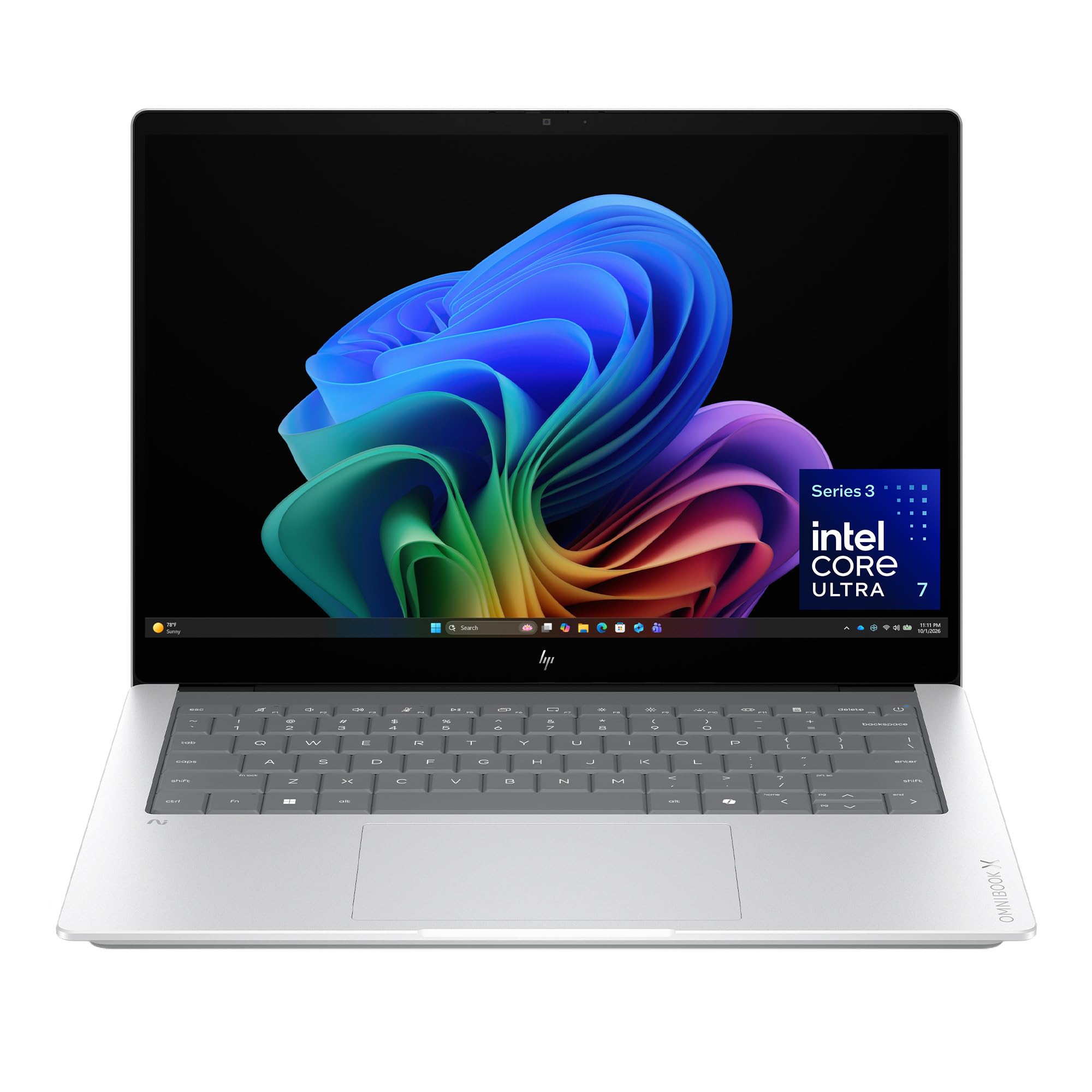
A 14-inch laptop rated for 27.5 hours of battery — the one pick here that leaves the desk.
Not every Linux desk has a desk in it. The OmniBook X is a 14-inch laptop with an Intel Core Ultra 7 356H processor, 24GB of LPDDR5x memory and a 1TB PCIe Gen4 NVMe SSD, and its headline number is 27.5 hours of battery life. HP Fast Charge takes the battery from 0 to 50 percent in roughly 30 minutes, so a short platform wait buys hours of work. The 3K OLED touchscreen lights each pixel separately, so blacks are genuinely black and colour depth holds up for photo work.
For a Linux mobile workstation, the topology on offer is very usable: the low-power LPDDR5x memory keeps the processor fed with high bandwidth, and the 356H runs up to 4.7GHz with 18MB of cache. Owners describe it as fast with excellent Wi-Fi and quiet fans, with very little preinstalled clutter to strip out — always welcome when you are about to replace the operating system anyway. The display is repeatedly singled out as the best part of the machine, which is exactly what you want on a laptop you stare at all day.
The honest weak point is the speakers. The audio is thin, with little bass or treble, so anyone mixing audio will plug in headphones for serious listening. The other thing to accept is that this is a sealed laptop: memory is soldered and not upgradable, so 24GB is the ceiling for the whole life of the machine. If your workflow needs 64GB of RAM for virtual machines, this is the wrong shape of computer and a tower is the right answer.
What makes it the travel pick
- 27.5-hour battery rating, with 0 to 50 percent in about 30 minutes on HP Fast Charge
- 3K OLED touchscreen with true blacks and strong colour depth
- Fast Wi-Fi and quiet fans, with very little preinstalled clutter
- 24GB of LPDDR5x memory and a 1TB NVMe SSD onboard
What to accept
- Speakers are thin, so headphones do the real listening
- Memory is soldered — 24GB is the final figure
Built for the travelling developer: the battery and the display carry a full working day away from a socket.
Wrong shape if: you know you will need more than 24GB of memory, since it cannot be added later.
9. Thermaltake LCGS View 9580S-380XL Gaming Desktop
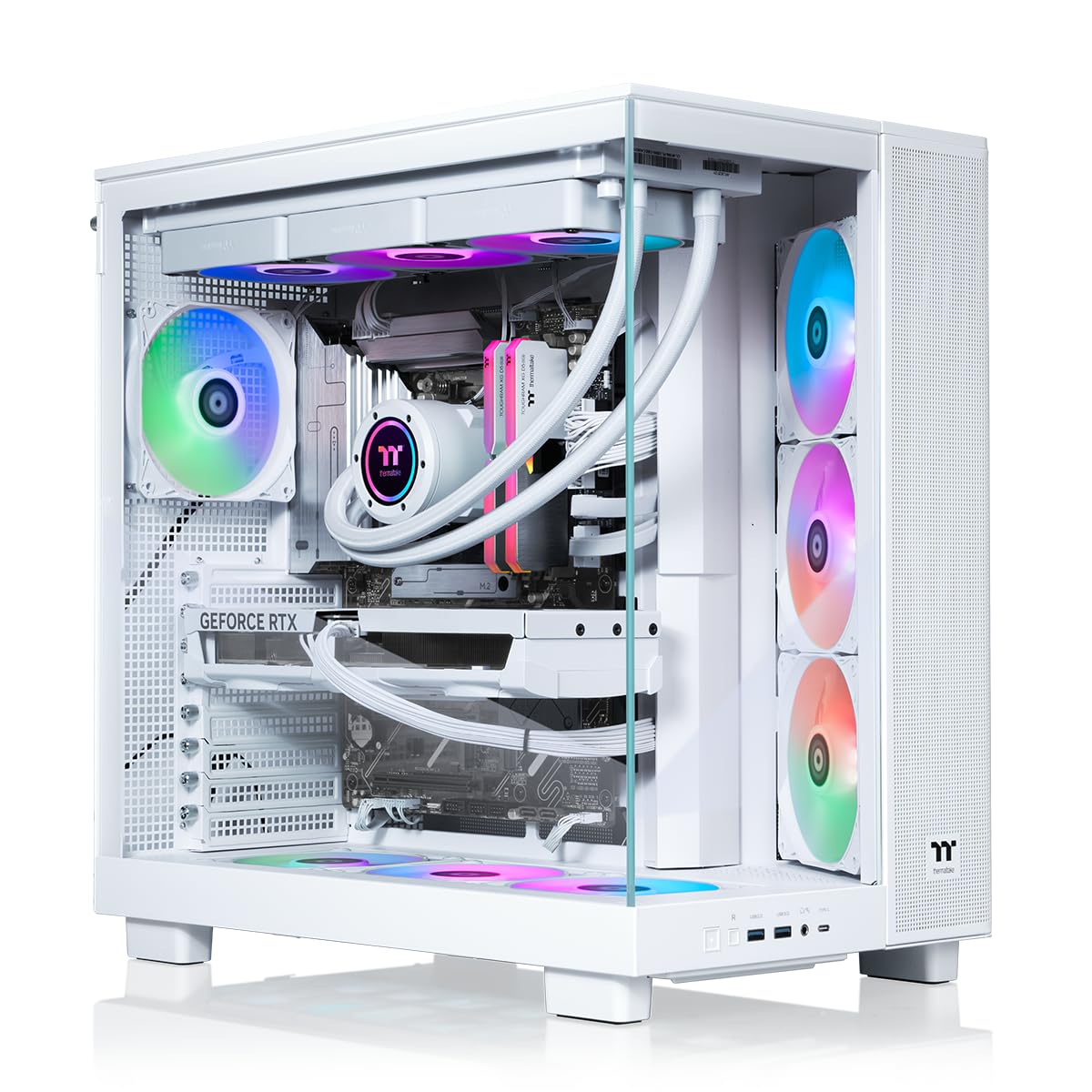
A 9950X3D and an RTX 5080 behind tempered glass, cooled by a 360mm radiator.
This is the machine for someone who wants maximum frame rate without assembling anything. The AMD Ryzen 9 9950X3D processor joins an NVIDIA GeForce RTX 5080 with 16GB of graphics memory, 32GB of DDR5 memory running at 6000MT/s, and a 2TB NVMe M.2 drive. A 360mm closed-loop liquid cooler keeps the processor in check, and the front and side tempered glass panels put all of it on display. On a Linux gaming build, that hardware is the serious end of the market, and demanding games at 1440p are exactly the workload it was built for.
What people notice in use is how quiet it stays at full power. The liquid cooling does its job, boots are instant, and multitasking does not hitch. One owner needed to enable core parking in the BIOS for the 9950X3D — a step common to that chip rather than a fault — and after that the machine did everything asked of it. Storage is generous at 2TB, and the case has room for the airflow that a graphics card this size wants.
The reliability picture is mixed, and it is the reason this sits lower than its hardware deserves. Some units arrive with a loose fan header, a flaky drive or a faulty memory slot, and support can be difficult to reach when that happens. One long-term detail worth knowing: after a full power-off, launching a game immediately on the next boot can trigger a shutdown and restart within ten minutes. It happens once per occurrence, and waiting a moment at startup avoids it.
Where the money goes: the 9950X3D and RTX 5080 pairing with 6000MT/s memory is top-tier gaming hardware, and the 360mm radiator keeps it quiet at load.
Fair warning: build quality varies, and you should be ready to handle a small fault yourself rather than wait on support.
The pick for maximum frames with zero building: the hardware is genuinely top tier and the cooling is serious.
Prefer a calmer route if: you want a hands-off machine, since this one rewards a buyer who can troubleshoot.
10. Dell Pro Tower Desktop i3-14100
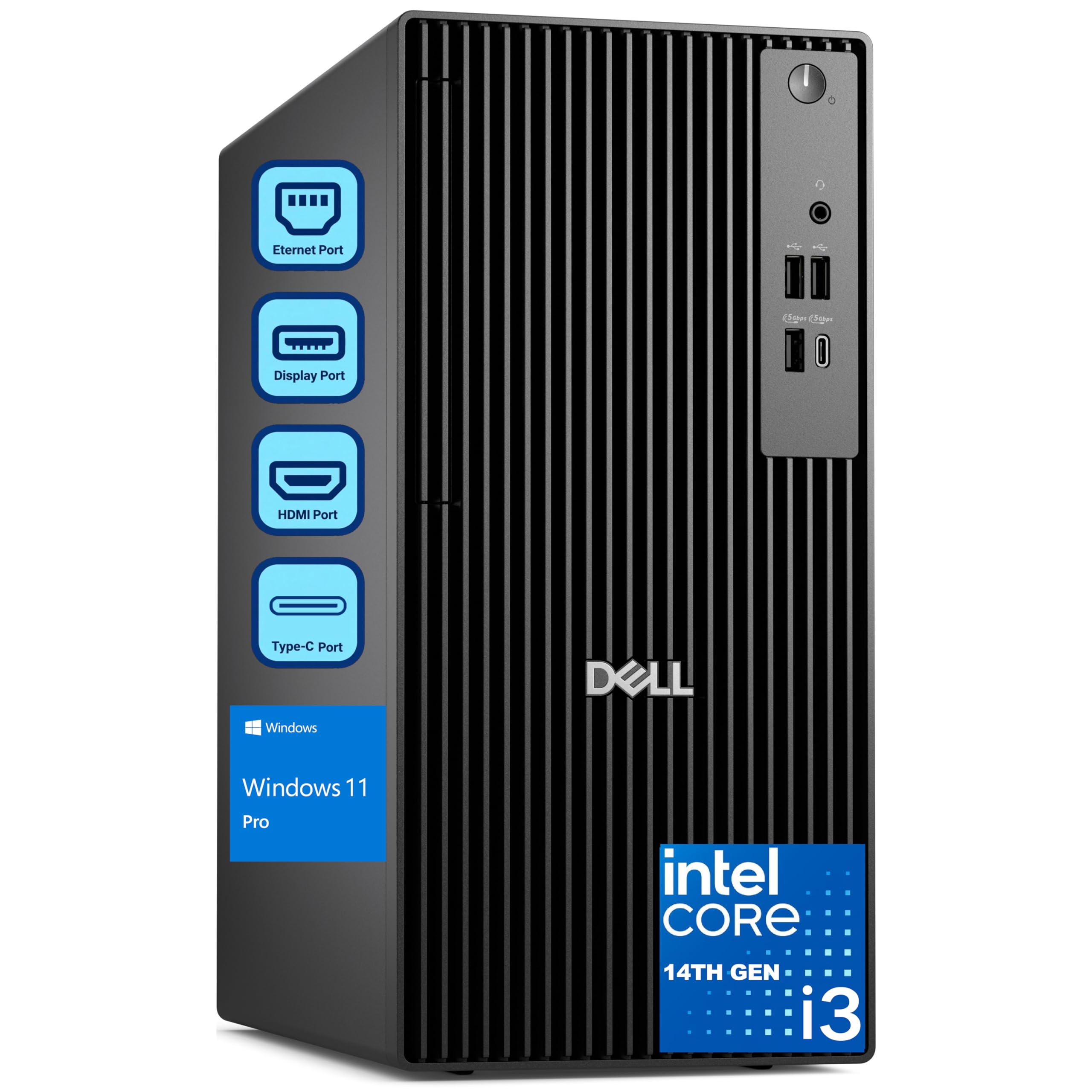
The cheapest way onto a current Intel platform — if your workload stays light.
The Pro Tower pairs an Intel Core i3-14100 quad-core processor with 8GB of DDR5 memory and a 256GB PCIe SSD. The DDR5 memory is the part note, because it is a newer memory generation than the DDR4 in several pricier machines here, and Windows 11 Pro comes preinstalled with domain join and BitLocker (Microsoft’s drive encryption) for anyone managing a small office. Its 12MB of cache is the smaller figure in the Dell tower comparison in this guide, well below the 30MB in the Pro Tower Plus above — and that gap is exactly where the entry-level chip shows its limits.
Where this fits is the low end of the Linux desk. A quad-core i3 with 8GB of memory covers browsers, email, document editing and video calls, and nothing more. The tower is expandable, so memory and storage can grow later, and the port selection includes DisplayPort, HDMI, Ethernet and USB. For a student, a reception desk or a home-office terminal, that is a workable starting point, and the expandability means you are not locked into the entry specification forever.
The catch is that 8GB of RAM and 256GB of storage are tight from the first day, and desktop Linux with a browser open will use a good chunk of that memory before you start. There have also been reports of units arriving needing repair before use, with drivers missing and the internal wireless socket not working, so verify the machine on arrival. Buy it as a foundation to upgrade rather than a finished workstation, and the value makes sense.
Where the money is well spent
- A current Intel platform with DDR5 memory at the entry tier
- Expandable tower design, so memory and storage can grow later
- Windows 11 Pro with domain join and BitLocker for small offices
What you are giving up
- 8GB of memory and 256GB of storage are tight for Linux with a browser open
- Some units have arrived needing driver fixes before first use
A sensible floor to start from: cheap entry onto DDR5 with a case you can upgrade as you go.
Only if light is enough: virtual machines and large datasets will exhaust the memory quickly.
Know the Specs
Core count and cache
A core is an independent worker inside the processor, so a 20-core chip can run twenty tasks in parallel while a quad-core manages four. Cache is the small, fast memory right next to those cores, and a bigger cache means the processor waits less for data. That is why a 76MB cache can matter more than a 0.3GHz clock difference on a heavy render — the work flows instead of stalling.
Memory type and how much you need
DDR5 is a newer memory generation than DDR4 and moves data in larger chunks, which helps when many applications are open at once. The amount matters more than the generation for Linux work: 8GB runs a browser and little else, 16GB handles code and containers, and 32GB gives virtual machines and local AI models the room they need. Soldered memory cannot be changed, so check before you buy a sealed machine.
DisplayPort, HDMI and multi-monitor
DisplayPort and HDMI are the two cable types that carry video to a monitor, and Linux drives both natively on most hardware. A machine with three DisplayPort 1.4a outputs can run three 4K screens with nothing but cables, while an HDMI-only computer limits you to what that one port can do. Match the ports to your monitors before you buy — adapters add cost and the occasional driver headache.
TOPS and NPU for on-device AI
An NPU is a dedicated chip for AI calculations, and TOPS measures how many of those calculations it does per second. A higher TOPS figure means a local language model or an image generator answers faster without sending your data to the cloud. It matters most if you plan to run models locally; if your work is spreadsheets and code, the processor and memory do more of the heavy lifting.
Common Questions
Will thesedesktops run Ubuntu without extra driver work?
Can I install Linux on a desktop that ships with Windows 11?
How much RAM do I need for a Linux desktop with virtual machines?
Does a discrete graphics card matter for a Linux desktop?
How many monitors can each desktop drive?
Is a mini PC fast enough to replace a full desktop tower?
Can I upgrade the memory and storage later?
Do I need a separate graphics card for a home server running Linux?
Will the preinstalled Linux on the DreamQuest accept standard Ubuntu software?
What should I check first when a desktop arrives?
The Bottom Line
For most people building a desk around Linux, the winner is the Dell Tower Desktop with the Intel Core Ultra 7-265, because 20 cores at 5.3GHz and 32GB of RAM already fitted mean you can compile, virtualise and browse at the same time — and the tool-less case lets you keep it current for years. If your work spreads across three monitors, the Dell Pro Tower Plus Core Ultra 7 265 wins on its three DisplayPort 1.4a outputs alone. And if you want zero setup, the DreamQuest mini PC arrives already running Ubuntu.
One last nudge: the DreamQuest and the HP Pro Tower carry the same 4.0+ star ceiling as the top pick, but the Dell leads on the hardware that decides how long the machine stays useful — core count, cache and preinstalled memory. Buy for the core count, cache and memory you will still want in three years, not the spec sheet that looks fine on day one.
How we choose
We do not accept paid placement. Every pick is matched to a real buyer and a real use-case; we do not hands-on test units.
Sources
Specifications: manufacturer listings and product documentation. Review insights: verified customer reviews, as of October 2026. Pricing: not shown on this page (it changes often); check the current price via the retailer link.
As an Amazon Associate, Aappliancez earns from qualifying purchases. This does not affect which products we feature.