Disclosure: Some links in this post are affiliate links. As an Amazon Associate I earn from qualifying purchases, at no extra cost to you. Learn more
Specs are compiled from manufacturer listings and verified buyer reviews and can change over time — please confirm the key details on the product page before buying.
Buying a laptop for Linux is a different job than buying one for Windows. The chip inside decides whether your distro boots at all, whether sleep works, and whether the Wi-Fi card is detected on the first try. This guide covers eleven machines and explains, in plain terms, which ones give a Linux install the easiest ride and which ones are better left to Windows.
This guide is built by comparing the manufacturers’ published specifications and the patterns across verified customer reviews, so you get each pick’s real strengths and trade-offs instead of marketing spin.
Not every laptop here ships with Linux, and that is fine — what matters is the hardware underneath, the ports you can actually use, and how the machine behaves once you wipe the drive. Below you will find the honest ranking of the best Linux ARM laptops and the x86 alternatives worth a second look.
Top Picks


How To Choose The Best Linux ARM Laptops
The first decision is not the brand. It is the chip family, because that single choice determines which distro images will even run, how long the battery lasts, and how much driver hunting you sign up for.
Start with the architecture, not the sticker
An ARM chip (the low-power design used in phones and in Windows-on-ARM machines) runs cool and sips battery, but it needs a distro built specifically for ARM and software compiled for it. An x86 chip (Intel or AMD) runs almost every Linux distro without argument. If you want the widest software compatibility, x86 is the safer floor. If you want silent fans and all-day runtime, ARM is the payoff.
Check Secure Boot and BIOS access before you commit
Secure Boot is a firmware check that only lets signed operating systems start. Many Linux distros sign their bootloaders, but some machines make the toggle hard to reach — and at least one laptop in this list would not let its owner disable it at all. Confirm you can enter the BIOS and change that setting before you buy.
Match RAM and storage to how you actually work
Soldered memory means you buy your RAM once and live with it. A second M.2 slot (an internal bay for an extra stick-style drive) means you can add storage later without replacing the machine. For a Linux box running containers or a local model, 32GB of memory and a 1TB drive is a comfortable working floor.
Weigh the ports you will actually plug in
Ethernet, HDMI, and full-size USB-A still matter when you are flashing drives or docking to a monitor. A laptop with one USB-C port and nothing else will have you buying a hub on day one. Count the ports against your real desk before you fall for a thin chassis.
Side-by-Side Comparison
| Model | Best For | Processor | Memory / Storage | Display | Amazon |
|---|---|---|---|---|---|
| Samsung Galaxy Book5 360 15.6″★ Best Overall | Everyday Linux daily driver | Intel Core Ultra 7 256V | — / — | 15.6″ 1920 x 1080, 60Hz | Amazon |
| GIGABYTE AERO X16Top Performer | Gaming and heavy builds | AMD Ryzen AI 9 HX 370 | — / — | 16″ 1600p | Amazon |
| ASUS ExpertBook 14″Compact Pick | Portable coding machine | Intel Core Ultra 7 258V | 32GB / 1TB | 14″ 2560 x 1600, 144Hz | Amazon |
| GEEKOM GeekBook X16 Pro | Big screen on a budget | Intel Core Ultra 9 185H | 32GB / 2TB | 16″ 2560 x 1600, 120Hz | Amazon |
| Lenovo ThinkPad L14 (Renewed) | Cheap ThinkPad for tinkering | AMD Ryzen 5 PRO 7530U | 16GB / 256GB | 14″ 1920 x 1080, 60Hz | Amazon |
| HP 17.3″ Touch Laptop | Desk-bound browsing and media | Intel Core i3 | 16GB / 512GB | 17.3″ 1600 x 900 touch | Amazon |
| Lenovo ThinkPad E16 Gen 3 | Business workhorse | Intel Core 5 210H | 32GB / 2 x 512GB | 16″ 1920 x 1200 touch | Amazon |
| Dell 14 Plus DB14250 | Compact AI-tuned laptop | Intel Core Ultra 9 288V | 32GB / 1TB | 14″ 2560 x 1600 | Amazon |
| Lenovo ThinkBook 16 Gen 8 | Storage-heavy Linux box | Intel Core 7 240H | 32GB / 2TB | 16″ 1920 x 1200 IPS | Amazon |
| Lenovo ThinkPad X1 Carbon Gen 13 | Light travel and OLED work | Intel Core Ultra 7 258V | 32GB / 1TB | 14″ 2880 x 1800 OLED, 120Hz | Amazon |
| LG gram Pro 17″ | Long unplugged sessions | Intel Core Ultra 9 285H | 32GB / 2TB | 17″ VRR 31–144Hz | Amazon |
Detailed Reviews
1. Samsung Galaxy Book5 360
Our pick — 4.5+★ from 70+ verified ratings; the strongest balance of quality and price.
A 360-degree hinge that folds the 15.6-inch screen into stand or tablet mode for Linux touch work.
If you want one machine that does touch, typing, and tablet mode without dragging a second device along, this is the pick. The hinge rotates a full 360 degrees, so the 15.6-inch panel folds back into a stand or a slate — genuinely useful when you are reading a long man page with a coffee in one hand.
It is the lightest machine in Samsung’s Galaxy Book5 range at 3.22 lbs, carved from CNC aluminum (a single block of metal milled into shape rather than stamped sheets). That build keeps it stiff in your bag. The 15.6-inch display runs at 1920 x 1080 with a 60Hz refresh rate — ordinary on paper, but the panel is easy on the eyes for spreadsheets and terminal windows.
Inside sits Intel’s Core Ultra 7 256V, a 15th-generation chip with a maximum clock of 4.8 GHz. What that translates to in plain terms: browsing, compiling a mid-size project, and running a few containers all feel brisk, and the fans stay civil doing it. Buyers report it as “great design and easy to carry with good battery life,” and the everyday-productivity angle lines up with what the machine is built for.
The honest catch concerns Linux specifically. Samsung does not publish ARM images or Linux drivers for this model, so you are relying on the community kernel for the touchscreen, the fingerprint reader, and the S Pen. Most of it works; the S Pen’s inductive charging and some of Samsung’s AI shortcuts will not. Check your distro’s hardware wiki for the exact kernel you plan to run before you buy.
Where it earns its keep
- CNC aluminum body at 3.22 lbs — a 360° convertible that still slips into a messenger bag
- Core Ultra 7 256V at 4.8 GHz max keeps multitasking and light compiling snappy
- 15.6-inch 1920 x 1080 panel at 60Hz is easy on the eyes over long sessions
- Thunderbolt, HDMI, and USB-A all present — no immediate hub purchase
What to know before you wipe it
- No official Linux or ARM image from Samsung — you lean on community kernel support
- S Pen and Samsung’s AI software features are Windows-only territory
- 60Hz refresh feels dated next to the 120Hz and 144Hz screens further down this list
Go for it if: you want one convertible laptop for coding, reading, and note-taking, and you are comfortable doing a little distro homework.
Hold off if: your workflow leans on Samsung’s AI features or the S Pen in a Linux environment — those do not survive the switch.
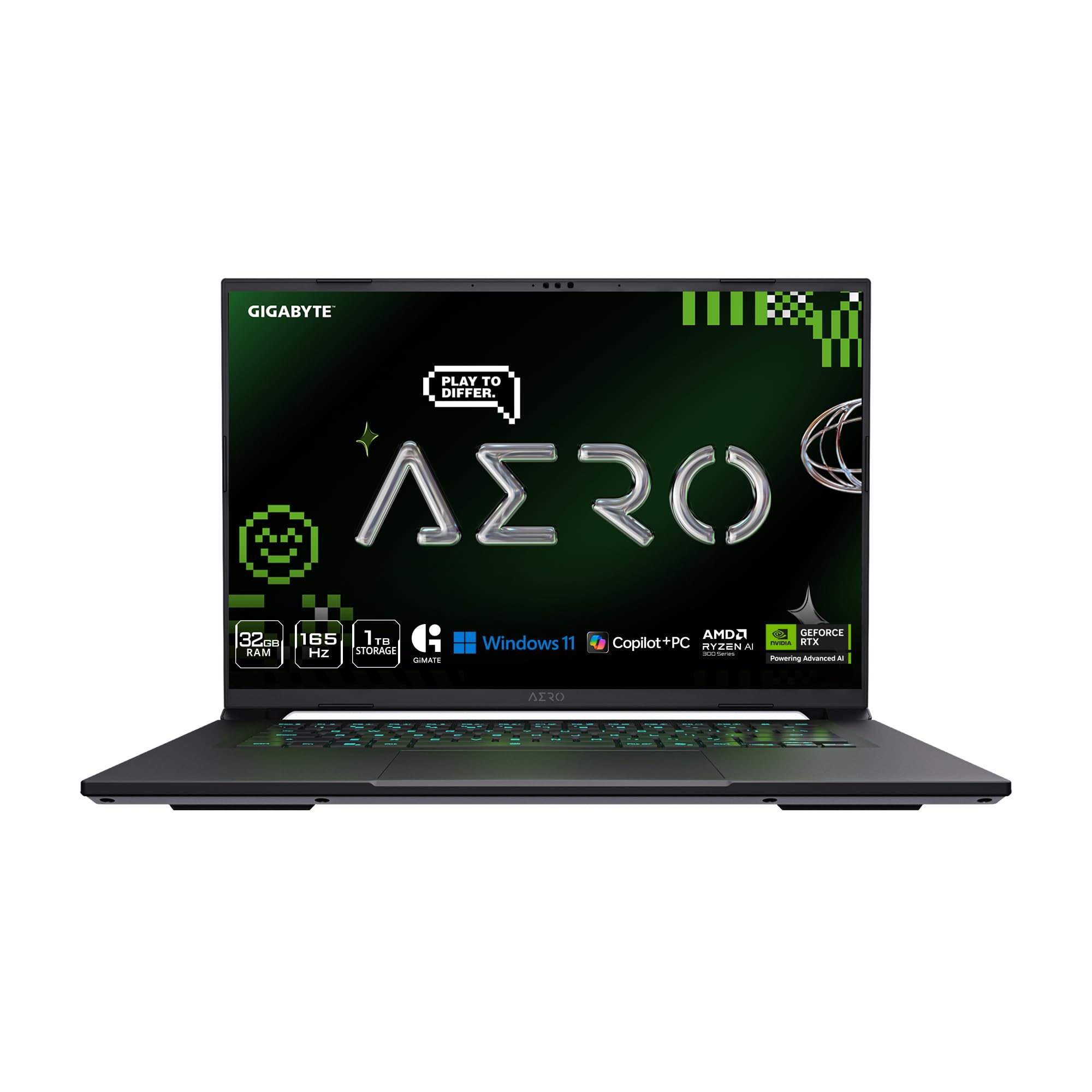
2. GIGABYTE AERO X16
A 16.75 mm gaming chassis with an RTX 5070 for GPU compute and rendering on Linux.
You want to run games, train a local model, or render video on your Linux laptop, and that needs real graphics power. The AERO X16 delivers it: an AMD Ryzen AI 9 HX 370 (a Zen 9 chip with a dedicated AI accelerator) paired with an NVIDIA GeForce RTX 5070 laptop GPU. All that graphics horsepower fits in a 16.75 mm chassis, so heavy rendering work stays portable.
The numbers worth knowing: 4.18 lbs on the scale, 16.75 mm thick, and a 14-hour battery rating. Compared with the Samsung above, that is nearly a pound heavier and noticeably thicker — the price of hauling a discrete GPU. Owners mention around seven hours of real school and work use, and full gaming performance plugged in.
The performance is what wins people over: owners describe it handling heavy video editing and gaming without stutter, with CPU and GPU settling in the mid-60s °C under long sessions. The cooling is the reassuring part — the IceBlade-class dual-fan setup keeps clocks from falling off a cliff mid-render. For a Linux user, the AMD Ryzen platform is well-trodden ground, and the RTX 5070 has a current open driver line.
The trade-off is noise and the occasional stability quirk. The fans ramp loud under load, which headphones solve. A few machines needed a fresh Windows image to settle freezing on standby before the owner moved on — do that snooze test on the machine you receive, not after you have wiped it.
The performance case
- Ryzen AI 9 HX 370 plus RTX 5070 handles gaming, rendering, and local AI workloads
- 14-hour rated battery — real-world owners see around seven hours of mixed work
- 16.75 mm thin for a machine carrying a discrete GPU
- Bright, colour-accurate 1600p screen beats typical 1440p panels
Where the compromise lands
- Fans get loud under sustained load — audible without headphones
- 4.18 lbs and a discrete GPU mean this is a desk-first machine
- Only one USB-C port, so a dock or hub is a near-certain purchase
- Some units needed a clean OS image to stop freezing on standby
Pick this one when: your Linux work shares a machine with gaming, video, or GPU compute and you want both in one chassis.
Look elsewhere when: you need silence and all-day unplugged runtime — the fans and the weight will wear on you.
3. ASUS ExpertBook 14.0 WQXGA, Core Ultra 7 258V, 32GB, 1TB
A 14-inch metal slab at 2.84 lbs that still pushes 2560 x 1600 at 144Hz.
For a Linux laptop you carry every day, screen sharpness and weight matter more than raw benchmark bragging. This ExpertBook nails both: a 14-inch 2560 x 1600 panel at 144Hz, wrapped in an all-metal chassis that weighs 2.84 lbs and measures 0.65 inches thin. Text on a 2560-wide panel at that size stays crisp, and the 144Hz refresh makes scrolling and terminal output feel smooth.
The Core Ultra 7 258V does the thinking, with Intel’s AI Boost NPU rated at up to 47 TOPS (trillions of operations per second — a throughput figure for on-device AI tasks). In practice that means local inference and background AI features run without leaning on the CPU. Backing it up is 32GB of LPDDR5X memory at 8448 MHz and a 1TB SSD — a combination that makes container work and a dozen browser tabs feel trivial.
This is the sharpest contrast to the GIGABYTE above: it swaps a discrete GPU for a lighter, thinner frame and a higher-refresh screen. It also carries Wi-Fi 6E, which helps latency on crowded networks. Buyers describe the 32GB configuration as the one to aim for, and note that the 14-inch size and ASUS hardware keep the everyday experience pleasant.
Here is the wrinkle, and it is a big one for Linux: this machine will not let you disable Secure Boot in the BIOS. One buyer tried a bare-metal backup, could not turn the setting off, and returned it when support said it was impossible. If your distro ships signed bootloaders you should be fine — if your workflow needs Secure Boot off, verify this before purchase.
Screen-and-weight verdict: a 2560 x 1600 144Hz panel at 2.84 lbs is a rare combination in a 14-inch machine, and 32GB of fast LPDDR5X leaves room for years of use.
The Linux caveat: the locked-down Secure Boot toggle is a real friction point — plan around it or pick a different chassis.
Reach for this if: you want a sharp, light 14-inch workhorse for coding, and your distro’s signed bootloader is enough for you.
Skip past it if: you rely on disabling Secure Boot for backup tools or custom kernels — this one blocks you.
4. GEEKOM GeekBook X16 Pro
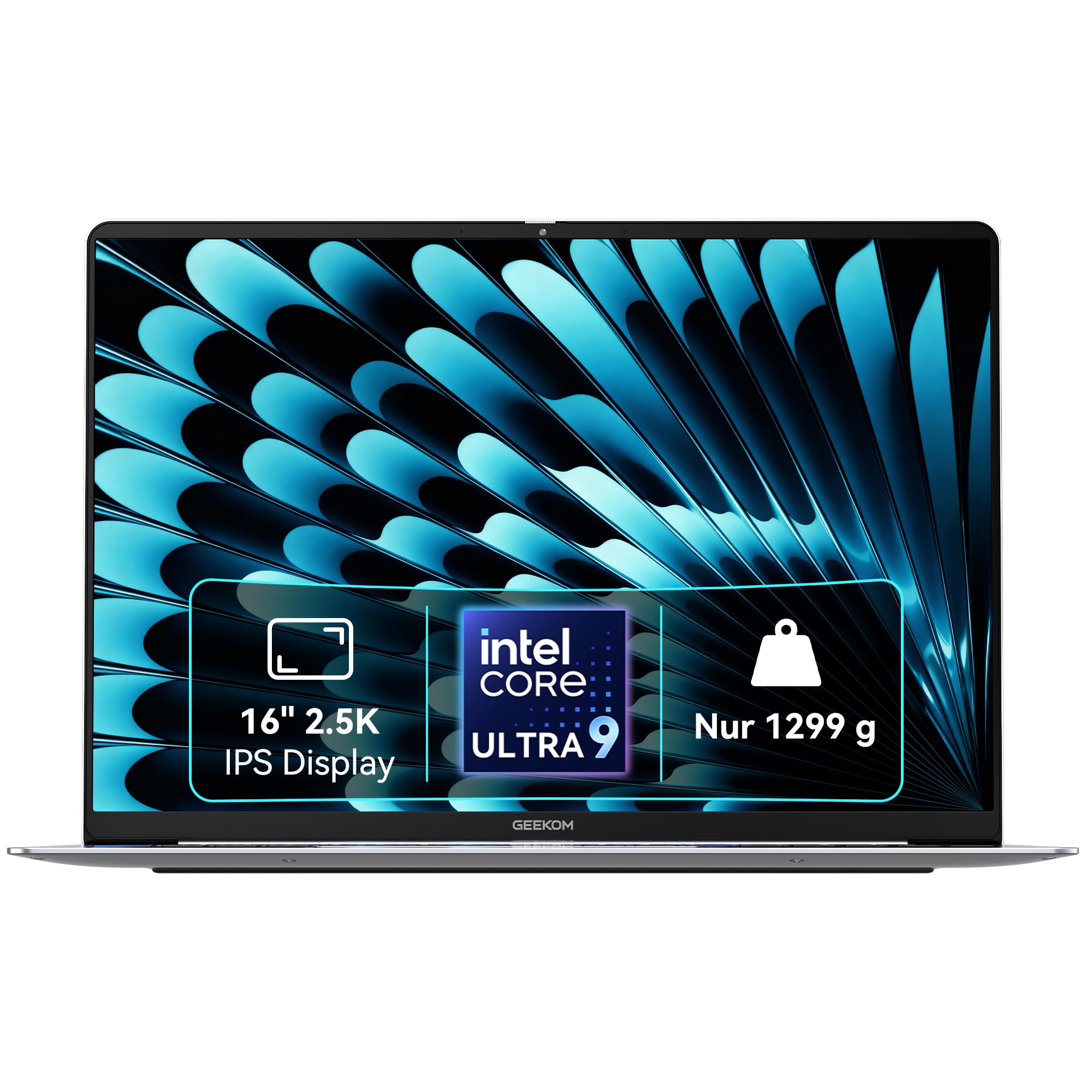
A 16-inch 2.5K 120Hz screen in a 2.8 lb magnesium chassis.
Two numbers define this machine, and both are unusual for the size: 2.8 lbs on the scale and 0.27 inches thick, wrapped around a 16-inch panel. That chassis is aerospace-grade magnesium alloy in a milled unibody, so it does not feel like a cheap slab even though it is one of the more affordable 16-inch options here. Owners consistently point to the weight — it is the lightest 16-inch laptop many of them have handled.
The display runs 2560 x 1600 at 120Hz, covers 100% of the sRGB colour range (a common measure of how fully a screen can reproduce standard colours), and reaches up to 400 nits of brightness. For terminal work that means crisp text and enough brightness to stay readable by a window. The 77Wh battery is rated up to 17 hours, and a 65W GaN charger tops it to 80% in about an hour.
Underneath is an Intel Core Ultra 9 185H — 16 cores, 22 threads, up to 5.1 GHz, with 24MB of Smart Cache — paired with 32GB of LPDDR5X at 7500 MHz and a 2TB PCIe Gen4 SSD. Two M.2 slots mean you can add a second drive later, which is a real bonus for a multi-boot Linux setup. The port stack is generous: USB4 at 40Gbps, a second USB-C, HDMI 2.1, two USB-A, microSD, and a headphone jack.
The honest weak point is the trackpad. It sits under the 10-key, so palms register as taps and the cursor jumps while you type; the fix is an external mouse. A few units have also failed early — one stopped booting after about two months, and support runs email-only. Test yours thoroughly inside the return window, which is the advice you would give on any new machine.
Size-to-weight read: 2.8 lbs and 0.27 inches for a 16-inch 120Hz 2.5K display, with a 2TB SSD and a second M.2 slot, is a lot of hardware in a carry-friendly shell.
Trackpad reality: the placement under the numeric keypad is the one ergonomic stumble — plan on a mouse for serious work.
Best fit for: buyers who want a big, sharp screen for coding and multitasking without hauling four pounds.
Not the one for: anyone who works purely from the trackpad and cannot tolerate palm-triggered cursor jumps.
5. Lenovo ThinkPad L14
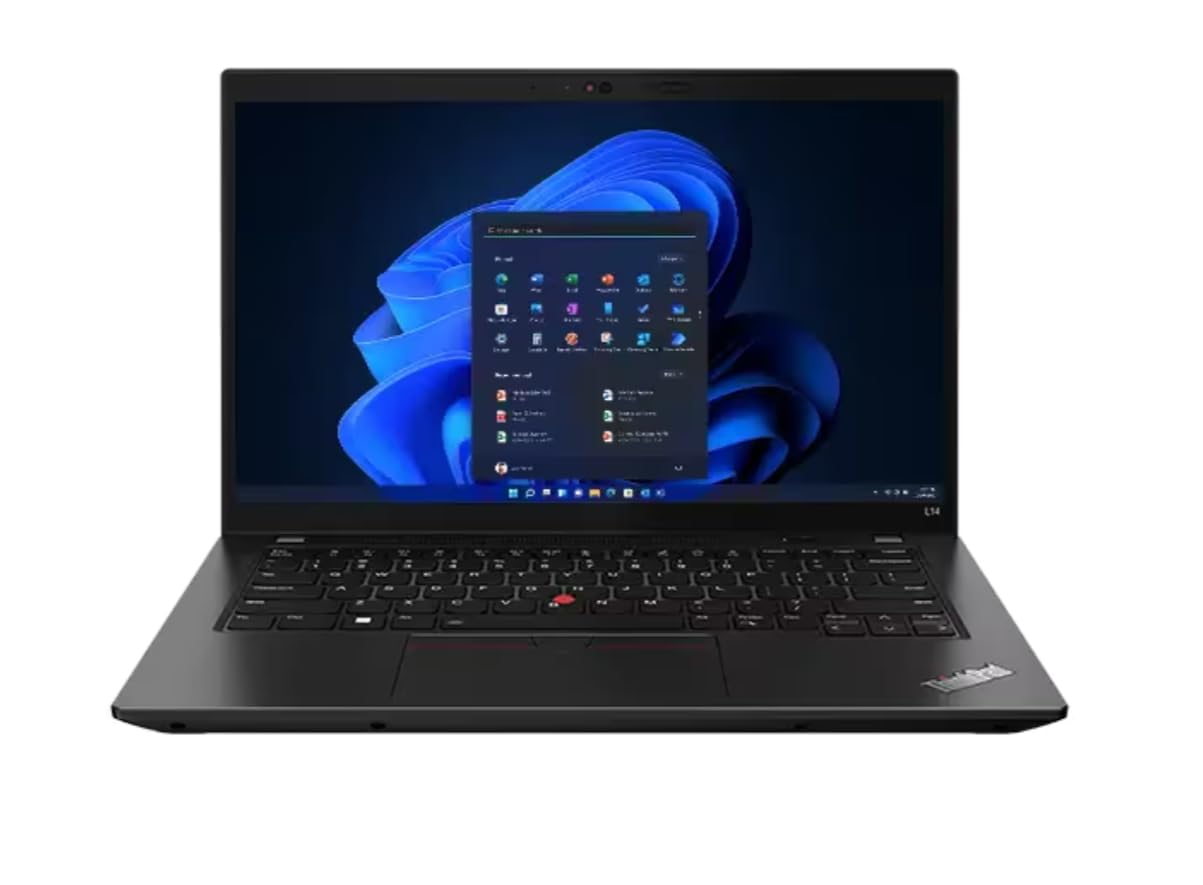
A refurbished ThinkPad with the classic keyboard, TrackPoint, and a built-in RJ45 Ethernet jack.
You want to install a distro on day one and never look back, so a refurbished ThinkPad is the lowest-risk way in. This L14 arrives Certified Refurbished (inspected, cleaned, and resold by Amazon’s program). Inside is an AMD Ryzen 5 PRO 7530U — 6 cores, 12 threads, up to 4.5 GHz boost — plus 16GB of DDR4 at 3200 MHz and a 256GB PCIe SSD. That is enough memory to keep a browser and a code editor open at once.
The port selection is where a budget Linux machine usually falls down, and this one does not. You get two USB-A 3.2 Gen 1, USB-C 3.2 Gen 2, a second USB-C 3.2 Gen 1, HDMI 2.1 supporting 4K at 60Hz, an RJ45 Ethernet jack (the full-size network plug), microSD, and a headphone/mic combo. Wi-Fi 6E and Bluetooth 5.3 round it out. For anyone who flashes drives or docks to a wired network, the Ethernet port alone justifies the pick.
What wins people over is the everyday feel: the machine performs smoothly for general work, the 1920 x 1080 IPS panel is fine for coding, and the battery holds up well. There is even a report of it working cleanly with Parrot OS, which is a reassuring sign for a distro-friendly machine. The TrackPoint (the red nub in the middle of the keyboard) gives you cursor control without leaving the home row — a feature Linux users tend to value more than most.
The catch with any renewed machine is unpredictability. One arrived locked to a standard user account with no admin rights, which made it unusable until the seller stepped in; another stopped booting after about a month and was refunded. Those are the exception, not the rule, but buy from a seller with a clear return path and check the admin account on arrival.
Choose it for: the cheapest legitimate entry into a real ThinkPad keyboard, TrackPoint, and full Ethernet on a Linux-friendly Ryzen platform.
Think twice if: you cannot deal with the odd renewed-unit surprise — set aside time to verify the account and drive health on day one.
6. HP 17.3″ Touch Laptop, Intel i3, 16GB RAM, 512GB SSD

A 17.3-inch 1600 x 900 touchscreen with a numeric keypad for reading and light office work.
Not everyone needs a blazing processor. This HP gives you a 17.3-inch HD+ (1600 x 900) touchscreen at 250 nits, a full-size keyboard with a numeric keypad, and 16GB of RAM with a 512GB PCIe SSD.
The processor is an Intel Core i3 with 8 cores and 8 threads, up to 3.8 GHz via Turbo Boost, plus 6MB of L3 cache. That is a workhorse for browsing and office tasks, and honest enough to say it is not built for compiling large projects or gaming. The touchscreen adds tap-and-swipe control, which some Linux desktops handle well and others require a little configuration for — check your desktop environment’s touch support.
Connectivity is solid for the tier: Wi-Fi 6 (2×2) and Bluetooth 5.4, one USB-C at 5Gbps, two USB-A at 5Gbps, HDMI 1.4b, and a headphone/mic combo. The 45W adapter is modest, so plan on a plug nearby for long sessions.
The recurring gripe from owners is speed — the Core i3 shows its limits when juggling heavy tasks, and the 1600 x 900 resolution is softer than the 1920-wide panels elsewhere in this list. If you want a big, comfortable screen for light work, it fits. If you want to run a local model or compile, look up the list.
The big-screen argument: a 17.3-inch touch panel with a numeric keypad at 16GB / 512GB is a comfortable desk companion for reading and light work.
Where it tops out: the Core i3 and 1600 x 900 panel are the ceiling — this is not a compiling or gaming machine.
Fits best: a Linux desktop setup for browsing, documents, and media on a large touch screen.
Not for: developers compiling big projects or anyone who needs a pixel-dense display.
7. Lenovo ThinkPad E16 Gen 3
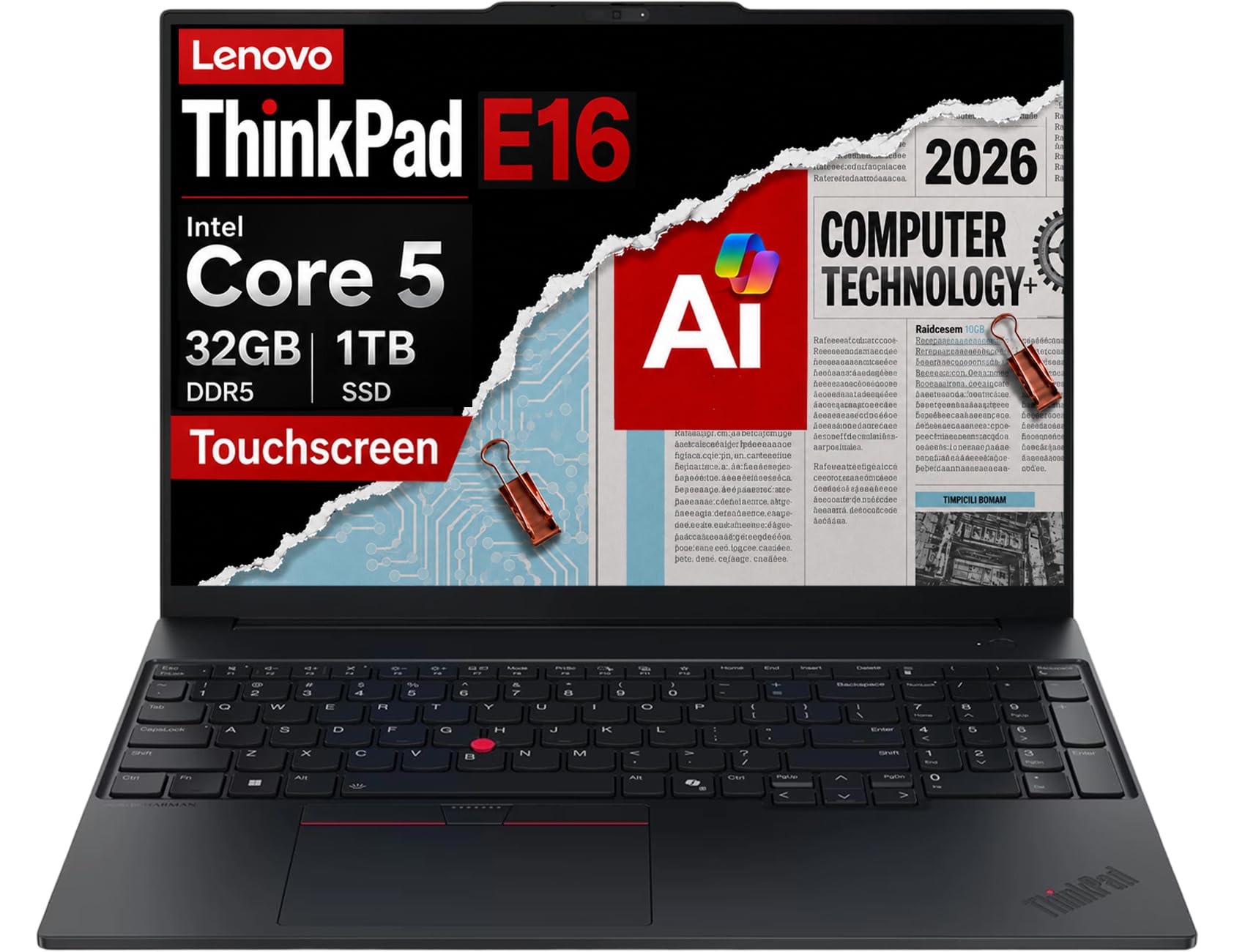
MIL-STD-810H durability, Thunderbolt 4, and 32GB of DDR5 across dual 512GB NVMe drives.
You get business-grade build and serious memory in one machine with the E16 Gen 3. It is tested to MIL-STD-810H, a military durability standard covering drops, vibration, temperature swings, and humidity. For a laptop that lives in a backpack, that certification means fewer worries about a knock against a doorframe.
Memory and storage are the standout: 32GB of DDR5 RAM and a pair of 512GB PCIe NVMe M.2 SSDs. Two drives instead of one means the system and your data live separately, which helps stability and makes a clean Linux partition on the second drive especially neat. The 16-inch WUXGA (1920 x 1200) IPS touchscreen at 300 nits with anti-glare coating is sharp enough for code and comfortable outdoors.
Ports read like a checklist: Thunderbolt 4, USB-C 3.2 Gen 2×2, USB-A 3.2 Gen 2, USB-A 3.2 Gen 1, Ethernet, HDMI 2.1, and a headphone/mic combo, plus Wi-Fi 6E and Bluetooth 5.3. The Intel Core 5 210H runs up to 4.8 GHz across 8 cores. Owners running 15-plus browser tabs alongside multiple programs report it does not struggle at all.
The caveat is setup friction. A few buyers hit dead-on-arrival units or a drive failure after a few months, and one had trouble with the warranty registration. Those are the exception, but you should register the machine and run it hard in the first weeks so any defect surfaces inside the return window. Secure Boot is a standard ThinkPad toggle, so a Linux install is on the table.
Built for the long haul
- MIL-STD-810H tested — a machine that survives commutes and knocks
- 32GB DDR5 and dual 512GB NVMe drives separate system and data for stability
- Thunderbolt 4, Ethernet, and HDMI 2.1 cover docking and wired work
- 16-inch 1920 x 1200 touchscreen at 300 nits with anti-glare
Worth knowing up front
- A few units arrived faulty or failed early — test thoroughly inside the return window
- Warranty registration can be fiddly; keep your proof of purchase handy
- The 2.4GHz Wi-Fi band can be stubborn in crowded areas — Ethernet is your fallback
Ideal if: you want a durable, expandable 16-inch business machine with memory and storage headroom for Linux work.
skip it if: you want zero setup headaches — the odd faulty unit and warranty paperwork make a careful inspection worth the effort.
8. Dell 14 Plus DB14250

A 14-inch aluminum body with a 2560 x 1600 panel and a 5.1 GHz Core Ultra 9-288V.
On paper this machine reads like a straight answer to «give me a small laptop with a serious CPU». Intel’s Core Ultra 9-288V runs to 5.1 GHz, paired with 32GB of LPDDR5X memory and a 1TB SSD. The 14-inch panel runs 2560 x 1600 in a 16:10 shape — a taller screen that shows more vertical lines of code and more of a document before you scroll.
For Linux, the interesting bits are the Intel Arc integrated graphics, which have an active open-source driver line, and the standard bracket of ports. The build is aluminum and Dell says it is tested to military-grade standards. It also includes a 65W Type-C adapter, so a single cable does charging and display output. One buyer running a bring-your-own-computer setup reports multiple tabs with no bandwidth issues.
Owner feedback here is split down the middle, and that honesty matters. Some run it as a fast, reliable daily driver; others hit freezes, locked brightness controls, and unexpectedly heavy battery drain. There is no fingerprint reader, no SD card slot, and only one USB port on some configurations — worth checking before you commit to a Linux workflow that needs more.
Spec-to-size read: a 5.1 GHz Ultra 9, 32GB of LPDDR5X, and a 1TB SSD inside a 14-inch aluminum body is a compact power package.
The split verdict: reliability reports are genuinely mixed — run a stress test in the first weeks and watch battery health.
Worth it for: a small, aluminum 14-inch machine with a tall 2.5K display and plenty of CPU headroom.
Look on if: you need a fingerprint reader, an SD slot, or a certainty of smooth reliability — the reports are not unanimous.
9. Lenovo ThinkBook 16 Gen 8
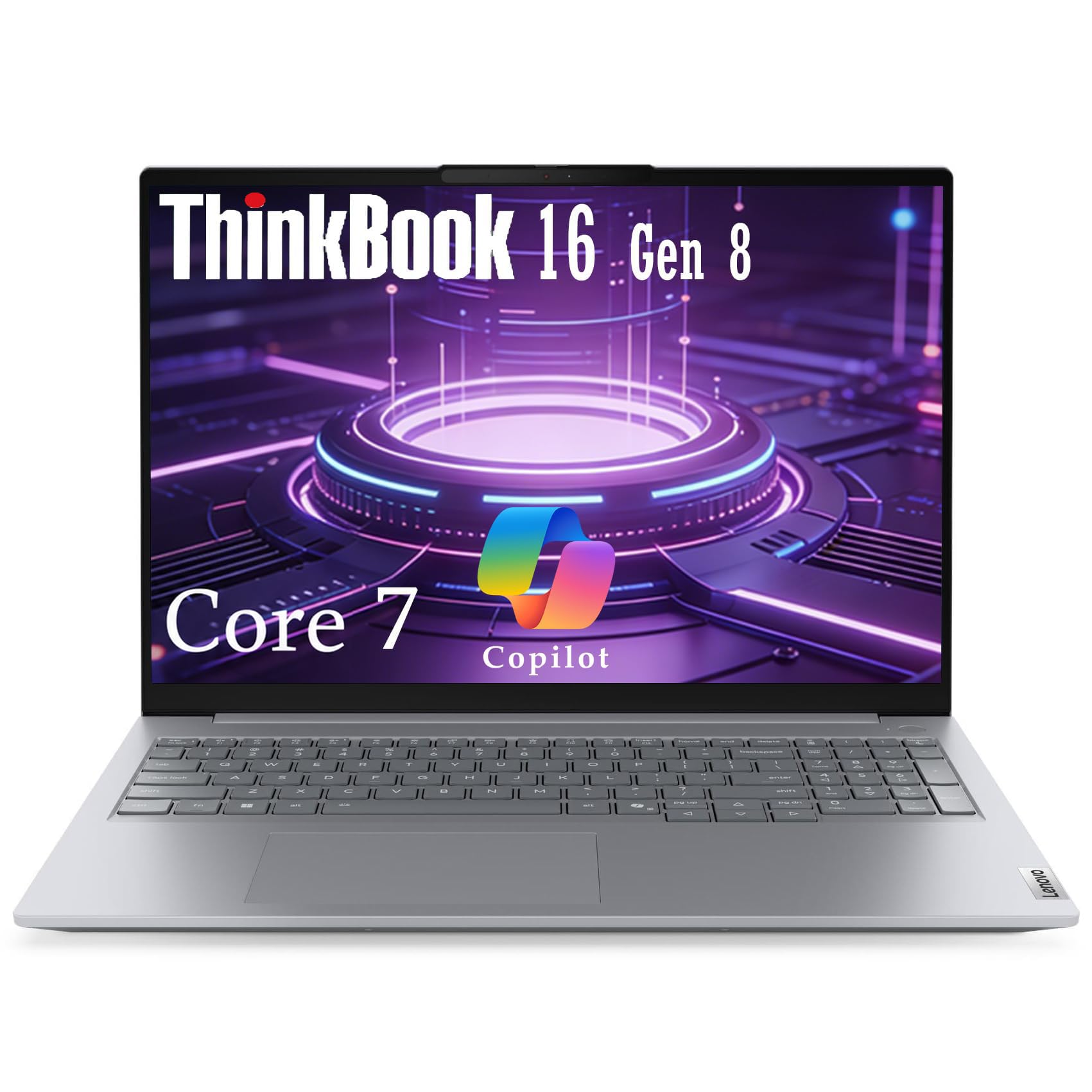
A 2TB drive and a Core 7 chip, built to pass military durability testing.
A 2TB SSD is the headline here, and for Linux users it answers a real question: how many distros can I install side by side? Two terabytes means a main distro, a test distro, a shared data partition, and still room for a Windows fallback. The Intel Core 7 240H (10 cores, 16 threads, up to 5.2 GHz, 24MB of cache) and 32GB of DDR5 memory keep the whole thing responsive.
The 16-inch WUXGA (1920 x 1200) IPS anti-glare panel at 300 nits covers 90% of the screen body, which means thin bezels and more usable screen for the size. It is built to pass MIL-STD-810H and carries TCO Certified Generation 10 and RoHS compliance — sustainability standards that also happen to signal a well-made machine.
You can plug in almost anything without a dongle, because the ports are complete: two USB-A, USB-C with power delivery and DisplayPort 1.4, Thunderbolt 4/USB4 with DisplayPort 2.1, HDMI 2.1 for 4K at 60Hz, an SD card reader, and a combo audio jack. Wireless is covered by Wi-Fi 6E, Bluetooth 5.3, and Gigabit Ethernet. A fingerprint reader sits in the power button, the 1080p camera has a privacy shutter, and a Firmware TPM 2.0 chip handles security. One buyer installed Arch Linux on it without problems — a strong sign for a Linux-dedicated purchase.
The main gripe is the backlit keyboard claim: one buyer found the keys were not illuminated at all. Confirm the backlight spec for the exact configuration you order. Otherwise this is the sensible pick for anyone who wants storage, ports, and Linux compatibility in one package.
Pick it if: you want a Linux machine with room for multiple installs and a full port set, backed by a solid business build.
Double-check first: the keyboard backlight claim, before you order — the one feature that did not deliver for a buyer.
10. Lenovo ThinkPad X1 Carbon Gen 13
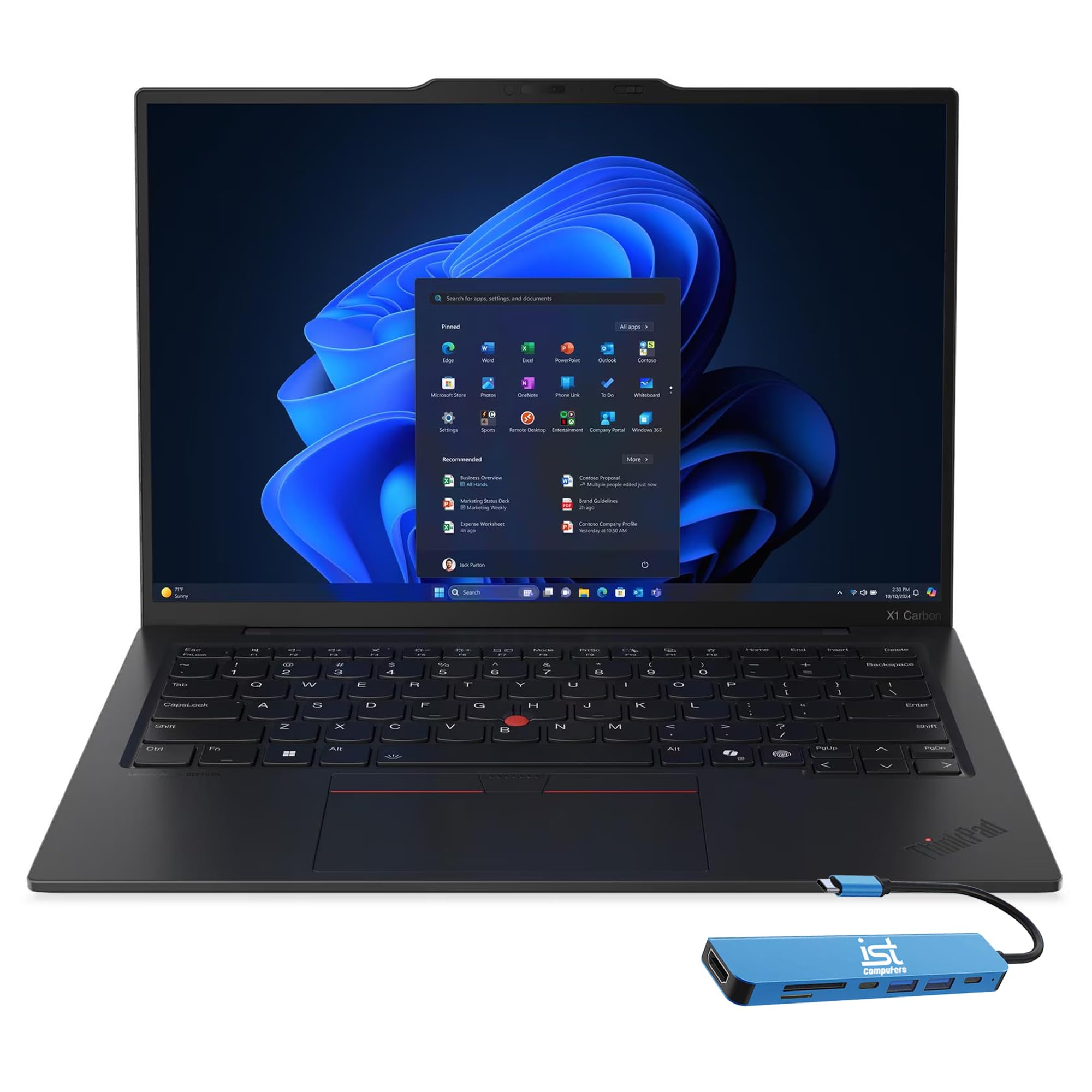
The 14-inch OLED ThinkPad for people who carry a laptop all day.
For a machine that lives in a backpack, the display and the weight are the two things you feel every day. This X1 Carbon delivers a 14-inch 2.8K (2880 x 1800) OLED panel at 120Hz with variable refresh, 500 nits of brightness, 100% DCI-P3 coverage, DisplayHDR True Black 500, and Dolby Vision. In plain terms: deep blacks, rich colours, and a screen sharp enough for text and visuals.
The Ultra 7 258V (8 cores, 8 threads, up to 4.8 GHz) sits alongside 32GB of LPDDR5X-8533 memory and a 1TB PCIe 4.0 x4 NVMe SSD. The “MoP Memory” reference means the memory is packaged directly with the processor, which saves space and power. Battery life is rated at 15 hours — plenty for a day away from a plug.
ThinkPad keyboards are the thing people come back for, and this one carries the standard layout including the TrackPoint. Buyers describe the first week as “perfect”, noting the light weight and crisp performance. For Linux, think about the OLED: an OLED screen draws more power at high brightness and can be more susceptible to burn-in over years of static taskbars, so set your desktop panel to auto-hide if you run one.
The real caution is narrower: this model has relatively few owner reports, and one machine developed a constant tick immediately after setup while another had a warranty dispute over a non-OEM drive. Verify the drive and the quietness on arrival, and keep your proof of purchase for the warranty.
The travel companion case
- 14-inch 2880 x 1800 OLED at 120Hz with DisplayHDR True Black 500
- Ultra 7 258V with 32GB of LPDDR5X-8533 and a 1TB PCIe 4.0 SSD
- 15-hour rated battery and a carbon-fiber ThinkPad shell
- TrackPoint and full ThinkPad keyboard come standard
Read before you buy
- OLED panels at high brightness eat battery and need care against burn-in
- Few owner reports so far — the track record is thin
- Warranty on third-party drives can get complicated; keep receipts
Reach for it if: you want a genuinely light 14-inch ThinkPad with one of the sharpest OLED screens on this list.
Look elsewhere if: you want a deep owner track record or cannot tolerate a shorter historical track record on a premium machine.
11. LG gram Pro 17-inch
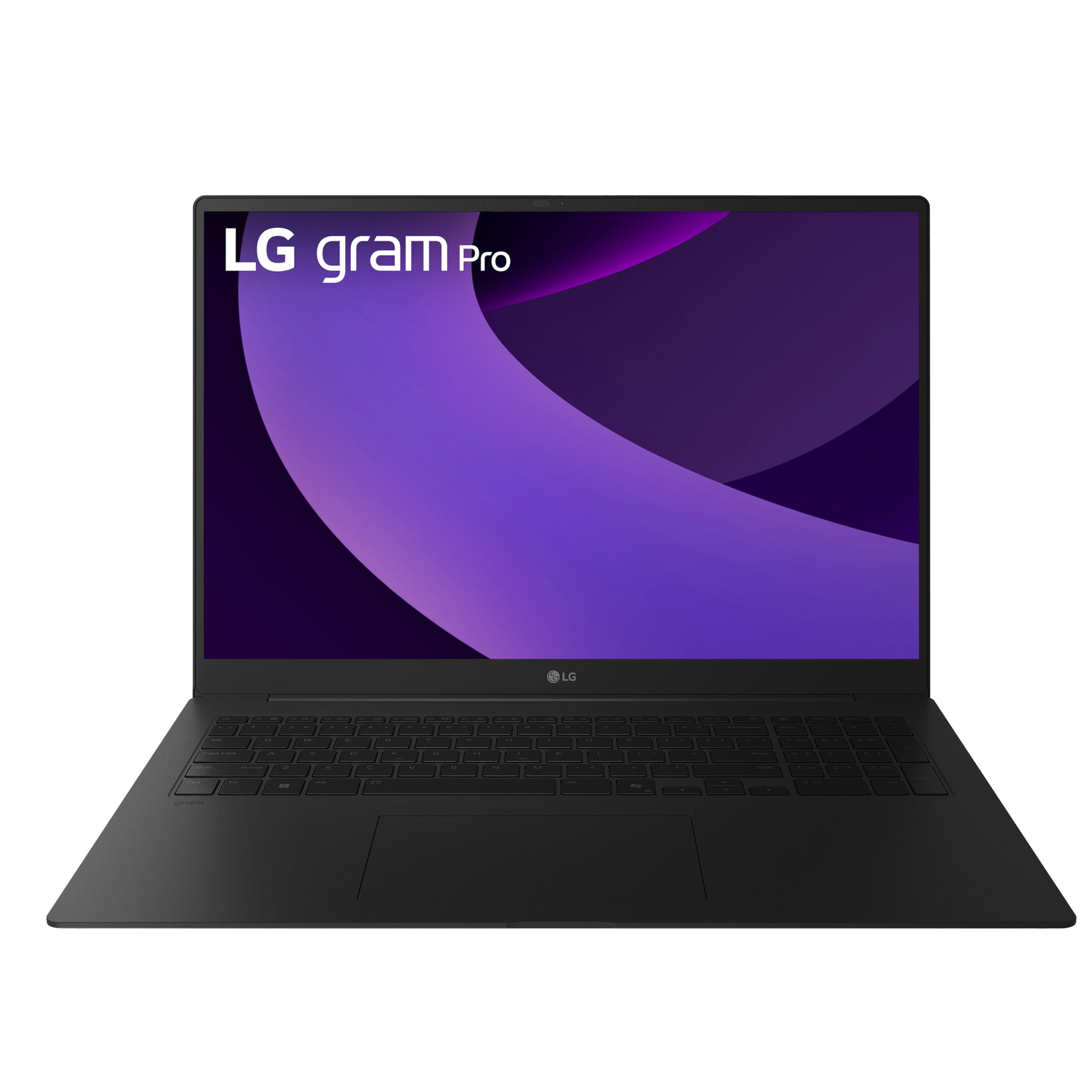
A 17-inch screen inside a 3.3-pound frame that rests seven military standards.
The math on this one is unusual: a 17-inch display, an Intel Core Ultra 9 285H, an NVIDIA RTX 5050 laptop GPU, and 32GB of memory, all in a chassis weighing 3.3 lbs and measuring 0.6 inches thick. That is the same weight as many 14-inch machines, and it is what owners notice first — handing it to someone and watching them react to how light it feels never gets old.
The battery is the headline for anyone working untethered: a 90Wh cell rated for up to 25 hours of video playback, backed by an AI Smart Assistant that studies your usage patterns to stretch runtime. In day-to-day terms, a transatlantic flight and a full workday on the far side are both realistic on a single charge. The Variable Refresh Rate display shifts from 31Hz to 144Hz — slowing down for static documents to save power and ramping up for smoother motion.
This is also the most capable gaming and creative machine in the list: the RTX 5050 runs light gaming, and the Ultra 9 with maxed RAM handles video editing and heavy browsing without lag. Owners describe it as pricey but worth it, with a sharp screen, strong wireless, USB-C, Bluetooth, and two USB 3.0 ports. The one port it does not have is Ethernet. The internal dual cooling system keeps temperatures in check, and LG gram Link connects up to 10 devices across Android and iOS for file sharing and screen mirroring.
Two honest notes for a Linux buyer. First, this is a premium machine, and the setup experience has drawn complaints about bothersome antivirus and bundled apps with no live support to help. Second, the Nvidia RTX 5050 needs the proprietary driver for full performance, and switchable graphics can take a little configuration under Linux. Neither is a deal-breaker, but plan for an evening of setup rather than an out-of-box boot.
The portability payoff: 3.3 lbs and 0.6 inches around a 17-inch VRR display and a 90Wh battery rated for 25 hours of video playback is the standout combination here.
The Linux homework: the RTX 5050 wants the proprietary Nvidia driver and a bit of switchable-graphics tuning — budget setup time.
Your machine if: you want the biggest screen and the longest runtime in one carry-friendly body, with the horsepower for creative work and light gaming.
Keep looking if: you want Ethernet built in or a spotless first-boot experience without driver and app cleanup.
Know the Specs
ARM vs x86 Architecture
An ARM chip (the low-power family used in phones and Windows-on-ARM laptops) needs a distro and software compiled for ARM specifically. That often means fewer ready-made packages and some manual builds. An x86 chip from Intel or AMD runs nearly every Linux distro from the start. If you want the least friction, x86 is the safe floor; if you want silence and runtime, ARM is the payoff and you accept the fiddling.
Secure Boot and BIOS Access
Secure Boot is a firmware check that only starts signed operating systems. Most distros ship signed bootloaders so it works, but some machines make the toggle hard to reach — and a few will not let you disable it at all. Before buying, confirm you can enter the BIOS and change the setting; it decides whether your backup tools and custom kernels will work.
Memory Type and Upgradeability
Soldered or packaged memory (like LPDDR5X or the MoP memory in the X1 Carbon) cannot be swapped later, so you buy your RAM once. 32GB is a comfortable working floor for containers, VMs, or a local model. Machines with user-reachable M.2 slots — like the GeekBook and the ThinkBook — let you add storage without replacing the machine.
Battery Watt-Hours and Runtime Claims
A watt-hour (Wh) rating is the size of the battery tank — the bigger the number, the more energy it stores. The LG gram Pro’s 90Wh and the GeekBook’s 77Wh are large for their size. Rated runtime hours are measured under specific conditions, so real-world use — especially with AMOLED or OLED panels at high brightness — usually comes in shorter.
Ports and Docking
Thunderbolt 4, USB4, HDMI 2.1, and RJ45 Ethernet decide how easily a Linux laptop docks to a monitor or a wired network. A single USB-C port forces a hub purchase on day one; a full set lets you connect drives, displays, and Ethernet without accessories. Count the ports against your real desk before you commit.
Wi-Fi and Bluetooth Chipsets
Wi-Fi 6E and Bluetooth 5.3 or 5.4 are the current wireless standards. Some chipsets have broader Linux kernel support than others, and a stubborn Wi-Fi card is the single most common Linux install headache. Wi-Fi 6E adds the 6GHz band for less congestion on crowded networks, which matters for remote work and video calls.
Common Questions
Can I install Linux on a Windows laptop like these ARM and x86 machines?
Is an ARM laptop actually better for Linux than an x86 laptop?
How long does the battery last on these laptops in real use?
Do these laptops let me turn off Secure Boot for Linux installs?
Can I add more RAM or storage to a Linux laptop?
Will the fingerprint reader work under Linux on these laptops?
Is a 60Hz screen fine for programming, or do I need 120Hz or 144Hz?
Can I run games or a local AI model on a Linux laptop from this list?
What is the difference between a renewed ThinkPad and a new one for Linux?
Do I need Ethernet on a Linux laptop, or is Wi-Fi enough?
The Bottom Line
You want one laptop that is easy to carry and fast enough for daily Linux work, and the Samsung Galaxy Book5 360 is the pick to beat in the linux arm laptops space. It is a 360° convertible at 3.22 lbs with a Core Ultra 7 256V and a clean 1080p panel — light enough for a commute and quick enough for everyday tasks. If you want a gaming chassis that also compiles fast, the GIGABYTE AERO X16 pairs a Ryzen AI 9 HX 370 with an RTX 5070 and a 14-hour battery rating. For storage and ports in a business-grade shell, the Lenovo ThinkBook 16 Gen 8 carries a 2TB SSD, 32GB of memory, and an Arch install report to match. Whichever you choose, verify Secure Boot, Wi-Fi support, and the drive on arrival — a quick check inside the return window saves a lot of regret later.
How we choose
We do not accept paid placement. Every pick is matched to a real buyer and a real use-case; we do not hands-on test units.
Sources
Specifications: manufacturer listings and product documentation. Review insights: verified customer reviews, as of October 2026. Pricing: not shown on this page (it changes often); check the current price via the retailer link.
As an Amazon Associate, Aappliancez earns from qualifying purchases. This does not affect which products we feature.