Disclosure: Some links in this post are affiliate links. As an Amazon Associate I earn from qualifying purchases, at no extra cost to you. Learn more
Specs are compiled from manufacturer listings and verified buyer reviews and can change over time — please confirm the key details on the product page before buying.
If you type for a living, the keyboard is the one tool you touch more than your chair — and the wrong one leaves your wrists sore by mid-afternoon. What separates a keyboard you forget about from one you quietly resent is a short list — switch feel, wrist support, how it connects, and whether the layout puts the keys you actually reach for where your fingers expect them.
This guide is built by comparing the manufacturers’ published specifications and the patterns across verified customer reviews, so you get each pick’s real strengths and trade-offs instead of marketing spin.
if you need a silent board for a shared office, a full-size layout for spreadsheets, or an ergonomic curve to take load off your wrists, this breakdown covers what to check before you buy the keyboards for work.
Top Picks


How To Choose The Best Keyboards for Work
Buying a work keyboard is really three decisions stacked on top of each other: how the keys feel when you press them, how the board sits relative to your hands, and how it talks to your computer.
Switch Type Sets Your Sound and Feel
Mechanical switches come in three broad flavors. Linear switches (like Cherry MX Red or the pre-lubed linears inside the HUO JI Z-99) glide straight down with no bump — fast and smooth, and usually the quietest of the three. Tactile switches (like Cherry MX Brown) add a small bump partway down so you can feel the exact moment the key registers; that feedback is why so many touch typists prefer them. Clicky switches (like TTC Blue) add an audible click on top of the bump — satisfying to the user, and the fastest way to become the most talked-about person on your floor. If you share space, weight the noise level as heavily as the feel.
Layout Size Is a Desk-Space Trade
A full-size board gives you a number pad, which is close to mandatory if you live in spreadsheets. But that number pad also pushes your mouse further to the right. Compact and 75% layouts drop the pad or shrink it down so your mouse sits closer, which many people find kinder to their shoulder over a long day. The right choice depends on how often you type numbers and how much desk width you have.
Wired or Wireless — and Which Wireless
Wired boards never need charging and never drop a keystroke, which is why plenty of professional offices still insist on them. Wireless boards using a 2.4GHz USB receiver or Bluetooth free your desk from cable clutter, and modern rechargeables routinely last weeks to months per charge. One thing to check before buying: whether your monitor, your mouse, and your keyboard all want the same USB port, because a keyboard with built-in USB pass-through solves that problem before it starts.
Side-by-Side Comparison
| Model | Best For | Switch Type | Keys | Connection | Amazon |
|---|---|---|---|---|---|
| Magic Keyboard with Touch ID and Numeric Keypad★ Best Overall | Mac users who want Touch ID | Scissor | Full size with numeric keypad | Bluetooth, rechargeable | Amazon |
| Das Keyboard Prime 13Mechanical Precision | Silent-ish mechanical precision | Cherry MX Brown | 104 | USB wired | Amazon |
| Logitech K845 Mechanical IlluminatedBest Value Mechanical | Value mechanical with backlight | TTC Blue | 104 | USB corded | Amazon |
| HUO JI E-Yooso Z-99 | Compact hot-swappable customizing | Pre-lubed linear | 99 | USB-C wired | Amazon |
| Macally Wired Keyboard for Mac | Small-desk Mac setups | Scissor-style | 78 | USB-A / USB-C 2-in-1 plug | Amazon |
| Purple MA31 Ergonomic Combo | Standing-desk switching | Membrane wave | Full size wave | 2.4GHz wireless | Amazon |
| Arteck Split Ergonomic Keyboard | Wrist strain relief | Membrane | 102 | 2.4GHz USB wireless | Amazon |
| Logitech Wave Keys | Quiet all-day comfort | Membrane wavy | Compact, no numpad | Bluetooth or Logi Bolt | Amazon |
| Apple Magic Keyboard with Numeric Keypad – White | Mac + spreadsheet layout | Scissor | Full size with numeric keypad | Bluetooth, rechargeable | Amazon |
| Satechi SM3 Mechanical Keyboard | Low-profile multi-device | Low-profile brown | 108 | Bluetooth 5.0 / 2.4GHz / USB-C | Amazon |
| Apple Magic Keyboard with Touch ID (Renewed) | Budget entry to Apple Touch ID | Scissor | Full size with numeric keypad | Bluetooth / USB-C charging | Amazon |
Detailed Reviews
1. Magic Keyboard with Touch ID and Numeric Keypad
Our pick — 4.5+★ from 800+ verified ratings; the strongest balance of quality and price.
The board that logs you in with a fingerprint and still lasts a month on a charge
If you run a Mac at work, this is the keyboard to start with. Touch ID means your finger open up the machine, signs into apps, and approves password prompts — no more typing a long password twelve times before your first coffee. At 4.5+ out of 5 stars the crowd says it plainly: pairing with a MacBook or Mac Studio is instant and the typing feel is precise and comfortable for long sessions. Owners put it best: “Battery at 87% after a week of daily hours of use.”
The full-size layout adds document navigation controls plus full-size arrow keys, and the separate numeric keypad is a real advantage if your day lives in spreadsheets or finance sheets. At 1.34 pounds it sits firmly on a desk without sliding around, and the rechargeable lithium-ion battery lasts about a month or more between charges. One thing to know before you buy: Touch ID here is Apple-proprietary, so it only works with a Mac with Apple Silicon running macOS 11.4 or later.
A handful of buyers split on the lack of backlighting — in a dim home office you will want a small desk lamp. Others flag that the board runs on the pricier side for what looks like a simple keyboard, though nearly all of them still call it worth it. The trade-off is honest: you are paying for the fingerprint reader and the Mac integration, and there is nothing on the Windows side that replicates either.
What sells this board
- Touch ID open up the Mac, autofills passwords, and approves Apple Pay without typing a thing
- About a month or more of typing per charge off the included lithium-ion battery — real buyers still see 87% after a week of daily use
- Full-size layout with document-navigation controls, full-size arrow keys, and a numeric keypad for spreadsheets
- Instant, lag-free Bluetooth pairing with Apple Silicon Macs — MacBook and Mac Studio both connect on the first try
Where it asks you to compromise
- No backlighting, so a badly lit desk needs another light source
- Touch ID only works on Apple Silicon Macs — Intel Macs and Windows machines are out
- Priced toward the premium end despite the minimalist look
Best for: Mac-based professionals who want to skip password entry forever and get through spreadsheets faster
Not for: PC users, Intel-Mac holdouts, or anyone who types in the dark without a lamp
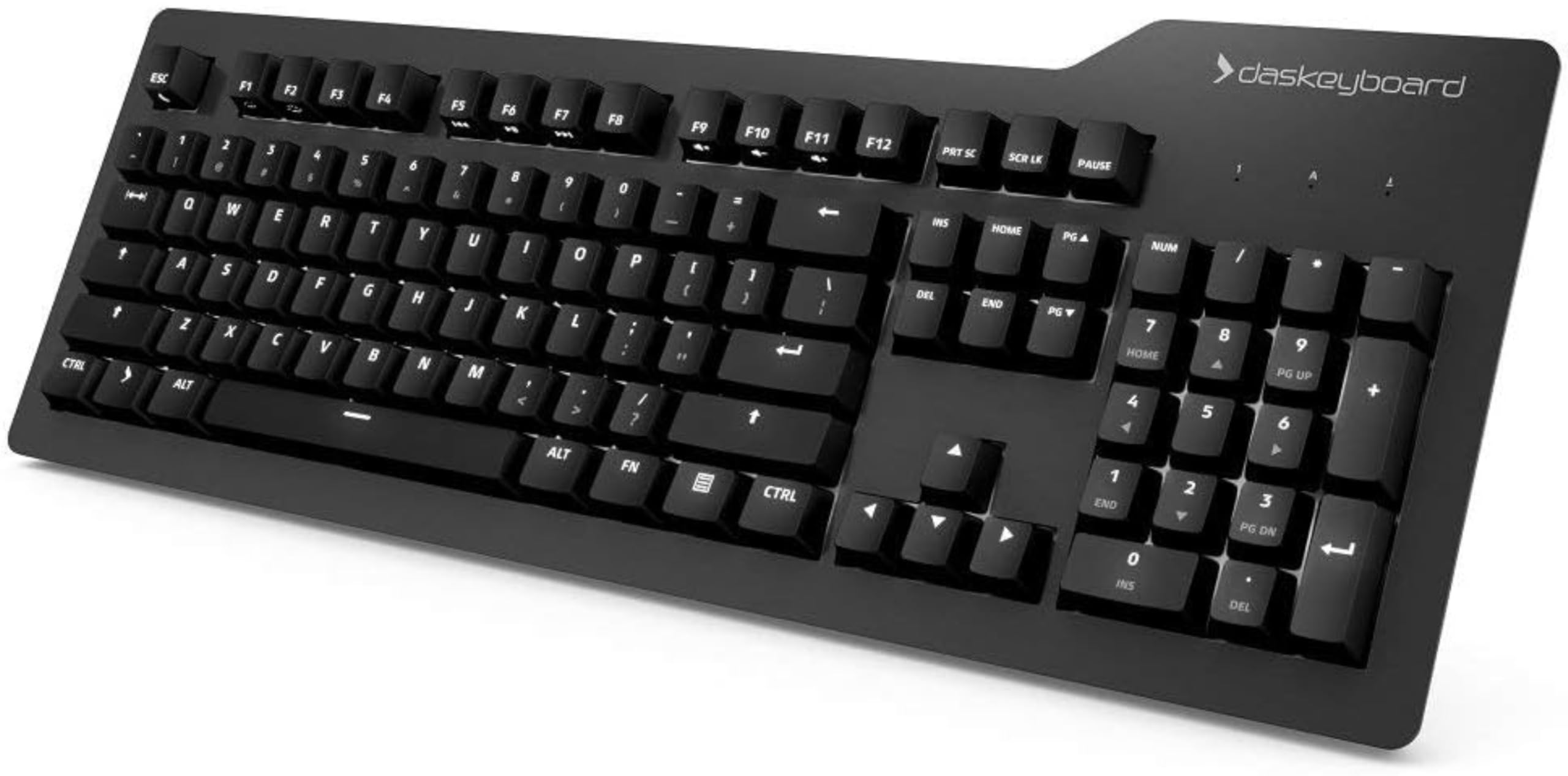
2. Das Keyboard Prime 13
A wired mechanical board built to survive years of eight-hour typing days
For the professional who wants tactile keys — a small bump you can feel at the exact moment each press registers — without the kind of click that carries down the hall, the Prime 13 is the pick. The Cherry MX Brown switches are rated up to 50 million keystrokes, with factory-lubricated stabilizers on the large keys for smoother travel, and gold-plated contacts that resist corrosion and extend switch life. What wins people over most is simply how good the keys feel and how evenly the white backlighting lights the letters when the office dims.
Build quality is the standout. The top housing is anodized aluminum sitting over an injection-molded plastic bottom, which is why owners describe it as rock-solid with no flex. Full N-key rollover means every keypress registers even when you press shift, alt, and a letter all at once, and you toggle it with shift + mute — no PS2 adapter needed. Two USB 2.0 hubs let you charge your phone or slot a mouse dongle right at the keyboard, and the extra-long 6.5 ft (201 cm) USB cable reaches a KVM over on the next shelf. As one owner put it: “Extra long 6.5 ft (201 cm) USB cable with single USB type-A connector.”
Two small quirks are worth knowing. The dual-legend keys (the number row) only get the top character lit by the backlight, and the shifted symbol below is dark. And the spacebar is sensitive enough that a heavy thumb sends an extra spacebar character every now and again. Neither is a dealbreaker for a typist who mostly writes.
The professional feel: Cherry MX Brown switches give tactile feedback without being obnoxious in a shared office, and the aluminum top panel makes this keyboard feel like a tool you will still be using in five years.
Read the fine print: Dual-legend keys only light the top character, so if you hunt-and-peck the shifted symbols in a dark room you will need an external light.
Reach for this if: You want a wired, tactual mechanical keyboard that will outlast several cheaper boards and you do not mind the occasional spacebar double-tap
Look elsewhere if: You need full-key backlighting on every character or you want to light up an RGB gamer glow — this board is white LED only
3. Logitech K845 Mechanical Illuminated Keyboard
Entry-price mechanical with a machined aluminum top that punches well above its tier
This is the mechanical keyboard to buy when you are curious whether mechanical switches are worth it and you do not want to gamble. The full-size 104-key layout with a number pad and function keys squeezes into a surprisingly compact footprint, the top case is genuine aluminum, and the adjustable legs let you set a 4-to-8-degree tilt so you are not typing at a flat, wrist-tiring angle all day. What wins buyers over most is the typing feel — the tactile, clicky TTC Blue switches make each keypress land with a satisfying confirmation.
Speed typists especially like this board. The tactile and audible response of every keypress helps you self-correct as you type rather than glancing at the screen, and the medium backlight with 5 patterns handles overnight work fine. No extra software is required — plug in the USB cable and type. Five lighting patterns are there if you want them, and the raised keys make quick cleaning with a can of air easy.
Two honest caveats. The TTC Blue switches are loud — the tickity it makes is fine for a home office but will carry through open-plan floors. And the switches are soldered, not hot-swappable, so the backlights and switches cannot be swapped down the road; a few longer-term owners note backlights tending to fail on individual keys after years of daily use. That is a trade-off you accept in exchange for a low entry price into mechanical typing.
The daily reality: You get mechanical tactile feedback, genuine aluminum feel, and a Windows-friendly full-size layout without a premium price tag — buyers describe the typing feel as tighter and more accurate than the membrane boards they replaced.
Where it bites back: Soldered switches mean no future swapping and no easy backlight repair; buy it knowing it is a closed system.
Best fit: A home-office typist ready to make the jump to mechanical keys without a big spend, on Windows, with the door closed
Think twice if: You share a silent room, or you like the idea of swapping switches down the road — this one is sealed
4. HUO JI E-Yooso Creamy Mechanical Keyboard

A 99-key board so quiet the office may not realize you swapped to mechanical
The Z-99 is what most people mean when they say “creamy keyboard” — the sound of the keypress itself is the appeal. Gasket structure (a soft mounting layer beneath the plate that absorbs vibration) plus 5 layers of thicker sound-absorbing foam and a silicone dampener pad brings a soft, dampened thock rather than a hollow clatter, and the pre-lubed linear switches mean every press glides down smoothly. What wins people over most is the sound itself, and buyers report the quality has held strong through six months of heavy use without a falter.
For a desk that feels cramped, the 99-key, 96% layout shrinks the board to save surface area while keeping nearly all the keys you use day to day. The PCB is hot-swappable — you can pull the 3-pin or 5-pin switches out and drop new ones in without soldering, and both a keycap puller and switch puller are in the box. The RGB backlight offers 15 effects and 8 solid color modes with adjustable speed, plus double-shot injection PBT keycaps so the characters never fade.
The catch: it is wired only, running off a USB-C to USB-A cable. If you want to bounce between a laptop on the couch and a desk across the room, this board will tether you. Buyers who mostly type at one station genuinely do not miss the wire.
Why the price tag surprises people
- Pre-lubed linear switches plus gasket mount deliver a creamy, dampened sound very few keyboards at this tier pull off
- Hot-swappable PCB lets you swap 3-pin or 5-pin switches with no soldering — puller tools included
- 99-key layout keeps virtually every key while shrinking the desk footprint
- N-key rollover and full anti-ghosting across all 99 keys for accurate multi-key typing
- 15 RGB effects and 8 solid colors with adjustable speed, on PBT keycaps that will not wear off
Where it makes you commit
- Wired USB-C only — no wireless option at all
- UK/ISO layout fans may find it is a US ANSI arrangement
Sounds like your keyboard: A single-desk typist who wants that soft creamy mechanical sound without spending custom-build money
Keep shopping if: You need a wireless board to move between rooms, because this one stays plugged in
5. Macally Wired Keyboard for Mac with USB Hub
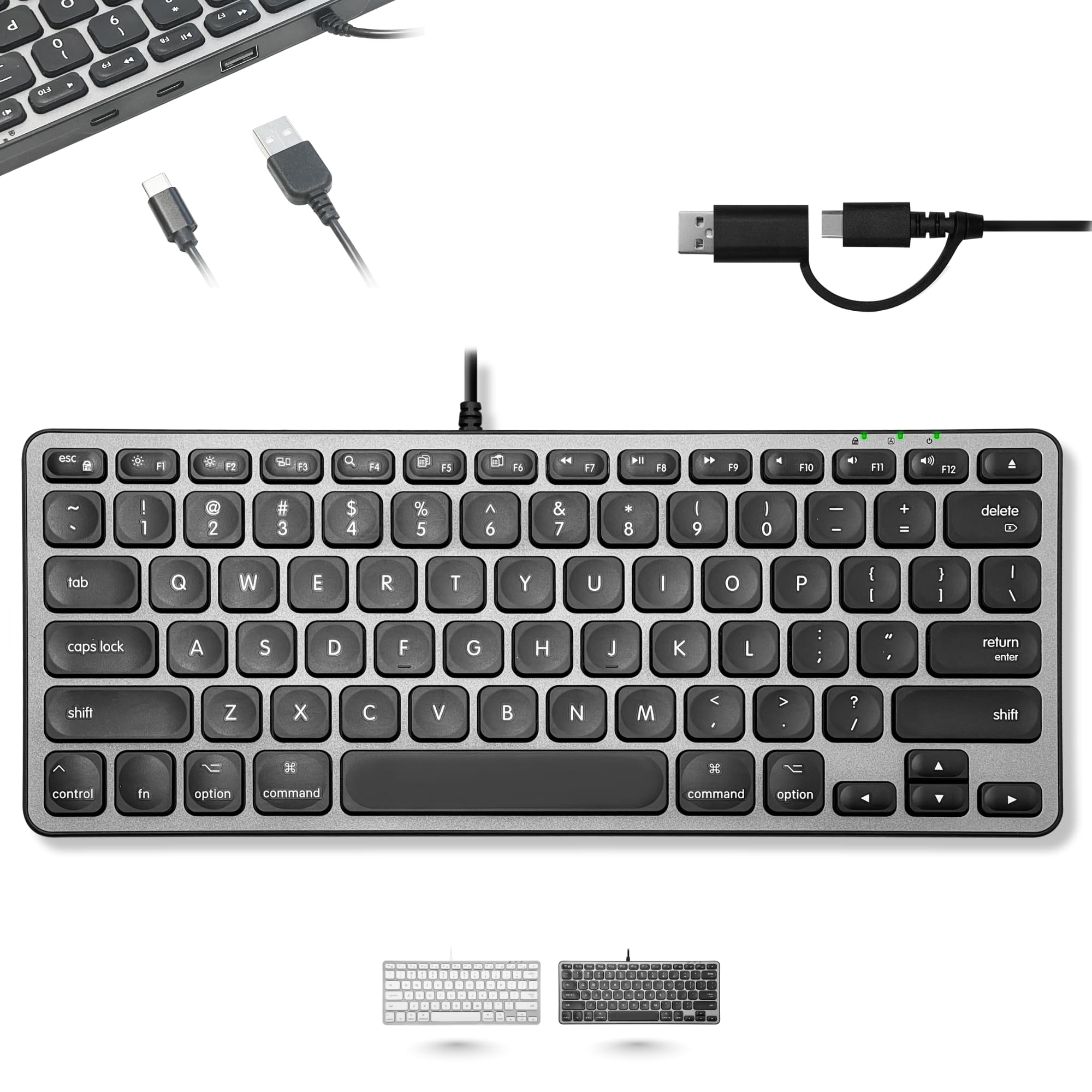
A tiny wired Mac board that also frees up the USB ports you keep running out of
If your MacBook or iMac has more peripherals than ports, the Macally solves two problems at once. The board fits a 3-port USB hub right in the chassis — 2 USB-C ports and 1 USB-A — so your mouse, your external drive, and your phone all have somewhere to live without a dock. Wiring into the machine is a 2-in-1 USB-C / USB-A plug, which means the same keyboard works on an older MacBook Pro and a new Mac mini without an adapter swap. Buyers consistently praise the keyboard quality and its compatibility with both Mac and Linux systems.
The layout is 78 keys with a familiar MacOS arrangement and 12 shortcuts built in, and the space gray finish matches the rest of an Apple desk. Buyers describe setup as around 5 seconds and appreciate the compact size — a real advantage on a narrow desk where a full-size board would crowd the mouse. The keycaps are concave with a satisfying travel, and the space bar feels solid and quiet.
The honest caveat: this is not a full-size board — there is no numeric keypad — and there is no backlight, so a dark room needs another light. One buyer did report that when connecting through an unpowered hub the connection light would blink then die, and that the keyboard needed a truly powered hub to stay stable. If you plug directly into the Mac or into a hub with its own power supply, that is not a problem in practice.
What it really gives you: A Mac-layout keyboard with a 3-port USB hub built in, a 2-in-1 USB-C/USB-A plug for any Mac generation, and 12 built-in shortcuts — an ideal match for a small desk and a minimalist setup.
Worth knowing: No backlight, no numeric keypad, and it wants a genuinely powered hub if you are connecting through a dock rather than straight into the Mac.
Just right for: Mac users with a tight desk who keep running out of USB ports and want the keyboard to help solve it
Not the one if: You rely on a numeric keypad all day or plug into an unpowered USB hub and expect rock-solid connectivity
6. Purple MA31 Ergonomic Wireless Keyboard and Mouse Combo
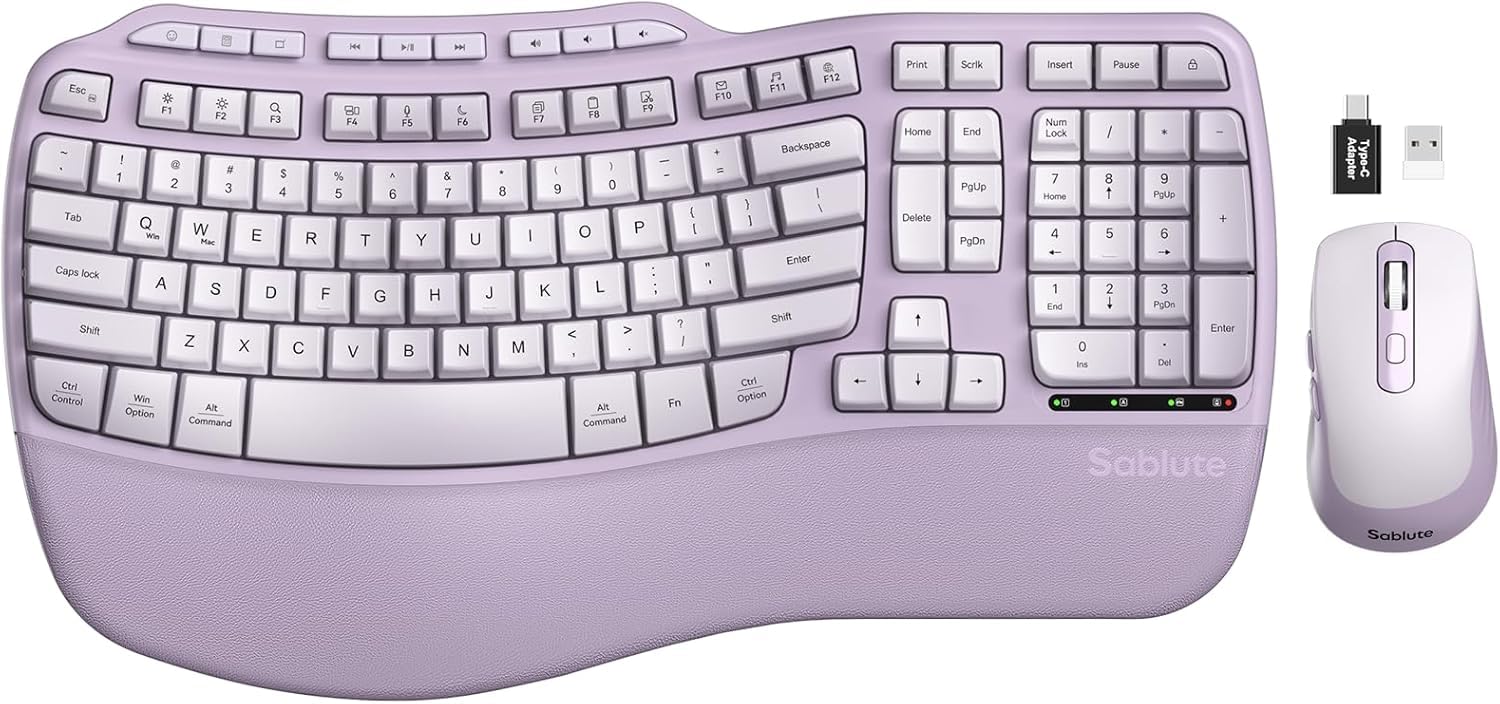
Two-in-one desk upgrade with a wave layout and a leather wrist rest built in
The MA31 arrives as a matched keyboard-and-mouse set, which means one USB receiver pairs both devices and you never have to pick a mouse separately. The keyboard has wave-shaped keys that cradle your fingertips instead of sitting flat, and a synthetic leather palm rest that wipes clean rather than soaking up sweat the way fabric wrist pads do. What wins buyers over most is the overall quality of the keyboard and how comfortable the wave layout feels through hours of use.
The mouse adds a 6-button layout with 3 adjustable DPI settings (800, 1200, and 1600) and a silent switch plus rubber wheel the maker rates the click noise 90% quieter. The keyboard includes 9 shortcut keys for volume, apps, and browsing. The included 2.4GHz USB receiver works with USB-A and USB-C devices and reaches around 33 feet, and the F-row shortcut FN+A or FN+S flips instantly between Windows and macOS. Two AA batteries run the set.
The wave keys are shaped, not split — your left hand and right hand are not divided down the middle the way they are on a true split ergonomic board. If your wrists really suffer, a split design is usually the fix; if you just want a softer, kinder typing angle without a learning curve, the wave is enough. A couple of owners also note a very faint rocking corner on hard surfaces, easily solved with a desk mat.
Where the ergonomics pay off
- Wave-shaped keys and a synthetic leather palm rest give your wrists a softer, higher typing position than a flat board
- Front and back stands let you angle your wrists for either a seated desk or a standing setup
- Includes a 6-button mouse with 3 adjustable DPI settings (800, 1200, 1600) and silent click, so the whole desk upgrades at once
- One USB receiver drives both keyboard and mouse, with USB-A and USB-C adapters in the box
What to weigh before buying
- Wave curve, not a split — left and right hands are not separated
- Windows and Linux officially supported; macOS works via FN+A/S toggle
- A few owners note a faint rocking corner on very hard desk surfaces
Made for: Someone setting up one desk from scratch who wants an ergonomic feel and a mouse in one tidy package
Skip if: Your wrists need the deeper split of a true ergonomic board — the wave curve is gentler than that
7. Arteck Split Ergonomic Keyboard with Palm Rest

The keyboard that lets your hands sit at shoulder width instead of pigeon-toed
The Arteck’s whole reason for existing is the split down the middle — the keys divide into two halves that each angle outward so your wrists and forearms can sit in a natural, relaxed position instead of twisting inward. The padded palm rest supports your wrist while you type, and the whole thing is a 2.4GHz wireless board that plugs in through a nano USB receiver stored at the back of the keyboard. What wins buyers over most is the overall build and how comfortable the split feels over a long typing day.
Battery is the other standout. The rechargeable lithium battery is rated for 6 months on a single charge (based on 2 hours of use per day), and a long-session user backs that up — they charge roughly once a month and have had flawless wireless throughout. It has 102 keys, an ergonomic curve built in, and works with Windows desktops and laptops. Arteck also backs it with a 24-month warranty, and the company has replaced units quickly when something went wrong.
Two things to know. If you have never used a split board, expect about a two-day adjustment before your fingers stop reaching for the wrong half. And the split only curves the shape — this is not the aggressive tented split some ergonomic purists want. The keys are membrane, so they are not as crisp as a mechanical board, and some owners mention the larger keys can feel slightly louder than the rest.
The case for it: Split-key design plus palm rest plus 6-month battery life is the trio most people need for typing strain — and customers note their neck and shoulders feel the difference within the first week of use.
What to go in knowing: Give yourself two days to adjust to the split, and know that the keys are membrane, not mechanical — they feel softer than a Cherry MX board.
Pick this one if: Your wrists and shoulders feel the daily grind of a flat keyboard and you want a Windows-friendly ergonomic board without a huge spend
Keep looking if: You want mechanical key feedback — the Arteck’s membrane keys are softer than a mechanical switch board
8. Logitech Wave Keys Ergonomic Wireless Keyboard

The quiet one that cradles your wrists without forcing a split-keyboard learning curve
The Wave Keys is Logitech’s ergonomic take for people who want a softer typing angle without the steep adjustment of a split board. The wavy design places your hands, wrists, and forearms in a natural position, and a cushioned memory-foam palm rest supports the whole hand through a long workday. It has a quiet typing sound — actually the top thing buyers praise — which is why it is the one to consider if you share a room and want comfort without the click.
Connecting is flexible: Bluetooth or the Logi Bolt receiver, with Easy-Switch to jump between laptop, tablet, and phone (up to 3 devices, switched by F1/F2/F3). Battery runs up to 3 years on a set of batteries, and the keyboard is ergo-certified — designed and tested against criteria set by leading ergonomists and approved by United States Ergonomics. The 19-key compact layout keeps your mouse closer, and the Logi Options+ app lets you remap shortcuts so common actions get their own key.
Two honest notes. This is a compact keyboard — noticeably smaller than Logitech’s older K350 wave model — with the arrow keys and number pad closer together, so buyers coming from a full-size board may fumble the first week. And it runs on disposable or rechargeable batteries rather than an internal rechargeable, so you will need a supply. Neither is a defect — just a shape to plan for.
Why comfort-first buyers choose it
- Wavy key layout plus memory-foam palm rest puts hands, wrists, and forearms in a natural typing position
- Quiet typing — the single most-praised trait among owners — a good fit for shared offices and open-plan desks
- Up to 3 years of battery life on a set of batteries
- Ergo-certified design, tested against criteria set by leading ergonomists and approved by United States Ergonomics
- Easy-Switch toggles between laptop, tablet, and phone instantly with F1/F2/F3
What to plan for
- Compact layout — noticeably smaller than the old K350; arrows and numpad sit closer together
- Runs on replaceable batteries, not an internal rechargeable
- Windows-focused; macOS and iPadOS supported but the layout is tailored to a PC
The one to grab: A shared-office worker who wants quieter keys, an ergonomic curve, and a keyboard that can hop between three devices
Think hard if: You type lots of spreadsheet numbers on a number pad — the compact size costs you spacing
9. Apple Magic Keyboard with Numeric Keypad – White

The full-size Mac board that sits between the small Magic Keyboard and the Touch ID version
If you want a Mac keyboard with a number pad but you do not need Touch ID, this is the clean answer. It pairs wirelessly via Bluetooth, works with Mac, iPad, or iPhone, and the rechargeable internal lithium-ion battery runs about a month or more between charges. The full 16.48-inch layout adds a numeric keypad for spreadsheets and invoices plus full-size arrow keys and document navigation controls for quick scrolling. What wins buyers over most is the keyboard quality and how well the function keys work with the Mac from the start.
Setup is genuinely plug-and-play: the board pairs quickly with any Bluetooth-enabled Mac running macOS 10.12.4 or later, iPad running iPadOS 13.4 or later, or iPhone running iOS 10.3 or later. It weighs about a pound, sits solidly on a desk, and the smooth, minimal scissor keys reduce wrist strain even during long typing days. At about a month or more per charge you can plug in for a couple of hours over lunch and be done with it for weeks.
One downside to know. It uses Apple’s older Lightning charging port rather than USB-C, and the included cable is a Lightning to USB cable — so if your desk is fully USB-C, you will need an adapter or a Lightning-to-USB-C cable. That is really it; the layout, the Bluetooth, and the battery are all the polished Apple experience you would expect at this tier.
What you really get: A full-size Mac-layout keyboard with numeric keypad, full-size arrow keys, Bluetooth wireless, and a rechargeable battery that lasts about a month or more on a charge — the balance for spreadsheet-heavy Mac desk work.
Only real gripes: It is Lightning, not USB-C charging, and there is no backlight, so plan a cable or lamp accordingly.
The right fit if: You are on a Bluetooth Mac or iPad, want the numeric keypad for spreadsheets, and you do not need Touch ID
Look elsewhere if: Your desk is USB-C only or you want backlit keys for night work
10. Satechi SM3 Mechanical Keyboard

A full-size low-profile mechanical that pairs with four devices through three different connection types
The SM3 is the keyboard for someone who wants mechanical key feel without the tall, chunky profile of a traditional mechanical board. It sits at just 0.6 inches tall on low-profile brown switches — tactile feedback with a shorter travel — over a durable aluminum frame. Buyers describe the switch feel as creamy and the sound as non-invasive, which is why it lands in offices rather than gaming dens. And you can pair it to up to four devices at once: two via Bluetooth 5.0, one via a 2.4GHz USB receiver, one via wired USB-C.
The rechargeable battery is a 2500mAh internal cell charged over USB-C, so you have a real long-run option between charges, and the USB-C port doubles as your wired-connection point. The full-size 108-key layout has a numeric keypad and removable keycaps for cleaning — the maker packs in 2 Windows keycaps and 2 Alt keycaps in case you want to swap the Mac layout for PC. White backlighting offers 14 patterns across 3 brightness levels and 4 LED speeds, adjustable through the F5/F6 shortcut keys.
The one honest limitation: the backlighting is white only, and every pattern pulses or fades — there is no steady-on mode. If you want backlight just to see the keys in a dark room, the slow fade is the closest you will get, and some owners note the key markings can be hard to read unless the backlight is on. That is a stylistic call, not a functional one.
The flexibility story: Three connection paths (dual Bluetooth 5.0, 2.4GHz, wired USB-C) plus a 2500mAh rechargeable battery means you can bounce between a MacBook, a PC, and a tablet without re-pairing anything.
What the low-profile design costs you: No steady-on backlight — every mode pulses or fades — and low-visibility key markings mean the backlight is nearly required in low light.
Built for: A multi-device worker who wants a full-size mechanical feel in a low-profile, Mac-and-PC-friendly chassis
Pass if: You need a solid, always-on backlight or clickier, taller mechanical switches — this one is subtle by design
11. Apple Magic Keyboard with Touch ID and Numeric Keypad Silicon

The Touch ID Magic Keyboard in renewed form — same features, lower tier pricing, one important caveat
If you are a Mac user who wants the Touch ID experience without paying the new-board tier price, the renewed version of the Magic Keyboard with Touch ID and Numeric Keypad is the shortcut. Same layout, same Touch ID reader, same rechargeable battery that lasts about a month between charges, and it connects over Bluetooth with a woven USB-C to Lightning cable in the box. Buyers who picked it up describe the typing as quiet and satisfying and the biometric login as smooth — most say it is identical to the factory-new version they had before.
The layout is the full-size arrangement with a numeric keypad for spreadsheets and finance work, plus document navigation controls and full-size arrow keys. It only works with Macs with Apple Silicon running macOS 11.4 or later — same compatibility rule as the new board — so check your machine before you buy. On a Mac with Apple Silicon, Touch ID signs you in and approves purchases just as fast as on the box-fresh model.
The important caveat: renewed units are refurbished, and a couple of buyers have reported battery or longevity issues on their specific units. That is the trade for the lower tier price. This is a great pick if you want the Apple experience without new-board pricing and you understand that a renewed board is a roll of the dice — one where the odds are usually friendly. Check the seller’s return window before you commit and take the time to verify battery health in the first weeks.
Why the renewed route works: The same Touch ID convenience, full numeric keypad, and month-plus rechargeable battery as the new version, with a woven USB-C to Lightning cable included for pairing and charging.
Set your expectations honestly: Renewed condition means unit quality varies; a few buyers hit battery issues. Buy from a seller with a clear return window and confirm battery health in the first weeks.
The money move if: You own an Apple Silicon Mac, want Touch ID and a numeric keypad, and you are comfortable with a renewed unit to save on the higher-tier price
Stay with the new version if: You want the full manufacturer warranty and cannot afford a battery surprise midway through a work week
Know the Specs
Switch Type and Key Feel
A keyboard’s switch is the mechanism underneath each key. Membrane switches use a rubber dome — soft, quiet, and usually the cheapest, but with a mushier feel. Mechanical switches have an individual mechanism per key, which is why they feel crisper and last longer; the Prime 13 is rated up to 50 million keystrokes, and the Satechi SM3 uses low-profile browns for a shorter travel. Linear switches like the pre-lubed linears in the HUO JI Z-99 glide with no bump; tactile switches like Cherry MX Brown add a felt bump; and clicky switches like the TTC Blue in the Logitech K845 add an audible click on top. The switch type is the single biggest factor in how a keyboard feels and how loud it types, so match it to your room before you match it to your budget.
Layout, Size, and Key Count
A full-size board like the Satechi SM3 (108 keys) or the Logitech K845 (104 keys) includes a numeric keypad — the column of number keys on the right side your spreadsheet work depends on. A 96% or 99-key layout like the HUO JI keeps almost every key but shrinks the overall frame so your mouse sits closer, saving desk width. And a compact board like the Logitech Wave Keys drops the number pad entirely to save space. The rule is simple: if you type a lot of numbers, do not give up the pad; if you mostly write and want desk space back, a compact board will feel like relief.
Common Questions
Will the Magic Keyboard with Touch ID work with my Windows PC?
How long does the battery on a wireless work keyboard actually last?
Is a mechanical keyboard too loud for an open office?
Do I need a numeric keypad on my work keyboard?
What does hot-swappable mean on a keyboard?
Can a Mac keyboard with Touch ID work with an iPad?
How many devices can a wireless work keyboard pair with at once?
Do any of these keyboards have backlighting with a steady-on mode?
Is the ergonomic split keyboard hard to get used to?
Can I connect a wireless keyboard to a Windows and a Mac at the same time?
The Bottom Line
For most Mac-based workers, the winner among the keyboards for work is the Magic Keyboard with Touch ID and Numeric Keypad because the fingerprint reader eliminates password friction all day and the numeric keypad covers spreadsheet work without a bulky switch to learn. If you want a wired tactile mechanical with a rock-solid aluminum feel and a 6.5 ft (201 cm) USB cable that reaches your KVM, grab the Das Keyboard Prime 13. And for wrists that feel the grind of a flat board, the Arteck Split Ergonomic Keyboard is the one to reach for — the split layout plus 6-month battery life is the ergonomic combo most desk workers need. Whichever way you go, the seller’s return window is worth checking before you commit — a keyboard that feels wrong on day one rarely grows on you by day thirty.
How we choose
We do not accept paid placement. Every pick is matched to a real buyer and a real use-case; we do not hands-on test units.
Sources
Specifications: manufacturer listings and product documentation. Review insights: verified customer reviews, as of October 2026. Pricing: not shown on this page (it changes often); check the current price via the retailer link.
As an Amazon Associate, Aappliancez earns from qualifying purchases. This does not affect which products we feature.