Disclosure: Some links in this post are affiliate links. As an Amazon Associate I earn from qualifying purchases, at no extra cost to you. Learn more
Specs are compiled from manufacturer listings and verified buyer reviews and can change over time — please confirm the key details on the product page before buying.
If your goal is to keep photos, family videos and work files safe for years, the short answer is this: a mechanical drive with a proven track record beats a fast one you will outgrow. Long-term storage rewards capacity, steady transfer speed and knowing whether the drive is a spinning platter or an SSD — not the biggest number on the box. Below you get seven drives sorted by what each one actually does well, from pocket-sized portables that plug straight into a laptop to internal 3.5-inch platters built to sit in a desktop case.
This guide is built by comparing the manufacturers’ published specifications and the patterns across verified customer reviews, so you get each pick’s real strengths and trade-offs instead of marketing spin.
The real decision is simpler than the spec sheets suggest: pick an internal SATA drive for a desktop bay, a USB portable for a drawer or bag. The hard drive for long term storage below are ranked on how they hold up in daily use, not on raw headline numbers.
Top Picks


How To Choose The Best Hard Drive for Long Term Storage
Long-term storage is a different job from running an operating system. You are not loading an operating system off this drive — you are parking files on it and wanting them back years later. That shifts the priorities to capacity, reliability and file longevity over boot speed.
Decide where the drive will live before anything else
An internal drive like the WD Blue or the Seagate BarraCuda sits inside a desktop tower and connects with a SATA cable (the flat ribbon-style connector used inside PCs). It needs an open bay and a spare power plug. A portable drive like the WD Elements or the Toshiba Canvio is a sealed plastic brick that runs off the USB port and lives in a drawer.
Capacity: buy for the files you will have, not the ones you have now
A 1TB drive is a reasonable home for a few years of documents and photos. A 2TB or 5TB drive buys you breathing room for video, game libraries and full system backups. Remember that a 2TB drive shows less than 2TB in Windows — some of the space is used by formatting.
Speed matters less than you think for archiving
RPM (revolutions per minute — how fast the disk platter spins) and cache size (the small memory buffer that smooths transfers) affect how quickly a big copy finishes. For a once-a-month backup, a slower 5400 RPM drive is fine. For regular large transfers, a 7200 RPM drive with a 256 MB cache saves real time.
Toughness and power draw for a drive that travels
If the drive leaves your desk, look at how it is sealed and how it is powered. A portable drive that runs off USB power means one less cable to lose. A drive with an IP rating (an official score for water and dust protection) survives a spill in a bag.
Side-by-Side Comparison
| Model | Best For | Capacity | Form Factor | Connection | Amazon |
|---|---|---|---|---|---|
| WD 2TB Elements Portable★ Best Overall | Plug-and-play backups | 2 TB | 3.5-inch portable | USB 3.2 Gen 1 (5Gbps) | Amazon |
| WD 2TB Blue InternalTop Performer | Desktop primary or archive | 2000 GB | 3.5-inch internal | SATA 6 Gb/s | Amazon |
| Toshiba Canvio Basics 1TB | Slim travel backup | 1 TB | 2.5-inch portable | USB 3.0 | Amazon |
| Seagate Portable 1TB | Cross-device simplicity | 1 TB | Portable | USB 3.0 | Amazon |
| WD 5TB Elements Portable | Big library in a pocket | 5 TB | 2.5-inch portable | USB 3.2 Gen 1 (5Gbps) | Amazon |
| Seagate 8TB BarraCuda | Bulk media archive | 8 TB | 3.5-inch internal | SATA 6 Gb/s | Amazon |
| SanDisk 2TB Extreme Portable SSD | Fast, rugged field drive | 2 TB | Portable | USB-C, USB 3.2 Gen 2 | Amazon |
Detailed Reviews
1. WD 2TB Elements Portable External Hard Drive
Our pick — 4.5+★ from 165,500+ verified ratings; the strongest balance of quality and price.
The palm-sized archive that asks nothing of you — plug in, drag, done.
The 2TB capacity is the headline here, and it buys you a genuinely comfortable archive. You can hold years of photo libraries, a few hundred hours of video and full system backups without ever deleting anything to make space. At 5Gbps over USB 3.2 Gen 1, a big copy finishes in minutes rather than an afternoon.
What makes this the top pick for most people is how little setup it demands. No WD software, no external power brick, no formatting on Windows — it appears as a drive and you start copying. Buyers report it back up two laptops through separate accounts on a local backup app with no hiccups, which tells you the drive does not care how many machines feed it.
The catch is Mac life. The drive arrives set up for Windows, so a Mac needs a reformat first, and Apple’s Time Machine software can lock a drive into backup duty on first use. The workaround is to carve out a separate volume, and the limitation is Apple’s software rather than the drive itself. It is also a mechanical drive, so treat it gently.
The case for making it your default
- Palm-sized and USB-powered, so it slides into a bag with a laptop
- 2TB gives real headroom over the 1TB class without reformatting chores
- Works on Windows with zero setup and no extra software
- Aluminum and glass enclosure feels sturdier than plain plastic
Where it pushes back
- Mac owners must reformat before first use
- It is a spinning mechanical disk — drop it and you risk the platters
Go here first: anyone archiving from a Windows laptop who wants capacity and zero friction on day one.
Look elsewhere if: you work purely on Mac and want a drive that works straight from the box.
2. Western Digital 2TB WD Blue PC Internal Hard Drive
A 7200 RPM platter with a 256 MB cushion, built to sit in a tower and stay there.
This is the drive for someone building or refreshing a desktop. It connects over SATA 6 Gb/s at 7200 RPM with a 256 MB cache — the buffer that keeps a big copy moving without stalling. In practice that means a large archive copy lands faster than it would on a slower 5400 RPM platter. One owner reports twelve years of continuous service from this drive.
What wins people over is the combination of speed and quiet. It spins fast enough to feel snappy as a main drive yet runs quietly enough that you forget it is there. Long-term owners who have stacked several WD drives in one enclosure speak warmly of the brand’s staying power, and the drive installs with no particular ceremony.
Honest note on thermals: like most 3.5-inch 7200 RPM drives, it warms up during long transfers. Give it airflow in the case. And if a drive is your only copy of something, this one is still a mechanical device — pair it with a second backup, not instead of one.
On the numbers that count: a 2TB capacity with 256 MB of cache and 7200 RPM is a well-balanced archive drive — fast enough for regular copies, cheap enough per terabyte to buy two and mirror them.
The day-to-day reality: it needs an open 3.5-inch bay and a free SATA power lead, so check inside your case before ordering.
Made for: desktop owners who want a fast internal platter they can trust with a full archive.
Think twice if: you have no internal bay free — a portable drive will save you the screwdriver.
3. Toshiba Canvio Basics 1TB Portable External Hard Drive

Slim, matte and smudge-resistant — the one that disappears into a jacket pocket.
If the drive lives in a bag, the polycarbonate shell and matte finish here matter more than any spec. It shrugs off fingerprints, stays light, and the 2.5-inch form factor means it fits where a chunkier 3.5-inch enclosure will not. It is pre-formatted NTFS for Windows, so it is a plug-in-and-go job on a PC and a quick reformat on a Mac.
The 1TB capacity is the honest limit. That is a solid few years of documents and photos, but video-heavy archives will fill it. Where it shines is speed for its size — USB 3.0 with backwards compatibility to USB 2.0, and a church volunteer who loaded daily kids’ program videos onto it called the extra space a genuine convenience for years to come.
One practical wrinkle worth knowing: if you are replacing a failing laptop drive on Windows 10, you have to tell the system to stop using the old drive before it will accept the new one. That is a software step, not a fault in the disk.
Why travellers reach for it
- Matte polycarbonate finish resists smudges and scuffs
- No external power cord — it runs off the USB port
- USB 2.0 compatibility means it works on older machines too
Where the 1TB ceiling bites
- Video archives will outgrow it faster than photo libraries
- Mac users must reformat before the first transfer
Reach for this if: portability is the whole point and your archive is documents, photos and moderate video.
Skip the 1TB here if: your library already runs into terabytes — go bigger on capacity instead of buying twice.
4. Seagate Portable 1TB External Hard Drive
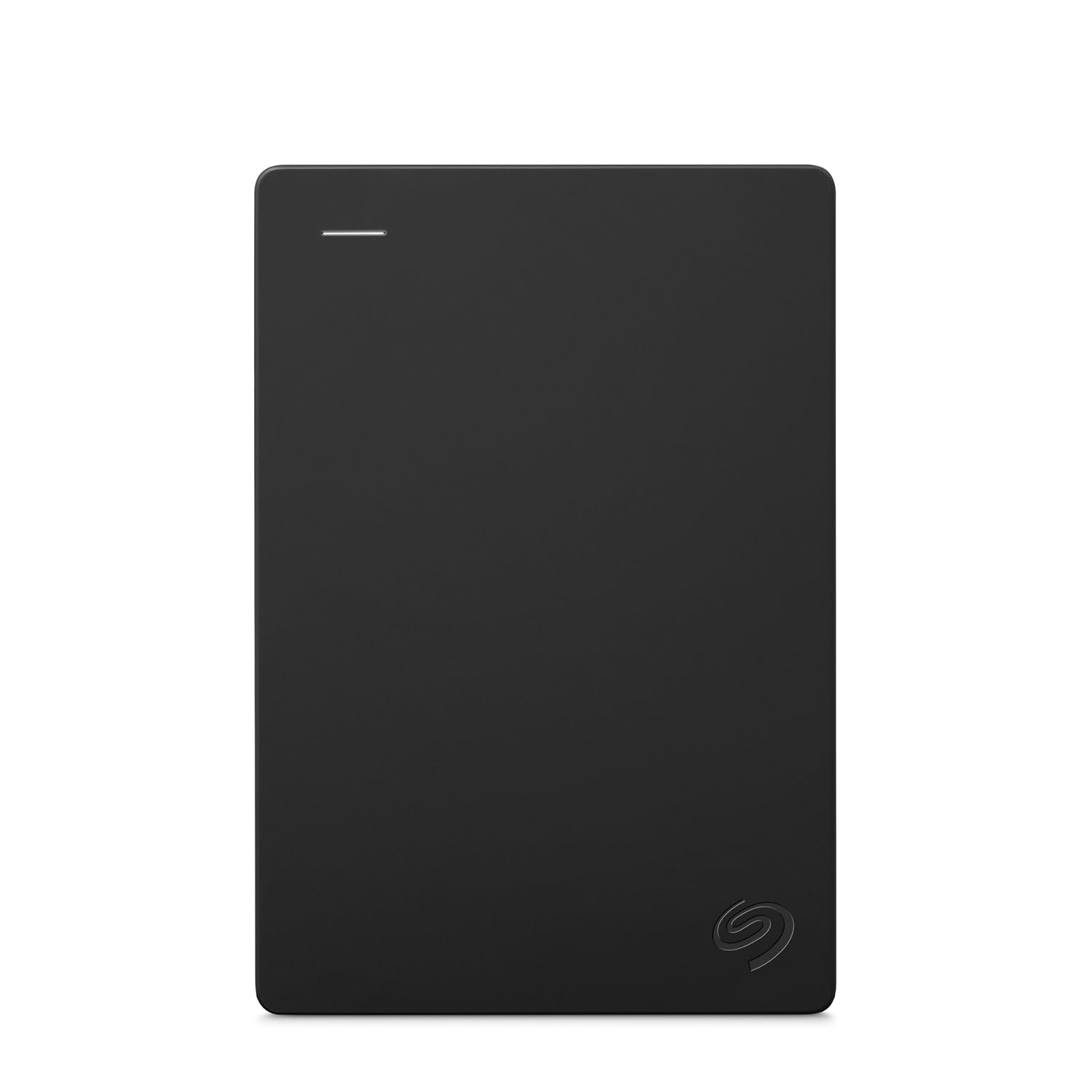
One 1TB brick that speaks to a Windows laptop, a Mac and a games console.
The selling point here is breadth rather than depth. It is listed for Windows, Mac, PlayStation and Xbox, connects over USB 3.0 with an 18-inch cable in the box, and needs no software — the computer recognises it on plug-in. That makes it the sensible single drive for a household with a mix of machines.
Ease of use is what people talk about most with this drive, and it holds up even for first-timers. A first-time buyer in their seventies called it truly plug-and-play: plug in, copy and paste, eject. A music producer running plugins and sample libraries off a Seagate portable reports no lag after a one-time Mac reformat.
The honest caveat: this is a spinning disk, not an SSD. Expect roughly 100+ MB/s read and write in normal use, which is fine for backups and slow for anything that expects instant saves. Keep a second copy of anything you cannot lose.
The setup experience: the included 18-inch USB 3.0 cable and automatic recognition mean the first copy happens within minutes of unboxing.
The trade-off to accept: mechanical speeds and a 1TB ceiling — great for a cross-device backup drive, tight for a growing media library.
Best fit for: a mixed-device household that wants one simple backup drive the whole family can use.
Not the one for: anyone editing 4K video straight off the drive — that wants solid-state speed.
5. Western Digital WD 5TB Elements Portable External Hard Drive

Wallet-sized on the outside, five terabytes of archive space on the inside.
Five terabytes is the number that stops the delete-button habit. It is enough for a full game library, years of raw photography and a movie collection without ever pruning. The 2.5-inch enclosure makes that genuinely pocketable, and the non-slip dots keep it planted on a desk.
Photographers and videographers are the natural owners of this drive — a large portable backup target that survives travel bumps and copies smoothly over USB. Console players have had good results too: it is recognised as extended storage on a PS5 and holds a big pile of PS4 games with room to spare.
Two things to know before you buy. It needs real USB power — on an unpowered hub it will click and disconnect, so plug it into the machine directly. And the connector is Micro-B rather than USB-C, so keep the cable safe; the bundled one is the weak link over time.
What five terabytes gets you
- Enough room to archive without ever dealing with a full drive
- Fits in a pocket and runs off USB alone
- Works from the start on Windows without formatting
- Recognised as console extended storage with no setup
The fine print
- Will not run reliably on an unpowered USB hub
- Micro-B connector rather than the newer USB-C
- Mechanical disk — not the drive to carry loose in a bag
The right call for: photographers and console owners whose library has already outgrown a 1TB or 2TB drive.
The catch to plan around: plug it straight into the computer and treat the included cable as replaceable.
6. Seagate 8TB BarraCuda Internal Hard Drive

Eight terabytes of parking space for the media library you never want to sort again.
For a media server filling up with movies, series or a retro game collection, capacity is the whole story. 8TB with a 256 MB cache and a sustained transfer rate up to 190MB/s gives you a single drive big enough to consolidate several smaller ones. It slots into a standard 3.5-inch bay over SATA 6 Gb/s.
Value is the loudest thing about it — this is a lot of storage per drive, and buyers who replaced a stack of aging disks with one report an easier, tidier setup. Speed and noise land in the middle: quiet enough for a desktop, not silent, and fine for steady sequential copies of big files.
Here is the part the listing does not shout about. This is an SMR drive (shingled magnetic recording — a technique that packs data tighter but slows down when you rewrite small files repeatedly). It is excellent for write-once archives and read-heavy servers, and it is the wrong tool as a constantly rewritten primary disk. Copy big batches in one go and let it finish.
Where it earns its place: massive capacity for media and backups in a desktop or server case, at a sensible cost per terabyte.
Who should pass: anyone planning to run it as their only drive with constant small writes — SMR tech fights you there.
Made for: home-server builders and media hoarders who copy data in large batches and read it back often.
Not for: a boot drive or a heavy small-file workspace — pick a faster platter or an SSD for that job.
7. SanDisk 2TB Extreme Portable SSD

A solid-state drive that reads at up to 1050MB/s and survives a knock on location.
This is the opposite of the spinning archive drives above — no moving platter, so no head to crash. It reads at up to 1050MB/s and writes at up to 1000MB/s over USB-C with USB 3.2 Gen 2, which turns a task that used to take hours into a short wait. For a photographer dumping cards at the end of a shoot, that is the difference between packing up and waiting an evening.
It is also the toughest drive here. IP65 water and dust resistance means it is sealed against jets of water and dust, and it is rated for drops up to 3 meters. A carabiner loop clips it to a backpack, and 256-bit AES hardware encryption keeps private files locked without a software layer. A buyer who lost photos to a failed spinning disk chose this for the durability and reports a 200GB video transfer finishing quickly.
The cost of all that speed and armour is that this is a solid-state drive, not a spinning one, so per terabyte it costs more to store the same library. If your goal is archiving the most files for the least outlay, a mechanical drive wins on capacity.
Why field shooters pick it
- Up to 1050MB/s reads cut big card dumps to minutes
- IP65 sealing and 3-meter drop rating survive real travel
- 256-bit AES hardware encryption built in
- USB-C with a carabiner loop for clip-on carrying
The honest counterpoints
- Higher cost per terabyte than a mechanical drive
- Bundled cable is short — buy a longer one
- Warms during long transfers
Buy it for: speed and survival on the move — card dumps, travel shoots, files you carry between machines.
Look past it if: the plan is bulk cold storage on a budget, where a spinning drive holds more per dollar.
Know the Specs
What RPM and cache actually do
RPM is how fast the disk inside spins — 5400 RPM is a slower, quieter platter, 7200 RPM a faster one that finishes a big copy sooner. Cache is a small memory pool (256 MB on the WD Blue and BarraCuda) that smooths transfers so the drive does not stall between chunks. For a once-a-month archive, either is fine. For regular large copies, the faster platter pays you back in time.
Internal SATA vs portable USB
A SATA drive lives inside your desktop and connects to the motherboard — you get more capacity for the same outlay but need a free bay. A USB drive is sealed, needs no power cable and travels with you, but tops out at lower capacities per drive. Pick SATA for a permanent archive tower, USB for anything that moves between places.
Why 2TB never shows as 2TB
Formatting and how drive makers count gigabytes both eat into the number. You will always see less usable space than the label promises. Plan your archive around roughly nine-tenths of the stated capacity and you will not be surprised at 80 percent full.
IP ratings and drop protection explained
IP65 means the drive is sealed against dust and protected from water jets — good enough for a splash or a rain-soaked bag. A drop rating in meters tells you the height the maker tested it from. Only the rugged drives in the list carry these; the plain mechanical ones want a padded case.
Common Questions
Can I use a portable external hard drive permanently as my long-term archive?
Do I need an SSD or a spinning hard drive for long-term storage?
Will a 3.5-inch internal drive fit in my laptop?
How long will a hard drive actually last in storage?
Why does my new drive show less capacity than the box says?
Does a portable drive need its own power adapter?
Can I use the same drive on a Windows PC and a Mac?
Is an SMR drive like the BarraCuda bad for archiving?
Should I keep my drive plugged in all the time or store it unplugged?
What is the safest way to retire an old drive with files on it?
The Bottom Line
For the widest range of people archiving from a laptop, the winner is the WD 2TB Elements Portable — 2TB over USB 3.2 Gen 1 with zero setup on Windows, which is exactly what long-term storage asks for. If you would rather keep the archive inside a desktop, the WD Blue 2TB internal spins at 7200 RPM with a 256 MB cache and slots straight into a tower. And when the drive has to survive a bag, a drop and a splash, the SanDisk 2TB Extreme Portable SSD earns its keep with IP65 sealing and up to 1050MB/s reads. Whichever you pick, buy one tier larger than you think you need and keep a second copy — that pair of habits keeps an archive alive long after any single drive gives out.
How we choose
We do not accept paid placement. Every pick is matched to a real buyer and a real use-case; we do not hands-on test units.
Sources
Specifications: manufacturer listings and product documentation. Review insights: verified customer reviews, as of October 2026. Pricing: not shown on this page (it changes often); check the current price via the retailer link.
As an Amazon Associate, Aappliancez earns from qualifying purchases. This does not affect which products we feature.