Disclosure: Some links in this post are affiliate links. As an Amazon Associate I earn from qualifying purchases, at no extra cost to you. Learn more
Specs are compiled from manufacturer listings and verified buyer reviews and can change over time — please confirm the key details on the product page before buying.
You bought the handheld or the gaming laptop, and now it sits tethered to a TV by a cable that drops frames the moment a boss fight starts. The fix is not more power — it is the right dock. A gaming docking station splits one USB-C or Thunderbolt port into HDMI video, wired Ethernet, USB for your controller and headset, and enough pass-through charging to keep the machine alive through a marathon session. The wrong one adds lag, blank screens, and a dead battery at the worst moment.
This guide is built by comparing the manufacturers’ published specifications and the patterns across verified customer reviews, so you get each pick’s real strengths and trade-offs instead of marketing spin.
Below you will find handheld-specific bases, laptop docks for triple monitors, and premium Thunderbolt units, each with the refresh rate, port count, and charging wattage spelled out in plain words. My goal is simple: help you pick a gaming docking station that keeps your frame rate and your battery where they belong.
Top Picks

How To Choose The Best Gaming Docking Station
Most people buy a dock for the ports and only later discover the port that mattered was the one they did not check. Before you compare anything else, answer three questions about your own setup: what machine is plugging in, what screen is it driving, and how much power does that machine need while it plays.
Match the dock to your machine, not the other way round
A handheld like a Steam Deck, ROG Ally, or Legion Go needs a dock that physically cradles it and outputs over HDMI. A laptop needs a hub with pass-through charging and enough USB for your peripherals. Buying a laptop dock for a handheld usually means a cable dangling loose and no stable stand.
Refresh rate is the spec gamers should check first
Refresh rate, measured in hertz (Hz), is how many times per second the screen redraws. A 4K@120Hz output redraws 120 times a second; a 4K@60Hz output redraws 60. For fast shooters, higher is smoother and tears less. Only docks advertising HDMI 2.1 tend to reach 120Hz at 4K.
Wattage decides whether your battery survives the session
Pass-through charging, or Power Delivery (PD), lets the dock send your charger’s wattage on to the machine. A dock rated for 100W can pass a lot through; one rated 85W passes less. Handhelds in Turbo mode pull hard, so a dock with a high PD ceiling keeps the battery from draining mid-match.
Wired Ethernet is the quiet upgrade
Wi-Fi drops packets under load. A wired RJ45 port (the rectangular network jack) gives you a stable line. Speed tiers matter: 100Mbps is fine for most online play, 1000Mbps is ten times that ceiling, and 2.5Gbps goes higher again. Check which one the dock actually lists.
Side-by-Side Comparison
| Model | Best For | Max Video Output | Max PD Charging | Total Ports | Amazon |
|---|---|---|---|---|---|
| Anker 8-in-1 USB C Hub★ Best Overall | Laptop desk + travel | 4K@60Hz single / 4K@30Hz dual | 85W | 8 | Amazon |
| JSAUX 5-in-1 HB0602Best for Handhelds | Handheld to TV | 4K@120Hz | 100W | 5 | Amazon |
| UGREEN 7-in-1 Revodok ProBest Dual Monitor | Dual-monitor work | Dual 4K@60Hz | 100W | 7 | Amazon |
| MOKiN 14-in-1 | Triple/quad monitor | Triple 4K | 100W | 14 | Amazon |
| Selore 14-in-1 | Value triple display | Dual HDMI + VGA | 100W (87W out) | 14 | Amazon |
| VVB 14-in-1 | Compact triple display | 4K@60Hz single / 1080P triple | 100W (87W out) | 14 | Amazon |
| Plugable UD-3900 | Universal driver-based dock | 1920×1200@60Hz dual | None (no laptop charging) | 10 | Amazon |
| Anker Prime 14-in-1 | Multi-device desk | 2K@60Hz dual | 160W total output | 14 | Amazon |
| TobenONE DisplayLink | Triple/quad 4K | Triple/quad 4K@60Hz | 100W (96W certified) | 18 | Amazon |
| Plugable Thunderbolt 4 Dock | Thunderbolt workstations | Dual 4K@60Hz / single 8K | 100W (96W certified) | 13 | Amazon |
| Anker Prime TB5 | Thunderbolt 5 rigs | Single 8K@60Hz / dual 8K@60Hz | 140W | 14 | Amazon |
Detailed Reviews
1. Anker Laptop Docking Station Dual Monitor
Our pick — 4.5+★ from 35,000+ verified ratings; the strongest balance of quality and price.
The do-everything laptop hub that earns its place on thousands of desks.
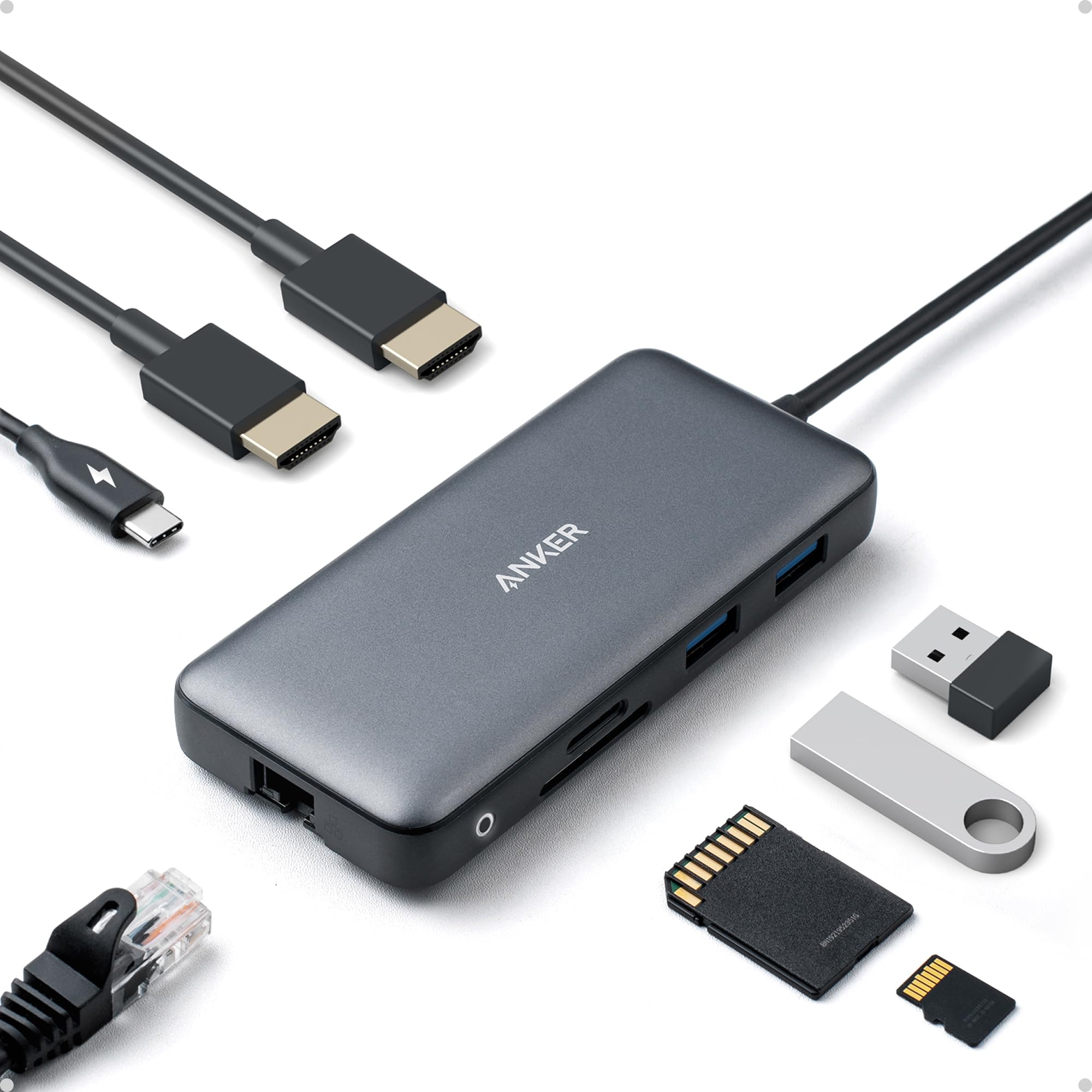
The two numbers that make this the crowd favorite are 8 and 85. Those are the eight ports on a single USB-C plug and the 85W of pass-through charging, which is enough to keep a working laptop topped up while you game during a lunch break. It is 4.65 inches long and 2.01 inches wide, which slips into a laptop bag without a bulge. The full list of connections is two HDMI ports, two USB-A data ports, Ethernet, a microSD/SD reader, and the USB-C PD-IN port.
What wins people over is the port availability — the single most-praised thing about this dock. It runs alongside a 4.5+ star reputation that has kept it near the top of the laptop-hub charts, so the pattern is clear: it does the boring jobs relentlessly. Games stream from a laptop to a TV, a controller shares the desk with a keyboard and mouse, and the Ethernet port saves a match when the Wi-Fi stumbles. The two HDMI ports let you run one external monitor at 4K@60Hz or two at 4K@30Hz. macOS users should know that both external monitors mirror the same image, an Apple limitation this dock does not fix.
The reliability record is the trade-off you should know about. Some units develop a failed HDMI port over time, and the occasional owner reports the dock needing a re-plug to wake up. Against that, a long-running pattern of multi-year use keeps the reputation solid — one owner says plainly: “First hub’s HDMI port failed after ~1.5 years; other ports fine.” The trade-off is fair to size as fit, not defect: if you want the simplest reliable travel hub that behaves, this is the safe bet.
The strongest arguments for it
- Eight ports from a single USB-C cable — HDMI times two, USB-A times two, Ethernet, SD, PD.
- 85W pass-through charging means the hub is also a charger, so you carry one cable less.
- Tiny footprint at 4.65 x 2.01 x 0.69 inches and just over three ounces on the desk.
- Works across Windows 10/11, ChromeOS and Thunderbolt-equipped laptops.
Where the honest catch sits
- Dual displays on macOS mirror — two screens showing the same thing.
- Bus-powered design needs a separate 100W wall charger to meet its PD ceiling.
- A small number of units report an HDMI port failing after long use.
Reach for this if: you want one dependable hub for a laptop desk and travel bag, without paying premium prices.
Look elsewhere if: your game plan needs true extended dual displays on a Mac — this hub cannot give you that.
2. JSAUX 5-in-1 Docking Station S-HB0602
The phone-sized cradle that turns a handheld into a living-room console.
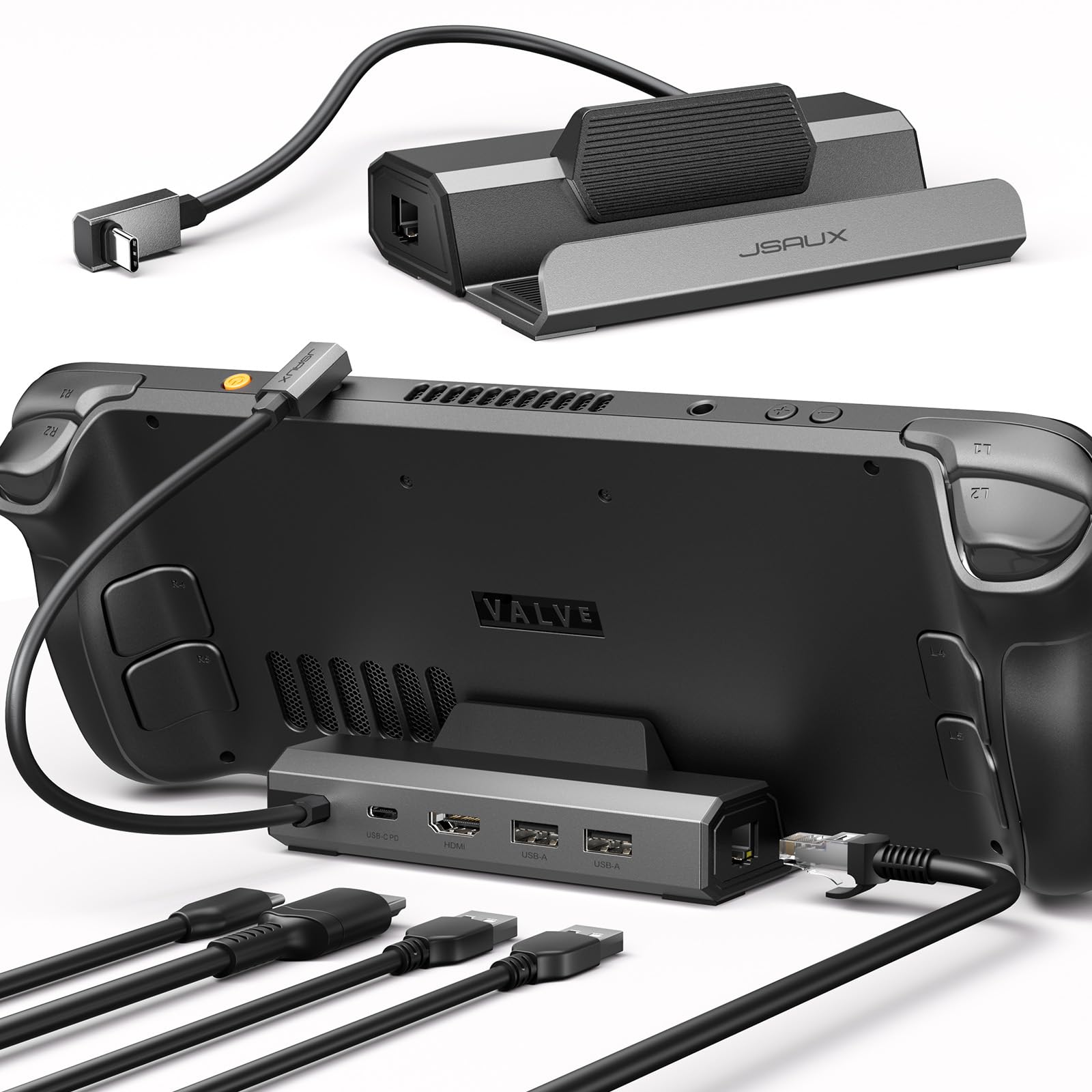
Two things set this little base apart from every other dock on the page. First, its HDMI 2.1 output drives 4K at 120Hz — the same refresh rate PC gamers chase on desktop monitors. The [JSAUX] holds [2] HDMI ports against the [UGREEN USB C Docking Station’s] 1, so for a Steam Deck or ROG Ally X it hits smoother visuals than a single 30Hz laptop hub could. Second, it is built for a cradle, so the handheld sits upright with the single cable running out the back — no balancing act with a propped-up tablet and a short cord.
The measurements back up the handheld-first design. The dock sits 1.1 inches tall and 2.64 inches wide against the [Anker 8-in-1]’s 0.69 inches and 2.01 inches. That extra volume is the stand itself, and it is why a Deck stays planted on a TV stand instead of wobbling. It weighs 141 g, small enough for a backpack, and supports Steam Deck LCD/OLED, ROG Ally / Ally X, Legion Go / Go S / 2, MSI Claw / 8 AI+, and OneXPlayer. It also excludes ROG XBOX Ally / XBOX Ally X — check that list carefully before you buy.
The five ports are one HDMI, one Ethernet, two USB-A 2.0, and one USB-C for 100W PD. The Ethernet port is the honest limitation: it is a 100Mbps jack, not 1000Mbps, so it will not match a Gigabit wired line. The build quality earns its keep in the field — a repeated note is that the stand feels solid and the whole thing survives the commute. Charging at 100W keeps a handheld running in Turbo without draining, so the couch-to-TV session can go the distance.
The real-world read: this is a handheld dock first and a general hub never. If your setup is a Deck or an Ally plugged into a TV, it delivers 4K@120Hz output and 100W charging in a compact 141 g frame. If you need to drive a full desktop with four monitors and a fast network, the 100Mbps Ethernet and two USB-A ports will feel thin.
The tight verdict: buy it for a handheld that needs a stable vantage point and fast HDMI 2.1 video.
The one thing to plan around: if your router is on Gigabit, plan on Wi-Fi or accept a slower wired line.
3. UGREEN USB C Docking Station Dual Monitor
Two matching 4K screens from one cable — the clean-monitor setup in a tiny body.
Dual 4K@60Hz is the headline. Two HDMI ports both running at 60Hz means no mismatch between your main screen and your second monitor. The [UGREEN USB C Docking Station] carries [2] HDMI outputs against the [JSAUX]’s [1], so if two screens on one desk is the goal, this is the better shape for it. That balanced output is why it earns its place for streamers who want a chat window and a game feed side by side on 4K panels.
The rest of the count is a PD 100W USB-C port and four USB-A/C ports running at 10Gbps, all squeezed into a body just 91 g in weight. The 100W PD port is for charging, not for data or video, and you need a 100W-plus charger of your own to hit that ceiling — no adapter is included. A 65W charger is not enough for every device in the chain. The chassis runs modestly warm under a long load, which is the kind of heat a fanless metal body can dissipate.
Build quality is what earns the most praise — a common refrain is how solid the aluminum case feels compared with the plastic hubs. Functionality is the aspect you should read carefully, because there are repeated reports of dual monitors cutting out on certain pairings. A 65W Dell charger caused random disconnects for one setup until a 65W Lenovo charger fixed it, which is a strong hint that wattage headroom is the real limit, not the dock itself. macOS users should know dual extended screens are not supported — Apple mirrors, and this dock will mirror with it.
Why it works: the twin 4K@60Hz ports and 10Gbps data lanes are a serious spec sheet for a 91 g dock. On Windows with a high-wattage charger, two screens pop up clean and stay matched in resolution.
Choose it when: two identical 4K screens on a Windows laptop is your exact goal and you already own a strong charger.
Roll your eyes at: the need for a 100W-plus adapter of your own, and the mirror-only reality on macOS.
4. MOKiN Laptop Docking Station Dual Monitor
Fourteen ports, four possible monitors, one screen-off button for privacy.
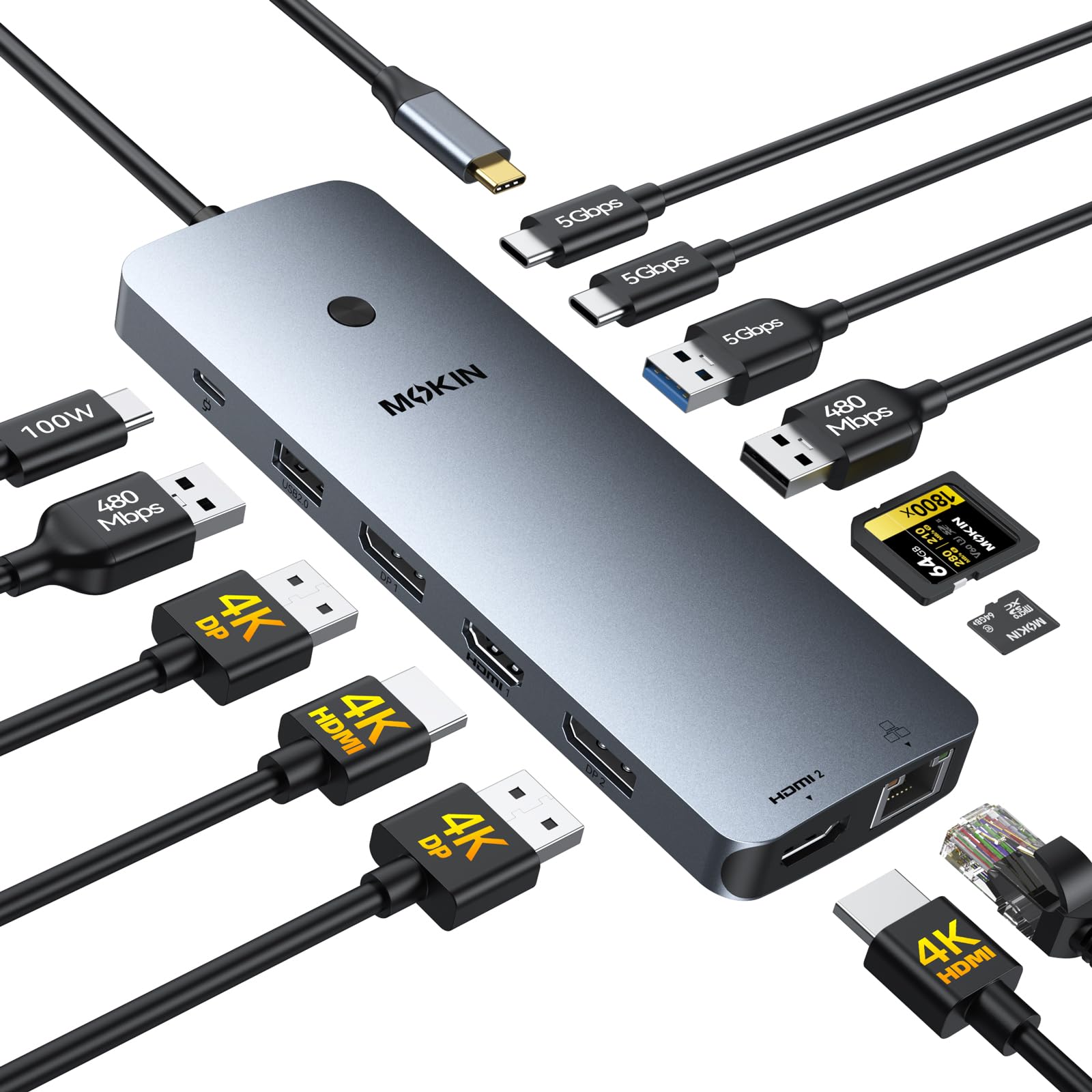
Fourteen ports for a mid-range dock is the kind of ratio that makes budget-conscious buyers stop scrolling. The list is two HDMI, two DisplayPort, RJ45 Ethernet, two USB-C 3.0, one USB-A 3.0, two USB-A 2.0, SD and microSD slots, and a 100W PD charging port. The video mix is unusual in this group: the two HDMI and two DP ports can run configurations like 2 HDMI plus DP or 2 DP plus HDMI, so you are not locked to one layout.
What buyers praise first is functionality, and the counts back it up in how owners describe the dock — versatility and port quantity are the recurring reasons they chose it. The 5Gbps data lanes run at ten times the speed of USB 2.0, and the 1000Mbps Ethernet port is the fastest wired jack on any sub-100-dollar dock in this roundup. A small screen-lock button on top turns the displays off with a short press, so sensitive work stays private when you walk away.
The 100W PD rating is a ceiling, not a guarantee: some connected laptops cap at 54W, and no charger is in the box. Buyers notice the difference when a power-hungry machine drops to trickle speed. The other honest note is USB-C dongle range — a wireless headset dongle in this hub reaches shorter than a direct laptop plug. Neither issue kills the deal; they are the cost of packing 14 ports into one housing at this tier.
What lands well
- Fourteen ports including two HDMI and two DP, more video outputs than any laptop dock here at its tier.
- Gigabit (1000Mbps) RJ45 for a full-speed wired line.
- Press-to-blank screen lock button for instant privacy.
- Works across Thunderbolt 3/4 and full-feature USB-C laptops.
What to weigh honestly
- Power delivery can cap around 54W on some machines; the 100W charger is not in the box.
- USB-C wireless dongles may lose a little reach compared to a direct laptop port.
- Very small profile trades sturdiness for portability — treat the cable carefully.
Seriously consider it if: you run a multi-monitor Windows workstation and want the widest port count on a modest budget.
Think again when: your laptop needs a full 100W at the port to keep up with heavy gaming loads — plan a strong charger.
5. Selore USB C Docking Station 14-in-1

Three screens, a card reader, and an audio jack — the every-connection hub.
The connection list here is the sales pitch: two 4K HDMI, one VGA, three USB-A/C at 10Gbps, four USB-A, 100W PD, SD and microSD, and a 3.5mm audio jack, all delivered in one cable. That 10Gbps data rate is the fastest tier in this price band. The VGA port is a useful oddity — old projectors and second-office monitors still use it, and no other dock in this roundup offers it alongside dual HDMI.
What owners keep coming back to is the appearance and portability: the gray plastic body fits alongside a laptop, and plug-and-play means no driver hunting. On Windows it extends to three separate screens if your laptop’s USB-C supports DP1.4. On a Mac with an M1 or M2 chip, the three screens mirror the same image, which is worth knowing before you buy. The PD port accepts up to 100W but outputs 87W for safety, so your charger must hit 100W for full efficiency.
The honest catch is warranty and support quality, which is not this product’s strength to judge from spec alone, but the unit’s connection quality has earned a following and the full 1000M Ethernet port keeps a wired match stable. Charging while docked works, and the SD reader keeps a camera workflow moving. If you want to plug one cable and go from laptop to full triple-monitor office, this does that. If you need DisplayLink-grade resolution at 4K on a Mac, this is the wrong tool.
One reader reality: the 87W charging output is a ceiling worth knowing, since a high-power laptop will charge slower than it does on its own brick. The rest of the connections hold up under steady desk use.
Pick it up when: you want a wired triple-screen Windows desk with VGA legacy support in one cable.
Skip it when: your Mac needs three independent screens — the mirror limitation hits this dock too.
6. USB C Laptop Docking Station Dual Monitor

The triple-display adapter that hides behind your laptop’s screen.
The aluminum body is the material here, not just the look. It measures 3.15 inches long and 0.65 inches wide with a 6.22-inch height, so it slips behind a laptop screen rather than taking desk space. The video outputs are two HDMI plus one DisplayPort. Single-port use gets 4K@60Hz on HDMI 1 or the DP; HDMI 2 tops out at 4K@30Hz; dual monitors land at 4K@30Hz plus 1080P@60Hz; and triple monitors settle at 1080P on a DP1.4 laptop.
The rest of the 14 ports are 100W PD, three USB-A/C at 10Gbps, three USB 2.0, SD/microSD, and a 3.5mm audio jack. Ethernet is 1000Mbps for a stable wired link. macOS is mirror-only on the externals — the same Apple limit the other docks share. Windows 7 through Windows 11 are listed as compatible, and it plugs in with no driver steps. What owners mention warmly is that it makes a laptop feel like a desktop, and a pair of buyers bought a second for a different desk.
The friction you should know about: a specific boot quirk where some Lenovo laptops do not start when the dock is connected — boot the laptop first, then plug in. A light bump can blank a monitor for a second or two on both units. The internals on one unit slid out of the case; that is a rare fit-and-finish issue rather than the norm. Runs warm under full load; not hot.
The clean wins
- Three video outputs (2 HDMI plus 1 DP) in a 3.15-inch aluminum housing.
- Wireless mouse dongle lives in a USB 2.0 port with no lag, per the design intent.
- 1000Mbps Ethernet means full-speed wired play with no adapter chain.
The quirks to plan for
- Some Lenovo machines refuse to boot with the dock attached — power on first.
- A bump can blank a monitor briefly on both connected units.
- Bumping aside, the DP1.4 requirement means older laptops drop to 1080P at triple.
The right call for: a compact desk with an aluminum dock and three outputs at a modest price.
Think twice when: your laptop is an older DP-limited machine or you cannot get past the boot quirk.
7. Plugable USB 3.0 Universal Laptop Docking Station

The driver-based workhorse for mixed Mac and Windows offices.
DisplayLink is the tech inside this dock that lets it push video over a plain USB 3.0 cable, not the USB-C video standard. That is a big deal for older laptops that do not support DP Alt Mode — they simply cannot send video out of a USB-C port, but they can run a DisplayLink dock. The output ceiling is dual HDMI at 1920×1200@60Hz, so it is a productivity dock, not a 4K gaming dock. The maker explicitly says it does not support gaming.
Where it shines is switching between machines. One USB cable moves a keyboard, mouse, two monitors, Ethernet, audio, and up to four USB 2.0 plus two USB 3.0 peripherals between a laptop and a desktop. Setup is quick — pre-installed on most Windows machines, and on macOS 14 or later a manual DisplayLink driver install is needed. The 13-ounce frame is heavier than a hub, sits still on a desk, and it comes with 2-year coverage and lifetime support from a North American team.
The honest ceiling is display resolution: 1920×1200 not 4K, and no HDCP support means protected streaming services like Netflix may not play through it. It also does not charge the host laptop, so you still need your own power brick. If your gameplay is on a monitor under 1920×1200 and your laptop is old enough to lack USB-C video, that trade is fine. If you want 4K or high refresh, look at the Thunderbolt picks instead.
The stable workhorse: the reliability and support pattern here is the strongest on the page for a mixed Windows/Mac office.
Know the line: no HDCP, no 4K, no laptop charging — this is a productivity connector first.
Buy it for: older laptops and mixed offices that need a trusted dual-monitor connection.
Not for: 4K gaming or protected streaming playback, which this dock cannot deliver.
8. Anker Prime Docking Station 14-in-1

A 160W charging station that happens to be a dock too.
One hundred sixty watts of total output, spread across three USB-C ports at up to 100W each and one USB-A at up to 12W, is the reason this dock exists. That is enough to run a laptop, a phone, a watch, and a headset off the same brick. The rest of the 14 ports cover dual HDMI (2K@60Hz on a DP1.4 laptop, 1080p@60Hz on DP1.2), Gigabit Ethernet, audio, and eleven data ports at 10Gbps. A black front display shows the live watts pulled by each device.
What lands best is function: owners describe it as a one-cable dock that handles several laptops across operating systems with instant dual-monitor output and no driver dance. The port variety gets a serious look from people running a DAC, mechanical keyboard, webcam, and a capture card. On the charging front, the pattern is that the pass-through output keeps a power-hungry MacBook charged under heavy load, which is the promise of a big-wattage dock kept. It is heavier than a hub at 1.28 kg, so it lives on a desk, not in a bag.
The honest catch is the limits of a 10Gbps dock: the rear USB-A ports run slower than the front ones, so a capture card may only work on the front USB-A at full speed. There is no DisplayPort and no SD reader. Some units develop flicker or drop connection under load. If those features matter, look at the Thunderbolt options instead. If you want one brick to charge everything and still stream a dual screen over HDMI, this is the strongest pick in its class.
What makes it the charging king
- 160W total output across three USB-C ports at 100W max each plus one USB-A at 12W.
- Live per-port wattage display turns mystery cable management into a dashboard.
- 11 data ports at 10Gbps plus dual 4K HDMI and front-facing connections.
The lines to respect
- No DisplayPort and no SD reader — HDMI only on the video side.
- Rear USB-A ports run slower; a capture card belongs on a front port.
- A handful of units report flicker or brief disconnects under heavy loads.
Buy this when: you have four devices to charge and one desk to power, and HDMI is all the video you need.
Keep looking if: your workflow needs DisplayPort or an SD reader on the same dock.
9. TobenONE DisplayLink Docking Station 3 Monitors

Eighteen ports and a power brick in the box — the full workstation in one purchase.
The number to notice is 18, and the number inside that is the three HDMI plus three DP on the video side. That is the widest display flexibility here: you can mix HDMI and DP to run triple or quad monitors at 4K@60Hz from a single cable. On Windows with a laptop whose USB-C supports video out, that reaches four displays; on macOS, three. The 18-port total also packs 4x USB 3.1 and 2x USB-C at 10Gbps, SD, Gigabit Ethernet, and audio.
The power story is equally complete: a 120W power adapter ships in the box, so you do not need to bring your own charger. The dock passes up to 100W (96W certified) to the laptop and 18W to a phone via the front USB-C port. DisplayLink is the tech inside, which is why Macs with M-chip silicon can run three independent monitors here — a rare thing, because macOS itself limits standard USB-C video to a single extended display.
What to plan for: this is a productivity dock, and the maker states plainly it is not for high-refresh gaming. It cannot stream Netflix through the DisplayPort connection because of screen-recording permissions DisplayLink needs. The aluminum chassis is fanless and quiet and survived a cat knocking it about without issue. If you want triple 4K and the charging brick is included in the same box, it is the most complete workstation purchase on this page.
Why it makes short work of big setups: three HDMI and three DP outputs plus an included 120W adapter is a combination no other pick here matches for a single-cable triple-screen desk.
It earns the premium when: you want three or four 4K screens on a Mac with the charger in the box and no display chain to worry about.
Note before ordering: this is not a high-refresh gaming dock, and protected streaming via DisplayPort may not play.
10. Plugable Thunderbolt 4 Dock with 100W Charging, Dual Monitor

Forty gigabits per second and a single 8K screen for the pro-deployment desk.
Forty Gbps is the number. That is Thunderbolt 4 throughput, and it drives either dual 4K@60Hz HDMI monitors or one 8K display on a Thunderbolt 4, Thunderbolt 5, or USB4 laptop. Its 100W PD (96W certified) covers a 16-inch editing laptop. The port count is 13: 2 HDMI, 1 downstream Thunderbolt 4 at 40Gbps and 15W charging, 4 USB, 1 USB-C, SD/microSD, audio combo jack, Gigabit Ethernet, and a K-lock slot for IT deployments.
Setup earns constant positive feedback — the drivers ship in the box, and the monitors wake correctly from sleep, which is the thing every dock reviewer checks first. It stays cool and quiet, with a subtle blue LED. Mac limits you should verify before purchase: dual display works on M5, M4, M3 Pro/Max, M2 Pro/Max, and M1 Pro/Max chips and base M3 in clamshell mode. Base M1 and M2 MacBooks get a single display only — that is Apple’s ceiling, not this dock’s.
Where it falls short: networking is the occasional crack. A wired Ethernet link has dropped for some owners and needed a dock power cycle to restore. A single tight copy of the unit had multiple ports fail after 30 days; that is the exception, not the pattern, and Plugable’s North American support team is the answer there. Also worth knowing: the host Thunderbolt cable plugs into the front of the chassis, so cable-hiding from behind a desk will need a plan.
The setup that pays off: for a video editor or a mixed-device IT fleet, 40Gbps Thunderbolt 4 with 100W charging and driverless setup is the combination that gets work started on the first boot.
The catch to size: networking dropouts happen on a minority of units — and only some Apple chips support dual displays.
The prime fit: a Thunderbolt-equipped laptop that needs 8K or dual 4K and 100W without any driver install.
Not the pick when: you own a base M1 or M2 MacBook that needs two independent screens.
11. Anker Prime TB5 Docking Station

A Thunderbolt 5 dock rated for a 150GB file transfer in 25 seconds and 140W upstream charging.
Anker rates a 150GB file transfer at 25 seconds over its Thunderbolt 5 port. That figure is Anker’s own claim, so treat it as a ceiling rather than a guarantee. The port count is 14: one Thunderbolt 5 upstream, two Thunderbolt 5 downstream, two USB-C, three USB-A, SD and TF readers, a 2.5Gbps Ethernet port, an audio jack, and one HDMI 2.1 or DisplayPort 2.1 port. Its 140W upstream PD 3.1 is the highest charging wattage in this roundup.
Display output is the deepest on this list. It drives one 8K@60Hz display, or dual 8K@60Hz on a Thunderbolt 5 Windows laptop. An active cooling system runs the internals so full-load play does not overheat the chassis. What buyers notice most is the solid, tank-like build and a steel finish; charging a 49-inch monitor off the dock is the sort ofthing buyers report going well. The 2.5Gbps Ethernet is a step above Gigabit, and a toggleable LED ring lights the desk at night. What you should plan for: the high speeds are gated by what your laptop supports. Thunderbolt 4 laptops work but cannot hit the full TB5 ceiling. A backward-compatibility gap shows up on older Macs — on at least one M1 Mac mini only a single display is detected. Some units develop a faint audible hum even at idle, and the fan runs at all times on a compact 2.4-pound body. The Realtek network chip needs a driver update to hit full 2.5Gbps instead of 1Gbps, so budget a download before the fastest speeds arrive. One Thunderbolt 5 upstream and two TB5 downstream ports give it the fastest cable chain here. 140W upstream PD 3.1 charging, the highest wattage in this roundup. Dual 8K@60Hz on TB5 Windows laptops, or single 8K@60Hz. 2.5Gbps Ethernet — faster than the Gigabit jacks on the mid-tier picks. Active cooling keeps the chassis from overheating under full-load play. The honest limits Only one HDMI or DP port — dual displays on some laptops need a USB-C adapter. Thunderbolt 3/base-M1 machines may see a single display only. 2.5Gbps Ethernet needs a Realtek driver update to run at full speed. Fan runs continuously; a faint hum is audible in a quiet room on some units. Built for: a Thunderbolt 5 desktop where 8K displays and 140W charging justify the top-tier spend. Know before ordering: your older TB3 or base-M1 laptop may run a single display, and the fan is not silent.
Know the Specs
HDMI 2.1 vs HDMI 2.0 Explained in Plain Words
HDMI is the cable standard that carries video from a dock to a TV or monitor. The version number does not just mean “newer” — it sets a bandwidth ceiling. HDMI 2.0, used on most laptop hubs, carries 4K at 60Hz (60 refreshes a second). HDMI 2.1 carries 4K at 120Hz, which is double the refresh and noticeably smoother in fast action. If you game on a TV or a 120Hz monitor, checking for HDMI 2.1 on the dock tells you whether you get the full option. Handheld-specific docks like the JSAUX list 4K@120Hz because that is the reason a gamer picks them.
Pass-Through PD Wattage, Decoded
Power Delivery (PD) is the charging standard most USB-C laptops and handhelds use. A dock’s PD rating is the highest wattage it can hand through to your machine from your own wall charger — the dock does not create power, it passes it. A dock rated for 85W passes up to 85W; one rated 100W passes up to 100W; the top-of-page TB5 unit passes 140W. A game laptop in high-performance mode can pull 100W or more, so a lower-wattage dock lets the battery drain slowly while you play. That is why the charging wattage is the spec to check after the video output.
Refresh Rate, Hertz, and Why Gamers Care
Hertz (Hz) is how many times per second a screen redraws. A 60Hz monitor redraws 60 times a second; a 120Hz monitor doubles that. Motion looks smoother at higher values, and screen tearing (the split line you see when the frame rate does not match the monitor) is less likely. A dock caps this: even with a 144Hz monitor, the dock’s port sets the ceiling. Check the dock’s HDMI or DisplayPort version, then check its stated max resolution at that refresh. 4K@120Hz is a very different experience from 4K@30Hz, and the 30Hz figure can feel motion-sick to a gamer.
Ethernet Speed Tiers and Wired vs Wireless Gaming
The wired RJ45 port on a dock comes in three main speeds. 100Mbps is the entry tier; it works for most online play but leaves no headroom for a 4K stream or a big patch download. 1000Mbps (Gigabit) is ten times that ceiling and is the standard on mid-tier docks here. 2.5Gbps is two and a half times Gigabit and only appears on the premium picks. Wired is more stable than Wi-Fi in every tier, which matters for ranked matches. If a dock lists a 100Mbps port, plan the wired connection as a stable baseline, not a speed upgrade.
Common Questions
Will a gaming docking station work with a Steam Deck or ROG Ally?
Does a dock-based 4K@120Hz output actually beat 4K@60Hz for gaming?
Can I run dual monitors on a Mac with these docks?
What wattage do I need for a dock to keep a gaming laptop charged?
Why does the Ethernet port on a dock list 100Mbps not 1000Mbps?
Do I need to install drivers or will a gaming dock work plug-and-play?
Will a 100W charger work with a dock that needs 100W+ PD?
Can I switch one dock between two different laptops daily?
Does a gaming docking station support protected streaming like Netflix?
How do I know if my laptop supports video out over USB-C for a dock?
The Bottom Line
If you want the combination of price, reliability, and the widest port range for a laptop desk, the Anker 8-in-1 USB C Hub is the one to start with. Its eight ports and 85W pass-through charging handle the everyday desk job, and its long sales history backs the recommendation — the crowd favorite for a reason. If your setup is a Steam Deck or ROG Ally X, the JSAUX 5-in-1 gets the higher 4K@120Hz refresh and the cradled stand that handhelds want. For a multi-monitor Mac desk that needs three independent 4K screens with the power brick in the box, the TobenONE DisplayLink Docking Station is the most complete bundle on this page. And if 8K displays plus a Thunderbolt 5 laptop are your reality, the Anker Prime TB5 is the fastest pipe here — its active cooling and 140W charging are the reasons to spend at that tier.
How we choose
We do not accept paid placement. Every pick is matched to a real buyer and a real use-case; we do not hands-on test units.
Sources
Specifications: manufacturer listings and product documentation. Review insights: verified customer reviews, as of October 2026. Pricing: not shown on this page (it changes often); check the current price via the retailer link.
As an Amazon Associate, Aappliancez earns from qualifying purchases. This does not affect which products we feature.