Disclosure: Some links in this post are affiliate links. As an Amazon Associate I earn from qualifying purchases, at no extra cost to you. Learn more
Specs are compiled from manufacturer listings and verified buyer reviews and can change over time — please confirm the key details on the product page before buying.
You want a tablet that lets you draw or write on a matte, paper-like surface without a laptop tethered to it. The picks below are standalone e-ink and paper-display slates that let you sketch, take notes, and read away from your desk. The XPPen Magic Drawing Pad takes the top spot with 16,384 pressure levels and full Android app support.
This guide is built by comparing the manufacturers’ published specifications and the patterns across verified customer reviews, so you get each pick’s real strengths and trade-offs instead of marketing spin.
You will see how screen texture, stylus pressure, and battery life change the drawing feel, plus which picks suit artists versus note-takers. Here is what to expect from each e-ink drawing tablet, whether it lives in your studio or your bag.
Top Picks


How To Choose The Best E-Ink Drawing Tablet
The first thing to check is the stylus, not the screen. A pen that needs charging or pairing will interrupt your drawing session when the battery dies. The XPPen Magic Drawing Pad uses a free-of-charging stylus, so you can pick it up and draw immediately.
Pressure levels and tilt recognition
Pressure levels measure how finely the pen senses your hand. A stylus with 16,384 levels (like the one on the XPPen) gives you very subtle control over line thickness in a digital painting. Tilt recognition means the pen senses the angle you hold it, so you can shade with the side of the nib just like a graphite pencil.
Paper-like screen texture
A matte, etched-glass screen adds friction under the nib. This stops the pen from sliding like ice on smooth glass, which makes your handwriting or linework feel more controlled. Some LCD tablets use an anti-glare layer to mimic this, while true e-ink screens have a naturally matte surface.
Side-by-Side Comparison
| Model | Best For | Screen Size | Stylus Pressure | Storage | Amazon |
|---|---|---|---|---|---|
| XPPen Magic Drawing Pad★ Best Overall | Full Android creativity | 12.2 inches | 16,384 levels | 256 GB | Amazon |
| Ocean 7” eBook ReaderBest for Reading | Reading and light notes | 7 inches | — | 64 GB | Amazon |
| HUION KAMVAS Slate 11Top Performer | Beginner artists | 10.95 inches | 4,096 levels | 128 GB | Amazon |
| XPPen Magic Note Pad | Color note-taking | 10.95 inches | 16,384 levels | 128 GB | Amazon |
| Geniatech Kloudnote Slim | Basic reading and writing | 10.3 inches | — | 64 GB | Amazon |
| iflytek AINOTE Air 2 | Meeting transcription | 8.2 inches | 4,096 levels | — | Amazon |
| Penstar eNote 2 | Crisp monochrome reading | 10.3 inches | 8,192 levels | 128 GB | Amazon |
| reMarkable Paper Pro Move | Pocketable color notes | 7.3 inches | — | — | Amazon |
| Amazon Kindle Scribe 32GB | Reading and journaling | 11 inches | — | 32 GB | Amazon |
| Amazon Kindle Scribe Colorsoft | Color reading and notes | 11 inches | — | 64 GB | Amazon |
| reMarkable Paper Pro | Full-size color studio | 11.8 inches | — | 64 GB | Amazon |
Detailed Reviews
1. XPPen Magic Drawing Pad 12.2 Inch
Our pick — 4.5+★ from 700+ verified ratings; the strongest balance of quality and price.
The big-screen Android slate that lets you draw anywhere without a laptop.
The 12.2-inch display gives you a generous canvas, and storage comes in at 256 GB so you are not juggling files. The 16,384 pressure levels on the X3 Pro stylus mean you get very fine control over line weight, which matters when you are painting detailed illustration work. Because the stylus needs no charging and no pairing, you can pick it up mid-idea and start drawing.
The matte AG-etched glass is the standout, adding paper-like friction under the nib. The 2160×1440 resolution and 3:2 aspect ratio make portrait sketching comfortable rather than cramped. Running Android 14 opens up Google Play, and the package includes a glove and replacement nib so you are ready from day one.
The trade-off is software, not hardware. Serious artists notice Android still lacks a truly tablet-native drawing app that matches the likes of Procreate, and a few apps like Krita feel clunky with on-screen tools. Palm rejection can also be touchy, so the included glove earns its place. If you want a laptop-free Android studio with room to grow, this is the most flexible pick here.
large color canvas
- 16,384 pressure levels for nuanced, painterly line control
- AG-etched matte glass that mimics paper texture
- 256 GB of internal storage with micro SD expansion up to 1TB
- 13 hours of battery from the 8000 mAh cell
stylus feel limits
- Android 14 is locked with no update path noted
- Some apps trigger palm-rejection quirks that need the glove
- Keyboard typing and trackpad feel mediocre
pick for sketching: you want a self-contained Android drawing studio with a truly paper-like screen.
skip for typing: you demand a tablet-tune app ecosystem on par with iPad creative software.
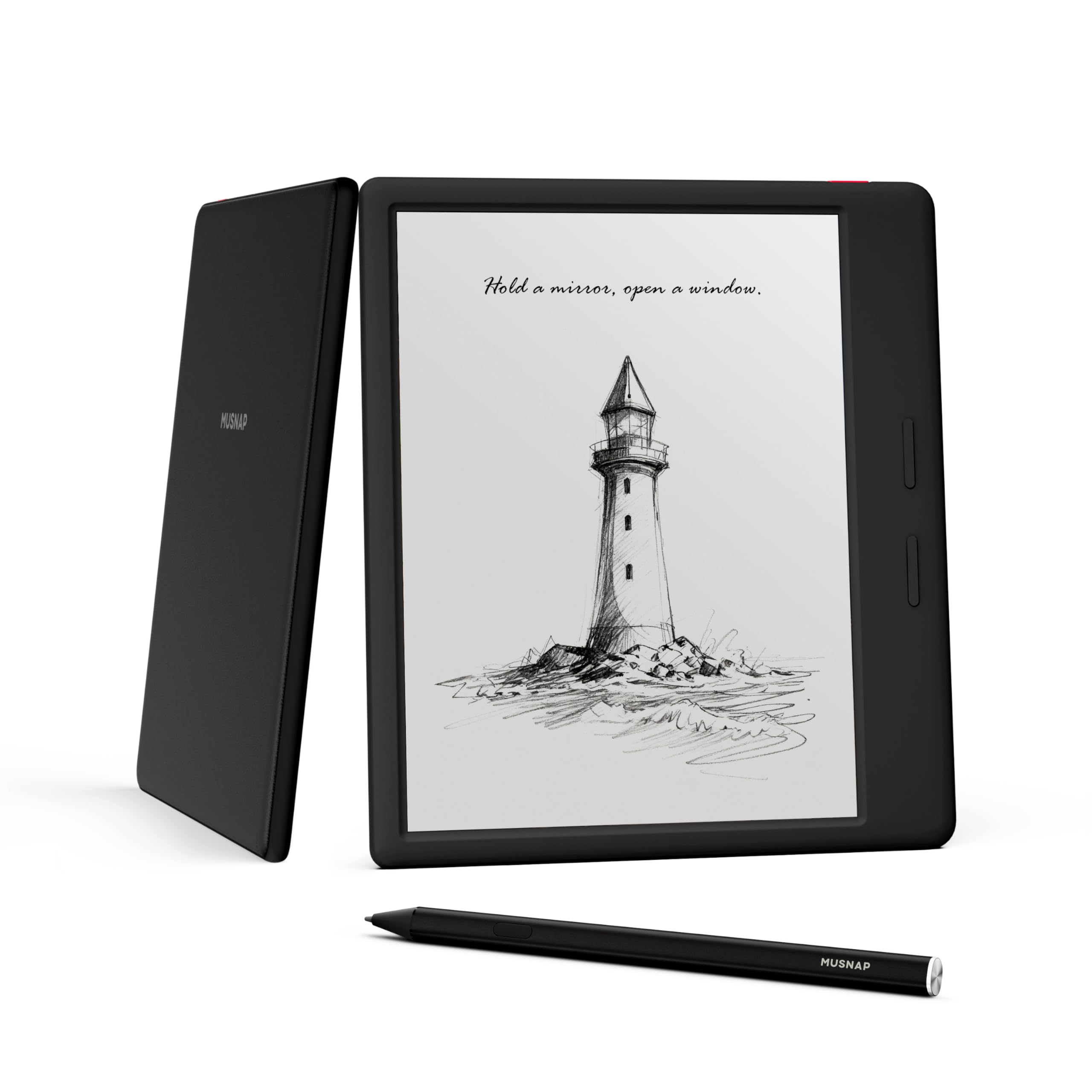
2. Ocean 64GB+4GB 7” eBook Reader
The pocket paperback that turns into a note-taking pad when you add the pen.
This is a 7-inch e-ink reader first and a sketching tool second. The 64 GB of storage and 4 GB of RAM are modest compared to the 256 GB and 8 GB on the XPPen Magic Drawing Pad, but for a device that fits in a jacket pocket, that is plenty. The Octa-core processor running at 2.2 GHz keeps page turns quick, and the Android system lets you install Kindle, Libby, and Kobo apps without being locked to one store.
The 7-inch screen uses Kaleido 3 color, which is fine for comics and manga, though color illustrations come through with a dithered texture rather than vivid saturation. Buyers report the frontlight runs cool by default and can flicker slightly at low brightness. Where it feels best is reading — the recessed screen and physical side buttons make turning pages satisfying in apps like Google Play Books.
week-long reading: handwriting works with the Musnap Stylus Pen, but the pen is sold separately and has no magnet to attach to the tablet. The note app keeps notes to roughly 10 lines per page with no cloud sync, so this is not a full drawing suite.
slow note input: a lightweight, sturdy build with adjustable color temperature and a battery that lasts over a week when you toggle off Google Play services during heavy reading.
choose for books: you mostly read comics and ebooks and want the occasional quick note.
avoid for notes: you need a dedicated art tablet with a pressure-sensitive pen included in the box.
3. HUION KAMVAS Slate 11 Standalone Drawing Tablet
A 90Hz screen brings the smoothest strokes to this budget-friendly studio slate.
Speed is the headline here. The 90 Hz refresh rate keeps your lines fluid with no lag, and the full-laminated anti-glare screen reduces parallax so the tip of the pen tracks exactly where you touch. The 10.95-inch FHD+ display (1920×1200, 207 PPI, 99% sRGB) makes color work look accurate. More importantly, the 4,096 pressure levels and 60° tilt recognition give you that real-pencil shading feel.
Beginners get the most from it — the H-Pencil draws naturally from the start, and Clip Studio Paint with a free membership is pre-installed. The aluminum back adds a solid feel, and it ships with a palm rejection glove plus three extra nibs. Where it struggles is reliability: the stylus sometimes becomes choppy after a few days, which buyers often trace to palm rejection. A screen protector and the included glove usually fix that.
standalone pen display: the screen brightness and quality trail the Kamvas 13, and the bundled case feels thin. But for the price, it is a responsive entry into standalone digital drawing.
grab for drawing: students and hobbyists testing the waters of standalone drawing.
pass for travel: you need a flawless palm-rejection experience on the very first day.
4. XPPen 3 in 1 Color Digital Notebook 10.95”

One press flips between monochrome, light color, and nature color modes for note-takers.
This is an LCD tablet, not true e-ink, and the manufacturer says so plainly. The AG nano-etched screen paired with TCL NXTpaper 3.0 cuts up to 95% of ambient light interference. That means you get a paper-like matte look with the ability to switch into full color when you want to highlight or color-code notes. The 90 Hz refresh rate keeps page turns and scrolling smooth, while the X3 Pro Pencil 2 delivers 16,384 pressure levels for subtle stroke variation.
The XPPen Notes app includes a permanent membership, so you get handwriting-to-text conversion, audio recording, and PDF editing without an ongoing fee. MyScript Notes and Math come pre-installed after the 1PAE system update, adding six-language-style handwriting recognition and equation solving. Storage is 128 GB and the 8000 mAh battery supports a 20W charger for quick top-ups.
The catch is the battery — a heavy day of note-taking uses up most of it, unlike a true e-ink slate that can stretch to weeks. The etched glass also narrows the viewing angle, so you need to look straight on. For a student or professional who wants a glare-free writing surface with a splash of color, it is a strong middle-ground device.
take for meetings: color-coding lecture notes and annotations without an e-ink refresh lag.
leave for art: you need multi-week battery life between charges.
5. Geniatech Kloudnote Slim 10.3″

An ultra-thin 5.3mm slate that carries your notes and books like a paper pad.
At 5.3mm thin and just 390 g, this is one of the lightest full-size e-ink notepads you can carry. The 10.3-inch screen has a 1404×1872 resolution at 227 PPI, so text stays crisp and sharp. The 1.8 GHz A55 quad-core processor with 2 GB RAM and 64 GB storage handles reading and writing, and the 3000 mAh battery is rated for up to 40 hours of work time.
For note-taking, it offers 39 templates and an OCR function that converts handwriting to text. The Kloudnote cloud service includes 500 MB of free space with OneDrive and Dropbox support, and the AppStore lets you add common apps. Where it feels thin is on power and support — some units arrive with nagging issues like an inability to add email accounts, and support responses can be slow.
slim e-ink frame: the physical build and screen resolution are genuinely nice, but the software and support have not caught up to the hardware. It is a fit for basic reading and writing, not for artists who need a polished drawing app.
buy for reading: writers and readers who want something ultra-slim and simple.
skip for speed: illustrators or anyone who needs reliable email and app sync.
6. iflytek AINOTE Air 2 8.2″ E Ink Tablet
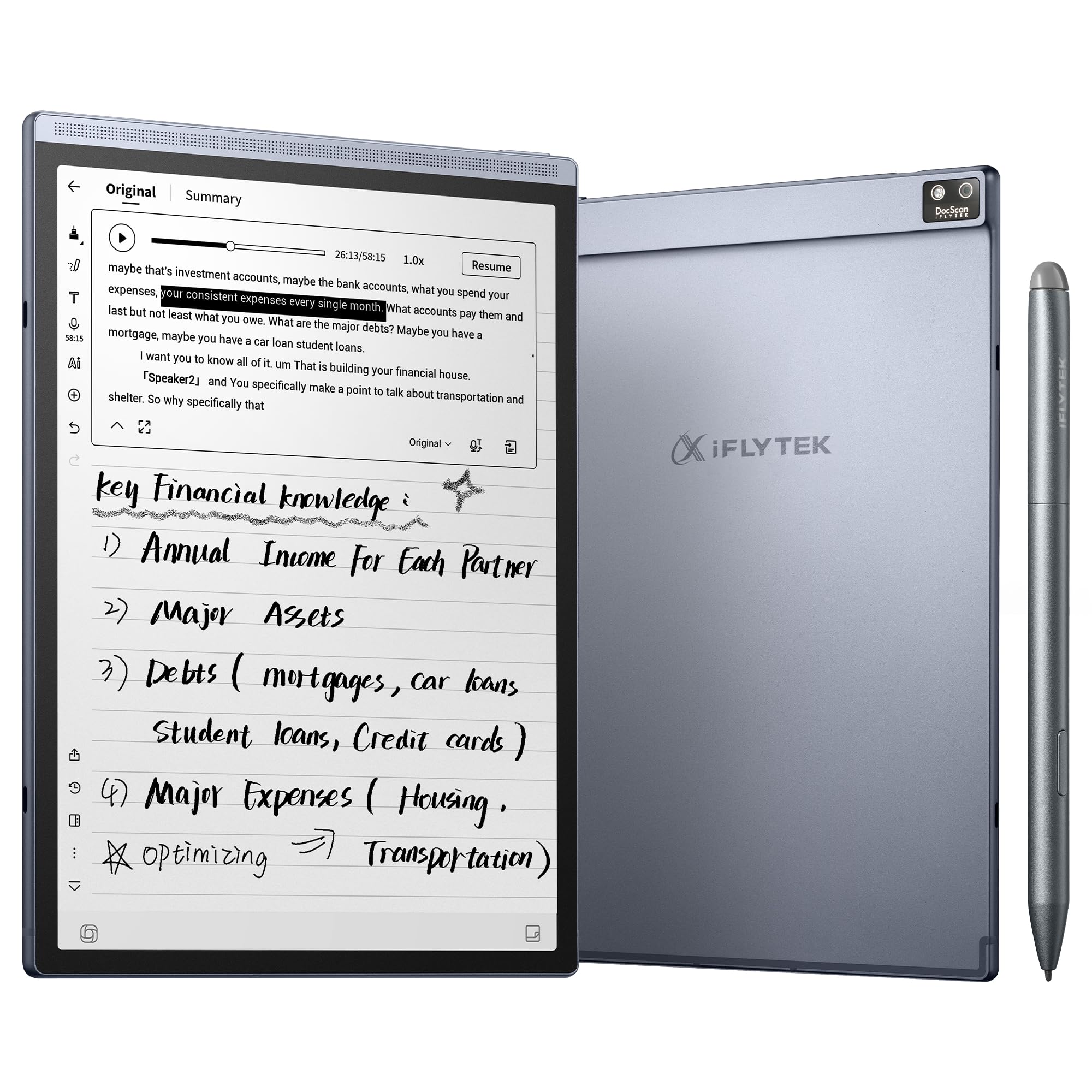
A pocket-sized assistant that listens to your meeting and drafts the summary.
The 8.2-inch E Ink display uses a matte surface with 4,096 pressure levels, so handwriting feels natural. But the real feature is the software. It transcribes speech in 18 languages, translates across 14, and uses AI to summarize a recorded meeting into structured notes. You can also ask questions about a note and get answers pulled from its content.
At 230 g and 5-6.5 mm thick, it slips into a bag or jacket pocket without a thought. The warm and cool reading lights adjust across 24 brightness levels, so it is comfortable to read in dim rooms or bright classrooms alike. The 2600 mAh battery is rated for up to 5 weeks of use, which is far longer than an LCD tablet.
Performance is the honest catch. The hardware is modest, and some tasks feel slow, especially web browsing and complex documents. It also has no offline transcription, and Outlook sync depends on corporate restrictions. For a professional who wants to capture meetings and review clean notes, the AI structure is worth it. For a pure sketching tablet, look elsewhere.
get for recaps: you spend your day in meetings and want automatic summaries.
avoid for drafts: your main goal is drawing or you need snappy web performance.
7. Penstar eNote 2 E-Ink Digital Notebook

Stripped-back layers give the whitest whites on a 10.3-inch e-ink page.
If you want text that looks like a finely printed book page, this is the screen to beat. The 10.3-inch display runs at 2480×1860 (300 PPI), and the layers have been removed to reduce haze and refraction. The result is whiter whites and punchier blacks than most e-ink rivals, which is why it reads clearly even under direct sunlight.
Writing performance is equally strong. The exclusive 8,192-level pressure stylus needs no charging, aligns almost perfectly with your strokes, and feels natural thanks to low latency. With 4 GB RAM, 128 GB storage, and an octa-core processor, it runs Android 14 and supports over 35 file formats. The 6500 mAh battery is rated to last up to 4 weeks, and the package includes two pens with spare nibs plus a leather folio.
The compromise is usability. The interface has a learning curve, the app store is limited, and text conversion can confuse capitalization. It is also not Google-certified, so many Android apps will not run. But for a distraction-free study or reading tool with the sharpest black-and-white screen, it is a fine choice.
pick for journaling: students and readers who prize a crisp, white monochrome screen over app variety.
move on for apps: you need a broad app ecosystem or Google-certified services.
8. reMarkable Paper Pro Move with Marker Plus
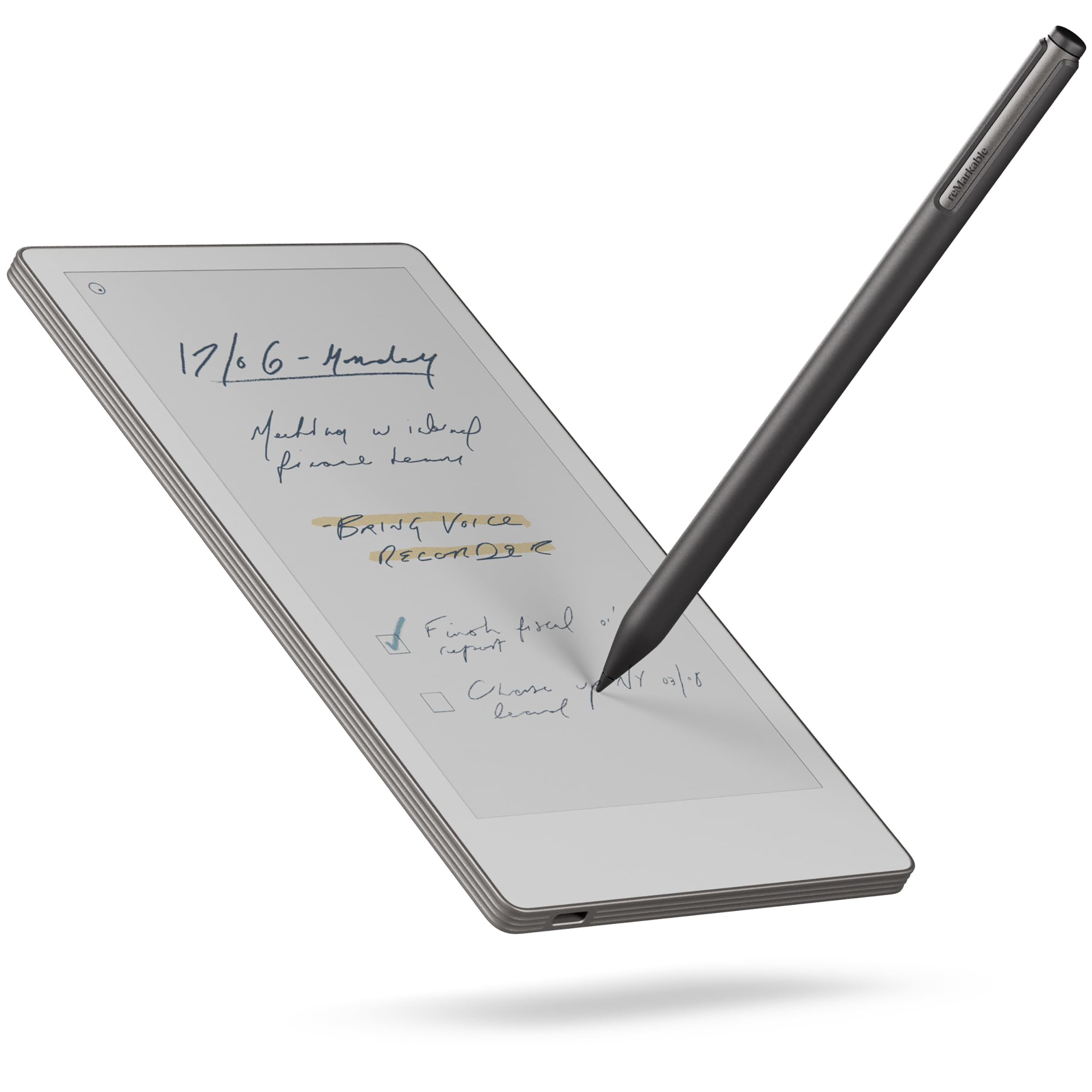
A color notepad smaller than a paperback that slips into a jacket pocket.
The 7.3-inch Canvas Color display is the draw here, and at 248.4 g it is lighter than most phones. It looks and sounds like paper when you write, and the Marker Plus pen includes a built-in eraser. The 954×1696 resolution keeps text crisp, and the 9 pen types and 9 colors let you sketch and color-code notes on the go.
Day-to-day use is about quick capture. It syncs notes to the reMarkable cloud, so a thought jotted in transit shows up on your desktop later. Folders and tags keep things organized, and handwriting converts to typed text when you want to share. The battery is rated for weeks, and the 32.24 square inches of active surface area is exactly enough for a single page of notes.
Two things will decide it for you. Colors are muted and can look dull for artwork, so this is not a sketch tablet for final illustrations. And many features like notebook search and extra templates sit behind an ongoing subscription. The size is also awkward for some — too big for a jeans pocket, too small for a full notebook page.
splurge for writing: commuters and creatives who want to capture ideas without carrying a bag of paper.
skip on budget: you need vivid color artwork or refuse paywalled core features.
9. Amazon Kindle Scribe 32GB
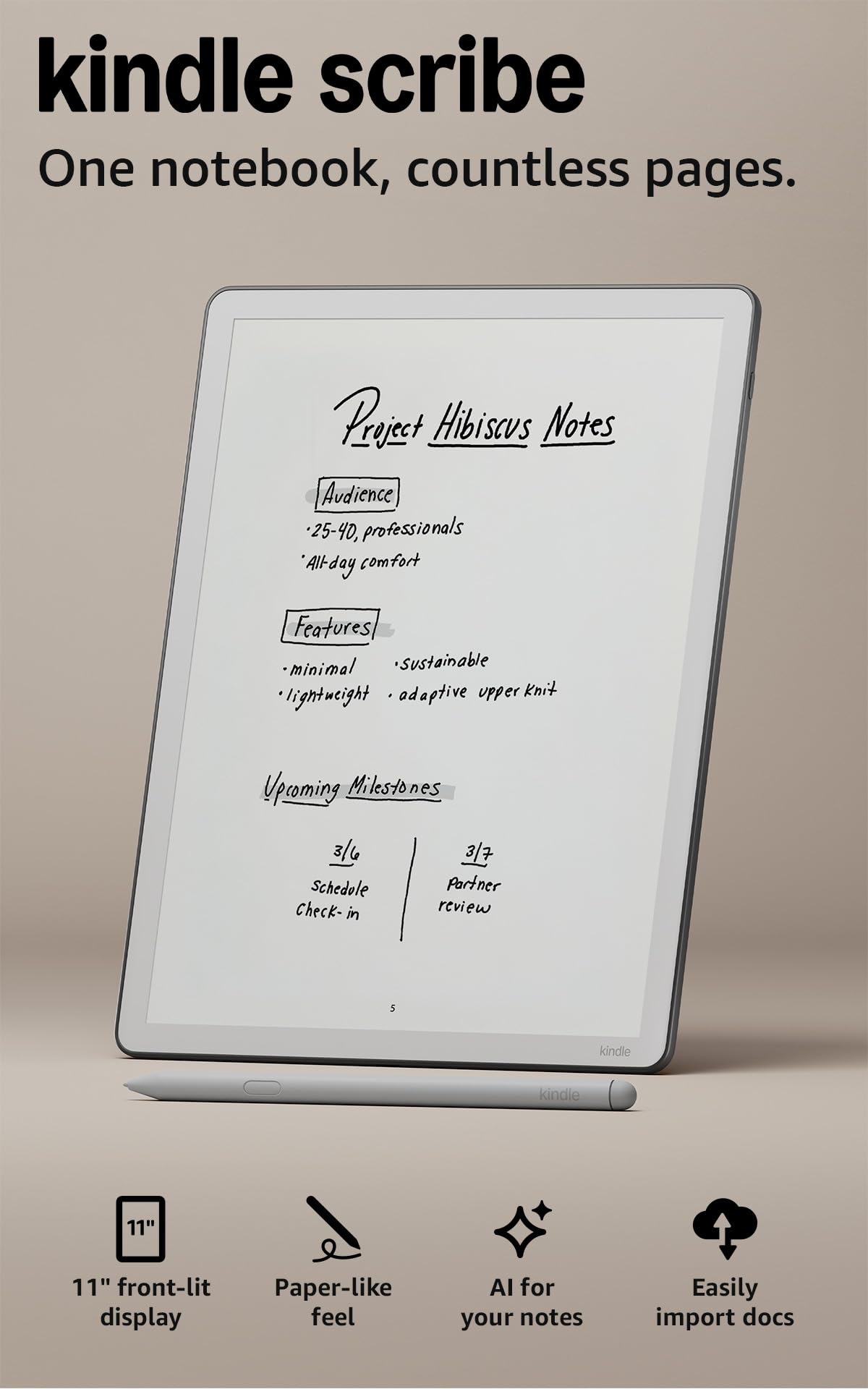
An 11-inch e-reader where pen input feels built into the page, not added on.
At 5.4mm thin and 400g, the 11-inch Scribe is designed to disappear into a bag. The front light adjusts automatically to the room, and you can shift the warmth for late-night reading. For writing, the textured surface feels close to paper, and the included pen never needs charging. The pen has a built-in eraser and a shortcut button for tools like the highlighter, so you can annotate without digging through menus.
Where it pulls ahead is the AI-powered note tools. You can search your handwriting, ask questions about your notes, and generate summaries inside the built-in notebook. It also imports documents from Google Drive or OneDrive and exports your markups as PDFs, which makes it useful for reviewing contracts or manuscripts. Its crisp, glare-free e-ink screen (4.0+ stars) stays readable in bright sun, with no app notifications to pull you away.
The caveats are real but narrow. It locks you into Amazon’s ecosystem, and the AI tools only work inside the AI Notebook rather than in books or PDFs. There is no microphone or speaker, and no color. If you already own Kindle books, this is the simplest way to move between reading and note-taking.
choose for novels: you read Kindle books and want to mark them up with a pen that never dies.
skip for pockets: you want color or an open app ecosystem.
10. Amazon Kindle Scribe Colorsoft 64GB
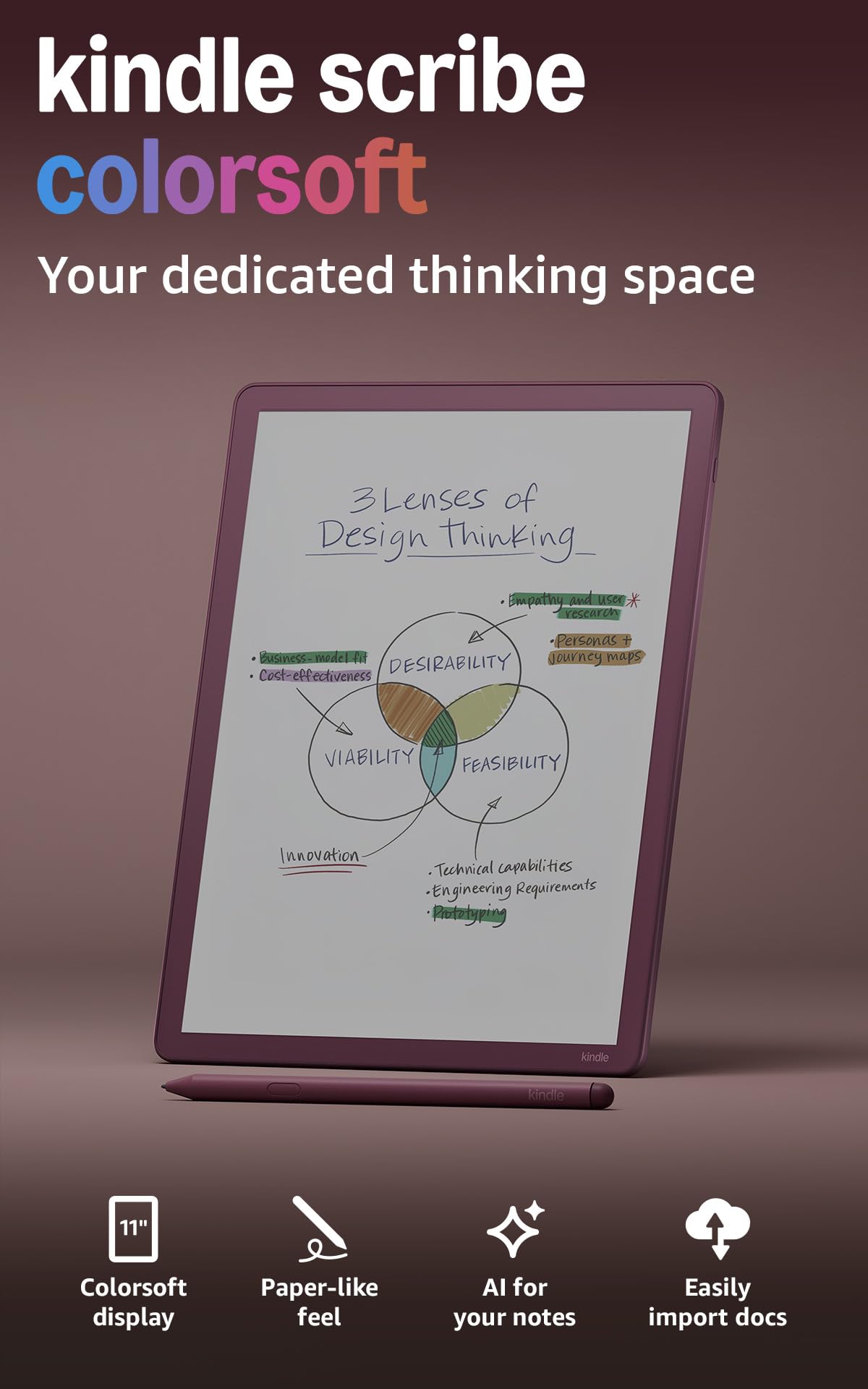
Color highlighting and color-coded notes on an 11-inch paper-like Kindle.
The big upgrade here is color. The custom Colorsoft display brings high-contrast, paper-like color without distracting flashes while you write. At 5.4mm and 400g with an 11-inch screen, it gives you plenty of room to read and annotate. The included pen never needs charging, has a built-in eraser, and the AI tools can find information, answer questions about your notes, and generate summaries.
The color display is what makes it versatile. Students can color-code metabolic pathways and chemistry diagrams, while journalers can highlight in multiple colors. The 64 GB of storage is generous, and the device syncs with Google Drive and Microsoft OneDrive. Battery life runs to weeks rather than days, and there are no cloud fees or subscriptions to keep the basic tools going.
The honest trade-off is palm rejection. Some writers find their palm triggers accidental page turns and that writing feel needs refinement, so it is not as flawless as a dedicated sketching tablet. Highlighting is also inconsistent across EPUB and PDF files. For reading and note-taking in color, it works; for precise artwork, the Penstar or XPPen give you finer control.
buy for comics: color notes and highlighting matter more to you than pure drawing precision.
pass for text: you need flawless palm rejection for heavy writing sessions.
11. reMarkable Paper Pro with Marker Plus
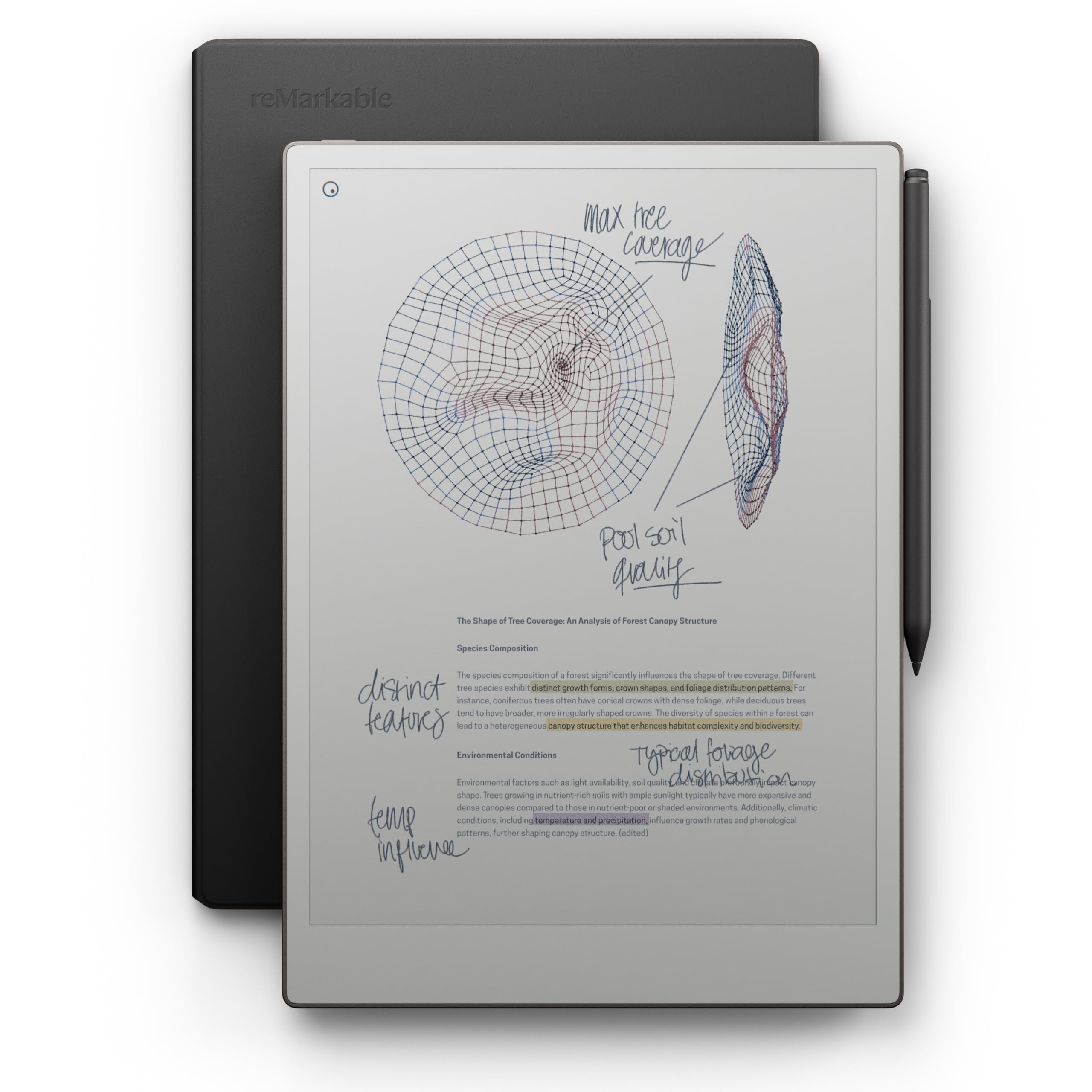
The big-canvas color paper tablet built for long, focused writing sessions.
An 11.8-inch Canvas Color display is the centerpiece here, and it is the largest color paper screen in the reMarkable line. The resolution of 2160×1620 pixels keeps text and diagrams crisp. The Marker Plus pen has a built-in eraser and works only with this display, which is how it manages the realistic friction that makes writing feel like a pencil on paper. The included leather Book Folio protects it in a bag, and the adjustable reading light lets you keep working after dark.
What owners praise most is the writing quality and the organization. You can write directly on PDFs, convert handwriting to typed text, and sort notes with folders and tags. Everything syncs to the cloud, so your work lands on your phone and desktop. The 64 GB of storage and 2-week battery rating support that mobile workflow.
Where it stumbles is pace. There is a noticeable lag between pages and files, and the brightness can struggle in dim rooms. Color is muted, so it is not a vivid sketching tablet — it is a writing and reading tool first. The price also demands that you really value the paper feel, because the value sits in the writing experience rather than app flexibility.
invest for drafting: you write daily and want the biggest color paper canvas.
skip for casual: you expect fast file navigation or vivid artwork colors.
Know the Specs
Pressure levels
Pressure levels measure how finely the pen senses how hard you press. More levels mean you can draw a very thin line with a light touch and a thick one with a firm press without changing tools. A stylus with 16,384 levels, like the XPPen, gives you the most control for detailed painting.
E-ink versus LCD
A true e-ink screen uses charged particles to form images and only uses power when the page changes. This is why the Kindle Scribe can last weeks on a charge. An LCD tablet uses a backlight and refreshes many times per second, so it needs daily charging but can show smooth video and color at higher refresh rates.
Common Questions
Can I draw on a Kindle Scribe?
Is the XPPen Magic Drawing Pad a true e-ink tablet?
Do e-ink tablets need a separate computer?
How long does the battery last on an e-ink drawing tablet?
Does the stylus need charging?
Can I take notes on PDFs?
Is a color e-ink screen good for drawing?
Do these tablets support third-party apps?
What is an AG-etched screen?
The Bottom Line
The e-ink drawing tablet that makes the most sense for most buyers is the XPPen Magic Drawing Pad, because it pairs a large 12.2-inch paper-textured screen with a 16,384-pressure stylus and full Android app support. If you want color highlighting and a crisp reading screen for study, the Kindle Scribe Colorsoft is a strong pick. And for a pure note-taking and reading companion with the whitest mono screen, reach for the Penstar eNote 2.
How we choose
We do not accept paid placement. Every pick is matched to a real buyer and a real use-case; we do not hands-on test units.
Sources
Specifications: manufacturer listings and product documentation. Review insights: verified customer reviews, as of October 2026. Pricing: not shown on this page (it changes often); check the current price via the retailer link.
As an Amazon Associate, Aappliancez earns from qualifying purchases. This does not affect which products we feature.