Disclosure: Some links in this post are affiliate links. As an Amazon Associate I earn from qualifying purchases, at no extra cost to you. Learn more
Specs are compiled from manufacturer listings and verified buyer reviews and can change over time — please confirm the key details on the product page before buying.
Your biggest risk when you buy a computer for Linux is not the processor or the memory — it is a wireless card, a fingerprint reader, or a sleep mode that simply refuses to work once the open-source operating system is installed. The picks below are ranked by how painlessly they take a Linux install and how much machine you get for the money, with the awkward bits named up front so you are not the person discovering them on day three.
This guide is built by comparing the manufacturers’ published specifications and the patterns across verified customer reviews, so you get each pick’s real strengths and trade-offs instead of marketing spin.
Some of these machines ship with Windows preinstalled and some arrive with Linux already running, so the first decision is if you want to wipe a drive or boot straight into a working desktop. That single choice shapes every pick on this list of the computers for linux.
Top Picks
How To Choose The Best Computers for Linux
Linux runs beautifully on almost any modern processor — the trouble almost always comes from the parts around it. A laptop or mini PC is a pile of small components, and each one needs a driver. The ones that cause the most headaches are the Wi-Fi chip, the fingerprint reader, the webcam, and the sleep-and-wake circuit. So the smart move is to pick hardware whose Linux support is already proven by people running it, not by the marketing page.
Start with the wireless card, not the processor
A fast processor paired with a Wi-Fi chip Linux does not recognise leaves you running a USB dongle off the side of the laptop. Look for listings that name the wireless standard — Wi-Fi 6 or Wi-Fi 7 — and reviews from people who actually installed a Linux distribution and reported back. If nobody has confirmed the wireless works, treat it as an open question. Wired Ethernet is the safer fallback, which is why a laptop with a proper RJ45 network port earns extra credit here.
Decide if you want to wipe a drive or boot straight in
Most of the laptops below ship with Windows 11 preinstalled, which means your first job is making a bootable USB and replacing it. One pick arrives with Linux Ubuntu already installed, so it works within minutes of unboxing. A barebone mini workstation sits at the other extreme: no memory, no storage, and no operating system, so you buy and fit those parts yourself. Each route suits a different buyer: a wipe if you want full control, preinstalled if you want to skip setup, barebone if you want to choose every part.
Check the memory ceiling and storage slots before you fall for the processor
Memory is what keeps a dozen browser tabs and a virtual machine alive at the same time. Some machines solder the memory in place, so the number you buy is the number you live with. Others have accessible slots that take you far higher later. The same goes for storage: one M.2 slot means one drive, while three slots mean room to grow. For a Linux box running containers or a home server, accessible RAM and storage slots matter more than a slightly faster chip.
Match the ports to your desk
Think about what you plug in on a normal Tuesday. Two monitors want either two video outputs or a USB-C port that carries video. A network-attached storage box wants a wired Ethernet port, ideally a fast 2.5G one. An external graphics card wants a dedicated high-bandwidth port. Count those before you buy, because adding them later through a hub costs money and adds a device that can fail.
Side-by-Side Comparison
| Model | Best For | Processor | Memory | Storage | Amazon |
|---|---|---|---|---|---|
| Lenovo V15 (Ryzen 5 5500U)★ Best Overall | Cheapest route to a Linux daily driver | AMD Ryzen 5 5500U, 6 cores / 12 threads | 16 GB | 512 GB PCIe NVMe SSD | Amazon |
| DreamQuest Mini PC (N95)Linux Preinstalled | Linux preinstalled, no install day | Intel N95, up to 3.4 GHz | 32 GB DDR4 | 1 TB SSD | Amazon |
| NIMO 15.6″ Light-Gaming LaptopTop Performer | Heavy multitasking and coding on the move | AMD Ryzen 7 Pro 6850U, 8 cores, up to 4.7 GHz | 32 GB LPDDR5 | 1 TB PCIe 4.0 SSD | Amazon |
| GMKtec Nucbox M5S | Firewall and home-server builds | AMD Ryzen 3 5400U, 4C/8T | 16 GB DDR4 | 512 GB PCIe SSD | Amazon |
| GEEKOM A5 | Quiet always-on Linux desktop | AMD Ryzen 7 7730U, up to 4.5 GHz | 16 GB DDR4 (to 64 GB) | 500 GB NVMe SSD | Amazon |
| MINISFORUM MS-01 | Virtualisation labs and 10G networking | Intel Core i9-13900H, 14C/20T, up to 5.4 GHz | Barebone — none included | Barebone — none included | Amazon |
| GEEKOM GeekBook X14 Pro | Long battery life with a sharp OLED screen | Intel Core Ultra 5 125U, 12 cores | 16 GB LPDDR5 at 6400MHz | 512 GB PCIe Gen4 NVMe | Amazon |
| HP 255 G10 | Big screen and huge RAM for desk work | AMD Ryzen 7 7730U, 8C/16T, up to 4.5 GHz | 32 GB | 1 TB PCIe M.2 SSD | Amazon |
| BOSGAME AI 9 | Local AI work and external graphics | AMD Ryzen AI 9 HX 470, 12C/24T, up to 5.2 GHz | 32 GB DDR5 (dual slots, to 256 GB) | 1 TB PCIe 4.0 SSD | Amazon |
| Lenovo ThinkPad X1 Carbon Gen 12 | Commuting with a light, tough business laptop | Intel Ultra 7 165U vPro, up to 4.9 GHz | 32 GB at 6400MHz | 1 TB Gen4 SSD | Amazon |
| GIGABYTE AERO X16 | Gaming and rendering with a dedicated GPU | AMD Ryzen AI 9 HX 370, up to 5.1 GHz | Not listed | Not listed | Amazon |
Detailed Reviews
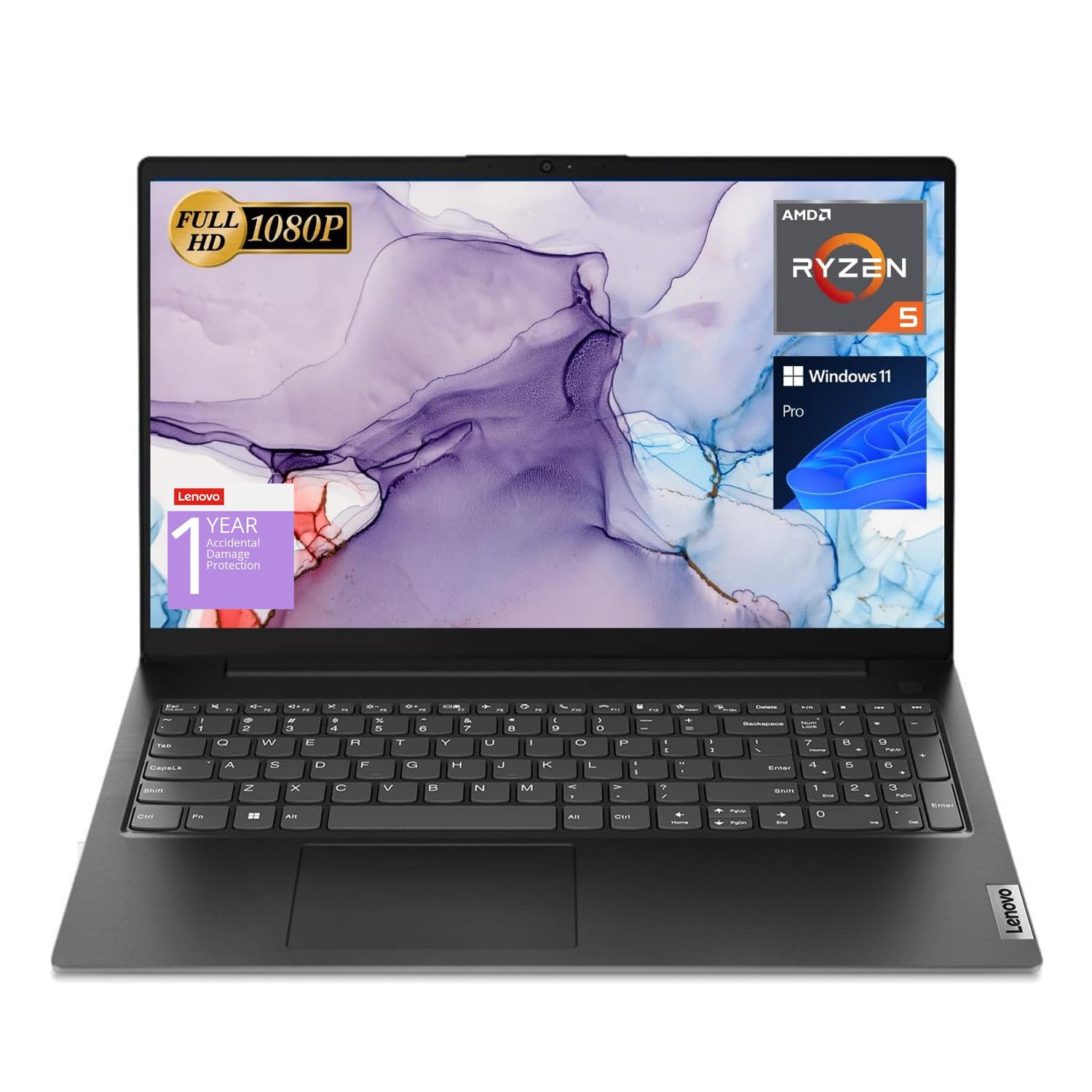
1. Lenovo V15 Laptop, 15.6″ FHD, AMD Ryzen 5 5500U
Our pick — 4.0+★ from 350+ verified ratings; the strongest balance of quality and price.
The pragmatic first Linux laptop: wired networking built in, no dongle required.
Six cores do the heavy lifting here. The AMD Ryzen 5 5500U runs 6 cores and 12 threads with an 8MB L3 cache, clocking from 2.1GHz up to 4.0GHz turbo — that is the spec that decides whether a compile job or a stack of browser tabs stalls. Six cores against the DreamQuest N95’s four is the practical difference between a machine that keeps up and one that makes you wait.
What makes it a natural Linux machine is the port strip rather than the horsepower. You get a USB 3.0 Type-A, a USB 2.0 Type-A, a USB Type-C, HDMI, an RJ45 Ethernet jack, and a headphone/microphone combo — so a wired network connection exists on day one, without a USB adapter that Linux has to identify first. The 15.6-inch 1920 x 1080 screen is plain but sharp enough for terminals and documents, and the 16GB of RAM plus 512GB PCIe NVMe SSD leave room for a virtual machine.
Buyers are blunt about the display and warm about the rest. The panel is the honest weak spot — one long-term test describes struggling to read it until night mode helped, and another owner assumed the unit was faulty before working out the panel is simply mediocre, ending up on an external monitor. Set that against the way it handles Chrome and light gaming, and the machine is doing exactly what its specification promises. The touchpad sits far to the left, which takes some getting used to for anyone used to a centered one. As the reviews sum it up: “This is a very good pc work right out box.”
Where it quietly wins
- Onboard RJ45 Ethernet — a Linux network connection with no adapter to fight
- 6 cores and 12 threads with 4.0GHz turbo, plus 16GB RAM for virtual machines
- Four USB ports plus HDMI, so peripherals rarely need a hub
- Numeric keypad and sturdy textured plastic that feels more solid than the tier suggests
The honest trade-offs
- The 15.6-inch 1920 x 1080 panel is the weakest part — expect to want an external monitor
- Heavy use drains the battery in roughly 45 minutes according to owner testing
- Touchpad placement left of center causes the occasional mis-click
Go for this if: you want the least drama for the least money — wired networking, a real six-core processor, and memory headroom for a virtual machine.
Look past it if: you plan to edit photos or watch films on the built-in screen, because the panel is the one place this machine cuts corners.
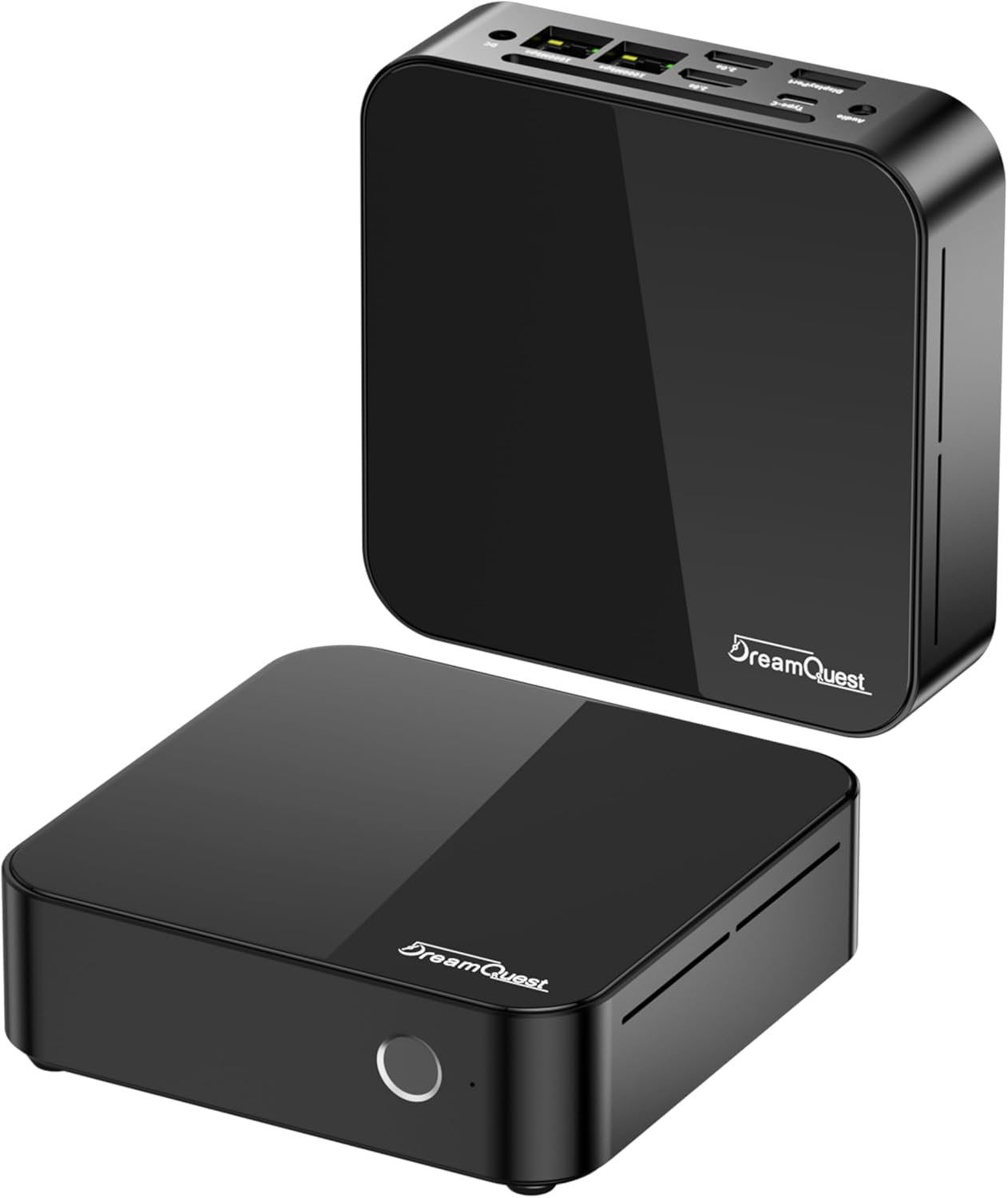
2. DreamQuest Mini PC, Linux Ubuntu Preinstalled, Intel N95
It boots into Ubuntu on first power-up — no USB stick, no partition screen, no risk.
For anyone who dreads the install process, this is the shortest path in the whole list. Ubuntu is already on the drive, and the machine supports Wake-on-LAN, RTC Wake, and Auto Power-On — three features that matter if the box will sit headless in a cupboard and be reached remotely. It also supports PXE boot, which is how a fleet of machines loads an operating system image across the network instead of from local storage.
The processor is modest and the surrounding hardware is not. The Intel N95 runs up to 3.4GHz, which is a comfortable step above the 1.7GHz base clock of the Lenovo V15’s Ryzen chip — a gap that shows up in the snappier feel of light desktop work, not in heavy lifting. Around it sit 32GB of DDR4 memory and a 1TB SSD, plus four USB 3.2 Gen 2 ports moving data at 1000MB/s, two HDMI outputs, a Type-C port, two Gigabit Ethernet jacks, a TF card slot, and a 2.5-inch SSD bay for expansion up to 2TB.
Owners tend to buy it for one job and stay pleased. The size wins people over first — this thing hides behind a monitor or under a desk and disappears — and then the fact that it simply works. A server builder wrote in with the plainest endorsement possible: “I have had no problems with this device,” adding that after swapping Windows for Ubuntu Server it has run as a local server “like a champ.” The cooling fan stays near-inaudible under light load. The catch worth knowing is documentation: the box arrives without a full manual, so plan on the Ubuntu community for setup questions rather than the box contents.
Why it earns the spot: preinstalled Ubuntu removes the single biggest hurdle for a first-time Linux buyer, and the dual Gigabit Ethernet plus 4K triple display over HDMI and DisplayPort covers desk, server closet, or digital signage.
Small machines, small ceilings: the N95 tops out at 3.4GHz, so treat this as an everyday desktop and light server rather than a workstation, and expect to troubleshoot from online guides since the printed material is thin.
Reach for it when: the idea of touching a boot menu makes you tired — this one is a working Linux desktop the moment it powers on.
Think twice if: you need printed instructions in the box, or want a machine that can be pushed hard on compiling and rendering.
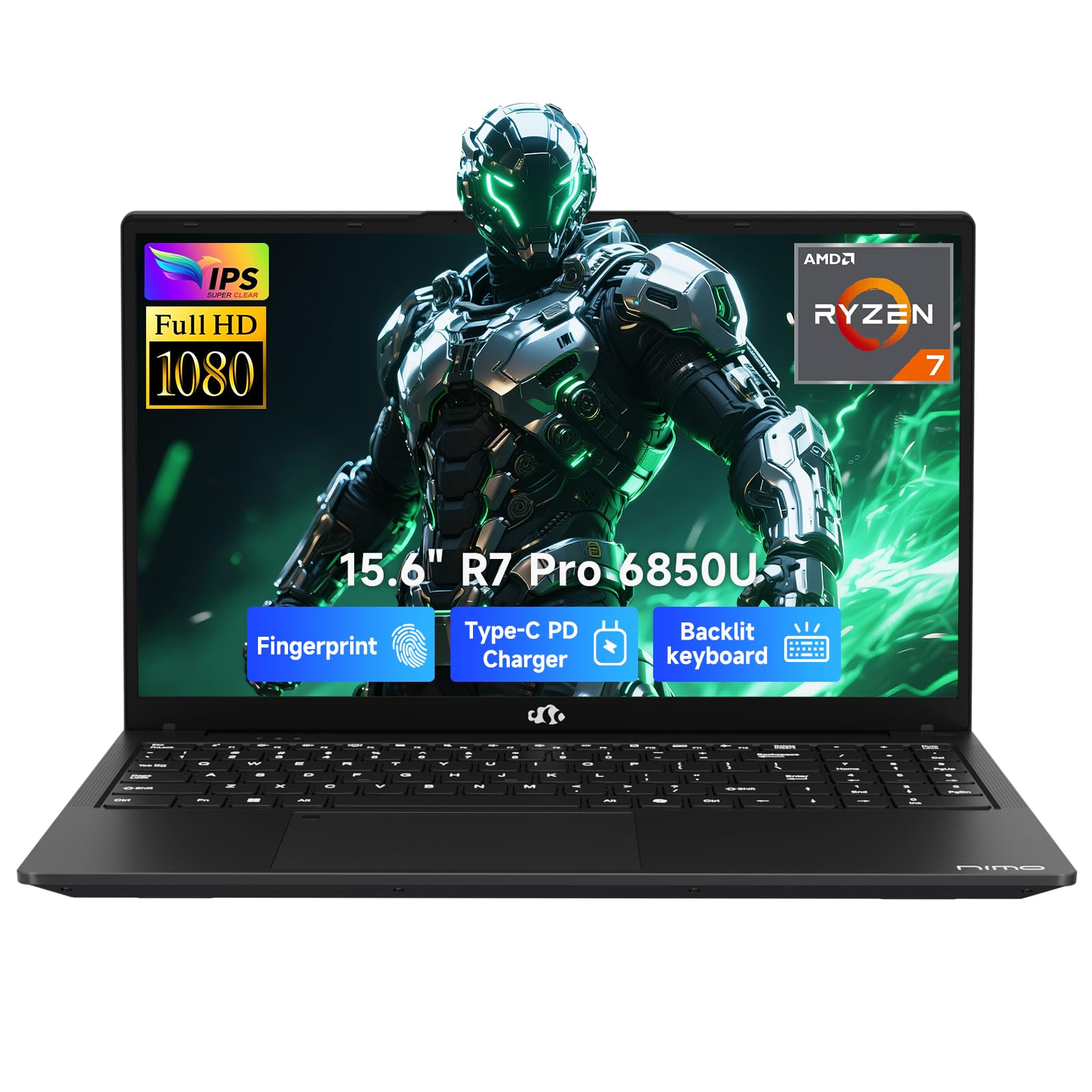
3. NIMO 15.6″ Light-Gaming Laptop, Ryzen 7 Pro 6850U
Eight cores, 32GB of memory, and the easiest Linux story on any laptop here.
The headroom is the point. Eight cores against the six in the Lenovo V15 is a third more compute, and the 4.7GHz ceiling sits well above the DreamQuest N95’s 3.4GHz, so a heavy compile or a virtual machine gets through faster. The 32GB of LPDDR5 memory is double what the Lenovo V15 carries, and the PCIe 4.0 x4 SSD keeps boot and file transfers quick.
But the reason it lands this high is a single line from a working owner: after running Windows 11 with no lag, they switched to Linux and found the AMD parts work well with it. That is the whole game with laptops. The Radeon 680M graphics are integrated AMD silicon too, and AMD’s open driver support tends to be one of the smoothest paths on Linux. Around the software sit eight ports — 2x USB-C with power delivery and DisplayPort, 3x USB-A, HDMI 2.0, a Micro SD reader, and a 3.5mm audio jack — so dual monitors happen without a dock.
The portability is genuinely good: a 53.58Wh battery, a 100W USB-C charger with a 2-meter cable, and a chassis under 1.7kg with a 175-degree lay-flat hinge and backlit keyboard. What wins people over is raw performance — it is the most-discussed topic in the feedback by a wide margin — and value for money follows close behind. The keyboard layout is the recurring gripe: the number pad puts arrow keys where the 0 and period normally sit, which is fine for typing and awkward for spreadsheet entry. Fan noise is noticeable under load, and the memory is soldered, so buy the 32GB once and be done.
What Linux users will appreciate
- AMD processor and Radeon 680M graphics — a combination owners confirm runs well under Linux
- 32GB LPDDR5 and a 1TB PCIe 4.0 SSD, so virtual machines and containers fit comfortably
- Two USB-C ports that carry video, letting you drive dual monitors without a dock
- Under 1.7kg body, 175-degree hinge, and a 2-year manufacturer warranty
What you give up
- The number pad layout places arrow keys where 0 and period usually live
- Memory is soldered — there is no second M.2 slot either
- Fans spin up audibly when the chip is working hard
Best matched to: developers and students who compile, virtualize, and carry the machine between rooms — eight cores and 32GB is real headroom.
The trade-off to accept: a soldered memory setup and an unconventional keypad mean you are buying the final specification on day one.
4. GMKtec Nucbox M5S Mini Desktop, Ryzen 3 5400U

Two 2.5-gigabit network ports on a box the size of a paperback book.
Dual 2.5G RJ45 ports moving up to 2500Mbps are the reason to buy this one. That is what lets a machine act as a firewall, a router, or a network storage box with one link in and one link out — the exact use the maker names, alongside Pfsense and Untangle. No other pick here gives you two fast wired ports for that job.
The rest is sensible for the size: an AMD Ryzen 3 5400U with 4 cores and 8 threads, a 2.6GHz base clock and turbo to 4.0GHz, 16GB of DDR4 in a single stick with expansion declared up to 128GB, and a 512GB M.2 2280 PCIe 3.0 SSD with a second slot for growth. Displays connect three ways — 8K at 60Hz over USB4, plus 4K at 60Hz from both HDMI 2.0 and DisplayPort. Wi-Fi 6 and Bluetooth 5.2 cover the wireless side.
Owners who run Linux on it describe a quick, quiet, cool-running box that boots fast and drives three screens. The recurring note is the small print — the paperwork is cramped and a bracket arrives unlabeled, so allow time for that. One buyer’s advice worth repeating: run a full virus scan before connecting a Windows machine to the network. Cooling is standard air with a top fan that one owner found needed a manual nudge to start, then settled; keep the top clear of clutter and it behaves. At 4.0+ stars across a four-figure count of ratings, the pattern is a large body of quiet satisfaction.
Standout spec: dual 2.5G RJ45 ports, which is a firewall and home-server feature you will not find on a laptop or a single-Ethernet mini PC.
The catch: documentation is thin and the top air intake wants breathing room — worth knowing before you tuck it into a closed cabinet.
Works best for: anyone building a router, firewall, or network-attached storage box who wants two fast wired ports from the start.
Not the pick if: you want a machine to sit silently in a tight shelf — this one pulls air from the top and needs clearance.
5. GEEKOM A5 Mini PC, Ryzen 7 7730U
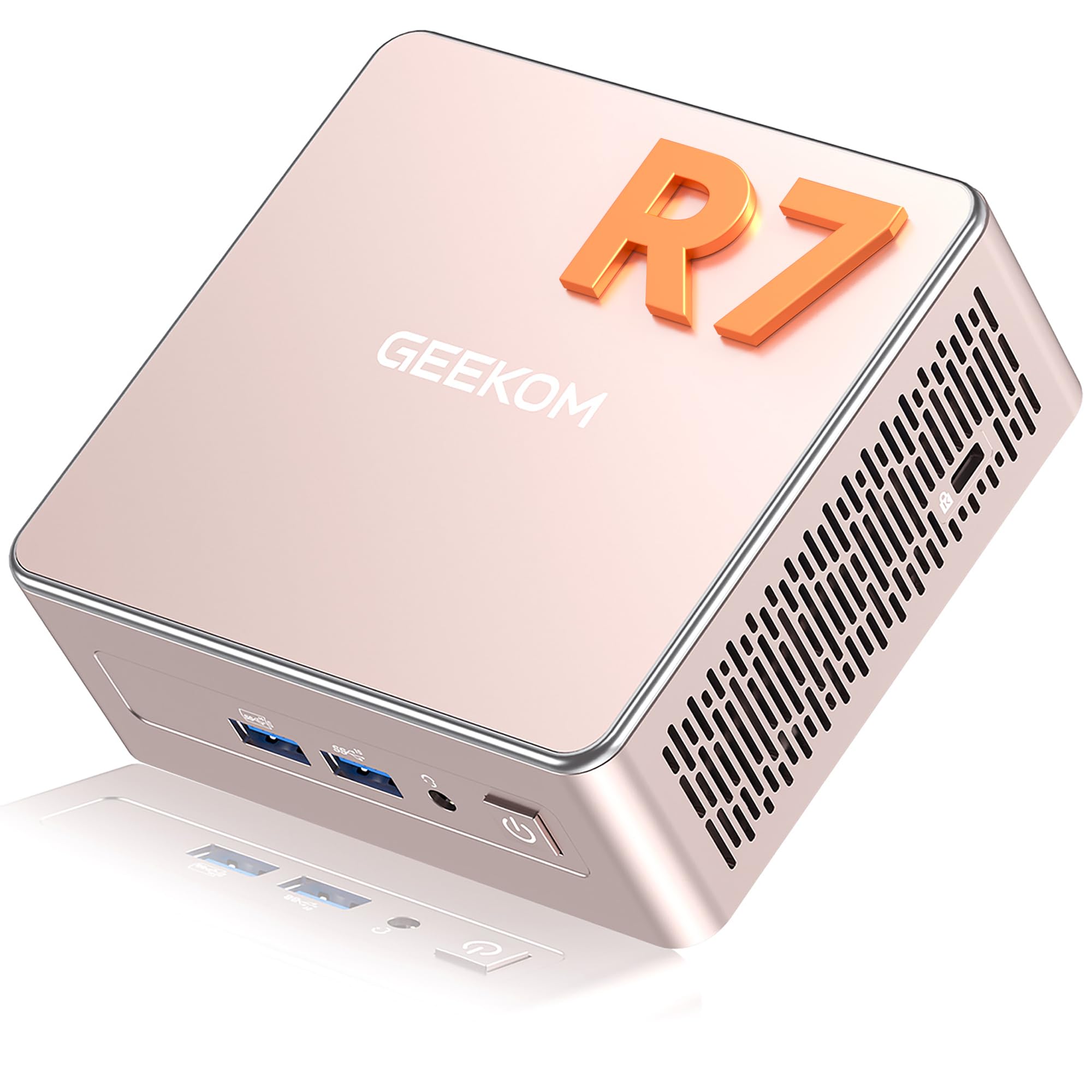
A four-inch square desktop that Linux installers already know and like.
The verdict on Linux compatibility is already written. Buyers describe installing multiple Linux distributions on this machine as easy, and one calls it fully Linux-compatible alongside a step up in processing speed and a low power draw. For a desktop that will sit under a monitor running an open-source system, that is the single most valuable piece of evidence in this whole guide.
The hardware supports the claim. An AMD Ryzen 7 7730U runs up to 4.5GHz on a 15W low-power design, paired with Radeon Vega 8 graphics that can drive up to four 4K displays through two HDMI and two USB 3.2 Gen 2 Type-C ports, with 8K available over Type-C. Memory is 16GB of DDR4 in dual slots, upgradable to 64GB, and storage is a 500GB NVMe SSD upgradable to 4TB — plus an extra M.2 2242 slot and a 2.5-inch HDD bay for up to 10TB of total space. Accessible memory slots are the difference between a machine you keep and one you replace.
Performance is what owners talk about, with value for money next, and then the plain fact that it stays quiet — the compact size comes in for its own share of praise. One buyer, at four and a half inches square, calls it doing “the work of the huge old PC that finally gave out.” A busy desk setup with two 4K monitors and a dozen tabs runs without skipping. The honest limit: the 15W design is tuned for efficiency, not brute force, and Windows preinstalled is part of what you pay for — the same buyer notes it could cost less without it. Wipe it and you keep the three-year limited warranty, the metal mid-frame and base, and the vibration-damping feet.
The Linux-friendly bits
- Multi-distro Linux installs confirmed easy by the people doing them
- Dual DDR4 slots upgradable to 64GB, plus a 2.5-inch bay and extra M.2 slot
- Four 4K displays from two HDMI and two USB-C ports
- Three-year limited warranty and a metal mid-frame for heat spreading
Worth planning around
- The 15W Ryzen design favors quiet efficiency over raw heavy-duty throughput
- You pay for the preinstalled Windows whether or not you keep it
- The small footprint means storage expansion needs the right drive size — the extra slot takes M.2 2242
Pick this one if: the machine will live on a desk, run Linux all day, and you want to add memory later rather than buy it all up front.
Look elsewhere if: you need workstation-class compute — the low-power chip trades peak speed for silence and energy savings.
6. MINISFORUM MS-01 Workstation, Core i9-13900H Barebone

No memory, no drive, no operating system — total control over what Linux runs on.
Barebone is a feature here, not a gap. Nothing ships preinstalled, so there is no Windows licence to wipe and no partition table to argue with. You choose the memory, choose the drives, and choose the distribution. A buyer confirms the approach: they loaded Windows, then replaced it with Omarchy Linux, and report it runs cool, smooth, and fast once the initial hot Windows install was gone.
The specification reads like a small server. An Intel Core i9-13900H with 14 cores and 20 threads and a 5.4GHz ceiling handles virtual machines and renders; two 10G SFP+ ports each push 10Gbps with link aggregation and sit alongside two 2.5G RJ45 ports, for a declared combined transfer rate up to 65Gbps. Storage options run deep — three SSD slots including a U.2-capable one, RAID0 and RAID1 support, plus a PCIe x16 slot that accepts a discrete graphics card. Two USB4 ports and HDMI cover three displays.
Home-lab builders are the natural audience, and they report it clearly. One describes replacing a dual-Xeon Dell tower with something roughly a tenth the size and far lower on power, plugging the 10G SFP+ straight into a network switch without fuss. Another notes the fans are audible under load but the machine is quiet when idle. Two practical notes: RAM prices have pushed this build upward, and the chassis leaves only limited graphics-card choices. Plan the parts list before ordering.
Why a lab builder wants it: three SSD slots with RAID, dual 10G SFP+ ports, and a PCIe x16 slot in a body a fraction of a tower’s size — with your own OS and memory on top.
What it demands: you supply memory, storage, and the operating system, and the small chassis limits which graphics cards will physically fit.
Built for: the homelab operator running Proxmox, ESXi, or a Linux server stack who wants enterprise networking and storage slots in a small box.
Skip if: you want a computer that works on arrival — this one needs a parts list and an install first.
7. GEEKOM GeekBook X14 Pro, 14″ 2.8K OLED
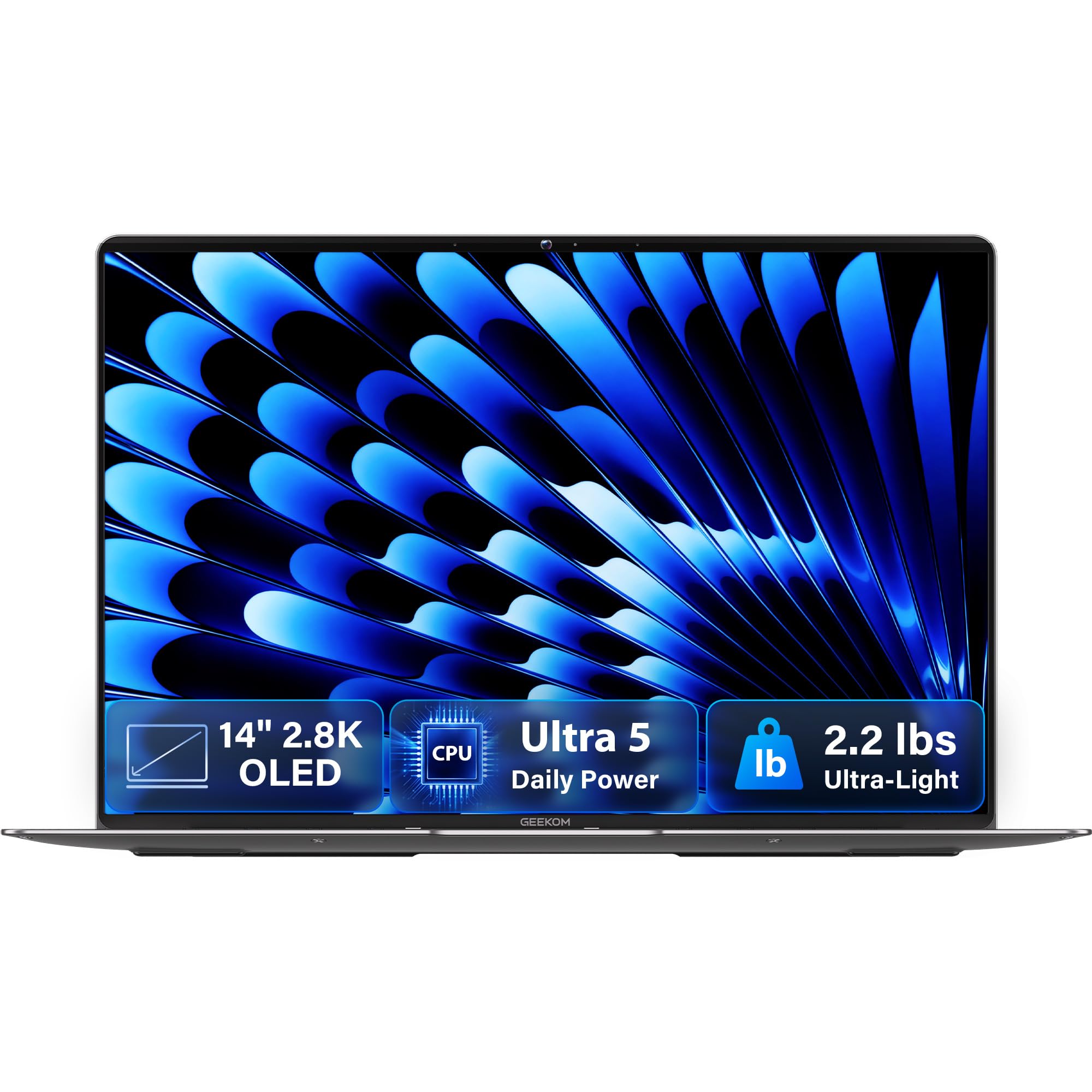
A 2.8K OLED at 120Hz in a body that weighs as much as a hardback book.
Most Linux laptops give you a decent panel and call it a day. This one gives you a 14-inch 2.8K OLED with 100% DCI-P3 color coverage, a 120Hz refresh rate, and up to 450 nits of brightness — self-lit pixels, so blacks are genuinely black and the screen stays legible in a bright room. If you spend ten hours a day reading code and terminal output, a 2.8K OLED at 120Hz is a working tool, not a treat.
The rest of the machine is built around getting you through a day away from a socket. A 72Wh high-density battery is rated for up to 16 hours, and the included 65W GaN charger takes it to about 80% in roughly an hour. The body is aerospace-grade magnesium alloy at 2.2 lbs and 0.23 inches thick, and the processor is an Intel Core Ultra 5 125U with 12 cores, 14 threads, up to 4.3GHz, and 12MB of Smart Cache, backed by Intel Arc graphics and a dedicated NPU for on-device AI work. Memory is 16GB of LPDDR5 at 6400MHz with a 512GB PCIe Gen4 NVMe SSD.
Coding is the workload owners single out, along with how pleasant the thing is to carry. One long-term report has it booting a fresh Linux distribution alongside Windows with no trouble, and an owner running several virtual machines at once calls it smooth. The honest caveats are the touchpad, which splits opinion, and battery life, which draws mixed reports — the rating-drain figure and real-world use do not always line up. There is no IR camera either, so face-open up will not work; the fingerprint reader and the physical camera shutter cover you instead.
The screen is the argument: a 14-inch 2.8K OLED at 120Hz with 100% DCI-P3 coverage is a genuinely different working experience from a 1080p panel.
Set your expectations on the extras: no IR camera for face sign-in, and the touchpad draws a mixed reaction — the fingerprint reader and camera shutter are the reliable security path.
Right for you if: you stare at code all day, want a screen worth looking at, and need a laptop that disappears into a bag at 2.2 lbs.
Check first if: face open up matters to you — the missing IR camera rules it out, so plan on the fingerprint reader.
8. HP 255 G10 15.6″ FHD Business Laptop, Ryzen 7 7730U

Thirty-two gigabytes and a terabyte, for the price of a mid-tier desktop build.
The numbers are the pitch. An AMD Ryzen 7 7730U with 8 cores and 16 threads, 16MB of L3 cache, and turbo to 4.50GHz, paired with 32GB of high-bandwidth RAM and a 1TB PCIe M.2 SSD. That is enough memory to run several virtual machines at once, and running VMs is exactly what one owner says they use it for. The 15.6-inch 1920 x 1080 IPS panel is anti-glare with a micro-edge bezel, rated at 250 nits and 45% NTSC — workable in a normal room, ordinary in sunlight.
Ports are sensible for a desk machine: two SuperSpeed USB Type-A, one SuperSpeed USB Type-C, HDMI, a headphone/microphone combo, Wi-Fi 6, and Bluetooth. There is a numeric keypad and a webcam. A 1TB drive means you are not juggling external storage for a Linux install plus a VM image and a media library. The panel is the part to be honest about — at 250 nits and 45% NTSC, it is a document screen, not a color-critical one.
Reliability is where your due diligence goes. Long-run buyers report months of daily use without trouble, and the laptop draws praise for being light and settling well into work-at-home setups. But there are reports of units failing around the four-to-five month mark, and battery life draws complaints of roughly 45 to 60 minutes in heavy use. That is a real caveat, not a reason to write this machine off — those reports are the minority against a base of hundreds — but it does mean you should buy from a seller with a clear return path and register the warranty on arrival. If you want a Linux machine on a desk with mains power and a big memory budget, the maths still works.
The spec-to-money case
- 32GB RAM and 1TB M.2 SSD — room for virtual machines, images, and a media library
- Ryzen 7 7730U with 8 cores, 16 threads and a 16MB L3 cache
- Wi-Fi 6, HDMI, USB-C and a numeric keypad for spreadsheets and terminals
- Light enough to move room to room despite the 15.6-inch panel
Where it asks for care
- Battery life in heavy use runs short — plan on mains power for long sessions
- The 250-nit, 45% NTSC display is a document panel, not a color-work screen
- Buy from a seller with a clean return path and register the warranty promptly
The fit: a desk-bound Linux box where memory and storage matter more than battery life, and the screen feeds an external monitor anyway.
The caveat to plan for: short battery runtime and a plain panel mean this wants a socket and a second screen to be at its best.
9. BOSGAME AI 9 Mini PC, AMD Ryzen AI 9 HX 470
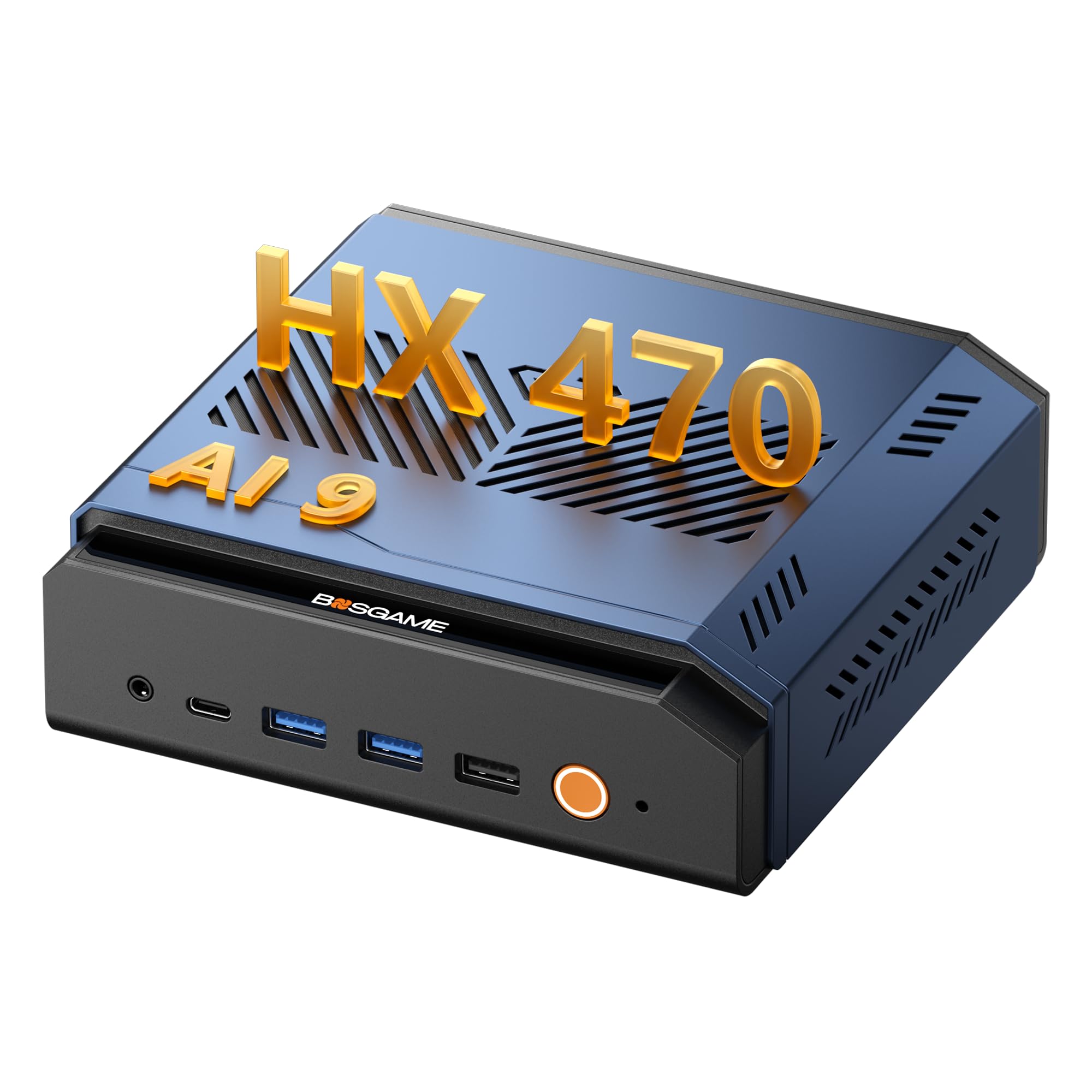
Built with an open flank for an external graphics card and Linux running on top.
The Oculink port is the specialist feature. It gives a dedicated PCIe 4.0 x4 connection with up to 64 Gbps of bandwidth, which is what makes an external graphics card behave like a real upgrade rather than a compromise. Pair that with an AMD Ryzen AI 9 HX 470 running 12 cores and 24 threads up to 5.2GHz, Radeon 890M graphics at 3100MHz, and an XDNA 2 NPU rated at 55 TOPS dedicated, and you have a desk machine aimed squarely at AI workloads and gaming.
Linux support is proven, not promised. One buyer ran it on Windows for ten months and watched it bog down under background process bloat, then did a clean install of Pop!_OS Linux and describes a dramatic improvement in boot speed, network setup, and general smoothness — with Steam titles including No Man’s Sky, Borderlands 3, and Palworld running flawlessly. Another owner installed Ubuntu on a spare SSD and reported Wi-Fi, audio, and graphics all working. Local AI tools run, though AMD’s setup for that is fiddly. Memory is 32GB of DDR5 at 5600MHz with dual slots up to 256GB, and storage is a 1TB PCIe 4.0 SSD across three M.2 slots up to 8TB total.
Networking is unusually complete: dual 2.5GbE LAN for firewall or link aggregation, Wi-Fi 7, and Bluetooth 5.4 — and quad display out through HDMI 2.1 and DP 1.4 at 4K/144Hz, USB4 at 8K/60Hz, and a full-function Type-C. The fan stays quiet for most people, and one owner notes no thermal throttling was observed. The caution worth holding onto is long-term support: one report describes a drive going unrecognised after six months and support proving slow to reach. For a machine this capable, keep your own backups and buy with a return window in hand.
What makes it unusual: Oculink at up to 64 Gbps, dual 2.5GbE, Wi-Fi 7, and proven Pop!_OS and Ubuntu installs make this a Linux AI box rather than a Windows machine you tolerate.
What to weigh up: reports of a drive failure around six months and slow support mean self-managed backups and a clean return path are part of the purchase.
Choose it if: you want to run local AI models, game, and add an external graphics card later — on a Linux install that owners have already done.
Weigh instead if: you cannot tolerate a support delay — this is a machine to buy with your own backup plan in place.
10. Lenovo ThinkPad X1 Carbon Gen 12, Ultra 7 165U vPro

The build-quality pick — carbon fiber, a tactile keyboard, and 2.41 lbs of it.
Consider the weight first, because that is the whole point of this machine. At 2.41 pounds without the charger, built from recycled carbon fiber across the top, bottom, keyboard, and battery back, it is the laptop you carry on a bike commute without thinking about it. Around it sits an Intel Ultra 7 165U vPro processor running up to 4.9GHz with 32GB of memory clocked at 6400MHz and a 1TB Gen4 performance SSD, plus a 14-inch WUXGA touchscreen with 100% sRGB coverage.
Two USB-C Thunderbolt 4 ports, two USB-A 3.2 ports, and HDMI mean a Linux install has plenty of places to go, and there is a fingerprint reader for sign-in where the reader driver cooperates. The keyboard has tactile bumps on some keys to guide touch typists, and the 120mm glass touchpad is larger than the previous 110mm version. An FHD+ IR plus RGB camera covers video calls, and a dual-microphone array with stereo speakers and Dolby Atmos rounds out the hardware.
What owners keep returning to is the lightness — bike commuters who did not want a heavy laptop on their back, and daily work users who find it easy to set up and quick to use. The honest caveat is the fingerprint access, which draws mixed reports and is the one function to test thoroughly after you install. A single unit failing on second use has been reported, so buy from a seller whose return path is clear. Dual-boot Linux users have had success; on such a mainstream Intel platform, the distribution of your choice has plenty of hardware reports to draw on.
Why it earns its place: 2.41 lbs of recycled carbon fiber, a 14-inch 100% sRGB touchscreen, and 32GB at 6400MHz — a commuter machine that does not feel like a compromise.
The honest note: fingerprint access draws mixed reports and one unit has been reported failing early, so test the reader after install and buy where returns are simple.
Fits you if: you commute by bike or train and want a business-grade laptop you barely notice in a bag, with a keyboard built for long typing sessions.
Consider the alternative if: biometric sign-in is non-negotiable — the fingerprint reader is the part with the shakiest record here.
11. GIGABYTE AERO X16, Ryzen AI 9 HX 370 with RTX 5070
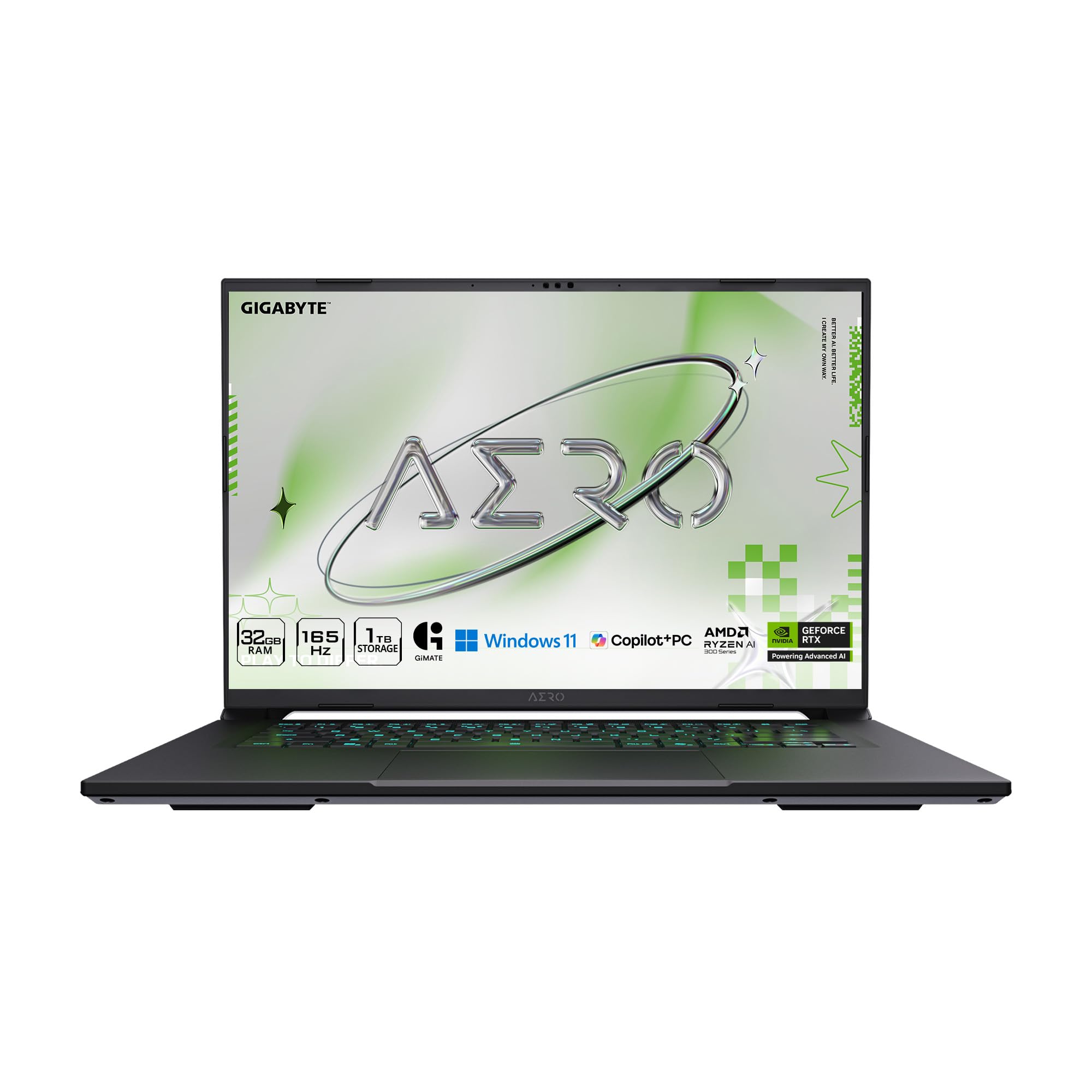
The only pick here with a dedicated graphics chip, for work the integrated ones cannot touch.
An NVIDIA GeForce RTX 5070 Laptop GPU built on the Blackwell architecture is the reason this machine exists on this list. That is real graphics silicon with its own memory, which is what 3D rendering, video encoding, and heavy gaming actually need. The processor behind it is an AMD Ryzen AI 9 HX 370 running up to 5.1GHz, and a 14-hour battery rating means it can leave the desk when needed. The whole thing measures 16.75 millimeters thick and 1.9 kilograms, which keeps a gaming laptop from feeling like a brick.
For Linux users there is a specific reason to think about this one carefully. NVIDIA’s proprietary driver works, and the open-source Nouveau driver has improved dramatically, but hybrid graphics — where the system switches between the integrated AMD graphics and the dedicated NVIDIA chip — is the one area where a Linux install still needs attention. Check reports for your exact distribution before committing, and budget an hour or two for driver setup. Windows 11 Home ships preinstalled, so you are replacing rather than starting clean.
Owners mention fast video editing and gaming without stutter, and one describes the 1600p screen as beating the typical 1440p panel — along with fans that get loud enough to want headphones during heavy gaming. A local AI user reports running large language models well and calls the noise comfortable in light gaming. The recurring criticism is stability, with reports of freezes on standby resolved by a fresh Windows image. Treat that as a setup-stage issue and plan a clean Linux install anyway, which skips the problem. One further note: only one USB-C port, so budget for a hub if you need more.
Why you would accept the complexity
- RTX 5070 Laptop GPU for rendering, encoding, and gaming that integrated graphics cannot match
- Ryzen AI 9 HX 370 up to 5.1GHz, with a 14-hour battery rating
- 16.75mm chassis at 1.9kg — thin and light by gaming-laptop standards
- A 1600p screen that owners rate above the usual 1440p panel
What you will have to manage
- Hybrid graphics switching needs driver attention on Linux — check your distribution first
- Fans get loud under heavy gaming load
- Only one USB-C port, so a hub is likely
- Some units have arrived with standby freezes, resolved by a clean OS install
The one to buy for: rendering, video encoding, or gaming where a dedicated GPU is genuinely required and you accept a driver setup session.
Not the safe route if: you want a no-friction Linux install — hybrid graphics is the one part of this machine that will ask for your time.
Know the Specs
Cores and threads: the number that decides how much runs at once
A core is a worker inside the processor, and a thread is a queue of instructions that worker can handle. More cores means more things happen at the same time — a virtual machine running while you browse while a compile finishes. The Ryzen 7 7730U here runs 8 cores and 16 threads, and the Ryzen 5 5500U runs 6 cores and 12 threads, which is the difference between a machine that feels busy and one that feels stuck. For a Linux box running containers or virtual machines, core and thread count matters more than the turbo clock.
Base clock, turbo clock, and what the two numbers actually mean
The base clock is the speed the chip settles at when it is working within its power and heat limits — the N95 here has a 1.7GHz base, while the Ryzen 5 5500U sits at 2.1GHz. The turbo figure is the brief peak it can hit when there is thermal headroom, such as 4.7GHz on the Ryzen 7 Pro 6850U or 5.4GHz on the Core i9-13900H. A small, quiet machine spends more time near the base clock; a thicker machine with stronger cooling can hold turbo longer. Do not judge a laptop by the turbo number alone.
M.2 slots, SATA bays, and how much storage headroom you get
An M.2 slot is the small socket a gum-stick-shaped drive plugs into, and NVMe is the fast protocol those drives speak. A SATA bay takes a larger 2.5-inch drive instead. A single M.2 slot means you swap the drive to expand; three slots mean you add drives alongside the original. The MINISFORUM MS-01 carries three slots with RAID0 and RAID1 support, while the GEEKOM A5 pairs one NVMe slot with an extra M.2 2242 slot and a 2.5-inch bay. More slots means you keep your existing install when you add capacity.
Wi-Fi generations, Gigabit Ethernet, and 2.5G LAN in plain terms
Wi-Fi 6 and Wi-Fi 7 are the newer wireless standards, and the main thing they buy you is steadier throughput on a crowded home network. Ethernet is the wired connection, and the number in front tells you the maximum link speed — a 2.5G RJ45 port handles 2500Mbps, five times a Gigabit port, which is what makes a machine usable as a firewall or network storage box. A 10G SFP+ port is a different cage entirely, used for high-speed links between network equipment. If you move large files across a network for a living, a 2.5G or 10G wired port beats Wi-Fi every time.
Common Questions
Will Linux install cleanly on a Windows laptop that ships preinstalled?
Does the fingerprint reader work on Linux?
What does barebone mean on the MINISFORUM MS-01?
Can I add more RAM later, or is it soldered?
How many monitors can each of these machines drive?
Why would I choose a mini PC over a laptop for Linux?
Will an external graphics card work over Oculink on Linux?
How much RAM do I need for running virtual machines on Linux?
Do I need a wired Ethernet port on a Linux machine?
Are these machines noisy and warm when running Linux?
The Bottom Line
For most people buying a machine to run Linux, the winner is the Lenovo V15 — six cores, 16GB of RAM, and an RJ45 network port so a wired connection works on day one without a driver hunt. If you would rather not install anything at all, the DreamQuest Mini PC boots straight into Ubuntu with 32GB of memory and dual Gigabit networking. And for a laptop that carries you through a flight with eight cores and a battery labelled at 9 hours, the NIMO 15.6″ is the one to reach for.
That said, if quiet efficiency on a desk matters more than heavy throughput, the GEEKOM A5 is the calmer choice — buyers describe multi-distro Linux installs on it as easy, and its dual memory slots let you add RAM rather than replace the whole machine. Buy the memory you will need in a year, not just enough for today’s browser tabs — the picks that stay useful are the ones with accessible RAM slots.
How we choose
We do not accept paid placement. Every pick is matched to a real buyer and a real use-case; we do not hands-on test units.
Sources
Specifications: manufacturer listings and product documentation. Review insights: verified customer reviews, as of October 2026. Pricing: not shown on this page (it changes often); check the current price via the retailer link.
As an Amazon Associate, Aappliancez earns from qualifying purchases. This does not affect which products we feature.