Disclosure: Some links in this post are affiliate links. As an Amazon Associate I earn from qualifying purchases, at no extra cost to you. Learn more
Specs are compiled from manufacturer listings and verified buyer reviews and can change over time — please confirm the key details on the product page before buying.
If tiny menu text and low-contrast buttons make computer use a struggle, you have two main fixes: a big, bright touchscreen all-in-one with built-in eye comfort, or a dedicated magnifier that reads print aloud. The Dell 23.8″ All-in-One earns the top spot because it combines a 23.8-inch FHD touch display (full high definition, 1920×1080 pixels), Dell ComfortView Plus blue-light reduction (cuts the blue light that tires eyes), and a 5MP+IR camera (5-megapixel plus infrared for face login) in one setup that owners describe as quick to get running. Below, six machines are split by what they actually solve — desktop reading and typing, portable multi-screen work, handheld magnification, and wearable text-to-speech.
This guide is built by comparing the manufacturers’ published specifications and the patterns across verified customer reviews, so you get each pick’s real strengths and trade-offs instead of marketing spin.
Some picks below are full computers you sit at, while others are specialist reading tools that attach to glasses or fold into a bag. The right answer depends on if you need a full desktop for email and typing or a handheld tool for a label in the kitchen. This breakdown of the computer for visually impaired market separates touchscreen desktops from handheld and wearable magnifiers so you can match the tool to your daily tasks.
Top Picks

How To Choose The Best Computer for Visually Impaired
Start with the job you actually do most. Reading mail and news at a desk calls for a big, bright screen you can lean toward. Reading a medicine bottle in the kitchen calls for something handheld. Working across many open windows calls for more screen area, not more processing power. Naming that one task first narrows these six machines to two very fast.
Screen size and touch versus a keyboard
A touchscreen lets you tap a large target instead of hunting for a small cursor, which is why a 23.8-inch or 27-inch FHD panel with touch support helps more than a sharp but small laptop display. FHD means 1920×1080 pixels — enough resolution that enlarged text stays smooth rather than blocky. For desk work, a 23.8-inch or 27-inch touchscreen beats a sharper but smaller laptop display.
Blue light and glare control for long sessions
Long reading sessions strain eyes, so look for a screen with a stated blue-light feature and an anti-glare coating. Dell ComfortView Plus is one example of a manufacturer-designed blue-light reduction mode. On a magnifier, an anti-glare coated panel keeps a lamp reflection from washing out the letters you are trying to enlarge.
Magnification range and OCR reading aloud
Handheld magnifiers list a zoom range — the Eschenbach unit spans 2x to 22x, while the Zoomax Snow 12 tops out at 19x. OCR stands for optical character recognition, a process that turns a photo of printed text into words a machine can speak. If your eyes tire quickly, having the device read aloud means you can rest them and still get through a page.
Side-by-Side Comparison
| Model | Best For | Display / Panel | Key Access Feature | Form Factor | Amazon |
|---|---|---|---|---|---|
| Dell 23.8″ All-in-One Desktop★ Best Overall | Desk work and reading at home | 23.8″ FHD IPS touch, 1920×1080 | ComfortView Plus blue-light reduction | All-in-one desktop | Amazon |
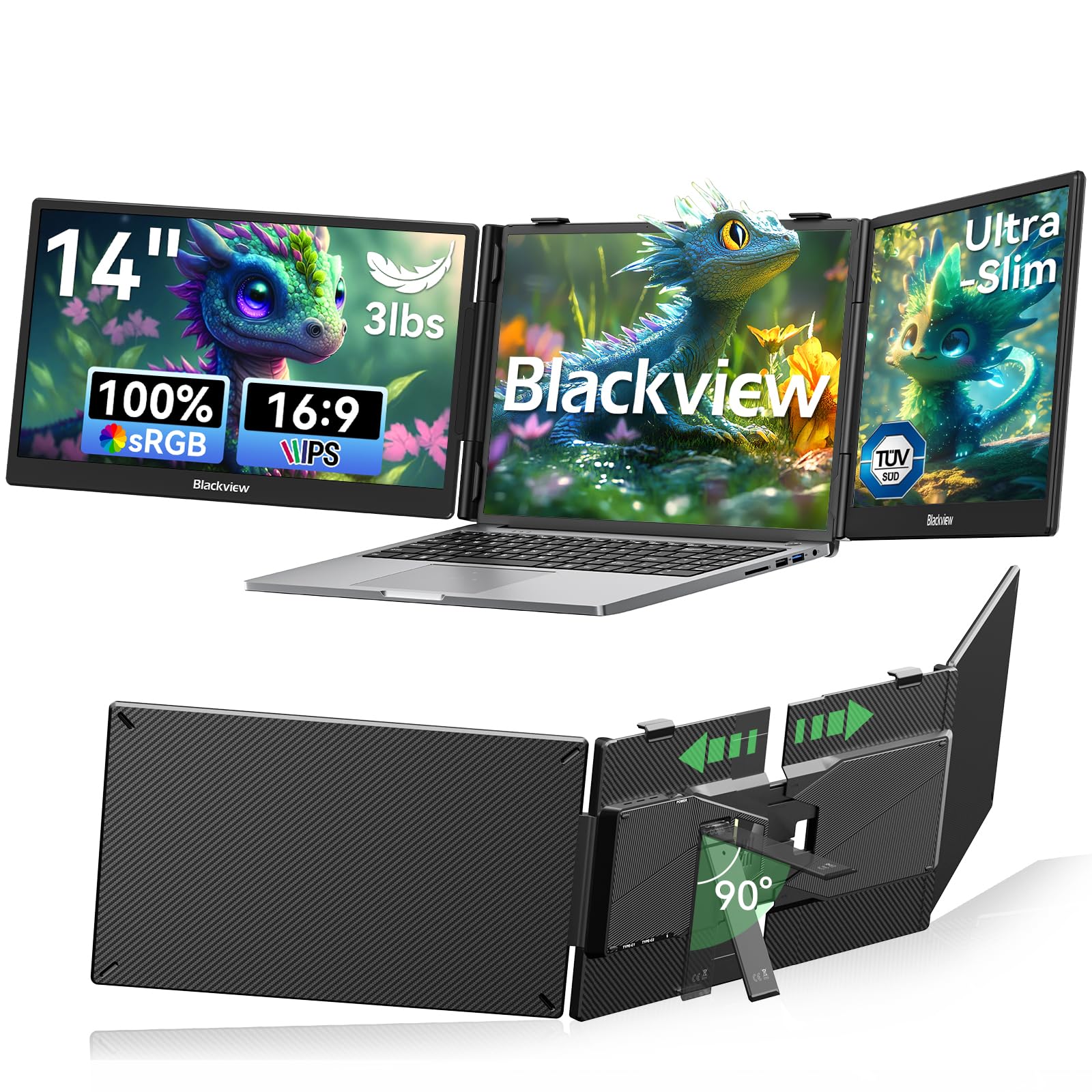
| Blackview Laptop Screen ExtenderMost Portable | Portable multi-window work | 14″ 1080P IPS, 300 nits | TÜV SÜD low blue light and flicker free | Clamp-on triple monitor | Amazon |
| Eschenbach Visolux Digital HD | Handheld reading anywhere | 7″ LCD, 1024×600, anti-glare | 2x to 22x zoom with tactile buttons | Portable video magnifier | Amazon |
| Zoomax Snow 12 | Reading documents aloud | 12″ HD display | OCR text-to-speech in 20+ languages | Foldable video magnifier | Amazon |
| HP 27″ Touchscreen All-in-One | Large-screen multitasking desk | 27″ FHD IPS touch, 1920×1080 | Adjustable height plus Windows Hello IR camera | All-in-one desktop | Amazon |
| OrCam MyEye Pro | Reading on the move | No display | Smart reading plus face recognition by voice | Wearable glasses camera | Amazon |
Detailed Reviews
1. Dell 23.8″ All-in-One Desktop
Our pick — 4.5+★ from 150+ verified ratings; the strongest balance of quality and price.
A big touch panel with eye-comfort built in — the desk setup most low-vision buyers actually need.
Here is the practical pick if your main struggle is reading and clicking at a desk. The screen measures 23.8 inches at 1920×1080 pixels, which means enlarged text stays sharp instead of turning fuzzy. You navigate with your finger on the touch panel rather than chasing a small pointer around. The display also covers 99% sRGB, a colour range spec that means photos and document colours look true rather than washed out.
Eye comfort is the reason this sits at the top. Dell ComfortView Plus is a built-in blue-light reduction mode, so long reading sessions put less strain on your eyes during the day. The refresh rate is also stated as 66% higher than the previous generation, which smooths out scrolling. Around the front, a 5MP+IR camera handles video calls, and HDR on that camera keeps your face visible even in awkward room lighting. A 20-degree tilt range lets you angle the panel toward your face instead of leaning in.
Getting started is genuinely quick for a machine this size. Owners describe the whole thing running in about half an hour, with printers and Bluetooth devices connecting themselves. The touch screen, the slim white body and the wireless keyboard and mouse all land as expected, and buyers report it runs “like a champ” for home office work. There is a real caveat on the bundled accessories. As buyers put it: “The only thing I would change is the keyboard and mouse; they feel very cheap and low quality.” Plan on swapping in a keyboard with larger, higher-contrast keys if typing is hard for you.
What earns it first place
- 23.8-inch FHD touchscreen gives you a large tap target instead of a tiny cursor
- ComfortView Plus blue-light reduction targets long reading sessions
- 99% sRGB and stated 50% higher contrast keep text and images distinct
- Setup is widely described as a half-hour job, even for first-time buyers
Where it asks for patience
- The bundled keyboard and mouse feel low quality and are worth replacing
- Preloaded software and browser prompts need clearing out on day one
- An advertised 1-year onsite service plan covers hardware, not software clutter
Made for: anyone replacing an aging desk computer who wants one large, bright, touchable screen with eye care built in.
Think twice if: you need reading aloud or magnification beyond what Windows on-screen scaling gives you — that is a magnifier’s job, not a desktop’s.
2. Blackview 14″ Laptop Screen Extender
Three sharp panels clipped to your laptop, so windows stop stacking on top of each other.
The reason a low-vision user might want this is simple: more screen area means you can make everything bigger without losing the page. Each of the two extra panels runs 1080P Full HD at 300 nits brightness, a brightness figure high enough that text stays readable next to a bright window. The IPS panel type (in-plane switching — a screen design that keeps colours steady from the side) holds up across 180-degree viewing angles, so a slight head turn does not wash the text out.
Weight and build are where it earns its travel label. At just 3 lbs with a galvanized steel shell and a matte finish, it clips onto 13-inch to 17.3-inch laptops with a 6-point mounting system and a rear stand that stops the laptop tipping back. Eye care is certified rather than claimed. The screens carry TÜV SÜD low blue light and flicker free ratings, which matter if you sit in front of them for hours of document work. Outside that it runs on Windows, Mac, ChromeOS, Android and Linux with no drivers.
Read the connection requirement before you buy, because this is the one thing that trips people up. It wants two full-featured USB-C ports, or one USB-C plus one HDMI, before both extra screens will light up. Owners also note it starts in mirroring mode, so you have to change settings to get separate extended screens. Two full-featured USB-C cables, an HDMI-to-USB-C cable and a charging cable come in the box. Battery drain is the honest trade-off — plan to keep the laptop plugged in during long sessions.
The fit-and-clamp story: a reinforced spring grip and non-slip pads hold the extender tight to your lid with no wobble, and it covers 13-inch through 17.3-inch laptops, so it follows you between a home machine and a work one.
The one thing to verify first: two full-featured USB-C ports or a USB-C plus HDMI pairing. Without that, you are looking at a single extra screen rather than two.
Take this one if you already work on a laptop and lose track of windows — three 1080P panels beat one enlarged browser tab.
Leave it alone if your laptop has only basic USB-C ports, since the dual-screen mode needs full-featured ones.
3. Eschenbach Visolux Digital HD – 7″ Portable Video Magnifier

A pocket-sized reading screen for the kitchen counter, the mailbox and the medicine label.
Not every reading problem happens at a desk, and this is the pick for the rest of the house. It enlarges print anywhere from 2x to 22x, with both stepped and continuous zoom, so you can nudge the size until a line of small print finally resolves. The 7-inch LCD sits at 1024×600 and carries an anti-glare coating, which means an overhead lamp reflection does not erase the letters you are trying to read. At roughly 0.5 kg it moves from room to room without effort, and it ships in a zippered crush-proof case for the bag.
Controls are the part low-vision users tend to like. Power, zoom, scroll, palette and photo each get their own tactile button, so you can find the right one by feel rather than by sight. The screen itself is bright and high-contrast — which is why it works where a handheld magnifying glass under a lamp does not. One buyer bought it for an elderly father and reported it was far easier to read than a lit magnifying glass.
The catch is the menu system, and it is worth knowing before you open the box. Settings live behind large icons that owners describe as hard to decipher, the colour palette does not change those menu icons, and the battery indicator font cannot be resized. The charging light is red or green, which is unhelpful if you are colour blind. The printed manual is thin, and the PDF is awkward to convert for a screen reader. Treat the basic read-and-zoom function as the product, and accept that deep settings may need a sighted helper once.
Why it earns a place: 22x of zoom with a bright, high-contrast, anti-glare screen is a lot of reading power in something the weight of a hardback book.
Who should look elsewhere: if you need a device to read whole documents aloud, this one magnifies but does not speak — that is the Zoomax or the OrCam’s territory.
Good match: a kitchen-drawer magnifier for mail, labels and instructions, especially for someone who wants physical buttons over a touch menu.
Less good match: a buyer who needs no sighted help at all during setup, given how cryptic the settings icons are.
4. Zoomax Snow 12 Inch Video Magnifier
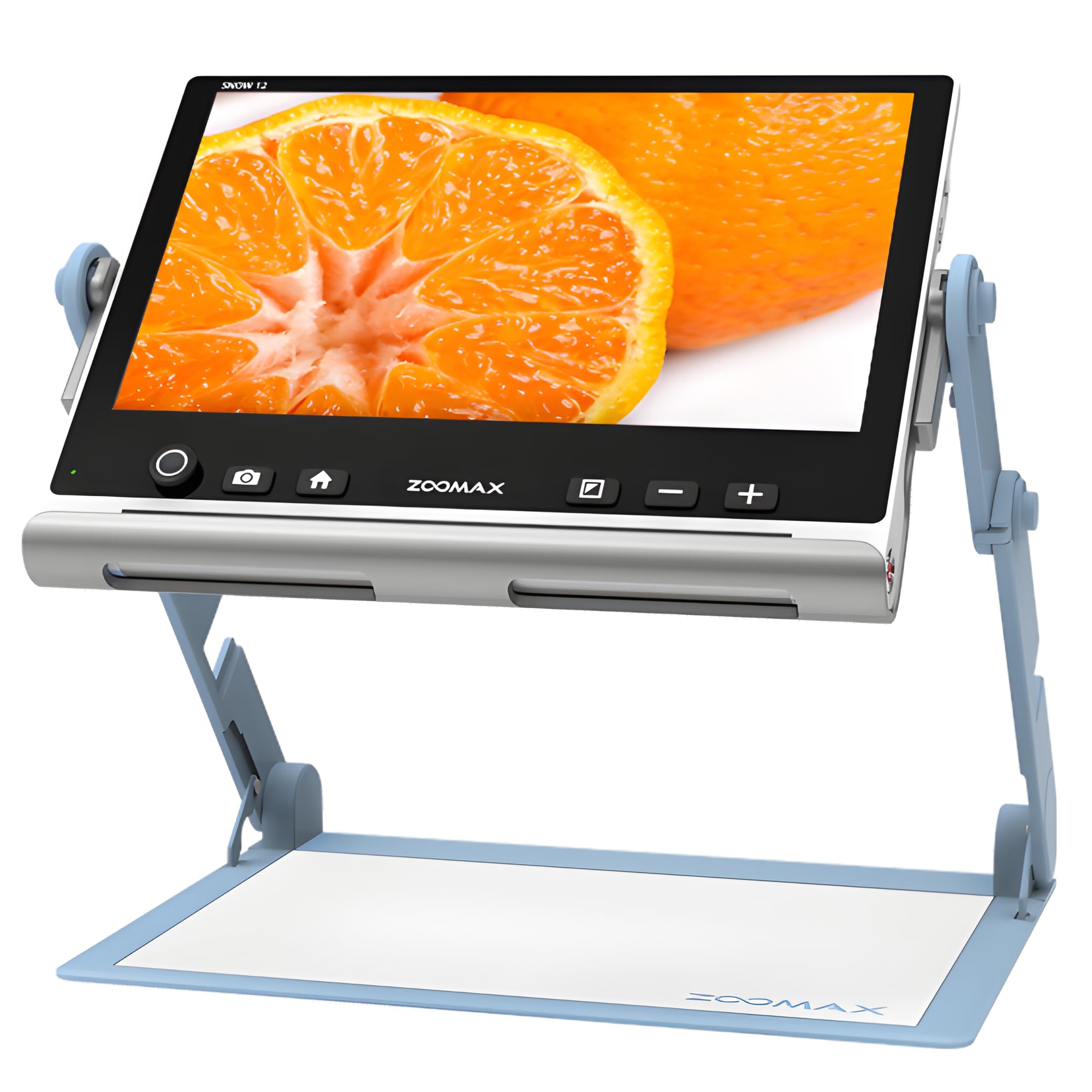
It does not just enlarge the page — it reads the page out loud in over twenty languages.
The headline feature here is OCR, which stands for optical character recognition: the camera photographs printed text, the software converts it into words, and those words are spoken aloud. That covers more than 20 languages, so you can rest your eyes and still get through the morning paper. Magnification tops out at 19x on a 12-inch HD display, and the foldable stand sets a comfortable viewing angle and then collapses for storage. Because it speaks, it suits someone whose eyes tire before the page ends.
Families report real, specific wins. One husband with failing eyesight uses it to read, write cheques and build models. A 98-year-old father uses it to get through his newspaper and magazines again. Someone who lost most of their vision at 19 describes it as a way to read mail independently. The pattern is consistent — owners praise the enlarge-and-read function and the fold-away stand that keeps it steady on a table.
Two honest limits are worth sizing up. The reading-aloud side is the weaker half: character recognition can miscatch letters, and one person found it struggled with photographs of text, so treat speech as a helpful extra rather than a perfect narrator. The second is page size. The screen will not capture a full 8.5×11 page at once or zoom out far enough to frame a whole letter, and long number strings can be misread. Clear voice output, adjustable colour and contrast are all there. Practise on a couple of pages before you rely on it for anything official.
Where the value is: a 12-inch HD display plus spoken text plus a foldable stand in one movable unit, aimed squarely at low-vision reading at a table.
The honest trade-off: OCR is not infallible, so use it for reading and browsing rather than for cheque amounts or prescription digits you must get exactly right.
Reach for this if you want one device that both enlarges a page and speaks it, with a stand that tucks away between uses.
Choose differently if you routinely read full letter-size sheets, since the frame will not take a whole page in one view.
5. HP All-in-One 27″ Touchscreen Desktop
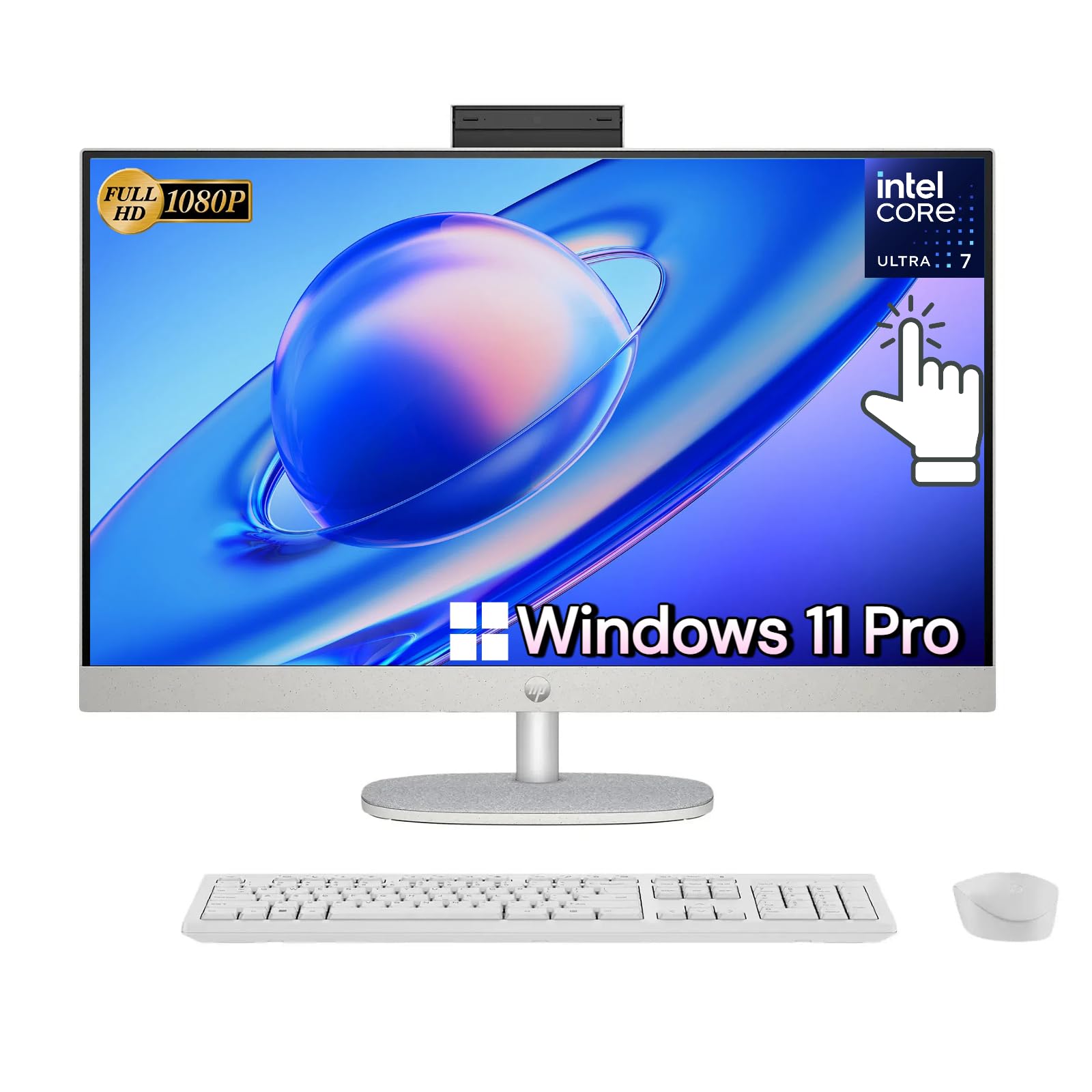
Twenty-seven inches of touchable glass you can raise or lower to meet your eyes.
If the Dell’s 23.8 inches still feels tight when you scale text up, this is the step up. The panel measures 27 inches across at 1920×1080 pixels, with the same IPS panel type that keeps colours and contrast steady when you view from an angle. HP lists wide viewing angles up to 178 degrees, and the three-sided micro-edge bezel means more of the front is screen. Touch control sits right on that surface, so you tap a large target instead of aiming a pointer.
The adjustable height is the feature that separates it from a fixed stand. You raise or lower the screen until your neck is comfortable, which matters when you lean in for enlarged text over long hours. Inside, an Intel Core Ultra 7 155U processor with 32 GB DDR5 RAM and a 1 TB SSD keeps multiple windows and large print settings running smoothly. Windows 11 Pro sits on top, and an FHD IR camera handles secure sign-in through Windows Hello so you skip typing a password. Zoom Certified hardware and Wi-Fi 6 with Bluetooth 5.3 complete the working setup.
The trade-off is straightforward honesty about what this is. It is the biggest screen on this list and the heaviest commitment, best suited to a fixed desk rather than moving room to room. Buyers who need magnification past Windows scaling or spoken text should pair it with one of the magnifiers rather than expect the desktop alone to carry that job. As a large, adjustable, touch-driven workstation, it is the most screen real estate here.
Screen-space verdict: 27 inches at 1920×1080 with 178-degree viewing angles gives you the most room on the list to enlarge text and still see a full window.
Set-up note: Windows Hello sign-in through the IR camera removes a password step some low-vision users find awkward to type.
Suits you if your desk is fixed, your eyes want the biggest panel available, and you like tapping rather than typing.
Look at the Dell instead if you want the same touch-and-eye-comfort idea in a smaller footprint and a lower commitment.
6. OrCam MyEye Pro

A finger-sized camera on your glasses that reads signs, notes and faces straight into your ear.
This is the only device here that leaves the desk entirely. It clips magnetically onto virtually any glasses frame and reads printed and digital text aloud from any surface, instantly and discreetly. Beyond text it recognises faces, products and money notes in real time, which is the part a magnifier cannot do. It works in over 40 countries and 20 languages, and it does not need an internet connection, so it functions on a bus or in a shop with no signal. The English version supports more than 20 voice-activated commands, and you operate the rest with simple hand gestures.
Independence is the theme in what owners mention. Someone with retinal dystrophy uses it for newspapers, product labels and currency. A 28-year-old visually impaired user relies on face recognition, text reading and product identification, with a private speaker clipped on so the output stays personal. A 90-year-old with macular degeneration got going quickly once the controls were simplified. Free online video tutorials and a support team that responds personally come up repeatedly in what people describe.
The honest part is that this is a learning curve, not a plug-in accessory. It takes practice to point it correctly, and it needs ample light and clear text to read well. It also depends on the wearer having the dexterity to attach it and gesture at it. Reviews praise the device quality and reading ability; the price and the effort of learning the gestures are the frequent caveats. Expect to spend a few evenings with the tutorials before it feels natural, and try it on your own glasses first.
What it does that nothing else here can
- Reads text aloud from glasses with no screen, cable or desk required
- Recognises faces, products and money notes in real time
- Works in 20 languages across over 40 countries without internet
- Hand gestures and more than 20 voice commands on the English version
The learning curve to expect
- Needs practice to aim correctly and clear light to read reliably
- Requires the manual dexterity to attach and gesture at it
- Comes at the highest commitment of any pick in this list
Best fit for: someone who needs to read in shops, on buses and around the house, not just at a desk.
Not the first buy if: your main need is a workstation — pair this with a touchscreen desktop instead of choosing between them.
Know the Specs
FHD Resolution and Screen Size
FHD means 1920×1080 pixels, the resolution on the Dell, HP and Blackview panels. More pixels across a given screen keeps enlarged text smooth rather than jagged. Screen size matters just as much: a 23.8-inch or 27-inch panel lets you scale text up and still see a full window, while a 14-inch panel fills faster. Match the size to where you sit — a desk can take 27 inches, while the Eschenbach’s 7-inch screen is what fits in a bag.
Magnification Range Versus Fixed Zoom
Handheld magnifiers list a zoom range, like the 2x to 22x on the Eschenbach or the 19x ceiling on the Zoomax Snow 12. A wide range lets you start small for a headline and push in for a serial number. A fixed top zoom is fine if you mostly read body text. Check the low end too — a 2x setting is what makes a whole page or a photo visible at once.
OCR and Text-to-Speech
OCR (optical character recognition) turns a photo of printed words into machine-readable text, which is then spoken aloud. It means you can listen instead of squint, and it works across more than 20 languages on both the Zoomax Snow 12 and the OrCam MyEye Pro. Expect the reading to be accurate on clean, high-contrast print and less reliable on handwriting, photographs of text, or long strings of numbers.
Blue Light Reduction and Glare Control
Blue-light reduction modes, such as Dell ComfortView Plus or the TÜV SÜD low blue light and flicker free ratings on the Blackview panels, cut the light wavelength associated with eye strain over long sessions. Anti-glare coatings, like the one on the Eschenbach’s 7-inch LCD, stop a lamp reflection from washing out the letters. For a low-vision reader, blue-light reduction and anti-glare coating matter more than the processor model number.
Common Questions
Is a touchscreen all-in-one better than a laptop for low vision?
What is the difference between a video magnifier and a computer?
Does the OrCam MyEye Pro improve eyesight?
How many USB-C ports does the Blackview screen extender need?
Can the Zoomax Snow 12 read a full letter-size page at once?
Does OCR reading work in languages other than English?
How long does it take to set up the Dell all-in-one?
Is magnification alone enough if my vision keeps changing?
Do these devices work without an internet connection?
Which device helps most with reading in shops and around the house?
The Bottom Line
For most people building a readable desk setup, the winner is the Dell 23.8″ All-in-One — a 23.8-inch FHD touchscreen with Dell ComfortView Plus blue-light reduction and a setup owners describe as a half-hour job. It is the balanced pick between screen size, eye care and daily usability. If you want the biggest panel you can raise and lower to your eyes, the HP 27″ Touchscreen All-in-One gives you 178-degree viewing angles and Windows Hello sign-in. And for reading away from any desk, the OrCam MyEye Pro turns text, faces and money notes into speech with no screen at all. Whichever you choose, buy for the task you do most — desk reading, label reading or reading on the move — and it will earn its place on day one.
How we choose
We do not accept paid placement. Every pick is matched to a real buyer and a real use-case; we do not hands-on test units.
Sources
Specifications: manufacturer listings and product documentation. Review insights: verified customer reviews, as of October 2026. Pricing: not shown on this page (it changes often); check the current price via the retailer link.
As an Amazon Associate, Aappliancez earns from qualifying purchases. This does not affect which products we feature.