Disclosure: Some links in this post are affiliate links. As an Amazon Associate I earn from qualifying purchases, at no extra cost to you. Learn more
Specs are compiled from manufacturer listings and verified buyer reviews and can change over time — please confirm the key details on the product page before buying.
Most printers work with a MacBook — the real problem is which one keeps working after the honeymoon. You want a machine that speaks to macOS without a driver fight, prints from your iPhone or iPad without a cable, and does not eat your budget through ink cartridges. That is what this list sorts out: nine printers that connect to a MacBook cleanly, ranked by how they actually behave on a desk.
This guide is built by comparing the manufacturers’ published specifications and the patterns across verified customer reviews, so you get each pick’s real strengths and trade-offs instead of marketing spin.
Below you will find picks grouped by what they do best, plus the connection standards that actually matter when your laptop has no USB-A port left. My picks for the best MacBook compatible printers stick strictly to documented specs and real buyer patterns, not spec-sheet hype.
Top Picks


How To Choose The Best MacBook Compatible Printers
A printer that lists itself as Mac-compatible can still leave you fighting software at midnight. The specs that decide whether setup is a five-minute job or an hour-long battle are the connection standard, the ink or toner system, and the speed the machine actually delivers. Here is what to look at before you commit.
AirPrint and wireless standards do the heavy lifting
AirPrint (Apple’s built-in printing system that needs no driver download) is the single biggest convenience on a MacBook. A printer with AirPrint on board lets your Mac, iPhone, or iPad find it on the same Wi-Fi network and print without installing anything.
Check for dual-band Wi-Fi (2.4GHz and 5GHz) if the printer sits far from your router. The 2.4GHz band travels farther; the 5GHz band moves data faster and suffers less interference from neighbors’ networks. Wi-Fi Direct is the backup plan when you want a phone to print without joining the home network at all.
Ink tanks versus cartridges
A cartridge printer puts you on a cycle of buying a small plastic box every few hundred pages. A tank printer — also called a supertank — arrives with bottles of ink you pour into built-in reservoirs, and refills cost far less per page. The catch is upfront cost and, on some models, messier setup than clicking in a cartridge.
Speed and duplex: read the fine print
Pages per minute (ppm) tells you how fast the machine turns out pages, but black and color speeds are usually published separately. A model rated at 18 black / 9 color ppm prints text pages quickly and color pages at roughly half that pace. Automatic duplex (two-sided printing done by the machine) is a separate feature entirely — check that it is listed, because it is not standard across the category.
Side-by-Side Comparison
| Model | Best For | Print Speed (B&W) | Print Speed (Color) | Duplex | Amazon |
|---|---|---|---|---|---|
| Epson EcoTank ET-4950★ Best Overall | Overall tank value | 18 ppm | 9 ppm | Automatic | Amazon |
| Brother MFC-L3780CDWTop Performer | High-volume color office | 31 ppm | 31 ppm | Automatic | Amazon |
| Brother MFC-L3720CDWHome Office Workhorse | Home office color laser | 19 ppm | 19 ppm | Automatic | Amazon |
| HP Color LaserJet Pro 3201dw | Fast color documents | 26 ppm | 26 ppm | Automatic | Amazon |
| Brother HL-6210DW | Pure black-text volume | 50 ppm | — | Automatic | Amazon |
| Epson EcoTank ET-2980 | Low-cost household printing | 15 ppm | 8 ppm | Automatic | Amazon |
| HP Envy Photo 7975 | Photo-first home printing | 15 ppm | 10 ppm | Automatic | Amazon |
| Canon Megatank G3290 | Tank printing on a tighter budget | 11 ppm | 6 ppm | Automatic | Amazon |
| Canon PIXMA TS7720 | Compact everyday home printer | 15 ppm | 10 ppm | Automatic | Amazon |
Detailed Reviews
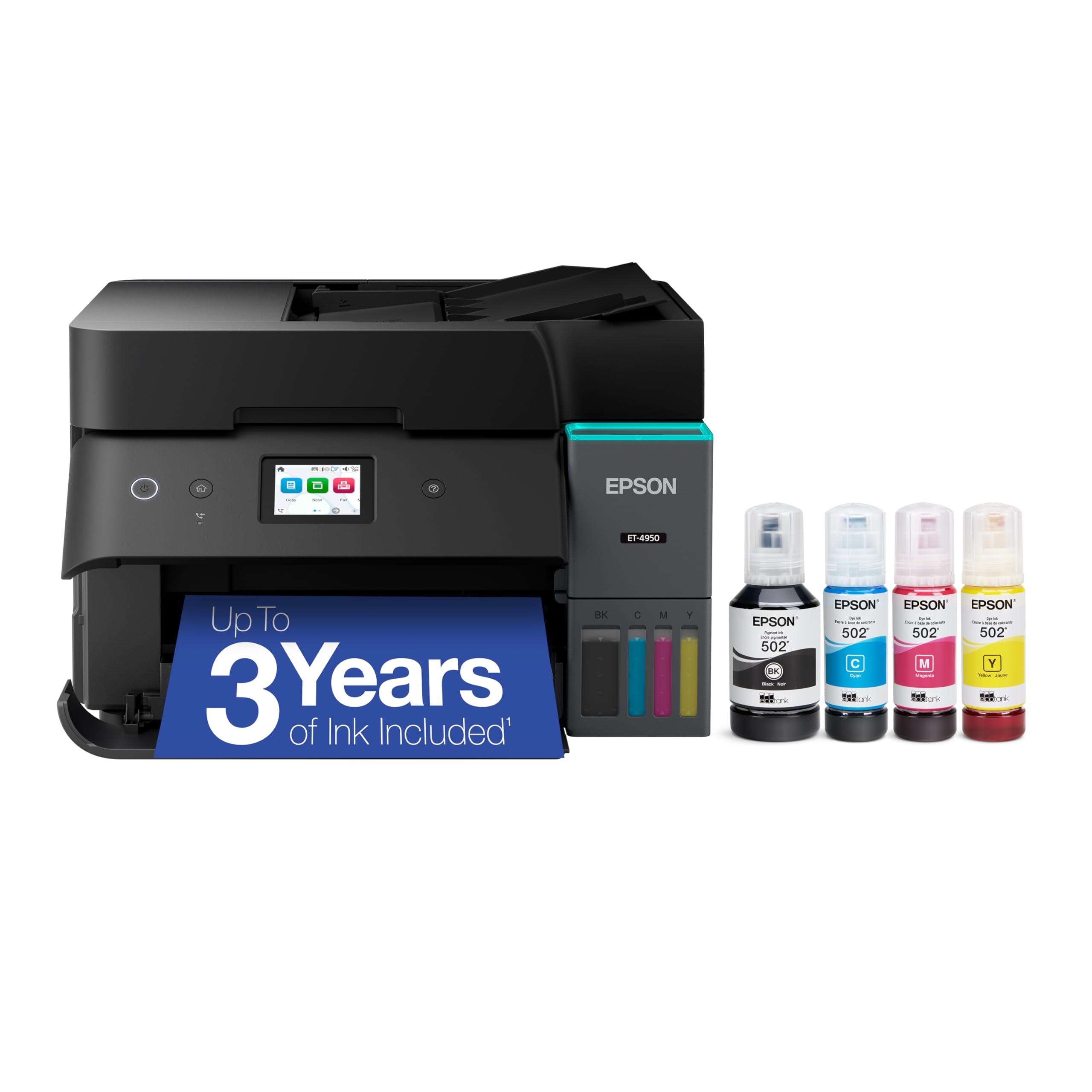
1. Epson EcoTank ET-4950 Printer
Our pick — 4.0+★ from 600+ verified ratings; the strongest balance of quality and price.
The fastest tank printer here that still refills by pouring ink, not buying cartridges.
Here is the number that earns it the top spot: 18 black pages per minute and 9 color pages per minute. That puts it comfortably ahead of the Canon Megatank G3290 at 11 black and 6 color — a real gap when you are printing a stack of school forms before breakfast. For a cartridge-free machine, that is genuinely quick, and it arrives with enough ink to print up to 6,600 pages in black and 5,500 in color, so the endless refill chore sits months away.
What wins people over is the build and the print quality together. Ink filling is a genuinely simple operation thanks to keyed EcoFit bottles that are shaped so you cannot pour the wrong color into the wrong tank — no funnels, no mess. The machine carries a 250-sheet paper tray, an auto document feeder, a 2.4-inch color display, Ethernet and USB, and automatic duplex so both sides of the page get printed without a manual flip. For a MacBook, wireless printing over Wi-Fi works cleanly once set up, and the display walks you through the network connection rather than forcing you into a phone app.
The honest catch is setup and reliability. As one buyer put it: “App setup detailed but 45-min setup marred by 20-min paper jam.” That is a real, recurring shape in the feedback — a first-run jam during the initial ink charge, after which things settle. A few owners have hit connectivity drops later on, and the plastic panels sound lighter than the machine’s sturdiness suggests. None of that outweighs the case: this is the strongest balance of speed, ink economy, and all-in-one features on the list, at 4.0+ stars across 600+ ratings.
What Earns It First Place
- 18 black / 9 color ppm beats the Canon Megatank G3290’s 11 / 6
- Bundled ink covers up to 6,600 black and 5,500 color pages
- 250-sheet tray, auto duplex, ADF and fax in one box
- Keyed ink bottles stop color mix-ups during refill
What To Weigh Before You Buy
- First setup can drag when a jam hits the ink-charge run
- Plastic panels feel lighter than the machine’s bulk
- Scanning quality reads as average next to the print output
Reach for this if: you want the fastest tank printer on this list plus duplex, scanner and fax in a single footprint.
Look elsewhere if: you want a setup you never think about — the first-run paper jam is a known hurdle.
2. Brother MFC-L3780CDW Printer
Thirty-one pages a minute in full color, with a scanner that flips both sides at once.
If you print color reports by the ream, the 31 ppm figure — matched on both black and color — is the whole story. Nothing else here moves color pages that fast, and it pairs with single-pass duplex scanning so a two-sided contract scans in one pass instead of two. Scan speeds are listed up to 29 ipm black and 22 ipm color, where ipm means images per minute, the scanner’s version of pages per minute.
Setup is one of the easier experiences in this category. Owners describe it connecting to Wi-Fi in around ten minutes, and the machine carries dual-band wireless on both 2.4GHz and 5GHz, Gigabit Ethernet, Wi-Fi Direct and USB. For a MacBook specifically, the ecosystem is the draw: AirPrint works natively, so you can print from your laptop without touching a driver installer. The 3.5-inch color touchscreen with 48 customizable shortcuts makes repeat jobs like invoices a single tap.
Two trade-offs matter before you buy. First, the Mac software for deeper settings is not native for Apple silicon (Apple’s own chips) and leans on Rosetta (a translation layer Apple has been phasing out) — so if you rely on advanced driver menus, check that first. Second, heavy cardstock does not always duplex cleanly (print both sides automatically) and may need manual feeding. For ordinary paper, though, this is a dependable workhorse that owners describe as fast, quiet and jam-free.
Where it shines: a color laser that matches its black-text speed, which is rare at any tier — 31 ppm for both.
The one snag: Mac users who need the full driver panel should verify Apple silicon support, because the current software routes through Rosetta.
Built for: a small office or busy home desk pushing color documents and duplex scans all day.
Think twice if: your work leans on heavy cardstock through the duplex path.
3. Brother MFC-L3720CDW Printer
The color laser that trades raw speed for a scanner, a fax line and a paper tray that keeps up.
This is the middle step between the inkjet all-in-ones and the 31 ppm Brother above. It runs 19 ppm in both black and color, which is still a laser-quick clip for a home desk, and it pairs that with a 50-sheet auto document feeder, a 250-sheet adjustable tray and automatic duplex. The 3.5-inch color touchscreen takes 48 shortcuts and reaches Google Drive, Dropbox and OneNote directly, which matters if you scan to the cloud from a MacBook rather than to a local folder.
What buyers keep coming back to is the build and the setup. Multi-device households report it connecting from Windows, Linux and Android in about 25 to 30 minutes total, with Linux detecting it without any driver install at all. Printing is crisp and vibrant, jams are rare in normal paper use, and the toner stretches much further than inkjet ink, so the running cost settles down after month one. For a retiree printing tax packets, automatic two-sided output did the job without a single manual flip.
The trade-off is a mild one but worth knowing. Coated or very heavy paper does not always duplex cleanly, and one owner hit vertical banding on all colors within the first year, though the machine needed a drum replacement rather than a whole new unit. Treat the drum as a wear part and this stays a solid pick — quiet, well built, and a natural fit for a home office that prints color documents rather than photos.
The value read: a color laser with fax, ADF and duplex that undercuts the 31 ppm model on price while keeping the same toner ecosystem.
One thing to budget for: replacement drums sit outside the standard warranty window, so factor that into long-term cost.
Best fit: a home office that scans multi-page packets, prints color documents and wants everything in one chassis.
Not for: photo printing where color accuracy is the priority.
4. HP Color LaserJet Pro 3201dw

Twenty-six pages a minute in color, built for a small team that prints reports and forms daily.
It earns its spot as the fastest color laser here at 26 ppm (pages per minute), the same speed in black and color, so a 40-page form set finishes in under two minutes. Text comes out crisp and fills stay solid for forms and basic charts. A 250-sheet input tray and automatic duplex (prints both sides without a manual reload) keep a busy desk running without constant refills. Dual-band Wi-Fi with a self-reset feature detects and clears connection issues on its own — handy if you print from a MacBook on a network that drops now and then.
The honest caveat is that quality and reliability split down the middle here. Buyers report the machine freezing or glitching at times and requiring a restart, and connectivity problems show up in the feedback more than on the Brother models. The starter cartridges in the box are known to be short-lived, and third-party cartridges do not work — the printer is chipped to accept only HP originals. If you plan to buy non-HP toner, this is not the model for you.
For a small business running HP cartridges, though, it is a functional fit: clean sharp output, fast color, straightforward wireless setup, and reliable duplex when it cooperates. The automotive-shop workhorse account captures the upside — steady document printing with toner that lasts. Go in knowing the software quirks and the cartridge lock, and the pitch holds.
Where It Pulls Ahead
- 26 ppm color and black — faster color than the Brother MFC-L3720CDW’s 19 ppm
- 250-sheet tray and auto duplex for busy offices
- Dual-band Wi-Fi with self-reset for dropped connections
- Sharp text and solid color fills for forms
What To Know Going In
- Chipped to accept only original HP cartridges
- Some units freeze and need a restart mid-job
- Starter cartridges run dry quickly
- Connectivity reports are more mixed than on competing lasers
Worth it for: a small team already inside the HP cartridge ecosystem that needs fast color throughput.
Pass it up if: you want the freedom to buy third-party toner, which this printer blocks.
5. Brother HL-6210DW Printer

Fifty black pages a minute, a 520-sheet tray, and no color to slow it down.
If your MacBook workflow is contracts, invoices and labels in black text, 50 ppm is a different class of speed from every other printer on this list. Pair that with a 520-sheet main tray and a 100-sheet multipurpose tray — expandable up to 1,660 sheets with optional trays — and you have a machine that runs office volume without constant loading. Toner yields are listed up to 18,000 pages with the ultra high-yield cartridge, which is where the per-page cost drops sharply over an inkjet.
Setup is the reason this one stands out: Brother’s own community puts it best, playing on the brand name: “I hooked it up and it worked!!!” — and owners describe it lighting up on the network from Windows and phone apps without fuss. Text and symbols print crisp, the internals are reinforced metal, and it runs quietly enough for a shared room. For a dedicated desk that only needs black text, this is the most functional choice in the lineup.
Two limits are clear. First, there is no scanner, copier or color — this is a print-only machine, so if you need to scan a signed page you’ll need a second device. Second, a firmware update has locked a few owners out with a password issue and internet-dependent resets; that is a rare but real friction point. Neither changes the core value: unthrottled black-text throughput with a toner tank that barely sips. It’s a monochrome laser with a 520-sheet tray and toner rated to 18,000 pages, so refills are rare.
The speed read: a 50 ppm monochrome laser that outpaces the 31 ppm Brother MFC-L3780CDW on black text by a wide margin.
What you give up: no color, no scanning, and firmware resets that need a Brother account to resolve.
Choose it for: a document-heavy desk that never prints in color and wants maximum black-text speed.
Avoid if: you need to scan or copy — there is no scanner on this chassis.
6. Epson EcoTank ET-2980 Printer
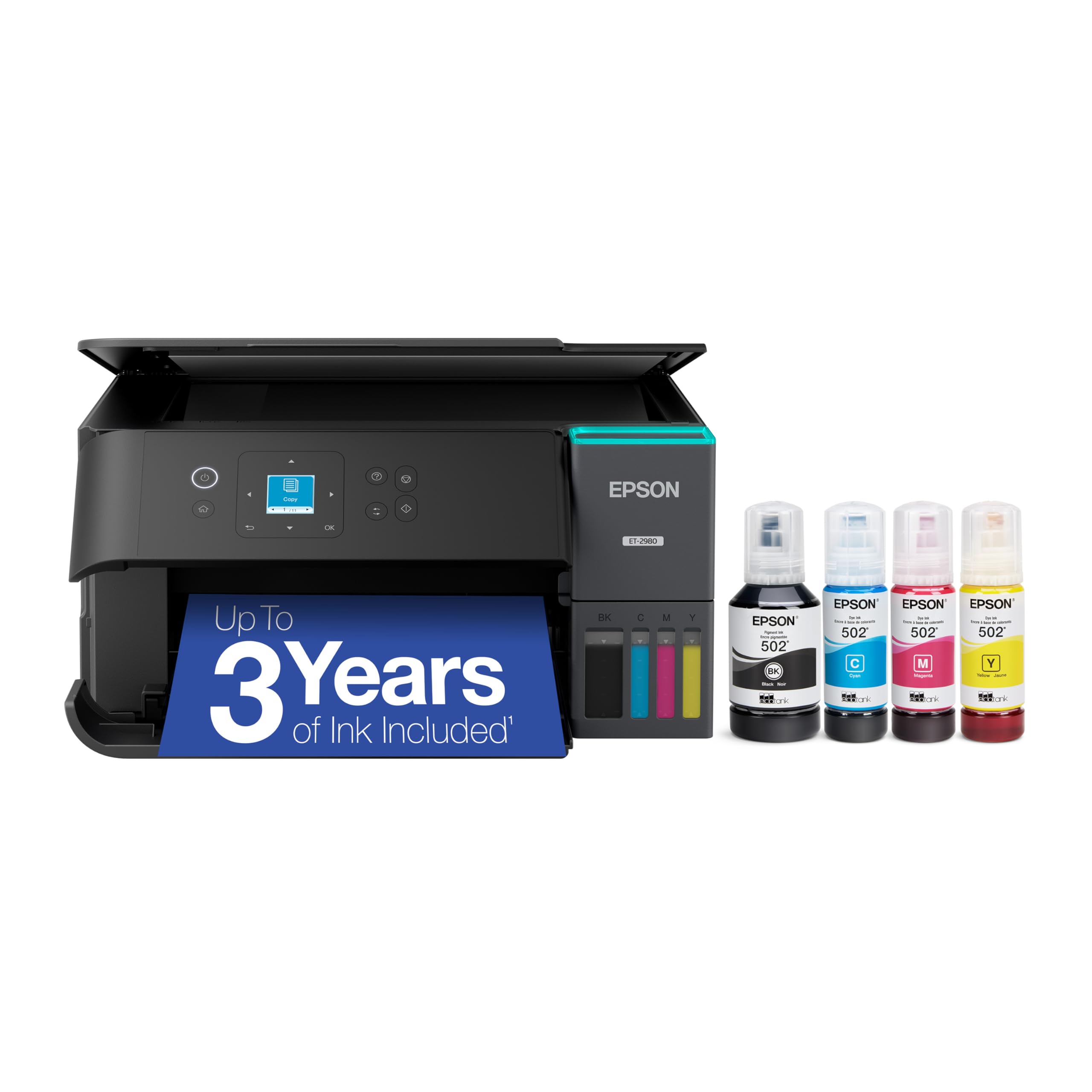
Three years of ink in the box, and a refill bottle that replaces roughly ninety cartridges.
The 6,600 black and 5,500 color page estimate in the box is the number that defines this printer. Run the math on a household printing schoolwork and recipes and it means you can go months without buying ink. Each replacement bottle set equals about 90 individual cartridges, so the refill cost per page stays genuinely low once the included ink runs out. It prints 15 black pages per minute and 8 color — slower than the ET-4950’s 18 and 9, but still a comfortable home pace.
Setup is a straightforward app-guided walkthrough taking about 15 minutes, with no-mess ink bottles that are hard to overfill. For a MacBook, the machine connects over Wi-Fi and offers mobile printing through the Epson Smart Panel app, and it carries automatic duplex. Owners using it for homeschool report 1,100+ pages over six months with the black tank still around 80% full — a real measure of how far the ink stretches. Scanning, copying and Wi-Fi all show up as reliable in everyday use.
The catch splits two ways. Color pages come out around 30 seconds each, and glossy photo prints on glossy paper can smudge if the ink does not fully set, so this is a documents-first machine. And a handful of owners mention network drops or duplex jams creeping in over time. For text and everyday color, none of that undermines the case: this is the most economical tank printer in the list for a household that prints average volumes.
Where The Money Goes
- 6,600 black / 5,500 color pages included
- Each refill set equals about 90 cartridges
- 15-minute app-guided setup with no-mess bottles
- Automatic duplex and mobile printing
Where It Frays
- Color pages take about 30 seconds each
- Photo prints can smudge if the ink has not set
- A few units drop Wi-Fi or jam on duplex over time
Best for: a household that prints schoolwork, recipes and the odd color page and wants to forget about ink for months.
Not the pick if: photo quality is the reason you are buying.
7. HP Envy Photo 7975 Printer
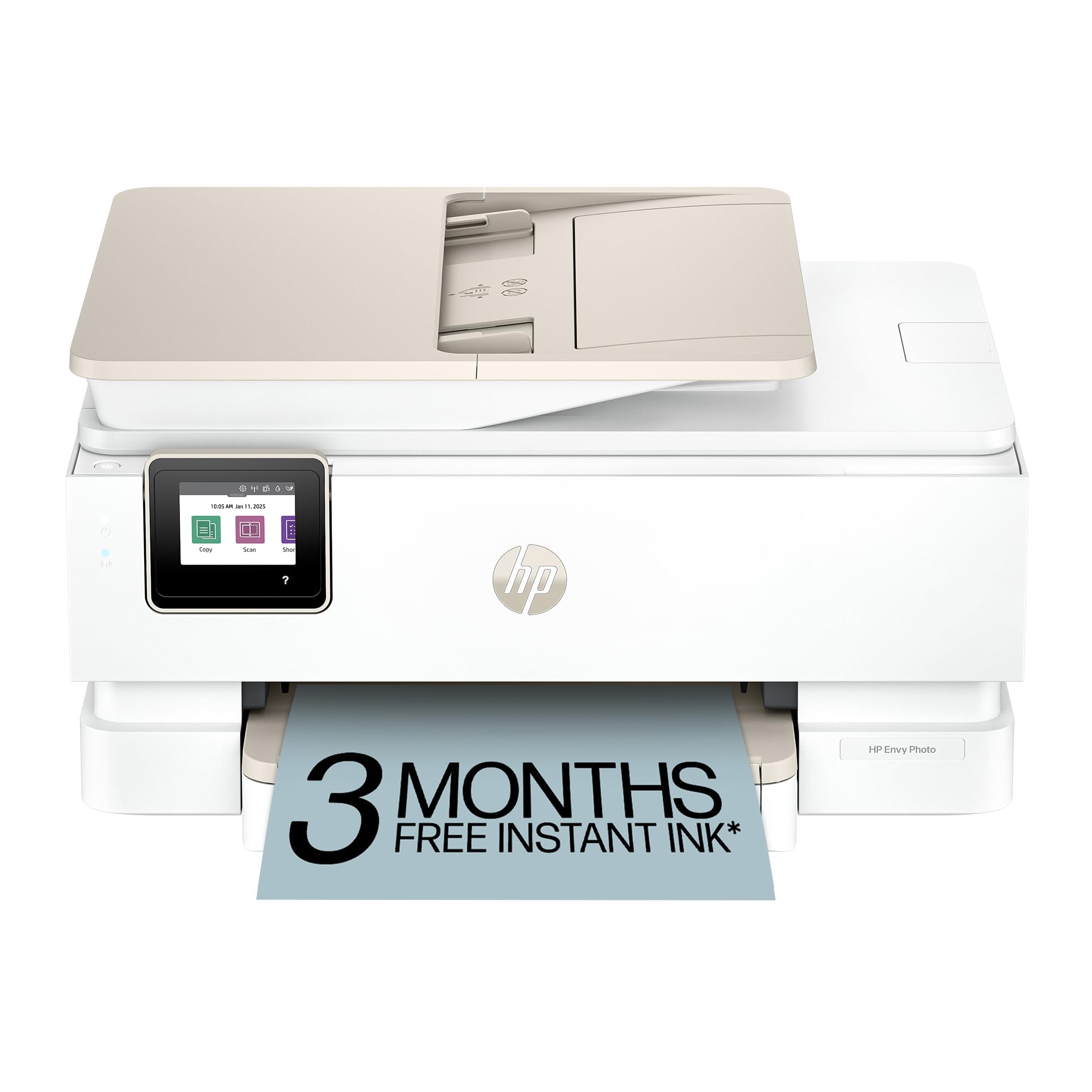
A photo printer built around a separate photo tray and borderless output, tuned for glossy paper.
This is the printer that cares most about the look of the photo. It carries a dedicated photo tray so you can leave glossy sheets loaded alongside plain paper, and it prints true-to-screen borderless photos at up to 15 black and 10 color pages per minute for documents. HP’s onboard AI trims unwanted content off web pages and emails before printing, which saves a page of banner ads per recipe.
The photo output is where it earns its place. Owners describe prints landing “like a professional,” with color that looks right without hand-tuning settings, and glossy HP photo paper is repeatedly named as the paper that makes it sing. In a MacBook household the practical draw is the app: setup over Wi-Fi taking under ten minutes, iPhone printing that just works, and a large color touchscreen for the rest. It also prints quietly, which helps if the printer sits in a shared room.
The trade is software temperament. A network or driver hiccup can turn a simple print job into a reinstall, and a fair share of the feedback describes setup going sideways — pages ejecting onto the floor being a recurring frustration on this model. The good news is that once running, print and scan quality hold up, and the 3-month Instant Ink trial in the box keeps the first months ink-free. Just budget some patience on the install day.
Why photographers gravitate to it: borderless photo printing from a dedicated tray with color that lands close to screen-accurate.
The recurring snag: setup on Windows and network restarts, which stop this being a hands-off machine.
Suits you if: you print family photos and documents from a MacBook and want the photo tray ready to go.
Make peace with: a bumpier setup than the tank printers, with occasional reinstall sessions.
8. Canon Megatank G3290 All-in-One Wireless Printer
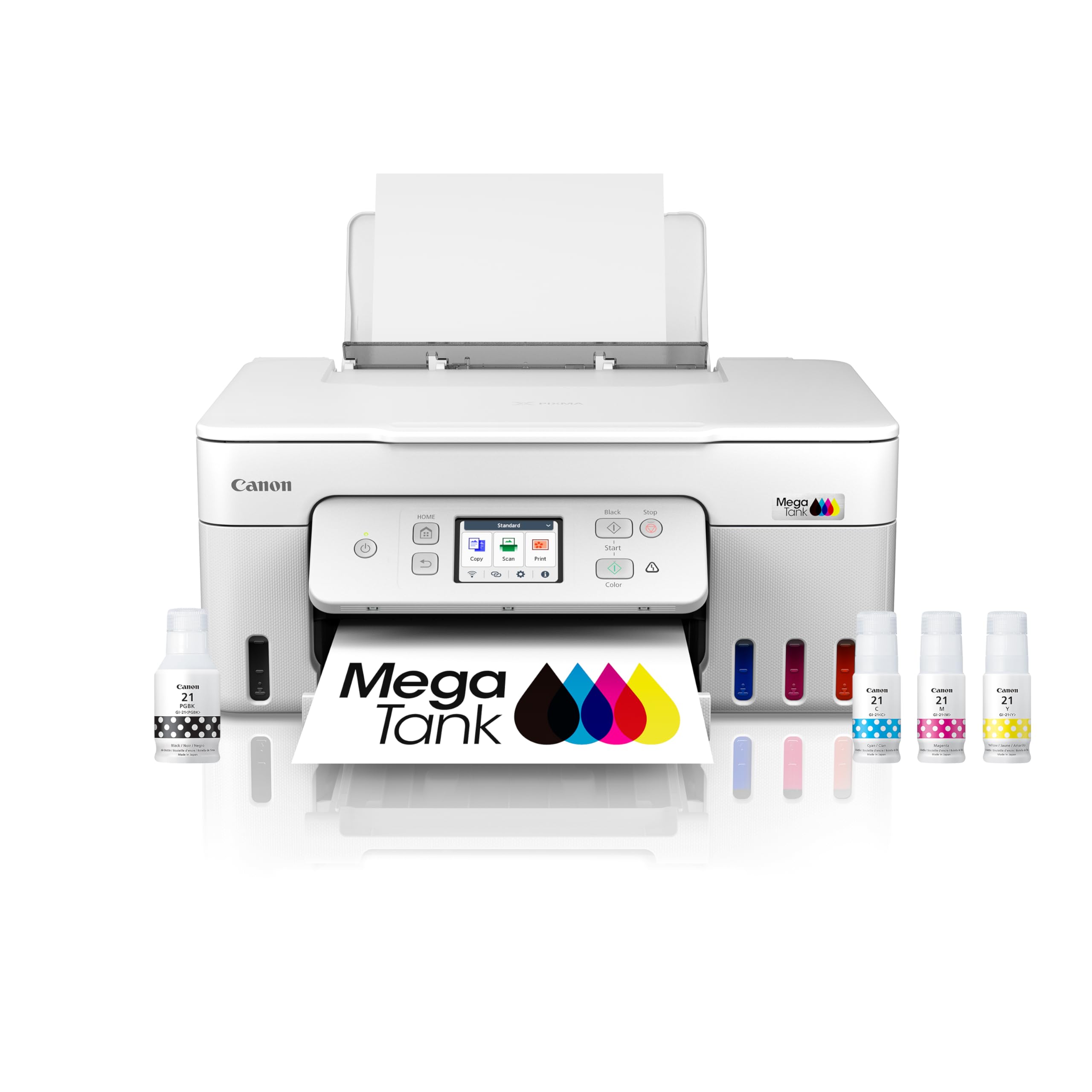
Two years of ink, a 2.7-inch touchscreen, and honest 11-page-per-minute speed for the tier.
You get up to 2 years of ink in the box, and a single set of bottles is rated for up to 6,000 black and 7,700 color pages — the cheapest route into refillable ink without falling back to cartridge costs. Speed is the trade: it prints 11 pages per minute in black and 6 in color, noticeably slower than the Epson EcoTank ET-4950 at 18 black and 9 color. For a household printing a few pages at a time, the 11-versus-18 ppm gap rarely shows.
Setup here is the quiet win. It takes 30 to 40 minutes guided from the printer’s own screen, with no Wi-Fi fights, and owners describe the ink loading as simple. The chassis is lightweight and sturdy, the on-screen guide walks you through the print-head drawer, and Canon’s Connect app gets a MacBook or phone on the network quickly. The user-replaceable ink maintenance box is a real long-term plus — it avoids a service-center trip when the waste pad fills.
Color print quality is the honest trade. Glossy prints can smear unless you set both your computer and the printer to glossy photo paper, and one buyer had to have a replacement unit due to a faulty sensor in the lid — the kind of thing that resolves quickly when the machine is handled, but worth knowing. Text on plain paper is solid; color work needs a little attention to paper settings. At 4.0+ stars across 800+ ratings, customers note it lands in the reliable-tank category — good for anyone who wants ink economy without paying for speed.
The money angle: 6,000 black / 7,700 color pages from one set of bottles makes this the lowest ink-cost route in the list.
What to expect from color: glossy output needs matching paper settings on both ends to avoid smearing.
Pick it when: you want tank printer economy without stretching to the faster Epson.
skip it if: you print glossy color regularly — the tuning overhead gets old fast.
9. Canon PIXMA TS7720 Printer

A compact, cartridge-based all-in-one that trades the ink tank for a smaller footprint and a simpler install.
It fits a full print, copy and scan all-in-one into the smallest desk space here. It prints 15 black pages per minute and 10 color — matching the HP Envy 7975 for black text, though it lags on color by a page. Automatic duplex (prints both sides without a manual reload) and a 2.7-inch LCD touchscreen (a screen you tap to control it) come built in. It runs on just two ink cartridges (PG-285 black and CL-286 color), the least messy cartridge change on this list — no bottles, no funnels, no ink on your hands.
The MacBook experience is the appeal. On-screen setup is short enough for a non-technical household, phone printing works quickly, and the printer slots into a home desk without a second thought. It comes with rear and front media inputs so you can load photo paper separately, and 4×6 photo prints come out fair for family prints. Wireless printing from a MacBook or iPhone over the network works out of the gate for most setups.
Two catches show up repeatedly. First, the auto-off timer defaults to a four-hour window, so the printer can drop off the network when it goes to sleep — the fix is adjusting Auto Power On in settings. Second, a few owners have hit a dead color channel on the first test page or a jam in duplex, which is the sort of thing that can be a bad shipping unit rather than a model flaw. For a lightweight home printer, the trade is PG-285/CL-286 cartridge cost versus the simple, small package. The two-cartridge setup makes replacement easy, but you will be replacing them more often than a tank model.
Best feature for a small desk: a full all-in-one on a compact chassis with a 2.7-inch touchscreen and dual cartridge slots.
The trap to watch: a default four-hour auto-off drops it off Wi-Fi until you change the setting.
Go for it if: you print a few pages a week and want something small and simple on a MacBook.
Look past it if: you print thousands of pages a month — cartridge costs add up fast.
Know the Specs
AirPrint and dual-band Wi-Fi
AirPrint is Apple’s built-in printing protocol — it lets a MacBook find a printer on the same network and print without a driver download. Dual-band Wi-Fi covers both 2.4GHz and 5GHz networks; 2.4GHz reaches farther, 5GHz runs faster and cleaner. Wi-Fi Direct is the fallback for printing directly from a phone without a router. A printer that supports AirPrint and both bands is the most friction-free for a Mac household. Always confirm it is in the printed spec list rather than on the box art, since compatibility claims vary.
Pages per minute and duplex
Pages per minute (ppm) is how fast the printer outputs pages, and black and color figures are often different — a 15/10 rating means 15 black pages and 10 color pages in a minute. Duplex printing means the machine flips the sheet and prints both sides without a manual reload; automatic duplex is built in, while manual duplex means flipping it yourself. If two-sided printing matters, check the spec sheet for the word “automatic” — it is among the most commonly assumed features that is not present across the whole category.
Ink tanks versus cartridges
A tank printer (sometimes called a supertank) has built-in reservoirs you refill from bottles; a cartridge printer uses sealed ink boxes you swap out. Tank models cost more up front but drop the cost per page sharply because the ink inside the bottle is not paying for plastic packaging. Cartridge models are cheaper to buy but cost more per page, and they come with chip-lock protections on some brands that stop third-party cartridges from working.
Laser versus inkjet
A laser printer fuses dry toner powder onto the page with heat; an inkjet sprays liquid ink. Lasers run faster and handle black-text volume better, and toner lasts a long time in storage. Inkjets handle color and photo output better and cost less up front. For a MacBook home office that prints mostly documents, a laser’s toner lasts longer in storage; for photos, an inkjet is the better tool.
Common Questions
Will these printers work with a MacBook without installing extra software?
Can I print from an iPhone or iPad to the same printer as my MacBook?
How long does the ink last in an EcoTank compared with a cartridge printer?
Do all of these printers print on both sides of the paper?
Is a laser printer better than an inkjet for a MacBook home office?
Can I use third-party ink or toner instead of the manufacturer’s brand?
Which of these is best for printing photos on glossy paper?
How long does setup take on these printers?
Do these printers need a wired USB connection to a MacBook?
The Bottom Line
Which MacBook compatible printer is worth buying depends on how you actually print. If you want one machine that does everything and never makes you buy a cartridge again, the Epson EcoTank ET-4950 is the strongest all-rounder on the list — it beats the Canon Megatank G3290 on both black (18 vs 11 ppm) and color (9 vs 6 ppm) speed while still shipping with enough ink for thousands of pages. For a busy color office, the Brother MFC-L3780CDW pulls ahead on raw throughput and single-pass duplex scanning (scans both sides in one pass). And if your desk only prints black text, the Brother HL-6210DW is the one to reach for, with a 520-sheet tray and 50 ppm that no color printer in this lineup can match.
Whichever way you lean, buy on what you actually print this month — invoices and forms point to a laser, photos to an inkjet. The one honest nudge: the ET-4950’s tank system pays back on ink faster than any cartridge model here, so if you print more than a few pages a week, its 6,600-page black ink bundle makes it the cheaper long-term buy.
How we choose
We do not accept paid placement. Every pick is matched to a real buyer and a real use-case; we do not hands-on test units.
Sources
Specifications: manufacturer listings and product documentation. Review insights: verified customer reviews, as of October 2026. Pricing: not shown on this page (it changes often); check the current price via the retailer link.
As an Amazon Associate, Aappliancez earns from qualifying purchases. This does not affect which products we feature.